1
Logitech: Camera Settings
Once the camera is installed, it is easy to check and modify settings as required.
NOTE: If there are any problems with the camera during a videoconference, it is recommended
®
®
to exit the desktop videoconferencing software, and check settings in Logitech QuickCam .
To start QuickCam:
Click
, then
and then
Select
.
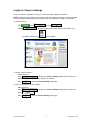
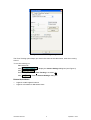
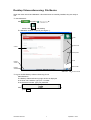
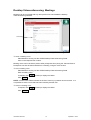
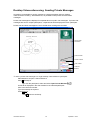
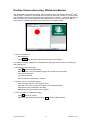
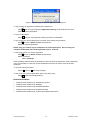
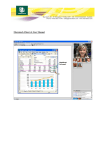
to open the Logitech QuickCam window (see Figure 1) or
if available, double click
on the desktop.
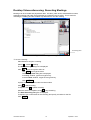
Figure 4: Logitech QuickCam window
To modify camera settings:
Start QuickCam.
Click
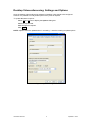
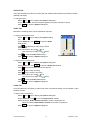
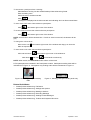
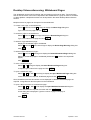
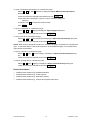
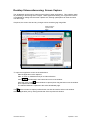
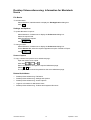
to display the Camera Settings dialog box (see Figure 2).
Select the required tab and make changes as required.
Click
to close the Camera Settings dialog box.
To return to the default camera settings:
Start QuickCam.
Click
Click
Click
Information Services
to display the Camera Settings dialog box (see Figure 2).
.
to close the Camera Settings dialog box.
5
Updated: 2-Jul-07