1
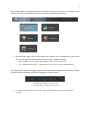
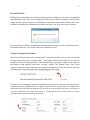
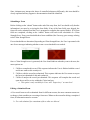
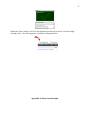
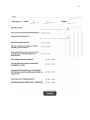
21 Since claimants may interpret the abuse of controlled substances differently, this item should be clearly explained and any supportive documentation should be identified. Submitting a Form Before clicking on the “submit” button at the end of the entry form, the User should verify that the information is accurate by reviewing the form fields. If any of the form fields were skipped, the form will not be submitted and the User is prompted to complete the required field(s). If all form fields are completed, clicking on the “submit” button will result in the calculation of a Claim Strength Score. If any score thresholds have been established, the User may get a message relating to the Claim Strength Score. If score thresholds are determined, depending on Claim Strength Score, the User is presented with one of two messages indicating whether or not a score threshold was reached: Once a Claim Strength score is generated, the User should indicate what they want to do next; the menu options are: 1. I’d like to complete this record: This response indicates the User is finished with the record and do not want to edit or analyze it. 2. I’d like to edit the record just submitted: This response indicates the User wants to reopen the form just submitted to edit and resubmit it. 3. I’d like to analyze the record just submitted: This response will complete the record and open the record for review within the Claim Analyzer. a. This option is only available for Users with “Supervisory” account level. Editing a Submitted Form A User would want to edit a submitted form for different reasons; the most common reasons are to change a claim condition or correcting a form error. Whatever the reason for editing a completed form, all information must be accurate. For each submitted for a maximum of three edits are allowed.