1
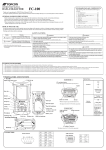
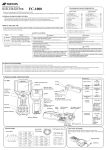
PREPARATION FOR USE Battery Battery Installation There are two ways to charge the battery as follows. Battery Charging (Using BC-30) Charge LED BT-62Q BC-30 1 Install the battery on the BC-30. 2 Plug the power cord in an outlet.(AC-120V or 230V) Charging is completed after approximately 3 hours. 1 Remove the handstrap from the FC-2000. 2 Using a coin, loosen the screw on the battery cover. 3 Remove the battery cover. 4 Install the battery pack. 5 Using a coin, install the battery cover. Tighten the The Power LED of BC-30; Red ON screw firmly. : Power is on. The Charge LED of BC-30 will indicate charging status; On Solid Red ON On Solid Red Flashing : : : : Wait for charging. Charging. Charging completed. Charging error. Power LED Charge LED AD-9B/7C Battery Charging (Using AD-9B/7C) Replacement of Battery • When the battery is replaced, the data recorded in memory will be lost. To protect the data, first execute “RAM Data Backup”, then replace the battery. 1 After installing the battery, plug the connector of AD-9B/7C in the FC-2000. 2 Plug the AD-9B/7C in an outlet. Then the run charge LED will Note light. Charging is completed after approximately 5 hours. The display can be turned on or off by the power key. 1)Recharging should take place in a room with an ambient temperature range of +10°C to +40°C (+50°F to +104°F). 2)The battery source will discharge when stored and should be checked before using with instrument . 3)Be sure to charge a stored battery source every 15 days and store in a place at 30°C and below when it will not used for a long period. If you allow the battery to be completely discharged, it will have an effect on the overall performance for proper charging in the future. 4)The charger may develop heat while charging, there is no problem of it. 5)If charging is done at high temperature, charging time of the battery may take longer. The Charge LED of FC-2000 will indicate charging status; Red ON Green ON Red Flashing : Charging. : Charging completed. : Charging error. Connector Note: The instrument may develop heat while charging, there is no problem of it. Touch Screen Stylus pen Adjusting Touch Screen Targets 1 Tap [Start], [Setting], [Control Panel], [Stylus], [Calibration], [Recalibrate] or turn on the instrument after hard-reset. 2 Using a stylus pen, touch the center of the targets. 3 After touching all targets (5 points), press [ENT] key, or tap the display. (Use an accessory stylus pen to touch a screen. Do not use neither a ball-point pen nor pencil.) RAM DATA BACKUP TRANSMITTION DATA TO THE PC Interface Cable 1 Install ActiveSync in your PC (if it is not already installed). 2 Connect the FC-2000 to your PC with an interface cable F-25 as shown below. FC-2000 PC Interface(USB) cable F-25 If your device had not recharged during several days, the battery will be running down, and you would lose all of data on the device other than that in the "CF Card (internal CF card)". In addition, you might perform hardware-reset by the hardware problem or software problem. In this case, you would lose all data same as the above. You can use Backup function of FC-2000 in order to evade such kind of uneasiness. Your data will be restored to latest condition* automatically when rebooting by using the Backup function. The Backup function saves all data files of RAM (except for OS files), registry file and additionally installed programs into named "Backup" folder in the "CF Card". * Restoring former backed up data may be incomplete if you upgrade OS version. * The conditions that you executed the backup function last. USB port (Type Mini-B) Execute the Backup function * USB port (Type A) 3 The FC-2000 will give the prompt, “Connecting to Host”. 4 The PC will prompt you to set up a partnership or set up as a guest. 5 Select the [NO] key to setting up as a guest. 6 Press the [Next] key. Once a connection has been established, the ActiveSync window will appear on your PC. 7 Click the [Explorer] icon. You will then see the FC-2000 file structure. Reference software for Connectivity See the WEB page as follows. http://www.microsoft.com/windowsmobile/ 1 Tap the icon "Start"-"Settings"-"Control Panel"-"System"-"Backup". You can see the "RAM" screen on Display. 2 Tap the "RAM data backup" button. Backup function will start. Return to "RAM" screen automatically, when the data back up has been completed. 3 Tap the button "OK" on title bar. After that "RAM backup" screen will close automatically. * Backing up data may be incomplete if remaining capacity of "CF Card" is not enough. Please make sure the remaining capacity of "CF Card" before proceeding to the data back up. * Restoration will be impossible if you delete the "Backup" folder in the "CF Card". Set the Automatic Backup for every suspension 1 On the "RAM Backup" Screen, please check it 'ON' "RAM data will be backed up before suspension".(Factory setting is 'OFF' as default) 2 Tap the button "OK" on title bar. After that, "RAM backup" screen will close automatically. Set the restoration disabled after hard reset 1 On the "RAM Backup" Screen, check it 'OFF' the "Data restoration after hard reset." (Factory setting is 'ON' as default) 2 Tap the button "OK" on title bar. After that, "RAM backup" screen will close automatically. STORAGE PRECAUTIONS SPECIFICATIONS Microprocessor : XScale PXA 255 Processor speed : 400MHz Operating system : Microsoft Windows CE.NET 4.2 Memory : 64MB RAM 64MB/128MB flash disc (internal) Display : 320x240 QVGA (color) 3.5 inch TFT Transflective type Illumination : LED back light Key board : 56 key keyboard with separate alpha and numeric Pen touch screen : Resistive touch screen/passive Pen digitization Interface : RS-232C serial (D-sub 9) RS-232C serial (6 pin) USB(1.1) (Mini-B) CompactFlash : Type I / ll External power : 12V 1A (max) Audio : Sealed Speaker (mono) Sealed Microphone Durability : IP66 (Based on the standard IEC 60529) *1) *1) With the caps Always clean the instrument after use. Use a clean cloth moistened with neutral detergent or water. Never use an abrasive cleaner, ether, thinner benzene, or other solvents. Always make sure the instrument is completely dry before storing. Dry any moisture with a soft, clean cloth. FCC conditions This device complies with Part 15 of the FCC Rules. Operation is subject to the following two conditions: (1) This device may not cause harmful interference. (2) This device must accept any interference received, including interference that may cause undesired operation. TOPCON POSITIONING SYSTEMS, INC. 5758 West Las Positas Blvd., Pleasanton, CA 94588, U.S.A. Phone: 925-460-1300 Fax: 925-460-1315 www.topcon.com TOPCON CALIFORNIA 3380 Industrial Blvd, Suite 105, West Sacramento, CA 95691, U.S.A. Phone: 916-374-8575 Fax: 916-374-8329 : : Designed to protect falling on the hard surface from 1.0m above the ground. EMC : CE, FCC TOPCON S.A.R.L. Battery BT-62Q : Li-ion rechargeable Battery 7.4V 2200mAh (This battery does not contain mercury.) TOPCON ESPAÑA S.A. Operating time : 20 hours (Typical use ) 45 hours (With no display light, no touch) TOPCON SCANDINAVIA A. B. Charging time -20°C to +50°C (-4°F to +122°F) Essebaan 11, 2908 LJ Capelle a/d IJssel, The Netherlands. Phone: 010-4585077 Fax: 010-4585045 www.topconeurope.com IRELAND OFFICE : : -30°C to +60°C (-22°F to +140°F) Approx. 3 hours with BC-30 Approx. 5 hours with AD-9B/7C Dimensions : 255x130x61(mm) Weight : 0.8kg(with battery) Bluetooth™ and the Bluetooth™ logos are trademarks owned by Bluetooth™ SIG, Inc., USA. Blk 192 Pandan Loop, #07-01 Pantech Industrial Complex, Singapore 128381 Phone: 62780222 Fax: 62733540 www.topcon.com.sg TOPCON AUSTRALIA PTY. LTD. Unit 18, 4 Avenue of Americas Newington NSW 2127, Australia Phone: 02-8748-8777 Fax: 02-9647-2926 www.topcon.com.au TOPCON INSTRUMENTS (THAILAND) CO., LTD. TOPCON EUROPE B.V. Operation Temperature Storage Temperature Protection against shock TOPCON SOUTH ASIA PTE. LTD. Unit 69 Western Parkway Business Center Lower Ballymount Road, Dublin 12, Lreland Phone: 01460-0021 Fax: 01460-0129 77/162 Sinn Sathorn Tower, 37th Fl., Krungdhonburi Rd., Klongtonsai, Klongsarn, Bangkok 10600 Thailand. Phone: 02-440-1152~7 Fax: 02-440-1158 TOPCON INSTRUMENTS (MALAYSIA) SDN. BHD. TOPCON DEUTSCHLAND G.m.b.H. Giesserallee 31, 47877 Willich, GERMANY Phone: 02154-885-100 Fax: 02154-885-111 [email protected] www.topcon.de 89, Rue de Paris, 92585 Clichy, Cedex, France. Phone: 33-1-41069490 Fax: 33-1-47390251 [email protected] Excella Business Park Block C, Ground & 1st Floor, Jalan Ampang Putra, Taman Ampang Hilir, 55100 Kuala Lumpur, MALAYSIA Phone: 03-42701068 Fax: 03-42704508 TOPCON KOREA CORPORATION 2F Yooseoung Bldg., 1595-3, Seocho-Dong, Seocho-gu, Seoul, 137-876, Korea. Phone: 82-2-2055-0321 Fax: 82-2-2055-0319 www.topcon.co.kr TOPCON OPTICAL (H.K.) LIMITED 2/F., Meeco Industrial Bldg., No. 53-55 Au Pui Wan Street, Fo Tan Road, Shatin, N.T., Hong Kong Phone: 2690-1328 Fax: 2690-2221 www.topcon.com.hk Frederic Mompou 5, ED. Euro 3, 08960, Sant Just Desvern, Barcelona, Spain. TOPCON CORPORATION BEIJING OFFICE Phone: 93-473-4057 Fax: 93-473-3932 www.topconesp.com Room 8A Poly Plaza Building, 14 Dongzhimen Nandajie, Dongcheng District, Beijing, 100027, China Phone: 10-6501-4191~2 Fax: 10-6501-4190 Neongatan 2 S-43151 Mölndal, SWEDEN Phone: 031-7109200 Fax: 031-7109249 TOPCON CORPORATION BEIRUT OFFICE TOPCON (GREATBRITAIN) LTD. Topcon House Kennet Side, Bone Lane, Newbury, Berkshire RG14 5PX U.K. Phone: 44-1635-551120 Fax: 44-1635-551170 [email protected] [email protected] P. O. BOX 70-1002 Antelias, BEIRUT-LEBANON. Phone: 961-4-523525/961-4-523526 Fax: 961-4-521119 TOPCON CORPORATION DUBAI OFFICE C/O Atlas Medical FZCO., P. O. Box 54304, C-25, Dubai Airport Free Zone,UAE Phone: 971-4-2995900 Fax: 971-4-2995901 TOPCON CORPORATION 75-1 Hasunuma-cho, Itabashi-ku, Tokyo 174-8580, Japan Phone: 3-3558-2520 Fax: 3-3960-4214 www.topcon.co.jp FC-2000 64850 90051