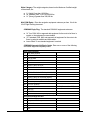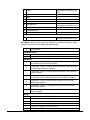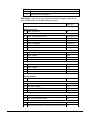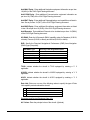
1
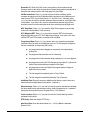
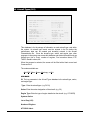
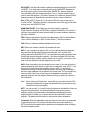
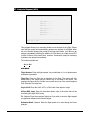
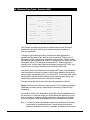
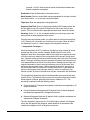
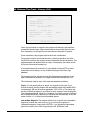
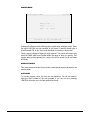
end of the file, you will be returned to the initial Video mode screen. Pressing
<ENTER> on a blank ‘Aircraft ID’ field will return you to the mode command line.
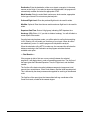
SCREEN MODE
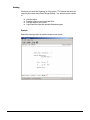
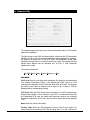
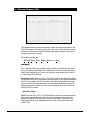
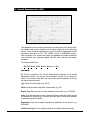
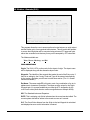
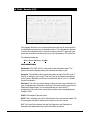
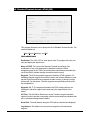
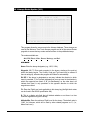
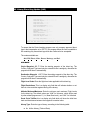
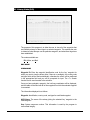
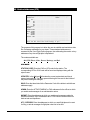
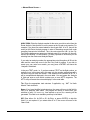
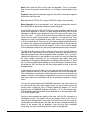
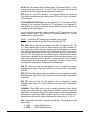
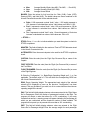
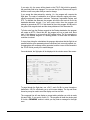
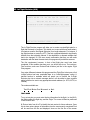
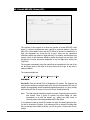
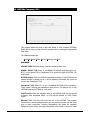
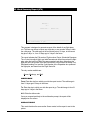
[XXS/uid] 425 AIRCRAFT MEL/CDL STATUS
{Screen-MODE}
-----------------------------------------------------------------------------REPORT SEQUENCE
ID# / TYPE / AGE {I,T,A}: .
Aircraft ID#.: ........
Aircraft TYPE: .....
Minimum AGE Reported: ..
-------------------------------------------------------------------------------
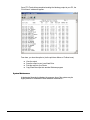
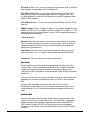
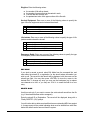
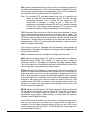
This mode allows you to generate screen reports of MEL/CDL records sorted in
various manners.
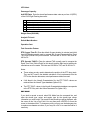
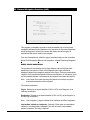
REPORT SEQUENCE: Enter <I> if you want your report sorted by specific ID
number; enter <T> for a report sorted by aircraft type; or enter <A> for a report
sorted by age, i.e., by the number of days since the item was added to the record.
If you enter <I> the cursor will move to the ‘Aircraft ID’ field; you may then enter a
particular ID number, or by pressing <ENTER>, default to ‘ALL’.
Entering <T> will move the cursor to the ‘Aircraft Type’ field. Here again you may
enter either a specific type of aircraft or default to ‘ALL’ by pressing <ENTER>.
Entering <A> will move the cursor to the ‘Minimum Age Reported’ field. Enter the
least number of days you wish to have reported. For example, if you only want to
see those items which have been on file for more than 30 days, enter <30>. The
report will group all entries by their age.
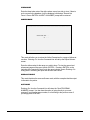
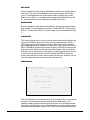
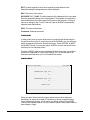
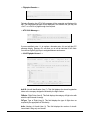
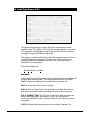
HARDCOPY MODE
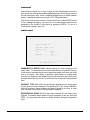
This mode offers the same selections as the Screen mode, but the report is piped
to the printer.
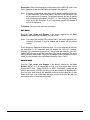
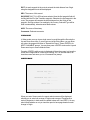
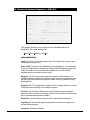
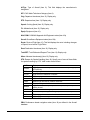
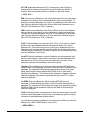
QUIT MODE
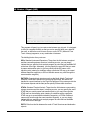
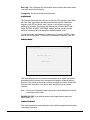
This mode allows you to exit this program and go directly to another program, or
to return to the last menu.
CTO TERMINAL – USER MANUAL
PAGE 26-3