1
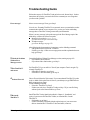
6 Test the offending
command.
Test the offending command.
+ If it works, you have successfully solved the problem.
- If the command does not work, go to Step 7.
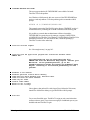
7 Back up, then restore.
Make an Emergency Backup Set using Backup from the Tools menu or TWZIP
(Windows/DOS only...use third-party tools on the Macintosh). Do not overwrite
your existing Backup Sets! Then restore using Backup's restore option (or
TWUNZIP) and your most recent Backup Set (either A or B). Perform First Aid
(from the Tools menu). Exit TimeWise™. Try to launch TimeWise™ again.
+ If TimeWise™ will not launch, try Step 7 again with your second most recent
Backup Set. If it still will not launch, contact TimeWise technical support.
- If TimeWise™ launches, go to Step 8.
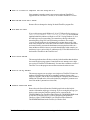
8 Test the offending
Test the offending command.
+ If it works, go to Step 9.
- If the command does not work, go to Step 7, but use your least recent backup
this time.
command.
9 Decide which set of
files to proceed with.
TimeWise™ is working again; however, some or all of your current information
files are corrupt. TimeWise™ now contains the information from the backup you
restored in Step 7. TimeWise™ is now as it was the day you made that backup. The
Emergency Backup Set contains an up-to-date version of your corrupted files. If you
would like to try to fix them, contact us.
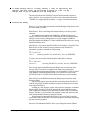
10 Check your hard
In Windows or DOS, run SCANDISK. Refer to your Windows/DOS
documentation for information on how to use SCANDISK and how to interpret its
report. If SCANDISK is unavailable, use CHKDSK instead. (You cannot run
CHKDSK on a network drive. Boot the server computer without loading the
network, then run CHKDSK. If using Netware, this will not work: you must instead
use Novell's own disk checking utility program.)
disk's health.
On a Macintosh, use Disk First Aid found in your Apple Extras Folder, or a thirdparty utility such as Norton Disk Doctor.
+
-
If your hard disk is healthy, go to Step 4.
If you have a technical problem, fix your hard disk with the help of your
computer dealer. If TimeWise™ still does not work, continue from Step 5.
Also, check for viruses. They can do all sorts of nasty things. Use a program such as
Symantec Anti-virus to search out and remove viruses.
TimeWise™ User's Manual
Appendix A
TROUBLESHOOTING
277