1
Peekel Instruments B.V.
User manual PICAS V2.1
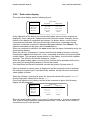
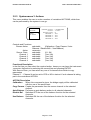
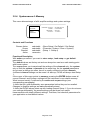
Adjustable fields require manually introduced numbers (like BRIDGE-VOLT in the
GENERAL channel menu) and can be set by pressing the ENTER key. This will
move the cursor to the right and makes it a small edit- (underline-) character. Then
the numbered keys, the decimal dot, the +/- key and/or the exponent-keys can be
used to type the required value.
The <-EXP and EXP-> -keys switch the value-suffix or the physical unit suffix
between
p, n, µ, m, none, k, M, G and T for micro, milli, none, kilo, mega, giga en tera.
Use ENTER to accept this edited value or CANCEL to restore the previous value.
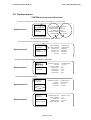
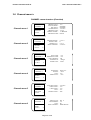
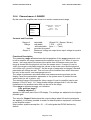
Notice that, when channel-information is shown, at the bottom-left of the screen a
measurement of the amplifier-output voltage is shown.
This enables directly viewing the effect of the settings on the amplifier-status.
3.3.4 Navigating the ComPanel-Display at the PC
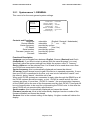
If an interface-cable is connected between a PC and PICAS, the COMPANEL
software on your PC can be used to perform the same functions as described for the
LCD-display. Both, PC display and LCD-display settings are always synchronized.
This is for both PICAS versions: with display and pushbuttons or the LED-version.
Changes in either display will always be reflected in the other. In fact, the ComPanel
display is a direct copy of the PICAS display.
Operation of ComPanel is very much the same as operation of PICAS itself (see
above). You can click with the mouse on a key on the screen as if you were pressing
the same key on the PICAS-frontpanel.
Some things are made easier though:
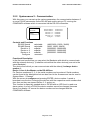
While editing a number or text (if the cursor has to the correct position) the normal
number- and character-keys on the PC-keyboard can be used. The ESCAPE-key
simulates the CANCEL-key on PICAS.
Browsing through the menu’s, as with the -MENU+ keys, can also be done with the
combination of the alt- and left/right keys. It is also possible to click in the displayarea on the position of the menu-number or menu-text at the left. Clicking at the left
of it decreases the menu and clicking at the right of it increases the menu.
Selecting another channel-number, as normally done with the -CHANNEL+ keys,
can also be done with the combination of the ctrl and left/right-keys. It is also
possible to click in the display-area on left or right of the channel-number.
Selecting a line or parameter, as done with the up/down keys on PICAS, can also be
done by just clicking with the mouse-pointer on the line of interest. The first click will
make the cursor move to that line.
Values that could be changed by using the left/right-keys can now also be modified
by clicking on the line or parameter while the cursor is at the same position. Note
how clicking on the left or right of the semicolon (;) simulates the left/right PICASkeys.
Page 21 of 38