1
AppXICUG.book Page 1 Thursday, November 1, 2007 7:07 PM
EMC® ApplicationXtender®
Image Capture
5.40
User’s Guide
P/N 300-005-638
REV A01
EMC Corporation
Corporate Headquarters:
Hopkinton, MA 01748-9103
1-508-435-1000
www.EMC.com
AppXICUG.book Page 2 Thursday, November 1, 2007 7:07 PM
Copyright © 1994–2007 EMC Corporation. All rights reserved.
Published November, 2007
EMC believes the information in this publication is accurate as of its publication date. The information is
subject to change without notice.
THE INFORMATION IN THIS PUBLICATION IS PROVIDED “AS IS.” EMC CORPORATION MAKES NO
REPRESENTATIONS OR WARRANTIES OF ANY KIND WITH RESPECT TO THE INFORMATION IN THIS
PUBLICATION, AND SPECIFICALLY DISCLAIMS IMPLIED WARRANTIES OF MERCHANTABILITY OR
FITNESS FOR A PARTICULAR PURPOSE.
Use, copying, and distribution of any EMC software described in this publication requires an applicable
software license.
For the most up-to-date listing of EMC product names, see EMC Corporation Trademarks on EMC.com.
All other trademarks used herein are the property of their respective owners.
2
ApplicationXtender Image Capture User’s Guide
AppXICUG.book Page 3 Thursday, November 1, 2007 7:07 PM
Contents
Preface.............................................................................................................................. 9
Chapter 1
Getting Started
Introduction to ApplicationXtender Image Capture ................... 14
Topic Summary ................................................................................. 15
Introduction to AppXtender and AppXtender Image Capture
Concepts ............................................................................................. 16
Glossary of AppXtender and AppXtender Image Capture
Terms ........................................................................................... 16
How is Content Organized in AppXtender and AppXtender
Image Capture? .......................................................................... 20
How Does AppXtender Image Capture Work with
AppXtender?...................................................................................... 22
ApplicationXtender Image Capture on the Network........... 23
License Server............................................................................. 25
Data Source Selector.................................................................. 25
ApplicationXtender Application Generator .......................... 25
How Batches are Stored and Displayed in AppXtender Image
Capture ............................................................................................... 26
Supported Files .......................................................................... 27
Unsupported Files ..................................................................... 30
Selecting Data Sources ..................................................................... 32
Specifying Multiple Data Sources ........................................... 32
Specifying a Default Data Source ............................................ 34
Starting ApplicationXtender Image Capture................................ 35
Variations on Login Procedures............................................... 37
New Login .................................................................................. 38
Logging into Multiple Data Sources ....................................... 39
AppXtender Image Capture Views ................................................ 40
ApplicationXtender Image Capture User’s Guide
3
AppXICUG.book Page 4 Thursday, November 1, 2007 7:07 PM
Contents
Applications View .....................................................................
Batch Display View ...................................................................
AppXtender Image Capture Toolbars............................................
Main Toolbar ..............................................................................
Annotation Toolbar ...................................................................
Image Toolbar.............................................................................
Scan Toolbar ...............................................................................
Chapter 2
40
40
42
42
44
46
48
Configuring AppXtender Image Capture
Introduction to Configuration ........................................................ 52
Selecting a Scanner ........................................................................... 53
Optional Scanning Configurations ................................................ 55
Scan Feeder Options.................................................................. 55
Automatic Enhancement .......................................................... 56
Resolution Settings .................................................................... 57
Mode Settings............................................................................. 57
Page Size Settings ...................................................................... 58
Source Setting............................................................................. 58
Automatic Rotation ................................................................... 59
Scanner Driver Configuration ................................................. 60
Configuring Toolbars, Title Bar, and Status Bar ........................... 61
Displaying or Hiding a Toolbar............................................... 62
Changing the Size of Toolbar Buttons .................................... 62
Customizing Toolbars ............................................................... 63
Configuring the Title Bar.......................................................... 64
Displaying or Hiding the Status Bar....................................... 65
Print Setup ......................................................................................... 66
Using Sticky View............................................................................. 67
Saving Sticky View Settings ..................................................... 68
Customizing AppXtender Image Capture Views ........................ 69
Docking a View.......................................................................... 69
Displaying a View as a Dialog Box ......................................... 70
Displaying a View as Subwindow .......................................... 71
Hiding a View on Use ............................................................... 71
Opening the AppXtender Image Capture Configuration Dialog
Box ...................................................................................................... 73
View Tab............................................................................................. 74
Image Size Options.................................................................... 74
Zoom Settings are Pixels........................................................... 75
Scale-to-Gray .............................................................................. 76
Use KeyView to Display Foreign Files ................................... 76
Use Acrobat Reader to Display PDF Files ............................. 76
4
ApplicationXtender Image Capture User’s Guide
AppXICUG.book Page 5 Thursday, November 1, 2007 7:07 PM
Contents
Restore Last Layout at Startup................................................. 76
Display Tab......................................................................................... 77
Screen DPI ................................................................................... 77
PgUp/PgDn in Dual-Page View.............................................. 78
Scan Tab .............................................................................................. 79
Enabling Image Processing Options ....................................... 79
Removing Blank Pages.............................................................. 80
Creating New Batches Using Blank Page Separators ........... 81
Synchronized Scan ..................................................................... 82
Scanner Manual Feed Timeout ................................................ 82
Chapter 3
Creating Batches
Introduction to Batches .................................................................... 86
Creating New Batches ...................................................................... 87
Deciding Which Batch Creation Method to Use ................... 87
Creating a Batch By Scanning .................................................. 88
Creating a Batch by File Selection............................................ 90
Creating Batches From a Batch Import File............................ 93
Displaying a Batch .......................................................................... 102
Support for Viewing of Imported Files in AppXtender Image
Capture ...................................................................................... 103
Viewing Batches from a Volume ............................................ 108
Adding Pages to Batches................................................................ 109
Deciding What Page Addition Method to Use.................... 110
Adding a Page by Scanning ................................................... 110
Adding a Page from the Windows Clipboard ..................... 112
Adding a Page by Importing a File ....................................... 114
Adding a Page by Dragging a File ........................................ 115
Chapter 4
Viewing and Managing Batches
Introduction to Batches .................................................................. 118
Selecting Pages to View within a Batch ....................................... 119
Next Page .................................................................................. 119
Previous Page ........................................................................... 119
Go To Page ................................................................................ 120
Viewing Multiple Batches and Pages ........................................... 121
Cascade...................................................................................... 121
Tile .............................................................................................. 121
Split View .................................................................................. 121
Page View Functions Available for Multiple Page Types.......... 123
Using Sticky View .................................................................... 123
ApplicationXtender Image Capture User’s Guide
5
AppXICUG.book Page 6 Thursday, November 1, 2007 7:07 PM
Contents
Using Zoom..............................................................................
Using Rotate .............................................................................
Using the Magnifier ................................................................
Using Scale-to-Gray ................................................................
Using Regions ..........................................................................
Viewing Specific Page Types.........................................................
Viewing Text Pages..................................................................
Viewing Foreign Files .............................................................
Batch View Properties ....................................................................
General Tab...............................................................................
Image Tab..................................................................................
Text Tab .....................................................................................
Page Information ............................................................................
Editing the Memo for a Batch .......................................................
Printing or Faxing Pages and Regions.........................................
Printing or Faxing Pages ........................................................
Printing or Faxing a Region ...................................................
Copying Pages.................................................................................
Deleting Batches and Pages...........................................................
Deleting Pages..........................................................................
Cutting Pages ...........................................................................
Deleting Batches ......................................................................
Chapter 5
Annotations
Introduction to Annotations .........................................................
Annotation Types............................................................................
Saving Annotations ........................................................................
Configuring Annotation Settings .................................................
Default Line Width..................................................................
Default Color for Highlight Annotations.............................
Default Color for Text Annotations ......................................
Default Color for Line and Shape Annotations ..................
Default Filled or Hollow Setting ...........................................
Default Redaction Setting.......................................................
Default Annotation Group .....................................................
Creating an Annotation .................................................................
Creating a Text Annotation ....................................................
Creating a Line Annotation....................................................
Creating a Shape Annotation.................................................
Creating a Highlight Annotation ..........................................
6
126
128
129
130
130
135
135
136
140
140
143
145
147
149
150
150
151
153
154
154
154
155
ApplicationXtender Image Capture User’s Guide
158
160
161
162
162
163
163
165
166
167
167
169
169
173
176
179
AppXICUG.book Page 7 Thursday, November 1, 2007 7:07 PM
Contents
Rubber Stamp Annotations ........................................................... 180
Adding a Rubber Stamp from the List of Most Recently
Used Rubber Stamps ............................................................... 180
Adding a Rubber Stamp from the Select Rubber Stamp
Dialog Box ................................................................................. 182
Overlapping Annotations .............................................................. 183
Assigning an Annotation to an Annotation Group.................... 184
Showing or Hiding Annotations................................................... 185
Hiding Annotations when Viewing Batches........................ 185
Hiding Annotations when Printing ...................................... 186
Modifying Annotation Settings..................................................... 188
Selecting Annotations.............................................................. 189
Moving Annotations................................................................ 190
Resizing an Annotation........................................................... 190
Modifying a Shape Annotation.............................................. 190
Modifying Text Annotations .................................................. 192
Printing Text Annotations.............................................................. 196
Removing Annotations .................................................................. 197
Erasing Annotations ................................................................ 198
Deleting Annotations .............................................................. 198
Chapter 6
Image Enhancement
Introduction to Image Enhancement............................................ 200
Configuring Automatic Enhancement......................................... 201
Enabling Automatic Enhancement........................................ 201
Customizing Enhancement Configuration .......................... 201
Resetting Image Enhancement Settings to Default ............. 203
Using Advanced De-skew ............................................................. 204
Minimum Detect Length......................................................... 206
Maximum Acceptable Skew................................................... 206
Character Protection ................................................................ 207
Using Advanced Registration ....................................................... 208
Horizontal/Vertical Registration ........................................... 210
Advanced Registration Settings............................................. 211
Using Advanced Dot Shading Removal ...................................... 213
Minimum Area Width ............................................................. 215
Minimum Area Height............................................................ 215
Horizontal Size Adjust ............................................................ 215
Vertical Size Adjust .................................................................. 216
Maximum Dot Size .................................................................. 216
Character Protection ................................................................ 216
Using Speck Removal ..................................................................... 217
ApplicationXtender Image Capture User’s Guide
7
AppXICUG.book Page 8 Thursday, November 1, 2007 7:07 PM
Contents
Horizontal De-Speck ...............................................................
Vertical De-Speck.....................................................................
Isolated De-Speck ....................................................................
Using Advanced Line Removal....................................................
Minimum Line Length............................................................
Maximum Line Thickness ......................................................
Maximum Line Gap ................................................................
Edge Cleaning ..........................................................................
Character Repair......................................................................
Using Advanced Inverse Text Correction ...................................
Smoothing Characters....................................................................
Using Manual Crop ........................................................................
Resizing an Image...........................................................................
Using Advanced Sub Image..........................................................
Top Edge ...................................................................................
Bottom Edge .............................................................................
Left Edge ...................................................................................
Right Edge ................................................................................
Using IntelligentCrop.....................................................................
218
218
219
220
222
222
223
223
223
224
227
229
232
234
236
236
236
237
238
Glossary ....................................................................................................................... 241
Index .............................................................................................................................. 249
8
ApplicationXtender Image Capture User’s Guide
AppXICUG.book Page 9 Thursday, November 1, 2007 7:07 PM
Preface
This document provides instructions on how to use
ApplicationXtender Image Capture to scan and manage batches of
ApplicationXtender documents.
In addition to this ApplicationXtender Image Capture User’s Guide, you
can refer to the program’s Online Help for detailed instructions on
how to use ApplicationXtender Image Capture.
As part of an effort to improve and enhance the performance and capabilities
of its product lines, EMC periodically releases revisions of its hardware and
software. Therefore, some functions described in this document may not be
supported by all versions of the software or hardware currently in use. For
the most up-to-date information on product features, refer to your product
release notes.
If a product does not function properly or does not function as described in
this document, please contact your EMC representative.
Audience
The information in this document is intended for administrators and
users who are responsible for using ApplicationXtender Image
Capture to scan and manage batches of ApplicationXtender
documents.
ApplicationXtender Image Capture User’s Guide
9
AppXICUG.book Page 10 Thursday, November 1, 2007 7:07 PM
Preface
Related
documentation
Post-release information is contained in the ApplicationXtender Release
Notes. This document is available at http://Powerlink.EMC.com.
Refer to the web site periodically to view the latest Release Notes.
Related documents include:
• ApplicationXtender Technical Notes
• ApplicationXtender Document Manager Technical Notes
• ApplicationXtender Document Manager User’s Guide
• ApplicationXtender Document Manager User’s Quick Reference
• ApplicationXtender Core Components Administrator’s Guide
• ApplicationXtender Image Capture Quick Reference
Most of these documents can be found in the Documentation
directory on the product media kit. All documents are in Adobe
Acrobat Portable Document Format (PDF), and can be viewed by
downloading and installing the Adobe Acrobat Reader. The Reader is
available from Adobe at www.adobe.com. To install and use the Reader
on the preferred platform, refer to the instructions on the Adobe web
site.
Conventions used in
this document
EMC uses the following conventions for special notices.
Note: A note presents information that is important, but not hazard-related.
!
CAUTION
A caution contains information essential to avoid data loss or
damage to the system or equipment. The caution may apply to
hardware or software.
!
IMPORTANT
An important notice contains information essential to operation of
the software. The important notice applies only to software.
10
ApplicationXtender Image Capture User’s Guide
AppXICUG.book Page 11 Thursday, November 1, 2007 7:07 PM
Preface
Typographical conventions
EMC uses the following type style conventions in this document:
Normal
Used in running (nonprocedural) text for:
• Names of interface elements (such as names of windows,
dialog boxes, buttons, fields, and menus)
• Names of resources, attributes, pools, Boolean expressions,
buttons, DQL statements, keywords, clauses, environment
variables, filenames, functions, utilities
• URLs, pathnames, filenames, directory names, computer
names, links, groups, service keys, file systems, notifications
Bold:
Used in running (nonprocedural) text for:
• Names of commands, daemons, options, programs,
processes, services, applications, utilities, kernels,
notifications, system call, man pages
Used in procedures for:
• Names of interface elements (such as names of windows,
dialog boxes, buttons, fields, and menus)
• What user specifically selects, clicks, presses, or types
Italic:
Used in all text (including procedures) for:
• Full titles of publications referenced in text
• Emphasis (for example a new term)
• Variables
Courier:
Used for:
• System output, such as an error message or script
• URLs, complete paths, filenames, prompts, and syntax when
shown outside of running text.
Courier bold:
Used for:
• Specific user input (such as commands)
Courier italic:
Used in procedures for:
• Variables on command line
• User input variables
<>
Angle brackets enclose parameter or variable values supplied by
the user
[]
Square brackets enclose optional values
|
Vertical bar indicates alternate selections - the bar means “or”
{}
Braces indicate content that you must specify (that is, x or y or z)
...
Ellipses indicate nonessential information omitted from the
example
ApplicationXtender Image Capture User’s Guide
11
AppXICUG.book Page 12 Thursday, November 1, 2007 7:07 PM
Preface
Where to get help
EMC support, product, and licensing information can be obtained as
follows.
Product information — For documentation, release notes, software
updates, or for information about EMC products, licensing, and
service, go to the EMC Powerlink website (registration required) at:
http://Powerlink.EMC.com
Technical support — For technical support, go to EMC Customer
Service on Powerlink. To open a service request through Powerlink,
you must have a valid support agreement. Please contact your EMC
sales representative for details about obtaining a valid support
agreement or to answer any questions about your account.
12
ApplicationXtender Image Capture User’s Guide
AppXICUG.book Page 13 Thursday, November 1, 2007 7:07 PM
1
Getting Started
This section contains instructions and information essential to getting
started with ApplicationXtender Image Capture. It includes the
following topics:
◆
◆
◆
◆
◆
◆
◆
◆
◆
Introduction to ApplicationXtender Image Capture .................... 14
Topic Summary .................................................................................. 15
Introduction to AppXtender and AppXtender Image Capture
Concepts 16
How Does AppXtender Image Capture Work with AppXtender?..
22
How Batches are Stored and Displayed in AppXtender Image
Capture 26
Selecting Data Sources....................................................................... 32
Starting ApplicationXtender Image Capture ................................. 35
AppXtender Image Capture Views ................................................. 40
AppXtender Image Capture Toolbars ............................................. 42
Getting Started
13
AppXICUG.book Page 14 Thursday, November 1, 2007 7:07 PM
Getting Started
Introduction to ApplicationXtender Image Capture
ApplicationXtender Image Capture (AppXtender Image Capture) is a
batch scanning module integrated with ApplicationXtender®
(AppXtender). AppXtender Image Capture allows you to store,
retrieve, view, and process batches. Batches can be added one page at
a time or many pages at a time. A Batch List for each application is
shared between AppXtender Image Capture and AppXtender
Document Manager so that AppXtender Image Capture users can
add pages to batches in the list while AppXtender Document
Manager users are creating indexed documents from other batches in
the list.
While you are creating a batch or after a batch has been retrieved
from the Batch List in ApplicationXtender Image Capture, you can
adjust the display of the batch. Using the Print command, you can
print or fax pages from AppXtender Image Capture. The
Configuration dialog box in AppXtender Image Capture provides a
way to configure several features that affect the way AppXtender
Image Capture looks or performs.
14
ApplicationXtender Image Capture User’s Guide
AppXICUG.book Page 15 Thursday, November 1, 2007 7:07 PM
Getting Started
Topic Summary
This section contains instructions and information essential to
getting started with ApplicationXtender Image Capture. It includes
the following topics:
◆
“Introduction to AppXtender and AppXtender Image Capture
Concepts” on page 16 defines key terms that are used throughout
the AppXtender system and this manual. Reviewing these
concepts before working with AppXtender Image Capture will
help you understand the terminology used in the AppXtender
Image Capture and AppXtender Document Manager interfaces.
◆
“How Does AppXtender Image Capture Work with
AppXtender?” on page 22 describes the AppXtender modules
that are essential for AppXtender Image Capture users or for the
AppXtender administrator who configures AppXtender Image
Capture workstations. Each module serves a specific purpose.
◆
“How Batches are Stored and Displayed in AppXtender Image
Capture” on page 26 lists and describes the types of files that can
be stored and displayed in AppXtender Image Capture.
◆
“Selecting Data Sources” on page 32 describes how to specify
multiple data sources for display in AppXtender Image Capture
or AppXtender Document Manager.
◆
“Starting ApplicationXtender Image Capture” on page 35
describes how to start AppXtender Image Capture. It includes
special instructions for the first time you start AppXtender Image
Capture and the first time you start AppXtender Image Capture
with a different scanner.
◆
“AppXtender Image Capture Views” on page 40 describes each of
the AppXtender Image Capture views, which display batches, list
applications, and allow you to add and retrieve batches.
◆
“AppXtender Image Capture Toolbars” on page 42 briefly
describes each of the AppXtender Image Capture toolbar buttons.
Topic Summary
15
AppXICUG.book Page 16 Thursday, November 1, 2007 7:07 PM
Getting Started
Introduction to AppXtender and AppXtender Image Capture
Concepts
The functionality of the ApplicationXtender® (AppXtender) system
centers on a few key concepts. An understanding of these concepts
helps you use AppXtender and ApplicationXtender Image Capture
(AppXtender Image Capture) effectively.
Glossary of
AppXtender and
AppXtender Image
Capture Terms
Annotations
The AppXtender and AppXtender Image Capture terms listed in the
following topics explain the AppXtender system and its functional
components, such as the applications, documents, indexes, batches,
and pages, and how they relate with each other.
ApplicationXtender Image Capture allows you to add annotations to
the following page types:
◆
Images
◆
Text
◆
Portable Document Format (PDF) files
An annotation is a note or a shape added to a page, typically to focus
attention on a particular part of the page. You can use annotations to
comment on the contents of a page, block areas of the page from view,
or highlight important information. When you create an annotation,
it is associated with the batch page on which you created it.
Annotations are edited and stored separately from the image, but
they are displayed with the image. The types of annotations available
include text, highlighting, lines, arrows, and shapes.
Applications
An application is the highest level of organization in AppXtender and
AppXtender Image Capture. You store documents or batches in an
application and retrieve documents or batches from an application.
The AppXtender system administrator creates applications through
an AppXtender module called ApplicationXtender Application
Generator (AppXtender AppGen). During application creation, the
administrator names the application and sets up one or more index
fields for the application.
16
ApplicationXtender Image Capture User’s Guide
AppXICUG.book Page 17 Thursday, November 1, 2007 7:07 PM
Getting Started
Every time an AppXtender user stores a document in an application
in AppXtender, the user must enter index information for that
particular document into the index fields. AppXtender stores the
index information in a database so users can search it later to retrieve
documents.
However, when you store a batch in an application in AppXtender
Image Capture, you do not enter index information. Instead, you
simply give that batch a name. A batch is intended as a temporary
container for scanned pages, from which an AppXtender user can
later create indexed documents.
For more information about creating and managing applications in
AppXtender AppGen, refer to the ApplicationXtender Core Components
Administrator’s Guide.
Batches
A batch is a file or group of files stored in an application and
identified by a batch name. Each page of a batch is a single object,
such as a scanned image file or a word processing document. You
create a batch by adding an object to an application and entering a
batch name. You can then add additional objects as additional pages
of the same batch.
A batch can be as small as one page, or can contain thousands of
pages. You can store different types of data as pages within one batch.
For instance, a hospital patient’s batch could primarily contain a
patient’s scanned admission forms. After those forms have been
scanned into the batch, you can import a doctor’s report in Microsoft
Word format and an x-ray into the batch as new pages. A batch can
contain any combination of objects. For more information on the
types of files that can be stored in AppXtender Image Capture, see
“How Batches are Stored and Displayed in AppXtender Image
Capture” on page 26.
When you store a batch in an application, you must enter a batch
name. To retrieve the batch later, you display a Batch List and select
the batch name from the list. You can process (print or fax) pages
within a batch individually in AppXtender Image Capture. If you
have the proper security privileges, you can modify batches in
AppXtender Image Capture at any time.
Introduction to AppXtender and AppXtender Image Capture Concepts
17
AppXICUG.book Page 18 Thursday, November 1, 2007 7:07 PM
Getting Started
Batch Storage
Locations
The batch files (for example, scanned images, text files, other objects,
and so on) are stored in a directory designated by the administrator
as an application’s document write path. AppXtender applications
can be configured to store batches to any storage device that can be
mapped by the AppXtender workstation (such as network file server,
local hard disk, erasable and WORM optical media, and so on).
Database
A database is a collection of data tables of a particular database
format (such as Oracle or Microsoft SQL Server). AppXtender uses
databases to store application information. When an application is
created, details such as the field definitions and security information
are stored in database tables. When you create a batch in AppXtender
Image Capture, the batch name is stored in the batch table, with a
pointer to the location of the batch.
Data Source
A data source is the means by which AppXtender Image Capture
accesses data from a database. When a data source is defined, an OLE
DB data provider is configured to access the database. All of the
following characteristics in combination – where the data is stored,
the format of the data stored, and the data provider used to access the
data – make up the data source. To access AppXtender applications in
AppXtender Image Capture, you connect to the data sources for the
databases where the AppXtender applications are stored.
Documents
A document is a file or group of files stored in an application and
identified by index information in AppXtender. Each page of a
document is a single object, such as a scanned image file or a word
processing document. An AppXtender user creates a document by
adding an object to an application and entering index information in
AppXtender. The user can then add additional objects as additional
pages of the same document. Within AppXtender, users can open
batches that were created in AppXtender Image Capture and can use
the contents of the batch to create documents. When an AppXtender
user creates a document from an AppXtender Image Capture batch,
the user indexes the document.
A document can be as small as one page, or can contain thousands of
pages. AppXtender users can store different types of data as pages
within one document. For instance, a hospital patient’s document
could include a patient’s scanned admission forms, a doctor’s report
in Microsoft Word format, and an x-ray. A document can contain any
combination of objects.
18
ApplicationXtender Image Capture User’s Guide
AppXICUG.book Page 19 Thursday, November 1, 2007 7:07 PM
Getting Started
When an AppXtender user stores a document in an application in
AppXtender, the user must enter information for each of the
document’s index fields. The information acts as a label for the
document, and because the information is stored in a database, the
user can search for that "label" to retrieve the document.
To retrieve the document later, the user searches for the record of
index information entered to identify the document. When the user
makes a search request in ApplicationXtender, all records of index
information containing a match with the information requested
appears in the result set.
For more information about creating, viewing, and managing
documents in AppXtender, refer to the ApplicationXtender Document
Manager User’s Guide.
Indexes
An AppXtender index is a group of fields where information that
describes a document is stored. When an AppXtender user stores a
document in an application, the index values that the user enters
identify the document.
The index allows AppXtender users to organize stored documents
efficiently. Documents can be stored in AppXtender in random order,
and yet can still be easily retrieved, because every document stored
has an index record attached to it. AppXtender users can search all
stored index values for an application and retrieve relevant
documents.
For more information about indexing and retrieving documents in
AppXtender, refer to the ApplicationXtender Document Manager User’s
Guide.
KeyView Viewer®
The KeyView Viewer allows you to view the content of some foreign
files in AppXtender Image Capture. The major benefit of the
KeyView Viewer is that a third-party viewer, such as Microsoft Word,
is no longer needed to display the content of the files. As soon as the
content of the file is displayed, you can launch its native software
program from the Page menu so that you can edit the file.
Pages
The word "page" typically implies a single entity. However, because
AppXtender and AppXtender Image Capture support multiple object
types, a page is defined as a single object. A very long word
processing file is a page to AppXtender or AppXtender Image
Capture. A page could also be, for example, a single scanned image, a
30-minute video clip, or an audio recording.
Introduction to AppXtender and AppXtender Image Capture Concepts
19
AppXICUG.book Page 20 Thursday, November 1, 2007 7:07 PM
Getting Started
When you create a batch in AppXtender Image Capture, the object
added as the new batch is the first page of that batch. Other pages can
be added to the batch at any time in AppXtender Image Capture. You
can also print, fax, or delete pages at any time. Up to 250,000 pages
can be attached to a batch, and a page may come from one of many
different types of sources.
Redactions
How is Content
Organized in
AppXtender and
AppXtender Image
Capture?
You can use redactions to secure or hide portions of image and text
pages. Redactions are annotation shapes that are filled and opaque.
You can apply redaction to all available shapes: freehand lines,
straight lines, arrows, rectangles, rounded rectangles, and ovals.
When applied, the area of the page behind the redaction is not visible.
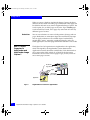
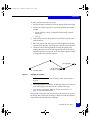
The highest level of organization in AppXtender is the application,
which is designed by the AppXtender system administrator.
Applications contain documents (and batches). Each document has
one or more index fields, which act as labels for the document.
Documents consist of one or more pages. Pages, in turn, consist of
one or more page versions.
Documents
Page Versions
Pages
Index Fields
(act as labels)
Application
Figure 1
20
Organization of Content in AppXtender
ApplicationXtender Image Capture User’s Guide
AppXICUG.book Page 21 Thursday, November 1, 2007 7:07 PM
Getting Started
The application is also the highest level of organization in
AppXtender Image Capture. In AppXtender Image Capture,
however, you can access only batches (rather than batches and
documents). A batch is intended as a temporary container for
scanned pages, from which an AppXtender user can later create
indexed documents. Each batch has a batch name, rather than index
fields. Batches are intended primarily for scanned images, but you
can also import several other file types into batches.
Batch
Pages
Application
Figure 2
Organization of Content in AppXtender Image Capture
Introduction to AppXtender and AppXtender Image Capture Concepts
21
AppXICUG.book Page 22 Thursday, November 1, 2007 7:07 PM
Getting Started
How Does AppXtender Image Capture Work with AppXtender?
ApplicationXtender Image Capture (AppXtender Image Capture) is a
scanning module integrated with ApplicationXtender (AppXtender).
Batches are scanned in AppXtender Image Capture and then released
to AppXtender for indexing. Each page in a batch can be used to
create a new document or can be added to an existing document in
AppXtender.
The AppXtender Image Capture 5.10 interface is based on the
AppXtender interface, so that you can start working immediately if
you are familiar with AppXtender. AppXtender Image Capture
contains only the features of AppXtender that are needed for
scanning batches of images into the AppXtender system.
AppXtender Image Capture allows you to store, retrieve, view, and
process batches. Batches and pages can be added one at a time, or can
be imported many at a time. A Batch List for each application is
shared between AppXtender Image Capture and AppXtender, so that
AppXtender Image Capture users can add pages to batches in the list
while AppXtender users are creating indexed documents from other
batches in the list.
Once a batch has been retrieved from the Batch List in AppXtender
Image Capture, you can adjust the display of the batch. You can print
or fax (using the Print command) pages from AppXtender Image
Capture. The Configuration dialog box in AppXtender Image
Capture provides a way to configure several features that affect the
way AppXtender Image Capture looks or performs.
AppXtender has several components, or modules, each of which
performs a specific function within the AppXtender system. Some
AppXtender modules are essential for ApplicationXtender Image
Capture users or for the AppXtender administrator who configures
AppXtender Image Capture workstations. For more information, see
the following topics:
22
◆
“ApplicationXtender Image Capture on the Network” on page 23
◆
“License Server” on page 25
◆
“Data Source Selector” on page 25
◆
“ApplicationXtender Application Generator” on page 25
ApplicationXtender Image Capture User’s Guide
AppXICUG.book Page 23 Thursday, November 1, 2007 7:07 PM
Getting Started
ApplicationXtender
Image Capture on
the Network
The modules that make up AppXtender, the files that you store and
manage through AppXtender and AppXtender Image Capture, and
the database used by AppXtender and AppXtender Image Capture
can all be located on separate computers across a network to increase
performance. When you store a batch to AppXtender Image Capture,
you are probably storing it to a location on the network rather than
onto a local computer. When an AppXtender user later uses that
batch to create indexed documents, the database that is used to store
index information is also probably on a server somewhere on the
network.
However, from your perspective as a user of AppXtender Image
Capture, database location and batch storage location are relatively
unimportant. The benefit of AppXtender Image Capture to you as a
user is that you do not have to decide where to store batches or
remember where to go to locate them. You simply open the Batch List
and select an AppXtender application to find the batches you want,
and AppXtender Image Capture knows where to go to retrieve them.
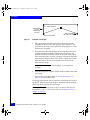
Here is an example of how AppXtender Image Capture batch storage,
indexing, AppXtender document storage, and retrieval might be set
up in an office environment:
How Does AppXtender Image Capture Work with AppXtender?
23
AppXICUG.book Page 24 Thursday, November 1, 2007 7:07 PM
Getting Started
AppXtender
Image Capture
AppXtender Database Server
XtenderSolutions License Server Microsoft
SQL Server
Index
Information
(retrieved in
AppXtender)
Index
Information
(stored in
database)
Full Text Retrieved in
AppXtender
AppXtender
Indexing
Batch files
retrieved in
AppXtender
AppXtender
Index Server
Full-text
processing of
document
occurs on Index
Server
Figure 3
24
AppXtender Full-Text
Database Server
Full text of
document
added to
Full-Text
Database
Server
AppXtender Retrieval
Workstation
Document files
stored on the
Document
Server
Batch files
stored on the
Document
Server using
DiskXtender
storage media
Document
Server
EMC
DiskXtender
Storage Media
Document
files
retrieved in
AppXtender
Example of How Batches are Stored in AppXtender Image Capture,
Indexed as Documents in AppXtender, and Retrieved in AppXtender
ApplicationXtender Image Capture User’s Guide
AppXICUG.book Page 25 Thursday, November 1, 2007 7:07 PM
Getting Started
To understand how your particular AppXtender system works, you
may want to consult your AppXtender system administrator to find
out what functionality is configured for your workstation, what
AppXtender data sources are configured for you, and what functions
you have rights to perform in AppXtender Image Capture. Having an
understanding of what functions are available to you will help you to
better understand how you can use AppXtender Image Capture.
License Server
AppXtender uses one central License Server to monitor licensing for
AppXtender and AppXtender Image Capture workstations. The
License Server is a central computer that manages licensing for all
ApplicationXtender products. For information on using the License
Server, refer to the "Licensing ApplicationXtender Products" chapter
of the ApplicationXtender Core Components Administrator's Guide.
Data Source
Selector
The Data Source Selector allows you to select or add new data
sources, modify the configuration of data sources, as well as switch
between existing data sources. If there are multiple data sources
configured in the Data Source Selector, you can designate multiple
data sources to be viewed within AppXtender Image Capture. This
allows you to view applications from all applicable data sources
during a single AppXtender Image Capture session. For information
on using the Data Source Selector, see “Selecting Data Sources” on
page 32.
ApplicationXtender
Application
Generator
ApplicationXtender Application Generator (AppXtender AppGen)
provides access to many administrative functions. In AppXtender
AppGen, applications can be created, modified, purged of index
information, or deleted. Security settings for AppXtender and
AppXtender Image Capture functions and AppXtender documents
are configured and managed in AppXtender AppGen. In addition,
administrators can use the Audit function in AppXtender AppGen to
track activity within the AppXtender system. For example, the
creation and deletion of batches can be tracked if you enable audit
trails for those items.
For more information on AppXtender AppGen, consult your
AppXtender system administrator or refer to the ApplicationXtender
Core Components Administrator’s Guide.
How Does AppXtender Image Capture Work with AppXtender?
25
AppXICUG.book Page 26 Thursday, November 1, 2007 7:07 PM
Getting Started
How Batches are Stored and Displayed in AppXtender Image
Capture
You can store any type of file in ApplicationXtender Image Capture
(AppXtender Image Capture). Depending on the file type,
AppXtender Image Capture stores the file as a supported file type
such as image or text, or as an unsupported file type such as foreign
or OLE. When files are created in AppXtender Image Capture,
AppXtender Image Capture verifies the file type and then stores the
file as the identified type (such as image, text, or foreign file format).
Many of the functions available in AppXtender Image Capture are
file-type dependent. Because AppXtender Image Capture is geared
toward providing access to as many useful functions as possible,
features are provided that can be used to work with particular file
types. However, these functions are frequently not available when
you are working with other file types.
A good example of this is the Enhance Image function. If you are
scanning an image of an invoice, for example, it might be very helpful
to use image enhancement to clean up the image during scanning
and make it easier to read. However, when you are working with a
Microsoft Word document stored as a foreign file, image
enhancement is not available (because it would not be of any use with
the Microsoft Word document).
AppXtender Image Capture has the capability to display file types in
a variety of ways. The content of supported file types can be
displayed in the Batch Display view. Depending on your AppXtender
Image Capture configuration, an unsupported file type can be
displayed as an icon representing a foreign file, through KeyView
Viewer support, or in its native application in the Batch Display view.
Note: Access to AppXtender Image Capture functionality is dependent on
the rights granted in your AppXtender user profile. For more information on
your user privileges in AppXtender Image Capture, consult your
AppXtender system administrator or refer to the "Managing Security"
chapter of the ApplicationXtender Core Components Administrator’s Guide.
26
ApplicationXtender Image Capture User’s Guide
AppXICUG.book Page 27 Thursday, November 1, 2007 7:07 PM
Getting Started
The following topics discuss how AppXtender Image Capture stores
different types of files and give a brief overview of the functions
available for files stored in each format:
Supported Files
Image Files
◆
“Supported Files” on page 27
◆
“Unsupported Files” on page 30
Supported files are files that are natively supported in AppXtender
Image Capture. Supported file types include: image files (TIFF, GIF,
Bitmap, PCX, DCX, JPEG, and TGA files, for example), Hypertext
Markup Language (HTML) files, and Rich Text Format (RTF) files.
The following topics describe the AppXtender Image
Capture-supported files:
◆
“Image Files” on page 27
◆
“Text Files” on page 28
◆
“Rich Text Format (RTF) Files” on page 29
◆
“Hypertext Markup Language (HTML) Files” on page 29
◆
“Portable Document Format (PDF) Files” on page 29
AppXtender Image Capture has the ability to store image files in their
native format or in a different format supported by AppXtender
Image Capture. Image files contain graphic data. AppXtender Image
Capture displays image files in their stored format. Depending on the
image storage format, black and white files and 4/8-bit color files can
be displayed in their native format as well as TIFF or Windows
bitmap files. True color files can be displayed in their native format as
well as TIFF, Windows bitmap, or JPEG files. If you store images
using the JPEG format, you can configure the level of compression of
the images through AppXtender Image Capture.
By default, AppXtender Image Capture stores images in their native
format (for example, a TIFF file is stored as TIFF). When you choose
to store an image type (black and white, 4/8-bit color, or true color) in
a specific image format, AppXtender Image Capture ignores the
original format and stores all images of that type in that format.
How Batches are Stored and Displayed in AppXtender Image Capture
27
AppXICUG.book Page 28 Thursday, November 1, 2007 7:07 PM
Getting Started
You add images to AppXtender Image Capture by scanning in paper
documents or by importing them. You can add annotations, enhance
the image quality (while scanning), and adjust the display of the
image in many ways to allow optimal viewing of the image. You can
also print or fax an image page. You can view page information for
image pages in AppXtender Image Capture. Batch view properties
are also available for image pages, allowing you to change display
settings from the Batch Display view.
Text Files
AppXtender Image Capture can store text files in ASCII, EBCDIC,
and EBCDIK formats. Text files can be added to AppXtender Image
Capture by importing them.
Note: By default, text files are added to AppXtender Image Capture as
foreign files. By associating the .TXT extension with the text file type on the
File Types tab in the AppXtender Image Capture Configuration dialog box,
you can cause text files to be supported in their native text format. For more
information on configuring the File Types tab, consult your AppXtender
system administrator or refer to the "Configuring AppXtender Workstations"
chapter of the ApplicationXtender Core Components Administrator’s Guide.
You can add annotations and adjust the display of the image in many
ways to allow optimal viewing of the image. You can also print or fax
a text page. You can view page information for text pages in
AppXtender Image Capture. Batch view properties are also available
for text pages, allowing you to change display settings from the Batch
Display view.
The following table provides an explanation of each supported text
format.
Table 1
28
Batch Storage Format for Text Files
Code
Description
ASCII
ASCII stands for the American Standard Code for Information Interchange. This character
set is used on most PCs, Macintoshes, and other desktop computers. A report generated on
a desktop computer is likely to be in an ASCII format.
EBCDIC
EBCDIC stands for Extended Binary Coded Decimal Interchange Code. This character set
is used on IBM mainframes. A report generated on an IBM mainframe will be in EBCDIC
format.
EBCDIK
EBCDIK is the Japanese variation on EBCDIC. This character set is used on IBM
mainframes manufactured in Japan. A report generated on a Japanese IBM mainframe will
probably be in EBCDIK format.
ApplicationXtender Image Capture User’s Guide
AppXICUG.book Page 29 Thursday, November 1, 2007 7:07 PM
Getting Started
Rich Text Format (RTF)
Files
AppXtender Image Capture stores RTF files in their native format.
You can print or fax an RTF page. Page information and batch view
properties are not available for RTF files.
RTF files are displayed in their native format. The contents of the RTF
file appears in the Batch Display view, even if you do not have the
KeyView Viewer enabled for foreign files. Because RTF is natively
supported in AppXtender Image Capture, the KeyView Viewer is not
required to view file contents.
Hypertext Markup
Language (HTML) Files
HTML files are files written in the language used for display on the
World Wide Web. A Web page is typically in HTML format.
AppXtender Image Capture stores HTML files in their native format.
The content of the HTML file appears in the Batch Display view. You
can print or fax an HTML page. Page information and batch view
properties are not available for HTML files. You can launch the file to
view it in a standard Web browser.
Portable Document
Format (PDF) Files
PDF files are files in a proprietary Adobe format. AppXtender Image
Capture stores PDF files in their native format.
PDF files are displayed in their native format. The contents of the
PDF file appears in the Document Display window, even if you do
not have the KeyView Viewer enabled for foreign files. Because PDF
is natively supported in AppXtender Image Capture, the KeyView
Viewer is not required to view file contents.
You can add annotations and adjust the display of the PDF file in
many ways to allow optimal viewing. Batch view properties are
available for PDF files. You can also perform some of the export
functions (such as printing and faxing). While using these export
functions, you may be able to hide annotations on a PDF file,
depending on the privileges assigned to your user account.
How Batches are Stored and Displayed in AppXtender Image Capture
29
AppXICUG.book Page 30 Thursday, November 1, 2007 7:07 PM
Getting Started
Unsupported Files
Unsupported files are stored in AppXtender Image Capture in their
native format. Unsupported files include foreign files and OLE files.
When you add a file of an unsupported type to AppXtender Image
Capture, it is added as a foreign file, unless you have configured the
file’s extension on the File Types tab on the AppXtender Image
Capture Configuration dialog box. For example, if you have mapped
the DOC extension to the Embedded Object file type on the File Types
tab, when you import a file with the DOC extension into AppXtender
Image Capture, it is added as an OLE object. For more information on
configuring the File Types tab, consult your AppXtender system
administrator or refer to the "Configuring AppXtender Workstations"
chapter of the ApplicationXtender Core Components Administrator’s
Guide.
For more information, see the following topics:
Foreign Files
◆
“Foreign Files” on page 30
◆
“OLE Objects” on page 31
When you import a file that is not natively supported in AppXtender
Image Capture, AppXtender Image Capture stores that file as a
foreign file. All files other than TIFF, Windows bitmaps, JPEG, TGA,
GIF, PCX, DCX, RTF, and HTML are stored in AppXtender Image
Capture as foreign files. AppXtender Image Capture stores foreign
file types in their native file format.
You can print or fax a foreign file page. You can view page
information for foreign files in AppXtender Image Capture. Batch
view properties are also available for foreign files. If you would like
to view a foreign file, you can launch the foreign file in its associated
source application to do so.
You can choose how to display foreign files in the AppXtender Image
Capture Batch Display view. If you enable the KeyView Viewer in
AppXtender Image Capture Configuration, the content of foreign
files that are supported under KeyView appear in the view. If you do
not enable the KeyView Viewer, foreign files appear as icons in the
Batch Display view.
For a list of the foreign files that can be viewed using the KeyView
Viewer feature, see “ApplicationXtender Web Access KeyView
Component File Support” on page 104.
30
ApplicationXtender Image Capture User’s Guide
AppXICUG.book Page 31 Thursday, November 1, 2007 7:07 PM
Getting Started
OLE Objects
If you have mapped an extension to the Embedded Object file type on
the File Types tab, when you import a file with that extension into
AppXtender Image Capture, AppXtender Image Capture uses Object
Linking and Embedding (OLE) to embed the file in AppXtender
Image Capture. The content of the object appears in the AppXtender
Image Capture Batch Display view. AppXtender Image Capture
stores OLE objects in their native file format. For more information on
configuring the File Types tab, consult your AppXtender system
administrator or refer to the "Configuring AppXtender Workstations"
chapter of the ApplicationXtender Core Components Administrator’s
Guide.
You can print or fax an OLE object page. You can view page
information for OLE objects in AppXtender Image Capture. Batch
view properties are also available for OLE objects.
How Batches are Stored and Displayed in AppXtender Image Capture
31
AppXICUG.book Page 32 Thursday, November 1, 2007 7:07 PM
Getting Started
Selecting Data Sources
A data source is the means by which ApplicationXtender Image
Capture stores data to a database. Multiple data sources can be
viewed simultaneously within AppXtender Image Capture. In this
way, you can access applications located on many different data
sources during a single AppXtender Image Capture session,
provided you have security rights to access those data sources.
This topic describes how to specify multiple data sources for display
in AppXtender Image Capture or AppXtender. For information on
data source creation and configuration, consult your AppXtender
system administrator or refer to the "AppXtender Data Sources"
chapter of the ApplicationXtender Core Components Administrator’s
Guide.
Note: You can save data source settings (which data sources are default and
which are selected) to a file, along with other AppXtender workstation
settings. Also, if you have such a saved settings file, you can load the data
source settings from that file. For instructions, refer to the
ApplicationXtender Core Components Administrator’s Guide.
!
CAUTION
All of the settings that you enter in the Data Source Selector are
stored in C:\Documents and Settings\All Users\Application
Data\XSCM.CONFIG. Do not edit the contents of the XSCM.CONFIG
file.
Specifying Multiple
Data Sources
If you have multiple data sources configured in the Data Source
Selector, you can designate multiple data sources to be viewed within
AppXtender Image Capture. This allows you to view applications
from all applicable data sources during a single AppXtender Image
Capture session.
Note: Even if multiple data sources are designated for viewing within
AppXtender Image Capture, only the data source designated as the default
data source can be edited using AppXtender AppGen or the import wizards.
32
ApplicationXtender Image Capture User’s Guide
AppXICUG.book Page 33 Thursday, November 1, 2007 7:07 PM
Getting Started
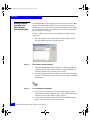
To configure multiple data sources to be viewed in AppXtender
Image Capture:
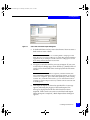
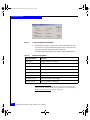
1. From the Windows Start menu, select Programs >
ApplicationXtender Desktop >Data Source Selector. The
AppXtender Data Source Selector dialog box appears.
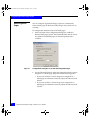
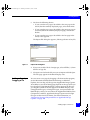
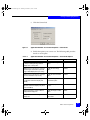
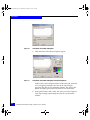
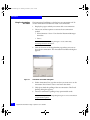
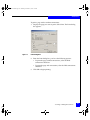
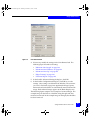
Figure 4
AppXtender Data Source Selector Dialog Box
2. Select the data source that you want to use as the default and click
Set as Default. A white check mark within a black background
( ) appears next to it.
3. Select the data source that you want to be viewable within
AppXtender Image Capture (in addition to the default data
source) and click Show/Hide. A black check mark with no
background ( ) appears next to it.
4. Repeat the previous step for each additional data source you
want to be accessible within AppXtender Image Capture.
5. Click OK or Apply. (OK saves your changes and closes the dialog
box. Apply saves your changes without closing the dialog box.)
The next time you launch AppXtender Image Capture, all data
sources that you marked with check marks are accessible.
Selecting Data Sources
33
AppXICUG.book Page 34 Thursday, November 1, 2007 7:07 PM
Getting Started
Specifying a Default
Data Source
The Data Source Selector allows you to set a data source as default.
To set a data source as default:
1. From the Windows Start menu, select Programs >
ApplicationXtender Desktop > Data Source Selector. The
AppXtender Data Source Selector dialog box appears.
2. Double-click the data source that you want to set as default. A
white check mark within a black background ( ) appears next to
the data source.
3. Click OK or Apply. (OK saves your changes and closes the dialog
box. Apply saves your changes without closing the dialog box.)
Note: You must specify a data source as default before you can close the
AppXtender Image Capture Data Source Selector dialog box.
34
ApplicationXtender Image Capture User’s Guide
AppXICUG.book Page 35 Thursday, November 1, 2007 7:07 PM
Getting Started
Starting ApplicationXtender Image Capture
ApplicationXtender Image Capture (AppXtender Image Capture) is a
scanning module integrated with ApplicationXtender (AppXtender).
Batches are scanned in AppXtender Image Capture and then released
to AppXtender for indexing.
Like AppXtender, AppXtender Image Capture is password
protected, which means that it monitors each user’s activity and
allows or denies access to certain information and functions based on
that user’s assigned privileges. Of all of the AppXtender privileges,
only the following four are necessary for functions in AppXtender
Image Capture:
◆
The Batch Scan privilege is the most essential privilege for an
AppXtender Image Capture user. This privilege is required for a
user to create or display batches.
◆
The Print privilege allows users to print or fax pages in
AppXtender Image Capture.
◆
The Configure WS privilege allows users to view all of the tabs on
the AppXtender Image Capture Configuration dialog box, rather
than just the View, Display, and Scan tabs.
◆
The AppXtender Administrator privilege allows users to reset a
batch. (Only administrative users should have this privilege.)
The system administrator assigns privileges to a user’s account.
AppXtender and AppXtender Image Capture have varying levels of
security, from initial login to document level.
The administrator can assign full system rights for all applications or
different rights from one application to another. For example, a user
may have full privileges for the "Purchase Orders" application, but
only the Batch Scan privilege for the "Human Resources" application.
Each user account is driven by the user name and password, making
this information required when logging into the system.
If you do not have an assigned user name and password, consult
your AppXtender system administrator to obtain an AppXtender
user account. If you cannot perform a particular AppXtender Image
Capture function, consult the system administrator to verify your
security privileges, or refer to the "Managing Security" chapter of the
ApplicationXtender Core Components Administrator’s Guide.
Starting ApplicationXtender Image Capture
35
AppXICUG.book Page 36 Thursday, November 1, 2007 7:07 PM
Getting Started
Note: Your login procedure may vary depending on whether you have
logged in before and depending on the security provider in use for the
current data source. For information, see “Variations on Login Procedures”
on page 37.
To start AppXtender Image Capture:
1. From the Windows Start menu, select Programs >
ApplicationXtender Desktop > AppXtender Image Capture. The
Login dialog box appears.
2. In the User Name text box, enter a user name that is valid for the
active data source.
3. In the Password text box, enter your password.
4. If you will be the only person using AppXtender Image Capture
on this workstation, you can select the Remember password
option to enable it.
Note: The Remember password option is only available if it has been
enabled for AppXtender Image Capture for your AppXtender
workstation. If the Remember password option is selected, AppXtender
Image Capture remembers the user name and password. All subsequent
logins bypass the Login dialog box. For information on disabling this
feature, see “New Login” on page 38.
5. Click Login. If the correct information has been entered,
AppXtender Image Capture starts. For more information about
built-in security in AppXtender Image Capture, consult your
AppXtender system administrator or refer to the "Managing
Security" chapter of the ApplicationXtender Core Components
Administrator’s Guide.
The status bar indicates whether a scanner is detected.
36
ApplicationXtender Image Capture User’s Guide
AppXICUG.book Page 37 Thursday, November 1, 2007 7:07 PM
Getting Started
Variations on Login
Procedures
The variations in login procedures depend on whether you have
logged in before and depend on the security provider in use for the
data source. The following table describes each variation:
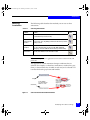
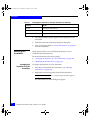
Table 2
Variations in Login Procedures
Variation
Description
If this is the first time you
are starting AppXtender
Image Capture (or if you
have connected a different
scanner to the computer)
Before you start AppXtender Image Capture, install and load the appropriate
scanner driver on the Scanning workstation. For information, consult your
AppXtender system administrator or refer to the "Planning Your
ApplicationXtender Installation" chapter of the ApplicationXtender Installation
Guide.
After you click Login, you must select the correct scanner type for the
workstation. This step is necessary to allow you to begin scanning. For
instructions, see “Selecting a Scanner” on page 53.
If the current data source is
using the CM security
provider
Passwords are not case-sensitive.
If the current data source is
using the Windows security
provider
When you attempt to start XtenderSolutions software, your current Windows
user account is checked for authentication and authorization. Depending on
your profile, you might be automatically logged into the software without a
Login dialog box.
If you want the Login dialog box to appear, press [Shift] while you attempt to
start the software and until the Login dialog box appears.
You must precede the user name with a domain and a backslash. For example,
typing CM\axadmin indicates the "axadmin" user on the "CM" domain.
Passwords are case-sensitive.
If the current data source is
using a directory service
security provider
Depending on configuration in the LDAP directory service and in AppXtender
Admin, you may need to specify user account information in multiple parts,
separated by backslashes (\). The administrator who configures directory
services in AppXtender Admin should distribute appropriate login instructions.
For instructions on configuring directory services in AppXtender Admin, refer to
the ApplicationXtender Core Components Administrator’s Guide.
Passwords are case-sensitive.
If the Remember Password
option has been enabled in
AppXtender or AppXtender
Image Capture
You are automatically logged in using your current user name and the same
logon type that had been selected the last time.
Starting ApplicationXtender Image Capture
37
AppXICUG.book Page 38 Thursday, November 1, 2007 7:07 PM
Getting Started
New Login
AppXtender Image Capture allows you to log into AppXtender
Image Capture as another user during your active session. For
example, when a system administrator wants to make a change to a
setting on the AppXtender Image Capture Configuration dialog box
and uses the workstation that Bob is logged into, he can select New
Login from the File menu and log in as SYSOP. After he makes a
change, he can select New Login from the File menu again and log
back in as Bob.
Note: If your workstation has been configured to remember a user’s
password for faster startup, keep in mind that logging in as a new user
disables the remember password feature.
Note: Your login procedure may vary depending on the security provider in
use for the current data source. For information, see “Variations on Login
Procedures” on page 37.
To log in as a new user:
1. From the File menu, select New Login. The Login dialog box
appears.
2. In the User Name text box, enter a user name that is valid for the
active data source.
3. In the Password text box, enter your password.
4. Click Login. If the correct information has been entered,
AppXtender Image Capture restarts using the new user name and
password. For more information about the built-in security in
AppXtender Image Capture, consult your AppXtender system
administrator or refer to the "Managing Security" chapter of the
ApplicationXtender Core Components Administrator’s Guide.
38
ApplicationXtender Image Capture User’s Guide
AppXICUG.book Page 39 Thursday, November 1, 2007 7:07 PM
Getting Started
Logging into
Multiple Data
Sources
If multiple data sources have been configured using the AppXtender
Data Source Selector, you can now access them all from the
AppXtender Image Capture interface. In this way, you can access
applications located on many different data sources during a single
AppXtender Image Capture session. By default, you are logged into
only one data source. To log into other data sources available in the
Applications view, use the following procedure.
Note: Your login procedure may vary depending on the security provider in
use for the current data source. For information, see “Variations on Login
Procedures” on page 37.
To log into another data source:
1. Log into AppXtender Image Capture. The AppXtender Image
Capture interface appears, with a list of available data sources
located within the Applications view.
2. You are automatically logged into the active data source (the
active data source appears in bold type, with applications
expanded, in the data source list).
3. Right-click the data source you want to log into. From the
shortcut menu that appears select Login. The Login dialog box
appears for the selected data source.
Note: As an alternative to right-clicking the data source and selecting
Login, you can click the plus (+) sign located to the left of the data source.
4. In the User Name text box, enter a user name that is valid for the
selected data source.
5. In the Password text box, enter your password.
6. If you are the only person that uses AppXtender on this
workstation, you can select the Remember password option to
remember your password when you log in.
Note: The Remember password option is only available if it has been
enabled for your AppXtender workstation. If the Remember password
option is selected, AppXtender remembers the user name and password.
All subsequent logins bypass the Login dialog box. For information on
disabling this feature, see “New Login” on page 38.
7. Click Login to log into the data source.
Starting ApplicationXtender Image Capture
39
AppXICUG.book Page 40 Thursday, November 1, 2007 7:07 PM
Getting Started
AppXtender Image Capture Views
The AppXtender Image Capture desktop consists of many views or
windows that you can customize to fit your preferences. The views
can be set to hidden or active and are dockable.
Applications View
The Applications view contains a tree structure, listing data sources
and applications.
To show or hide the Applications view:
◆
From the View menu, select Applications.
To show or hide the list of applications:
1. In the Applications view, right-click the name of the data source.
A shortcut menu appears.
2. You have the following choices:
• If you want to show the list of applications, click Expand.
• If you want to hide the list of applications, click Collapse.
To activate an application and its data source:
◆
Double-click the application name in the Applications view.
The active application and its data source are in bold in the
Applications view.
Batch Display View
The Batch Display view allows you to view a stored batch after you
have retrieved it or a new batch while you are scanning into it.
To display an existing batch in Batch Display view:
1. From the Batch menu, select List. The Batch Scan dialog box
appears.
2. In the Batches for application drop-down list, select the
application that contains the batch that you want to display. A list
of batches in the selected application appears in a table.
Note: This procedure is just an overview of the interface. If you are
reading this procedure to become more familiar with AppXtender Image
Capture, you might not have batches to work with yet. For information
on adding new batches, see “Creating Batches” on page 85.
40
ApplicationXtender Image Capture User’s Guide
AppXICUG.book Page 41 Thursday, November 1, 2007 7:07 PM
Getting Started
3. Double-click the row for the batch that you want to display. The
Batch Scan dialog box closes and the selected batch appears in
Batch Display view. For more information on displaying stored
batches, see “Displaying a Batch” on page 102.
You can use the pointer to manipulate the displayed batch in several
ways, depending on the current pointer mode. In pan mode, you can
drag the image in the view to see more of it. In selection mode, you
can select a region of the image and implement several commands on
that region.
To switch between pan mode and selection mode:
◆
Figure 5
Click the Pan Mode button on the Image toolbar.
Pan Mode Button
AppXtender Image Capture Views
41
AppXICUG.book Page 42 Thursday, November 1, 2007 7:07 PM
Getting Started
AppXtender Image Capture Toolbars
ApplicationXtender Image Capture (AppXtender Image Capture) has
three different toolbars. These toolbars provide shortcut buttons for
the most frequently used AppXtender Image Capture commands.
When the mouse pointer is held over a toolbar button, a description
of the button’s function is displayed as a tool tip and in the status bar.
Each toolbar can be displayed, customized, or hidden, depending on
your preference. For information on displaying, customizing, or
hiding a toolbar, see “Configuring Toolbars, Title Bar, and Status Bar”
on page 61.
Each toolbar is described in one of the following topics:
Main Toolbar
“Main Toolbar” on page 42
◆
“Annotation Toolbar” on page 44
◆
“Image Toolbar” on page 46
◆
“Scan Toolbar” on page 48
The Main toolbar contains buttons that allow the user to access the
essential functions of AppXtender Image Capture.
Figure 6
42
◆
ApplicationXtender Image Capture Main Toolbar
ApplicationXtender Image Capture User’s Guide
AppXICUG.book Page 43 Thursday, November 1, 2007 7:07 PM
Getting Started
The following table describes each button on the ApplicationXtender
Image Capture Main toolbar:
Table 3
ApplicationXtender Image Capture Main Toolbar Buttons
Button
Function
For More Information, See
The Applications View button shows or hides the
Applications view.
“Applications View” on page 40
The Print button prints the currently displayed page.
“Printing or Faxing Pages and
Regions” on page 150
The Cut button cuts the displayed page to the
Windows Clipboard.
“Cutting Pages” on page 154
The Copy button copies the displayed page to the
Windows Clipboard.
“Copying Pages” on page 153
The Paste button adds a new page to the displayed
batch from the contents of the Windows Clipboard.
“Adding a Page from the Windows
Clipboard” on page 112
The Configuration button opens the AppXtender
Image Capture Configuration dialog box.
“Opening the AppXtender Image
Capture Configuration Dialog Box” on
page 73
The Tile Vertically button tiles windows (such as
Batch Display view and Applications view windows)
vertically.
“Tile” on page 121
The Tile Horizontally button tiles windows (such as
Batch Display view and Applications view windows)
horizontally.
“Tile” on page 121
The Cascade Windows button cascades windows
(such as Batch Display view and Applications view
windows).
“Cascade” on page 121
The Select Scanner button opens the Select
Scanner dialog box.
“Selecting a Scanner” on page 53
The Scan Batch toolbar button opens the
ApplicationXtender Image Capture dialog box, which
allows you to begin scanning a batch into the active
application.
“Creating a Batch By Scanning” on
page 88
AppXtender Image Capture Toolbars
43
AppXICUG.book Page 44 Thursday, November 1, 2007 7:07 PM
Getting Started
Annotation Toolbar
Figure 7
The Annotation toolbar allows you to add annotations to your batch
pages. All of the functions on the Annotation toolbar can also be
accessed from the Annotate menu.
ApplicationXtender Image Capture Annotation Toolbar
This topic briefly explains each Annotation toolbar button. For more
information on annotating a page, see “Annotations” on page 157.
Note: Only users with appropriate privileges can access features in the
Annotations menu and toolbar. If you have questions about the privileges
assigned to your AppXtender user profile, consult your AppXtender system
administrator or refer to the "Managing Security" chapter of the
ApplicationXtender Core Components Administrator’s Guide.
Table 4
Button
ApplicationXtender Image Capture Annotation Toolbar Buttons
Function
Allows selection of annotations (toggle). For information, see “Modifying Annotation Settings” on
page 188.
Creates a text annotation. For information, see “Creating a Text Annotation” on page 169.
Creates a highlight annotation. For information, see “Creating a Highlight Annotation” on page 179.
Creates a freehand line annotation. For information, see “Creating a Basic Line Annotation” on
page 173.
Creates a straight line annotation. For information, see “Creating a Basic Line Annotation” on
page 173.
Creates an arrow annotation. For information, see “Creating a Basic Line Annotation” on
page 173.
44
ApplicationXtender Image Capture User’s Guide
AppXICUG.book Page 45 Thursday, November 1, 2007 7:07 PM
Getting Started
Table 4
Button
ApplicationXtender Image Capture Annotation Toolbar Buttons
Function
Creates a rectangular annotation. For information, see “Creating a Basic Shape Annotation” on
page 176.
Creates a rounded rectangular annotation. For information, see “Creating a Basic Shape
Annotation” on page 176.
Creates an oval annotation. For information, see “Creating a Basic Shape Annotation” on
page 176.
Creates a polyline annotation. For information, see “Creating a Polyline Annotation” on page 174.
Creates a polygon annotation. For information, see “Creating a Polyline Annotation” on page 174.
Erases the annotation. For information, see “Erasing Annotations” on page 198.
Creates a filled or hollow annotation (toggle). For information, see “Default Filled or Hollow Setting”
on page 166.
Creates an annotation with redaction (toggle). For information, see “Default Redaction Setting” on
page 167.
Selects the default annotation group. For information, see “Default Annotation Group” on
page 167.
Selects all annotations. For information, see “Modifying Annotation Settings” on page 188.
Brings selected annotation to front. For information, see “Overlapping Annotations” on page 183.
Sends selected annotation to behind. For information, see “Overlapping Annotations” on
page 183.
Shows or hides annotations (toggle) and allows you to hide annotations by annotation group. For
information, see “Showing or Hiding Annotations” on page 185.
Selects line width. For information, see “Default Line Width” on page 162.
AppXtender Image Capture Toolbars
45
AppXICUG.book Page 46 Thursday, November 1, 2007 7:07 PM
Getting Started
Table 4
Button
ApplicationXtender Image Capture Annotation Toolbar Buttons
Function
Selects annotation colors. For information, see “Default Color for Line and Shape Annotations” on
page 165.
Deletes the selected annotation(s). For information, see “Deleting Annotations” on page 198.
Saves all annotations.
Cancels annotation changes.
Allows you to add rubber stamp annotations to a page.
Image Toolbar
Figure 8
The Image toolbar contains buttons that allow the user to change the
Batch Display view.
ApplicationXtender Image Capture Image Toolbar
The following table describes each button on the ApplicationXtender
Image Capture Image toolbar:
Table 5
Button
46
ApplicationXtender Image Capture Image Toolbar Buttons
Function
For More Information, See
The Next Sticky View button applies the next available Sticky View
to images of the same type as the current page. You can create
Sticky Views to apply specific zoom, rotation, and scale-to-gray
settings to the currently displayed type of image.
“Using Sticky View” on
page 67
The Fit to Window button fits displayed page in the Batch Display
view.
“Fit to Window” on page 128
The Fit Height button fits displayed page in the Batch Display view
top to bottom.
“Fit to Window Height” on
page 128
ApplicationXtender Image Capture User’s Guide
AppXICUG.book Page 47 Thursday, November 1, 2007 7:07 PM
Getting Started
Table 5
Button
ApplicationXtender Image Capture Image Toolbar Buttons (continued)
Function
For More Information, See
The Fit Width button fits displayed page in the Batch Display view
left to right.
“Fit to Window Width” on
page 128
The Rotate Left button rotates displayed page 90° to the left.
“Rotate Left” on page 128
The Rotate Right button rotates displayed page 90° to the right.
“Rotate Right” on page 129
The Zoom In button zooms in on displayed page. (The image
appears larger.)
“Zoom In” on page 127
The Zoom Out button zooms out on displayed page. (The image
appears smaller.)
“Zoom Out” on page 127
The Magnifier button opens the Magnifier window.
“Using the Magnifier” on
page 129
The Previous Page button displays previous page.
“Previous Page” on
page 119
The Next Page button displays next page.
“Next Page” on page 119
The Pan Mode button switches between pan mode and selection
mode.
“Batch Display View” on
page 40
AppXtender Image Capture Toolbars
47
AppXICUG.book Page 48 Thursday, November 1, 2007 7:07 PM
Getting Started
Scan Toolbar
Figure 9
The Scan toolbar allows you to perform and configure scanning
operations. All of the functions on the Scan toolbar can also be
accessed from the Scan menu.
ApplicationXtender Image Capture Scan Toolbar
This topic briefly explains each Scan toolbar button and drop-down
list. For more information on scanning, see “Creating a Batch By
Scanning” on page 88.
Note: Only users with all of the following can access features in the Scan
menu or toolbar:
◆
Scanning hardware installed on the user's workstation
◆
The scanner drivers appropriate for the scanner installed on the
user's workstation
◆
AppXtender scanner support files installed on the user's
workstation
◆
The Batch Scan privilege assigned to the user
Note: For information on hardware and drivers, refer to the scanner's
documentation. For information on which scanners are supported with
AppXtender Image Capture, see “Selecting a Scanner” on page 53. For
information on support files and privileges, consult your AppXtender system
administrator or refer to the ApplicationXtender Desktop Installation Guide
and the ApplicationXtender Core Components Administrator’s Guide.
48
ApplicationXtender Image Capture User’s Guide
AppXICUG.book Page 49 Thursday, November 1, 2007 7:07 PM
Getting Started
Table 6
Button
ApplicationXtender Image Capture Scan Toolbar Buttons
Function
The Scan button begins a scanning session.
• If a batch is currently displayed, the Scan button creates a new page.
• If no batch is currently displayed, the Scan button opens the ApplicationXtender Image Capture
dialog box, which allows you to begin scanning a new batch into the active application.
The Rescan button repeats the previous scan. This button is available only while the most recently
scanned image is still displayed.
The Auto Feed button enables automatic feed mode. In automatic feed mode, AppXtender Image
Capture scans all of the pages in the feeder. When the feeder is empty, the scan session ends.
The Manual Feed button enables manual feed mode. In manual feed mode, AppXtender Image
Capture scans all of the pages in the feeder, and then waits for you to add more pages before the
scan session times out.
The Single Feed button enables single feed mode. In single feed mode, AppXtender Image
Capture scans only one page at a time. After each page is scanned, you must click the Scan button
again to scan the next page.
The Front Rotation button configures the automatic rotation of images as they are scanned.
The Back Rotation button configures the automatic rotation of images as they are scanned. This
button is available only when the scanner is set to scan both sides of each page, and applies to the
image that originates from the back side of the page.
The Scanner Setup button displays a shortcut menu so that you can configure scanning.
The Auto Enhance button enables or disables automatic enhancement of images as they are being
scanned.
AppXtender Image Capture Toolbars
49
AppXICUG.book Page 50 Thursday, November 1, 2007 7:07 PM
Getting Started
In addition to these buttons, the Scan toolbar also has four
drop-down lists. These lists, which are different for each scanner and
may not be available depending on the scanner type, allow you to
change the following settings for the images that you scan.
Table 7
50
Scan Toolbar Drop-down Lists
List
Function
DPI Resolution
Sets the resolution for the scanned images in dots per inch
Number of Colors
Sets the number of colors for the scanned images (for example bi-tonal, 16-Level Gray,
256-Level Gray, and 24-Bit Color)
Page Size
Sets the page dimensions for the scanned images (for example, letter, legal, or A4)
Scanner Source
Sets the number of images per page for the scanner (for example, simplex or duplex)
ApplicationXtender Image Capture User’s Guide
AppXICUG.book Page 51 Thursday, November 1, 2007 7:07 PM
2
Configuring
AppXtender Image
Capture
This section explains all of the end user configuration options in
ApplicationXtender Image Capture. For information on specific
aspects of customizing workstation settings, see the following topics:
◆
◆
◆
◆
◆
◆
◆
◆
◆
◆
◆
Introduction to Configuration..........................................................
Selecting a Scanner.............................................................................
Optional Scanning Configurations..................................................
Configuring Toolbars, Title Bar, and Status Bar ............................
Print Setup...........................................................................................
Using Sticky View ..............................................................................
Customizing AppXtender Image Capture Views .........................
Opening the AppXtender Image Capture Configuration Dialog
Box 73
View Tab ..............................................................................................
Display Tab .........................................................................................
Scan Tab ...............................................................................................
Configuring AppXtender Image Capture
52
53
55
61
66
67
69
74
77
79
51
AppXICUG.book Page 52 Thursday, November 1, 2007 7:07 PM
Configuring AppXtender Image Capture
Introduction to Configuration
Many configuration options are available to accommodate individual
preferences. Some configuration options are integral to the
functionality in ApplicationXtender Image Capture (AppXtender
Image Capture), such as scanner selection and scanning options; and
the file types and the storage formats that AppXtender Image
Capture uses.
Others are cosmetic and do not alter the way the system performs,
such as options controlling the look and feel of the main screen. You
can adjust the layout of the AppXtender Image Capture desktop and
the behavior of the AppXtender Image Capture views. You can also
customize toolbar display and settings.
52
ApplicationXtender Image Capture User’s Guide
AppXICUG.book Page 53 Thursday, November 1, 2007 7:07 PM
Configuring AppXtender Image Capture
Selecting a Scanner
AppXtender installs scanner support files when the scanning option
is selected during installation. Refer to the ApplicationXtender Release
Notes for more information on supported scanner drivers.
The manufacturer’s recommended scanner driver must also be
installed on your workstation to scan. For more information, consult
your system administrator or refer to the "Planning Your
ApplicationXtender Installation" chapter of the ApplicationXtender
Installation Guide.
Before you can begin scanning, the scan workstation must have the
correct scanner type selected.
To select a scanner for your workstation:
1. Install and load the appropriate scanner driver on the scan
workstation. For information, consult your AppXtender system
administrator or refer to the "Planning Your ApplicationXtender
Installation" chapter of the ApplicationXtender Installation Guide.
2. From the Scan menu, select Configuration > Scanner. The Select
Scanner dialog box appears.
Figure 10
Select Scanner Dialog Box
Note: If your scanner does not appear in the Select Scanner list, ensure
the scanning option was selected during the ApplicationXtender
Desktop installation, and the appropriate scanner driver has been
installed. For information, consult your AppXtender system
administrator or refer to the "Planning Your ApplicationXtender
Installation" chapter of the ApplicationXtender Installation Guide.
Selecting a Scanner
53
AppXICUG.book Page 54 Thursday, November 1, 2007 7:07 PM
Configuring AppXtender Image Capture
3. Select your scanner from the list and click OK. Depending on the
scanner, another dialog box might appear, allowing you to further
configure the scanner driver. For instructions, refer to the
documentation for your scanner.
54
ApplicationXtender Image Capture User’s Guide
AppXICUG.book Page 55 Thursday, November 1, 2007 7:07 PM
Configuring AppXtender Image Capture
Optional Scanning Configurations
You can configure several scanner properties to produce the scanning
results that you want. The following topics describe how to configure
each aspect of scanning.
◆
“Scan Feeder Options” on page 55
◆
“Automatic Enhancement” on page 56
◆
“Resolution Settings” on page 57
◆
“Mode Settings” on page 57
◆
“Page Size Settings” on page 58
◆
“Source Setting” on page 58
◆
“Automatic Rotation” on page 59
◆
“Scanner Driver Configuration” on page 60
You can use either the Scan menu or the Scan toolbar to perform each
of these configurations. For information on the Scan toolbar buttons,
see “AppXtender Image Capture Toolbars” on page 42. For
information on hiding or customizing the Scan toolbar, see
“Configuring Toolbars, Title Bar, and Status Bar” on page 61.
Because AppXtender Image Capture supports many different
scanners, and each scanner may have a different set of configuration
options, all scanner settings you see may not be described in detail
here. If you are not sure which setting to choose for a particular
option, refer to the documentation included with your scanner for
more information on scanner settings for your scanner.
Scan Feeder
Options
Automatic Feed
AppXtender Image Capture provides three different options for
operating the scanner feeder. They include single feed, manual feed,
and automatic feed. These options are mutually exclusive; only one
of the options can be activated.
In automatic feed mode, AppXtender Image Capture scans all of the
pages in the feeder. When the feeder is empty, the scan session ends.
After all of the pages in the feeder have been scanned, if you put
more pages in the feeder, you must click the Scan button again to scan
the new pages.
To enable automatic feed:
◆
From the Scan menu, select Feed and then Auto.
Optional Scanning Configurations
55
AppXICUG.book Page 56 Thursday, November 1, 2007 7:07 PM
Configuring AppXtender Image Capture
Manual Feed
In manual feed mode, AppXtender Image Capture scans all of the
pages in the feeder, and then waits for you to add more pages before
the scan session times out. After the time runs out, if you put more
pages in the feeder, you must click the Scan button again to scan the
new pages.
The timeout is configurable, and is set in the AppXtender Image
Capture Configuration dialog box. The default is 20 seconds. For
information on configuring the Scanner Manual Feed Timeout, see
“Scanner Manual Feed Timeout” on page 82.
To enable manual feed:
◆
Single Feed
From the Scan menu, select Feed and then Manual.
In single feed mode, AppXtender Image Capture scans only one page
at a time. After each page is scanned, you must click the Scan button
again to scan the next page.
To enable single feed mode:
◆
Automatic
Enhancement
From the Scan menu, select Feed and then Single.
AppXtender Image Capture allows you to automatically enhance
pages as they are being scanned. If the pages that you are scanning
will be processed using optical character recognition (OCR) in
AppXtender, this feature can make the OCR more accurate.
Automatic enhancement applies all settings configured in the ScanFix
Configuration dialog box and the ScanFix Advanced settings dialog
box. Automatic enhancement applies to bi-tonal (black and white)
images only.
To enable or disable automatic enhancement:
◆
56
From the Scan menu, select Configuration and then Auto
Enhancement. The automatic enhancement feature toggles on or
off.
ApplicationXtender Image Capture User’s Guide
AppXICUG.book Page 57 Thursday, November 1, 2007 7:07 PM
Configuring AppXtender Image Capture
Enhancement Settings
When automatic enhancement is enabled, all bi-tonal images scanned
into AppXtender Image Capture are enhanced using the configured
enhancement settings. The effectiveness of this feature for improving
OCR processing of scanned images in AppXtender depends entirely
on how you configure image enhancement settings.
To configure image enhancement settings:
◆
From the Scan menu, select Configuration and then Enhancement
Configuration.
The ScanFix Configuration dialog box appears. You may configure
the settings to produce the desired results. For details on image
enhancement settings, see “Image Enhancement” on page 199.
Resolution Settings
The Resolution drop-down list is located on the Scan toolbar and can
be used to change the dots per inch (DPI) resolution setting. The DPI
options available to you depend on your scanner. Higher DPI settings
produce larger file sizes. However, higher settings also produce
greater image clarity, which might improve OCR processing of the
scanned images in AppXtender. The recommended setting is 200
DPI. If you require higher quality, you can select another option.
To configure resolution settings:
◆
Mode Settings
From the Scan menu, select Resolution and then the DPI setting
that you want to use.
The Mode drop-down list is located on the Scan toolbar and can be
used to change the scanning mode. Some scanning mode examples
are bi-tonal, 16-Level Gray, 256-Level Gray, and 24-Bit Color, and
vary depending on your scanner. When selecting a scanner mode,
remember that there is a trade-off between the size of the resulting
file and the clarity of the scanned page. For example, the 256-Level
Gray option provides more clarity than the Bi-tonal option, but also
Optional Scanning Configurations
57
AppXICUG.book Page 58 Thursday, November 1, 2007 7:07 PM
Configuring AppXtender Image Capture
produces a much larger file, as shown in the following table. The
recommended setting for efficient scanning is bi-tonal.
Table 8
Example File Sizes When Using Different Modes for Same Image
Mode
File Size
Bi-tonal
12 KB
256-Level Gray
3,367 KB
24-Bit Color
10,040 KB
To configure mode settings:
◆
Page Size Settings
From the Scan menu, select Mode and then the mode setting you
want to use.
The Page Size drop-down list is located on the Scan toolbar and can
be used to change the page size and orientation. The Page Size option
sets the size of the page that you are scanning. The options listed for
you vary depending on your scanner. Some page size examples are
A4, Legal, Letter, and B5.
To configure page size settings:
◆
From the Scan menu, select Page Size and then the size and, if
available, orientation you want to use.
If you scan a page that is larger than the current page size setting,
part of the image is not scanned. If you scan a page that is smaller
than the current page size setting, black areas are added to the edges
of the scanned image, which means the file size is larger than it needs
to be.
Source Setting
58
The Source drop-down list allows you to choose a scanner source.
Options available for you may include Flatbed, ADF Simplex, and
ADF Duplex, although the options vary depending on your scanner.
ApplicationXtender Image Capture User’s Guide
AppXICUG.book Page 59 Thursday, November 1, 2007 7:07 PM
Configuring AppXtender Image Capture
The following table describes the typical source settings and what
they mean:
Table 9
Typical Source Settings
Source Setting
Description
Flatbed
Flatbed refers to using the scanner’s top paper bed, similar to a copy machine.
ADF Simplex
Automatic Document Feeder (ADF) Simplex refers to using the automatic
document feeder to scan only the front side of the document.
ADF Duplex
ADF Duplex refers to using the automatic document feeder to scan both sides of
the document.
To configure source settings:
◆
Automatic Rotation
From the Scan menu, select Source and then the source you want
to use.
AppXtender Image Capture allows you to automatically rotate pages
as they are being scanned. If you have configured your source as
duplex, separate options are provided to set the rotation of front and
back pages being scanned. If you have configured your source as
something other than duplex, you need only to configure the
front-page rotation.
Rotation can be set to 90, 180 and 270 degrees. When you click the
Front Rotation and Back Rotation buttons on the Scan toolbar, the
setting toggles from None to 90° , to 180° , to 270° .
Figure 11
Front Page Rotation
Front Rotation Button and Back Rotation Button
To configure automatic rotation for all front pages:
◆
Back Page Rotation
From the Scan menu, select Rotation (Front) and then the desired
rotation setting (None, 90 Degrees, 180 Degrees, or 270 Degrees).
To configure automatic rotation for all back pages:
◆
From the Scan menu, select Rotation (Back) and then the desired
rotation setting (None, 90 Degrees, 180 Degrees, or 270 Degrees).
Optional Scanning Configurations
59
AppXICUG.book Page 60 Thursday, November 1, 2007 7:07 PM
Configuring AppXtender Image Capture
Scanner Driver
Configuration
The Scanner Settings dialog box provides advanced features that
relate to your scanner. The options vary depending on the scanner
you are using. Some examples of settings that may be included are
brightness, dither, and contrast.
To access your scanner’s advanced settings:
◆
From the Scan menu, select Configuration and then Driver
Configuration.
The Scanner Settings dialog box for your scanner appears. The
options and buttons that appear on the Scanner Settings dialog box
vary according to the scanner. For more information on configuring
this dialog box, refer to the documentation provided with your
scanner.
Figure 12
Sample Scanner Settings Dialog Box
Any changes made in this dialog box are reflected in the Scan toolbar.
Additionally, any settings you change remain as the scanner settings
until you change them.
60
ApplicationXtender Image Capture User’s Guide
AppXICUG.book Page 61 Thursday, November 1, 2007 7:07 PM
Configuring AppXtender Image Capture
Configuring Toolbars, Title Bar, and Status Bar
You can customize the ApplicationXtender Image Capture
(AppXtender Image Capture) toolbars, the Batch Display view title
bar, and the AppXtender Image Capture status bar to meet your
needs. For instructions, see the following topics:
◆
“Displaying or Hiding a Toolbar” on page 62 describes how to
hide AppXtender Image Capture toolbars from view or show
AppXtender Image Capture toolbars.
◆
“Changing the Size of Toolbar Buttons” on page 62 describes how
to increase or decrease the size of AppXtender Image Capture
toolbar buttons.
◆
“Customizing Toolbars” on page 63 describes how to remove
buttons from the toolbar, add buttons to the toolbar, or re-order
the buttons on the toolbar.
◆
“Configuring the Title Bar” on page 64 describes how to specify
whether the AppXtender data source name or application name
appears with the batch name in the title bar of the Batch Display
view.
◆
“Displaying or Hiding the Status Bar” on page 65 describes how
to hide or show the AppXtender Image Capture status bar.
The following table briefly describes the functions available on each
toolbar:
Table 10
AppXtender Image Capture Toolbars
Toolbar
Description
Main
The Main toolbar provides shortcuts to common AppXtender Image Capture commands
(such as print, scan, and configure). These commands can be executed by clicking the
buttons on the toolbar, eliminating the series of steps necessary when using the pull down
menus. For a detailed description of each button on the Main toolbar, see “Main Toolbar” on
page 42.
Configuring Toolbars, Title Bar, and Status Bar
61
AppXICUG.book Page 62 Thursday, November 1, 2007 7:07 PM
Configuring AppXtender Image Capture
Table 10
AppXtender Image Capture Toolbars (continued)
Toolbar
Description
Annotation
The Annotation toolbar contains shortcuts to the annotation features, such as select, save,
delete, and create. For a detailed description of each button on the Annotation toolbar, see
“Annotation Toolbar” on page 44. AppXtender
Image
The Image toolbar provides shortcuts for manipulating images. Some of the buttons
available are pan mode, rotating, and zooming. For a detailed description of each button on
the Image toolbar, see “Image Toolbar” on page 46.
Scan
The Scan toolbar contains shortcuts for scanning options and configuration settings such as
manual feed, automatic feed, single feed, rescan, and different automatic-rotation options.
For a detailed description of each button on the Scan toolbar, see “Scan Toolbar” on
page 48.
Displaying or Hiding
a Toolbar
AppXtender Image Capture toolbars can be shown or hidden from
view. All AppXtender Image Capture features are always available
from menus, even if the toolbar is hidden. Toolbars can be removed to
create more space for displaying batches.
To display or hide a toolbar:
1. From the View menu, select Toolbars. In the Toolbars submenu,
the name of each displayed toolbar has a check mark next to it.
2. In the Toolbars submenu, click the name of the toolbar you want
to display or hide. If the toolbar you selected was previously
displayed, it is now hidden. If the toolbar you selected was
previously hidden, it is now displayed.
Changing the Size
of Toolbar Buttons
The default size of AppXtender Image Capture toolbar buttons may
be too small for some users. You can change the size of AppXtender
Image Capture toolbar buttons, if necessary.
To change the size of the toolbar buttons:
1. From the View menu, select Toolbars. In the Toolbars submenu, a
check mark indicates the current button size setting.
2. From the Toolbars submenu, depending on which size is
currently selected, you have the following options:
• Click Large Icons. The buttons increase in size.
• Click Small Icons. The buttons decrease in size.
62
ApplicationXtender Image Capture User’s Guide
AppXICUG.book Page 63 Thursday, November 1, 2007 7:07 PM
Configuring AppXtender Image Capture
Customizing
Toolbars
Any AppXtender Image Capture toolbar can be customized to meet
your needs. Buttons can be deleted from the toolbar, added to the
toolbar, or re-ordered on the toolbar.
To customize a toolbar:
1. Right-click the toolbar you want to customize. A shortcut menu
appears. From the shortcut menu, select Customize. The
Customize Toolbar dialog box appears.
Figure 13
Customize Toolbar Dialog Box
2. You have the following choices:
• Remove buttons from the toolbar by double-clicking on the
button name in the Current toolbar buttons list or by selecting
the button name and clicking Remove.
• Add buttons to the toolbar by double-clicking on the button
name in the Available buttons list or by selecting the button
name and clicking Add.
• Re-order buttons by selecting a button name in the Current
toolbar buttons list and clicking Move Up or Move Down or
by dragging the button name to the new location.
• Reset to a pre-defined list of toolbar buttons by clicking Reset.
3. After you have completed customizing the toolbar, click Close.
Configuring Toolbars, Title Bar, and Status Bar
63
AppXICUG.book Page 64 Thursday, November 1, 2007 7:07 PM
Configuring AppXtender Image Capture
Configuring the Title
Bar
When a batch is displayed in the Batch Display view, information
about that batch appears in the Batch Display view title bar, including
the name specified for the batch when it was created.
For each application, you can configure the title bar to display the
name of the AppXtender data source that contains the batch, the
name of the application that contains the batch, or both.
To configure the Batch Display view title bar:
1. In the Applications view, right-click the application for which you
want to configure the Batch Display view title bar. A shortcut
menu appears.
2. From the shortcut menu, select Properties. The Properties dialog
box for the selected application appears.
3. Select the Title tab.
Figure 14
Properties Dialog Box: Title Tab
4. Specify whether you want the name of the AppXtender data
source to appear in the Batch Display view title bar. You have the
following choices:
• To include the name of the AppXtender data source, enable
the Data Source Name option.
• To leave out the name of the AppXtender data source, disable
the Data Source Name option.
64
ApplicationXtender Image Capture User’s Guide
AppXICUG.book Page 65 Thursday, November 1, 2007 7:07 PM
Configuring AppXtender Image Capture
5. Specify whether you want the name of the application to appear
in the Batch Display view title bar. You have the following
choices:
• To include the name of the application, enable the Application
Name option.
• To leave out the name of the application, disable the
Application Name option.
6. Save changes. You have the following choices:
• To save changes and keep the Properties dialog box open, click
Apply.
• To save changes and close the Properties dialog box, click OK.
The next time you display a batch, the Batch Display view title bar
reflects the changes.
Displaying or Hiding
the Status Bar
The status bar appears at the bottom of the AppXtender Image
Capture screen and contains each of the following from left to right:
◆
Help messages for ApplicationXtender Image Capture functions,
describing toolbar button functions and menu item functions
◆
The name of the active application
◆
The page number of the currently displayed page
◆
The total number of pages in the currently displayed batch
The AppXtender Image Capture status bar can be removed from the
AppXtender Image Capture window to save space for the Batch
Display view. When the status bar is hidden, it reappears during
scanning to display the Cancel button and a progress bar.
To display or hide the status bar:
◆
From the View menu, select Status Bar. If the status bar was
previously displayed, it is now hidden. If the status bar was
previously hidden, it is now displayed.
Configuring Toolbars, Title Bar, and Status Bar
65
AppXICUG.book Page 66 Thursday, November 1, 2007 7:07 PM
Configuring AppXtender Image Capture
Print Setup
The Print Setup dialog box allows you to set up the default print
settings. From this dialog box, you can select the printer, the
orientation, the paper size, the paper source, and other properties of
future print jobs.
To configure printing:
1. From the File menu, select Print Setup. The standard Windows
Print Setup dialog box appears.
Figure 15
Print Setup Dialog Box
2. If you want to connect to a printer on the network, click Network.
For further instructions, refer to the Windows documentation.
3. In the Print Setup dialog box, select a default printer from the
Name list, and select the default paper size, source, and
orientation.
4. If you want to configure advanced properties of the selected
printer, click Properties. For further instructions, refer to the
Windows documentation.
5. Click OK. The dialog box closes and the changes you have made
are saved.
66
ApplicationXtender Image Capture User’s Guide
AppXICUG.book Page 67 Thursday, November 1, 2007 7:07 PM
Configuring AppXtender Image Capture
Using Sticky View
Sticky View means that ApplicationXtender Image Capture
(AppXtender Image Capture) can "remember" display settings
(zoom, rotation, and scale-to-gray) for similar page types. For
example, bi-tonal (black and white) pages can be "stuck" to open with
certain zoom and rotation settings. A different Sticky View could be
set for bitmaps.
Sticky View can be helpful when scanning similar paper documents,
by automatically displaying the page at its actual size to facilitate
monitoring the quality of the scan. AppXtender Image Capture
automatically discerns which page type is displayed and responds
with the appropriate settings.
You can use Sticky View with the following page types. (The
Information dialog box displays a page's type. For more information,
see “Page Information” on page 147.)
◆
Images
◆
Text (as defined in the File Types tab of the Configuration dialog
box)
◆
OLE Objects (as defined in the File Types tab of the Configuration
dialog box)
Note: For more information on the File Types tab of the Configuration
dialog box, consult your system administrator or refer to the
"Configuring AppXtender Workstations" chapter of the
ApplicationXtender Core Components Administrator’s Guide.
Sticky View is different from the default display configuration in that
the pages are not stored with the sticky settings; the pages appear in
Sticky View simply for batch creation and retrieval. The sticky
settings are in effect until Sticky View is turned off.
Sticky View applies the following settings:
◆
Zoom, as described in “Using Zoom” on page 126
◆
Rotation, as described in “Using Rotate” on page 128
◆
Scale-to-gray, as described in “Using Scale-to-Gray” on page 130
Using Sticky View
67
AppXICUG.book Page 68 Thursday, November 1, 2007 7:07 PM
Configuring AppXtender Image Capture
You can also save multiple sticky view settings for a displayed page
and switch between each of the saved sticky view settings. For more
information, see “Saving Sticky View Settings” on page 68 and
“Switching Sticky View Settings” on page 124.
Saving Sticky View
Settings
The Save Setting feature allows you to store multiple sticky view
settings for each page type. You can save up to five different sticky
view settings for each page type.
To save a sticky view setting:
1. Display a page with the desired settings.
2. Select a Save Settings view. From the View menu, select Sticky
View and then Save Settings. The Save Settings menu appears.
Highlight the appropriate view (for example, View 1).
Figure 16
Save Settings Menu
A check mark appears next to the saved view setting.
Figure 17
Save Settings Menu with Selected Save Settings View
3. Repeat steps 1 and 2 to save more views.
68
ApplicationXtender Image Capture User’s Guide
AppXICUG.book Page 69 Thursday, November 1, 2007 7:07 PM
Configuring AppXtender Image Capture
Customizing AppXtender Image Capture Views
The Applications view can be modified to meet your preferences. By
changing the way your ApplicationXtender Image Capture
(AppXtender Image Capture) views display, you can customize your
AppXtender Image Capture desktop. The Applications view can be
configured to appear as a docked view, as a dialog box, or as a
subwindow. The Applications view can also be configured to "hide
on use."
For more information, see the following topics:
Docking a View
Figure 18
◆
“Docking a View” on page 69
◆
“Displaying a View as a Dialog Box” on page 70
◆
“Displaying a View as Subwindow” on page 71
◆
“Hiding a View on Use” on page 71
An AppXtender Image Capture docked view has a grab bar. A grab
bar is similar to a title bar except it does not contain a title.
AppXtender Image Capture Docked View Grab Bar
You can drag the view to the left, right, top, or bottom of the
AppXtender Image Capture window by dragging this bar. A docked
view automatically aligns with the AppXtender Image Capture
window borders and cannot be moved beyond the AppXtender
Image Capture window borders. By default, the Applications view
appears as a docked view.
Note: The following procedure applies to only the Applications view. It
does not apply to the Batch Display view.
Customizing AppXtender Image Capture Views
69
AppXICUG.book Page 70 Thursday, November 1, 2007 7:07 PM
Configuring AppXtender Image Capture
To dock a view that is now a dialog box:
1. Double-click the title bar of the dialog box. The dialog box
becomes a docked view, in the location where the view was last
docked.
2. Click the grab bar, and drag the view to the desired position on
the AppXtender Image Capture desktop. For the view to dock,
you must drag it to the left, right, top, or bottom edge of the
AppXtender Image Capture desktop. When you release the
mouse button, the view moves to that location.
Displaying a View
as a Dialog Box
Figure 19
An AppXtender Image Capture dialog box has a title bar with a Close
button. You can drag the view to a different location on your desktop
by dragging the title bar. A dialog box is independent of the
AppXtender Image Capture window borders, which means, it can be
moved away from the AppXtender Image Capture window borders,
in any direction. This behavior is often described as "floating" as a
dialog box.
AppXtender Image Capture Dialog Box Title Bar
Note: The following procedure applies only to the Applications view. It
does not apply to the Batch Display view.
To display a view as a dialog box:
1. If the view is docked, double-click the grab bar. The docked view
becomes a dialog box.
2. Click the title bar and drag the dialog box to the desired location
on the AppXtender Image Capture desktop.
70
ApplicationXtender Image Capture User’s Guide
AppXICUG.book Page 71 Thursday, November 1, 2007 7:07 PM
Configuring AppXtender Image Capture
Displaying a View
as Subwindow
Figure 20
An AppXtender Image Capture subwindow has a title bar with
Minimize, Maximize, and Close buttons. You can drag the view to a
different location in the AppXtender Image Capture window by
dragging the title bar. A subwindow is independent of the
AppXtender Image Capture window borders but cannot be moved
beyond them. This behavior is often described as "floating as an MDI
window."
AppXtender Image Capture Subwindow Title Bar
Note: The following procedure applies only to the Applications view. It
does not apply to the Batch Display view.
To display a view as a subwindow:
1. Right-click in the docked view or view dialog box. A shortcut
menu appears. From the shortcut menu, select Float as MDI
Window.
2. Click the Title bar and drag the subwindow to the desired
location on the AppXtender Image Capture desktop.
Hiding a View on
Use
By default, the views remain in the AppXtender Image Capture
window until you close or hide them, which means, when you
display the Batch List, the Applications View remains. You can
configure the Applications view to hide when you display the Batch
List.
This is described as "hiding on use" because you use the Applications
view to display the Batch List. When a view is configured to hide on
use, this configuration is often described as "hide on use mode." In
this mode, AppXtender Image Capture automatically hides the view
after you select items from it.
You can always display the hidden view using the Applications View
button on the Main toolbar. The hide on use mode can be used on a
view whether it displays as a docked view, as a dialog box, or as a
subwindow.
Customizing AppXtender Image Capture Views
71
AppXICUG.book Page 72 Thursday, November 1, 2007 7:07 PM
Configuring AppXtender Image Capture
Note: The following procedures apply only to the Applications view.
They do not apply to the Batch Display view.
To configure a docked view to hide on use:
◆
Right-click the view’s grab bar. A shortcut menu appears. From
the shortcut menu, select Hide on Use.
To configure a dialog box or subwindow to hide on use:
◆
72
Right-click inside the dialog box or subwindow. A shortcut menu
appears. From the shortcut menu, select Hide on Use.
ApplicationXtender Image Capture User’s Guide
AppXICUG.book Page 73 Thursday, November 1, 2007 7:07 PM
Configuring AppXtender Image Capture
Opening the AppXtender Image Capture Configuration Dialog
Box
You can customize the behavior of many aspects of
ApplicationXtender Image Capture (AppXtender Image Capture)
functionality through the AppXtender Image Capture Configuration
dialog box. You can use the AppXtender Image Capture
Configuration dialog box to change workstation defaults for most
features, such as zoom and tile.
If you have the Configure WS privilege, you can see all of the
configuration tabs, and you are able to make a wide variety of
configuration changes. If you do not have the Configure WS
privilege, three tabs appear: the View tab, the Display tab, and the
Scan tab. This topic discusses these three tabs. For information on the
other tabs available to users with the Configure WS privilege, refer to
the "Configuring AppXtender Workstations" chapter of the
ApplicationXtender Core Components Administrator’s Guide.
To access ApplicationXtender Image Capture configuration:
1. From the File menu, select Configuration. The Configuration
dialog box appears.
2. Set the desired options according to the instructions in the
following topics:
• “View Tab” on page 74
• “Display Tab” on page 77
• “Scan Tab” on page 79
3. Click OK. The Configuration dialog box closes and any changes
you have made are saved.
Opening the AppXtender Image Capture Configuration Dialog Box
73
AppXICUG.book Page 74 Thursday, November 1, 2007 7:07 PM
Configuring AppXtender Image Capture
View Tab
The View tab of the ApplicationXtender Image Capture (AppXtender
Image Capture) Configuration dialog box allows you to configure
several aspects of viewing batches.
Figure 21
Image Size Options
Configuration Dialog Box: View Tab
Image size options control the default display size of images
displayed in AppXtender Image Capture. You can use this option
with the following page types:
◆
Images
◆
Text (as defined in the File Types tab of the Configuration dialog
box)
Note: For more information on the File Types tab of the Configuration
dialog box, consult your system administrator or refer to the
"Configuring AppXtender Workstations" chapter of the
ApplicationXtender Core Components Administrator’s Guide.
74
ApplicationXtender Image Capture User’s Guide
AppXICUG.book Page 75 Thursday, November 1, 2007 7:07 PM
Configuring AppXtender Image Capture
To change the default image size setting:
1. In the Configuration dialog box, select the View tab.
2. Under Image Size, select one of the five zoom settings. These
settings are explained in the following table:
Table 11
Image Size Options
Option
Description
Fit to
Window
If this option is chosen as the default, AppXtender Image Capture displays images to fit the
display window either top to bottom or left to right, while maintaining the original aspect ratio
of the image and displaying the entire image.
Fit to
Window
Height
If this option is chosen as the default, AppXtender Image Capture displays images to fit the
window from top to bottom. You might need to scroll left or right to see the sides of the image.
Fit to
Window
Width
If this option is chosen as the default, AppXtender Image Capture displays images to fit the
window from left to right. You might need to scroll up or down to see the top or bottom of the
image.
Actual Size
If this option is chosen as the default, AppXtender Image Capture displays images to appear
as actual size (one pixel stored is equal to one pixel on the monitor).
Use Zoom
Setting
If this option is chosen as the default, AppXtender Image Capture displays images using the
default zoom percent. The Zoom Percent list allows you to set the default ratio.
3. If you have selected the Use Zoom Setting option, select the
desired ratio. You have the following choices:
• Click the drop-down list. The Zoom Percent drop-down list
appears. Select the desired ratio. Standard options range from
25% to 400%.
• In the text box, enter the preferred percentage.
4. Click OK.
Zoom Settings are
Pixels
By default, AppXtender Image Capture takes into consideration both
the image resolution and monitor resolution when rendering images
for display. By enabling the Zoom settings are pixels option,
AppXtender Image Capture displays images in raw pixel size,
disregarding image and monitor resolution.
View Tab
75
AppXICUG.book Page 76 Thursday, November 1, 2007 7:07 PM
Configuring AppXtender Image Capture
Scale-to-Gray
When this option is enabled, bi-tonal (black and white) images are
displayed as grayscale, which is frequently a more legible format.
Various shades are used to convert black and white images for the
highest readability. This option applies to bi-tonal images only.
Use KeyView to
Display Foreign Files
When this option is enabled, AppXtender Image Capture uses the
KeyView Viewer component to display the contents of foreign files
supported by the KeyView Viewer. For a list of KeyView supported
file types, see “ApplicationXtender Web Access KeyView Component
File Support” on page 104. When this option is disabled, AppXtender
Image Capture displays a foreign file page as an icon.
Use Acrobat Reader
to Display PDF Files
When this option is enabled, AppXtender or AppXtender Image
Capture uses the Acrobat Reader technology to display the contents
of PDF files. When this option is disabled, AppXtender or
AppXtender Image Capture uses PDF Library to display each PDF
page. If you enable the option for AppXtender or AppXtender Image
Capture, it is enabled for both.
Note: The PDF Library performs document printing of a PDF page
regardless of the view setting.
Restore Last Layout
at Startup
If this option is enabled on the View tab of the Configuration dialog
box, the AppXtender Image Capture desktop layout is automatically
saved when you exit AppXtender Image Capture. This includes the
following settings:
◆
AppXtender Image Capture window size and location
◆
Toolbar locations and toolbar button size
◆
View type (docked view, dialog box, or subwindow) for the
Applications view
◆
Location and size of the Applications view
If this option is disabled, the AppXtender Image Capture desktop
layout is not saved on exit. When you open AppXtender Image
Capture, the AppXtender Image Capture desktop layout reverts to
the settings of the last time it was saved.
76
ApplicationXtender Image Capture User’s Guide
AppXICUG.book Page 77 Thursday, November 1, 2007 7:07 PM
Configuring AppXtender Image Capture
Display Tab
The Display tab of the AppXtender Image Capture Configuration
dialog box allows you to configure various ApplicationXtender
Image Capture display features.
Figure 22
Screen DPI
Configuration Dialog Box: Display Tab
The Screen DPI settings refer to the dots per inch of the system
monitor. AppXtender Image Capture takes this information from the
video interface card installed with the system. You can overwrite the
defaults by entering new Horizontal or Vertical settings. If you want
to change the Horizontal or Vertical settings back to the defaults from
the video interface card, click Reset.
Display Tab
77
AppXICUG.book Page 78 Thursday, November 1, 2007 7:07 PM
Configuring AppXtender Image Capture
PgUp/PgDn in
Dual-Page View
This option dictates how the [PAGE UP] and [PAGE DOWN] keys
operate when a batch is in dual-page display mode. This mode is also
known as Split View. The Split View feature splits the Batch Display
view so that multiple pages of the same batch are displayed.
In Split View, the actions performed by the [PAGE UP] and [PAGE
DOWN] keys depend on the PgUp/PgDn setting in the Display tab:
◆
When you select Next/previous 2 pages, the keys page through
two batch pages at a time. For example, if you display a batch
with four pages in split view, pages 1 and 2 appear first, then
pages 3 and 4.
◆
When you select Next/previous page, the keys page through one
batch page at a time. For example, if you display a batch with four
pages in split view, pages 1 and 2 appear first, then pages 2 and 3.
For information on the Next Page and Previous Page commands, see
“Selecting Pages to View within a Batch” on page 119. For
information on using dual-page mode, see “Split View” on page 121.
78
ApplicationXtender Image Capture User’s Guide
AppXICUG.book Page 79 Thursday, November 1, 2007 7:07 PM
Configuring AppXtender Image Capture
Scan Tab
The Scan tab of the AppXtender Image Capture Configuration dialog
box allows you to customize the scanning process.
Figure 23
Enabling Image
Processing Options
Configuration Dialog Box: Scan Tab
Image processing is a licensed feature that allows you to enhance
scanned images. To configure AppXtender Image Capture for image
processing:
1. On the Scan tab of the Configuration dialog box, enable Allow
Image Processing.
2. Click OK.
Note: To access image enhancment options, you must log out of
ApplicationXtender and then log back in to ApplicationXtender after you
enable Allow Image Processing for the first time.
Refer to “Image Enhancement” on page 199 for more information.
Scan Tab
79
AppXICUG.book Page 80 Thursday, November 1, 2007 7:07 PM
Configuring AppXtender Image Capture
Removing Blank
Pages
You can configure AppXtender Image Capture to automatically
remove blank pages (in black and white images only) while you are
scanning.
To configure the automatic removal of blank pages:
1. On the Scan tab of the Configuration dialog box, enable the
Remove blank pages option. The Threshold slider and the Create
new batches when blank pages are detected option become
available.
Figure 24
Configuration Dialog Box: Scan Tab: Removing Blank Pages
2. Use the Threshold slider to adjust the setting for what the scanner
recognizes as a blank page. Keep in mind the following points:
• If you want to allow a noisier image to be recognized as a
blank page (and therefore removed), adjust the slider towards
Noisier.
• If you want to allow a cleaner image to be recognized as a
blank page (and therefore removed), adjust the slider towards
Cleaner.
80
ApplicationXtender Image Capture User’s Guide
AppXICUG.book Page 81 Thursday, November 1, 2007 7:07 PM
Configuring AppXtender Image Capture
!
CAUTION
As you begin to use this feature, examine the pages that are
scanned and take note of which pages are automatically removed
from the batch as you scan them. If you find that pages are being
removed that should not be removed, adjust the slider towards
Cleaner. You must ensure the Threshold setting is appropriate for
the pages you are scanning.
3. Enable the Create new batches when blank pages are detected
option if you want to use blank page separators in the batch. For
more information, see “Creating New Batches Using Blank Page
Separators” on page 81.
4. Click OK.
Creating New
Batches Using Blank
Page Separators
You can configure AppXtender Image Capture to start a new batch
each time it detects a blank page within a batch. For example, if you
have a batch of 50 pages to be scanned and you want it to be indexed
as two separate batches, you can put a blank page in the middle and
AppXtender Image Capture will automatically start a new batch at
that page. This will make it easier for the person doing the indexing
in AppXtender because they will not have to go through and break
the separate batches out manually.
To configure automatic creation of batches using blank page
separators:
1. Enable the Remove blank pages option. The Create new batches
when blank pages are detected option is not available unless the
Remove blank pages option is enabled. For more information, see
“Removing Blank Pages” on page 80.
2. Enable the Create new batches when blank pages are detected
option.
3. Adjust the Threshold slider to determine what the scanner
recognizes as a blank page.
Note: The Threshold slider settings are the same for this option as they
are for the Remove blank pages option. For more information, see
“Removing Blank Pages” on page 80.
4. Click OK.
Scan Tab
81
AppXICUG.book Page 82 Thursday, November 1, 2007 7:07 PM
Configuring AppXtender Image Capture
Each new batch keeps the original name assigned to the batch and
adds a hyphen (-) and sequential number to the additional batches
created. For example, if the original batch is name Personnel, each
new batch that is created will be renamed Personnel-1, Personnel-2,
and so on.
Note: The batch name is limited to 32 characters in length. Therefore, if a
batch name starts out at 32 characters then the system will crop the name and
replace the letters with a tilde (~) symbol to add the hyphen and number to
the end of the new batch.
You also have the option of adding new pages to a batch that already
exists.
!
CAUTION
If you add pages to a batch that already exists, and there is blank
page separator, then AppXtender Image Capture uses the same
naming convention as described in the preceding procedure.
AppXtender Image Capture automatically assigns the next
sequential number to the new batch. If there is already a batch with
that name, you are prompted to rename that file with a different
name or the same batch name and the next number not being used.
Synchronized Scan
Scanner Manual
Feed Timeout
82
With some types of scanning, the images are scanned faster than
AppXtender Image Capture can display them. The Synchronized
scan option slows down the scanner so that AppXtender Image
Capture can display each scanned image. You have the following
choices:
◆
If you want to review each page as it is scanned, enable the
Synchronized scan option.
◆
If you want to allow the scanner to scan images at its highest
speed, disable the Synchronized scan option.
This option sets the scanner timeout for scanning that is performed
while in the manual feed mode. The default is 20 seconds. The
timeout option determines how much time that you have to put more
pages in the scanner without having to manually continue the scan
process. This option can be set higher or lower to meet your
preference.
ApplicationXtender Image Capture User’s Guide
AppXICUG.book Page 83 Thursday, November 1, 2007 7:07 PM
Configuring AppXtender Image Capture
Scan Tab
83
AppXICUG.book Page 84 Thursday, November 1, 2007 7:07 PM
Configuring AppXtender Image Capture
84
ApplicationXtender Image Capture User’s Guide
AppXICUG.book Page 85 Thursday, November 1, 2007 7:07 PM
3
Creating Batches
This section provides an overview and procedures for creating
batches in ApplicationXtender Image Capture.
◆
◆
◆
◆
Introduction to Batches ..................................................................... 86
Creating New Batches ....................................................................... 87
Displaying a Batch ........................................................................... 102
Adding Pages to Batches................................................................. 109
Creating Batches
85
AppXICUG.book Page 86 Thursday, November 1, 2007 7:07 PM
Creating Batches
Introduction to Batches
ApplicationXtender (AppXtender) provides two options for scanning
paper documents into the AppXtender system:
◆
ApplicationXtender itself is an integrated scan-and-index online
module, which allows you to scan and index documents in an
interactive mode. Documents are scanned and indexed at the
same time. For more information on scanning in
ApplicationXtender, refer to the ApplicationXtender Document
Manager User’s Guide.
◆
ApplicationXtender Image Capture (AppXtender Image
Capture), a separate module, provides batch-scanning
functionality, allowing you to scan batches and then index them
in AppXtender later. For information on this module, continue
reading this section.
A variety of input methods are available for you to create batches.
AppXtender Image Capture batches are organized in applications for
easy retrieval. AppXtender Image Capture allows you to add pages
to batches after they have been created.
The following procedure provides an overview of the batch creation
methods discussed in this topic:
To create a batch:
1. Bring into AppXtender Image Capture the information that you
want to store. You have several methods of input from which to
choose. For more information, see “Creating New Batches” on
page 87.
If you created the new batch by scanning, the new batch appears
in the Batch Display view. For instructions on displaying a closed
batch, see “Displaying a Batch” on page 102.
2. If necessary, add pages to the new batch. For more information,
see “Adding Pages to Batches” on page 109.
86
ApplicationXtender Image Capture User’s Guide
AppXICUG.book Page 87 Thursday, November 1, 2007 7:07 PM
Creating Batches
Creating New Batches
There are several methods for creating batches in ApplicationXtender
Image Capture (AppXtender Image Capture). For more information,
see the following topics:
Deciding Which
Batch Creation
Method to Use
Table 12
◆
“Deciding Which Batch Creation Method to Use” on page 87
◆
“Creating a Batch By Scanning” on page 88
◆
“Creating a Batch by File Selection” on page 90
◆
“Creating Batches From a Batch Import File” on page 93
AppXtender Image Capture allows you to create batches in many
ways. The following table is intended to help you decide the best way
to bring a batch into AppXtender Image Capture:
Deciding What Input Method to Use for Creating Batches
For More Information,
See
If You Want to Create
Use this Method
A batch from paper documents not yet in electronic
format
Scanning
“Creating a Batch By
Scanning” on page 88
A batch from electronic documents in one location
File selection
“Creating a Batch by File
Selection” on page 90
Multiple batches from electronic documents in various
locations, including optical disks (or if you want to be
able to accurately repeat the same import later)
Batch import file
“Creating Batches From a
Batch Import File” on
page 93
If you create a batch by file selection or from a batch import file, your
ability to view the resulting pages of those batches depends on the
type of files you have imported. For information, see “Support for
Viewing of Imported Files in AppXtender Image Capture” on
page 103.
Creating New Batches
87
AppXICUG.book Page 88 Thursday, November 1, 2007 7:07 PM
Creating Batches
Creating a Batch By
Scanning
This topic describes how to scan a batch into AppXtender Image
Capture.
Note: Before you can create a batch by scanning, you must install the correct
scanner driver and select the scanner from within AppXtender Image
Capture. For more information on installing the scanner driver, consult your
AppXtender system administrator or refer to the "Planning Your
ApplicationXtender Installation" chapter of the ApplicationXtender
Installation Guide. For more information on selecting the scanner, see
“Selecting a Scanner” on page 53.
To scan a batch into AppXtender Image Capture:
1. Select the appropriate settings on the Scan toolbar, the Scan menu,
or the Scan tab of the Configuration dialog box.
You can customize several scanner properties to produce the
desired scanning results. DPI settings, scanner feeder settings,
automatic rotation, automatic image enhancement, brightness,
dither, and other settings can be configured. Advanced settings
available for each scanner are driver-specific and change from
scanner to scanner. The Scanner Settings dialog box allows you to
set additional parameters. For instructions, see “Optional
Scanning Configurations” on page 55.
The following configurable options may also affect the scanning
process:
• The Remove Blank Pages option discards pages from the
scanning process that do not meet the threshold you choose on
the sliding Threshold bar.
• The Create New Batches When Blank Pages Are Detected
option starts a new batch every time a blank page is detected,
and deletes that page.
• The Synchronized Scan option allows you to slow down
manual and automatic feed and view each page as it is
scanned.
These options can be set on the Scan tab in the Configuration
dialog box. For more information, see “Scan Tab” on page 79.
2. Close any currently displayed batches.
88
ApplicationXtender Image Capture User’s Guide
AppXICUG.book Page 89 Thursday, November 1, 2007 7:07 PM
Creating Batches
3. Prepare the paper documents for scanning. Document
preparation requirements depend on the standards set for your
company. Consult your AppXtender system administrator for
guidelines. Some document preparation suggestions include:
• Remove sticky notes, paper clips, and staples (if appropriate).
• Ensure the documents are stacked with the correct orientation.
• If you are using an automatic document feeder, ensure the
pages to be scanned are in good enough condition to run
through the feeder.
4. Feed the paper that you want to scan into the scanner.
5. In the Applications view, right-click the name of the application
into which you want to scan a batch. A shortcut menu appears.
6. From the shortcut menu, select New Batch. The
ApplicationXtender Image Capture dialog box appears.
Figure 25
ApplicationXtender Image Capture Dialog Box
7. In the Batch Name text box, enter a name for the batch.
Note: You can enter the name of an existing batch to add pages to that
batch. However, you cannot add pages to a batch that is being indexed in
AppXtender. If you attempt to scan new pages into a batch that is being
indexed, the batch creation fails.
8. Click OK. (If the Batch Name text box contains the name of an
existing batch, AppXtender Image Capture opens that batch and
appends the scanned images to that batch.) AppXtender Image
Capture scans the batch and displays it in the Batch Display view.
Creating New Batches
89
AppXICUG.book Page 90 Thursday, November 1, 2007 7:07 PM
Creating Batches
Note: While pages are being scanned, a Cancel button appears on the
AppXtender Image Capture status bar. You can click Cancel at any time
to stop scanning. Also, 30 seconds after each image has been fully
scanned, it is automatically saved to the batch. This feature allows users
on other workstations to begin indexing images soon after you scan
them.
9. If necessary, you can rescan the page just scanned. Ensure the
page is still displayed in the Batch Display view, and then from
the Scan menu, select Rescan. The newly scanned page replaces
the page scanned before it.
Note: The Rescan feature does not replace the most recently scanned
page if it is not displayed in the Batch Display view or if 30 seconds have
passed since the image was scanned. To replace the page, you need to
delete it and then scan it again. For more information on deleting a page,
see “Deleting Pages” on page 154. For more information on scanning a
page, see “Adding Pages to Batches” on page 109.
Creating a Batch by
File Selection
You can create a batch in ApplicationXtender Image Capture
(AppXtender Image Capture) by selecting a group of files.
Note: When importing files into a batch, text files that are flagged as hidden
or system are not imported.
To create a batch by file selection:
1. Ensure the appropriate application is active. The active
application is in bold in the Applications view.
2. From the Batch menu, select Create. The Select Files For Batch
Import dialog box appears.
90
ApplicationXtender Image Capture User’s Guide
AppXICUG.book Page 91 Thursday, November 1, 2007 7:07 PM
Creating Batches
Figure 26
Select Files For Batch Import Dialog Box
3. In the Batch Name text box, enter a batch name. You must enter a
batch name to create a batch.
Note: You can enter the name of an existing batch to add pages to that
batch. However, you cannot add pages to a batch that is being indexed in
AppXtender. If you attempt to use file selection to add pages to a batch
that is being indexed, the batch creation fails.
4. Navigate to and select the files you want to import. (If you want
to add a file of a foreign type, select All Files [*.*] from the Files of
type list.) The selected file names are displayed in the File name
text box.
Note: To select two or more files in sequence, select the first file, then
press and hold the [SHIFT] key while selecting the last file. To select two
or more out of sequence, press and hold the [CTRL] key while selecting
each file. Also, in the File name text box, you can enter the file name of
each file you want to import. However, each file name must be enclosed
in double quotes.
5. Click Open to import all selected or specified files. A message
appears, indicating the progress of the batch import. This
message is displayed until all files of the batch have been
imported. Click Cancel at any time to cancel the batch import.
When the import is complete, a Batch Import Status dialog box
appears.
Creating New Batches
91
AppXICUG.book Page 92 Thursday, November 1, 2007 7:07 PM
Creating Batches
Figure 27
Batch Import Status Dialog Box
6. If you want to see a log of the import, click View Log. The batch
creation log appears in Notepad.
Figure 28
Batch Creation Log
Note: When importing a batch by file selection, AppXtender Image
Capture places the resultant log and rejection file in the TEMP directory
on the local drive (for example, C:\TEMP).
7. If any of the records were rejected and you want to see the
reasons for the rejections, click View Reject Log. The batch
rejection log appears in Notepad.
92
ApplicationXtender Image Capture User’s Guide
AppXICUG.book Page 93 Thursday, November 1, 2007 7:07 PM
Creating Batches
Figure 29
Batch Rejection Log
For information on displaying stored batches after they have been
imported, see “Displaying a Batch” on page 102.
Creating Batches
From a Batch Import
File
You can create batches in ApplicationXtender Image Capture
(AppXtender Image Capture) by creating and importing a batch
import file (a list of files to be included in the batches).
Note: When importing files into a batch, text files that are flagged as hidden
or system are not imported.
To create batches from a batch import file:
1. Create a text file referencing the files to be imported. You can
import several batches at a time by grouping the imported files
for a particular batch together in a file. For instructions, see
“Creating a Batch Import File” on page 94.
2. Import the file you have created. For instructions, see
“Performing the Batch Import” on page 99.
Creating New Batches
93
AppXICUG.book Page 94 Thursday, November 1, 2007 7:07 PM
Creating Batches
Creating a Batch
Import File
A batch import file is a text file referencing the location of files for
import. This file can be created in the Windows Notepad or in DOS.
You can import multiple batches by including a description for each
batch in the file. Each batch description should have two
components: a unique name for the batch and a reference to each of
the files to be imported.
◆
The name can be up to 32 alphanumeric characters long and
should always precede the file references to be included in that
batch. You should use a name that is unique for the application
into which you intend to import the batch. If a batch is imported
into an application that already has a batch by that name, then the
new batch is appended to the existing batch.
Note: If you are using the Create new batches when blank pages are
detected option on the Scan tab of the Configuration dialog box, then
each new batch will be renamed with a hyphen and sequential number
added to the end of the original batch name. If the original batch name
already takes the full 32-characters, then the name will be cropped to fit
the necessary addition and the characters that were removed will be
replaced by a single tilde (~) symbol. For more information, see
“Creating New Batches Using Blank Page Separators” on page 81.
◆
Each reference to a file location should include either one (in the
case of single-page image, PDF, RTF, and HTML files) or two (in
the case of all other files) "at" (@) symbols, followed by the path
where the file can be found. When importing multi-page images,
use one "at" symbol to import only the first page of the image, or
two "at" symbols to import every page in the image. Volume
labels can be referenced in place of directory paths in order to
import files and images stored on removable media such as
optical disks. Additionally, the asterisk (*) wildcard character can
be used to import multiple files from a single location with one
command line.
For details on formatting a batch import file, see the following topics:
94
◆
“General Batch Import File Format” on page 95
◆
“Format for Referencing a Volume Label” on page 97
◆
“Format for Importing Multiple Files with a Single Command”
on page 98
ApplicationXtender Image Capture User’s Guide
AppXICUG.book Page 95 Thursday, November 1, 2007 7:07 PM
Creating Batches
Batch Import uses the image format settings from the Data tab of the
Configuration dialog box. For information on configuring the image
format settings, consult your AppXtender system administrator or
refer to the "Configuring AppXtender Workstations" chapter of the
ApplicationXtender Core Components Administrator’s Guide.
General Batch Import File Format
To successfully accomplish the import, the batch import file must be
formatted correctly. One or two "at" (@) symbols should immediately
precede a file name and path. The following table lists the file types
that can be preceded by one "at" symbol (@) and the file types that
must be preceded by two "at" symbols (@@):
Table 13
Using @ vs. Using @@
May Use One "at" Symbol (@)
Must Use Two "at" Symbols (@@)
•
•
•
•
•
• Foreign files, including text files (even if they have
been configured on the File Types tab of the
Configuration dialog box)
• Multi-page image files (if you want to import every
page)
Single-page image types
PDF
Basic Windows RTF
HTM
Multi-page image files (if you want to import
only the first page)
Note: To separate multi-page TIFF and DCX pages, the Separate multi-page
TIFFs option in the Data tab of the Configuration dialog box must be enabled.
Each page of the imported file becomes a page within the new AppXtender
Image Capture batch. For information on configuring the separation of
multi-page TIFF and DCX files, consult your AppXtender system
administrator or refer to the "Configuring AppXtender Workstations" chapter
of the ApplicationXtender Core Components Administrator’s Guide.
Note: To import all pages of a multi-page TIFF or DCX file, you must use two
"at" symbols (@@) before the file location, even if you have enabled the
Separate Multi-page TIFFs option. If you use only one "at" symbol (@) before
the file location, the first page of the file becomes a page of the new
AppXtender Image Capture batch, but the remaining pages of the file are
discarded.
Creating New Batches
95
AppXICUG.book Page 96 Thursday, November 1, 2007 7:07 PM
Creating Batches
Note: Multiple pages of GIF animation files cannot be imported into
AppXtender Image Capture. The first page of the file becomes a page of the
new AppXtender Image Capture batch, but the remaining pages of the file
are discarded. AppXtender Image Capture does not support progressive
JPEGs. Importing a progressive JPEG into AppXtender Image Capture results
in the file being imported as a foreign file.
When AppXtender Image Capture processes a batch import file with
file names preceded by two "at" symbols (@@), AppXtender Image
Capture honors the file type mappings and image storage format
settings for those file names. The following table explains the
trade-off between using one "at" symbol or two:
Table 14
96
Trade-Off Between Using @ vs. Using @@
For This Scenario
Do This
Result
All of the files listed in the batch
import file are a format that is
natively supported by AppXtender
Image Capture.
Precede each file name and
path with only one "at" symbol
(@).
AppXtender Image Capture imports
the file without checking the file
type. Each file must be a natively
supported file format.
Some of the files listed in the batch
import file are a format that is
natively supported by AppXtender
Image Capture and some are not,
and you do not have time to edit the
batch import file.
Precede each file name and
path with two "at" symbols
(@@).
AppXtender Image Capture checks
the file type and treats the file as the
detected type (such as image, text,
or foreign file format). The number
of files that AppXtender Image
Capture must check increases the
import time.
Some of the files listed in the batch
import file are a format that is
natively supported by AppXtender
Image Capture and some are not,
and you do have time to edit the
batch import file.
For each supported file,
precede the file name and
path with only one "at" symbol
(@).
For each unsupported file,
precede the file name and
path with two "at" symbols
(@@).
If one @ precedes the file name and
path, AppXtender Image Capture
imports the file without checking the
file type.
If two @@ signs precede the file
name and path, AppXtender Image
Capture checks the file type and
treats the file as the detected type.
None of the files listed in the batch
import file are a format that is
natively supported by AppXtender
Image Capture.
Precede each file name and
path with two "at" symbols
(@@).
AppXtender Image Capture checks
the file type and treats the file as the
detected type (in this case, foreign
file format).
ApplicationXtender Image Capture User’s Guide
AppXICUG.book Page 97 Thursday, November 1, 2007 7:07 PM
Creating Batches
If the following example batch import file is imported, two batches
are created (Images and Fiscal Year 1996):
Images
@c:\bitmaps\sailboat.bmp
@c:\tifs\desert.tif
Fiscal Year 1996
@@c:\1996\report.txt
@@c:\1996\report.doc
@c:\1996\chart.bmp
A batch named Images would contain two image files,
SAILBOAT.BMP and DESERT.TIF. A batch named Fiscal Year 1996
would contain a text file (REPORT.TXT), a Microsoft Word document
(REPORT.DOC), and an image (CHART.BMP).
Format for Referencing a Volume Label
A volume label can be used as the root of the file path in place of a
drive letter, to allow for batch import from multiple pieces of media.
If, for example, the images to be stored in AppXtender are located on
several different optical disks, each of those disks can be referenced in
the batch import file by the volume label on the disk. As references to
different volume labels are found during the import, you are
instructed to insert the correct media. Volume labels can be
referenced by placing the name of the volume with a dollar sign in
front, such as $VOLUME_NAME, where the drive letter would
normally be.
The following example of a batch description includes the volume
label VOLUME_01:
Images
@$VOLUME_01\images\castle.bmp
@c:\images\sky.bmp
@c:\images\leaves.bmp
During import of this example batch import file, you would be
prompted to mount the optical disk that has the volume label
VOLUME_01, unless it was already mounted.
Creating New Batches
97
AppXICUG.book Page 98 Thursday, November 1, 2007 7:07 PM
Creating Batches
The removable media drive where the volume would be mounted
must be added as a Volume Label Search Drive on the Paths tab of the
Configuration dialog box for the AppXtender Image Capture
workstation in order for AppXtender Image Capture to find the
mounted volume. For instructions, refer to the "Configuring
AppXtender Workstations" chapter of the ApplicationXtender Core
Components Administrator’s Guide.
Format for Importing Multiple Files with a Single Command
The asterisk (*) wildcard character can be used to import several files
from a single location. Rather than entering a line in the batch import
file for each file in the directory, files with similar names can be
referenced with one command.
When you use the asterisk to replace some or all of the letters,
AppXtender Image Capture imports all of the files in the referenced
directory whose names contain the remaining pattern of letters. For
example, if the filenames for all of the financial reports in the
directory C:\FINANCE\ begin with the word REPORT, placing the
line "c:\finance\report*.*" in the batch import file would retrieve
all of those files. All files in a particular directory can be imported
with one command by entering "*.*" in place of the filename.
The rules for using one or two "at" symbols (@) still apply when you
are using wildcards. If you create a wildcard statement that will
import both supported and unsupported files, you need to ensure it
is preceded with two "at" symbols.
The following example batch import file uses the wildcard character:
Images
@$VOLUME_01\images\castle*.bmp
@c:\images\*.bmp
@c:\images\new\*.*
The first line after the batch name imports all bitmap files with the
prefix CASTLE in the IMAGES directory on the disk labeled
VOLUME_01. The second line imports all bitmap files in the
C:\IMAGES directory. The third line imports all files in the
C:\IMAGES\NEW directory.
98
ApplicationXtender Image Capture User’s Guide
AppXICUG.book Page 99 Thursday, November 1, 2007 7:07 PM
Creating Batches
Performing the Batch
Import
As soon as a batch import file has been created, you can perform the
import. AppXtender Image Capture reads the text file, creating a new
batch whenever it encounters a line in the file that does not begin
with an @ symbol, and storing each of the successive files referenced
in that batch.
Note: You cannot add pages to a batch that is being indexed in AppXtender .
If you attempt to use a batch import file to add pages to a batch that is being
indexed, the batch creation fails.
To create a new batch of imported pages:
1. Ensure the appropriate application is active. The active
application is in bold in the Applications view.
2. From the Batch menu, select Import. The Select Batch Import File
dialog box appears.
3. Navigate to the location of the batch import file and select the
batch import file name. Click Open. A message appears,
indicating the progress of the batch import. This message is
displayed until all files of the batch have been imported. Click
Cancel at any time to cancel the batch import.
If any of the files listed in the batch import file are referenced by a
volume label, and if you have not specified a volume label search
drive for the AppXtender Image Capture workstation, the
Volume Label Search Drives dialog box appears.
Figure 30
Volume Label Search Drives Dialog Box
Creating New Batches
99
AppXICUG.book Page 100 Thursday, November 1, 2007 7:07 PM
Creating Batches
4. If the Volume Label Search Drives dialog box appears, select the
drive letter of the drive on which you plan to mount the media to
import and click OK. The ApplicationXtender Utility dialog box
appears.
Figure 31
ApplicationXtender Utility Dialog Box
5. If the ApplicationXtender Utility dialog box appears, mount the
specified volume and then click OK. When the import is
complete, a Batch Import Status dialog box appears.
Figure 32
Batch Import Status Dialog Box
6. If you want to see a log of the import, click View Log. The batch
import log appears in Notepad.
Figure 33
100
Batch Import Log
ApplicationXtender Image Capture User’s Guide
AppXICUG.book Page 101 Thursday, November 1, 2007 7:07 PM
Creating Batches
Note: When the batch import file you are importing is on a read-only
media or drive, AppXtender Image Capture places the resultant log and
rejection file in the TEMP directory on the local drive (for example,
C:\TEMP).
7. If you want to see a list of rejected records and the reasons for the
rejections, click View Reject Log. The batch import rejection log
appears in Notepad.
Figure 34
Batch Import Rejection Log
For information on displaying stored batches, see “Displaying a
Batch” on page 102.
Creating New Batches
101
AppXICUG.book Page 102 Thursday, November 1, 2007 7:07 PM
Creating Batches
Displaying a Batch
As soon as a batch has been created, you can display it in Batch
Display view.
Note: AppXtender Image Capture 5.10 can be used to view batches created
by releases of AppXtender Image Capture older than 5.10 as long as the
batches have been released into AppXtender.
To display a batch:
1. In Applications view, right-click an application. A shortcut menu
appears. From the shortcut menu, select Batch List. The Batch
Scan dialog box appears.
Figure 35
Batch Scan Dialog Box
2. In the Batches for application drop-down list, select the
application that contains the batch you want to display. A list of
batches in the selected application appears in a table. The
following table describes the information that is provided about
each batch:
Table 15
Column
102
Batch Scan Dialog Box Columns
Description
Name
The name that was given to the batch upon creation.
Pages
The number of pages that the batch currently contains.
ApplicationXtender Image Capture User’s Guide
AppXICUG.book Page 103 Thursday, November 1, 2007 7:07 PM
Creating Batches
Table 15
Batch Scan Dialog Box Columns (continued)
Column
Description
Time Stamp
The date and time at which the batch was created.
Created By
The user name of the user who created the batch, whether the batch was scanned
or imported.
Status
The current status of the batch:
• Indexing: The batch is open in AppXtender.
• Scanning: The batch is open in AppXtender Image Capture.
• Idle: The batch is not open in either AppXtender or AppXtender Image Capture.
3. Double-click the row for the batch you want to display. The Batch
Scan dialog box closes and the selected batch appears in Batch
Display view.
Support for Viewing
of Imported Files in
AppXtender Image
Capture
Native AppXtender
Image Capture File
Support
Files imported into AppXtender Image Capture are supported for
viewing in the following ways:
◆
Using the native AppXtender Image Capture Viewer (For
information, see “Native AppXtender Image Capture File
Support” on page 103.)
◆
Using the AppXtender Web KeyView Component (For
information, see “ApplicationXtender Web Access KeyView
Component File Support” on page 104.)
AppXtender Image Capture supports several file formats natively.
File formats that are supported natively display in the Batch Display
view without need for an additional third-party viewer or any
additional AppXtender Image Capture configuration. AppXtender
Image Capture-supported file types include Bitmap files, TGA files,
DCX files, GIF files, JPEG files, PCX files, various TIFF files, Rich Text
Format (RTF) files, HTML files, and Adobe Portable Document
Format (PDF) files.
All files that are not natively supported in AppXtender are referred to
as "foreign files," both in this guide and in the AppXtender Image
Capture interface.
Displaying a Batch
103
AppXICUG.book Page 104 Thursday, November 1, 2007 7:07 PM
Creating Batches
Note: Multi-page TIFF and DCX files can be imported into AppXtender
Image Capture. Each page of the imported file becomes a page within the
new AppXtender Image Capture batch. Your workstation may be configured
to store each multi-page TIFF file as one BIN file or many BIN files. For
information, consult your AppXtender system administrator or refer to the
"Configuring AppXtender Workstations" chapter of the ApplicationXtender
Core Components Administrator’s Guide.
Note: AppXtender Image Capture does not support progressive JPEGs or
GIF animation files. Importing a progressive JPEG or a GIF animation file
into AppXtender Image Capture results in the file being imported as a
foreign file.
ApplicationXtender
Web Access KeyView
Component File
Support
Several file formats that are not supported natively by AppXtender
Image Capture are supported by the ApplicationXtender Web Access
KeyView Component, which has been integrated with AppXtender
Image Capture. When the AppXtender Web KeyView Component is
enabled in the View tab of the AppXtender Image Capture
Configuration dialog box, the contents of AppXtender Web KeyView
Component-supported files are displayed in the Batch Display view
without need for a third-party viewer.
The following table lists the foreign file types that can be viewed
using AppXtender Web KeyView Component technology:
Table 16
AppXtender Web KeyView Component-Supported Foreign File Types
Format
Word
Processing
Foreign File Type
Version
Applix Words
Versions 4.2, 4.3, and 4.4
ASCII Text
All versions
ANSI Text
All versions
Autocad DXF & Export formats
104
Folio Flat File
Version 3.1
HTML
Versions 1.x through 4.x
ApplicationXtender Image Capture User’s Guide
AppXICUG.book Page 105 Thursday, November 1, 2007 7:07 PM
Creating Batches
Table 16
AppXtender Web KeyView Component-Supported Foreign File Types
Format
Foreign File Type
Version
IBM DCA/RFT
Version SC23-0758-1
Lotus Ami Pro
Versions 2.0, 3.0, and Professional Write
Plus
Lotus Word Pro
Versions 96, 97, and R9
Maker Interchange Format (MIF)
Version 5.5
Microsoft RTF
Spreadsheets
Microsoft Word for Windows
Versions 2.x, 6.0, 95, 97, 2000, and XP
Microsoft Word Mac
Versions 4.x through 6.x, and 98
Microsoft Word PC
Versions 2.0 through 5.5
Microsoft Works
Versions 1.0 through 4.0
Microsoft Write
Versions 1.0 through 3.0
Novell WordPerfect for DOS
Versions through 6.1
Novell WordPerfect for Mac
Versions 1.02 through 3.0
Novell WordPerfect for Windows
Versions through 10
Unicode
Version 2.0
XyWrite for Windows
Version 4.12
Applix Spreadsheets
Versions 4.3 and 4.4
Corel Quattro Pro
Versions 5.x through 8.0
Displaying a Batch
105
AppXICUG.book Page 106 Thursday, November 1, 2007 7:07 PM
Creating Batches
Table 16
AppXtender Web KeyView Component-Supported Foreign File Types
Format
Presentations
Graphics
Foreign File Type
Version
Lotus 1-2-3
Versions 2 through 5, 96, 97, and R9
Microsoft Excel for Windows
Versions 3 through 5, 95, 97, 2000, and
XP
Microsoft Excel for Macintosh
Version 98
Microsoft Works Spreadsheet
Versions 1.0 through 4.0
Applix Presents
Versions 4.3 and 4.4
Corel Presentations
Versions 7.0 and 8.0
Lotus Freelance
Version 2.x, 96, 97, and R9
Microsoft Powerpoint for Windows
Version 4.0, 95, 97, 2000, and XP
Microsoft Powerpoint for Macintosh
Version 98
AMI Draw Graphics (SDW)
Applix Graphics
Computer Graphics Metafile (CGM)
Corel Draw CDR (TIFF header)
Encapsulated PostScript (TIFF header)
Enhanced Metafile (EMF)
FAppXtender Systems (TIFF CCITT)
Graphics Interchange Format
106
ApplicationXtender Image Capture User’s Guide
Versions 4.3 and 4.4
AppXICUG.book Page 107 Thursday, November 1, 2007 7:07 PM
Creating Batches
Table 16
Format
AppXtender Web KeyView Component-Supported Foreign File Types
Foreign File Type
Version
JPEG File Interchange Format
Lotus Pic (PIC)
Mac PICT (raster content)
MacPaint (MAC)
Microsoft Excel Charts
Microsoft Windows Animated Cursor
Microsoft Windows Bitmap (BMP)
Microsoft Windows Cursor/Icon
Graphics
Microsoft Windows Metafile (WMF)
PC PaintBrush (PCX)
Portable Network Graphics (PNG)
Sun Raster SGI RGB
Tagged Image File Format (TIFF)
Truevision Targa
WordPerfect Graphics (WPG)
Versions 1.0 and 2.0
Displaying a Batch
107
AppXICUG.book Page 108 Thursday, November 1, 2007 7:07 PM
Creating Batches
Viewing Batches
from a Volume
Figure 36
If you attempt to open a batch which has been stored to a volume
label search drive, the Volume Label Search Drives dialog box
appears.
Volume Label Search Drives Dialog Box
To display the batch:
1. Select the drive in which the batch is stored.
2. Click OK. The batch is displayed.
108
ApplicationXtender Image Capture User’s Guide
AppXICUG.book Page 109 Thursday, November 1, 2007 7:07 PM
Creating Batches
Adding Pages to Batches
As soon as a batch has been created, additional pages can be attached
as you require. Subsequent pages can be the same object type as the
first page or any other object type. Pages can be inserted before or
after the displayed page, or appended to the end of the active batch.
ApplicationXtender Image Capture (AppXtender Image Capture) has
safeguards in place to prevent mismanagement of batch pages.
Additional pages cannot be added to the wrong batch, because the
desired batch must be displayed to add pages. The batch’s title bar
always shows the active page and total number of pages.
AppXtender Image Capture allows for various methods of input,
such as a scanner, Clipboard, or import file, so there is no restriction
on a batch’s structure or content. The input methods are discussed
further in the following topics:
◆
“Deciding What Page Addition Method to Use” on page 110
◆
“Adding a Page by Scanning” on page 110
◆
“Adding a Page from the Windows Clipboard” on page 112
◆
“Adding a Page by Importing a File” on page 114
◆
“Adding a Page by Dragging a File” on page 115
Adding Pages to Batches
109
AppXICUG.book Page 110 Thursday, November 1, 2007 7:07 PM
Creating Batches
Deciding What
Page Addition
Method to Use
Table 17
AppXtender Image Capture allows you to add pages to batches in
many ways. The following table is intended to help you decide the
best way to add a page to a batch:
Deciding What Input Method to Use
For More Information,
See
If the Page You Want to Create is
Use this Method
A paper document that is not yet in electronic format.
Scanning
“Adding a Page by
Scanning” on page 110
The current contents of the Clipboard
Pasting from the
Clipboard
“Adding a Page from the
Windows Clipboard” on
page 112
Importing a file
An electronic document that is one of the following:
• In an image format supported in AppXtender Image Capture
• A text file (*.TXT)
• A Rich Text Format file (*.RTF)
• A Hypertext Markup Language file (*.HTM or *.HTML)
• An Adobe Portable Document Format (PDF) file (*.PDF)
• In a format that is not natively supported by AppXtender
Image Capture
“Adding a Page by
Importing a File” on
page 114
Or
“Adding a Page by
Dragging a File” on
page 115
An electronic document that is an e-mail attachment in Microsoft
Outlook or Microsoft Exchange.
“Adding a Page by
Dragging a File” on
page 115
Dragging a file
If you add a page to a batch by pasting from the Clipboard, by
importing a file, or by dragging a file, your ability to view the
resulting page depends on the type of file you have imported. For
information, see “Support for Viewing of Imported Files in
AppXtender Image Capture” on page 103.
Adding a Page by
Scanning
110
Additional pages can be added from any scanner supported for use
with ApplicationXtender Image Capture (AppXtender Image
Capture). This topic describes the addition of a single page by
scanner. Scanned pages can be inserted before or after a displayed
page, or appended to the end of a batch. For more information, see
the following topics:
◆
“Inserting a Scanned Page before the Current Page” on page 111
◆
“Inserting a Scanned Page after the Current Page” on page 111
◆
“Appending a Scanned Page to a Batch” on page 111
ApplicationXtender Image Capture User’s Guide
AppXICUG.book Page 111 Thursday, November 1, 2007 7:07 PM
Creating Batches
Inserting a Scanned
Page before the
Current Page
You can scan a new page into a batch and add it as the previous page
in the batch (before the currently displayed page).
To add a page before the current page by scanning:
1. Ensure the appropriate batch is currently displayed. For
instructions, see “Displaying a Batch” on page 102.
2. From the Page menu, select New and then Scan. A shortcut menu
appears. From the shortcut menu, select Insert Before.
AppXtender Image Capture automatically scans the page and it
appears as a new page in the Batch Display view.
Inserting a Scanned
Page after the Current
Page
You can scan a new page into a batch and add it as the next page in
the batch (after the currently displayed page).
To add a page after the current page by scanning:
1. Ensure the appropriate batch is currently displayed. For
instructions, see “Displaying a Batch” on page 102.
2. From the Page menu, select New and then Scan. A shortcut menu
appears. From the shortcut menu, select Insert After. AppXtender
Image Capture automatically scans the page and it appears as a
new page in the Batch Display view.
Appending a
Scanned Page to a
Batch
You can scan a new page into a batch and add it as the last page in the
currently displayed batch.
If you would like to scan in several pages at once and append all of
the pages to an existing batch, follow the procedure for creating a
batch by scanning and enter the name of the existing batch when
prompted for a batch name. For instructions, see “Creating a Batch By
Scanning” on page 88.
To add a page to the end of the current batch by scanning:
1. Ensure the appropriate batch is currently displayed. For
instructions, see “Displaying a Batch” on page 102.
2. From the Scan menu, select Scan Page. AppXtender Image
Capture automatically scans the page and it appears as a new
page in the Batch Display view.
Adding Pages to Batches
111
AppXICUG.book Page 112 Thursday, November 1, 2007 7:07 PM
Creating Batches
Adding a Page from
the Windows
Clipboard
ApplicationXtender Image Capture (AppXtender Image Capture)
allows for the sharing of data between programs using the Windows
Clipboard. The contents of the Clipboard can be pasted into
AppXtender Image Capture as a new page. Because the Clipboard
holds any type of data, the new page can be an image; data from
another application, such as Microsoft Word or PowerPoint; or even a
page from a different AppXtender application.
Your ability to view the resulting page depends on the type of file you
have copied and pasted. If AppXtender Image Capture supports the
file type you copy and paste, the content of the file appears in the
Batch Display view. Unsupported file types, or foreign file types, are
represented in the Batch Display view by an icon (unless the
AppXtender Web KeyView Component is enabled). AppXtender
Image Capture stores foreign file types in their native file format. For
more information, see “Support for Viewing of Imported Files in
AppXtender Image Capture” on page 103.
Pages can be pasted before or after a displayed page, or appended to
the end of a batch. For more information, see the following topics:
Pasting a Page before
the Current Page
◆
“Pasting a Page before the Current Page” on page 112
◆
“Pasting a Page after the Current Page” on page 113
◆
“Appending a Pasted Page to a Batch” on page 114
You can add the new page as the previous page in the batch (before
the currently displayed page).
To paste a page before the current page:
1. Move the desired data to the Windows Clipboard. Typically, this
is performed through a program’s Edit menu, and some
programs have shortcuts to accomplish this function.
2. Ensure the appropriate batch is currently displayed. For
instructions, see “Displaying a Batch” on page 102.
3. From the Page menu, select New and then Clipboard Paste. A
shortcut menu appears. From the shortcut menu, select Insert
Before.
112
ApplicationXtender Image Capture User’s Guide
AppXICUG.book Page 113 Thursday, November 1, 2007 7:07 PM
Creating Batches
Note: If there is not a valid page in the Windows Clipboard, AppXtender
Image Capture dims the Insert Before menu command, meaning it is not
available for selection. If this is the case, verify that the data has been
moved to the Clipboard successfully. The Clipboard viewer (supplied
with Windows) can be used to view the contents of the Clipboard at any
time.
The content of the Clipboard appears in the Batch Display view as a
new page.
Pasting a Page after
the Current Page
You can add the new page as the next page in the batch (after the
currently displayed page).
To paste a page after the current page:
1. Move the desired data to the Windows Clipboard. Typically, this
is performed through a program’s Edit menu, and some
programs have shortcuts to accomplish this function.
2. Ensure the appropriate batch is currently displayed. For
instructions, see “Displaying a Batch” on page 102.
3. From the Page menu, select New and then Clipboard Paste. A
shortcut menu appears. From the shortcut menu, select Insert
After.
Note: If there is not a valid page in the Windows Clipboard, AppXtender
Image Capture dims the Insert After menu command, meaning it is not
available for selection. If this is the case, verify that the data has been
moved to the Clipboard successfully. The Clipboard viewer (supplied
with Windows) can be used to view the contents of the Clipboard at any
time.
The content of the Clipboard appears in the Batch Display view as a
new page.
Adding Pages to Batches
113
AppXICUG.book Page 114 Thursday, November 1, 2007 7:07 PM
Creating Batches
Appending a Pasted
Page to a Batch
You can add the new page as the last page in the batch.
To paste a page to the end of the current batch:
1. Move the desired data to the Windows Clipboard. Typically, this
is performed through a program’s Edit menu, and some
programs have shortcuts to accomplish this function.
2. Ensure the appropriate batch is currently displayed. For
instructions, see “Displaying a Batch” on page 102.
3. From the Edit menu, select Paste.
Note: If there is not a valid page in the Windows Clipboard, AppXtender
Image Capture dims the Paste command, meaning it is not available for
selection. If this is the case, verify that the data has been moved to the
Clipboard successfully. The Clipboard viewer (supplied with Windows)
can be used to view the contents of the Clipboard at any time.
The content of the Clipboard appears in the Batch Display view as a
new page.
Adding a Page by
Importing a File
You can create a new page by importing an existing file. You can
import any file type. Your ability to view the resulting page depends
on the type of file you have imported. If AppXtender Image Capture
supports the file type that you import, the content of the file appears
in the Batch Display view. Unsupported file types, or foreign file
types, are represented in the Batch Display view by an icon (unless
the AppXtender Web KeyView Component is enabled). AppXtender
Image Capture stores foreign file types in their native file format. For
more information, see “Support for Viewing of Imported Files in
AppXtender Image Capture” on page 103.
To add a page by importing a file:
1. Ensure the appropriate batch is currently displayed. For
instructions, see “Displaying a Batch” on page 102.
2. From the Page menu, select New and then Import File. A shortcut
menu appears.
114
ApplicationXtender Image Capture User’s Guide
AppXICUG.book Page 115 Thursday, November 1, 2007 7:07 PM
Creating Batches
3. You have the following choices:
• If you want the new page to be added as the next page in the
batch (after the currently displayed page), select Insert After.
• If you want the new page to be added as the previous page in
the batch (before the currently displayed page), select Insert
Before.
• If you want the new page to be added as the last page in the
batch, select Append.
The Import File dialog box appears, allowing selection of any file.
Figure 37
Import File Dialog Box
4. If you want to add a file of a foreign type, select All Files (*.*) from
the Files of type list.
5. Navigate to and select the file you want to import and click Open.
The new page appears in the Batch Display view.
Adding a Page by
Dragging a File
You can create a new page by dragging a file from another program,
such as Microsoft Outlook, Microsoft Exchange, or Windows
Explorer. You can drag any file type into AppXtender Image Capture.
Your ability to view the resulting page depends on the type of file you
have dragged. If AppXtender Image Capture supports the file type
you drag, the content of the file appears in the Batch Display view.
Unsupported file types, or foreign file types, are represented in the
Batch Display view by an icon (unless the AppXtender Web KeyView
Component is enabled). AppXtender Image Capture stores foreign
file types in their native file format. For more information, see
“Support for Viewing of Imported Files in AppXtender Image
Capture” on page 103.
Adding Pages to Batches
115
AppXICUG.book Page 116 Thursday, November 1, 2007 7:07 PM
Creating Batches
To add a new page by dragging a file:
1. Ensure the appropriate batch is currently displayed. For
instructions, see “Displaying a Batch” on page 102.
2. Drag the file from the other program and drop it in the
AppXtender Image Capture Batch Display view. AppXtender
Image Capture adds the page to the currently displayed batch
(just before the displayed page) and displays the new page in the
Batch Display view.
116
ApplicationXtender Image Capture User’s Guide
AppXICUG.book Page 117 Thursday, November 1, 2007 7:07 PM
4
Viewing and Managing
Batches
This section explains the various batch viewing functions available in
ApplicationXtender Image Capture, including displaying individual
pages in multiple-page batches, page rotation, scaling, zoom (both in
and out), and sticky view. The section also explains the batch
management functions that are available in ApplicationXtender
Image Capture, including the ability to edit batch memos and the
ability to print, fax, and delete batches and batch pages.
◆
◆
◆
◆
◆
◆
◆
◆
◆
◆
◆
Introduction to Batches ...................................................................
Selecting Pages to View within a Batch ........................................
Viewing Multiple Batches and Pages............................................
Page View Functions Available for Multiple Page Types...........
Viewing Specific Page Types ..........................................................
Batch View Properties .....................................................................
Page Information..............................................................................
Editing the Memo for a Batch.........................................................
Printing or Faxing Pages and Regions ..........................................
Copying Pages..................................................................................
Deleting Batches and Pages ............................................................
Viewing and Managing Batches
118
119
121
123
135
140
147
149
150
153
154
117
AppXICUG.book Page 118 Thursday, November 1, 2007 7:07 PM
Viewing and Managing Batches
Introduction to Batches
ApplicationXtender Image Capture offers a wide variety of display
options. For example, you can easily switch from page to page, alter
the display of a page’s size and position, focus on one part of a page,
or return to a desired page display format by default. AppXtender
Image Capture supports standard interfaces, so special print or fax
drivers are not necessary to use the print and fax functions.
Note: Only users with the Print privilege granted can perform operations
that cause information to be "exported" from the AppXtender system. These
operations include printing or faxing pages and regions. If you have
questions about the privileges assigned to your AppXtender user profile,
consult your AppXtender system administrator or refer to the "Managing
Security" chapter of the ApplicationXtender Core Components Administrator’s
Guide.
118
ApplicationXtender Image Capture User’s Guide
AppXICUG.book Page 119 Thursday, November 1, 2007 7:07 PM
Viewing and Managing Batches
Selecting Pages to View within a Batch
When you view a ApplicationXtender Image Capture (AppXtender
Image Capture) batch with multiple pages, you can use AppXtender
Image Capture page navigation commands to move from page to
page and to view different parts of a page. You can use toolbar
buttons, menu commands, or keystroke combinations to display
specific pages in a batch.
When you display a batch, AppXtender Image Capture always
displays the last page in the Batch Display view. (AppXtender,
however, always displays the first page in the Batch Display view
when you display a document.) If the batch has more than one page,
the Next Page, Previous Page, and Go To Page functions can be used
to move from page to page. You may choose from several different
methods of accessing subsequent pages: the Batch menu, the
keyboard, or the Image toolbar.
As you navigate from page to page, the title bar and status bar
indicate the page number of the currently displayed page.
Note: If you are using Split View, the behavior of the Next Page and Previous
Page commands depends on the current configuration of the PgUp/PgDn in
Dual-Page View option on the Display tab of the Configuration dialog box.
For information on this option, see “PgUp/PgDn in Dual-Page View” on
page 78. For information on Split View, see “Split View” on page 121.
Next Page
To move forward one page:
◆
While any page of the batch is displayed, from the Batch menu,
select Next Page.
Note: If the last page of the batch is currently displayed, the Next Page menu
command displays the first page of the batch.
Previous Page
To move back one page:
◆
While any page of the batch is displayed, from the Batch menu,
select Previous Page.
Note: If the first page of the batch is currently displayed, the Previous Page
menu command displays the last page of the batch.
Selecting Pages to View within a Batch
119
AppXICUG.book Page 120 Thursday, November 1, 2007 7:07 PM
Viewing and Managing Batches
Go To Page
If there is more than one page in the batch, you can use the Go To
Page dialog box to display a particular page.
To display a specific page within a multiple-page batch:
1. From the Batch menu, select Go To Page. The Go To dialog box
appears.
Figure 38
Go To Dialog Box
2. In the Page text box, enter the page number of the page you want
to display. You can either enter the number or use the arrow
buttons to specify a page number.
3. Click OK. The page is displayed.
120
ApplicationXtender Image Capture User’s Guide
AppXICUG.book Page 121 Thursday, November 1, 2007 7:07 PM
Viewing and Managing Batches
Viewing Multiple Batches and Pages
ApplicationXtender Image Capture (AppXtender Image Capture) can
display multiple batches simultaneously. Using the Windows Tile
and Cascade features, AppXtender Image Capture shows all open
batches side-by-side or neatly stacked. You can also configure the
Batch Display view to show multiple pages of the same batch
simultaneously.
Cascade
The Cascade command cascades, or stacks, all displayed batch
windows from the top left corner to the bottom right corner. The
active batch is displayed on the top. If the Applications view is
currently displayed as a window, it is included in the cascade.
To cascade all open windows:
◆
Tile
From the Window menu, select Cascade.
The Tile command shows all open batches side-by-side in the Batch
Display view. If the Applications view is currently displayed as a
window, it is included in the tile effect.
To tile open windows:
◆
Split View
From the Windows menu, select Tile. AppXtender Image Capture
tiles all open windows. If there are three or fewer windows, the
windows are tiled horizontally.
Split View splits the Batch Display view so that multiple pages of the
same batch are displayed.
To enable split view:
◆
From the View menu, select Split Horizontally or Split Vertically.
To disable split view:
◆
From the View menu, select No Split.
Viewing Multiple Batches and Pages
121
AppXICUG.book Page 122 Thursday, November 1, 2007 7:07 PM
Viewing and Managing Batches
Note: When you use Split View, the behavior of the Next Page and Previous
Page commands depends on the current configuration of the PgUp/PgDn in
Dual-Page View option in the Configuration dialog box. For information on
this option, see “PgUp/PgDn in Dual-Page View” on page 78. For
information on the Next Page and Previous Page commands, see “Selecting
Pages to View within a Batch” on page 119.
122
ApplicationXtender Image Capture User’s Guide
AppXICUG.book Page 123 Thursday, November 1, 2007 7:07 PM
Viewing and Managing Batches
Page View Functions Available for Multiple Page Types
The way pages appear in ApplicationXtender Image Capture
(AppXtender Image Capture) and the viewing options available
depend on the file type of the page. When you create a batch or add a
page to an existing batch by scanning, the file type is always an image
file type. When you create a batch or add a page by importing, the file
type of each batch page depends on the native file format of the file
you imported.
The following topics describe functions that can be used with
multiple page types:
◆
“Using Sticky View” on page 123
◆
“Using Zoom” on page 126
◆
“Using Rotate” on page 128
◆
“Using the Magnifier” on page 129
◆
“Using Scale-to-Gray” on page 130
◆
“Using Regions” on page 130
The page types that allow each of these functions are listed at the
beginning of each of these topics.
Note: You can determine the page type of most AppXtender Image Capture
batch pages by looking at the Type value on the Information tab of the Image
Information dialog box for the page. For details on viewing information
about a page, see “Page Information” on page 147.
Using Sticky View
Sticky View means that AppXtender Image Capture can "remember"
display settings (zoom, rotation, and scale-to-gray) for similar page
types. For example, bi-tonal (black and white) pages can be "stuck" to
open with certain zoom and rotation settings. A different Sticky View
could be set for bitmaps. Sticky View can be helpful when scanning
similar paper documents, by displaying the page at its actual size to
facilitate monitoring the quality of the scan. AppXtender Image
Capture automatically discerns which page type is displayed and
responds with the appropriate settings.
Page View Functions Available for Multiple Page Types
123
AppXICUG.book Page 124 Thursday, November 1, 2007 7:07 PM
Viewing and Managing Batches
You can use Sticky View with the following page types:
◆
Images
◆
Text (as defined in the File Types tab of the Configuration dialog
box)
◆
OLE Objects (as defined in the File Types tab of the Configuration
dialog box)
Note: For more information on the File Types tab of the Configuration dialog
box, consult your system administrator or refer to the "Configuring
AppXtender Workstations" chapter of the ApplicationXtender Core Components
Administrator’s Guide.
Sticky View is different from the default display configuration, which
means the pages are not stored with the sticky settings; the pages
appear in Sticky View simply for batch creation and retrieval. The
sticky settings are in effect until Sticky View is turned off.
Sticky View applies the following settings:
◆
Zoom, as described in “Using Zoom” on page 126
◆
Rotation, as described in “Using Rotate” on page 128
◆
Scale-to-gray, as described in “Using Scale-to-Gray” on page 130
You can also save multiple sticky view settings for each image type
and switch between each of the saved sticky view settings. For more
information, see “Saving Sticky View Settings” on page 68 and
“Switching Sticky View Settings” on page 124.
Switching Sticky View
Settings
As soon as you have saved a sticky view setting, you can use the
Switch View command to display a page using a Save Settings view,
or the Sticky View button to cycle through each of the saved sticky
view settings. Depending on the number of views saved, you can
display a page with up to five different view settings. For information
on saving views, see “Saving Sticky View Settings” on page 68.
To switch between sticky views from the View menu:
1. Display a page.
2. Select a sticky view setting. From the View menu, select Sticky
View and then Switch View. The Switch View menu appears.
Highlight the appropriate view (for example, View 1).
124
ApplicationXtender Image Capture User’s Guide
AppXICUG.book Page 125 Thursday, November 1, 2007 7:07 PM
Viewing and Managing Batches
Figure 39
Switch View Menu
A check mark appears next to the selected view and the page
appears with the selected sticky view setting.
Figure 40
Switch View Menu with the Selected View
To switch between sticky views from the Image toolbar:
1. Display the page.
2. Click the arrow next to the Next Sticky View button on the Image
toolbar.
Figure 41
Next Sticky View Button
The Sticky View drop-down menu appears with the currently
saved sticky view settings enabled.
Figure 42
Sticky View Menu
Page View Functions Available for Multiple Page Types
125
AppXICUG.book Page 126 Thursday, November 1, 2007 7:07 PM
Viewing and Managing Batches
3. Select a sticky view setting. AppXtender Image Capture displays
the page using the selected sticky view setting.
Note: You can cycle through each of the sticky view settings by clicking the
Next Sticky View button. If the last sticky view setting is displayed, clicking
the Next Sticky View button displays the first available sticky view setting in
the Sticky View menu.
Using Zoom
Zoom allows you to either focus precisely on a specific region of the
page or view an entire page on the screen at one time. The Zoom
feature enlarges or reduces the selected page to the next size in the
zoom cycle. As soon as the largest size is reached, both the menu
command for Zoom In and the Zoom In toolbar button are dimmed
to indicate that further enlargement is not possible. Similarly, if the
smallest size is reached, the Zoom Out menu command and toolbar
button are dimmed.
You can set the default display scale in the Configuration dialog box.
(For information on changing the default display scale in the
Configuration dialog box, see “Image Size Options” on page 74.)
When a batch is displayed in AppXtender Image Capture, the batch
appears in this default scale. You can also change the scale for the
currently displayed page only, without affecting the default display
parameters. AppXtender Image Capture provides a wide variety of
scaling options.
You can use Zoom with the following page types:
◆
Images
◆
Text (as defined in the File Types tab of the Configuration dialog
box)
◆
OLE Objects (as defined in the File Types tab of the Configuration
dialog box)
Note: For more information on the File Types tab of the Configuration dialog
box, consult your system administrator or refer to the "Configuring
AppXtender Workstations" chapter of the ApplicationXtender Core Components
Administrator’s Guide.
126
ApplicationXtender Image Capture User’s Guide
AppXICUG.book Page 127 Thursday, November 1, 2007 7:07 PM
Viewing and Managing Batches
Zoom In
This option enlarges (or zooms in on) the displayed page by cycling
through pre-set magnification levels.
To zoom in or enlarge the displayed page:
◆
Zoom Out
From the View menu, select Zoom and then Zoom In.
This option reduces the displayed size of (or zooms out on) the
displayed page by cycling through pre-set magnification levels.
To zoom out or decrease the size of the displayed page:
◆
Zoom To Percent
From the View menu, select Zoom and then Zoom Out.
Like other Windows applications, AppXtender Image Capture allows
you to select how big or how small you want the displayed page to
appear. Zooming to 100%, for example, shows the displayed page at
actual size. You can use this option to view varying amounts of detail
on different pages.
To zoom the displayed page to a specific ratio:
◆
Zoom Percent
Right-click the page. A shortcut menu appears. From the shortcut
menu, select a zoom ratio. The pre-set options range from 25% to
400%.
You can also apply a specific zoom percent to a displayed page. When
this feature is accessed from the View menu, any changes to the zoom
parameters apply to the displayed page only. (For information on
setting the zoom percent default for all images, see “View Tab” on
page 74.)
To define the zoom percentage for a page:
1. From the View menu, select Zoom and then Zoom Percent. The
Zoom Percent dialog box appears. The zoom percent range is
from 1% to 1600%.
Figure 43
Zoom Percent Dialog Box
Page View Functions Available for Multiple Page Types
127
AppXICUG.book Page 128 Thursday, November 1, 2007 7:07 PM
Viewing and Managing Batches
2. In the Zoom % text box, enter the zoom percentage you want to
apply. You can enter a value or you can use the up and down
arrows to select the percentage.
3. Click OK. The selected zoom percent is applied to the page.
Fit to Window
The selected page can be scaled so the entire page fits in the Batch
Display view.
To fit the entire displayed page within the window:
◆
Fit to Window Width
From the View menu, select Zoom and then Fit To Window. The
page adjusts so its entire height and width fit in the window.
The selected page can be scaled so its entire width is visible in the
Batch Display view.
To fit the displayed page's entire width within the window:
◆
Fit to Window Height
From the View menu, select Zoom and then Fit To Window
Width. The page adjusts so it fits the window left to right.
The selected page can be scaled so its entire height is visible in the
Batch Display view.
To fit the displayed page's entire height within the window:
◆
Actual Size
From the View menu, select Zoom and then Fit To Window
Height. The page adjusts so it fits the window top to bottom.
The selected page can be scaled to its actual size. This means that each
stored pixel is represented by a monitor pixel.
To display a page in its actual size:
◆
Using Rotate
Rotate Left
From the View menu, select Zoom and then Actual Size. The page
adjusts so it appears in the window at actual size.
The Rotate feature allows you to rotate pages and is especially useful
when images were not saved in the proper orientation. You can use
rotation with image page types.
This command rotates the displayed page 90º to the left.
To rotate a displayed page to the left:
◆
128
From the View menu, select Rotate Left.
ApplicationXtender Image Capture User’s Guide
AppXICUG.book Page 129 Thursday, November 1, 2007 7:07 PM
Viewing and Managing Batches
Rotate Right
This command rotates the displayed page 90º to the right.
To rotate a displayed page to the right:
◆
Using the Magnifier
From the View menu, select Rotate Right.
AppXtender Image Capture provides a Magnifier feature that allows
you to pinpoint an area of an image to zoom. When the Magnifier
button is selected, the mouse pointer becomes a magnifier and a click
of the mouse displays the selected page region in the Magnifier
dialog box. You can use the Magnifier with image page types.
To use the Magnifier:
1. From the View menu, select Zoom and then Magnifier. The
Magnifier dialog box appears, and the mouse pointer changes to a
magnifying glass.
Figure 44
Magnifier Dialog Box
2. You have the following choices:
• Click the image in the area you want to magnify. A dotted
rectangle appears where you clicked and the image within
that rectangle is magnified in the Magnifier dialog box.
• Drag the mouse pointer over the image. The mouse pointer
changes to include a dotted rectangle. As you drag the pointer,
the image within the dotted rectangle is magnified in the
Magnifier dialog box. When you release the mouse button, the
dotted rectangle remains on the image and the image within
that rectangle remains magnified in the Magnifier dialog box.
Page View Functions Available for Multiple Page Types
129
AppXICUG.book Page 130 Thursday, November 1, 2007 7:07 PM
Viewing and Managing Batches
3. You can change the zoom percent in the Magnifier dialog box.
• To increase the magnification, slide the arrow to the right.
• To decrease the magnification, slide the arrow to the left.
The display in the Magnifier window changes to reflect the new
magnification.
Using Scale-to-Gray
A selected bi-tonal (black and white) page can be scaled to gray to
increase readability. You can use Scale-To-Gray only with bi-tonal
image page types.
To increase readability:
◆
Using Regions
From the View menu, select the Scale-to-Gray option.
You can select regions of an image or text page and process those
regions in many ways. You can also print a region. For more
information, see “Printing or Faxing a Region” on page 151.
You can use regions with the following page types:
◆
Images
◆
Text (as defined in the File Types tab of the Configuration dialog
box)
Note: For more information on the File Types tab of the Configuration dialog
box, consult your system administrator or refer to the "Configuring
AppXtender Workstations" chapter of the ApplicationXtender Core Components
Administrator’s Guide.
Enabling Select Mode
When pages are first displayed in AppXtender Image Capture, the
view mode is defaulted to Pan mode. Pan mode viewing is identified
by the AppXtender Image Capture cursor appearing as a hand in the
interface. In order to select a region of a page for processing, you
must change the AppXtender Image Capture page-viewing mode
from Pan to Select.
To change page view mode from Pan to Select:
◆
130
If the page currently displayed is in Pan mode, click the Pan
Mode button in the Image toolbar.
ApplicationXtender Image Capture User’s Guide
AppXICUG.book Page 131 Thursday, November 1, 2007 7:07 PM
Viewing and Managing Batches
Figure 45
Pan Mode Button
The button is "disabled" and the cursor, when placed over the
displayed page, changes to an arrow.
To return page view mode from Select to Pan:
◆
Drawing a Region
If the page currently displayed is in Select mode, click the Pan
Mode button in the Image toolbar. The button is "enabled" and
the cursor, when placed over the displayed page, changes to a
hand.
When you draw a region, you are selecting a region for processing.
You can draw a region on the following page types:
◆
Images
◆
Text (as defined in the File Types tab of the Configuration dialog
box)
Note: For more information on the File Types tab of the Configuration dialog
box, consult your system administrator or refer to the "Configuring
AppXtender Workstations" chapter of the ApplicationXtender Core Components
Administrator’s Guide.
To draw a region:
1. Ensure Pan Mode is disabled. For information, see “Enabling
Select Mode” on page 130.
2. Drag the pointer over the region you want to select. As you drag
the pointer, it draws a rectangle and highlights the area within the
rectangle in green. This rectangle is the selected region.
Magnifying a Region
The Magnify Region feature allows you to focus on one region of an
image and to enlarge it for better viewing or manipulation. You can
magnify a region on image page types.
To magnify a region:
◆
Right-click the highlighted region. A shortcut menu appears.
From the shortcut menu, select Magnify.
Page View Functions Available for Multiple Page Types
131
AppXICUG.book Page 132 Thursday, November 1, 2007 7:07 PM
Viewing and Managing Batches
If Magnify is selected, the region appears with its enlarged view in a
Magnify window. The Magnify window has its own menu bar, with
File and Edit commands.
Figure 46
Magnify Window
You have several choices. The following table describes commands
that you can use in the File menu and Edit menu of the Magnify
window:
Table 18
Magnify Window Menu Commands
From This Magnify
Menu
Select This
Command
Save the magnified region to a separate file. (Print privilege is
required.)
File
Save As
Print the magnified region. (Print privilege is required.)
File
Print
Exit the Magnify window.
File
Exit
Copy the region to the Windows Clipboard. (Print privilege is
required.)
Edit
Copy
Preserve the magnified region’s original height/width ratio.
Edit
Keep Aspect
Ratio
Display information about the magnified region, such as size,
width, and height.
Edit
Information
To Do This
Note: Only users with the Print privilege can perform operations that cause
information to be "exported" from the AppXtender system. If you have
questions about the privileges assigned to your AppXtender user profile,
consult your AppXtender system administrator or refer to the "Managing
Security" chapter of the ApplicationXtender Core Components Administrator’s
Guide.
132
ApplicationXtender Image Capture User’s Guide
AppXICUG.book Page 133 Thursday, November 1, 2007 7:07 PM
Viewing and Managing Batches
Copying a Region to
the Clipboard
If you have the Print privilege, you can copy a region on the
following page types:
◆
Images
◆
Text (as defined in the File Types tab of the Configuration dialog
box)
Note: For more information on the File Types tab of the Configuration dialog
box, consult your system administrator or refer to the "Configuring
AppXtender Workstations" chapter of the ApplicationXtender Core Components
Administrator’s Guide.
When you copy a region to the Clipboard, you copy the data in that
region in its native format.
To copy a region to the Windows Clipboard:
1. Right-click the highlighted region. A shortcut menu appears.
2. You have the following choices:
• From the shortcut menu, select Copy. The image in the
selected region is copied to the Windows Clipboard.
• From the shortcut menu, select Cut. The image in the selected
region is copied to the Windows Clipboard and the region is
cleared.
For information on using the contents of the Windows Clipboard to
create new pages in AppXtender Image Capture, see “Adding a Page
from the Windows Clipboard” on page 112.
Note: Only users with the Print privilege can perform operations that cause
information to be "exported" from the AppXtender system. If you have
questions about the privileges assigned to your AppXtender user profile,
consult your AppXtender system administrator or refer to the "Managing
Security" chapter of the ApplicationXtender Core Components Administrator’s
Guide.
Clearing Regions
When you clear a region, you clear the selection of that region. When
you clear all regions, you clear the selection of any regions selected on
the page. You can clear a region on the following page types:
◆
Images
◆
Text (as defined in the File Types tab of the Configuration dialog
box)
Page View Functions Available for Multiple Page Types
133
AppXICUG.book Page 134 Thursday, November 1, 2007 7:07 PM
Viewing and Managing Batches
Note: For more information on the File Types tab of the Configuration dialog
box, consult your system administrator or refer to the "Configuring
AppXtender Workstations" chapter of the ApplicationXtender Core Components
Administrator’s Guide.
To clear regions:
1. Right-click the highlighted region. A shortcut menu appears.
2. You have the following choices:
• From the shortcut menu, select Clear All Region(s). All of the
regions on the page are cleared.
• From the shortcut menu, select Delete. The region is cleared.
Note: The Delete command does not change or remove pixels from the image.
134
ApplicationXtender Image Capture User’s Guide
AppXICUG.book Page 135 Thursday, November 1, 2007 7:07 PM
Viewing and Managing Batches
Viewing Specific Page Types
For each of the specific page types, ApplicationXtender Image
Capture (AppXtender Image Capture) has functionality that is
exclusively available with that page type. For information on viewing
options that are only available for specific page types, see the
following topics:
Viewing Text Pages
◆
“Viewing Text Pages” on page 135
◆
“Viewing Foreign Files” on page 136
AppXtender Image Capture allows you to partition a text page
vertically or horizontally, creating a non-scrollable title region. Data
above a horizontal title and data to the left of a vertical title becomes
stationary, while the data below or to the right of the title can still be
browsed.
Using this feature, a line of existing text can be transformed into a
title (or heading) for the text below. This feature can be useful in cases
where the headings for lengthy columns normally scroll off the screen
as you move down the page. Setting a title directly below those
headings keeps them in place even when displaying data several
screens below.
To lock a title on a page:
1. Display the appropriate page.
2. Enable Pan Mode (if necessary) by clicking the Pan Mode button
on the toolbar. When Pan Mode is enabled, this button should
appear pushed in, and the cursor, when placed over the displayed
page, becomes a hand.
3. Right-click the area where you want to apply the title lock. A
shortcut menu appears.
4. From the shortcut menu, select Set Horizontal Title, Set Vertical
Title, or Set Horizontal and Vertical Title. AppXtender Image
Capture adds a blue line indicating the location of the title. Text to
the left of vertical titles or above horizontal titles does not scroll.
Viewing Specific Page Types
135
AppXICUG.book Page 136 Thursday, November 1, 2007 7:07 PM
Viewing and Managing Batches
Figure 47
Title Lock
To clear a title lock:
◆
Right-click the page. A shortcut menu appears. From the shortcut
menu, select Clear Title.
Note: Titles remain in place if the batch is minimized, but clear when you
navigate to another page or when you close the batch.
Viewing Foreign
Files
Typically, AppXtender Image Capture-supported foreign files are
displayed in the Batch Display view as icons. However, when you
enable the KeyView Viewer feature, AppXtender Image Capture can
display the contents of a foreign file. This feature allows you to access
the contents of the file without a third-party viewer. If you want to
view the contents of a Microsoft Word file, for example, you do not
need to have a viewer (such as Microsoft Word) installed on the
computer.
When the content of an AppXtender Image Capture-supported
foreign file is displayed, you can launch the foreign file in its native
application. For more information, see “Launching Foreign Files” on
page 138.
You can also access page information about a foreign file from a
shortcut menu, if the foreign file is displayed as an icon. For details
on viewing information about a page, see “Page Information” on
page 147.
136
ApplicationXtender Image Capture User’s Guide
AppXICUG.book Page 137 Thursday, November 1, 2007 7:07 PM
Viewing and Managing Batches
For a list of the foreign files that can be viewed using the KeyView
Viewer feature, see “ApplicationXtender Web Access KeyView
Component File Support” on page 104.
Configuring a Viewer
for Foreign Files
An option on the View tab of the AppXtender Image Capture
Configuration dialog box controls whether the KeyView Viewer is
used to display foreign files in the Batch Display view. You can enable
the Use KeyView to display foreign files option to cause AppXtender
Image Capture to display foreign files using the KeyView Viewer. If
you disable the option, AppXtender Image Capture displays foreign
files as icons.
To configure foreign file display:
1. From the File menu in AppXtender Image Capture, select
Configuration. The AppXtender Image Capture Configuration
dialog box appears.
2. Click the View tab to activate it.
3. You have the following choices:
• To use the KeyView Viewer to view foreign files, enable the
Use KeyView to display foreign files option. For instructions,
see “Viewing Foreign Files with the KeyView Viewer” on
page 137.
• To view foreign files as icons, disable the Use KeyView to
display foreign files option. For instructions, see “Viewing
Foreign Files as Icons” on page 138.
Viewing Foreign Files
with the KeyView
Viewer
Figure 48
When you view a foreign file using the KeyView Viewer, the contents
of the file appear in the Batch Display view.
Foreign File Displayed Using the KeyView Viewer
Viewing Specific Page Types
137
AppXICUG.book Page 138 Thursday, November 1, 2007 7:07 PM
Viewing and Managing Batches
When you display foreign files with the KeyView Viewer, you can
launch the foreign file in its native application. For instructions, see
the following topics:
Viewing Foreign Files
as Icons
Figure 49
◆
“Launching Foreign Files” on page 138
◆
“Page Information” on page 147
◆
“Batch View Properties” on page 140
When you do not enable use of the KeyView Viewer with foreign
files, an icon represents the file in the Batch Display view.
Foreign File Displayed as an Icon
When foreign files are displayed as icons, you can access page
information or batch view properties from the Batch Display view.
You can also launch the foreign file in its native application. For
instructions, see the following topics:
Launching Foreign
Files
◆
“Launching Foreign Files” on page 138
◆
“Page Information” on page 147
◆
“Batch View Properties” on page 140
You can launch a foreign file to view it in the source application for
the foreign file as long as you have the source application installed on
the computer. However, when you launch foreign files from
AppXtender Image Capture, any changes that you make to the file in
the source application are not saved in AppXtender Image Capture.
To launch a foreign file:
◆
138
From the Page menu, select Launch Foreign File.
ApplicationXtender Image Capture User’s Guide
AppXICUG.book Page 139 Thursday, November 1, 2007 7:07 PM
Viewing and Managing Batches
Figure 50
Foreign File in AppXtender Image Capture
The source application for the foreign file opens.
Figure 51
Closing a Foreign File
Foreign File in Source Application
To close the foreign file and return to the Batch Display view:
◆
From the File menu for the source application, select Exit.
Viewing Specific Page Types
139
AppXICUG.book Page 140 Thursday, November 1, 2007 7:07 PM
Viewing and Managing Batches
Batch View Properties
ApplicationXtender Image Capture (AppXtender Image Capture)
allows you to modify the view properties of a displayed page. The
AppXtender Image Capture Configuration dialog box allows you to
set default parameters that are used when displaying a batch or page
in AppXtender Image Capture. However, you can use the Properties
dialog box to customize the page display for only the displayed page.
There are four tabs in the Properties dialog box – General, Image,
Text, and OCR. Each tab has options that allow you to customize the
view for the displayed page. The following topics detail each tab:
◆
“General Tab” on page 140
◆
“Image Tab” on page 143
◆
“Text Tab” on page 145
Note: This feature is available for foreign files displayed as icons, but not for
foreign files displayed with KeyView. For instructions on displaying foreign
files as icons, see “Configuring a Viewer for Foreign Files” on page 137. Also,
the options on the OCR tab are not available for AppXtender Image Capture.
General Tab
The General tab allows you to configure mouse action and batch
display options.
To configure mouse action and batch display for a page:
1. Right-click the page. A shortcut menu appears.
2. From the shortcut menu, select Properties. The Properties dialog
box appears.
140
ApplicationXtender Image Capture User’s Guide
AppXICUG.book Page 141 Thursday, November 1, 2007 7:07 PM
Viewing and Managing Batches
3. Click the General tab.
Figure 52
ApplicationXtender View Control Properties – General Tab
4. Enable the options you want to use. The following table provides
details on each option.
Table 19
ApplicationXtender View Control Properties - General Tab Options
To Do This
Do This
Default Status
Make the mouse pointer into a scrolling device
so that you can drag the image in Batch
Display view to a new position.
Enable the Scroll image
option.
Enabled
Make the mouse a selection tool so that you
can draw regions around all or a part of the
image in Batch Display view for processing.
Enable the Select image
option.
Disabled
Make the mouse a selection tool so that you
can select annotations for processing.
Enable the Select annotation
option.
Disabled
Do not allow the shortcut menu to appear when
you right-click a batch in the display view
(default).
Uncheck the Right-click
context menu option.
Disabled
Allow the shortcut menu to appear when you
right-click a batch in the display view (after it
has been disabled).
Close the displayed batch and
re-open.
Enabled
Allow the horizontal or vertical scrollbars to
display in Batch Display view.
Enable the Display scrollbars
option.
Enabled
Specify the zoom ratio for the image in Batch
Display view.
In the Zoom ratio text box,
enter a value.
Current zoom ratio
Batch View Properties
141
AppXICUG.book Page 142 Thursday, November 1, 2007 7:07 PM
Viewing and Managing Batches
Some of these options can be implemented more easily with
toolbar buttons. The following table lists these options and their
corresponding toolbar buttons:
Table 20
ApplicationXtender View Control Properties - General Tab Options
Option
Toolbar Button
For More Information, See
Scroll image
“Batch Display View” on page 40
Select image
“Using Regions” on page 130
Select
annotation
“Annotations” on page 157
Zoom ratio
“Using Zoom” on page 126
5. When all desired options have been selected/deselected, you
have the following choices:
• Click OK to save changes and exit the dialog box.
• Click Cancel to exit without saving changes.
• Click Apply to save changes without exiting the dialog box.
142
ApplicationXtender Image Capture User’s Guide
AppXICUG.book Page 143 Thursday, November 1, 2007 7:07 PM
Viewing and Managing Batches
Image Tab
The Image tab provides display and screen resolution options for the
current page, if it is an image.
To configure display and screen resolution for an image:
1. Right-click the page. A shortcut menu appears.
2. From the shortcut menu, select Properties. The Properties dialog
box appears. Click the Image tab.
Figure 53
ApplicationXtender View Control Properties – Image Tab
3. Enable the options you want to use. The following topics describe
each option:
• “Display Palette” on page 144
• “Display Image in its Actual Scale” on page 144
• “Screen Resolution” on page 144
4. When all desired options have been selected/deselected, you
have the following choices:
• Click OK to save changes and exit the dialog box.
• Click Cancel to exit without saving changes.
• Click Apply to save any changes you have made without
exiting the dialog box.
Batch View Properties
143
AppXICUG.book Page 144 Thursday, November 1, 2007 7:07 PM
Viewing and Managing Batches
Display Palette
The Display palette drop-down list provides options for viewing the
image in a variety of palettes. Keep in mind that image size, image
clarity, and file size increase with the number of colors in a palette.
Also, keep in mind that file processing slows as file size increases.
For a color image, you have the following choices:
Table 21
•
•
•
•
•
•
•
•
Median Cut Palette
Fixed Palette
3-3-2 Palette
Thumbnail Palette
1-1-1 Palette
Monochrome Palette
16 Gray Shades Palette
256 Gray Shades Palette
•
•
•
•
•
•
•
•
•
Bayer - Monochrome
Bayer - 4 Gray Shades
Bayer - 16 Gray Shades
Bayer - Fixed Palette
Bayer - 3-3-2 Palette
Bayer - 1-1-1 Palette
Floyd/Steinberg - Monochrome
Floyd/Steinberg - 4 Gray Shades
Floyd/Steinberg - 16 Gray Shades
For a bi-tonal (black and white) image, you have the following
choices:
Display Image in its
Actual Scale
Screen Resolution
144
◆
Monochrome Palette
◆
Scale to Gray - 16 Shades
◆
Scale to Gray - 256 Shades
A check mark in this box allows the image to be scaled to its actual
size. (This option can be implemented more easily with a menu
command. For information, see “Actual Size” on page 128.)
This option is available only when you enable the Display image in
its actual scale option. If you enable the Use customized screen
display resolution (DPI) option, AppXtender Image Capture allows
you to designate customized horizontal or vertical settings. (The
default values in the Horizontal and Vertical boxes depend on the
settings in the Display tab of the AppXtender Image Capture
Configuration dialog box. For more information, see “Screen DPI” on
page 77.)
ApplicationXtender Image Capture User’s Guide
AppXICUG.book Page 145 Thursday, November 1, 2007 7:07 PM
Viewing and Managing Batches
Text Tab
The Text tab provides various display options for the text pages in the
current batch.
To configure display options for the text pages in a batch:
1. Right-click the batch. A shortcut menu appears.
2. From the shortcut menu, select Properties. The Properties dialog
box appears. Click the Text tab.
Figure 54
ApplicationXtender View Control Properties – Text Tab
3. Enable the options you want to use. The following table provides
information on each option.
Table 22
ApplicationXtender View Control Properties - Text Tab Options
Option
Function
Display
Select this option to display the text pages with a color bar background (helps make
text information in columns more readable).
Height (lines)
To configure the height of each color bar, enter the number of lines to display with the
selected color.
Select Font
Select the font type for text page display.
Bold
Select this option to display font in bold.
Italic
Select this option to display font in italics.
Tab Size
Enter a number or use the arrows to enter the number of characters for tab settings
within a text page. Tabs are automatically set at intervals of that length within the text
page.
Batch View Properties
145
AppXICUG.book Page 146 Thursday, November 1, 2007 7:07 PM
Viewing and Managing Batches
4. When all desired options have been selected/deselected, you
have the following choices:
• Click OK to save changes and exit the dialog box.
• Click Cancel to exit without saving changes.
• Click Apply to save any changes you have made without
exiting the dialog box.
146
ApplicationXtender Image Capture User’s Guide
AppXICUG.book Page 147 Thursday, November 1, 2007 7:07 PM
Viewing and Managing Batches
Page Information
ApplicationXtender Image Capture (AppXtender Image Capture)
supplies valuable information for every page of a batch. This can be
useful in determining the size of a particular image, for example, or
the page storage location.
Note: This feature is available for foreign files displayed as icons, but not for
foreign files displayed with KeyView. For instructions on displaying foreign
files as icons, see “Configuring a Viewer for Foreign Files” on page 137.
To view information about a page:
1. Display the page in AppXtender Image Capture.
2. Right-click the page. A shortcut menu appears. From the shortcut
menu, select Information. The Information dialog box appears.
Figure 55
Information Tab
The Information tab provides the following details:
Table 23
Image Information - Information Tab Description
Information
Description
Width
Number of pixels or characters being used for width of page.
Height
Number of pixels or lines being used for height of page.
Bits Per Pixel
Number of bits for each pixel.
Resolution
Resolution of the page.
Page Information
147
AppXICUG.book Page 148 Thursday, November 1, 2007 7:07 PM
Viewing and Managing Batches
Table 23
Image Information - Information Tab Description (continued)
Information
Description
Size
Compressed page file size (in bytes).
Compression
Type of compression used for this page.
Type
Page file type (such as TIFF or JPEG).
3. To view information specific to the files associated with the batch,
click the Files tab.
Figure 56
Image Information Dialog Box: Files Tab
The Files tab provides the following details:
Table 24
148
Image Information - Files Tab Description
Info
Description
Image Filename
Path location and file name of the stored page.
Annotation Filename
Path location and file name of the page’s annotations, if any.
ApplicationXtender Image Capture User’s Guide
AppXICUG.book Page 149 Thursday, November 1, 2007 7:07 PM
Viewing and Managing Batches
Editing the Memo for a Batch
When a batch is created in ApplicationXtender Image Capture
(AppXtender Image Capture), a memo is automatically created with
it. By default, this memo contains the date and time that the batch
was created. You can add to or edit this memo, if the batch status is
Idle.
To edit the memo for a batch:
1. If the batch is currently displayed, close it.
2. In Applications view, right-click an application. A shortcut menu
appears. From the shortcut menu, select Batch List. The Batch
Scan dialog box appears.
3. In the Batches for application drop-down list, select the
application that contains the batch for which you want to edit the
memo. A list of batches appears in the table.
4. Select the row for the batch and click Memo. (This button is
available only when none of the AppXtender or AppXtender
Image Capture workstations in the AppXtender system have that
batch open.) The Memo dialog box for that batch appears.
Figure 57
Memo Dialog Box
5. Edit the text. You can include any information (up to 132
characters) that you think will be helpful to the following people:
• The AppXtender user or users who will be indexing and
creating documents from this batch.
• The AppXtender Image Capture user or users who might be
adding more pages to this batch.
6. Click OK.
Editing the Memo for a Batch
149
AppXICUG.book Page 150 Thursday, November 1, 2007 7:07 PM
Viewing and Managing Batches
Printing or Faxing Pages and Regions
ApplicationXtender Image Capture (AppXtender Image Capture)
allows you to print or fax pages or regions of an image or text page.
For information, see the following topics:
◆
“Printing or Faxing Pages” on page 150
◆
“Printing or Faxing a Region” on page 151
Note: AppXtender Image Capture uses Windows print drivers to perform
faxing operations. To fax pages in AppXtender Image Capture, you must
install Windows-compliant fax software.
Note: Only users with the Print privilege can perform operations that cause
information to be "exported" from the AppXtender system. These operations
include printing or faxing pages or regions. If you have questions about the
privileges assigned to your AppXtender user profile, consult your
AppXtender system administrator or refer to the "Managing Security"
chapter of the ApplicationXtender Core Components Administrator’s Guide.
Printing or Faxing
Pages
You can print or fax a displayed page in AppXtender Image Capture.
You can fax a displayed page in AppXtender Image Capture using
standard Windows fax devices. Any fax device installed as a standard
printer port can be used to fax AppXtender Image Capture pages. If
your fax device is listed in the Name drop-down list on a standard
Print dialog box, you can fax AppXtender Image Capture pages to it.
Note: An endorsement can be added to pages printed or faxed in
AppXtender Image Capture (except HTML pages). Endorsements are
identifying text strings that can be configured to print in one of the four
corners of the page. In addition to text, page numbers can be included in an
endorsement. For more information on endorsing printed or faxed pages,
consult your AppXtender system administrator or refer to the "Configuring
AppXtender Workstations" chapter of the ApplicationXtender Core Components
Administrator’s Guide.
To print or fax a page:
1. Within AppXtender Image Capture, display the page that you
want to print or fax.
150
ApplicationXtender Image Capture User’s Guide
AppXICUG.book Page 151 Thursday, November 1, 2007 7:07 PM
Viewing and Managing Batches
2. From the Page menu, select Print. The standard Windows Print
dialog box appears.
Figure 58
Print Dialog Box
3. From the Name drop-down list, select the printer or fax device.
Select the number of copies you want.
4. Click OK. The displayed page is sent to the printer or fax device.
A message appears with the status of the job. Click Cancel to quit
the job at any time.
Note: You can also print or fax the displayed page by clicking the Print
button on the Main toolbar. If you do so, the Print dialog box does not appear.
Instead, one copy of the displayed page is printed using the default printer.
Printing or Faxing a
Region
You can print or fax a specific region of an AppXtender Image
Capture page.
To print or fax a region:
1. If the page currently displayed is in Pan mode (that is, the pointer
is a hand), click the Pan Mode button in the toolbar to disable Pan
mode. For information, see “Enabling Select Mode” on page 130.
2. Drag the pointer over the region that you want to select. As you
drag the pointer, it draws a rectangle and highlights the area
within the rectangle in green. This rectangle is the selected region.
3. Right-click the highlighted region. A shortcut menu appears.
Printing or Faxing Pages and Regions
151
AppXICUG.book Page 152 Thursday, November 1, 2007 7:07 PM
Viewing and Managing Batches
4. From the shortcut menu, select Print. The image in the selected
region is sent to the computer's default printer (which may
actually be a fax device).
For more information on using regions, see “Using Regions” on
page 130.
152
ApplicationXtender Image Capture User’s Guide
AppXICUG.book Page 153 Thursday, November 1, 2007 7:07 PM
Viewing and Managing Batches
Copying Pages
You can copy pages from AppXtender Image Capture at anytime.
When a page is copied, AppXtender Image Capture makes a copy of
the object file (*.BIN) and places the copied page to the Windows
Clipboard.
To copy a page:
1. Within AppXtender Image Capture, display the page you want to
copy.
2. From the Edit menu, select Copy. The page is copied to the
Windows Clipboard.
If you want to paste the page back into an AppXtender Image
Capture batch, see “Adding a Page from the Windows Clipboard” on
page 112.
Copying Pages
153
AppXICUG.book Page 154 Thursday, November 1, 2007 7:07 PM
Viewing and Managing Batches
Deleting Batches and Pages
ApplicationXtender Image Capture (AppXtender Image Capture)
allows you to delete batches or pages. For more information, see the
following topics:
Deleting Pages
◆
“Deleting Pages” on page 154
◆
“Cutting Pages” on page 154
◆
“Deleting Batches” on page 155
You can delete pages from an AppXtender Image Capture batch at
any time. When a page is deleted, AppXtender Image Capture also
deletes the object file (*.BIN).
!
CAUTION
As soon as the deletion is confirmed, the page is permanently lost.
Caution should be exercised because recovery of the page is not
possible.
To delete a page:
1. Within AppXtender Image Capture, display the page that you
want to delete.
2. From the Page menu, select Delete. A delete confirmation
message appears.
3. Click Yes to delete the displayed page. Click No to quit.
Cutting Pages
You can cut pages from an AppXtender Image Capture batch at any
time. When a page is cut, AppXtender Image Capture deletes the
object file (*.BIN) and moves the page to the Windows Clipboard.
!
CAUTION
As soon as the deletion is confirmed, the page exists only in the
Clipboard. Caution should be exercised because recovery of the
page is not possible unless you paste the page back into an
AppXtender Image Capture batch.
154
ApplicationXtender Image Capture User’s Guide
AppXICUG.book Page 155 Thursday, November 1, 2007 7:07 PM
Viewing and Managing Batches
To cut a page:
1. Within AppXtender Image Capture, display the page that you
want to cut.
2. From the Edit menu, select Cut. A delete confirmation message
appears.
3. Click Yes to delete the displayed page. Click No to quit. The page
is copied to the Windows Clipboard.
If you want to paste the page back into an AppXtender Image
Capture batch, see “Adding a Page from the Windows Clipboard” on
page 112.
Deleting Batches
There are two ways to delete a batch in AppXtender Image Capture:
from the Batch List or from the Batch Display view. When a batch is
deleted, the batch pages (*.BIN files) are deleted.
Deleting a Batch from
the Batch Display
View
!
You can delete a batch that has been displayed in the Batch Display
view.
CAUTION
As soon as the deletion is confirmed, the batch is permanently lost.
Caution should be exercised because recovery of the batch is not
possible.
To delete a displayed batch:
1. Display the batch that you want to delete.
2. From the Batch menu, select Delete. A delete confirmation
message appears.
3. Click Yes to delete the displayed batch. Click No to quit.
Deleting Batches and Pages
155
AppXICUG.book Page 156 Thursday, November 1, 2007 7:07 PM
Viewing and Managing Batches
Deleting a Batch from
the Batch List
!
You can delete a batch from the Batch List.
CAUTION
As soon as the deletion is confirmed, the batch is permanently lost.
Caution should be exercised because recovery of the batch is not
possible.
To delete a batch from the Batch List:
1. In Applications view, right-click an application. A shortcut menu
appears. From the shortcut menu, select Batch List. The Batch
Scan dialog box appears.
2. In the Batches for application drop-down list, select the
application that contains the batch that you want to delete. A list
of batches appears in the table.
3. Select the batch that you want to delete. Click Delete. A delete
confirmation message appears.
4. Click Yes to delete the batch. Click No to quit.
156
ApplicationXtender Image Capture User’s Guide
AppXICUG.book Page 157 Thursday, November 1, 2007 7:07 PM
5
Annotations
This section describes how to ApplicationXtender Image Capture to
attach an annotation to batch pages to comment on the contents of a
page, block areas of a page from view, or highlight important
information. You can add annotations to images, text, and Portable
Document Format (PDF) files.
◆
◆
◆
◆
◆
◆
◆
◆
◆
◆
◆
Introduction to Annotations...........................................................
Annotation Types .............................................................................
Configuring Annotation Settings ..................................................
Creating an Annotation...................................................................
Rubber Stamp Annotations ............................................................
Overlapping Annotations ...............................................................
Assigning an Annotation to an Annotation Group ....................
Showing or Hiding Annotations ...................................................
Modifying Annotation Settings .....................................................
Printing Text Annotations...............................................................
Removing Annotations ...................................................................
Annotations
158
160
162
169
180
183
184
185
188
196
197
157
AppXICUG.book Page 158 Thursday, November 1, 2007 7:07 PM
Annotations
Introduction to Annotations
Several different types of annotations are available to the
AppXtender Image Capture user. Manual marks, such as lines,
arrows, and highlights, can be used to emphasize part of the page. A
polyline annotation feature allows users to add lines with multiple
nodes. You can also add shapes as annotations; ovals, rectangles, and
rounded rectangles can be added in opaque or transparent mode.
Polygons can be created to emphasize asymmetrically shaped areas.
Text annotations can also be added and displayed as actual text or as
a sticky note icon. All annotations, including text, can be created in
transparent or opaque (redacted) mode. There is no limit to the
number of annotations that can be placed on a page; however, a large
number of annotations could slow down or distort page rendering.
Several properties of annotations can be customized to create desired
effects. For example, the redaction feature can be used in combination
with the filled setting to block sections of a page from view.
Additionally, the line width and colors of annotations can be
changed.
Figure 59
Page With Annotations
A show/hide feature allows you to view or hide annotations with a
single click, and annotations can easily be deleted or saved. Using the
Cancel Changes function, you can remove changes to annotations
made since the last save. Annotations can overlap, and you can move
them in front of or behind other annotations.
158
ApplicationXtender Image Capture User’s Guide
AppXICUG.book Page 159 Thursday, November 1, 2007 7:07 PM
Annotations
Note: Contact your ApplicationXtender administrator if you have any
questions about your annotation privileges.
Introduction to Annotations
159
AppXICUG.book Page 160 Thursday, November 1, 2007 7:07 PM
Annotations
Annotation Types
You can annotate your pages with five types of annotations:
◆
Line annotations include the straight line, the freehand line, the
arrow, and the polyline.
◆
Shape annotations include the rectangle, the rounded rectangle,
the oval, and the polygon. Shape annotations have a fill color and
an outline.
◆
Text annotations have both fill color and outline configuration
options. They can be displayed as either icons or text.
◆
Highlight annotations are similar to rectangle annotations, except
that they have no outline and the default color is not
configurable.
◆
Rubber Stamp annotations include standard annotation attributes
as well as other rubber stamp annotation attributes such as type
(text or image), content (text string or embedded bitmap), and so
on.
Note: When any type of annotation (line, shape, text, highlight, or rubber
stamp) has the redaction property applied to it, the annotation is considered
to be a redaction. Annotations and redactions of any type can be created,
modified, hidden, moved, or deleted only by users who have appropriate
privileges. For example, the Edit Redaction privilege allows you to hide a
redaction that you have created, but not one created by someone else, unless
you also have the Global Annotations privilege.
160
ApplicationXtender Image Capture User’s Guide
AppXICUG.book Page 161 Thursday, November 1, 2007 7:07 PM
Annotations
Saving Annotations
You have these options for saving an annotation to a document page:
◆
Select Annotate > Save from the Document Manager menu bar.
◆
Press w.
◆
Close the document or batch.
Refer to “Modifying Annotation Settings” on page 188 for
information on modifying annotations after they have been saved to
a page.
Saving Annotations
161
AppXICUG.book Page 162 Thursday, November 1, 2007 7:07 PM
Annotations
Configuring Annotation Settings
You can set certain properties for lines and shapes before applying an
annotation. For more information, see the following topics:
◆
“Default Line Width” on page 162
◆
“Default Color for Highlight Annotations” on page 163
◆
“Default Color for Text Annotations” on page 163
◆
“Default Color for Line and Shape Annotations” on page 165
◆
“Default Filled or Hollow Setting” on page 166
◆
“Default Redaction Setting” on page 167
◆
“Default Annotation Group” on page 167
Note: Only users with appropriate privileges can control the annotation
features. If you have questions about the privileges assigned to your
AppXtender user profile, consult your AppXtender system administrator or
refer to the "Managing Security" chapter of the ApplicationXtender Core
Components Administrator’s Guide.
Default Line Width
The line width of lines and shapes added as annotations is
configurable. Line width settings are used for line annotations and
the outlines of shape annotations. You can change the default line
width from the Annotation menu or from the Annotation toolbar.
To set the width of lines and arcs:
1. From the Annotate menu, select Settings and then Line Width.
The Line Width drop-down box appears.
2. Select the new line width.
Any new annotations you create will have the line width setting you
selected. You can change the line width setting of an existing
annotation in the Annotation Properties dialog box. For more
information, see “Modifying Annotation Settings” on page 188.
162
ApplicationXtender Image Capture User’s Guide
AppXICUG.book Page 163 Thursday, November 1, 2007 7:07 PM
Annotations
Default Color for
Highlight
Annotations
Color is used for all annotations. Color settings for highlight
annotations are separate from color settings for text, line, or shape
annotations.
Note: The default color for highlight annotations is yellow and cannot be
changed.
You can change the color of existing highlight annotations in the
Annotation Properties dialog box. For more information, see
“Modifying Annotation Settings” on page 188.
Default Color for
Text Annotations
Color is used for all annotations. The default fill and line colors of
new annotations are configurable. Color settings for text annotations
are separate from color settings for highlight, line, or shape
annotations. You can change the default color settings for text
annotations in the Annotation Text Editor dialog box.
To set the default color of text annotations:
1. Create a text annotation. For information, see “Creating a Text
Annotation” on page 169.
2. Ensure that the Annotation Selection button on the Annotations
toolbar is selected. Select the text annotation and right-click the
selected annotation.
3. From the shortcut menu that appears, select Properties.
4. Click the ellipses button (...) if the in-place text editor appears.
The Annotation Text Editor dialog box appears.
Configuring Annotation Settings
163
AppXICUG.book Page 164 Thursday, November 1, 2007 7:07 PM
Annotations
Figure 60
Annotation Text Editor Dialog Box
5. Click Advanced. The advanced options appear.
Figure 61
Annotation Text Editor Dialog Box: Advanced Options
Under Colors, notice the grid of colors. Under this grid, notice the
two overlapping rectangles. The color in the top rectangle
represents the color of text annotation outlines. The color in the
bottom rectangle represents the fill color for text annotations.
6. In the grid of colors, click a color. The color you selected appears
in the top rectangle, representing the color of text annotation
outlines.
164
ApplicationXtender Image Capture User’s Guide
AppXICUG.book Page 165 Thursday, November 1, 2007 7:07 PM
Annotations
7. In the grid of colors, right-click a color. The color you selected
appears in the bottom rectangle, representing the fill color for text
annotations.
8. Enable the Set as default option.
9. Click OK. Any text annotations created from now on appear with
the colors you selected.
You can change the color of an existing text annotation in the
Annotation Text Editor dialog box. For more information on
modifying a text annotation, see “Modifying Annotation Settings” on
page 188.
Default Color for
Line and Shape
Annotations
The color of lines and shapes added as annotations is configurable.
Color is used for all annotations. Color settings for line and shape
annotations are separate from color settings for text or highlight
annotations. You can change the default color settings for line or
shape annotations from the Annotation menu or from the Annotation
toolbar.
To set the color of lines and shapes:
1. From the Annotate menu, select Settings and then Colors. The
Color drop-down box appears.
Figure 62
Color Drop-Down Box
Under the grid of colors, notice the two overlapping rectangles.
The color in the top rectangle represents the color of shape
outlines and lines. The color in the bottom rectangle represents
the fill color for all shape annotations.
2. To set the fill color, right-click a color in the grid of colors. The
color you selected appears in the bottom rectangle, indicating the
fill color for all shape annotations.
Configuring Annotation Settings
165
AppXICUG.book Page 166 Thursday, November 1, 2007 7:07 PM
Annotations
3. To set the outline color, click a color in the grid of colors. The color
you selected appears in the top rectangle, indicating the color of
shape outlines and lines. Any line or shape annotations created
from now on appear with the colors you selected.
You can change the color of an existing line or shape annotation in the
Properties dialog box. For more information, see “Modifying
Annotation Settings” on page 188.
Default Filled or
Hollow Setting
The filled/hollow setting is used for annotation shapes. You can fill
an annotation shape with the default fill color or you can make a
shape hollow. You can change the default filled/hollow setting from
the Annotation menu or from the Annotation toolbar.
Note: Highlight annotations are similar to shape annotations, except that
they are always filled, regardless of the filled/hollow setting.
Generally, this feature is used with redaction to block large areas of
the page from view. When both fill and redaction are enabled, both
the outline and fill of the annotation are applied as opaque. For
information on redaction, see “Default Redaction Setting” on
page 167.
To toggle the fill setting on and off, choose one of the following
options:
◆
Select Annotate > Settings > Filled.
◆
Press i.
If the button is active (lighter in color), new shape annotations have a
fill of the default fill color. If the button is not active (same color as the
other toolbar buttons) new shape annotations are added without a fill
color.
Any annotations created from now on appear with the filled/hollow
setting you selected. You can change the filled/hollow setting of an
existing annotation in the Properties dialog box. For more
information, see “Modifying Annotation Settings” on page 188.
166
ApplicationXtender Image Capture User’s Guide
AppXICUG.book Page 167 Thursday, November 1, 2007 7:07 PM
Annotations
Default Redaction
Setting
Redaction is a security feature that enables you to block certain areas
of an image or text page from view. You can change the default
redaction setting from the Annotation menu or from the Annotation
toolbar.
When enabled, the outline of the annotation is applied as opaque;
underlying parts of the image are not visible. When disabled, the
outline of the annotation is applied as transparent.
Redaction can be used in conjunction with the filled/hollow feature
to make the entire shape of the annotation opaque (not just the
outline). For information on filled and hollow annotations, see
“Default Filled or Hollow Setting” on page 166.
To toggle redaction on and off, choose one of the following options:
◆
Select Annotate > Settings > Redaction.
◆
Press d.
If the button is active (lighter in color), the outline of any new
annotation is opaque. If the Fill button is also active, both the outline
and the fill of new annotations are opaque. If the Redaction button is
not active (same color as other toolbar buttons), both the outline and
the fill (if one is configured) of new annotations are transparent.
Any annotations created from now on appear with the redaction
setting you selected. You can change the redaction setting of an
existing annotation in the Properties dialog box. For more
information, see “Modifying Annotation Settings” on page 188.
For information on the interaction between redactions and
OCR/full-text, refer to the "Annotations" section of the
ApplicationXtender Document Manager User’s Guide.
Default Annotation
Group
If your user account is a member of an annotation group, you might
be able to specify that particular annotation group as a default
annotation group. When a new annotation is created or when current
settings are applied to an annotation, the annotation is assigned to the
default annotation group. If your AppXtender administrator instructs
you that the annotations you create should be added to a specific
annotation group, you can set that annotation group as a default to
cause the annotations you create or modify to be automatically added
to the group.
Configuring Annotation Settings
167
AppXICUG.book Page 168 Thursday, November 1, 2007 7:07 PM
Annotations
Note: Only users with appropriate annotation group options can specify an
annotation group as default. If you have questions about the annotation
group configuration of your AppXtender user account, consult your
AppXtender system administrator or refer to the "Managing Security"
chapter of the ApplicationXtender Core Components Administrator’s
Guide.
To specify an annotation as a default annotation group:
1. From the Annotate menu, select Settings and then Default
Annotation Group. The Select the Default Annotation Group
dialog box appears.
Figure 63
Select the Default Annotation Group Dialog Box
2. Select the group that you want to use as the default group.
3. Click OK.
168
ApplicationXtender Image Capture User’s Guide
AppXICUG.book Page 169 Thursday, November 1, 2007 7:07 PM
Annotations
Creating an Annotation
After configuring the properties of the annotation, you can add any
one of several different types of annotations to the page. You can
apply any text, line, shape, or highlight annotation that best
emphasizes the desired area of the image. Lines include straight lines,
freehand lines, arrows, or polylines. Shapes include rectangles,
rounded rectangles, ovals, or polygons. You can apply annotation
text in a desired color and font format. ApplicationXtender Image
Capture also allows you to create "rubber stamp" annotations, which
can be a custom text string or embedded bitmap.
Note: Only users with appropriate privileges can control the annotation
features. If you have questions about the privileges assigned to your
AppXtender user profile, consult your AppXtender system administrator or
refer to the "Managing Security" chapter of the ApplicationXtender Core
Components Administrator’s Guide.
Note: If your user account has been configured with annotation group
options, but does not have any annotation privileges, you must set your
annotation group as default to use annotation features. For instructions on
setting an annotation group as default, see “Default Annotation Group” on
page 167.
For more information, see the following topics:
Creating a Text
Annotation
◆
“Creating a Text Annotation” on page 169
◆
“Creating a Line Annotation” on page 173
◆
“Creating a Shape Annotation” on page 176
◆
“Creating a Highlight Annotation” on page 179
◆
“Rubber Stamp Annotations” on page 180
ApplicationXtender Image Capture has two tools for creating text
annotations. For more information, refer to the following sections:
◆
“Using the Annotation Text Editor” on page 170
◆
“Using the In-place Text Editor” on page 172
Creating an Annotation
169
AppXICUG.book Page 170 Thursday, November 1, 2007 7:07 PM
Annotations
Using the Annotation
Text Editor
The Annotation Text Editor is a dialog box text annotation tool. To
use the Annotation Text Editor to create a text annotation:
1. Display the page to which you want to add a text annotation.
2. Choose one of these options to activate the text annotation
symbol:
• Select Annotate > New > Text from the Document Manager
menu bar.
• Press t.
Note: You must have redaction privileges to create and modify
non-transparent text annotations.
3. Click the location on the AppXtender page where you want to
place the text annotation. The Annotation Text Editor dialog box
appears.
Figure 64
Annotation Text Editor Dialog Box
4. Under Annotation Text, type the text that you want to use as the
annotation. Press Enter to start a new line in the editor.
5. Click Sp to check the spelling of the text annotation. The Check
Spelling dialog box appears.
6. Correct or confirm the spelling of any questionable words.
Note: Click Help on the Check Spelling dialog box for more information
on spell-checker options.
170
ApplicationXtender Image Capture User’s Guide
AppXICUG.book Page 171 Thursday, November 1, 2007 7:07 PM
Annotations
7. Click OK to close the ApplicationXtender message box after all
words have been checked.
8. Specify how you want Image Capture to display the text
annotation:
• To display this annotation as an icon, select Display As Icon.
• To display the text as the annotation, clear the Display As Icon
check box.
Note: You must have the Global Annotations privilege to view or modify
the text of a text annotation icon created by another user. If you have
questions about the privileges assigned to your AppXtender user profile,
consult your AppXtender system administrator or refer to the "Managing
Security" chapter of the ApplicationXtender Core Components
Administrator’s Guide.
9. If you want to define the font and color features for the
annotation text, click Advanced. The advanced options appear.
Figure 65
Annotation Text Editor Dialog Box: Advanced Options
10. Select the desired color and font size, and select the check boxes
for any other desired font properties. Select the Set as Default
check box to save the current settings as the default.
Note: Any color selection in the text annotation editor applies only to text
annotations and does not affect shape, line, or highlight annotations.
Creating an Annotation
171
AppXICUG.book Page 172 Thursday, November 1, 2007 7:07 PM
Annotations
Note: To modify the size of a text annotation, you must modify the text
font.
11. Click OK to apply the text annotation to the image.
12. Save the annotation. Refer to “Saving Annotations” on page 161
for more information.
The text annotation and any other new annotations are saved to the
image. When retrieved, the image is displayed with the text
annotation in the defined color and font.
Using the In-place
Text Editor
The in-place text editor is a What You See Is What You Get
(WYSIWYG) text annotation tool.
To use the in-place text editor to create a text annotation:
1. Display the page to which you want to add a text annotation.
2. Choose one of these options to activate the text editor:
• Press Shift-t.
• Press and hold down Alt, left-click the Text button on the
Annotation toolbar, release Alt.
The cursor becomes a pushpin.
3. Left-click and drag the pushpin over the page to define the border
of the text editor.
Figure 66
In-place Text Editor
4. Type the text annotation. Press Ctrl-Enter to start a new line in the
editor.
5. Click Sp to check the spelling of the text annotation. The Check
Spelling dialog box appears.
172
ApplicationXtender Image Capture User’s Guide
AppXICUG.book Page 173 Thursday, November 1, 2007 7:07 PM
Annotations
6. Correct or confirm the spelling of any questionable words.
Note: Click Help on the Check Spelling dialog box for more information
on spell-checker options.
7. Click OK to close the ApplicationXtender message box after all
words have been checked.
8. Click the green check mark to apply the text annotation to the
image.
9. Save the annotation. Refer to “Saving Annotations” on page 161
for more information.
Note: You can change the properties of polyline annotations after they have
been added to a page. For more information, see “Modifying Annotation
Settings” on page 188.
Creating a Line
Annotation
You can add basic line annotations and polyline annotations to pages.
Basic line annotations are straight lines, freehand lines, and arrows. A
polyline annotation is a series of connected straight lines.
For more information, see the following topics:
Creating a Basic Line
Annotation
◆
“Creating a Basic Line Annotation” on page 173
◆
“Creating a Polyline Annotation” on page 174
You can add straight lines, freehand lines, and arrows (basic line
annotations) to pages.
To add a basic line annotation to a page:
1. Display the page to which you want to add a basic line
annotation.
2. Choose one of these options to select a type of line annotation:
• Select Annotate > New from the Image Capture menu bar, and
then select the annotation from the shortcut menu.
• Click the appropriate button on the Annotation toolbar.
• Press the keyboard shortcut.
Creating an Annotation
173
AppXICUG.book Page 174 Thursday, November 1, 2007 7:07 PM
Annotations
The following table describes the available line annotations.
Table 25
Creating Basic Lines
To Create
Shortcut Menu Option
Button
Keyboard Shortcut
A straight line
Straight Line
L
A freehand line
Freehand Line
F
An arrow
Arrow
A
The mouse pointer changes shape to reflect your selection.
3. Drag the mouse pointer from a starting point to an end point. As
you drag the pointer, a new line annotation appears on the image.
4. Save the new annotation. Refer to “Saving Annotations” on
page 161 for more information.
The line annotation and any other new annotations are saved to the
image. When retrieved, the image is displayed with the line
annotation in the defined color.
Note: You can change the properties of polyline annotations after they have
been added to a page. For more information, see “Modifying Annotation
Settings” on page 188.
Creating a Polyline
Annotation
You can add polyline annotations to pages. A polyline is a line that
connects more than one point, or node. The nodes defining the
polyline do not have to be aligned. With the polyline feature, you can
create line annotations that are not straight lines. Polyline annotations
can contain angles and can even delineate shapes.
Note: A shape created with the polyline feature cannot be filled with color.
You can use the polygon feature to create polygon shapes, which can be filled
with color. For information on polygon annotations, see “Creating a Polygon
Annotation” on page 177.
Each point in a polyline annotation is specified by a single left mouse
click. You draw the line point by point, stretching each straight-line
segment from the endpoint of the last.
174
ApplicationXtender Image Capture User’s Guide
AppXICUG.book Page 175 Thursday, November 1, 2007 7:07 PM
Annotations
To add a polyline annotation to a page:
1. Display the page to which you want to add a polyline annotation.
2. Choose one of these options to activate the polyline annotation
symbol:
• Select Annotate > New > Polyline from the Image Capture
menu bar.
• Press p.
3. Click where you want the polyline to start. This creates the first
node in the line.
4. Move the pointer and click again to set the endpoint for the first
segment of the polyline. This endpoint is the next node in the line.
5. Continue to draw line segments by moving the pointer and
clicking wherever you want each segment to end. Each of these
endpoints becomes a new node in the line. Each segment created
is connected to the previous segment.
Last node added
First node added
Figure 67
Nodes are enhanced
with squares for emphasis.
Example of a Polyline
Note: To erase the polyline without adding it, right-click anywhere on
the page.
6. When the polyline is complete, double-click where you want the
last node to appear. The annotation is added to the page.
7. Save the new annotation. Refer to “Saving Annotations” on
page 161 for more information.
The polyline annotation and any other new annotations are saved to
the image. When retrieved, the image is displayed with the polyline
annotation in the defined color and shape.
Creating an Annotation
175
AppXICUG.book Page 176 Thursday, November 1, 2007 7:07 PM
Annotations
Note: You can change the properties of polyline annotations after they have
been added to a page. For more information, see “Modifying Annotation
Settings” on page 188.
Creating a Shape
Annotation
You can add basic shape annotations and polygon annotations to
pages. Basic shape annotations are rectangles, rounded rectangles,
and ovals. A polygon annotation is a closed shape, composed of a
series of connected, straight lines that can be filled with color like any
other shape.
For more information, see the following topics:
Creating a Basic
Shape Annotation
◆
“Creating a Basic Shape Annotation” on page 176
◆
“Creating a Polygon Annotation” on page 177
You can add rectangles, rounded rectangles, and ovals (basic shape
annotations) to pages.
To add a basic shape annotation to a page:
1. Display the page to which you want to add a basic shape
annotation.
2. Choose one of these options to select a shape annotation:
• Select Annotate > New from the Image Capture menu bar,
then select the annotation from the shortcut menu.
• Click the appropriate button on the Annotation toolbar.
• Press the keyboard shortcut.
The following table describes the available shape annotations.
Table 26
176
Creating Basic Shapes
To Create
Shortcut Menu Option
A rectangle
Rectangle
R
A rounded rectangle
Rounded Rectangle
N
An oval
Oval
O
ApplicationXtender Image Capture User’s Guide
Button
Keyboard Shortcut
AppXICUG.book Page 177 Thursday, November 1, 2007 7:07 PM
Annotations
The mouse pointer changes shape to reflect the selection.
3. Drag the mouse pointer from a starting point to an end point. As
you drag the pointer, a new shape annotation appears on the
image.
4. Save the new annotation. Refer to “Saving Annotations” on
page 161 for more information.
The shape annotation and any other new annotations are saved to the
image. When retrieved, the image is displayed with the shape
annotation in the defined color and shape.
Note: You can change the properties of shape annotations after they have
been added to a page. For more information, see “Modifying Annotation
Settings” on page 188.
Creating a Polygon
Annotation
You can add polygon annotations to pages. A polygon is a shape that
does not have to be symmetrical, with sides comprised of straight
lines. Each left mouse click defines the point of a corner (or node) of
the polygon. AppXtender Image Capture draws a figure by
connecting each point created by a left mouse click from the first
point created to the last point created and back to the first point. The
nodes defining the polygon do not have to be in alignment. With the
polygon feature, you can create asymmetrical shape annotations with
many sides.
To add a polygon annotation to a page:
1. Display the page to which you want to add a polygon annotation.
2. Choose one of these options to activate the polygon annotation
symbol:
• Select Annotate > New > Polygon from the Image Capture
menu bar.
• Press g.
3. Click where you want the polygon to start. This action creates the
first node in the shape.
Creating an Annotation
177
AppXICUG.book Page 178 Thursday, November 1, 2007 7:07 PM
Annotations
First node added
The first and last
nodes are
automatically
connected.
Last node added
Figure 68
Nodes are enhanced
with squares for emphasis.
Example of a Polygon
4. Move the pointer and click again where you want to set the
endpoint for the first side of the polygon. This endpoint is the
next node in the shape. At this point, the shape appears as a line
between the two points.
5. Draw the next node in the polygon by moving the pointer and
clicking the left mouse button wherever the next node in the
shape should be located. Lines stretch to this node from each of
the two existing nodes, creating a triangle. Continue to add nodes
in the shape as needed. When a new node is added, lines stretch
from that node to the last node created and to the first node
created for the shape.
Note: To erase the polygon without adding it, you can right-click
anywhere.
6. When the polygon is complete, double-click to add the annotation
to the page.
7. Save the new annotation. Refer to “Saving Annotations” on
page 161 for more information.
The polygon annotation and any other new annotations are saved to
the image. When retrieved, the image is displayed with the polygon
annotation in the defined color and shape.
Note: You can change the properties of shape annotations after they have
been added to a page. For more information, see “Modifying Annotation
Settings” on page 188.
178
ApplicationXtender Image Capture User’s Guide
AppXICUG.book Page 179 Thursday, November 1, 2007 7:07 PM
Annotations
Creating a Highlight
Annotation
You can add highlight annotations to pages. A highlight annotation
allows you to emphasize or bring attention to a particular area of an
page.
To add a highlight annotation to a page:
1. Display the page to which you want to add a highlight
annotation.
2. Choose one of these options to activate the highlighter annotation
symbol:
• Select Annotate > New > Highlight from the Image Capture
menu bar.
• Press h.
3. Drag the mouse pointer from a starting point to an end point. As
you drag the pointer, a new highlight annotation appears on the
image.
4. Save the new annotation. Refer to “Saving Annotations” on
page 161 for more information.
The highlight annotation and any other new annotations are saved to
the image. When retrieved, the image is displayed with the highlight
annotation in the default highlight color of yellow, and the defined
shape.
Note: You can change the properties of highlight annotations after they have
been added to a page. For more information, see “Modifying Annotation
Settings” on page 188.
Creating an Annotation
179
AppXICUG.book Page 180 Thursday, November 1, 2007 7:07 PM
Annotations
Rubber Stamp Annotations
Rubber Stamps are pre-defined annotations that can be used to
describe certain events. For example, you could have a rubber stamp
that says "Added by Username on Date", where Username and Date
are populated by your name and the date you added the annotation.
Some rubber stamps can be composed of an image, so that you can
place a signature or other relevant graphic on a page. When you
select a rubber stamp, AppXtender Image Capture places it on the
page wherever you click your mouse. You can move or delete a
rubber stamp annotation, just as you can other types of annotations,
but cannot edit its properties.
Note: Rubber stamps must be added and configured by the AppXtender
system administrator before they are available for use. Also, only users with
appropriate privileges can control the annotation features. If rubber stamps
have not been configured, or if you have questions about the privileges
assigned to your AppXtender user profile, consult your AppXtender system
administrator or refer to the "Annotations" section of the ApplicationXtender
Document Manager User’s Guide.
You can add rubber stamp annotations to pages in a variety of ways.
For information, see the following topics:
Adding a Rubber
Stamp from the List
of Most Recently
Used Rubber
Stamps
◆
“Adding a Rubber Stamp from the List of Most Recently Used
Rubber Stamps” on page 180
◆
“Adding a Rubber Stamp from the Select Rubber Stamp Dialog
Box” on page 182
You can select a rubber stamp from the Rubber Stamp drop-down
menu. This menu contains a list of up to 10 of the most recently used
rubber stamps for the current application. Each menu item has an
icon displayed to its left to identify the type of stamp (text or image).
To add a rubber stamp annotation using the Rubber Stamp
drop-down menu:
1. Display the page to which you want to add a rubber stamp
annotation.
2. Click the arrow next to the Rubber Stamp Annotation button on
the Annotation toolbar.
180
ApplicationXtender Image Capture User’s Guide
AppXICUG.book Page 181 Thursday, November 1, 2007 7:07 PM
Annotations
Figure 69
Rubber Stamp Annotation Button
The Rubber Stamp Annotation menu appears with up to 10 of the
most recently used rubber stamps for the current application and
the More Rubber Stamps option.
Figure 70
Rubber Stamp Annotation Drop-Down Menu
3. Select the appropriate rubber stamp from the menu. The Rubber
Stamp annotation button is then activated (the button appears in
a lighter gray color), and the cursor changes to Rubber Stamp
mode.
Figure 71
Cursor in Rubber Stamp Mode
4. Place your cursor where you want the rubber stamp to appear
and click once. To add additional copies of the rubber stamp, click
wherever you want the rubber stamp to appear.
5. To deactivate the rubber stamp, click once on the Rubber Stamp
button. The cursor returns to its normal state.
◆
Adding a Rubber Stamp from the Select Rubber Stamp Dialog
Box
Rubber Stamp Annotations
181
AppXICUG.book Page 182 Thursday, November 1, 2007 7:07 PM
Annotations
Adding a Rubber
Stamp from the
Select Rubber
Stamp Dialog Box
The Select Rubber Stamp dialog box contains a list of up to 256 rubber
stamps. The AppXtender administrator can create more than 256
rubber stamps, but only 256 are returned and displayed in the dialog
box. Each menu item has an icon displayed to its left to identify the
type of stamp (text or image).
To add a rubber stamp annotation using the Select Rubber Stamp
dialog box:
1. From the Annotate menu, select New and then Rubber Stamp.
The Select Rubber Stamp dialog box appears.
Figure 72
Select Rubber Stamp Dialog Box
2. From the Select Rubber Stamp dialog box, select the appropriate
rubber stamp. The OK button becomes available. Click OK. (To
cancel the rubber stamp selection, click Cancel.)
3. The Rubber Stamp annotation button is then activated (the button
appears in a lighter gray color), and the cursor changes to Rubber
Stamp mode.
Figure 73
Cursor in Rubber Stamp Mode
4. Place your cursor where you want the rubber stamp to appear
and click once. To add additional copies of the rubber stamp, click
wherever you want the rubber stamp to appear.
5. To deactivate the rubber stamp, click once on the Rubber Stamp
button. The cursor returns to its normal state.
182
ApplicationXtender Image Capture User’s Guide
AppXICUG.book Page 183 Thursday, November 1, 2007 7:07 PM
Annotations
Overlapping Annotations
ApplicationXtender Image Capture allows you to place multiple
annotations on one image. You can overlap these annotations,
extending one over the other. When a new annotation is created, it is
placed on the top "layer" of the page. Through tools on the
Annotation toolbar, you can place an annotation behind another
annotation.
Note: When you draw a freehand annotation around an existing annotation
on an page, you cannot select the other annotation. For example, if you
attempt to select an annotation that is "inside" a freehand annotation, only the
freehand annotation is selected. In addition, when a freehand annotation
crosses over another annotation, AppXtender Image Capture may not allow
you to select the other annotation.
Note: AppXtender Image Capture can accurately pinpoint the exact hit for a
simple shape annotation. For example, if you click the lines or border of a line
annotation or a non-fill rectangle, oval, or rounded-rectangle, AppXtender
Image Capture determines whether or not the mouse pointer hit the simple
shape annotation. However, since a freehand annotation is not a simple
shape annotation, AppXtender Image Capture uses a minimum rectangular
area, which covers all the nodes of a freehand annotation, to determine
whether or not the mouse pointer hit the freehand annotation.
To move annotations to the front layer:
1. Select the annotations that you want to move to the front. For
instructions, refer to “Selecting Annotations” on page 189.
2. Choose one of these options to move the annotations:
• Click the To Front button on the Annotation toolbar.
• Press Shift-semicolon (;).
To move the annotation to the back layer:
1. Select the annotations that you want to move to the back. For
instructions, refer to “Selecting Annotations” on page 189.
2. Choose one of these options to move the annotations:
• Click the To Back button on the Annotation toolbar.
• Press semicolon (;).
Overlapping Annotations
183
AppXICUG.book Page 184 Thursday, November 1, 2007 7:07 PM
Annotations
Assigning an Annotation to an Annotation Group
If your user or group account is a member of an annotation group,
you might be able to assign an annotation to that annotation group.
For guidelines on which annotations should be assigned to each
annotation group, consult your AppXtender administrator.
After you assign an annotation to an annotation group, users who are
not members of the annotation group cannot view or modify the
annotation. After you add a redaction to an annotation group, users
who are not members of the annotation group cannot hide or modify
the redaction. Depending on the options enabled for each user or
group within the annotation group and depending on who created
the annotation or redaction, users who are members of the annotation
group may be able to view or view and modify annotations in the
annotation group and hide or hide and modify redactions in the
annotation group.
Note: Only users with appropriate annotation group options can assign
annotations to annotation groups. If you have questions about the annotation
group configuration of your AppXtender user account, consult your
AppXtender system administrator or refer to the "Managing Security"
chapter of the ApplicationXtender Core Components Administrator’s
Guide.
To assign an annotation to an annotation group:
1. Select the annotations that you want to assign to an annotation
group. For instructions, see “Selecting Annotations” on page 189.
2. Right-click the selected annotations.
3. From the shortcut menu that appears, select Group Assignment.
Another shortcut menu appears, listing the annotation groups to
which you can assign the currently selected annotations. (The
annotation groups that are listed depend on properties of the
selected annotations.)
4. From the second shortcut menu, select the annotation group to
which you want to assign the annotation.
184
ApplicationXtender Image Capture User’s Guide
AppXICUG.book Page 185 Thursday, November 1, 2007 7:07 PM
Annotations
Showing or Hiding Annotations
It may be preferable for you to display or print pages without
annotations. The following topics describe how to do so:
Hiding Annotations
when Viewing
Batches
◆
“Hiding Annotations when Viewing Batches” on page 185
◆
“Hiding Annotations when Printing” on page 186
AppXtender Image Capture provides an option to show or hide all
annotations provided you have hide annotation privileges.
Note: Only users with appropriate privileges can hide annotations. Only
users with appropriate annotation group options can hide annotations that
have been assigned to annotation groups. If you have questions about the
privileges assigned to your AppXtender user profile, or about the annotation
group configuration of your AppXtender user account, consult your
AppXtender system administrator or refer to the "Managing Security"
chapter of the ApplicationXtender Core Components Administrator’s
Guide.
To show all displayed annotations:
◆
Select Show from the Annotate menu to place a check mark next
to the Show option on the menu.
To hide all displayed annotations:
◆
Hiding Annotations by
Annotation Group
Select Show from the Annotate menu to remove the check mark
from the Show option on the menu.
If your user or group account is a member of an annotation group,
you might be able to hide all annotations on a displayed page that
have been assigned to that annotation group. For example, if your
user account has been configured with the View Annotations option
in an annotation group called ACCOUNTING, you can hide all
unredacted annotations on a purchase order that have been added to
the ACCOUNTING annotation group.
Note: Only users with appropriate annotation group options can hide
annotations that have been assigned to annotation groups. If you have
questions about the annotation group configuration of your AppXtender user
account, consult your AppXtender system administrator or refer to the
"Managing Security" chapter of the ApplicationXtender Core Components
Administrator’s Guide.
Showing or Hiding Annotations
185
AppXICUG.book Page 186 Thursday, November 1, 2007 7:07 PM
Annotations
To show or hide annotations by annotation group:
1. From the Annotate menu, select Show Groups. The Show/hide
Annotation Groups dialog box appears.
Figure 74
Show/hide Annotation Groups Dialog Box
2. Click the check box next to the name of the annotation group that
you want to hide or show.
3. When each annotation group that you want to hide has no check
mark and each annotation group that you want to show has a
check mark, click OK. The annotations on the currently displayed
page are shown or hidden according to your selections.
Hiding Annotations
when Printing
You can print a page or a region of an image without annotations.
AppXtender Image Capture provides an option on the Print dialog
box to hide all annotations. The Print dialog box can be accessed from
the Page menu. In order to hide annotations when printing pages or
regions from the Page menu, the page must be displayed.
Note: Only users with appropriate privileges (including the Print privilege)
can hide annotations while printing. Only users with appropriate annotation
group options can hide annotations that have been assigned to annotation
groups. If you have questions about the privileges assigned to your
AppXtender user profile, or about the annotation group configuration of
your AppXtender user account, consult your AppXtender system
administrator or refer to the "Managing Security" chapter of the
ApplicationXtender Core Components Administrator’s Guide.
186
ApplicationXtender Image Capture User’s Guide
AppXICUG.book Page 187 Thursday, November 1, 2007 7:07 PM
Annotations
To print a page with or without annotations:
1. Display the page you want to print. Select Print. The Print dialog
box appears.
Figure 75
Print Dialog Box
2. From the Print dialog box, you have the following options:
• To print the page without annotations, select the Hide
annotations check box.
• To print the page with annotations, clear the Hide annotations
check box.
3. Click OK to begin printing.
Showing or Hiding Annotations
187
AppXICUG.book Page 188 Thursday, November 1, 2007 7:07 PM
Annotations
Modifying Annotation Settings
The properties of an annotation can be modified after it has been
applied or saved to an image. You can alter the outline width, color,
opacity, or fill of the annotation. For more information, see the
following topics:
◆
“Selecting Annotations” on page 189
◆
“Moving Annotations” on page 190
◆
“Resizing an Annotation” on page 190
◆
“Modifying a Shape Annotation” on page 190
◆
“Modifying Text Annotations” on page 192
Note: Only users with appropriate privileges can modify annotations. If you
have questions about the privileges assigned to your AppXtender user
profile, consult your AppXtender system administrator or refer to the
"Managing Security" chapter of the ApplicationXtender Core Components
Administrator’s Guide.
Note: If the AppXtender system has been converted from the CM security
provider to the Windows security provider and you created and saved
annotations while the CM security provider was in use, you must have both
the Global Annotations and Edit Annotations privileges assigned to your
profile in order to modify those annotations. If you have questions about the
privileges assigned to your AppXtender user profile, consult your
AppXtender system administrator or refer to the "Managing Security"
chapter of the ApplicationXtender Core Components Administrator’s
Guide.
For instructions on editing text rubber stamp annotations, refer to the
"Annotations" section of the ApplicationXtender Document Manager
User’s Guide.
188
ApplicationXtender Image Capture User’s Guide
AppXICUG.book Page 189 Thursday, November 1, 2007 7:07 PM
Annotations
Selecting
Annotations
The following table describes the methods you can use to select
annotations:
Table 27
Selecting Annotations
To Select
Do This
Button
One annotation
Enable the Annotation Selection button on the Annotation toolbar. Click
the annotation that you want to modify.
An annotation that Enable the Annotation Selection button on the Annotation toolbar. Click
is behind another any annotation. Press the [TAB] key until the annotation that you want to
annotation
modify is selected.
Multiple
annotations
Enable the Annotation Selection button on the Annotation toolbar. Click
one of the annotations that you want to modify. While holding the
[SHIFT] key, click each additional annotation that you want to modify.
All annotations
Click the Select All button on the Annotation toolbar.
Note: Press the spacebar to toggle between annotation selection mode and
pan mode.
The appearance of each annotation changes to indicate that it is
selected. For example, a selected text annotation is enclosed in a gray
frame, a selected arrow has a handle on each end, and a selected oval
is enclosed in both a gray frame and handles.
selected
unselected
Figure 76
Selected and Unselected Annotations
Modifying Annotation Settings
189
AppXICUG.book Page 190 Thursday, November 1, 2007 7:07 PM
Annotations
Moving Annotations
You can use the mouse pointer to move a single annotation or
multiple annotations together.
To move annotations:
1. Select the annotations that you want to move. For instructions,
see “Selecting Annotations” on page 189.
2. Hold the pointer over the selected annotation or annotations. The
pointer changes to crossed double arrows.
3. Drag the annotation or annotations to a new location. Changes to
the selected annotation or annotations are reflected immediately.
4. Save your changes. Refer to “Saving Annotations” on page 161
for more information.
Resizing an
Annotation
You can use the mouse pointer to resize any type of annotation,
including text annotations created with the in-place text editor.
To resize a single annotation:
1. Select the annotation that you want to resize. For instructions, see
“Selecting Annotations” on page 189.
2. Hold the pointer over one of the handles on the selected
annotation. The pointer changes to a double arrow.
3. Drag the handle to a new location. Changes to the selected
annotation are reflected immediately.
4. Save your changes. Refer to “Saving Annotations” on page 161
for more information.
Modifying a Shape
Annotation
To modify a shape annotation:
1. Select the annotation. For instructions, see “Selecting
Annotations” on page 189.
2. Right-click and select Properties from the shortcut menu. The
Annotation Properties dialog box appears.
190
ApplicationXtender Image Capture User’s Guide
AppXICUG.book Page 191 Thursday, November 1, 2007 7:07 PM
Annotations
Figure 77
Annotation Properties Dialog Box
The Annotation Properties dialog box provides information on
the creation date, time, and user, and the latest modification date,
time, and user for the annotation. If the AppXtender system is
using the Windows security provider, the domain name is
provided with each user name. If the annotation has been
assigned to an annotation group, the name of that annotation
group is also provided.
Note: There is no "fill" color for basic line annotations (for example,
freehand, line, and arrow). When you select a basic line annotation, the
two overlapping rectangles appear with the same color.
3. Change the properties of the annotation. The following table
describes how to change each property in the Annotation
Properties dialog box:
Table 28
Changing the Properties of a Shape Annotation
To Change
Do This
Opacity
Next to Options, click Redaction.
Fill status
Next to Options, click Filled.
Modifying Annotation Settings
191
AppXICUG.book Page 192 Thursday, November 1, 2007 7:07 PM
Annotations
Table 28
Changing the Properties of a Shape Annotation (continued)
To Change
Do This
Line color
Under Colors, click a new color.
Fill color
Under Colors, right-click a new color.
Line width
Under Line Width, click a new line width.
4. Click Apply. Image Capture applies the new properties to the
annotation.
5. Click OK to close the Annotation Properties dialog box.
6. Save your changes. Refer to “Saving Annotations” on page 161
for more information.
Modifying Text
Annotations
Image Capture allows you to modify the properties of a text
annotation and annotation text.
For more information, refer to these topics:
Changing the
Properties of a Text
Annotation
◆
“Changing the Properties of a Text Annotation” on page 192
◆
“Modifying Annotation Text” on page 194
To change the properties of a text annotation:
1. Select the text annotation. For instructions, see “Selecting
Annotations” on page 189.
2. Right-click and select Properties from the shortcut menu.
Note: Click the ellipses button (...) if the in-place text editor appears.
The Annotation Text Editor dialog box appears.
192
ApplicationXtender Image Capture User’s Guide
AppXICUG.book Page 193 Thursday, November 1, 2007 7:07 PM
Annotations
Figure 78
Annotation Text Editor Dialog Box
3. Click Advanced. The advanced options appear.
Figure 79
Annotation Text Editor Dialog Box: Advanced Options
Modifying Annotation Settings
193
AppXICUG.book Page 194 Thursday, November 1, 2007 7:07 PM
Annotations
4. Change the properties of the annotation. The following table
describes how to change each property in the Annotation Text
Editor dialog box:
Table 29
Changing the Properties of a Text Annotation
To Change
Do This
Display status
Click the Display as icon check box.
Font size
Under Font, in the Size text box, enter a value.
Font appearance
Under Font, click the check boxes that you want to change (Bold, Underline,
Italic, and Strike out).
Outline status
Under Font, click the Transparent check box.
Text color
Under Colors, click a new color for the text.
Fill color
Under Colors, right-click a new fill color.
Note: Refer to “Modifying Annotation Text” on page 194 for more
information.
5. Click OK. Changes to the selected annotation are reflected
immediately.
6. Save your changes. Refer to “Saving Annotations” on page 161
for more information.
Modifying Annotation
Text
To modify annotation text:
1. Select the text annotation. For instructions, refer to “Selecting
Annotations” on page 189.
2. Right-click and select Properties from the shortcut menu.
The Annotation Text Editor appears if it was used to create the
annotation.
The in-place text editor appears if it was used to create the
annotation.
Note: If the in-place text editor window is too small in the Document
Display view, the Annotation Text Editor appears after you select
Properties from the shortcut menu.
3. Change the text.
194
ApplicationXtender Image Capture User’s Guide
AppXICUG.book Page 195 Thursday, November 1, 2007 7:07 PM
Annotations
4. Apply the new text:
• Click the green check mark if you changed the text in the
in-place text editor.
• Click Apply if you changed the text in the Annotation Text
Editor, and then click OK to close the editor.
5. Save your changes. Refer to “Saving Annotations” on page 161
for more information.
Modifying Annotation Settings
195
AppXICUG.book Page 196 Thursday, November 1, 2007 7:07 PM
Annotations
Printing Text Annotations
You can print the contents of one or more text annotations.
Note: Only users with appropriate privileges can print text annotations. If
you have questions about the privileges assigned to your AppXtender user
profile, consult your AppXtender system administrator or refer to the
"Managing Security" chapter of the ApplicationXtender Core Components
Administrator’s Guide.
To print text annotations:
1. Select the text annotations that you want to print. For
instructions, see “Selecting Annotations” on page 189.
2. Right-click the selected annotations.
3. From the shortcut menu that appears, select Print text. The
standard Windows Print dialog box appears.
4. Click OK. The contents of the selected text annotations print.
196
ApplicationXtender Image Capture User’s Guide
AppXICUG.book Page 197 Thursday, November 1, 2007 7:07 PM
Annotations
Removing Annotations
You can remove annotations from a page by either erasing or deleting
them.
Note: Only users with appropriate privileges can modify and delete
annotations. If you have questions about the privileges assigned to your
AppXtender user profile, consult your AppXtender system administrator or
refer to the "Managing Security" chapter of the ApplicationXtender Core
Components Administrator’s Guide.
Note: If the AppXtender system has been converted from the CM security
provider to the Windows security provider and you created and saved
annotations while the CM security provider was in use, you must have both
the Global Annotations and Edit Annotations privileges assigned to your
profile in order to modify and delete those annotations. If you have questions
about the privileges assigned to your AppXtender user profile, consult your
AppXtender system administrator or refer to the "Managing Security"
chapter of the ApplicationXtender Core Components Administrator’s
Guide.
For more information on removing annotations, see the following
topics:
◆
“Erasing Annotations” on page 198
◆
“Deleting Annotations” on page 198
Removing Annotations
197
AppXICUG.book Page 198 Thursday, November 1, 2007 7:07 PM
Annotations
Erasing Annotations
You can use an eraser tool to remove a single annotation from the
displayed image.
To erase an annotation:
1. Choose one of these options to activate the eraser tool:
• Click the Eraser button on the Annotation toolbar. The button
is available only when the displayed page contains an
annotation.
Figure 80
Eraser Button
• Press e.
2. Click the annotation that you want to remove. It is erased from
the page.
Deleting
Annotations
You can delete one or more annotations from a displayed image.
To delete annotations:
1. Select the annotations that you want to delete. For instructions,
refer to “Selecting Annotations” on page 189.
2. Choose one of these options:
• Right-click, then select Delete from the shortcut menu.
• Press x.
198
ApplicationXtender Image Capture User’s Guide
AppXICUG.book Page 199 Thursday, November 1, 2007 7:07 PM
6
Image Enhancement
This chapter describes how to use ApplicationXtender Image
Capture image enhancement functions to enhance bi-tonal (black and
white) images.
◆
◆
◆
◆
◆
◆
◆
◆
◆
◆
◆
◆
◆
Introduction to Image Enhancement ............................................
Configuring Automatic Enhancement..........................................
Using Advanced De-skew ..............................................................
Using Advanced Registration ........................................................
Using Advanced Dot Shading Removal.......................................
Using Speck Removal......................................................................
Using Advanced Line Removal .....................................................
Using Advanced Inverse Text Correction ....................................
Smoothing Characters .....................................................................
Using Manual Crop .........................................................................
Resizing an Image ............................................................................
Using Advanced Sub Image ...........................................................
Using IntelligentCrop......................................................................
Image Enhancement
200
201
204
208
213
217
220
224
227
229
232
234
238
199
AppXICUG.book Page 200 Thursday, November 1, 2007 7:07 PM
Image Enhancement
Introduction to Image Enhancement
ApplicationXtender Image Capture provides a licensed image
enhancement utility that you can use to automatically enhance
bi-tonal (black and white) images as you scan them. With the image
enhancement utility, you can remove lines, realign, de-skew, and
remove shading on AppXtender Image Capture pages. Many of these
options (de-skew, and horizontal and vertical registration) can be
used to make images more readable. If the batches that you scan in
AppXtender Image Capture will be processed using optical character
recognition (OCR) in ApplicationXtender (AppXtender), other
options (line removal and inverse text correction) can be used to
prepare pages for OCR.
Note: If annotations have been added to the image, the processed image
appears without the annotations, unless they are redactions or
non-transparent text annotations.
200
ApplicationXtender Image Capture User’s Guide
AppXICUG.book Page 201 Thursday, November 1, 2007 7:07 PM
Image Enhancement
Configuring Automatic Enhancement
The image enhancement utility provides complete enhancement
features for bi-tonal (black and white) images. Image enhancement
enables you to de-skew, change the margin alignment, remove lines
and specks, and convert inverse and shaded text to black text on a
white background. These functions can be used to prepare the images
for OCR (in AppXtender), display, print, or fax. Refer to “Enabling
Image Processing Options” on page 79 for information on
configuring AppXtender Image Capture for image processing.
The settings for optimum bi-tonal image enhancement are built into
AppXtender Image Capture as defaults, but they can be changed to
allow for exact specifications. The default parameters can be reset at
any time in the ScanFix Configuration dialog box (and in the ScanFix
Advanced Settings dialog box).
Enabling Automatic
Enhancement
AppXtender Image Capture allows you to automatically enhance
pages as they are being scanned. If the pages that you are scanning
will be processed using optical character recognition (OCR) in
AppXtender, this feature can make the OCR more accurate.
Automatic enhancement applies all settings configured in the ScanFix
Configuration dialog box and the ScanFix Advanced settings dialog
box. Automatic enhancement applies to bi-tonal (black and white)
images only.
To enable or disable automatic enhancement:
◆
Customizing
Enhancement
Configuration
From the Scan menu, select Configuration and then Auto
Enhancement. The automatic enhancement feature toggles on or
off.
When automatic enhancement is enabled, all bi-tonal images scanned
into AppXtender Image Capture are enhanced using the configured
enhancement settings. The effectiveness of this feature for improving
OCR processing of scanned images in AppXtender depends entirely
on how you configure image enhancement settings.
To customize image enhancement configuration:
1. From the Scan menu, select Configuration and then Enhancement
Configuration. The ScanFix Configuration dialog box appears.
Configuring Automatic Enhancement
201
AppXICUG.book Page 202 Thursday, November 1, 2007 7:07 PM
Image Enhancement
Figure 81
ScanFix Configuration Dialog Box
2. Enable the check boxes of the image enhancement options that
you want to use. All enhancement options that are checked are
executed when the displayed page is processed.
The following table explains each image enhancement option.
Table 30
Enhancement Options
Enhancement Options
Explanation
Image de-skew
Straightens skewed (crooked) images.
Inverse text correction
Detects areas of inverse text and converts the text into normal text.
Dot shading removal
Removes speck or dot shading from an image.
Sub image
Processes only specified area of an image.
Horizontal registration
Aligns the image with a consistent left margin.
Vertical registration
Aligns the image with a consistent top margin.
Horizontal line removal
Removes horizontal lines from an image.
Vertical line removal
Removes vertical lines from an image.
Note: You can also view explanations for each option by moving the
pointer over the options. As the mouse pointer moves over the options
listed, explanatory messages appear as tool tips.
202
ApplicationXtender Image Capture User’s Guide
AppXICUG.book Page 203 Thursday, November 1, 2007 7:07 PM
Image Enhancement
Additional settings for each enhancement option are available to
produce the desired results. These settings are accessed by
clicking the Advanced button in the ScanFix Configuration dialog
box. Details on each page of the ScanFix Advanced Settings
dialog box are provided in the following topics.
• “Using Advanced De-skew” on page 204
• “Using Advanced Registration” on page 208
• “Using Advanced Dot Shading Removal” on page 213
• “Using Speck Removal” on page 217
• “Using Advanced Line Removal” on page 220
• “Using Advanced Inverse Text Correction” on page 224
• “Smoothing Characters” on page 227
• “Using Manual Crop” on page 229
• “Resizing an Image” on page 232
• “Using Advanced Sub Image” on page 234
• “Using IntelligentCrop” on page 238
3. Click OK.
Resetting Image
Enhancement
Settings to Default
The settings for optimum bi-tonal image enhancement are built into
AppXtender Image Capture as defaults, but they can be changed to
allow for exact specifications. The default parameters in the ScanFix
Configuration dialog box (and in the ScanFix Advanced Settings
dialog box) can be reset at any time.
To configure image enhancement using system default settings:
1. From the Scan menu, select Configuration and then Enhancement
Configuration. The ScanFix Configuration dialog box appears.
2. Click Reset.
3. Click OK.
Configuring Automatic Enhancement
203
AppXICUG.book Page 204 Thursday, November 1, 2007 7:07 PM
Image Enhancement
Using Advanced De-skew
Skew refers to how much rotation the text has in relation to a
horizontal reference line. An image that is not perfectly square is
considered "skewed." Visually, an image with positive skew rises
from left to right across a page. An image with negative skew slants
downward from left to right across a page.
The Image de-skew option automatically straightens images that are
skewed when you scan them into AppXtender Image Capture. If the
batches that you scan in AppXtender Image Capture will be
processed using optical character recognition (OCR) in AppXtender,
the Image de-skew option can be an integral tool in preparation for
OCR because a 1% or 2% skew may cause an increase in OCR errors
as many OCR engines fail to recognize characters. Other applications
for de-skew include document imaging, forms processing, digital
copying, faxing, and image file compression. The process is
invaluable for applications that require precise and consistent
placement of text, such as forms processing and the intelligent OCR
of columnar data. De-skewing an image can also improve the
performance of compression.
The Image de-skew option handles a maximum skew of 20%. A
character protection feature eliminates rotational distortion induced
in the straightening process, using text and horizontal lines to
automatically detect and remove skew from an image.
When enabled, the De-skew feature optimizes the other image
enhancing functions. It is advised that you turn on this feature. Note
that the de-skew process changes the width and height of an image.
To perform advanced de-skew on an image:
1. From the Scan menu, select Configuration and then Enhancement
Configuration. The ScanFix Configuration dialog box appears.
2. Enable the Image de-skew option. Click Advanced. The ScanFix
Advanced Settings dialog box appears, with the Deskew tab
forward.
204
ApplicationXtender Image Capture User’s Guide
AppXICUG.book Page 205 Thursday, November 1, 2007 7:07 PM
Image Enhancement
Figure 82
Deskew Tab
3. If necessary, modify the settings on the Deskew tab. The
following topics describe each setting:
• “Minimum Detect Length” on page 206
• “Maximum Acceptable Skew” on page 206
• “Character Protection” on page 207
4. In the ScanFix Advanced Settings dialog box, click OK.
5. In the ScanFix Configuration dialog box, click OK to save the
settings. (Any settings saved become the defaults.) The next time
you scan a new batch or page into AppXtender Image Capture,
each image is automatically de-skewed and appears in the Batch
Display view.
The following figure compares two examples of scanned images. The
example image on the left is slightly skewed. The example image on
the right has been de-skewed.
Using Advanced De-skew
205
AppXICUG.book Page 206 Thursday, November 1, 2007 7:07 PM
Image Enhancement
Figure 83
Using Deskew
Minimum Detect
Length
This parameter sets the shortest line (text or graphics) AppXtender
Image Capture uses to detect skew. This measurement is in pixels.
The default setting for Minimum Detect Length is 300 (1 inch at 300
DPI). This value should be at least 25% larger than Maximum
Acceptable Skew. If a report of Failure to Detect Skew appears,
decrease this value and reprocess the image.
Maximum
Acceptable Skew
This parameter determines how much skew is acceptable. When
AppXtender Image Capture encounters an image skewed less than
this value, it omits the De-Skew process. Using a higher value here
causes AppXtender Image Capture to process images with a lower
percentage skew. If you set this to a lower value, lightly skewed
images are accepted without de-skewing them. The default setting is
200. Lower numbers indicate greater skew.
Note: A setting of 100 corresponds to 1% skew, while a setting of 200
corresponds to 0.5% skew. Many OCR engines (such as those available in
AppXtender) can handle a lightly skewed image, so very high values for
Maximum Acceptable Skew might not improve performance.
206
ApplicationXtender Image Capture User’s Guide
AppXICUG.book Page 207 Thursday, November 1, 2007 7:07 PM
Image Enhancement
Character
Protection
This feature automatically removes rotational distortion from the
de-skewed characters, because de-skewing an image often distorts
text characters. Checking the box activates character protection.
Character protection provides improved OCR results (such as in
AppXtender) and a more attractive image, but is considerably slower
than de-skew alone. It is a trade off between speed and OCR
accuracy. Because this feature can dramatically increase processing
time, it is recommended that the user leave it off unless the OCR error
rate is unacceptable.
Using Advanced De-skew
207
AppXICUG.book Page 208 Thursday, November 1, 2007 7:07 PM
Image Enhancement
Using Advanced Registration
Registration allows you to specify how far from the edge of an image
you want the image data placed. AppXtender Image Capture can
automatically register an image in both the horizontal and vertical
planes. The process is accurate and consistent to within 3 or 4 pixels.
On a 300 DPI image, AppXtender Image Capture can position data
within 1/100 of an inch. Registration automatically positions text
horizontally and vertically on the page, providing a consistent left
and top margin for pages. If the batches that you scan in AppXtender
Image Capture will be processed using optical character recognition
(OCR) in AppXtender, registration control is helpful because it makes
OCR zoning of text fields in forms much more reliable.
To perform advanced registration on an image:
1. From the Scan menu, select Configuration and then Enhancement
Configuration. The ScanFix Configuration dialog box appears.
2. Enable the Image de-skew option, unless you know the original is
perfectly straight.
3. Enable the Horizontal registration option, the Vertical registration
option, or both, depending on the level of precision that you
need.
You can activate and set the parameters for horizontal and
vertical registration separately. For most operations where you
require a consistent left margin, you should activate horizontal
registration. In many cases, you can leave vertical registration
deactivated. For applications where precise text location is
important, you should activate both horizontal and vertical
registration.
4. Click Advanced. The ScanFix Advanced Settings dialog box
appears.
5. Click the Registration tab.
208
ApplicationXtender Image Capture User’s Guide
AppXICUG.book Page 209 Thursday, November 1, 2007 7:07 PM
Image Enhancement
Figure 84
Registration Tab
6. If necessary, modify the settings on the Registration tab. The
following topics describe each setting:
• “Horizontal/Vertical Registration” on page 210
• “Advanced Registration Settings” on page 211
7. In the ScanFix Advanced Settings dialog box, click OK.
8. In the ScanFix Configuration dialog box, click OK to save the
settings. (Any settings saved become the defaults.) The next time
you scan a new batch or page into AppXtender Image Capture,
each image is automatically repositioned and appears in the
Batch Display view.
The following figure compares two examples of scanned images. The
example image on the left has a narrow left margin and a slightly
thicker top margin. The example image on the right has been
repositioned using registration. (Notice the thicker left and top
margins.)
Using Advanced Registration
209
AppXICUG.book Page 210 Thursday, November 1, 2007 7:07 PM
Image Enhancement
Figure 85
Horizontal/Vertical
Registration
Using Registration
Using horizontal registration settings, AppXtender Image Capture
locates the left edge of the text and positions the left edge of the
image a specified number of pixels from the left edge of text (or data).
Using vertical registration settings, AppXtender Image Capture
locates the topmost edge of the text, and positions it a fixed distance
from the top edge of the image.
Note: If you are designing a form for later processing, a black line 1/16" thick
across the top and a 1/8" thick line down the left edge provide extremely
reliable registration when you use Find Line for Register.
210
Central Focus
This feature causes AppXtender Image Capture to register using only
the middle portion of the image border. Central Focus is useful for
ignoring edge noise, letterheads, and logos.
Add Only
This feature causes expansion of the current margin (if it is smaller
than the specified amount) to the size specified in the resultant left or
top margin parameters.
ApplicationXtender Image Capture User’s Guide
AppXICUG.book Page 211 Thursday, November 1, 2007 7:07 PM
Image Enhancement
Ignore Holes
Check this box to ignore binder holes and other left-edge noise when
analyzing the margin. Leave this feature off unless you have holes or
similar noise to avoid. This feature applies only to horizontal
registration.
Resultant Left/Top
Margin
This parameter determines how many pixels remain as a left or top
margin after processing. Setting this value to 0 places text flush with
the left or top edge of the image. A negative value crops the specified
number of pixels from the left or top edge of the text.
Find Line for Register
This is a powerful feature for precise registration on forms, especially
on forms with edge noise. Instead of using what it believes to be the
edge of the text, AppXtender Image Capture instead positions the
text in the image based on the position of a vertical line. This line
should be significantly larger than any text characters (in particular,
those characters to the left of this line). Therefore, set this parameter
to a value larger than the height of characters but less than the length
of this line. Setting the value to 0 deactivates this feature.
Advanced
Registration Settings
Registration parameters for Horizontal and Vertical Registration are
identical. The only difference is the orientation. Horizontal
parameters refer to the left edge of an image, while vertical
parameters deal with the top edge. The vertical adjustment features
allow you to control alignment of the image in the vertical plane.
The advanced features of the Registration process are located in the
lower left corner of the Registration tab. The Advanced settings give
you finer control over image registration, augmenting the find line to
register parameters previously described. The registration skip
parameters apply to both normal registration and registration to line.
Line Gap
Line Thickness
Line Gap values under 3 short gaps are simply ignored. However,
setting these values over 3 reassembles broken lines into a whole line
for registration purposes, and can dramatically improve success rate
with the registration feature.
AppXtender Image Capture scans across or down an image looking
for lines. In some cases, AppXtender Image Capture can mistake
dense text for a line. These parameters allow you to select the
maximum line thickness as lower than the width of the text.
Using Advanced Registration
211
AppXICUG.book Page 212 Thursday, November 1, 2007 7:07 PM
Image Enhancement
Registration Skip
212
Registration skip allows you to skip a number of scan lines before
starting to look for valid information for registration. The skip feature
is particularly valuable for dealing with unwanted data on the edge
of an image. In some cases, you may want to skip over a form line or
margin note that is seen as valid data. In other cases, this feature can
be useful to skip over scanner artifacts that look like lines and data.
ApplicationXtender Image Capture User’s Guide
AppXICUG.book Page 213 Thursday, November 1, 2007 7:07 PM
Image Enhancement
Using Advanced Dot Shading Removal
In order to simulate shades of gray, most black and white printers use
dithering, also known as dot shading, to give the impression of gray
shading. Some black and white scanners also use this technique when
they scan color or grayscale images. AppXtender Image Capture can
automatically detect and remove dot-shaded regions from the image,
leaving any text inside the dot-shaded regions intact. The noise
removal features allow you to remove dot shading, or ‘dithered’ areas
of an image, without degrading text.
If the batches that you scan in AppXtender Image Capture will be
processed using optical character recognition (OCR) in AppXtender,
consider using the shade removal feature to automatically remove
dot shading from an image. This allows shaded text to be recognized
as text (not as graphics), which increases OCR performance in
AppXtender. Shade removal also enhances the compressibility of
image files containing heavily shaded areas by 50% or more,
handling a wide range of dot sizes.
To perform advanced dot shading removal on an image:
1. From the Scan menu, select Configuration and then Enhancement
Configuration. The ScanFix Configuration dialog box appears.
2. Enable the Dot shading removal option. Click Advanced. The
ScanFix Advanced Settings dialog box appears.
3. Click the Noise Removal tab.
4. If necessary, modify the Dot Shading Removal settings on the
Noise Removal tab. The following topics describe each setting:
• “Minimum Area Width” on page 215
• “Minimum Area Height” on page 215
• “Horizontal Size Adjust” on page 215
• “Vertical Size Adjust” on page 216
• “Maximum Dot Size” on page 216
• “Character Protection” on page 216
Using Advanced Dot Shading Removal
213
AppXICUG.book Page 214 Thursday, November 1, 2007 7:07 PM
Image Enhancement
Figure 86
Noise Removal Tab
5. In the ScanFix Advanced Settings dialog box, click OK.
6. In the ScanFix Configuration dialog box, click OK to save the
settings. (Any settings saved become the defaults.) The next time
you scan a new batch or page into AppXtender Image Capture,
dot shading is automatically removed from each image. Each
enhanced image appears in the Batch Display view.
The following figure compares two examples of scanned images. The
example image on the left has dot shading (highlighting "1968
Cadillac," "1969 Cadillac," and "1970 Cadillac") that needs to be
removed. The dot shading in the example image on the right has been
removed.
214
ApplicationXtender Image Capture User’s Guide
AppXICUG.book Page 215 Thursday, November 1, 2007 7:07 PM
Image Enhancement
Figure 87
Using Dot Shading Removal
Minimum Area
Width
This parameter determines the smallest horizontal width of any
shaded areas to be processed. The default setting is 100 pixels. Set this
value higher to reduce errors.
Minimum Area
Height
This parameter controls the smallest expected vertical thickness of
any shaded area. The default setting is 50 pixels. Set this value higher
to detect thicker shaded areas and decrease this value in order to
detect shorter dot shaded zones.
Horizontal Size
Adjust
This parameter controls the width of specks to be removed. The
default setting is 0. Set the value to 1 if specks remain after automated
processing; this removes specks that are 1 pixel wider than the size
designated in the Maximum Dot setting. Set the value to -1 if the text
is being degraded. This decreases the width of the specks being
removed by 1 pixel, sparing small text.
Using Advanced Dot Shading Removal
215
AppXICUG.book Page 216 Thursday, November 1, 2007 7:07 PM
Image Enhancement
Vertical Size Adjust
This parameter controls the height of specks to be removed. The
default setting is 0. Set the value to 1 if specks remain after the
automated process; this removes specks that are 1 pixel taller than the
size set in Maximum Dot setting. Set the value to -1 if the text is being
degraded. This decreases the height of the specks being removed by 1
pixel, sparing small text.
Maximum Dot Size
This setting determines the maximum size of individual dots that
make up the dot shading. This determines the removal of dots up to,
and including this size. The default value is 5 pixels.
Character
Protection
This feature automatically removes rotational distortion from the
de-skewed characters, because de-skewing an image often distorts
text characters. The options described in the following table allow
you to select character protection with dot shading removal.
You can protect against horizontal cuts, vertical cuts, or cuts in both
directions. This feature is more effective on horizontal and vertical
segments of characters than it is on their diagonal segments. This
feature may also preserve dots that touch letters. If the batches that
you scan in AppXtender Image Capture will be processed using
optical character recognition (OCR) in AppXtender, this feature may
improve OCR results.
Table 31
216
Character Protection Options
Option
Description
None
Select none in most cases as this feature dramatically increases processing time.
Horizontal cuts
Select the horizontal cuts button to protect character segments horizontally.
Vertical cuts
Select the Vertical cuts button to protect character segments vertically.
All cuts
Select All cuts and character segments running both directions are protected.
ApplicationXtender Image Capture User’s Guide
AppXICUG.book Page 217 Thursday, November 1, 2007 7:07 PM
Image Enhancement
Using Speck Removal
De-speck allows you to remove random horizontal and/or vertical
specks (noise) from the image without degrading text.
To perform speck removal on an image:
1. From the Scan menu, select Configuration and then Enhancement
Configuration. The ScanFix Configuration dialog box appears.
2. Click Advanced. The ScanFix Advanced Settings dialog box
appears.
3. Click the Noise Removal tab.
Figure 88
Noise Removal Tab
4. If necessary, modify the De-Speck settings on the Noise Removal
tab. The following topics describe each De-Speck setting:
• “Horizontal De-Speck” on page 218
• “Vertical De-Speck” on page 218
• “Isolated De-Speck” on page 219
5. In the ScanFix Advanced Settings dialog box, click OK.
Using Speck Removal
217
AppXICUG.book Page 218 Thursday, November 1, 2007 7:07 PM
Image Enhancement
6. In the ScanFix Configuration dialog box, click OK to save the
settings. (Any settings saved become the defaults.) The next time
you scan a new batch or page into AppXtender Image Capture,
specks are automatically removed from each image. Each
enhanced image appears in the Batch Display view.
The following figure compares two examples of scanned images. The
example image on the left has a speck (above and to the right of
"Fleetwood") that needs to be removed. In the example image on the
right, the speck has been removed.
Figure 89
Horizontal
De-Speck
Horizontal Protection
Vertical De-Speck
Vertical Protection
218
Using De-Speck
This parameter sets the maximum horizontal size for de-speck,
determining the width of specks to be removed. The default setting is
0. Slide the bar right to remove wider specks and slide the bar left to
decrease erroneous text removal.
Checking the Horizontal Protection box makes AppXtender Image
Capture check the vertical plane to determine if the pixel group in
question is part of a character.
This parameter controls the maximum vertical size for de-speck; the
height of specks to be removed. Increase this value to remove larger
(taller) specks and decrease to prevent erroneous text removal.
Setting this value too high can remove small vertical sections of
characters.
Checking the Vertical Protection box makes AppXtender Image
Capture check the vertical plane to determine if the pixel group in
question is part of a character.
ApplicationXtender Image Capture User’s Guide
AppXICUG.book Page 219 Thursday, November 1, 2007 7:07 PM
Image Enhancement
Isolated De-Speck
This feature removes specks that are not touching anything else in the
image. Larger values can cause AppXtender Image Capture to
remove periods and the dots on the letters i and j. Isolated de-speck is
faster than using both horizontal and vertical de-speck.
In the Isolated De-Speck text box, enter a number. The value given
sets the largest dimension for a speck in any direction. Press the
[TAB] key and the advanced features become activated.
The Advanced Features area of the Noise Removal tab only applies to
the Isolated De-Speck feature. The following table describes the
options in the Advanced Features area:
Table 32
Isolated De-Speck Options
Option
Description
De-Speck Width
The width parameter allows you to set different values for the height and width of
a speck. The value set in isolated de-speck becomes the height, and the value
given here becomes the width. Essentially, this makes a box a rectangle and
de-speck removes any speck that fits within the rectangle.
Diagonal Protection
In normal processing, the four pixels above, below, and to either side of a
suspected speck are looked at. With this mode active, AppXtender Image
Capture looks at the four corners as well. Use this feature only when you find that
the diagonal portion of text characters is being removed.
Using Speck Removal
219
AppXICUG.book Page 220 Thursday, November 1, 2007 7:07 PM
Image Enhancement
Using Advanced Line Removal
Line removal settings remove horizontal and/or vertical lines from
an image. If the batches that you scan in AppXtender Image Capture
will be processed using optical character recognition (OCR) in
AppXtender, removing lines increases the accuracy of the OCR
process. AppXtender Image Capture automatically detects and
removes horizontal or vertical lines – even the most degraded lines
(under the Maximum Line Gap parameter).
With the Advanced Character Repair feature, the accuracy of OCR
improves greatly with difficult documents, such as typed forms and
those with underlined words. You can activate horizontal line
management separately from vertical line settings with independent
parameters. Other than orientation, these features are identical.
Note: If line removal removes large text, you have several options. You can
estimate the thickness of the horizontal segments of the largest text characters
in the image, and set maximum line thickness to some value lower than that
thickness. Another option is to set horizontal minimum line values to larger
than the length of the longest horizontal segments of the largest text
characters. Conversely, set vertical line management values higher than the
longest vertical segment.
To perform advanced line removal on an image:
1. From the Scan menu, select Configuration and then Enhancement
Configuration. The ScanFix Configuration dialog box appears.
2. Enable the Horizontal line removal option, the Vertical line
removal option, or both. Click Advanced. The ScanFix Advanced
Settings dialog box appears.
3. Click the Line Removal tab.
220
ApplicationXtender Image Capture User’s Guide
AppXICUG.book Page 221 Thursday, November 1, 2007 7:07 PM
Image Enhancement
Figure 90
Line Removal Tab
4. If necessary, modify the settings on the Line Removal tab. The
following topics describe each setting:
• “Minimum Line Length” on page 222
• “Maximum Line Thickness” on page 222
• “Maximum Line Gap” on page 223
• “Edge Cleaning” on page 223
• “Character Repair” on page 223
5. In the ScanFix Advanced Settings dialog box, click OK.
6. In the ScanFix Configuration dialog box, click OK to save the
settings. (Any settings saved become the defaults.) The next time
you scan a new batch or page into AppXtender Image Capture,
horizontal and vertical lines are automatically removed from each
image. Each enhanced image appears in the Batch Display view.
The following figure compares two examples of scanned images. The
example image on the left has a thick line along the right side that
needs to be removed. In the example image on the right, the thick line
has been removed.
Using Advanced Line Removal
221
AppXICUG.book Page 222 Thursday, November 1, 2007 7:07 PM
Image Enhancement
Figure 91
Using Vertical Line Removal
Minimum Line
Length
This parameter sets the minimum length of a line to detect and
remove from the image. The line removal system can identify and
remove very short horizontal lines, such as the one across a large
capital T. The default setting is 150 horizontal pixels (1/2 inch at 300
DPI) and 150 vertical pixels.
Maximum Line
Thickness
This parameter sets the thickness of a line for the system to detect.
Some images have short graphic lines that you want to remove and
large text characters you want to preserve. Because extremely large
text is usually thicker than the lines on forms, you can use this feature
to keep AppXtender Image Capture from removing very large text in
titles. The horizontal and vertical default setting is 20 pixels.
Note: The capital "I" in a large title or headline has horizontal and vertical
components that could be mistaken for lines and that could be removed. To
avoid unintentional line removal, set the maximum line thickness parameter
to a smaller value (like 10). You may also set minimum line thickness to be
longer than the widest text.
222
ApplicationXtender Image Capture User’s Guide
AppXICUG.book Page 223 Thursday, November 1, 2007 7:07 PM
Image Enhancement
Maximum Line Gap
This parameter sets the maximum size of a gap allowed in a line. This
assures complete removal of lines containing gaps. The default
setting is 1 pixel for both horizontal and vertical and works well for
most clean images.
Edge Cleaning
Noise near a line is removed along with the line; this feature
determines how far AppXtender Image Capture looks for stray pixels
near a line. The default setting is 2. Set this value to 3 or 4 if unwanted
line shadow remnants remain, or 0 or 1 if adjacent text is degraded.
The Character Repair feature can often repair text damaged by line
removal.
Character Repair
This parameter sets the maximum width or height, in pixels, of
characters to reconstruct after the line removal is performed. The
default setting is 20 pixels. Set this parameter higher if text is not
being adequately repaired and lower if unintentional reconstruction
occurs. Setting this value to 0 disables character reconstruction.
Note: When you disable Character Repair, you may want to set the Edge
Cleaning factor lower than 2 (the default) if line removal is damaging
characters.
Using Advanced Line Removal
223
AppXICUG.book Page 224 Thursday, November 1, 2007 7:07 PM
Image Enhancement
Using Advanced Inverse Text Correction
Inverse text detects white text with a black background (inverse text)
and converts it to black text with a white background (normal text). If
the batches that you scan in AppXtender Image Capture will be
processed using optical character recognition (OCR) in AppXtender,
this feature can be used to prepare images for the OCR, which cannot
read inverse text.
To perform advanced inverse text correction on an image:
1. From the Scan menu, select Configuration and then Enhancement
Configuration. The ScanFix Configuration dialog box appears.
2. Enable the Inverse text correction option. Click Advanced. The
ScanFix Advanced Settings dialog box appears.
3. Click the Inverse Text tab.
Figure 92
224
Inverse Text Tab
ApplicationXtender Image Capture User’s Guide
AppXICUG.book Page 225 Thursday, November 1, 2007 7:07 PM
Image Enhancement
4. If necessary, modify the settings on the Inverse Text tab. The
following table describes each setting:
Table 33
Inverse Text Settings
Setting
Description
Minimum Area Height
This parameter controls the smallest vertical thickness of inverse text
areas. The default setting is 50 pixels. Decrease this value if small areas of
inverse text are missed or increase this value if normal text is treated as
inverse.
Minimum Area Width
This parameter controls the smallest horizontal width of inverse text areas.
The default setting is 300 pixels. Decrease this value if small bands of
inverse text are missed or increase this value if normal text is treated as
inverse.
Minimum Black On Edges
This parameter controls the smallest horizontal distance between the edge
of an inverse text area and the inverse text itself. The default setting is 10
pixels. Decrease this value if small areas of inverse text are missed or
increase this value if normal text is treated as inverse.
5. In the ScanFix Advanced Settings dialog box, click OK.
6. In the ScanFix Configuration dialog box, click OK to save the
settings. (Any settings saved become the defaults.) The next time
you scan a new batch or page into AppXtender Image Capture,
inverse text on each image is automatically converted to normal
text. Each enhanced image appears in the Batch Display view.
The following figure compares two examples of scanned images. The
example image on the left has inverse text that needs to be corrected.
In the example image on the right, the inverse text has been corrected.
Using Advanced Inverse Text Correction
225
AppXICUG.book Page 226 Thursday, November 1, 2007 7:07 PM
Image Enhancement
Figure 93
226
Using Inverse Text Correction
ApplicationXtender Image Capture User’s Guide
AppXICUG.book Page 227 Thursday, November 1, 2007 7:07 PM
Image Enhancement
Smoothing Characters
Smoothing characters involves growing and eroding characters in an
image and then using "sand" or "fill" operations to produce a finished
look. Dot matrix print becomes readable using this setting. This
feature allows for de-emphasizing bold text, bringing out faint text,
and smoothing out the jagged edges of text.
To smooth characters in an image:
1. From the Scan menu, select Configuration and then Enhancement
Configuration. The ScanFix Configuration dialog box appears.
2. Click Advanced. The ScanFix Advanced Settings dialog box
appears.
3. Click the Smooth tab.
Figure 94
Smooth Tab
Smoothing Characters
227
AppXICUG.book Page 228 Thursday, November 1, 2007 7:07 PM
Image Enhancement
4. If necessary, modify the settings on the Smooth tab. The following
table describes each setting:
Table 34
Smooth Settings
Setting
Description
Grow
This feature makes single pixels "grow" into small dots, and expands the borders of text
characters. It is very useful for making a font bolder and has the affect of "connecting the
dots" of dot matrix print. Lower this value if characters start touching one another or integral
spaces in letters close up.
Erode
This feature looks at groups of black pixels and removes the outer edges. This has the
effect of making a speck or text character "shrink" by selected value. Setting this value to 2
erodes a 3 by 3 block of pixels to a single central pixel, or makes a 2 by 2 block of black
pixels disappear entirely. Negative values are not allowed with this feature.
Sand and Fill
This feature improves an image’s appearance by smoothing out the edges of characters. It
does this by filling small pits and removing small bumps on the edges of characters. Sand
and fill options reduces its compressed image file size. Use larger values (from 1 to 5) for
larger type size, pits and bumps.
5. In the ScanFix Advanced Settings dialog box, click OK.
6. In the ScanFix Configuration dialog box, click OK to save the
settings. (Any settings saved become the defaults.) The next time
you scan a new batch or page into AppXtender Image Capture,
characters on each image are automatically smoothed. Each
enhanced image appears in the Batch Display view.
The following figure compares two examples of scanned images. The
example image on the left has text that needs to be smoothed. The
text in the example image on the right has been smoothed with the
Grow option.
Figure 95
228
Smoothing Characters
ApplicationXtender Image Capture User’s Guide
AppXICUG.book Page 229 Thursday, November 1, 2007 7:07 PM
Image Enhancement
Using Manual Crop
Manual crop resizes an image by adding or removing a specified
number of pixels from the image in the selected directions. This
feature does not alter the image resolution. Only when values are
entered into the crop text boxes do the pad text boxes become
enabled.
To crop an image manually:
1. From the Scan menu, select Configuration and then Enhancement
Configuration. The ScanFix Configuration dialog box appears.
2. Click Advanced. The ScanFix Advanced Settings dialog box
appears.
3. Click the Crop tab.
Figure 96
Crop Tab
4. If necessary, modify the Manual Crop settings on the Crop tab.
Using Manual Crop
229
AppXICUG.book Page 230 Thursday, November 1, 2007 7:07 PM
Image Enhancement
The following table describes each setting:
Table 35
Manual Crop Settings
Setting
Description
Top Crop/Pad
Removes the specified number of pixels from the top edge of the image. The manual
crop function starts at the edge of the image and ignores image data. Pad adds the
specified number of pixels (the value in top crop) to the top edge of the image.
Bottom Crop/Pad
Removes the specified number of pixels from the bottom edge of the image. This
parameter can help remove unwanted noise from an image, or unwanted footer
information. The bottom pad adds the specified number (from the bottom crop value)
of pixels to the bottom edge of the image.
Left Crop/Pad
Removes the specified number of pixels from the left edge of the image. Left pad
adds the specified number of pixels (in left crop) to the left edge of the image.
Right Crop/Pad
Removes the specified number of pixels from the right edge of the image. Right pad
adds the specified number (from the right crop setting) of pixels to the right edge of
the image.
5. In the ScanFix Advanced Settings dialog box, click OK.
6. In the ScanFix Configuration dialog box, click OK to save the
settings. (Any settings saved become the defaults.) The next time
you scan a new batch or page into AppXtender Image Capture,
the specified areas of each image are automatically cropped from
the image. Each enhanced image appears in the Batch Display
view.
The following figure compares two examples of scanned images. The
example image on the left has areas that need to be cropped out. The
example image on the right has been cropped.
230
ApplicationXtender Image Capture User’s Guide
AppXICUG.book Page 231 Thursday, November 1, 2007 7:07 PM
Image Enhancement
Figure 97
Using Manual Crop
Using Manual Crop
231
AppXICUG.book Page 232 Thursday, November 1, 2007 7:07 PM
Image Enhancement
Resizing an Image
AppXtender Image Capture can alter the size of an image to
user-defined dimensions. This feature does not change the resolution
(DPI) of the image, but it compresses or expands the image data to
match the new image size.
To resize an image:
1. From the Scan menu, select Configuration and then Enhancement
Configuration. The ScanFix Configuration dialog box appears.
2. Click Advanced. The ScanFix Advanced Settings dialog box
appears.
3. Click the Crop tab.
Figure 98
232
Crop Tab
ApplicationXtender Image Capture User’s Guide
AppXICUG.book Page 233 Thursday, November 1, 2007 7:07 PM
Image Enhancement
4. If necessary, modify the Resize settings on the Crop tab. The
following table describes each setting:
Table 36
Resize Settings
Setting
Description
Resultant Width
Sets the output width of the image and magnifies or shrinks the image to this width.
Resultant Height
Sets the output height of the image and magnifies or shrinks the image to this height.
5. In the ScanFix Advanced Settings dialog box, click OK.
6. In the ScanFix Configuration dialog box, click OK to save the
settings. (Any settings saved become the defaults.) The next time
you scan a new batch or page into AppXtender Image Capture,
each image is automatically resized and appears in the Batch
Display view.
The following figure compares two examples of scanned images. The
example image on the left needs to be resized. The example image on
the right has been resized.
Figure 99
Resizing an Image
Resizing an Image
233
AppXICUG.book Page 234 Thursday, November 1, 2007 7:07 PM
Image Enhancement
Using Advanced Sub Image
This feature allows you to isolate a specified area from an image,
called a Sub-Image. This extraction occurs after de-skew and register,
but before any other processing. The sub-image is then processed
with all other active features after discarding all remaining parts of
the image.
To enhance a sub image of an image:
1. From the Scan menu, select Configuration and then Enhancement
Configuration. The ScanFix Configuration dialog box appears.
2. Enable the Image de-skew option and the registration options.
• For information on the Image de-skew option, see “Using
Advanced De-skew” on page 204.
• For information on the registration options, see “Using
Advanced Registration” on page 208.
3. Enable the Sub image option and any other options for
enhancements that you want to perform on the sub-image.
4. Click Advanced. The ScanFix Advanced Settings dialog box
appears.
5. Click the Crop tab.
234
ApplicationXtender Image Capture User’s Guide
AppXICUG.book Page 235 Thursday, November 1, 2007 7:07 PM
Image Enhancement
Figure 100
Crop Tab
6. If necessary, modify the Sub-Image settings on the Crop tab. The
following topics describe each setting:
• “Top Edge” on page 236
• “Bottom Edge” on page 236
• “Left Edge” on page 236
• “Right Edge” on page 237
7. Configure other tabs, if necessary, to perform enhancements on
the sub-image.
8. In the ScanFix Advanced Settings dialog box, click OK.
9. In the ScanFix Configuration dialog box, click OK to save the
settings. (Any settings saved become the defaults.) The next time
you scan a new batch or page into AppXtender Image Capture,
for each image, AppXtender Image Capture automatically
performs deskew and registration on the whole image, and then
performs all other configured enhancements on the sub-image.
Each enhanced image appears in the Batch Display view.
Using Advanced Sub Image
235
AppXICUG.book Page 236 Thursday, November 1, 2007 7:07 PM
Image Enhancement
The following figure compares two examples of scanned images. The
example scanned image on the right is a sub image of the example
scanned image on the left.
Figure 101
Using Sub Image
Top Edge
This value defines the top edge of sub-image to extract, measured in
pixels from the top of the image after performing de-skew and
registration. Use 0 to start from the very top of the image.
Bottom Edge
This value defines the bottom edge of the sub-image to extract,
measured in pixels from the top of the image after de-skew and
registration. Use 0 to signify the very bottom of the image.
Left Edge
This defines the bottom edge of the sub-image to extract, measured in
pixels from the left edge of the image after processing de-skew and
registration. Use 0 to start from the left edge of the image.
Note: Try using 1275 (4.25 inches at 300 DPI) to crop the left half of a typical
8.5 inch by 11 inch page.
236
ApplicationXtender Image Capture User’s Guide
AppXICUG.book Page 237 Thursday, November 1, 2007 7:07 PM
Image Enhancement
Right Edge
This value sets the right edge of the sub-image to separate, measured
in pixels from the left edge of the image after processing de-skew and
registration. Use 0 to signify the image’s right edge.
Note: Try using 1275 (4.25 inches at 300 DPI) to crop the right half of a typical
8.5 inch by 11 inch page.
Using Advanced Sub Image
237
AppXICUG.book Page 238 Thursday, November 1, 2007 7:07 PM
Image Enhancement
Using IntelligentCrop
This option allows bleaching out black or shaded borders. Intelligent
crop performs image analysis to determine where the edge of the
data lies in relation to the edge of the image, automatically cropping
the image to leave behind only the data you require.
To crop an image with IntelligentCrop:
1. From the Scan menu, select Configuration and then Enhancement
Configuration. The ScanFix Configuration dialog box appears.
2. Click Advanced. The ScanFix Advanced Settings dialog box
appears.
3. Click the Crop tab.
Figure 102
238
Crop Tab
ApplicationXtender Image Capture User’s Guide
AppXICUG.book Page 239 Thursday, November 1, 2007 7:07 PM
Image Enhancement
4. If necessary, modify the IntelligentCrop settings on the Crop tab.
The following table describes each setting:
Table 37
IntelligentCrop Settings
Setting
Description
Black Crop
This feature detects black border around an image’s perimeter resulting from scanning or
other input system and "bleaches" out this unnecessary feature without actually removing
it.
White Crop
This feature trims the white space around the border of an image where no data appears.
The value entered here is the white border size in pixels that remains after cropping. You
can substitute this feature for registration, but it is not as precise. Setting the value to 0
deactivates this feature. AppXtender Image Capture performs black crop first if both are
activated.
5. In the ScanFix Advanced Settings dialog box, click OK.
6. In the ScanFix Configuration dialog box, click OK to save the
settings. (Any settings saved become the defaults.) The next time
you scan a new batch or page into AppXtender Image Capture,
the border of each image is automatically bleached or trimmed as
specified. Each enhanced image appears in the Batch Display
view.
The following figure compares two examples of scanned images. The
example image on the left has white space that needs to be cropped.
The white space surrounding the example image on the right has
been cropped.
Using IntelligentCrop
239
AppXICUG.book Page 240 Thursday, November 1, 2007 7:07 PM
Image Enhancement
Figure 103
240
Using IntelligentCrop
ApplicationXtender Image Capture User’s Guide
AppXICUG.book Page 241 Thursday, November 1, 2007 7:07 PM
Glossary
A
accessible security
Accessible security grants access to the users in the group for only
documents with index field values matching the secured value list.
(See also Document Level Security.)
annotation
An annotation is a note or a shape added to a document page,
typically to focus attention on a particular part of the page. Users can
use annotations to comment on the contents of a page, block areas of
the page from view, or highlight important information. When a user
creates an annotation, it is associated with the AppXtender document
page on which he or she created it. Annotations are edited and stored
separately from the image, but they are displayed along with the
image in AppXtender. The types of annotations available include
text, highlighting, lines, arrows, shapes, and rubber stamps.
annotation group
Annotation groups allow you to create associations between users,
groups, and specific annotations. You can specify which users and
groups can view or modify specific annotations, and which users and
groups can hide or modify specific redactions.
application
An AppXtender application is an index-driven data storage structure
where documents can be stored and retrieved. An AppXtender
application is based on an index that is composed of one or many
fields. AppXtender applications are created in the
ApplicationXtender Application Generator module of AppXtender.
application security
profile
Application security profiles, like global security profiles, allow you
to grant a particular set of privileges to a user or group of users. You
can define different privileges for a user or group of users in each
application.
ApplicationXtender Image Capture User’s Guide
241
AppXICUG.book Page 242 Thursday, November 1, 2007 7:07 PM
Glossary
When a profile is application-specific, however, the privilege settings
are not carried over to a new application when it is created. If a group
of users has an application-specific profile for a certain application,
but no global profile, then when a new application is created, the
members of the group will not be able to access the new application.
Application-specific security settings override global security
settings.
audit trail
authentication
242
The Audit Trails feature allows you to track user activity within the
AppXtender system. System-wide activities such as the creation,
modification, and deletion of applications, users, and groups can be
tracked. You can also track user activity in applications by tracking
items such as the creation and deletion of documents, the addition of
pages, and the modification of index information for documents. By
default, AppXtender logs audit trail events to a table in the
AppXtender database. You can configure audit trails to log to this
table, to a log file, or to both locations.
Authentication requires all users to enter a valid user name and
password to access software modules. Authentication ensures that
each user is who he or she claims to be.
authorization
Authorization is the granting of specific access privileges according
to the user name. Security profiles contain information pertaining to a
user’s specific privileges within the AppXtender system.
auto index import
AppXtender Auto Index Import allows use of the <F7> key to import
index values from a text file, so users adding documents can
automatically populate indexes using the imported data.
AppXtender Auto Index Import is ideal for the import of index
records that are applicable to only one document. In an AppXtender
Auto Index Import table, once a record (or a group of index valCes)
has been used to index a document, the record is deleted.
ApplicationXtender Image Capture User’s Guide
AppXICUG.book Page 243 Thursday, November 1, 2007 7:07 PM
Glossary
C
check in/check out
mode
When AppXtender is in check in/check out mode, use of revision
control with AppXtender documents is mandatory. Users must check
out a document in order to modify it. If they do not check the
document out, it is opened in read-only mode and it cannot be
modified.
COLD
COLD (computer output to laser disk) data is report data generated
for existing applications. COLD data can be added to AppXtender as
documents through the use of ColdXtender® (CX) or
ApplicationXtender Reports Management (AppXtender Reports
Mgmt).
collection
A collection is a K2 full-text database.
D
data source
data source group
database
A data source is the means by which ApplicationXtender accesses
data from a database. When a data source is defined, an OLE DB data
provider is configured to access the database. All of these
characteristics in combination – where the data is stored, the format
of the data stored, and the data provider used to access the data –
comprise the data source.
A data source group in AppXtender Admin associates a list of data
sources with everything that has been configured in AppXtender
Admin, such as ApplicationXtender Web Access settings and
connections to License Server computers. This feature provides
convenience in that the work of configuration does not have to be
repeated every time you create a data source.
A database is a collection of data tables of a particular database
format (such as Oracle or Microsoft SQL Server). ApplicationXtender
uses databases to store application information. When an application
is created, details such as the field definitions and security
information are stored in database tables. Once documents are added
to an application, index information is stored in a table, as are the
pointers to the location of the documents.
ApplicationXtender Image Capture User’s Guide
243
AppXICUG.book Page 244 Thursday, November 1, 2007 7:07 PM
Glossary
document
Document Level
Security
A document is a page or group of pages stored in an application and
identified by index information. Each page of a document is
comprised of a single object such as a scanned image file or a word
processing document. To create a new document, users add an object
to an application and attach index information to it. Subsequent
objects can be added as additional pages of the same document.
Document Level Security (DLS) pinpoints user access within an
AppXtender application. With DLS, you can deny a group of users
access to any classified or sensitive document(s), without restricting
access to other documents in the application. DLS can also be
configured to grant a group of users access to only a specific set of
documents in an application.
E
ERM
extended
applications
ERM (enterprise report management) data is report data generated
for existing applications. ERM data can be added to AppXtender as
documents through the use of ApplicationXtender Reports
Management (AppXtender Reports Mgmt).
Extended applications are AppXtender applications that can be called
from within other software applications, adding document storage
and processing functions.
F
full-text
Users can index documents for full-text searching by submitting
them to the Index Server. With a full-text search, users can find
documents even if they do not know any of the index values. Users
can also use full-text searching to refine an index value search.
G
global security profile
244
Global security profiles can be established to automatically assign a
uniform set of access privileges for a user or group of users every
time a new application is created. When a global profile exists for a
user or group of users, the privileges assigned in that profile are
automatically assigned for every application created. If a user or
group of users does not have a global profile, an application-specific
profile must be created for that user or group before they can access
an application.
ApplicationXtender Image Capture User’s Guide
AppXICUG.book Page 245 Thursday, November 1, 2007 7:07 PM
Glossary
grab bar
An AppXtender docked view has a grab bar. A grab bar is similar to a
title bar except that it does not contain a title.
I
impersonation
account
The Index Server impersonation account grants security privileges to
Index Server and is essential for the Index Server to operate properly.
Index Server uses the Index Server impersonation account to access
remote and server resources, including AppXtender document paths,
the XtenderSolutions License Server, the registry, and the image
repository (in some cases, the DX Document Server).
import specification
A specification is a set of rules that ApplicationXtender follows when
importing data from an import file using the AppXtender Auto Index
Import, AppXtender Index Image Import, or AppXtender Key
Reference Import.
inaccessible security
Inaccessible security denies access to the users in the group for
documents with index field values matching the secured value list.
(See also Document Level Security.)
index
An AppXtender index contains a group of fields where descriptive
information pertaining to documents can be stored. This group of
field definitions is used by AppXtender when storing index
information within an application.
index image import
Index Server
AppXtender Index Image Import allows you to import index data
and document files in a single step. A text file is required which
contains a line of text for each document to be imported, with a value
for each index field and a reference to the location of the file to be
imported. No manual document indexing is required.
The AppXtender Index Server is an optional module that adds
full-text indexing and OCR functionality to ApplicationXtender
systems.
ApplicationXtender Image Capture User’s Guide
245
AppXICUG.book Page 246 Thursday, November 1, 2007 7:07 PM
Glossary
K
key reference import
AppXtender Key Reference Import allows use of the <Tab> key to
import index values from a text file. AppXtender Key Reference
Import is most effectively used in situations where each imported
record may describe several documents. AppXtender Key Reference
Import maintains the index records in the AppXtender Key Reference
Import table even after records have been used to index documents.
Any change made to a record in the AppXtender Key Reference
Import table is reflected in the indexes of all documents described by
that record.
node
A node is an element of a tree structure such as in AppXtender
Admin, AppXtender AppGen, AppXtender, or AppXtender Reports
Mgmt. A node can be expanded to reveal subnodes or can be
collapsed.
O
246
OCR
Users can process bi-tonal images using optical character recognition
(OCR). This process converts an image of text into text. After a user
processes an image using OCR, it can then be submitted to the Index
Server for full-text searching.
ODMA
Open Document Management API (ODMA) support allows users to
work with AppXtender documents within other ODMA-compliant
applications.
OLE DB
OLE DB is a programming interface for accessing data, and is a
fundamental building block for storing and retrieving data using
Microsoft’s Data Access Components (MDAC). OLE DB provides
flexible data architecture that offers applications like AppXtender
efficient access to databases. Data is accessed through OLE DB data
providers.
ApplicationXtender Image Capture User’s Guide
AppXICUG.book Page 247 Thursday, November 1, 2007 7:07 PM
Glossary
P
page
privileges
The word “Page” typically implies a single entity. Since AppXtender
supports multiple object types, the term “page” is redefined within
AppXtender to mean a single object. A very long word processing file
is considered a page to AppXtender. A page could also be, for
example, a single scanned image, a 30-minute video clip, or an audio
recording. Each page of a document has the same index record
attached.
Privileges govern the ability of a user or group of users to access
functions in AppXtender.
R
redactions
A redaction is a filled and opaque annotation shape that can be used
to secure or hide portions of image and text document pages. Users
can apply redaction to all available annotations. When applied, the
area of the page behind the redaction is not visible.
S
security
security mapping
security provider
Security is the combination of authentication and authorization.
When the AppXtender Migration is used to migrate documents and
security information, the administrator has the option to map users
and groups in the source database to users and groups in the
destination database. Similarly, when the ApplicationXtender Media
Distribution is used to extract AppXtender documents and security
information before the creation of an ApplicationXtender Media
Distribution CD-ROM, the administrator has the option to map users
and groups in the source database to users and groups in the
database on the CD-ROM (or in the database where the CD-ROM will
be reintegrated).
Security providers implement authentication, which requires all
users to enter a valid user name and password to access most
modules. AppXtender Admin offers two pre-packaged security
providers (CM and Windows) to ensure that each user is who he or
she claims to be. You can also create a directory service security
provider, if necessary.
ApplicationXtender Image Capture User’s Guide
247
AppXICUG.book Page 248 Thursday, November 1, 2007 7:07 PM
Glossary
W
write paths
248
Write paths are used to instruct ApplicationXtender where to store
documents, annotations, OCR output, and the ProIndex full-text
database for a particular AppXtender application.
ApplicationXtender Image Capture User’s Guide
AppXICUG.book Page 249 Thursday, November 1, 2007 7:07 PM
Index
A
Acrobat Reader
view PDF files 76
activating
a data source 40
an application 40
actual size display
as default 75
for displayed page 128
add
rubber stamp 180
Allow Docking 69
annotation group
assigning to annotation 184
hiding 185
setting default 167
toolbar button 45
annotation selection toolbar button 44, 189
annotation toolbar 44
Annotation toolbar buttons
Rubber Stamp 46
annotation toolbar buttons 44
annotation group 45
annotation selection 44, 189
arrow 44, 174
bring to front 45
cancel changes 46
color 46
delete annotations 46
eraser 45, 198
fill 45
freehand line 44, 174
hide annotations 45
highlight 44
line width 45
oval 45, 176
polygon 45
polyline 45
rectangle 45, 176
redaction 45
rounded rectangle 45, 176
save annotations 46
select all 45, 189
send to back 45, 183
straight line 44, 174
text annotation 44
annotations 16
arrows 173
assigning annotation group 184
basic lines 173
basic shapes 176
configuring 162
creating 169
default color
for line and shape 165
for text 163, 192
deleting 198
erasing 198
filled or hollow 166
freehand lines 173
hiding annotation group 185
highlight 179
lines 173
modifying 188
shape 190
text 192, 194
move
ApplicationXtender Image Capture User’s Guide
249
AppXICUG.book Page 250 Thursday, November 1, 2007 7:07 PM
Index
to the back layer 183
to the front layer 183
ovals 176
polygons 177
polyline 174
print document 186
printing text annotation 196
properties, changing 188
rectangles 176
redactions 167
resizing 190
rounded rectangles 176
rubber stamp 180
selecting 189
setting default annotation group 167
shape 176
straight lines 173
text 169, 180
types 160
application
activating 40
definition of the term 16
Applications View toolbar button 43
AppXtender Administrator privilege 35
AppXtender Image Capture
desktop, customizing 69
workstation configuration 52
AppXtender Image Capture views
Applications 40
Batch Display 40
customize 69
display as dialog box 70
display as subwindow 71
docking 69
hiding on use 71
AppXtender Move Online
specifying default data source for 34
AppXtender Web KeyView
foreign files 76
AppXtender Web KeyView foreign files 76
arrow annotations 173
arrow toolbar button 44, 174
aspect ratio, in Magnify window 132
assigning annotation group 184
Auto Enhance toolbar button 49
Auto Feed toolbar button 49
automatic features
250
ApplicationXtender Image Capture User’s Guide
AppXtender Web KeyView 76
cropping 238
deskewed characters, protecting 207, 216
dots, removing 213
enhancing images during scan 49, 56
hiding a view on use 71
lines, removing 220
noise, removing 213
registering an image 208
removing blank pages during scanning 80
rotating pages during scan 49
saving desktop layout on exit 76
scanning all pages in feeder 49, 55
setting tab size 145
shading, removing 213
skew, removing 204
view settings, applying to page types 67, 123
automatically logging in 37
B
back page, rotation during scan 49, 59
Back Rotation toolbar button 49
basic annotations
lines 173
shapes 176
batch
create new 87
creating by file selection 90
creating from import file 93
definition of the term 17
deleting 155
displaying 102
from the scanner 88
import file, creating 94
import, performing 99
input methods 109
managing 117
memo, editing 149
scanning 88
Batch Scan privilege 35, 48
batch view properties
general 140
image 143
text 145
bi-tonal image enhancement 199
bi-tonal scanned image enhancement
AppXICUG.book Page 251 Thursday, November 1, 2007 7:07 PM
Index
default settings 203
blank page separation 81
blank pages
removing while scanning 88
blank pages as separators 88
bring to front toolbar button 45
buttons, toolbar
annotation group 45
annotation selection 44, 189
Applications View 43
arrow 44, 174
Auto Enhance 49
Auto Feed 49
Back Rotation 49
bring to front 45
cancel changes 46
Cascade 43
color 46
Configuration 43
Copy 43
Cut 43
delete annotations 46
eraser 45, 198
fill 45
Fit Height 46
Fit to Window 46
Fit Width 47
freehand line 44, 174
Front Rotation 49
hide annotations 45
highlight 44
line width 45
Magnifier 47
Manual Feed 49
Next Page 47
oval 45, 176
Pan Mode 41, 47
Paste 43
polygon 45
polyline 45
Previous Page 47
Print 43, 151
rectangle 45, 176
redaction 45
Rescan 49
Rotate Left 47
Rotate Right 47
rounded rectangle 45, 176
Rubber Stamp 46
save annotations 46
Scan 49
Scan Batch 43
Scanner Setup 49
select all 45, 189
Select Scanner 43
send to back 45, 183
Single Feed 49
Sticky View 46
straight line 44, 174
text annotation 44
Tile Horizontally 43
Tile Vertically 43
Zoom In 47
Zoom Out 47
buttons, toolbar, changing size of 62
C
cancel changes toolbar button 46
Cascade toolbar button 43
cascading windows 43, 121
changing size of toolbar buttons 62
characters
smoothing in auto-enhance 227
viewing number of for a page 147
clockwise, rotating an image 129
color of annotations
configuring 163, 165, 192
modifying 188
color toolbar button 46
components of AppXtender 22
compression, viewing type for a page 148
concepts 16
Configuration toolbar button 43
Configure WS privilege 35, 73
configuring
annotation colors 163, 165, 192
annotation line width 162
annotations 162
AppXtender Image Capture workstation 52
display settings 77
image enhancement settings 201
print settings, default 66
scaling 74
ApplicationXtender Image Capture User’s Guide
251
AppXICUG.book Page 252 Thursday, November 1, 2007 7:07 PM
Index
scan settings 79
scanner driver 60
scanner properties 55
scanner selection 53
status bar 65
title bar 64
toolbars 61, 62, 63
view settings 74
zoom 74
copy
contents of Batch Display view 43
contents of Magnify window 132
Copy toolbar button 43
correcting inverse text in auto-enhance 224
counterclockwise, rotating an image 128
creating
a batch import file 94
annotations 169
batch by file selection 90
batch from import file 93
creator of batch 103
cropping in auto-enhance 229, 238
customizing
AppXtender Image Capture views 69
toolbars 63
Cut toolbar button 43
cutting a page 154
D
data source
activating 40
configuration module 25
definition of the term 18
selecting multiple for AppXtender Image
Capture 32
specifying default for AppXtender Move
Online 34
data types supported in AppXtender Image
Capture 26
database, definition of the term 18
date of batch creation 103
DCX files
importing multi-page files 95, 104
default
data source, for AppXtender Move Online 34
foreign file storage format 30
252
ApplicationXtender Image Capture User’s Guide
HTML storage format 29
OLE storage format 31
PDF storage format 29
print settings 66
settings for image enhancement 203
default annotation group 167
definition
annotation 16
redaction 20
definition of terms 16
application 16
batch 17
data source 18
database 18
document 18
index 19
page 19
delete
annotations 198
annotations toolbar button 46
deleting
batch 155
page 154
description of batch 102
de-skewing text in auto-enhance 204
dialog box, displaying a view as 70
disabling remember password option 38
display
as icon
text annotation 171
display settings
configuring 77
scale 126
setting defaults for page types 67, 123
displaying
batch 102
next page 119
previous page 119
scrollbars 141
status bar 65
document
printing
with annotations 186
without annotations 186
view
from unknown data source 108
documentation, related 10
AppXICUG.book Page 253 Thursday, November 1, 2007 7:07 PM
Index
documents
definition of the term 18
DPI resolution toolbar list 50
drag-and-drop to import page 115
driver
configuring for scanner 60
select for scanner 53
E
edge cleaning factor 223
Edit menu in Magnify window 132
editing batch memo 149
enhancement
of images 199
enhancement of bi-tonal scanned images
enabling 56
options 202
erase annotations 198
eraser toolbar button 45, 198
exiting Magnify window 132
F
faxing pages 150
file for batch import
creating 94
creating batch from 93
format 95
File menu in Magnify window 132
file selection, creating batch by 90
file types supported in AppXtender Image
Capture 26, 103
fill
modifying for an annotation 188
toolbar button 45
Fit Height toolbar button 46
fit left to right
as default 75
for displayed page 128
fit to window
as default 75
for displayed page 128
Fit to Window toolbar button 46
fit top to bottom
as default 75
for displayed page 128
Fit Width toolbar button 47
Float as MDI Window 71
foreign file
adding as page 112, 114, 115
displaying with AppXtender Web KeyView
76
dragging 115
importing 114
pasting 112
types supported by AppXtender Web
KeyView 104
freehand line annotations 173
toolbar button 44, 174
front page, rotation during scan 59
Front Rotation toolbar button 49
G
GIF
animation files 96
going to page in displayed batch 120
grab bar, definition of the term 69
grayscale, display as 76
H
Heading2 200
hide
annotation groups 185
annotations 185
Hide Annotations toolbar button 45
hiding
view on use 71
highlight annotations 179
Highlight toolbar button 44
horizontal
tiling, Tile Horizontally toolbar button 43
horizontal adjustment, margin alignment 210
I
idle, batch status 103
image
bi-tonal enhancement 199
enhancement 199
image enhancement
configuring 201
correcting inverse text 224
cropping 229, 238
ApplicationXtender Image Capture User’s Guide
253
AppXICUG.book Page 254 Thursday, November 1, 2007 7:07 PM
Index
de-skewing text 204
options 202
registering an image 208
removing noise/dots/shading 213
removing specks 217
smoothing characters 227
sub-image 234
image file, referencing in batch import file 95
Image toolbar 46
changing size of buttons 62
Image toolbar buttons 46
Fit Height 46
Fit to Window 46
Fit Width 47
Magnifier 47
Next Page 47
Pan Mode 41, 47
Previous Page 47
Rotate Left 47
Rotate Right 47
Sticky View 46
Zoom In 47
Zoom Out 47
import file for batch creation 93
creating import file 94
file format 95
format for multiple files 98
importing
file as new page 114
foreign file as new page 115
index, definition of the term 19
indexing as a batch status 103
information about
contents of Magnify window 132
installing
scanner driver 53
inverse text, correcting in auto-enhance 224
K
keep aspect ratio, in Magnify window 132
keyboard keys
Page Down 78
Page Up 78
Shift 37
Tab 219
254
ApplicationXtender Image Capture User’s Guide
L
layout, restore previous 76
left, rotating an image 128
line
annotations 173
width
configuring for annotations 162
modifying for an annotation 188
toolbar button 45
line removal in auto-enhance 220
lists, toolbar
DPI Resolution 50
Number of Colors 50
Page Size 50
Scanner Source 50
log file
batch import 100
logging in automatically 37
Login dialog box 36, 38, 39
M
Magnifier toolbar button 47
Magnify window for regions 131, 132
Main toolbar 42
changing size of buttons 62
Main toolbar buttons 42
Applications View 43
Cascade 43
Configuration 43
Copy 43
Cut 43
Paste 43
Print 43, 151
Scan Batch 43
Select Scanner 43
Tile Horizontally 43
Tile Vertically 43
managing batches 117
Manual Feed toolbar button 49
maximum
acceptable skew, for auto-enhance 206
line gap, for auto-enhance 223
line thickness, for auto-enhance 222
memo, editing for batch 149
methods for
adding pages to batches 109
AppXICUG.book Page 255 Thursday, November 1, 2007 7:07 PM
Index
creating batches 86
minimum length for line removal 222
mode
Pan Mode toolbar button 41
scanning 57
modifying
shape annotations 190
text annotations 192, 194
move to front toolbar button 183
multi-page TIFF/DCX files, importing 95, 104
multiple
data sources, displaying in AppXtender
Image Capture 32
files, importing with wildcard character 98
N
name of batch 102
new batch
blank page separators 81
by file selection 90
creating 87
from batch import file 93
from the scanner 88
new page
dragging a file 115
from imported foreign file 114, 115
from pasted foreign file 112
from the scanner 110
from the Windows Clipboard 43
importing a file 114
Next Page toolbar button 47
noise removal in auto-enhance 213, 217
Number of Colors toolbar list 50
number of pages in batch 102
O
object types 19
for AppXtender documents 18
for AppXtender Image Capture batches 17
opacity
modifying for an annotation 188
oval annotations 176
oval toolbar button 45, 176
P
page
adding a new 109
adding an import file as a 114
adding from the scanner 110
cutting 154
definition of the term 19
deleting 154
dragging file as a new 115
faxing 150
go to in a displayed batch 120
importing a foreign file as a 114, 115
pasting a foreign file as a 112
printing 150
Page Down key 78
page size scan setting 58
Page Size toolbar list 50
Page Up key 78
pages
number of in batch 102
Pan Mode toolbar button 41, 47
password
protection for AppXtender Image Capture
35
remember option 36, 37, 39
remember option, disabling 38
Paste toolbar button 43
pasted file, ability to view 112
PDF files
Acrobat Reader 76
pixels, viewing number of for a page 147
pointer mode 41
polygon
annotations 177
toolbar button 45
polyline
annotations 174
toolbar button 45
Previous Page toolbar button 47
print
contents of Magnify window 132
document
with annotations 186
without annotations 186
page 150
settings, default 66
ApplicationXtender Image Capture User’s Guide
255
AppXICUG.book Page 256 Thursday, November 1, 2007 7:07 PM
Index
text annotation 196
Print privilege 35, 118, 132, 133, 150
Print toolbar button 43, 151
privileges 35
AppXtender Administrator 35
Batch Scan 35, 48
Configure WS 35, 73
Print 35, 118, 132, 133, 150
R
ratio of height/width, Magnify window 132
reconstruction width/height 223
rectangle annotations 176
toolbar button 45, 176
redaction 167
definition 20
modifying for an annotation 188
toolbar button 45
registering an image in auto-enhance 208
remember password 37
option 36, 39
option, disabling 38
remove
blank pages while scanning 88
removing
blank pages during scanning 80
lines in auto-enhance 220
noise in auto-enhance 213
specks in auto-enhance 217
Rescan toolbar button 49
resetting defaults for image enhancement 203
resize
annotations 190
resolution, scan setting 57
right, rotating an image 129
right-click
context menu 141
Rotate Left toolbar button 47
Rotate Right toolbar button 47
rotating an image 128
left 128
right 129
rounded rectangle annotation 176
toolbar button 45, 176
rubber stamp annotations 180
add 180
256
ApplicationXtender Image Capture User’s Guide
Rubber Stamp toolbar button 46
S
save
annotations
toolbar button 46
scale
default view settings 74
view settings for displayed page 126
Scale to Gray 130
Scan Batch toolbar button 43
scan settings
automatically enhance images 56
configuring driver 60
configuring optional 55
feeder options 55
mode 57
page size 58
removing blank pages during scanning 80
resolution 57
scanner manual feed timeout 82
selecting a scanner 53
source 58
synchronized scan 82
Scan toolbar 48
changing size of buttons 62
Scan toolbar button 49
Scan toolbar buttons 48
Auto Enhance 49
Auto Feed 49
Back Rotation 49
Front Rotation 49
Manual Feed 49
Rescan 49
Scan 49
Scanner Setup 49
Single Feed 49
Scan toolbar lists
DPI Resolution 50
Number of Colors 50
Page Size 50
Scanner Source 50
scanner
driver, installing 53
selecting for AppXtender Image Capture
workstation 53
AppXICUG.book Page 257 Thursday, November 1, 2007 7:07 PM
Index
Scanner Setup toolbar button 49
Scanner Source toolbar list 50
scanning
as a batch status 103
batches 88
pages 110
removing blank pages 88
synchronized 88
Screen DPI 77
scrolling 41, 141
security, Login dialog box 36, 38, 39
select
annotations 141, 189
toolbar button, all 189
select all
toolbar button 45
Select Scanner toolbar button 43
selecting
a region 47
files for batch creation 90
selection mode
for a batch 141
for AppXtender Image Capture 41
send to back toolbar button 45, 183
setting default annotation group 167
settings
annotations 162
shape annotations 176
Shift key 37
show
annotations 185
Single Feed toolbar button 49
size of toolbar buttons, changing 62
skew, removing 204
smoothing characters in auto-enhance 227
source, scan setting 58
speck removal in auto-enhance 217
standard page separators 88
status bar, displaying 65
status of the batch 103
Sticky View toolbar button 46
storage device for storing AppXtender Image
Capture batches 18
storage format for
foreign files 30
HTML files 29
OLE files 31
PDF files 29
straight line annotation 173
toolbar button 44, 174
sub-image in auto-enhance 234
subwindow, displaying views as 71
supported file types 103
KeyView file support 104
synchronized scan 82, 88
T
Tab key 219
text annotations 169
printing 196
spell-checking 170, 172
toolbar button 44
text file for importing a batch 93
threshold for removing blank pages 80
TIFF files
importing multi-page files 95, 104
Tile Horizontally toolbar button 43
Tile Vertically toolbar button 43
time of batch creation 103
timeout, scanner manual feed 82
title bar
configuring 64
toolbar buttons
annotation group 45
annotation selection 44, 189
Applications View 43
arrow 44, 174
Auto Enhance 49
Auto Feed 49
Back Rotation 49
bring to front 45
cancel changes 46
Cascade 43
color 46
Configuration 43
Copy 43
Cut 43
delete annotations 46
eraser 45, 198
fill 45
Fit Height 46
Fit to Window 46
Fit Width 47
ApplicationXtender Image Capture User’s Guide
257
AppXICUG.book Page 258 Thursday, November 1, 2007 7:07 PM
Index
freehand line 44, 174
Front Rotation 49
hide annotations 45
highlight 44
line width 45
Magnifier 47
Manual Feed 49
Next Page 47
oval 45, 176
Pan Mode 41, 47
Paste 43
polygon 45
polyline 45
Previous Page 47
Print 43, 151
rectangle 45, 176
redaction 45
Rescan 49
Rotate Left 47
Rotate Right 47
rounded rectangle 45, 176
Rubber Stamp 46
save annotations 46
Scan 49
Scan Batch 43
Scanner Setup 49
select all 45, 189
Select Scanner 43
send to back 45, 183
Single Feed 49
Sticky View 46
straight line 44, 174
text annotation 44
Tile Horizontally 43
Tile Vertically 43
Zoom In 47
Zoom Out 47
toolbar lists
DPI Resolution 50
Number of Colors 50
Page Size 50
Scanner Source 50
toolbars
add buttons 63
annotation 44
changing size of buttons 62
configuring 61, 63
258
ApplicationXtender Image Capture User’s Guide
customizing 63
Image 46
Main 42
remove buttons 63
Scan 48
U
user account, entering password 35
user who created batch 103
V
vertical
adjustment, margin alignment 211
tiling, Tile Vertically toolbar button 43
view
documents
from unknown data source 108
view settings, configuring 74
viewing
next page 119
previous page 119
views
Applications 40
Applications View toolbar button 43
Batch Display 40
display as dialog box 70
display as subwindow 71
docking 69
hiding on use 71
volume label, using in batch import file 97
W
wildcard character in batch import file 98
workstation configuration 52
Z
zoom 126
configuring 74
percent, as default 75
percent, for displayed page 127, 128
ratio 141
settings are pixels 75
Zoom In toolbar button 47
Zoom Out toolbar button 47