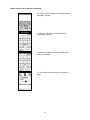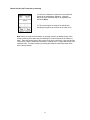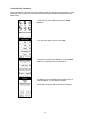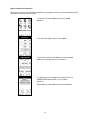
1
Basic Usage
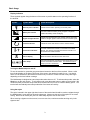
Display Indicators
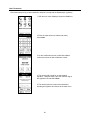
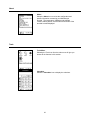
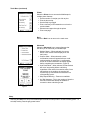
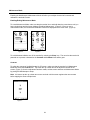
These symbols appear along the bottom of the screen to provide status on the operating functions of
the terminal.
Symbol
or
Symbol Name
Symbol Description
External power indicator
Indicates the terminal is operating on external power.
Battery life indicator
Four bars indicate the battery is fully charged. A single bar
indicates the battery needs recharging.
Signal strength indicator
Indicates the signal strength of the cellular network. More bars
indicate a stronger signal. Fewer bars indicate a weaker signal.
Transmit indicator
Indicates an active data session over the cellular network.
Connection indicators
The tower indicates the terminal is connected to the cellular
network. The question mark indicates that the terminal is not
connected to the cellular network.
Cancel display
Aborts the session and returns to the main menu.
Time stamp
This symbol will appear only after the terminal has been turned
on and a connection has been made. You must have a time
stamp to process a transaction.
Turning the Mobilescape on and off
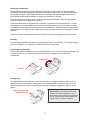
To turn the terminal on, press the gray power button located on the front of the terminal. When a valid
time-of-day displays in the lower right corner of the screen, the terminal is ready for use. You should
allow 15 to 60 seconds for the terminal to become fully functional. Please note that it may take longer
depending on the local cellular coverage.
The Mobilescape is designed to enter sleep mode rather than turn off. To activate sleep mode, select the
Sleep icon on the main screen. To exit sleep mode, press the power button to wake up the terminal. We
recommend that you activate sleep mode when the terminal is not in use to conserve battery power. The
terminal will automatically enter sleep mode after five minutes of inactivity.
Using the stylus
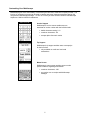
The stylus is stored in the upper right hand corner of the terminal and should be used to navigate through
the Mobilescape’s icons and sign electronic signatures. Always use the point of the stylus for on screen
writing. Never use an actual pen, pencil or other sharp object to write on the screen.
When entering a signature on the screen, be sure to use slow, continuous strokes and sign only in the
signature box.
3