Download VisualTCAD Semiconductor Device Simulator

Transcript
Using the Command-line Interface
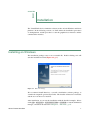
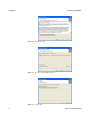
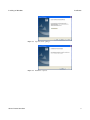
Installation
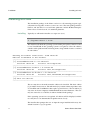
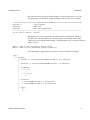
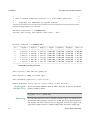
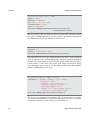
$ genius -r
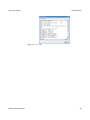
and a registration code will be displayed on screen.
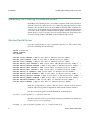
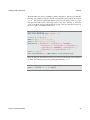
*************************************************************************
To register your copy, email the following registration code:
81e434677a0bb0501aabd85d07b9f621feb19ba6ca5f24ff987e583fa083b48a771796178
ac1d9de40cc53f2980fd12de936febdcadb16e3b66b08e9e0bd314fc511f63cd2264b9ab1
b10635ad3a515ec4f62e101d86206fd7694ae938210d0a406eda6bece9b760f28f916c88d
d83010470068fe55afbcdff8da09c4aed0d9d
Please email this registration code to Cogenda or its redistributors. You will be
given the license file lic.dat. Copy it to
/opt/cogenda/genius/license/lic.dat
and overwrite the old file. Genius now should work under registered mode, with
all options you subscribed turned on.
Command
Line Options
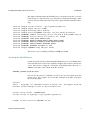
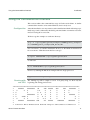
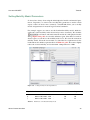
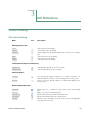
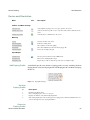
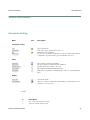
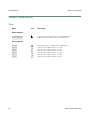
The command line options for Genius are listed below:
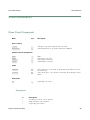
Name
genius
-- Genius 3D parallel simulator
Synopsis
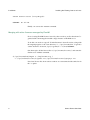
genius [ -n ncpus ]
genius -r
-i filename
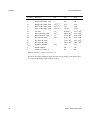
Options
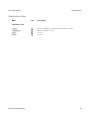
Genius Device Simulator
-n ncpus
Number of processors to be used in the simulation
-i filename
Input file to the simulator
-r
Register the copy with Cogenda
13
Related documents
Installation and user manual