1
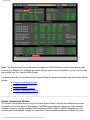
Note: If, when using channel [*] to select a channel on a new page records an unwanted zero in
move fade cues use channel the {CHAN} softkey.
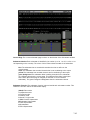
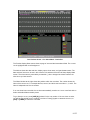
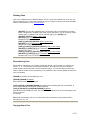
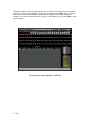
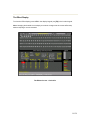
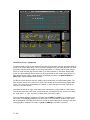
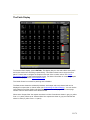
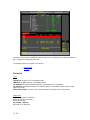
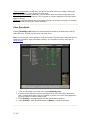
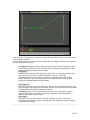
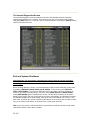
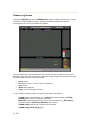
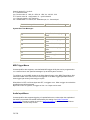
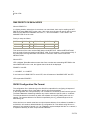
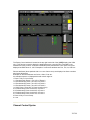
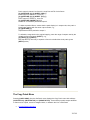
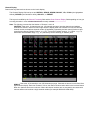
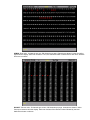
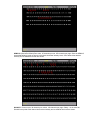
Levels Screen Colours
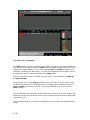
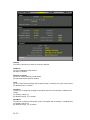
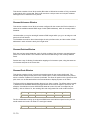
Channel levels in the Levels Screen have different colours depending on the cue type and the
level itself.
green The intensity level is lower than the previous cue.
magenta The intensity level is higher than the previouscue.
blue The attribute level is changed from the previous cue.
white The intensity level is fixed. (Tracking On). The intensity or attribute level is fixed.
(Tracking Off).
cyan The intensity or attribute level is the same as the previous cue. (Tracking On)
grey The intensity or attribute level is the same as the previous cue. (Tracking Off)
white on grey The attribute level is fixed. (Tracking Off)
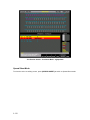
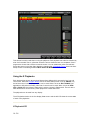
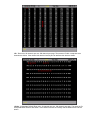
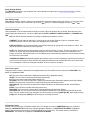
State Screen Fields
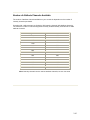
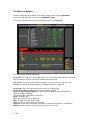
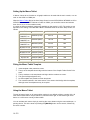
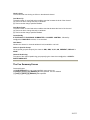
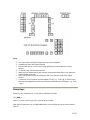
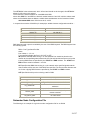
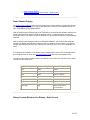
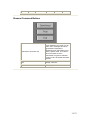
Fields on the Preview display State screen show the current values for cue properties. The fields
in this display are the same as in the X Playback window of the Live display with the following
addition.
Note: The fields in the Cue Sheet version of the State screen are identical to the fields in the Live
Screen. You cannot see the attribute time and attribute profile (GeniusPro) from the Cue Sheet
version, though you can modify them.
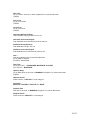
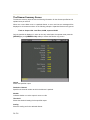
Att Profile : The assigned attribute time and profile (one on each cue line).
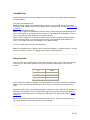
Creating a New Cue
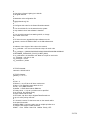
To switch to the Preview display and create a new cue, press <PREVIEW> [CUE] # [*] where # is
the new cue number.
To create a new cue while you are in the Preview display, press [CUE] # [*] where # is the new
cue number.
You will be warned that you are creating a new item. Press [*] again to create and display the
new cue or [CLR] or [UNDO] to cancel the command.
9-129