1
Respondus 4.0
User Guide for Moodle Personality
rev May, 2013
Getting Started
Computer Requirements
Installation & Setup
Activation Password
Choose a Learning management system (LMS) Personality
On-line Help
Start Menu
Overview
Opening a File
Creating a File
Test Bank Network
Exam Wizard
Importing Questions to Respondus
Archive Wizard
Changing the LMS Personality and Converting Files
Editing a File
Overview
Common Features Across all Question Types
Question List and Expanded View
- Multiple Choice
- True/False
- Essay
- Matching
- Short Answer
- Multiple Response
- Description
Adding Bold, Italics, Underline, and Super/Subscript
Media Wizard
HTML Editor
Equation Editor
Power Edit
- Tables
- Fonts, Formatting, and Lists
Spell Check
Keyword Searches
Settings
Overview
Random Blocks
General Settings
Security Settings
Review Settings
How to Save New Default Settings
Preview & Publish
Overview
Preview
Publish to Moodle
Printing an Exam
Retrieval
Overview
Retrieving a Quiz or Question Category from Moodle
Other Tools & Features
Overview
Save As Copy
Save As StudyMate Class Format
Preferences
Update License
Cleanup HTML Tool
Question Title Tool
Check for Update
Disclaimer of Warranty
Copyright, Ownership, and Use of Software
2
Getting Started
Computer Requirements
Installation & Setup
Activation Password
Choose a Learning management system (LMS) Personality
On-line Help
Respondus is a powerful tool for creating and managing exams that can be printed to paper or
published directly to Blackboard (including WebCT and ANGEL), eCollege, Desire2Learn,
Moodle and other eLearning systems. Exams can be created offline using a familiar Windows
environment, or moved from one eLearning system to another.
Minimum Computer Requirements
Respondus requires Windows XP or higher, 32 MB of RAM, 6 MB of free hard disk space, and a
800x600 monitor (1024x768 recommended). Respondus is generally used in conjunction with a
learning management system such as ANGEL, Blackboard, Desire2Learn, eCollege, WebCT,
Moodle and can also be used with IMS QTI-compliant assessment systems.
Installation and Setup
The Respondus installation program can be downloaded from www.respondus.com. To begin the
installation process, locate the Respondus4.exe file that was downloaded to your hard drive.
Double-click the file to start the Respondus installation program and follow the instructions on
the screen. Once Respondus is installed, start the program by double-clicking the Respondus icon
that appears on the Windows desktop. Or, follow these steps to start the software.
Click [Start] from the Windows desktop
Click [Programs]
Click [Respondus]
Click [Respondus X.x]
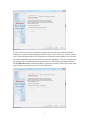
The first time you start Respondus (and each time thereafter until the program is registered), you
will be presented with a screen that provides the “Product ID#”. The Product ID# is used to
obtain the Activation Password (see below) which is needed to complete the installation.
Activation Password
Once the Respondus installation program is finished, you will need to obtain a password from
www.respondus.com to activate the installation. Be sure to have the “Product ID#” (see previous
paragraph) readily available. After you have directed your browser to www.respondus.com, go to
the “Registration” section of the site. You have the choice of purchasing a permanent activation
password or obtaining a 30-day trial password. In both cases you will be required to enter a valid
e-mail address and the Product ID# that displays on the opening screen of Respondus. Once the
information is submitted, the activation password is immediately sent to the e-mail address you
specified.
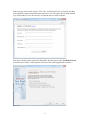
When the password is received by e-mail, it must be entered into the Respondus program. If you
haven’t done so already, start Respondus and then enter the password when prompted (you may
want to “copy and paste” the password from the e-mail message in order to prevent typing
mistakes). Click [OK] to continue. The Respondus software is now activated, either permanently
or for a 30-day trial period.
3
Choose a Learning management system (LMS) Personality
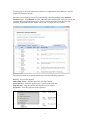
Immediately after the Respondus software is activated, you are prompted to select a Learning
management system (LMS) “personality.” Respondus offers various user environments (called
“personalities”) that parallel the features and terminology used by specific learning management
systems, such as Blackboard, eCollege, WebCT and Moodle. You can change the “personality” at
any time in Respondus from the Start menu.
On-line Help
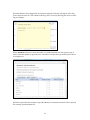
Respondus includes a full-featured help system that includes an index and context-sensitive help.
To view the on-line help, choose “Help Topics” from the pull-down Help menu and select a topic.
You can also press the F1 key from within Respondus to obtain context-sensitive help.
Throughout the program you will additionally see small buttons with a “?” symbol. When the
button is clicked, information on that particular option or task is provided.
If you encounter a question that is not answered in the on-line help or in this manual, you are
encouraged to visit the “Support” section of our web site (www.respondus.com). There you will
find Frequently Asked Questions (FAQ) and other resources.
The remainder of this user manual is organized according to the five menus used in the “Moodle”
personality of Respondus: Start, Edit, Settings, Preview & Publish, and Retrieval.
4
Start Menu
Overview
Opening a File
Creating a File
Test Bank Network
Exam Wizard
Importing Questions to Respondus
Archive Wizard
Changing the LMS Personality and Converting Files
Overview of Start Menu
The Start menu provides the ability to Open a Respondus file, Create a new file, access
publisher test banks from the Respondus Test Bank Network, and Import questions from a MS
Word or text file. The Exam Wizard provides an easy way to create an exam from an existing set
of questions. The Archive Wizard allows you to archive an exam or survey, including all media
components and equations, with a single click.
Opening a File
From the Start menu, click the Open button. The following window will appear:
Highlight an exam “project” by clicking it once. To obtain information on the project, select one
of the two center buttons located to the top right of the window. Select the “Item List” button
(right of center) to view a list of the questions that are available in the highlighted project. To
preview a particular question, click the “Title” of the question.
To open a highlighted project, click the [Open] button at the bottom of the window. (Doubleclicking a file name will also open it.)
Respondus allows projects to be organized within folders. For example, you can place the exams
for a particular course within a folder rather than having exams for all courses listed together. To
create a new folder, click the “Create New Folder” button located second from left. To navigate
down a level within a folder, double-click on the folder itself. To navigate up a level, click the
“Up One Level” button located leftmost on the row of buttons.
5
The [Browse…] button, located on the lower left side of the window, allows you to locate a
Respondus file (.rsp) located elsewhere on your hard drive and copy the file to the Respondus
Projects folder. It does not move the file or open it directly, rather, it creates a new “Projects”
folder based on a copy of that file. The [Browse…] button can also be used to locate a Respondus
“archive” file (.rsa or .rpa) and to restore it to the Projects directory (see Restoring an Archive
File).
The [Search] button allows a file to be searched prior to opening it (it can only be used if the
“Item List” view is selected). Searching is particularly useful if you are trying to locate a
particular question or set of questions in a file.
The [Test Bank Network] button is used to start the Respondus Test Bank Network wizard. The
Respondus Test Bank Network contains the official test banks for thousands of publisher
textbooks. Instructors who adopt a participating textbook can access the accompanying test bank
directly within Respondus (following a registration process). For complete details, see the
“Respondus Test Bank Network” at www.respondus.com.
Once a file is opened, the screen automatically changes to the Edit menu.
Creating a File
From the Start menu, select the Create button to create a new file. You are first prompted to enter
a file name and a description for the file. Then you must indicate whether the file is an “Exam”.”
The type of file you create (or open) will determine the features that are available throughout the
program. Click [OK] when you are finished. Once a file is created, you are automatically
switched to the Edit menu. This is where you add questions to the file.
Test Bank Network
The Respondus Test Bank Network contains the official test banks for thousands of publisher
textbooks. Instructors who adopt a participating textbook can access the accompanying test bank
from within Respondus by selecting the Test Bank Network button on the Start menu.
Note: all interactions with the Test Bank Network require an internet connection.
The Test Bank Network wizard allows instructors to search for a publisher test bank, submit a
request form for the test bank, register a test bank using the registration code and password sent
by the publisher, and finally, select questions from the test bank for use in a Respondus file.
6
The first selection “Search for a publisher test bank” will open a browser window and enable
instructors to search for textbooks adopted for their classes. Once a textbook is located, a request
form is filled out and submitted. This information is sent directly to the publisher for verification.
The textbook publisher will send an email to the instructor containing a “file code” and password
for registering the test bank using the Respondus software. The instructor should then return to
the Test Bank Network wizard in Respondus to register the test bank, which is the second option
listed: “Register a test bank using a file code and password”.
7
In the next step of the wizard, enter the “File Code” and “File Password” (if required) provided
by the publisher, along with the information requested. This will register the test bank with this
copy of Respondus. It won’t be necessary to repeat the process on this computer.
Once the test bank has been registered in Respondus, the third option on the Test Bank Network
wizard become available: “Select question from one of the following publisher test banks:”.
8
The next page of the wizard allows the selection of a registered test bank and then a specific
chapter file from the test bank.
Questions can be manually selected or automatically selected depending on the Question
Selection toggle. With Manual selection, individual test bank questions can be previewed and
copied to the current Respondus project. To do so, simply select the box to the left of the
questions wanted and click the “Add to End of List” or “Insert into List” button.
Each question listed has a context menu that provides the following operations:
Preview – Preview the question.
Add to End of List – Add this question to the end of the list.
Insert into List – Insert this question into a specific point in the list.
Flag this item – Flag this question as being incorrect or unclear.
Properties – View the properties for the question.
9
Questions that have been flagged (by any instructor using the test bank) will appear with a flag
next to the item in the list. The contents of the flag can be viewed by hovering the mouse over the
flag or clicking it.
When Automatic selection is used, the number of available questions of each question type is
shown. Enter the number of questions to be selected for each question type and the point value to
be assigned to it.
Questions copied from the test bank using either Manual or Automatic selection will be copied to
the currently open Respondus file.
10
Exam Wizard
The Exam Wizard helps familiarize new users with the basic functions of Respondus. In addition,
the Exam Wizard is the best way to create an exam using questions contained in one or more
Respondus files, such as a publisher test bank. The Exam Wizard allows questions to be
randomly selected from the files that are chosen and to assign point values across an entire
question type.
To begin, select the Exam Wizard button from the Start menu. The first page of the wizard
offers three choices. Select the top choice that states “Create a new exam and then copy questions
to it from a question bank or Respondus file” and click [Next]. The next page of the wizard
requires you to provide a name and description for the exam being created. Click [Next] once this
information has been entered. The next page of the wizard prompts you to select the Respondus
files from which the questions will be copied. Highlight a file and click the [Select] button.
Repeat this process until all files that you want to use to select questions are chosen. Click [Next]
to continue.
The next page of the wizard prompts you to select one of the source files chosen in the previous
step. You then have the choice of using Automatic Selection or Manual Selection. When
Automatic Selection is chosen, the current number of questions for each question type is
displayed in the “Available to Select” column. In the next column, enter the number of questions
you want selected for each question type. Then enter the point values to be assigned to each
question type (this step is optional--if you leave the “points per question” field blank, the point
values from the original file will be used). When all entries are finished, click either the [Add to
End of List] button or the [Insert Into List] button. Repeat this process for each source file.
The Manual Selection option allows the questions for each file to be viewed before making a
selection. In fact, you can preview individual questions by clicking the title of a question, or by
searching the entire list of questions by clicking the [Keyword Search] button at the top right. To
select questions from this list, click in the column furthest to the left--a checkmark will appear
next to the question. When you are finished with your selections, click either the [Add to End of
List] button or the [Insert Into List] button. Repeat this process for each source file.
The Automatic Selection and Manual Selection options may be combined. You may also reselect
a file from the pull-down list and choose additional questions from it. However, Respondus will
prevent you from selecting a question more than once.
Once questions have been added to the list at the bottom of the screen, you may edit the point
values manually. To delete a question from the bottom list, or to move it to a different location in
the list, click the blue title and select the desired option. Finally, notice that a tally of the total
number of questions and point values appears at the top right corner of the lower grid.
The next and final page of the wizard is self-explanatory. It provides a variety of options as to
what can occur next. For example, to edit questions in the file, you would select the option to go
to the Edit menu. To print the exam, you would select the Printing option, and so on.
Click [Finish] to complete the wizard.
Importing Questions
Respondus allows you to import multiple choice, true-false, essay, fill in the blank, fill in multiple
blanks, matching, ordering, jumbled sentence, and multiple answer questions from a file. The
11
questions must be organized in a format that is acceptable to Respondus and the file must be
stored in one of the following formats: plain text (.txt), rich-text (.rtf), MS Word (.doc and .docx),
tab/comma delimited (.csv) format, StudyMate Class format (.zip and .xml).
Note: Importing questions from the Microsoft Word .docx format requires that Word 2007 or
Word 2010 be installed on the same computer. The docx format has better support for importing
text with formatting like auto-numbers and auto-letters.
The formatting required for the file being imported is discussed in the section below entitled “The
Standard Format for Importing.” Once the file is in the Standard Format, follow these steps to
import it into Respondus.
Starting the Import
From the Start menu, select the [Import Questions] task. The following dialog will appear:
Step 1
The first step is to select the type of file that will be imported. The “Standard Format” for
organizing questions is the same for Plain Text (.txt), Rich Text (.rtf) files, and Microsoft Word
12
(.doc and docx) files. Files that are in rich text (.rtf) and MS Word (.doc and .docx) format will
retain some of the enhanced question formatting such as bold, italic, underline, superscript, and
subscript. Embedded graphics can only be imported if the file is in Microsoft Word (.doc or
.docx) format, although an alternative method is available for .rtf and .txt files (see Importing
Images below). Note that certain types of enhanced importing cannot be imported. If the
enhanced formatting causes a problem with an import, consider saving the file to rich text or plain
text format and then try the import again.
Next, use the [Browse] button to locate and select the file to be imported.
Images embedded in MS Word files will import automatically. However, if images are being
imported with csv, rich-text, or txt files (see Importing Images below), browse to the folder that
contains those images.
Step 2
Specify whether the questions should be added to the currently open file or whether to create an
entirely new file.
Each question being imported will have a “title”. If you don’t specify a title for each question in
the text file itself (discussed below), Respondus will automatically use the first 20 characters of
the question wording as the question title. Alternatively, titles can be based on a specific “stem”
(or string of text) which will then be followed by consecutive numbering starting with 001. For
example, if you select the “Use stem...” checkbox and enter the text “Chapter1-,” the title for the
first question being imported will be Chapter1-001, the title for the second question will be
Chapter1-002, and so on. (You do not have to enter a stem phrase--this feature is entirely
optional.)
Step 3
Click the [Preview] button to preview the file being imported and to see if there are any warning
messages. If warning messages are shown at the bottom of the screen, you need to determine
whether to make changes to the text file or whether to continue with the import. Be aware that
some warning messages don’t actually require you to make a change to the file being imported.
For instance, Respondus will generate a warning message if two questions being imported have
the same title (Respondus will place the number “2” at the end of the second title to make it
distinct from the first). But if you don’t care about this issue, you can ignore the warning
message.
Step 4
If you are satisfied with how the results look in Preview, click [Finish] to complete the import.
The Respondus file has now been created or appended. Switch to the Edit menu to modify the
file, or go to the Preview menu to view the file using a browser-like window.
The Standard Format for Importing
Respondus will import multiple choice, true-false, essay, short answer, matching, and multiple
response questions. The plain text, rich text, or MS Word file must be organized in the “Standard
Format” before it can be imported into Respondus. The Standard Format for multiple choice
questions has required elements and optional elements, each of which is described below. This is
followed by an explanation of the formatting required for true-false, essay, short answer,
matching and multiple response questions.
13
Required Elements (Multiple Choice)
Each question must begin with a question number, followed by either a period “.” or a
parentheses “)”.
Example:
Example:
3)
3.
The question wording must follow the question number. (Note: at least one space should be
between the question number and the question wording.)
Example:
Example:
3) Who determined the exact speed of light?
3. Who determined the exact speed of light?
Each answer choice (distractor) must begin with a letter (A-Z) followed by a period “.” or a
parentheses “)”.
Example:
3) Who determined the exact speed of light?
a.
b.
c.
d.
Albert Einstein
Albert Michelson
Thomas Edison
Guglielmo Marconi
Optional Elements (Multiple Choice)
A Title can be imported with each question. If a title is not provided for a question, the first 20
characters from the question wording will be used as the question title. Titles must be placed at
the beginning of a question and begin with “Title:” followed by the actual text for the title. If the
title exceeds 20 characters, the remaining characters will be dropped during the import.
Example:
Title: Speed of Light
3) Who determined the exact speed of light?
a.
b.
c.
d.
Albert Einstein
Albert Michelson
Thomas Edison
Guglielmo Marconi
For questions being imported to an Exam file, correct answers can be indicated in two ways.
First, you may place an asterisk (*) directly in front of the answer choice (do not put a space
between the asterisk and the answer choice).
Example:
Title: Speed of Light
3) Who determined the exact speed of light?
a. Albert Einstein
*b) Albert Michelson
14
c) Thomas Edison
d. Guglielmo Marconi
The second option is to place a list of correct answers at the end of the file. The list must begin
with the word “Answers:” and the answers should start on the following line (no blank lines are
allowed). Note that any text after the answer list will be ignored.
Example:
Answers:
1. A
2. C
3. B
If neither method is used to select a correct answer, Respondus will automatically select the letter
“A” as the correct answer. Don’t worry, you will be warned if a question does not have an answer
selected for it prior to completing the import.
With an Exam file, feedback for individual answer choices can be imported by placing the
feedback immediately after the answer choice and by beginning the line with the @ symbol.
There must be at least one space between the @ symbol and the feedback text.
Example:
Title: Speed of Light
3) Who determined the exact speed of light?
a. Albert Einstein
@ No. Albert Michelson determined the exact speed
of light.
*b) Albert Michelson
@ Yes. Albert Michelson won the Nobel Prize for
Physics for determining the exact speed of light.
c) Thomas Edison
@ No, Thomas Edison did not determine the exact
speed of light.
d. Guglielmo Marconi
@ No. Marconi did not discover the exact speed of
light, but he did win the Nobel Prize for Physics
for his work with radio waves.
“General Feedback” can be imported in a similar way, but it must appear immediately after the
question wording and before any of the answer choices. The line must also begin with the @
symbol, and there must be at least one space between the @ symbol and the feedback text.
Example:
Title: Speed of Light
3) Who determined the exact speed of light?
@ Albert Michelson was the first American to win
the Nobel Prize in Physics (1907) for his
measurements of the speed of light. His
experiments laid the groundwork for Einstein’s
Theory of Relativity.
15
a. Albert Einstein
@ No. Albert Michelson determined the exact speed
of light.
*b) Albert Michelson
@ Yes. Albert Michelson won the Nobel Prize for
Physics for determining the exact speed of light.
etc.
As shown in the previous example, both types of feedback can be used within a single question.
Point values can be set for each question or for a group of questions. Points are set by adding
“Points:” followed by a space and the point value. The points value is used for the next question
and all following questions until a new point value is set.
Example: Points: 2.5
3) Who determined the exact speed of light?
....
4) Who determined the exact speed of sound?
Both questions 3 and 4 will be given a value of 2.5 points.
Importing True and False Questions
The process of importing a “true and false” question is similar to that used for importing multiple
choice questions (see above). Both of the following examples are valid ways to format a true and
false question for importing purposes.
Example:
3) Albert Michelson determined the exact speed of
light?
*a) True
b) False
Example:
3) Albert Michelson determined the exact speed of
light?
*a. T
b. F
It’s important to note that the “True” (or “T”) answer choice must be listed above the “False” (or
“F”) answer choice in order for Respondus to recognize it as a true and false question type. (If
“False” appears first in the list, the question will be imported as a “multiple choice” question.)
16
To include a “title” or “feedback” with the true and false question, follow the same formatting
rules described above for multiple choice questions. For instance,
Example:
Title: Light speed
3) Albert Michelson determined the exact speed of
light?
@ Correct. Albert Michelson won the Nobel Prize
for Physics for determining the exact speed of
light.
*a. True
@ Yes. Albert Michelson won the Nobel Prize for
Physics for determining the exact speed of light.
b. False
@ The correct answer is True. Albert Michelson
determined the exact speed of light and won the
1907 Nobel Prize for Physics for his efforts.
A second way to designate a correct answer for a true and false question is to place it in a list of
correct answers at the end of the file. The list must begin with the word “Answers:” and the
answers should start on the following line--no blank lines are allowed. The correct answer for a
true and false question can be designated in three ways: (1) using the complete words “True” and
“False,” (2) using the letters “T” and “F,” or (3) using the alphabetical letters “A” (for true) or
“B” (for false). For example, the formatting of each of the following answers is acceptable for
true and false questions in which all of the answers are “true”:
Example:
Answers:
1. True
2. T
3. A
Importing Essay Questions
The logic for importing essay questions (also known as “essay” or “open-ended” questions) is
similar to what is described above for multiple choice questions. The primary difference is that
the first line of formatting must begin with “Type: P”. This is followed by the “Title” (which is
optional), the question number, and the question wording.
Example:
Type: E
Title: Michelson-Morely experiment
4) How is the Michelson-Morely experiment related
to Albert Einstein’s theory of relativity?
If you are importing an essay question into an Exam file, you can supply an answer two different
ways. First, you may provide an answer immediately after the question wording, in which the
answer begins with “a.” or “a)” (without the quotes).
Example:
Type: E
Title: Michelson-Morely experiment
17
4) How is the Michelson-Morely experiment related
to Albert Einstein’s theory of relativity?
a) In 1887, Albert Michelson and Edward Morely
carried out experiments to detect the change in
speed of light due to ether wind when the Earth
moved around the sun. The result was negative.
They found the speed of light is always the same
regardless of Earth's motion around the sun.
Scientists were puzzled with this negative
result, and they didn't know how to explain it.
Albert Einstein came up with the answer in his
famous second postulate in theory of relativity:
that the speed of light (in vacuum) is always
constant and absolute, regardless of its source's
motion and observer's movement.
The second way to supply an answer for an essay question is to place it in the list of correct
answers at the end of the file. As described above with multiple choice questions, the list must
begin with the heading “Answers:” and must be positioned at the end of the file. An essay answer
should begin with the corresponding question number, followed by either a period “.” or a
parentheses “)”. This is then followed by a space and then the answer itself.
Example:
Answers:
1. A
2. C
3. B
4. In 1887, Albert Michelson and Edward Morely
carried out experiments to detect the change in
speed of light due to ether wind when the Earth
moved around the sun. The result was negative.
They found the speed of light is always the same
regardless of Earth's motion around the sun.
Scientists were puzzled with this negative
result, and they didn't know how to explain it.
Albert Einstein came up with the answer in his
famous second postulate in theory of relativity:
that the speed of light (in vacuum) is always
constant and absolute, regardless of its source's
motion and observer's movement.
5. B
Importing Short Answer Questions
To import a Short Answer question, the first line of formatting must begin with “Type: S”. This is
followed by the “Title” (which is optional), the question number, and the question wording.
Example:
Type: S
Title: Who invented television?
18
5. Who is known as the "father of television”?
Respondus allows you to import only one correct answer per question, but it does permit you to
enter multiple forms of that answer.
Example:
Type: S
Title: Who invented television?
5. Who is known as the "father of television"?
a. Zworykin
b. Vladimir Zworykin
c. Vladimir Kosma Zworykin
Answers can also be placed at the end of the file, using a format similar to multiple choice
questions. The only difference is that you can enter multiple forms of an answer by repeating the
question number.
Example:
Answers:
1. A
2. C
3. B
4. C
5. Zworykin
5. Vladimir Zworykin
5. Vladimir Kosma Zworykin
6. B
Importing Matching Questions
The process of importing a “matching” question is similar to what is described above for
importing multiple choice questions, but there are some key differences. The first line of
formatting must begin with “Type: MT”. This is followed by the “title” (which is optional), the
question number, and the question wording.
Each answer (which consists of both portions of a correct match) must begin with a letter (a-z)
followed by a period “.” or a parentheses “)”. The two parts of the match must be separated with
an “=” symbol and there should not be any hard returns or blank lines within either parts of the
answer.
Example:
Type: MT
Title: Scientific discoveries
4) Match the correct name to the discovery or
theory.
a. Michelson-Morely = Speed of light
b. Einstein = Theory of Relativity
c. Marconi = radio waves
Spaces before or after the “=” symbol are optional, but it is important that an answer only uses the
= symbol for the purpose of separating the two parts of the match. If you plan to list correct
19
answers for other questions at the bottom of the document, simply skip the number for all
questions that are of the matching variety.
Importing Multiple Response Questions
The logic for importing multiple response questions is similar to what is described above for
importing multiple choice questions. (Multiple Response questions are, essentially, multiple
choice questions in which more than one correct answer can -- and generally should -- be selected
by the student). The primary difference is that the first line of the formatting must begin with
“Type: MR”. This is followed by the “Title” (which is optional), the question number, and the
question wording. Correct answers are designated with an asterisk.
Example:
Type: MR
3) Which of the following individuals are
credited with determining the exact speed of
light?
a. Albert Einstein
*b. Albert Michelson
c. Thomas Edison
*d. Edward Williams Morley
To include a “title” or “feedback” with multiple response questions, follow the same formatting
rules described above for multiple choice questions. For instance,
Example:
Type: MR
Title: Determining Speed of Light
3) Which of the following individuals are
credited with determining the exact speed of
light?
@ Albert Michelson and Edward Williams Morley
collaborated on a series of experiments that
eventually led to the exact determination of the
speed of light.
a. Albert Einstein
@ No. Albert Michelson and Edward Williams Morley
collaborated on a series of experiments that
eventually led to the exact determination of the
speed of light.
*b) Albert Michelson
@ Yes. Albert Michelson is one of the two persons
credited with determining the exact speed of
light.
etc.
(Note: this example illustrates how to include both “General Feedback” and answerspecific feedback. In most cases, you would include only one type of feedback.)
20
A second way to designate correct answers for multiple response questions is to place them in a
list of correct answers at the end of the file. The list must begin with the word “Answers:” and
must be positioned at the end of the file. If a question has been designated as a Multiple Response
type using “Type: MR”, then correct answers can be shown in a list in one of three ways: (1)
placing a blank space between the letters representing the correct answers, (2) placing a comma
between the letters representing the correct answers, or (3) placing a comma and a blank space
between the letters representing the correct answers. For example, the formatting of each of the
following answers is acceptable for multiple response questions.
Example:
Answers:
1. B D
2. B, D
3. B,D
Important: Once the import file is organized to the specifications described above, it should be
saved to MS Word (.doc or .docx), rich-text (.rtf) or a text (.txt) file. It is then ready to be
imported by Respondus.
Importing Images with Questions
Images embedded in MS Word files will import automatically. However, it is possible to import
images with rich-text or txt files using an alternate method. First, be sure that the images in gif,
jpg, or jpeg format and are contained in a separate folder. Then place the following tag at each
place where an image should appear: [ img: “filename.jpg” ] . The word “filename.jpg” should
be replaced with the actual file name.
Example:
3) The interferometer, shown here [img:
“interferometer.jpg”], was
used by which of the following scientists.
a. Albert Einstein
*b. Albert Michelson
c. Thomas Edison
d. Vladimir Zworykin
To include alternative text for ADA-compliant screen readers, place the desired text in a second
set of quotes immediately following the quotes that contain the file name:
[ img: “interferometer.jpg” “Picture of an interferometer” ].
All images that are being imported must be placed in a single folder. During the import process,
the location of the image folder must be specified in the first step. After the import is complete,
the images will appear inline with the question text.
Importing HTML with Questions
It is possible to import blocks of HTML so that they are treated by Respondus as HTML rather
than standard text. This is accomplished by placing the tag [HTML] immediately before the
block of HTML and another tag [/HTML] immediately after the block of HTML. So, for
example, if you imported the following line of text:
[HTML] <a href="http://www.respondus.com">CLICK HERE</a> [/HTML] to
download Respondus.
21
it would appear as follows when viewed in Moodle:
CLICK HERE to download Respondus.
Of course, keep in mind that HTML will have variable results if you print the exam from
Respondus rather than using it exclusively for online examinations.
Importing Tab/Comma Delimited Files (CSV)
Questions can be imported from tab/comma delimited files (.csv). This type of importing is best
done by someone who has experience with databases or CSV-structured files.
The CSV file can have a maximum of 34 columns. If all columns are used, they should follow
this order: Type, Title/ID, Points, Question Wording, Correct Answer, Choice 1, Choice 2,
Choice 3, Choice 4, Choice 5, Choice 6, Choice 7, Choice 8, Choice 9, Choice 10, General
Feedback, Correct Feedback, Incorrect Feedback, Feedback 1, Feedback 2, Feedback 3, Feedback
4, Feedback 5, Feedback 6, Feedback 7, Feedback 8, Feedback 9, Feedback 10, Topic, Difficulty
Level, Meta 1, Meta 2, Meta 3, Meta 4.
The first column, “Type” should use the two-letter abbreviation shown below:
MC = Multiple Choice
TF = True/False
MR = Multiple Response/Answer
FB = Fill in the Blank/Short Answer
ES = Essay/Paragraph
The following columns must always be present in the .csv file: Type, Title/ID, Points, and
Question Wording, although the Points and Title/ID columns can be empty. If the Type is “ES”
(essay), no further columns are required. If the Type is “MC” (multiple choice), “MR” (Multiple
Response/Answer), “FB” (Fill in the Blank/Short Answer), or “TF” (True/False) there must also
be a Correct Answer column (although for FB questions, this column is not used and can be
blank). For MC, MR, and FB questions, “Choice 1” column must also be present.
If the “Points” column is not empty, the value can range from 0-100 and will be rounded to two
decimal places. If no value is provided, Respondus will assign the point value of 1.00.
The formatting requirements for the “Correct Answer” column depend on the question type:
MC - Supports numbers 1-10 or letters A-J (ignoring the case)
TF - Supports numbers (1,2) and letters (A,B), where 1/A= true, 2/B= false. The words
“true” and “false” are also supported. Capitalization is ignored for all answer types.
MR - Supports a list of numbers/letters within the range of 1-10 or A-J. The
numbers/letters must be separated by a comma or space; all must be contained within
quotes. (e.g. "a,c,h,j" or “a c h j”). A trailing separator (e.g. "1,4,") is acceptable.
ES - (This column isn’t used; use the Choice 1 column instead)
22
FB - (This column isn’t used, use the Choice # columns instead)
The following notes will be helpful in the development of your CSV file:
- At the current time, the Topic, Difficulty, and Meta fields are being ignored and
discarded. We are specifying these fields now so that they will be compatible with a
future version of Respondus that will support them.
- Blank lines between records are ignored.
- Embedded line breaks within quotes are supported.
- Literal column separators (within quotes) are supported.
- Literal quotes (2 quote characters in sequence) are supported.
The following notes are specific to the feedback fields:
- all feedback columns are optional
- general feedback is not supported in Blackboard, nor for essay/paragraph questions
- correct answer feedback is not supported outside of Blackboard, nor for essay/paragraph
questions
- incorrect answer feedback is not supported outside of Blackboard, nor for
essay/paragraph questions
- choice-specific feedback is not supported in Blackboard prior to version 6, or for
question types other than Multiple Choice; it is also not supported for fill-in-the-blank or
essay/paragraph questions
- choice-specific feedback for more than 2 answer choices is not supported for TF
questions
- choice-specific feedback is not supported for answer choices which do not exist
To import the tab/comma delimited file with Respondus, select the “Import Questions” task from
the Start menu in Respondus. Change the “Type of File” to “Tab/Comma Delimited (CSV)” and
then browse to the file. A window will open and ask you to describe the type of data being
imported (plain text or HTML, the number of header rows to skip, the type of delimiter, etc.). The
Preview allows you to look at the data before the import is complete. If everything looks good,
click OK to close the window.
If the CSV file contains HTML, it is possible to include image links such as <img
src=""filename.jpg"">. (Notice that any single quote in the HTML must be changed to a pair of
quotes in the HTML.) If images are referenced in the CSV file using HTML, then select the
location of the image folder next.
Finally, select from the remaining options that are available from the “Import Questions” task.
Click Finish to complete the import.
23
Archive Wizard
The Archive Wizard in Respondus allows you to archive an exam, including all media
components and equations that may be associated with it. An entire “tree” of folders can also be
archived. The Archive Wizard and related tasks are useful for doing routine backups, to create a
ready-to-use exam file that can be e-mailed to a colleague, or for organizing the “Projects” folder
so that only current files are displayed. Archive files require considerably less hard drive space
because the contents are stored in a compressed format.
Creating an Archive File
To create a Respondus archive file, go to the Start menu and select the “Archive Wizard” option.
A directory of the Respondus Projects folder is now displayed. Highlight the file or folder that
you want to archive and click [Next]. The next screen specifies the name of the file or folder that
will be archived, plus the location to where the archive file will be saved. (It is possible to choose
a different location, but this is not recommended since it will later require additional steps to
restore the archived file). The final screen of the wizard indicates that the archiving is complete
and provides the location of the archived file. Additional information is provided in a “Notes”
section.
There is a faster way create Respondus archive files, albeit without the guidance of a wizard.
From the Start menu, select the Open task. Two large buttons appear on the left side of the
window: Projects and Archive. The Projects folder is where all active Respondus files and folders
are stored. When files are archived, they are placed in the Archive folder. To archive a file, click
once on a file (or folder) in the Projects area and then click the small button on the toolbar at the
right called Create Archive File (the icon looks like a filing cabinet). A name for the archive file
is suggested by Respondus; you may accept this name or provide a different one. When the [OK]
button is clicked, all files associated with the exam (including media objects) are compressed into
one file and it is placed in the Archive. If you are archiving a folder that contains multiple
Respondus files, all the files contained within the folder will be included in the archive file. It is
important to note that the original Respondus files are not deleted from the Projects area when
they are archived. If you want to delete the original Respondus files, highlight them again in the
Projects area and select the Delete File button (it looks like a “recycle waste basket”) located on
the toolbar at the right.
If you accepted the standard settings when Respondus was installed, the archived files will be
located on your hard drive at c:\Respondus Projects\Archives. The files will have the extension
“.rsa” (specially licensed versions of Respondus will output files with the .rpa extension). The .rsa
files can then be copied to another location for backup purposes or sent to a fellow user of the full
version of Respondus.
Restoring an Archive File
There are two ways to restore a Respondus archive file (.rsa, .rpa) to the Projects area. The first
approach works only if the archive file was saved to the default Archives folder (which can
generally be found at c:\Respondus Projects\Archives). From the Start menu in Respondus, click
the Open button. Select the large Archive button on the left side of the screen, highlight the file
you want to restore, and click the [Open] button at the bottom right. The archived file or folder
will then be restored and copied to the Projects folder. To then open the restored file in
Respondus, click the Projects button and select the restored file.
24
If the archive file (.rsa, .rpa) is not located in the Archive folder, make sure the Projects button is
selected and click [Browse…]. Navigate to the location of the archive file, highlight it with your
mouse, and then click [Open]. The archive file will be restored and copied to the Projects folder.
You will then need to open the file in the Projects folder in order to view or edit it.
Please note that an archive file is not deleted from its original location when it is restored to the
Projects folder.
Changing the LMS “Personality” and Converting Files
Each learning management system (e.g., Blackboard, eCollege, WebCT, Moodle) is different in
terms of the question types it offers, the approach it uses to create and manage exams, and even
the terminology that is used. This is why Respondus allows the user to select an environment or
“personality” that matches a particular learning management system. For example, one user might
use a “Moodle” personality, another might select the “eCollege” personality, yet another might
choose a “Blackboard” personality, and so forth. Each user will feel right at home because the
features and terminology will closely parallel their learning management system.
Changing the Personality
To switch to a different personality in Respondus, go to the Start menu and select the desired
personality from the list that appears at the top of the screen. If the currently open file was created
(or imported) using a different Respondus personality, a message will warn you of this and
indicate that the file will be converted to the new personality if you continue. Click [OK] to
continue and you will see one or more warnings of what will be modified when the file is
converted. In some situations, you will be given a choice of how certain items will be converted.
For instance, if you are converting a file from the Desire2Learn personality to the Moodle
personality, you may encounter a message explaining how fractional points are rounded to the
nearest integer.
After the file is converted, a screen will detail every modification or change that occurred to the
file during the conversion process. You must then determine whether to “replace the current file”
with the newly converted file, or to “save as a new file”.
If you plan to convert a large number of files and you want to use the same conversion settings, it
is recommended that you go to the File>Preferences>Conversion screen and set your conversion
settings accordingly. In this way you won’t have to specify your conversion preferences each
time you convert a file.
If you are unsure which LMS personality was used to create a file, go to the Start menu, select
Open, highlight the Respondus file, and select the “General Information” button from the small
toolbar at the right (represented by a file folder with an overlaying question mark.) The LMS
personality that was used to create the file will be displayed in the information window below.
Quarantined Questions (after a file is converted)
Some learning management systems have question types that simply cannot be used by other
learning management systems. During the conversion process, Respondus will provide the option
to drop such questions or have them “quarantined” in the newly converted file. In most situations
it is best to drop the question entirely. But if, at a later time, you plan to use the converted file
with the originating learning management system, the quarantine option will preserve the
questions for this purpose.
25
The title of a quarantined question will appear in red in Respondus (instead of the normal color of
blue). Also, if a quarantined question is included in the file when it is published to a learning
management system, the question will be filtered out during the publishing step.
26
Editing a File
Overview
Common Features Across all Question Types
Question List and Expanded View
- Multiple Choice
- True/False
- Essay
- Matching
- Short Answer
- Multiple Response
- Description
Adding Bold, Italics, Underline, and Super/Subscript
Media Wizard
HTML Editor
Equation Editor
Power Edit
- Tables
- Fonts, Formatting, and Lists
Spell Check
Keyword Searches
Overview of Edit Menu
The Edit menu allows questions to be added to the currently open file. There are seven question
types that can be created in Respondus: Multiple Choice, True/False, Essay, Matching, Short
Answer, Multiple Response, and Description. Feedback and point values can be added to
questions, as can images, multimedia, tables, HTML and various types of enhanced formatting.
The appearance of the Edit menu is dependent on whether you open an exam file.
27
To create a new question, select the desired question type on the left side of the screen. The
template on the right side of the screen will change accordingly.
Common Features Across All Question Types
All question types require you to enter a “Title.” The title can be up to 64 characters. If you do
not enter a title, Respondus will use the first 20 characters from the “Question Wording” for it.
All question types have a “Question Wording” section. This is where the main body of the
question is entered.
Some question types allow the entry of “feedback.” If feedback is enabled for a particular quiz
(determined later using the “Settings” menu), students will see the feedback for the answers they
selected when they view their graded quiz. To enter feedback for a question (regardless of
whether you later decide to have it displayed), select the Feedback option on the edit form. The
form will then display fields where feedback can be entered. “General Feedback” can also be
entered by clicking the [General Feedback] button and entering the desired information. (Note:
If you deselect the Feedback option, all feedback remains stored with the question. It simply
does not display the feedback on the Edit screen until the option is reselected.)
Four buttons appear at the bottom of all edit forms. The [Add to End of List] button adds the
current question to the end of the “Question List” (located at the bottom of the screen). The
[Insert Into List] button lets you insert the current question into the Question List at a specified
location. The [Clear Form] button will erase all data that currently shows in the form. Finally,
the [Preview] button opens a browser-like window that lets you view how the question will
28
display in the final quiz—feedback and scoring information is also shown in this window. The
Preview button can be selected at any stage in the editing process.
Question List and Expanded View
The “Question List” displays the title, question type, points, and question wording for each
question in the file. The total number of questions and point values is shown at the top of the list.
The first column enables you to preview an item by clicking the magnifying glass icon. The
context menu in the next column will display a pop-up dialog with various operations that can be
performed on that item.
The context menu offers the following operations:
Preview – Preview the question.
Edit – Edit the question.
Delete – Delete the question.
Move to # - Move the question to a new location in the list.
Use As Basis For New Item – Open the question in the edit template and use it as the basis for a
new item. The original title will be modified slightly – for example, the number “2” will be
added to the end of the name.
Copy Items From Another File – Items can be selected and copied from another Respondus file
into the current file.
Flag Test Bank Network Item – An item copied from the Test Bank Network can be flagged if
problems are discovered with it. This operation will only appear in the context menu if the item
originated from the Test Bank Network and has not been modified.
Properties – Displays a window that summarizes the properties for the item.
The “Expanded View” button, located at the top right of the Question List, displays a full screen
pop-up of the question list. This enables you to view more items at once.
29
Multiple Choice
Multiple Choice questions in Respondus allow up to 26 answer choices (also known as
distractors), but only one correct answer can (and must) be selected. You must also provide a
point value for each question (the default setting is “1”).
Tip: The easiest way to navigate between the “Answer” fields in Multiple Choice
questions is to use the PageUp and PageDown keys.
Answer choices for multiple choice questions can be randomized during a Moodle exam by
selecting the “randomize” checkbox located just above the answers list.
True/False
True and False questions are self-explanatory: enter the statement in the question wording field
and then select either “True” or “False” as the correct answer.
Essay
Essay question types (also known as “paragraph” questions) allow students to enter complete
sentences or paragraphs for their answer. If the “Enable Feedback” option is turned on, a correct
answer can be provided. However, these questions must be graded manually in Moodle.
Matching
Matching questions require students to match items from two columns. There are two ways to
create matching questions in Respondus. First, the designer may specify matching pairs for both
the left and right columns—specifically, the correct match for the left column must be placed in
the field immediately to the right. If this procedure is followed, it is not necessary to indicate the
correct answer in the small column located at the far left. (Note it is possible to place extra
answers in the right column. In this situation, the extra answers act as decoys and do not match
any of the answers in the left column.)
The second approach for creating matching questions allows items in the right column to be
placed in any order, but requires the correct answer for the match to be indicated in the small
column located at the far left. This approach is especially suited for questions in which a long list
of items (e.g., country names) is being matched to a relatively short list of items (e.g., type of
government). For example, the left list might contain 25 countries (Afghanistan, Albania, Algeria,
30
Angola, Argentina, etc.) while the list on the right might display four types of government (MultiParty Democracy, One-Party Regime, Military/Monarchical/Theocratic Regime, Disordered
State). Instead of entering the type of government for each country, you can simply enter the
letter of the correct answer in front of the country name. See the table below.
D
A
C
D
A
A
A
C
A
B
B
Column1
Afghanistan
Albania
Algeria
Angola
Argentina
Austria
Bahamas
Bahrain
Bangladesh
China
Cuba
Match Column
A. Multi-Party Democracy
B. One-Party Regime
C. Military/Monarchical/Theocratic Regime
D. Disordered State/Civil War
In a matching question, the left column will be displayed to the student in the order information
was entered. The right column appears as a list of drop-down menus that students can use to
select the appropriate match. Answers in the drop-down menus are randomized.
Tip: The easiest way to navigate through the answer choices is to use the PageUp and
PageDown keys. Press the PageDown key twice to move through the “correct match”
field.
All answer choices are equally weighted with matching questions. So if a question has 10
matches, each match is worth 10%. There are three choices for grading:
•
Proportional to the Number Correct - All answers are equally weighted, without any
penalty for incorrect answers. So if a student matches 8 of 10 items correctly, the
score would be 80% on that question.
•
All Points or None – The student must answer all items correctly in order to receive
100% credit. If any items are missed, no credit is given for the question.
•
Right Less Wrong – This option sums the number of correct answers and then
subtracts the number of wrong answers. Hence, if the student answers 8 items
correctly and two items incorrectly, the score is 6 (8 correct - 2 incorrect).
Short Answer
Short Answer questions (also known as fill-in-the-blank questions) require students to enter a
word, short phrase, or string of characters. Since the computer automatically grades the answer,
students must give an answer that exactly matches one of the answers provided by the teacher.
The standard edit window in Respondus only allows one fill-in-the-blank answer per question.
However, it is possible to create questions that have multiple answers (e.g., “Name the first 5
elements of the periodic table”) by clicking the “Advanced” button that appears above the answer
grid (this feature is explained later in this section).
31
Using the standard editing grid, Respondus allows the designer to provide multiple variants of the
correct answer. For instance, if the answer to a question is “New York Yankees,” the designer
might enter each of the following as an acceptable answer:
Yankees
New York
New York Yankees
NY Yankees
Two types of credit can be given for short answer questions. The “Equals” (exact match) option
requires the student to type an exact word or phrase, but ignores capitalization. The “Contains”
option also requires the user to type an exact word or phrase, but it ignores extra words or
characters that appear before or after the answer provided by the instructor (capitalization is
ignored too). Note that the “regular expression” option is available for users who want to
implement Perl scripting language for determining credit for short answer questions. The use of
this feature is beyond the scope of this user guide.
Short Answer - Advanced
The “Advanced” button that appears above the answer grid in the short answer editor allows the
creation of more sophisticated short answer questions. First, more than one correct answer can be
required of the student (e.g., “Enter the names of the first two men who walked on the moon?”).
Second, the order of the correct answers can be specified (e.g., “In the first blank enter the name
of the first man to walk the moon. In the second blank enter the name of the second man to walk
on the moon.”). Third, it is possible to assign different point values for each answer choice (e.g.,
Neil Armstrong = 40% of the point value, Buzz Aldrin = 60% of the point value).
To begin, click the “Advanced” button to change the standard answer grid to the advanced
answer grid. If the question requires students to fill in two or more answer blanks, but the order in
which the answers are entered doesn’t matter, then simply list each correct answer in the wide
grid section at the right.
However, if the question requires students to fill in two or more answers, and the order in which
the answers are entered does matter, then the middle column in the grid should be used to specify
the position of each correct answer. For example, if the first answer must be entered as
“Armstrong” and the second answer must be entered as “Aldrin,” then the grid should look like
this:
If you want to allow multiple variants for each correct answer, that too can be accomplished if
each answer choice has a specified order. For example, consider the following question: “In the
first blank below, enter the name of either astronaut who walked on the moon as part of the
32
Apollo 11 mission. In the second blank, provide the name of the astronaut who orbited around the
moon in the mother ship, but never walked on the moon.”
Finally, it is possible to distribute the point value for each correct answer according to the
percentages specified in the leftmost column. For example, if the total point value for the
following question is worth 10 points, the instructor might assign one answer a higher percentage
of these points: “Who were the first two astronauts to walk on the moon?”
In this example, students who provide the correct answer of “Armstrong,” but do not provide the
correct answer of “Aldrin,” will only receive 40% of the point value (in this case 4 of 10 points).
Multiple Response
Respondus provides a separate question type for multiple choice questions that have more than
one correct answer. The Multiple Response question type is very similar to Multiple Choice
questions, except that students can (and should) select more than one correct answer. (When
multiple response questions are transferred to Moodle, they are placed in Moodle’s broader
“Multiple Choice” category.)
Tip: The easiest way to navigate through the answer choices is to use the PageUp and
PageDown keys. Press the PageDown key twice to move through the “correct answer”
field.
Answer choices for multiple response questions can be randomized during a Moodle exam by
selecting the “randomize answers” checkbox located just above the answers list.
In the column that precedes the answer choices, the letter “X” should be entered for all correct
answers. Moodle will assign equal value to all answers indicated as correct. Thus, if two of four
answers are marked as correct , each correct answer will be worth 50% of the point value. If the
designer selects three of four answers as being correct, each correct answer will be worth 33.3%.
Entering Percentage Values for Each Answer
With Multiple Response questions, it is also possible to assign exact values for each correct and
incorrect answer. Instead of placing an “X” in front of the correct answers, values totaling 100%
for the correct answers can be entered. Conversely, negative values totaling –100% can be
entered for the incorrect answers. The logic for this can be confusing at first, but the best
approach is to simply remember that the correct answers should total 100% and the wrong
answers should total –100%. For example, if answers A and C are correct and answers B and D
are incorrect, you might assign values as follows:
50%
-50%
50%
-50%
A) Answer A (correct)
B) Answer B (wrong)
C) Answer C (correct)
D) Answer D (wrong)
33
In fact, this matches what Respondus does automatically when you enter “X” for the correct
answers. However, it is also possible to place unequal weights on right and wrong answers,
although one should do so carefully.
60%
-70%
40%
-30%
A) Answer A (correct)
B) Answer B (wrong)
C) Answer C (correct)
D) Answer D (wrong)
Remember that the default setting in Respondus prevents the overall point value for a question
from being negative (thereby preventing students from losing points for answering the question
incorrectly). This setting can be overwritten once questions are published to Moodle.
Again, the best approach is to make sure that correct answers total 100% and wrong answers total
–100%. Incidentally, if you only assign positive values for the correct answers and leave wrong
answers as zero, students will be able to select all answers for a question and obtain 100% credit.
Use this option carefully!
Description
This type of question is not really a question. All it does is print some text without requiring any
answers. It can be used to print a descriptive text to be used by a following group of questions.
The General feedback can be used if you have some text that you want to appear on the review
page only. The 'Question text' appears both during the attempt and on the review page.
Adding Bold, Italics, Underline, and Super/Subscript
Respondus makes it easy to add enhanced formatting to question wordings, answers, and
feedback. The bold, italic, and underline tasks work just like a standard word processor. Simply
highlight the text you want to modify and click the appropriate [B], [I], or [U] button on the tool
bar. The text will immediately change to the selected formatting. The superscript [X2] and
subscript [X2] tools function in the same manner. To remove any of the above-mentioned
formatting, simply highlight the text again and reselect the corresponding button from the toolbar.
(Please note that although the underlying “HTML tags” are not displayed in Respondus, these
tags will be transferred to -- and displayed by -- Moodle when the file is uploaded.)
Media Wizard
One of the more powerful features in Respondus is the ease in which media (e.g., images, audio
clips, video clips), attachments (e.g., spreadsheets) and links can be added to exams. Media
content can be added to question wordings, answer choices, and feedback without writing or
viewing HTML. In addition, the media objects can be previewed offline, and everything is
automatically uploaded to the WebCT server during the Publish process.
From the Edit menu, position the cursor at the place in the question where you want the media
item added. Then click the “Media” icon on the toolbar. A pop-up wizard will guide you through
the selection of the media element.
The first step is to choose whether the media is being uploaded from a local computer or being
linked to on the Internet. If the media file is located on your computer, the next step is to select
the type of media being attached; image (.jpg, .bmp, .gif, .png, .pcx, .emf), audio/video file (.mpg,
.avi, .wav, .mov, .swf) or other file type (.docx, .pdf, etc.).
34
If images are selected, the Media Wizard will enable the entering of “alt text” (for screen reader
applications) and will allow you to specify a scaling factor so that large images can be scaled to a
smaller size.
When an Audio/Video file is attached to a question, the appropriate media player is automatically
selected and you are given the option to insert it as an embedded object or a linked object.
If “Other file type” is selected, the file is displayed as a web link during the exam and the file can
be viewed using a browser plugin or will launch another application that’s associated with that
file type.
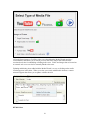
If external media is selected, the next step of the Media Wizard is to select an Image or Picture
(Google Picasa Image or an image located at a URL) or Audio/Video file (YouTube video or an
audio/video file located at a URL).
35
If Google Picasa images or YouTube videos are selected then the Media Wizard provides a
search interface that allows you to search, preview, and select images and videos from the
associated web sites for embedding or linking in the exam. Videos and images that are located on
an external web server can also be manually linked to the exam.
Updating and deleting items added with the Media Wizard is as easy as clicking on the media
icon that appears in the editor. When you select a previously added media element, a context
menu will appear that allows you to update or delete the item.
HTML Editor
36
Even course designers who are comfortable writing HTML often have difficulty sorting out the
HTML they’ve written from the question wording itself. Respondus solves this problem by
encapsulating blocks of HTML so that the question wording stays the focus of the screen. The
only time a designer has to view HTML is while the Respondus HTML Editor is being used.
From the Edit menu in Respondus, position the cursor at the location in the question where you
want to begin a block of HTML. Then click the “HTML Editor” icon on the toolbar (represented
by the symbol <H>) to open the editor. Enter your HTML by typing or pasting it into the editor-it is also possible to retrieve the HTML from a file located elsewhere on your hard drive by using
the “Read File” option. Click [OK] to close the HTML Editor. A set of characters representing
the HTML block will appear at the insertion point: <H_1> for the first block, <H_2> for the
second block, and so on. To see how the HTML will appear in Moodle, click the preview button.
To delete an HTML block, position the cursor in the same field where the HTML block is
located, and select the “HTML Editor” icon from the toolbar. Choose the option to delete the
HTML block and highlight the block you want to delete. Click [OK] to close the HTML Editor.
Equation Editor
The process of adding equations is similar to how media objects are added (see the earlier
discussion). Equations can be added to question wordings, answer choices and feedback without
having to write HTML. In addition, the equations can be previewed offline and they are
automatically uploaded to Moodle during the Publish process.
From the Edit menu, position the cursor at the place in the question where you want the equation
located. Then click the “Equation Editor” button on the toolbar, which is represented by a
summation symbol. The Equation Editor will open and you can begin creating the equation. The
Equation Editor in Respondus works almost identically to the one that is available with Microsoft
Word and WordPerfect. So if you’ve used those equation editors before, you’ll already know how
to use this one. The key thing to learn about the Equation Editor is that the top row of menu
options consist of “symbols” while the bottom row of menu options consist of “palettes”. If you
select a “symbol” from the top row, it’s no different than if you selected the + or = sign on your
keyboard -- except that the symbols from the Equation Editor eventually get displayed as graphics
since they are not HTML-compatible. When you select a “palette” from the bottom row, you are
given the opportunity to enter text at various insertion points shown on the screen. You can also
select a palette from the bottom row, click in an insertion point, and then select a symbol from the
top row. For more information about the Equation Editor, refer to the online help that is available
from within the editor.
Once you finish editing the equation, exit the Equation Editor by either clicking the [X] that
appears at the top right corner of the window or by selecting File from the pull-down menu and
clicking Exit. A second window that addresses other properties of the equation will now appear.
The font selection and size used within the Equation Editor determines how large the equation
will be when it is printed from Respondus. But it is generally desirable to show equations in a
larger format when displaying them on the web. In general, we recommend that a web-based
equation be displayed at 150% of the size used for printing. So by default, the Respondus
software suggests that the “Moodle Image Scaling” for the equation be increased to 150%. To
accept this setting, simply click the [OK] button. If you want the graphic to appear even larger in
Moodle, then you can increase the scale to up to 400%. It’s important to note that changing the
image scale using this option only affects how it will appear in Moodle --you are NOT affecting
37
the size of the equation that will print from Respondus. In order to change the size of the equation
for printing purposes, you must select a different font size in the equation editor itself.
An additional “Alt” field allows a text description to be added to the equation image so it can be
utilized by an ADA-compliant screen reading browser. This text is also displayed when the
mouse pointer is held over the image. If you simply click [OK] to close the window, the generic
text “equation” will be used for the “alt” field. If an expanded textual description is entered (such
as “b is greater than or equal to c”), it will be used by the screen reader instead.
Once an equation has been added and you return to the Edit menu, a short string of characters
representing the equation object will appear in green text. An equation placed in the question
wording will look something like <EQ_1>, with the next equation being displayed as <EQ_2>,
and so on. When an equation is placed in an answer choice or feedback, it will appear as a small
red box, except when that field is being edited.
To modify or delete an equation, position the cursor in the same field where the equation is
located. Then click the “Equation Editor” icon on the toolbar and select the option to modify or
delete an existing equation.
You can preview questions containing equations by selecting the [Preview] button. We
recommend that you preview all equations before publishing them to Moodle.
Using MathType with Respondus
The Equation Editor in Respondus is a special version of MathTypeTM by Design Science. If you
frequently create documents with equations, you may find MathType is better suited to your
needs. MathType is as easy to use as the Equation Editor and has many extra features to help you
save time and create a wider range of equations.
MathType is available in English, Japanese, German and French. For further information about
purchasing MathType, contact your software dealer or Design Science directly: Design Science,
Inc., 4028 Broadway, Long Beach, CA 90803, USA.
Toll free: 800-827-0685 International: 562-433-0685
Fax: 562-433-6969
Email: [email protected]
World Wide Web: http://www.dessci.com
If you already own MathType, you will need to reinstall it in order to have it work directly with
Respondus. MathType's readme file explains that it sets itself up to replace Equation Editor at the
time that it's installed. So if you add a new application like Respondus that uses the Equation
Editor, you must re-install MathType.
Power Edit
The “Power Edit” task available from the Edit menu provides additional features for formatting
questions including a table editor, bulleted lists, the ability to change fonts and justification, and
so forth. In addition, the Power Edit window provides a much larger workspace, which is
especially useful if you are creating tables or editing questions that have large blocks of text.
38
To begin, click in the field that you want to edit and then click the “Power Edit” button on the
toolbar. Several of the tasks on the Power Edit toolbar also appear on the main toolbar, so only
the unique features will be discussed below.
Tables
Respondus makes it easy to insert and edit tables. From the Edit menu in Respondus, position the
cursor at the location where you want to insert the table. Then click the “Power Edit” button and
select the “Insert Table” icon from the toolbar (located at the top right). When the next pop-up
window appears, specify the number of columns and rows that should be included in the table (all
other settings are optional). Click the [OK] button to return to the Power Edit window. You can
now click within the cells of the table and enter the text.
The width of the table cells can be adjusted by dragging the column lines. To edit other
dimensions of the table from the Power Edit menu, click within the table and select the desired
action from the pull-down menu labeled “Table.” Use the “Insert” option to add a row or column
to the table. Use the “Delete” option to delete a row or column, or to delete the entire table. Other
formatting (such as font changes and the centering of text) can also be applied to the cells in a
table.
Finally, keep in mind that it is usually possible to paste tables into Respondus directly from
Microsoft Word. Also, Respondus tables are designed to support both web-based exams and print
exams. So you only have to create a table once if you require both online and print exams.
Fonts, Formatting, and Lists
The remaining features in the Power Edit task are self-evident if you are familiar with the basic
functioning of a word processor. To apply a different font, highlight the text and select the desired
font and size from the pull-down lists. Text can be left justified (the default), right justified, and
centered by selecting the appropriate toolbar button. Finally, it is easy to create bulleted or
numbered lists by selecting the corresponding option from the Power Edit toolbar.
To see how the formatting will appear in Moodle, click the preview button that is located at the
top left of the Power Edit toolbar. To exit the Power Edit window, simply click the [X] at the top
right corner of the window, or go to File and click Save & Exit.
Spell Check
The Spell Check feature, which is located on the toolbar for the Edit menu, will search the
currently open file for spelling errors and allow corrections to be made. Once the Spell Check
feature is started, it will search for words that do not match items stored in the dictionary. If the
word is not found in the dictionary, you are given the option to “Change” the word to one that is
suggested, to “Ignore” the identified word, to “Change All” such words in the file to one you
select, or to “Add” the word to the dictionary. If you want to make more detailed changes to the
question, click the “Edit This Question” button, which will close the spell checker and make the
question available for editing.
Three dictionaries are included with a standard installation of Respondus: American English,
Canadian English, and British English. However, a free bundle of supplemental dictionaries can
be downloaded from the Respondus website, including French, German, Spanish, Dutch, Finnish,
and a comprehensive medical dictionary.
Keyword Searches
39
There are several places in Respondus where the [Search] and [Advanced Search] buttons
appears, such as at the bottom of the Edit and Expanded View menus. A quick search can be
performed by entering a search term in the field next to the [Search] button. The [Advanced
Search] option also allows you to search the currently open file, or the file that is being
previewed.
Up to three words can be included in an Advanced Search. When more than one word is used,
you can choose whether a match is required of all words or any of the words. A final option
allows you to include answer choices and feedback in the keyword search.
40
Settings Menu
Overview
Random Blocks
General Settings
Security Settings
Review Settings
How to Save New Default Settings
Overview
Respondus allows the selection of settings for a quiz prior to it being uploading to Moodle.
Although this step is entirely optional, it provides the ability to create “random blocks” and to
determine the settings for the quiz offline. I
The “Random Blocks” task has an entirely unique approach and design to it than that used by
Moodle. However, the three other Settings tabs in Respondus are very similar in design to how
they appear in Moodle. Rather than write an entirely new explanation for how the Settings
options work in Moodle, we have borrowed much of their on-line help for this section.
Random Blocks
A “random block” is a set of questions from which a random selection is presented to students
during the exam. For example, you can create a random set containing 10 questions from which
2 will be selected and presented to students during the quiz. Before creating sets (random blocks)
in Respondus, you should have your file organized so that questions being included in a set are
grouped together. For example, if the fifth question in an exam is going to be randomly selected
from a set that contains three questions, these three questions should be grouped together at 5, 6,
and 7 in the file.
To create a random block, go to the Settings menu and select the “Random Blocks” tab.
41
Then select the option “Add New Set” and enter the first and last numbers -- that is, the range -of the questions that will comprise the question set. For instance, if you want questions 5, 6, and 7
to be the basis of a question set, you would enter 5 as the first question and 7 as the last question
in the set.
If you want all of the questions in the set to be shown during the exam, select the “All” option. If,
however, you want a smaller number of questions from the set asked during the exam, choose the
“Select Number” option and provide the desired number. For example, if you want only one
question from questions 5-7 asked during the exam, you would enter the number 1. You are then
asked to provide a point value for the question set. (All questions in a question set must have the
same point value.)
Finally, click the “Add New Set” button to finish the creation of the question set. In the list
below, a letter representing the question set will appear next to each question that is contained in
the question set. This allows you to easily see which questions are grouped together.
The letters representing each question set also provide the basis for editing a question set. For
instance, if the letter “C” appears next to a set of questions, and you want to edit this particular
question set, select the option “Modify or Delete Existing Set” and select “C” from the pull-down
list. The current settings for that question set will be displayed and several new options will
appear in the lower section of the screen: Save Changes, Cancel Changes, and Delete Set.
42
In order for random blocks to be included with the quiz when it is published to Moodle, you must
select the checkbox “Apply Random Blocks” on the Publish to Moodle menu. Conversely, if you
do not want random blocks included with the quiz when it is published to Moodle, leave this box
unchecked.
General Settings
The section labeled General Settings includes settings that must be considered for most quizzes.
Introduction
An introduction of the quiz can be entered. This will be visible to the student at the start of the
quiz.
Open/Close the quiz
You can specify times when the quiz is accessible for people to make attempts. Before the
opening time, and after the closing time, the quiz will be unavailable.
Time limit
By default, quizzes do not have a time limit, which allows students as much time as they need to
complete the quiz. If you do specify a time limit, then this setting can be specified in minutes.
43
Time delay between first and second attempt
If you set a time delay, then a student has to wait for that time before they can attempt a quiz after
the first attempt.
Time delay between later attempts
If you set a time delay here, then a student has to wait for that time before they can attempt their
third or later attempts.
Questions per page
For longer quizzes it makes sense to stretch the quiz over several pages by limiting the number of
questions per page. When adding questions to the quiz page breaks will automatically be inserted
according to the setting you choose here. However you will also be able to move page breaks
around by hand later on the editing page.
Shuffle questions
If you enable this option, then the order of questions in the quiz will be randomly shuffled each
time a student attempts the quiz. This is not related to the use of Random Questions, this is only
about the displayed order of questions. The intention is to make it a little harder for students to
copy from each other.
Shuffle within questions
If you enable this option, then the parts making up the individual questions will be randomly
shuffled each time a student starts an attempt at this quiz, provided the option is also enabled in
the question settings. The intention is simply to make it a little harder for students to copy from
each other. This only applies to questions that have multiple parts, such as Multiple Choice or
Matching Questions. For multiple choice questions the order of the answers is shuffled only when
this option is set to "Yes". For matching type questions the answers are always shuffled, this
setting controls whether in addition the order of the question-answer pairs is shuffled.
Attempts Allowed
This setting determines the number of times a student may complete a quiz—this may be set from
one to six, or to unlimited. Select your choice from the drop-down menu.
Each attempt build on the last
If multiple attempts are allowed and this setting is set to Yes, then each new attempt contains the
results of the previous attempt. This allows a quiz to be completed over several attempts. To show
a fresh quiz on every attempt, select No for this setting.
Adaptive mode
If you choose Yes for this option then the student will be allowed multiple responses to a question
even within the same attempt at the quiz. So for example if the student's response is marked as
incorrect the student will be allowed to try again immediately. However a penalty will usually be
subtracted from the students score for each wrong attempt (the amount of penalty is determined
by the penalty factor).
This mode also allows adaptive questions that can change themselves in response to a student's
answer. Here is how the IMS QTI specification defines adaptive questions (items):
An adaptive item is an item that adapts either its appearance, its scoring (Response
Processing) or both in response to each of the candidate's attempts. For example, an
adaptive item may start by prompting the candidate with a box for free-text entry but, on
44
receiving an unsatisfactory answer, present a simple choice interaction instead and award
fewer marks for subsequently identifying the correct response. Adaptivity allows authors
to create items for use in formative situations which both help to guide candidates
through a given task while also providing an outcome that takes into consideration their
path
In adaptive mode an additional Submit button is shown for each question. If the student presses
this button then the response to that particular question is submitted to be scored and the mark
achieved is displayed to the student. If the question is an adaptive question then it is displayed in
its new state that takes the student's answer into account and will in many cases ask the student
for another input. In the simplest adaptive questions this new state may differ only in the
feedback text and prompt the student to try again; in more complicated question also the question
text and even the interaction elements can change.
Grading method
When multiple attempts are allowed, there are different ways you can use the grades to calculate
the student's final grade for the quiz.
Highest grade - The final grade is the highest (best) grade in any attempt.
Average grade - The final grade is the average (simple mean) grade of all attempts.
First grade - The final grade is the grade gained on the first attempt (other attempts are ignored).
Last grade - The final grade is the grade gained on the most recent attempt only.
Decimal digits in grades
By using this setting you can select the number of digits that should be shown after the decimal
point when displaying student scores or grades. For example choosing '0' means the displayed
grades will be rounded to integers. This setting only effects the display of grades. It does not
affect the internal calculations and rounding of the grades.
Apply penalties
If a quiz is run in adaptive mode then a student is allowed to try again after a wrong response. In
this case you may want to impose a penalty for each wrong response to be subtracted from the
final mark for the question. The amount of penalty is chosen individually for each question when
setting up or editing the question. This setting has no effect unless the quiz is run in adaptive
mode.
Security Settings
The Security Settings are optional. They may be used to restrict access to the quiz for security
purposes. The settings do not change the Availability of the quiz, they only change how it is
accessed.
45
Show quiz in a “secure” window
The "secure" window tries to provide a little more security for quizzes (making copying and
cheating a bit more difficult) by restricting some of the things that students can do with their
browsers.What happens is that:
* Javascript is made a requirement.
* The quiz appears in a new fullscreen window.
* Some mouse actions on the text are prevented.
* Some keyboard commands are prevented.
Note, this setting is unrelated to Respondus LockDown Browser and should not be relied upon as
your sole strategy for delivering secure assessments.
Require password
If you specify a password in here then participants must enter the same password before they are
allowed to make an attempt on the quiz.
Require network address
You can restrict access for a quiz to particular subnets on the LAN or Internet by specifying a
comma-separated list of partial or full IP address numbers. This is especially useful for a
proctored quiz, where you want to be sure that only people in a certain room are able to access the
quiz.
For example: 192.168. , 231.54.211.0/20, 231.3.56.211, 231.3.56.10-20
There are four types of numbers you can use (you can not use text based domain names like
example.com):
1. Full IP addresses, such as 192.168.10.1 which will match a single computer (or proxy).
2. Partial addresses, such as 192.168 which will match anything starting with those numbers.
3. CIDR notation, such as 231.54.211.0/20 which allows you to specify more detailed subnets.
4. A range of IP addresses 231.3.56.10-20 The range applies to the last part of the address, so
this means all the IP addresses from 231.3.56.10 to 231.3.56.20.
Spaces are ignored.
46
Review Settings
The Review Settings in this section are optional for quizzes. These settings affect the behavior of
a quiz after it has been submitted.
Review options
These options control what information users can see when they review a quiz attempt or look at
the quiz reports. Immediately after the attempt means within two minutes of the attempt being
finished by the user clicking 'Submit all and finish'. Later, while the quiz is still open means after
this, and before the quiz close date. After the quiz is closed means after the quiz close date has
passed. If the quiz does not have a close date, this state is never reached. Users with the
capability 'View hidden grades' [moodle/grade:viewhidden] (typically teachers and
administrators) are not affected by these settings and will always be able to review all information
about a student's attempt at any time.
How To Save New Default Settings
In Respondus there are two types of default settings: the original settings as displayed in Moodle,
and a second set of default settings that you can determine yourself. To save your own default
settings, select the options you want across the three setting tabs (General, Security, and Results).
Then click the [Use as New Defaults] button on the left side of the screen. From this point
forward, all new files created in Respondus will have the new default settings attached to them.
If you modify the settings and later wish to restore the default settings (either your own default
settings or Moodle’s), simply click the [Restore Default Settings] button. You will be asked
which settings you want to restore.
47
Preview & Publish
Overview
Preview
Publish to Moodle
Printing an Exam
Overview
Once a quiz is created in Respondus, the Preview and Publish menu let’s you determine what to
do with the file. Most users will first want to examine the contents of the file using the Preview
task. When the questions are ready to be uploaded, the Publish to Moodle task connects
Respondus to a Moodle server and transfers the quiz to it. Finally, the Print Options task lets you
format and print the exam directly from Respondus. This task also makes it possible to save a file
to Microsoft Word format for further enhancement and printing.
Preview
The Preview task, located on the Preview & Publish menu, is similar to the preview option that
appears in the Edit menu. The primary difference is that here you can easily scroll from one
question to the next.
The preview window shows how the question wording and answer choices will appear to students
when they take the exam. The feedback and correct answer for the question is additionally
displayed at the bottom of the window.
48
To edit the question being displayed in the Preview window, click the [Modify Item] button. The
screen will change to the Edit menu and the question will be displayed in the editor. Make the
required changes and click [Save Changes].
Publish to Moodle
The Publish to Moodle wizard is available from the Preview & Publish menu and it guides a user
through the steps of publishing a quiz to Moodle. You must already have a Moodle account and
password in order to use this task. In addition, it is helpful to understand the basic approach used
by Moodle to create an online quiz.
The initial decision is to choose if the quiz will be published to a single course/section or to
multiple courses/sections. (Note: The “Batch Publish” feature is only available in the Campuswide version of Respondus.)
The next step requires that information be entered about the Moodle server and the user account.
(This information can be stored for future use, enabling this step to be bypassed after the initial
setup.) From the Moodle Server list, select “Add New Server.” A window will open.
49
As instructed on the screen, start a web browser and log into your Moodle course. Copy the
complete URL for this page and paste it in the field provided. (The easiest way to copy a URL
displayed by a browser is to highlight it with a mouse, click the right mouse button, and select
“copy.” Then go to the appropriate field in Respondus, click the right button again and select
“paste.”)
Click the “Extract” button. Respondus will then extract the information it needs about the
location and type of Moodle server being connected to.
Now provide a short description for the Moodle server. The server can be named anything you
like, such as “My Moodle Server.” If more than one Moodle server will be accessed, you will
want to select a name that helps differentiate the servers.
Enter an instructor -level User Name and Password. This information should be the same as what
is entered when using a web browser to access a Moodle course. If you want Respondus to
remember the User Name and Password for future sessions, select the “Remember my User
Name...” setting. Click [OK] to close the Moodle Server Settings window.
Before proceeding with the next step, make sure your computer has a live Internet connection.
Click [Next] to make an initial connection with the Moodle server and to continue with the
wizard.
50
If a connection to the Moodle server is unsuccessful, an error message will indicate that
Respondus was unable to connect to the server using the provided settings. If this occurs,
troubleshoot it as follows:
•
Make sure you are running a supported version of Moodle and have the correct
“personality” selected from the Start menu in Respondus.
•
Make sure your connection to the Internet is working properly.
•
Double-check the instructor-level Password and User ID information. In fact, open
your browser, go to the Moodle server, and enter the identical login information. This
will confirm that the Moodle server is running and that the User ID and Password are
correct.
•
Make sure you are running the latest version of Respondus (go to Help>Check for
Update to see if a more current version is available).
Respondus uses the login information to look up the Moodle courses that are associated with it.
Select the course to which the quiz will be published. The hourglass will appear momentarily as
Respondus retrieves the list of existing question categories and sections.
Moodle requires that questions be placed in a “question category” (i.e. a question database)
before they are used in a quiz. So decide whether to create a new category or use an existing one.
To use an existing category, select the second option and choose a category from the pull-down
list. All questions in the Respondus file will be appended to this category during the publishing
step.
The remaining selections are optional; including the ability to create a quiz (it is possible to
publish a “question category” to Moodle without creating a quiz).
One section allows the creation of a new quiz, or the updating of an existing quiz. Select the box
for “Create/Replace assessment” to do any of the two. To create a new quiz, select the appropriate
option and provide a name for the quiz. To update an existing quiz, select the second option and
pick the quiz from the drop-down box.
If Random Blocks were created for the quiz (see the Settings menu) they will be uploaded if the
Apply Random Blocks option is selected. The selections from the Settings menu can also be
uploaded with the quiz.
Click [Next] and Respondus will begin publishing the quiz to the Moodle course. A status report
appears during the publishing process. For a typical quiz, the publishing process takes 20-40
seconds. This can increase to five minutes or more if a large number of media files are being
uploaded or if the server connection is particularly slow. You will know that the publish process
is complete when the hourglass disappears and the phrase “Completed successfully” appears in
the “status” window.
After an exam is published to Moodle, it is recommended that you go to the course and confirm
that everything appears as expected.
51
Printing Options
Respondus allows you to format and print exams directly from the software. It is also possible to
save an exam to MS Word format for further enhancement and printing. To begin, go to the
Preview and Publish menu in Respondus and select the Print Options tab.
The screen now displays the printing options available in Respondus. There are three formatting
templates from which to select: Exam, Exam with Answer Key, Answer Key Only. Once a
template is selected, you can further modify it by clicking the Settings button to its right. If the
exam being printed has matching questions, be sure to select the checkbox labeled "Matching,
randomize answers" if you want the second set of answers to be randomized. Also, if you have
sequential questions that refer to the same image or graphic, you will likely want to select the
“Suppress Repeated Images” button so that the image is not repeated with each question.
Click the [Edit Headers] button to enter the information you want to appear at the top of each
page. Different information can be entered for the second and subsequent pages too. The header
information might look something as follows:
The next section allows up to 10 variations of the exam to be generated. You have the ability to
“randomize all” questions in the exam or to have the questions randomized according to question
type (i.e., all the multiple choice questions are randomized within a group, all the essay questions
are randomized within a second group, and so forth). If Calculated questions are contained in the
file, each Exam Variation will have a unique set of variables for the calculated questions. If you
don’t want multiple exam variations, simply retain the “Original Order” option from the pulldown list. (Note: As long as the questions in the exam file remain unchanged, a particular “Exam
Variation” will have the same question order each time it is printed or saved to MS Word format.
However, if you add or insert new questions, the Exam Variation will differ the next time you
print/save an exam or answer key.)
It is also possible to specify a range of questions to be included in the printed exam. If both fields
are left blank, all questions will be included.
52
At the bottom of the screen there are three options: Print Preview, Save to File, and Send to
Printer. The Print Preview button allows you to preview the contents of the file in a pop-up
window. We recommend that you use this option before printing the exam or saving the contents
to a file--it is a quick way to identify mistakes. The Save to File option allows the creation of a
MS Word file (.doc), a “rich text file” (.rtf), or a standard text file (.txt). The MS Word and .rtf
formats will retain enhanced formatting such as bold, italics, and underlining, whereas the .txt
format will strip such information. Once a file is saved, it can be opened with a word processor
for further formatting and modification. Finally, the Send to Printer option permits you to print
directly from Respondus. This task works similar to the printing function in other Windows
programs.
53
Retrieval
Overview
Retrieving a Quiz or Question Category from Moodle
Overview
Once a quiz is administered in Moodle, Respondus allows you to retrieve the quiz instrument
from Moodle so that it can be modified in Respondus, published to another course, or archived.
Retrieving a Quiz or Question Category from Moodle
Respondus allows the retrieval of quizzes and question categories from a Moodle course. To
begin, go to the Retrieval menu in Respondus and select Retrieve Questions. The first couple of
steps of retrieving a quiz or category are identical to those used for publishing a quiz to Moodle
(see the earlier discussion for a detailed explanation). That is, provide the Moodle server
information and select a course from the drop-down list. Then select either the “quiz” or
“category” option and choose the file to be retrieved from the drop-down list. Finally, enter a
name for the new Respondus file being created and click the [Retrieve] button.
The retrieval process will take between 15 seconds and several minutes depending on several
factors: the speed of your connection, the load on the server, the size of the media elements that
are being retrieved, and so forth. You will know that the retrieval is successful by the statement
“Successfully completed” that appears in the status box.
When a file is being retrieved, Respondus will detect if media objects are associated with it and
will automatically download these objects if they are stored with your Moodle course.
(Respondus does NOT attempt to download media elements if they are stored on a different
server.) If media objects are retrieved with a file, Respondus will automatically update the HTML
links that point to these objects. This makes the media elements work properly when the file is
published again to Moodle.
Equations that were published to Moodle from Respondus and later downloaded from Moodle to
Respondus will be treated as “images” from that point forward, not equations. This means that if
you want to use Respondus to modify an equation that was retrieved from Moodle, you will first
need to delete the equation graphic using the “Insert Picture or File” option (see the discussion for
that task) and then use the Equation Editor to create the new equation. Hence, it is better to retain
the original Respondus file since it permits future editing of equations. Also, if you provide a
colleague a quiz that contains equations, it is better to send that file in the original Respondus
format so the person can edit the equations more easily.
If a Moodle quiz contains question sets, Respondus will maintain these sets during the download.
54
Other Tools & Features
Overview
Save As Copy
Save As StudyMate Class Format
Preferences
Update License
Cleanup HTML Tool
Question Title Tool
Check for Update
Overview
There are several additional tools in Respondus that offer a range of functions. Each of these is
discussed below.
Save As Copy
The “Save As Copy” tool is located on the File pull-down menu. Use this task to create a copy of
the currently open file.
Save As StudyMate Class Format
The Save As… tool, located on the File pull-down menu, can also be used to save Multiple
Choice and True/False questions to the StudyMate Class zip format (.zip). Once saved, the file
can be imported into a StudyMate Class instance or by StudyMate Author, a separate product by
Respondus Inc.
Question types other than Multiple Choice and True/False are dropped during the export to the
StudyMate Class zip format.
Exported items that contain images are handled as follows. If an item contains a single image,
that image is placed at either the beginning or end of the question once it’s imported by
StudyMate Class (the beginning/end positioning is based on its proximity to the beginning or end
in the original question wording). If an item has multiple images, only the first image is retained,
with the text “*IMAGE*” inserted where additional images appeared in the original item.
The StudyMate Class format can also be imported into StudyMate Author, with True/False
questions being converted to Multiple Choice questions with only two answers.
Preferences
A “preferences” option is located on the File menu bar, contains five tabs: General, Edit &
Publish, Retrieval, Conversions and Auto-Save.
The top section of the General preferences allows you to prevent Respondus from automatically
checking for updates to the Respondus software. (The checking occurs whenever an exam is
published from Respondus to an online course.) Directly beneath this is a list of learning
management systems. If you only want to be informed of updates that relate to specific learning
management systems, unselect those systems for which you are not interested. The final option on
the General tab allows the current description of the Respondus file to be edited.
The Edit and Publish preferences provide a variety of options:
55
•
•
•
•
•
The ability to discard font changes when copying and pasting from another program
The ability to change the default point value for new questions that are created or
imported
The ability to prevent the “ALT text” window (for entering text for screen readers) from
appearing each time an image is added to an exam
The scaling percentage that should be used for equations that are published to the online
course
The ability to change the default font for questions that are published to Blackboard. (We
highly recommend that you don’t change the default font. If you change the default font
and later need to edit your questions from within Blackboard using a browser, it will be
more difficult because the font HTML will be intermixed with the question wording.
Also note that changes to the default font will not be applied to tables or any text that
already has a specific font applied it.)
The fourth preference tab, Conversions, allows the settings to be determined for files that are
converted from one LMS personality to another. If you do not want to be asked each time how
certain issues should be handled for the file conversion, then select the settings that you prefer.
The Auto-Save tab controls what actions, such as adding a new question or editing an existing
question, cause the program to automatically save the current document.
Update License
For the campus-wide version of Respondus this allows updating the license information at any
time, for example to change the support contact or to renew the license early. Update License is
located under File on the menu bar.
Cleanup HTML Tool
Questions imported from a Word document or by pasting from Word into a question editor may
contain more formatting than is needed, such as font changes and styles that don’t work properly
with a learning management system server.
The Cleanup HTML tool, located under File on the menu bar, allows you to apply three levels of
cleanup to all questions in the current file. The first level strips away some extra font and style
information that is usually not appropriate for use on servers. The next level removes almost all
font information so that the server’s normal fonts are used instead of other fonts. The final level
removes almost all formatting which can solve problems with unsafe HTML that are not fixed
using the other two levels.
Question Title Tool
There are many situations when it is desirable to rename all the titles in the Respondus file to
provide a consistent look or numbering sequence. For example, if questions are copied or
imported from a variety of sources the resulting titles may look inconsistent and haphazard.
The Question Title Tool, located under File on the menu bar, lets a “stem” (or prefix) be specified
for question titles. Consecutive numbering will automatically be generated for the text that
appears after the stem, beginning with 1 (or 01, or 001, etc.). For example, if you enter
“Chapter1-” as the stem text, and then select “001” as the format for the numbering scheme, the
56
title for the first question will be changed to Chapter1-001, the title for the second question will
be changed to Chapter1-002, and so on. If a range is specified for the titles being changed, even
more specific titles can be provided throughout the file. For instance, questions 1-20 might use
the stem “Ch1-Unit1-” and questions 21-30 might use the stem “Ch1-Unit2-” and so forth.
Check for Update
The “Check for Update” tool, located on the Help drop-down menu, provides an easy way to see
if an update is available for Respondus (a live Internet connection is required). Respondus will
instantly return a message indicating whether an upgrade is available. If an upgrade to Respondus
is available, you can let Respondus download the required file(s) automatically and update the
software for you. This is the easiest way to apply a patch or upgrade.
Depending on your preference settings, Respondus will automatically check for an update at the
time an exam is published to Moodle (this check will occur only once in a 24-hour period). No
information about your computer hardware and software is collected by Respondus, Inc. during
this process. Instead, the Respondus software retrieves information from www.respondus.com
and will display a message if an update is available. You will then have the choice of upgrading
to the latest version of software.
If you don’t want Respondus to automatically check for software updates during the publishing
step, go to the File menu, select Preferences, and deselect the appropriate checkbox on the
General tab.
57
Disclaimer of Warranty
While Respondus, Inc. has tried to ensure the dependability of the software and documentation, it
is provided "as is" without warranty of any kind. Agents of the supplier may have made
statements about this software. Any such statements do not constitute warranties and shall not be
relied on by individuals in deciding to use the program.
Because of the diversity of conditions and hardware under which this program may be used, no
warranty of fitness for a particular purpose is offered. Test the program thoroughly before relying
on it. You assume the entire risk of using the program. Respondus, Inc. shall not be liable for any
expense, claim, liability, loss, or damage (including any incidental or consequential damage), loss
of profits, loss of reputation, or any loss whatever direct or indirect, by you from either the use of
or the inability to use the software.
Copyright, Ownership, and Use of Software
All software, with exception of Equation Editor by Design Science and the Sentry SpellingChecker Engine by Wintertree Software, remains the property of Respondus, Inc. The software
and written materials are copyrighted. This license is not a sale of the original software or any
copy. You own the physical media on which the software is originally or subsequently encoded,
but Respondus Inc. retains title and ownership of the software on all media.
You are not permitted to install the executable code version of this product on a network server or
virtual server. You may not customize the Respondus “Product.” Except as otherwise permitted
by written consent, you may not: (i) modify or create any derivative works of the Product or
documentation, including translation or localization; (ii) decompile, disassemble, reverse
engineer, or otherwise attempt to derive the source code for the Product; (iii) redistribute,
encumber, sell, rent, lease, sublicense, or otherwise transfer rights to the Product; or, (iv) remove
or alter any trademark, logo, copyright or other proprietary notices, legends, symbols or labels in
the Product.
© 2000-2011 by Respondus, Inc. All Rights reserved. The Equation Editor and documentation
are copyrighted by Design Science, Inc. The Sentry Spelling-Checker Engine is copyrighted by
Wintertree Software, Inc.
Respondus is a registered trademark and Respondus LockDown Browser is a trademark
of Respondus, Inc. All other trademarks are the property of their respective owners.
Copyright © 2011 Respondus
58