1
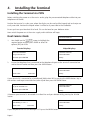
You have swiped a customers card at the READY prompt and the terminal displays ‘CARD READ FAILURE’
OR
If you have selected the Sale option from the Transaction menu and unsuccessfully swiped the card three times, and the terminal displays ‘Key in Card Number.’
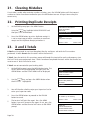
1.
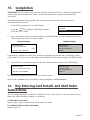
At the READY prompt press the MENU button.
2.
Use the
keys to highlight SALE and then press
the GREEN button.
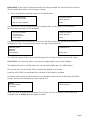
3.
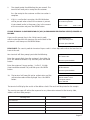
Key in the amount of the transaction and then press
the GREEN button, or key in the customer’s card
number when you see this prompt. The card number
will be displayed as it is keyed in.
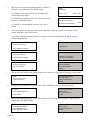
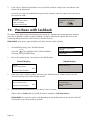
TRANSACTION MENU
REFUND
Sale
Purch. with Cashback
<transaction type>
Insert or Swipe Card
to continue
(or press Cancel key)
The terminal will check the card number.
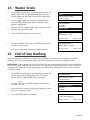
4.
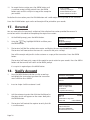
Key in the card expiry date and press the GREEN button.
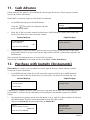
<transaction type>
Key expiry date MMYY
and then press ENTER
5.
You may be asked to enter the start date or issue
number from the card. Enter them as they appear on
the card and press the GREEN button.
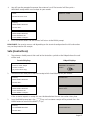
<transaction type>
Key start date MMYY
and then press ENTER
<transaction type>
Key in issue number
and then press ENTER
5.
6.
7.
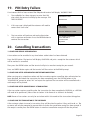
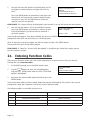
If the customer is present, press the GREEN button. If
this is a mail order transaction, press the YELLOW button
and proceed from step 9 below.
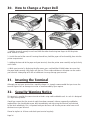
If not entered earlier in the process, key in the amount
of the transaction and press the GREEN button. The
terminal will now dial for authorisation. The
authorisation code will be displayed. Press the GREEN
button.
A receipt will now be printed. Obtain the customers
signature. If the signature is OK, press the GREEN
button. If it is not, press the YELLOW button and the
transaction will be voided.
Page 26
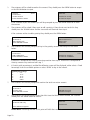
<transaction type>
Is customer present?
Enter = YES
Clear = NO
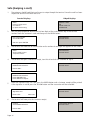
<transaction type>
Key in Amount:
and then press ENTER
0.00
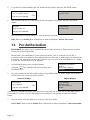
SALE
Signature OK?
Enter = YES
Clear = NO