1
DCL-200 FD
DCL-200 FD
Preface
ABOUT THIS MANUAL
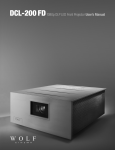
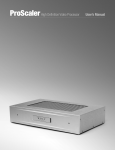
This manual is designed for use with the Wolf Cinema DCL-200FD Home Cinema Projector and Outboard ProScaler™ Video
Processor. Information in this document has been carefully checked for accuracy; however, no guarantee is given to the correctness
of the contents. The information and specifications in this document are subject to change without notice.
COPYRIGHT
© Copyright 2010 Wolf Cinema.
This document contains proprietary information protected by copyright. All rights are reserved. No part of this manual may be
reproduced by any mechanical, electronic or other means, in any form, without prior written permission of the manufacturer.
TRADEMARKS
All trademarks and registered trademarks are the property of their respective owners.
FCC COMPLIANCE
This device complies with Part 15 of the FCC Rules. Operation is subject to the following two conditions:
(1) This device may not cause harmful interference, and
(2) This device must accept any interference received, including interference that may cause undesired operation.
FEDERAL COMMUNICATIONS COMISSION (FCC) STATEMENT
This equipment has been tested and found to comply with the limits for a Class B digital device, pursuant to part 15 of the FCC
Rules. These limits are designed to provide reasonable protection against harmful interference in a residential installation. This
equipment generates, uses and can radiate radio frequency energy and, if not installed and used in accordance with the instructions,
may cause harmful interference to radio communications. However, there is no guarantee that interference will not occur in a particular
installation. If this equipment does cause harmful interference to radio or television reception, which can be determined by turning
the equipment off and on, the user is encouraged to try to correct the interference by one or more of the following measures:
Reorient or relocate the receiving antenna.
Increase the separation between the equipment and the receiver.
Connect the equipment to an outlet on a circuit different from that to which the receiver is connected. Consult the dealer or an
experienced radio/TV technician for help.
The lighting flash with arrow head within an equilateral triangle is intended to alert the user to the presence
of “dangerous voltage” within the product's enclosure that may be of sufficient magnitude to constitute a risk
of electric shock to persons.
The exclamation point within an equilateral triangle is intended to alert the user to the presence of important
operating and maintenance (servicing) instructions in the literature accompanying the appliance.
WARNING: TO REDUCE THE RISH OF FIRE OR ELECTRIC SHOCK, DO NOT EXPOSE THIS APPLIANCE TO RAIN OR MOISTURE.
DANGEROUS HIGH VOLTAGES ARE PRESENT INSIDE THE ENCLOSURE. DO NOT OPEN THE CABINET. REFER SERVICING TO
QUALIFIED PERSONNAL ONLY.
1
DCL-200 FD 1080p DLP LED Front Projector
Notices
WARNING! To meet FCC requirements, a shielded power cord is recommended in order to prevent interference. It
is essential that only the supplied power cord is to be used. Use only shielded cables to connect I/O devices to this
equipment. You are cautioned that changes or modifications not approved by the party responsible for compliance
could void your authority to operate the equipment.
WARNING! High-brightness light source. Do not stare into the beam of light, or view directly. Be especially careful
and ensure that children do not stare directly into the beam of light.
WARNING! To reduce the risk of fire or electric shock, do not expose this product to rain or moisture.
CAUTION! For minimal servicing and to maintain high image quality, we recommend that you use the projector in
an environment that is smoke and dust free. When used in areas where there is a lot of smoke or dust, the filter
and lens should be cleaned often to lengthen the service life of the projector.
WARNING! Some IC chips in this product include confidential and/or trade secret property belonging to Texas
Instruments. Therefore you may not copy, modify, adapt, translate, distribute, reverse engineer, reverse assemble
or decompile the contents thereof.
WARNING! The ventilation slots and objects next to them may get extremely hot during operation. Do not touch
these areas until they have sufficiently cooled down.
DISPOSAL Do not use household or municipal waste collection services for disposal of electrical and
electronic equipment. EU countries require the use of separate recycling collection services.
2
DCL-200 FD
Exhaust Vent
➟
➟
CAUTION REGARDING THE EXHAUST OF THE PROJECTOR
Do not place the projector in a space that is poorly ventilated or confined. Allow at least 20 in. (50 cm) clearance from walls
and have free air flow around the projector.
Air Intake Vent
Before using the projector, please read this operation guide carefully.
To facilitate reporting the loss or theft of your Wolf Cinema components, record the Serial Number located (a) on the bottom of the
projector and (b) on the rear of the outboard ProScaler; retain this information. Before recycling the packaging, be sure that you
have checked the contents of the carton(s) thoroughly against the list of “Package Contents” on page 6.
WARRANTY
Promptly register the Projector’s Warranty using the REGISTRATION CARD packed with the projector. The Warranty assures that
you immediately receive the full benefit of the parts, service and labor warranty applicable to your purchase.
LED LIGHT:
DO NOT STARE INTO BEAM
CLASS 2 LED PRODUCT
y
P ≤ 0.88 mW
= 452 nm
ICE 60825-1:1993 + A1:1997 + A2:2001
EN 60825-1:1994 + A2:2001 + A1:2002
3
DCL-200 FD 1080p DLP LED Front Projector
Connecting Source Components
Before Setting Up
Note: • Before connecting, be sure to turn off both the projector, the ProScaler and the devices to be connected. After making
all connections, turn on the projector, ProScaler and then the other devices.
• When connecting a computer, be sure that it is the last device to be turned on after all the connections are made.
• Be sure to read the operation manuals of the devices to be connected before making connections.
Your Wolf Cinema DCL-200FD system can be connected to:
Video Equipment:
• VCR, Laser disc player, camcorders or other video equipment.
• Satellite, Cable or DTV* sources.
• Blu-ray players, DVD players.
Computers:
• HD 15-pin VGA to RGBHV cabling (optional items sold separately).
• HD 15-pin VGA to HDMI converter box and cabling (optional item sold separately).
*DTV is the umbrella term used to describe the new digital television system in the United States.
Connecting the Power Cords
Plug in the supplied power cords into the AC socket from the base of the Projector and rear of ProScaler.
Supplied Accessories: Power cords (2)
Note: The projector power cord has a right angle head to fit within the case.
4
DCL-200 FD
Using your Remote Control
System Remote Control – Key Projector Functions
The Wolf DCL-200FD system features an integrated, learning remote and provides for all system functions. The primary IR remote
usage controls are outlined over the next two pages. This page highlights the main projector functions
Note: SELECT THE TV BUTTON TO ENABLE THE PROJECTOR CONTROLS
Projector Power ON Button
Press to turn the Projector on
Projector TV Select Button
Press to enable all remote
functions for the Projector
Menu Button
Press to enable on-screen
display menus
Projector Power OFF Button
Press to turn the Projector off
Favorite Aspect Ratio Button
Changes the projector image
shape to best fit your screen
Exit Menu Button
Exits the on-screen display
Adjustment Navigation
(Up, Down, Left, Right)
Navigates through on-screen menus
Select: OK to adjust focus and zoom
Note: To adjust the lens
focus or the image
size, press OK on
the remote control
then follow the
instructions on Focus
and Zoom menu.
5
DCL-200 FD 1080p DLP LED Front Projector
System Remote Control – Key ProScaler Functions
The following are the key PROSCALER functions, within the common remote control structure.
Note: SELECT THE SCALER BUTTON TO ENABLE THE PROCESSOR CONTROLS.
Also refer to the separate Wolf Cinema ProScaler User Guide for additional details.
Processor Power ON Button
Press to turn the Processor on
Processor Power OFF Button
Press to turn the processor off
Input Select Button
Press to select available
device inputs
Menu Button
Press to enable on-screen
display menus
OK Enter Button
Select items or make
adjustments from the menu
Exit Menu Button
Exits the on-screen display
Adjustment Navigation
(Up, Down, Left, Right)
Navigates through on-screen menus
Source Device Input Buttons
Press to directly select the
available components connected
to the ProScaler Processor
ProScaler Select Button
Press to change remote from
Projector controls to ProScaler
Processor functions
6
ProScaler Aspect Control
Buttons
Adjust image sizing via the
ProScaler software
DCL-200 FD
Available Range of the Remote Control
The remote control can be used to control the projector and
processor within the ranges shown in the illustration.
Note: • Using the remote control out of range may
affect the received signal.
45º
When using the remote control:
• Be sure not to drop it, or expose it to moisture or high
temperature.
23’ (7 m)
30º
• The remote control may malfunction under a fluorescent
lamp or in bright sunlight.
Inserting the Batteries
The batteries (two “AA” size) are included in the package.
1 Press down the tab on the cover and pull the cover
towards the direction of the arrow.
➟
2 Insert the included batteries.
Insert the batteries making sure the polarities correctly
match the positive and negative marks inside the battery
compartment.
3 Insert the lower tab of the cover into the opening,
and press down the cover until it clicks in place.
7
DCL-200 FD 1080p DLP LED Front Projector
Basic Connectivity Guide
Wolf Cinema’s DCL-200FD projector is optimized to work with the included ProScaler. The ProScaler and projector are carefully
calibrated at the factory to support all basic functionality “out of the box.”
The projector uses one primary HDMI input, which accepts all incoming video signals as delivered from the ProScaler. The
ProScaler processes and routes the variety of source components via the input selected.
There are 10 video inputs on the ProScaler: 6 HDMI [one front panel], 1 Component, 1 Component/RGB, 1 S-Video and
1 Composite input.
For additional ProScaler operation details, refer to this guide and the separate user manual: WOLF CINEMA PROSCALER
USER MANUAL
Connecting the Projector and ProScaler
The following basic steps are to be performed to connect all source components, Projector and ProScaler:
1 Connect all sources to the inputs of the ProScaler. For additional details please see the ProScaler Owners Manual.
Note: HDMI input #6 is under the removable WOLF CINEMA logo plate on the panel front.
2 Connect the HDMI signal cable to projector: Connect your long run HDMI video signal cable between the ProScaler
video output directly to the Projector. Connect the Audio Only HDMI cable (pass through) to your surround sound
receiver or processor.
Audio-only signal pass through. Connect
via HDMI cable to an available input on your
surround sound receiver or A/V processor
Connect HDMI cable from ProScaler to Projector.
8
DCL-200 FD
Note: Wolf Cinema always recommends that you, your custom installer or video calibrator thoroughly test the HDMI video
cable(s) with the entire system prior to final installation. HDMI cables vary greatly in overall quality and signal integrity.
Many HDMI cables are not designed to support certain information and signal timings over long cable runs. Contact Wolf
Cinema technical support and/or your cable manufacturer for additional information regarding recommended HDMI
cable lengths and overall system compatibility.
3 RS-232: Route and connect any 9-pin RS-232 cables from your external home automation or control system, separately
to both Projector and ProScaler. These two components should be controlled independently.
X
Note: The GPIO port not used in the DCL-200FD system. It is reserved for discrete
communication protocol between the ProScaler and our DCX-series of video
projectors. Leave disconnected.
RS-232 interconnect between ProScaler and external control system
4 Connect both Projector and ProScaler to AC power.
Note: Use extreme care when connecting AC Power to any products. Review the important safety notices indicated on pages
1-3 of this manual.
5 Power on the two components:
ProScaler: The ProScaler will automatically turn on. If a Red LED is shown on the right side of the front panel, the scaler is
receiving AC power but no video input signal is detected. If a Blue LED is shown, the scaler is receiving AC power and a good
video signal has been detected. No LED indicates there is no AC power to the scaler.
If the ProScaler does not turn on automatically, depress the SCALER button on the lower left of the system remote control and
then depress the green POWER ON button at the top.
Step 1 - Select the
SCALER button to
activate all the
ProScaler IR
commands via the
remote control
Step 2 - Aim the
remote at the
ProScaler. Select the
green POWER ON
button to turn on
the ProScaler
9
DCL-200 FD 1080p DLP LED Front Projector
Projector: The Projector will remain in a stand-by OFF mode until turned on via the supplied IR remote control, or by receipt of
a discrete ON command from your home automation control system.
To activate the Projector, select the TV/Projector button on the IR remote control, then depress and HOLD the green POWER ON
button at the top of the remote. The projector will turn on in approximately 30 seconds.
Step 1 - Select the
TV/Projector button
to activate all
the Projector IR
commands via the
remote control
Step 2 - Aim the
remote at the Projector.
Depress and HOLD the
green POWER ON button
for 2 seconds to turn
on the Projector
5 Select from the desired components connected to the ProScaler:
Upon power up, the ProScaler defaults to the HDMI #1 input. Other inputs may be directly accessed via the numeric keypad on
the ProScaler remote:
To select from available
sources, first select the
SCALER button, aim the
remote at the ProScaler
and then depress the
desired input button, as
noted on the keypad.
10
DCL-200 FD
Connecting Video Equipment
Using an S-Video or a Composite Video Cable
Using an S-Video or a Composite Video cable, a VCR, laser
disc player or other video equipment can be connected to
the labeled input terminals.
S-Video cable (commercially available)
Composite video cable (commercially available)
Note: The S-VIDEO terminal uses a video signal system in which the picture is separated into color and luminance signals to
realize a higher-quality image. To view a higher-quality image, use a commercially available S-Video cable to connect
the INPUT 3 terminal on the projector and the S-Video output terminal on the video equipment.
Connecting to Component Video Equipment
Using a Component Cable
Use a component cable (commercially available) when
connecting to the COMPONENT INPUT terminals, using
component video equipment such as DVD players and DTV*
decoders. Connect using analog component output terminals.
*DTV is the umbrella term used to describe the new digital television
system in the United States.
The component jack for a DVD and so forth may be indicated
with Y, CB or CR. Connect each jack as shown right.
ProScaler
DVD player or
DTV decoder
Y
B-Y
R-Y
Y
Y/G
PB
CB
PR
CR
Note: When connecting the projector to the video equipment in this way, select Component for Input Source in the ProScaler
MENU.
Connecting Video Components with an
HDMI to HDMI Cable
Use an HDMI to HDMI cable (supplied accessory) when
connecting HDMI video equipment such as Blu-ray players,
DVD players and more to the six available inputs.
HDMI Inputs #1 through #5 are located
on the rear pannel of the ProScaler.
HDMI input #6 is under the removable
WOLF CINEMA logo plate on the panel front.
Note: Select the signal output type from the video equipment set up menu
11
DCL-200 FD 1080p DLP LED Front Projector
Connecting a Computer
Connect the computer by either a 15-pin VGA to RGBHV
cable (optional accessory, sold separately) or to a VGA to
HDMI converter (also an optional accessory, sold separately).
The 15-pin VGA to RGBHV cable may be connected to the
appropriate component input (1 or 2, depending on the
type of PC sync).
Note: • See page 43 “Computer Compatibility Chart” for a list of computer signals compatible with the system. Use with
computer signals other than those listed may cause some of the functions not to work.
• A Macintosh adaptor may be required for use with some Macintosh computers. Contact your nearest Authorized
Service Center or Dealer.
• Depending on the computer you are using, an image may not be projected unless the signal output setting of the
computer is switched to the external output. Refer to the computer operation manual for switching the computer
signal output settings.
“Plug and Play” Functions [PC]
This projector and ProScaler ensemble is compatible with VESA-standard DDC 1/DDC 2B. The system and a VESA DDC compatible
computer will communicate their setting requirements, allowing for quick and easy setup.
Before using the “Plug and Play” function, be sure to turn on the projector and ProScaler first and the connected computer last.
12
DCL-200 FD
Leveling Feet
• The height of the projector can be adjusted using the leveling
feet, when the projector is placed on the uneven surface or
when the screen is slanted.
• If the screen is set at a slight angle, the adjustment feet can
be used to match the angle at the projector.
Adjustable feet
Note: When the height of the projector is adjusted, the image may become distorted (keystoned), depending on the relative
positions of the projector and the screen. See DCL-200FD User Manual for details on keystone correction.
Adjusting Lens Zoom and Focus
The image is focused and adjusted to the desired size using the
on-screen Focus menu and Zoom menu.
• First press the TV/Projector button and then press the
OK button. The Focus menu will appear. Adjust Focus via
the left and right arrow buttons on the remote.
• To select Zoom, depress the OK button a second time
and adjust as above. To exit, either select MENU or the
EXIT button.
Adjusting Lens
The height and width of the projected image can be adjusted to
be within the shift range of the lens by rotating the lens shift dial
on the side of the projector (remove Wolf Cinema logo plate to
access dials).
Lens shift dial – Vertical
Lens shift dial – Horizontal
Note: Do not forcibly turn the lens shift dial beyond the range. This may cause the projector to malfunction.
13
D i s t ri b u t ed worl d wi d e b y Su miko
2431 Fif t h S t . Be r k e le y . C A 94710
Te l: 510. 843.4500 . Fa x : 510. 843. 7120
© 2 010 W o l f C i n e m a
www.wolfcinema.com