1
Movie Magic Scheduling
129
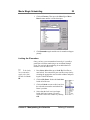
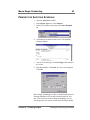
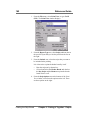
3. Complete the necessary information and press OK. The
new layout will be displayed. For more information on
this process, see “Choosing Report Options” on page 132.
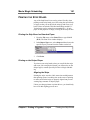
Aligning Fields on the Report
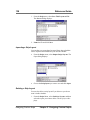
Set Grid Size
You can line all of the edges of a field up with a pre-set grid in
the layout window.
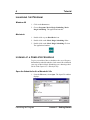
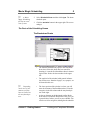
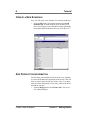
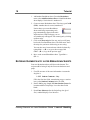
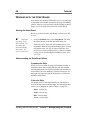
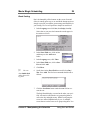
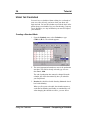
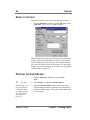
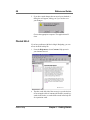
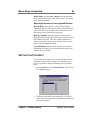
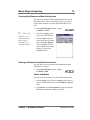
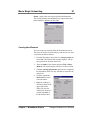
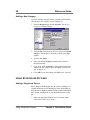
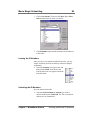
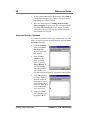
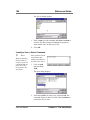
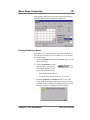
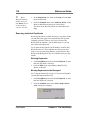
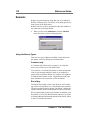
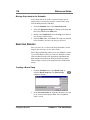
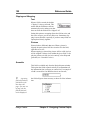
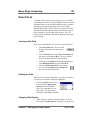
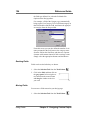
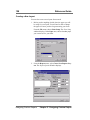
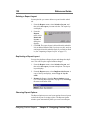
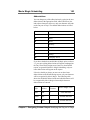
1. From the Layout menu,
select Set Grid Size. The Set
Grid Size dialog displays.
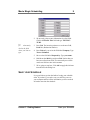
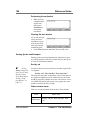
2. The default size of the grid
aligns every 8 pixels. Replace
this number with the number of pixels you want.
3. Click OK.
Align fields to grid
When you have the grid set where you want it to be, you can
now align fields to it as you draw them.
w
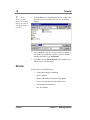
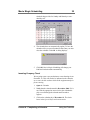
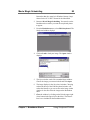
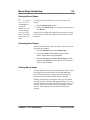
From the Layout menu, select Align to Grid. Now when
you draw a new field, or drag a field, the sides of the field
will be aligned to the grid you have set.
Designing New Fields on the Report
w
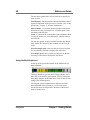
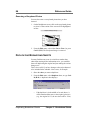
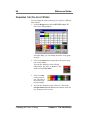
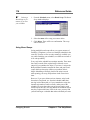
Design new fields on your custom report by using the
design palette. See “Design Palette” on page 119.
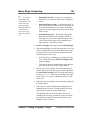
Using the Header and Footer Lines
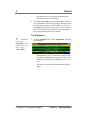
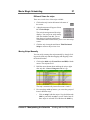
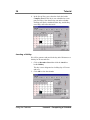
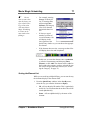
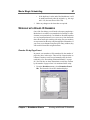
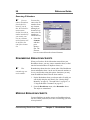
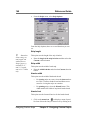
When you first create a new layout, the screen will be blank,
with the exception of two lines. These lines mark the header
and the footer. The body of your report should be placed
between these lines.
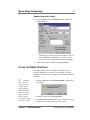
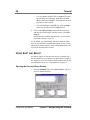
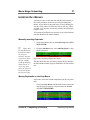
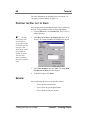
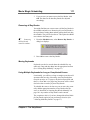
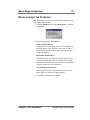
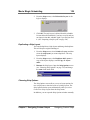
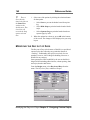
You can move the header and footer lines up and down on the
page.
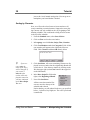
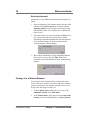
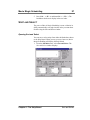
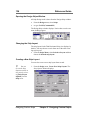
1. Move the pointer over one of the lines (the pointer will be
in the shape of a hand).
Chapter 5 - Designing Custom Output
Designing Custom Reports