1
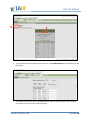
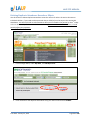
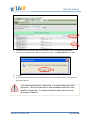
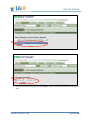
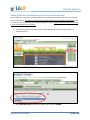
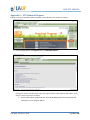
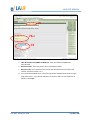
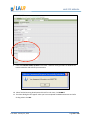
LAUP ETO MANUAL Appendix 6: Installing Crystal Viewer Reports How do I install Crystal Reports viewer on my computer? Go to: http://www.etoreports.com/npviewer.exe and follow the steps to install the viewer. IMPORTANT!!!!!! If you are part of a computer network (such as a school district) you should contact your IT department and/or network administrator before attempting to install the Crystal Report Viewer as you may not be able to install on your own. When I click on a link to open a Crystal Report, nothing happens. Why? The most likely explanation is that pop-‐up blockers are getting in the way. What are Pop-‐Up blockers? A Pop-‐Up blocker is software that prevents new web browser windows from launching and can be useful for stopping unwanted advertisements from popping up unexpectedly. The problem is Crystal Reports always launches in a new window, so we'll need to disable your computer's pop-‐up blocking software in order to make Crystal Reports work properly. How do I find out if I have Pop-‐Up blocking software on my computer, and how do I disable it? There are so many different brands and types of Pop-‐Up blocking software products out there that it is unfortunately not possible to document them all here. However, here are the three most common sources of pop-‐up blocking on our customers' computers along with tips for disabling them. 1. Internet Explorer 6.0 itself now has built-‐in Pop-‐Up blocking functionality. To disable it, go to the Tools menu, then choose Pop-‐Up Blocker, and from the menu that appears to the right, select "Turn off Pop-‐Up Blocker". 2. Google Toolbar blocks Pop-‐Ups, including Crystal Reports. To disable Google Toolbar's Pop-‐Up blocking functions altogether, follow these steps (from http://www.google.com/support/toolbar/bin/answer.py?answer=9160&topic=116) Click the "Settings" button on your Toolbar and choose "Options. "Select the "More" tab. Un-‐check the box next to "Popup Blocker." Click "OK." 3. Yahoo Toolbar is another common source of Pop-‐Up blocking. According to a Yahoo! Help document (published here: http://help.yahoo.com/help/us/toolbar/pub/pub-‐13.html), you can turn the Yahoo! Pop-‐Up Blocker on or off by following these steps: Click the Pop-‐Up Blocker menu Select "Enable Pop-‐Up Blocker" If the checkmark was present, Pop-‐Up Blocker is now off. If the checkmark was not present, Pop-‐Up blocker is now enabled. For more comprehensive instructions on disabling and managing the Yahoo! Toolbar and its Pop-‐Up blocking functionality, please consult Yahoo!'s help documentation, starting here: http://help.yahoo.com/help/us/toolbar/pub/pub-‐13.html _____________________________________________________________________________________ Print Date: January 23, 2014 Page 107 of 108