1
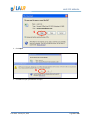
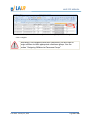
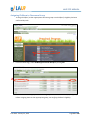
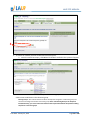
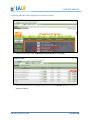
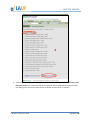
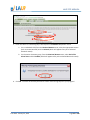
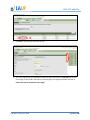
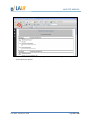
LAUP ETO MANUAL 4. For additional help with disabling these or other Pop-‐Up blockers, you may want to check out an excellent Internet-‐accessible document published by the National Association of College and University Business Officers, available here: http://www.nacubo.org/documents/prof_dev/PopUpBlockers.pdf When I click on a link for a Crystal Report, a new window does launch, but the problem is that it contains nothing but a little red 'X.' So where's my report? In this case, the problem is not Pop-‐Up blocking software. (We can be sure of that because the new window did in fact pop up; it just doesn't contain the Crystal Report we were expecting). If all you're seeing in that new window is a red 'X' inside of a white rectangle, then you will need to install the Crystal Reports Viewer software. It is available here: http://www.etoreports.com/npviewer.exe. This process will only take a few minutes. Simply click on the link above, and when the new window appears click 'Run' to install the file. As is the case with many .exe files (or "executable" files), you may encounter warning messages or confirmation messages along the way which ask you whether you are sure you want to install this software. Please answer in the affirmative to all such questions, as this application is harmless and necessary for the viewing of Crystal Reports. I tried to install the Crystal Reports viewer (http://www.etoreports.com/npviewer.exe) but I am still seeing the red 'X' and no Reports. What should I do now? First, please try restarting your computer. That is sometimes all it takes to get the Crystal Reports viewer working. If rebooting does not help, please contact your network administrator for help with installing the Crystal Reports viewer. You might not have administrative access to the computer on which you are trying to install the Crystal Reports viewer. (If you got a message during the install process that InstallShield was in use, you probably do not have administrative access to this computer). In that case, only your network administrator will be able to assist you. If your organization does not have a network administrator (or an IT department), please consult whomever in your office is responsible for installing new software applications on your computers. Other troubleshooting tips: Please make sure you are using a 32-‐bit Operating System. You can check your System Type by going to your computer Start Menu, right-‐clicking on Computer, and clicking Properties. A 64-‐bit Operating System is incompatible with viewing Crystal reports. Additionally, if you are having trouble exporting a Crystal report. You might need to add a few trusted sites to your browser. To fix this issue please go to Internet Explorer > Tools > Internet Options, from here go to the Security Tab and click on Trusted Sites > Sites and make sure these site are added: https://etoreports.com, https://etoreports2.com and https://reports.etosoftware.com. Also, make sure IE8 is running in compatibility mode. Then click close and ok to close the Internet Options. Close all browsers and reopen ETO Software. If you are still unable to export and save a report please contact Customer Support for further assistance. _____________________________________________________________________________________ Print Date: January 23, 2014 Page 108 of 108