1
VI. Remotely Access and Control Connected Servers (cont)
®
Dominion KX101
IV. Assign Names to Server Ports
Using Your Web Browser
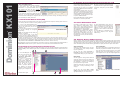
3. The RRC Toolbar provides easy access
to RRC’s most frequently-used features.
1. On any workstation with network connectivity
to your KX101, and
with Java Runtime
Environment 1.4.x (or later) installed, launch a
Web browser and enter the URL, http://IPADDRESS/admin, where IP-ADDRESS is the
IP address that you designated in Step III. earlier.
2. The Dominion KX Manager applet will load
and launch. Log on with the default username/password of admin / raritan.
3. Use Dominion KX Manager to navigate to the server port that you wish to change, and assign a name (up
to 20 characters) to identify that server.
V. Launch Raritan Remote Client (RRC)
4. Double-click on server port to establish
access to and BIOS-level control of the server’s KVM ports.
Double-clicking another server port on the
same KX101 unit will switch your session to
that server. If your KX101 hardware model
supports multiple simultaneous remote server connections, you can right-click on a port
to open an additional session.
6. When connected to a KVM console port,
keystrokes and video signals are transmitted
in real-time, exactly as if you were situated
locally.
5. The RRC Status Bar provides real-time
information on connection parameters.
KX101 provides secure Web-browser access from any Windows-based computer, enabling remote access to
your server(s) without the burden of having software on-hand.
VII. Raritan Multi-Platform Client
1. Log on to any Windows-based computer. If you are using Windows, Windows
2000, or XP, ensure that you are not a
“restricted” user.
2. Launch Internet Explorer. Ensure that
your security settings are configured
appropriately.
NOTE: The IE default security setting of
“Medium” is sufficient.
3. In the URL text field of your Web
browser, type the IP address assigned to
your KX101 unit as designated in Step III. earlier.
4. KX101 will redirect you to an HTTPS (128-bit) secure web page for launching RRC. Depending on your
browser's security configuration, you may see security dialog boxes, confirming access and launch of an externally-provided program. Click Yes to advance through any of these prompts. If your KX101 unit is not automatically detected, select Connection > New Profile in the menu bar to create a new entry.
5. Double-click on the entry corresponding to your KX101, and log on with the default username/password of
admin/raritan. Double-click on a port to connect to the connected server with full BIOS-level control.
Launched as web applet or as a standalone application, Multi-Platform Client
allows you to reach target servers via
Raritan KX101. Additional Raritan devices
will be supported in future releases.
All installations of Multi-Platform Client
require Sun Microsystems' Java Runtime
Environment (JRE) version 1.4.2_05 or
greater. Some configuration may be needed depending on your OS and browser.
Instructions for this are provided with the
JRE download.
VI. Remotely Access and Control Connected Servers
Familiarize yourself with the features of RRC. After logging on to your unit with the default username/password
(admin / raritan), use the RRC Navigator found on the left-hand side of the RRC window to select and connect
to a port.
1
2
3
KX101’s dynamic video compression algorithms maintain usability of KVM consoles under varying bandwidth environments. KX101 can
optimize its output not just for the corporate LAN, but also for lower-bandwidth WAN and dial-up connections. By adjusting color depth
and limiting video output, KX101 offers the optimal balance between video quality and system responsiveness in any bandwidth constraint. Familiarize yourself with the following parameters to adjust performance options even further.
Video Smoothing
Setting the video smoothing level too high
can prohibit KX101 from correctly transmitting color gradations.
Color Calibration
Some video cards output non-standard signal levels. Perform a color calibration upon
inital setup to optimize transmitted color for accuracy:
1. On the remote server desktop that you are controlling with KX101, ensure that a
solid white color covers approximately 15% or more of the screen. One simple way
to accomplish this is to open the Notepad application and maximize its window size:
Noise Filter
All video graphics cards generate electrical
noise that cannot be seen by the naked eye
when displayed on a monitor. KX101 reduces
the bandwidth it consumes by intelligently
ignoring extraneous signal noise.
2. Click on “Synchronize
Mouse” to converge the
mouse pointers displayed in
KVM windows. Should your
mouse pointers fail to converge, be sure to review
Section I (“Prepare Devices
and Network for Remote
Operation”, above) to correctly
configure your managed server.
continued above right
VIII. Maximize Remote KVM Performance
On the menu bar, select Connection >
Properties to adjust the Smoothing level to
an appropriate setting for your environment.
1. The RRC Navigator displays any known KX101 units
in a single view. Select
Connection > New Profile to
create new entries.
To launch Multi-Platform Client from any
browser (except for Internet Explorer running on a Windows PC), enter http://<IP
address> into your browser (where <IP
address> is the IP address of the Raritan
device).
To launch MPC from a Windows PC running Internet Explorer, enter: http://<IP
address>/mpc.
Setting the noise filter too high can prohibit
KX101 from correctly transmitting screen
changes.
On the menu bar, select Video > Video
Settings to adjust the Noise Filter level to an
appropriate setting for your environment.
4
5
6
2. On the RRC menu bar, select Video > Calibrate Color to perform the color calibration.