1
6
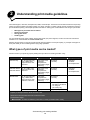
Clearing jams
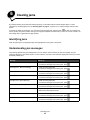
By carefully selecting print media and loading it properly, you should be able to avoid most paper jams. For more
information on avoiding paper jams, see Avoiding jams on page17. If jams do occur, follow the steps outlined in this
section.
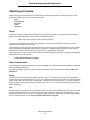
To resolve the paper jam messages, you must clear the entire paper path, and then press
to clear the message and
resume printing. The printer prints a new copy of the page that jammed if Jam Recovery is set to On or Auto; however, the
Auto setting does not guarantee the page will print.
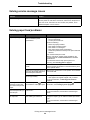
Identifying jams
When the printer jams, the appropriate jam message appears on the printer control panel.
Understanding jam messages
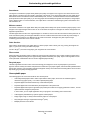
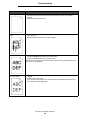
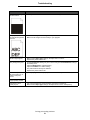
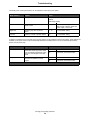
The following table lists the jam messages that can occur and the action necessary to clear the message. The jam
message indicates the area where the jam occurred. However, it is best to clear the entire paper path to ensure you have
cleared all possible jams.
Message
What to do
200 Paper Jam - Remove Cartridge
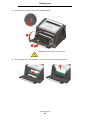
1 Clear the entire paper path.
2 To clear the message, and continue print, press
.
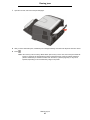
1 Clear the entire paper path.
2 To clear the message, and continue print, press
.
1 Clear the entire paper path.
2 To clear the message, and continue print, press
.
1 Clear the entire paper path.
2 To clear the message, and continue print, press
.
1 Clear the entire paper path.
2 To clear the message, and continue print, press
.
1 Clear the entire paper path.
2 To clear the message, and continue print, press
.
201 Paper Jam - Remove Cartridge
202 Paper Jam - Open Rear Door
231 Paper Jam - Open Rear Door
23x Paper Jam - Open Rear Door
234 Paper Jam - Check Duplex
235 Paper Jam - Open Rear Door
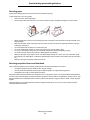
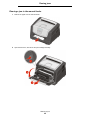
1 Open the rear printer exit door.
2 Remove the jammed print media.
24x Paper Jam - Check tray <x>
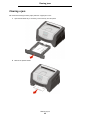
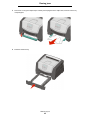
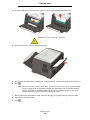
1 Clear the entire paper path.
2 To clear the message, and continue print, press
.
1 Clear the entire paper path.
2 To clear the message, and continue print, press
.
251 Paper Jam - Check Man Feeder
Clearing jams
43