1
Viewing/Editing/Deleting Unit Website Items
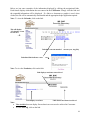
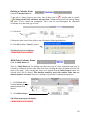
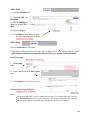
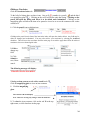
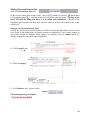
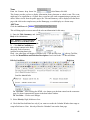
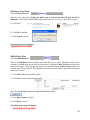
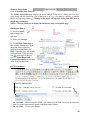
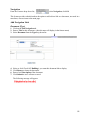
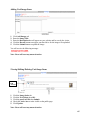
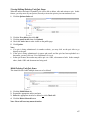
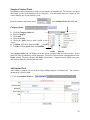
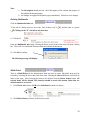
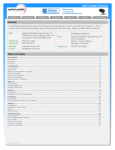
When the subject and unit are expanded, you will be able to delete, edit, and activate a website. In
this feature, you may enter all your websites, but only activate the websites you want students to
see and visit.
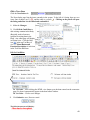
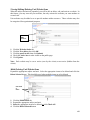
Unit websites may be added so as to provide students online resources. These websites may also
be categorized for organizational purposes.
Delete
Edit
Activate
1.
2.
3.
4.
5.
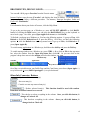
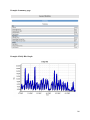
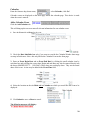
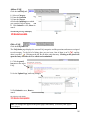
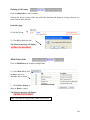
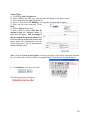
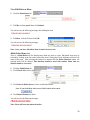
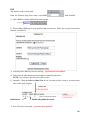
Click the Websites Index tab.
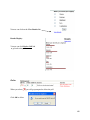
Click the X to delete, then click OK.
Click the pencil to edit, then click Submit.
Check the Active box to make visible on the public page.
Click Update.
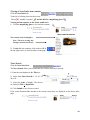
Note: Each website may be set to active (seen by the visitor) or not active (hidden from the
visitor).
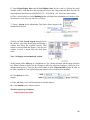
Multi Deleting Unit Website Items
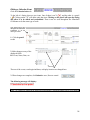
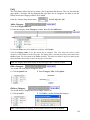
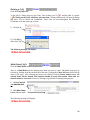
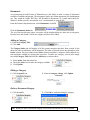
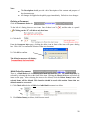
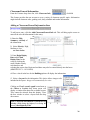
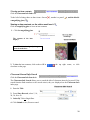
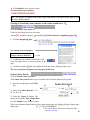
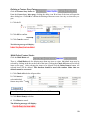
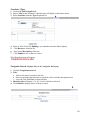
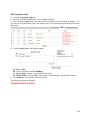
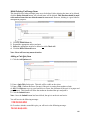
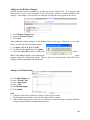
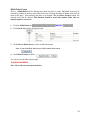
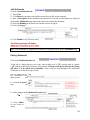
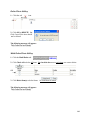
Expand the appropriate subject and unit. Select the appropriate items to be deleted and click the
Delete Selected button. This should be used when multiple items are to be deleted.
Check All
or
Select
1.
2.
3.
4.
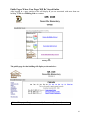
Click the Multi Delete tab.
Expand the appropriate subject and unit.
Select the appropriate items to be deleted or click Check All.
Click the Delete Selected button.
69