1
Creating Tagged Populations
Creating Tagged Populations
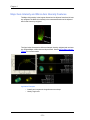
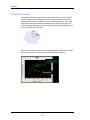
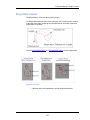
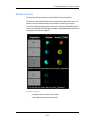
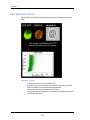
You can hand-select objects from either the Image Gallery or a graph and group them
into a population.
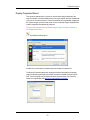
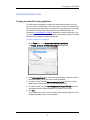
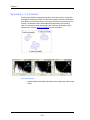
To create a hand-selected population
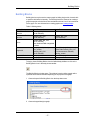
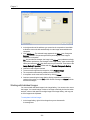
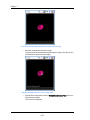
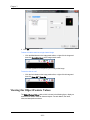
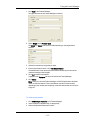
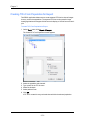
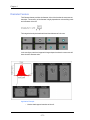
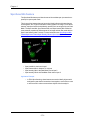
1 Click the Tagging Mode toolbar button to begin.
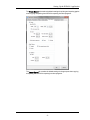
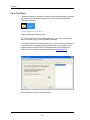
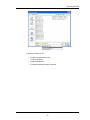
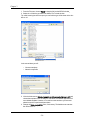
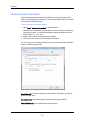
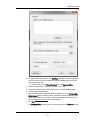
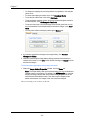
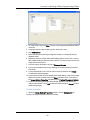
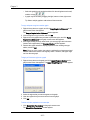
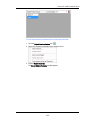
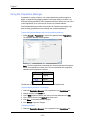
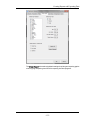
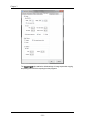
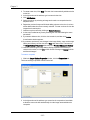
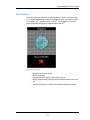
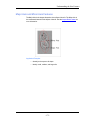
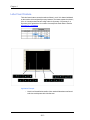
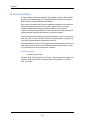
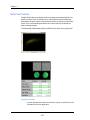
The Tagged Population window appears.
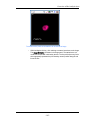
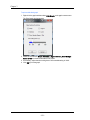
2 Select either Update existing or Create New.
•
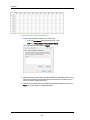
To Create New, double-click images within the Image Gallery and select
Save. Enter a new population name. Each population is given a new color and
the symbol solid diamond for ease of viewing in plots.
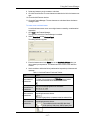
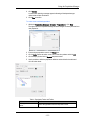
3 If you selected Update existing, choose a population to update in the drop down
menu.
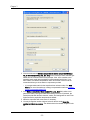
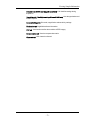
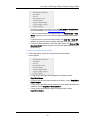
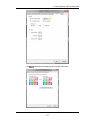
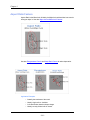
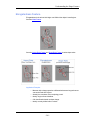
4 In the Image viewing mode list, choose the mode that you want from the drop
down menu. See Setting the Image Gallery Properties for more information.
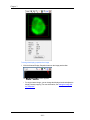
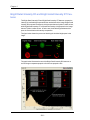
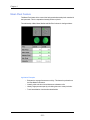
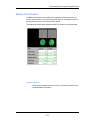
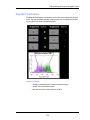
5 To add or remove an image from the tagged population, double-click either the
image in the Image Gallery or a dot in a bivariate plot.
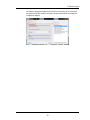
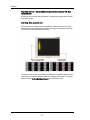
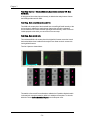
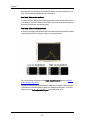
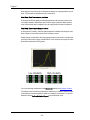
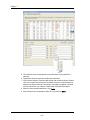
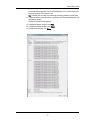
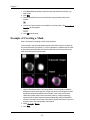
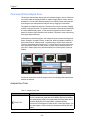
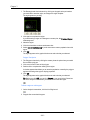
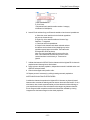
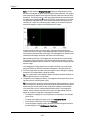
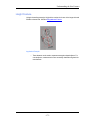
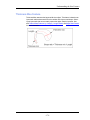
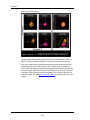
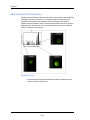
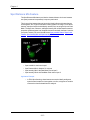
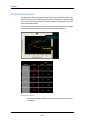
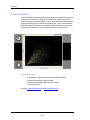
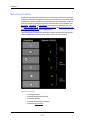
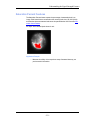
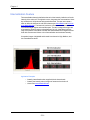
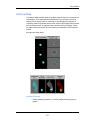
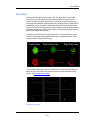
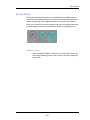
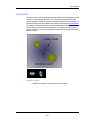
The selected channel image for each tagged cell is displayed in the viewing area
of the Tagged Populations window. In the Image Gallery, a small smiley-face
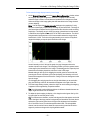
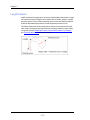
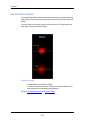
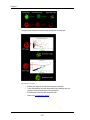
icon appears on the left side of each tagged image. Each tagged object is also displayed as a yellow star in a graph in the Analysis Area. The number of objects in
the tagged population is updated in the bottom, left corner.
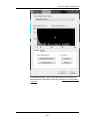
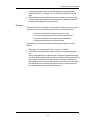
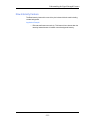
6 If you are updating an existing population, click the Update button in the Tagged
Populations window.
7 When you are finished updating, click Close in the Tagged Populations window.
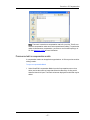
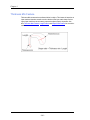
Note: The tagging mode remains open until you click Close, and as long as the
Image Gallery is in tagging mode, you cannot create, resize, or move any regions
on the graphs.
- 127 -