1
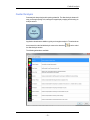
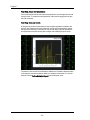
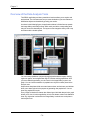
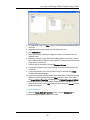
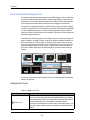
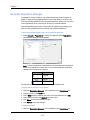
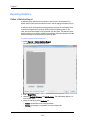
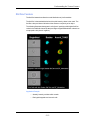
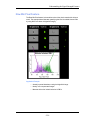
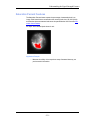
Overview of the Analysis Area
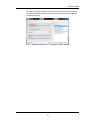
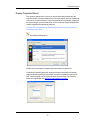
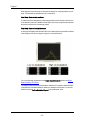
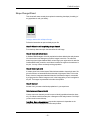
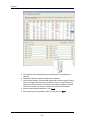
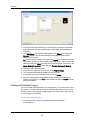
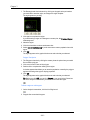
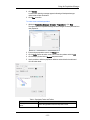
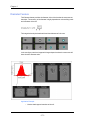
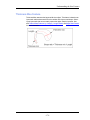
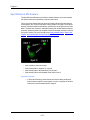
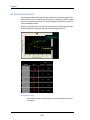
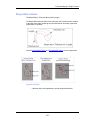
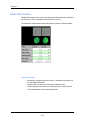
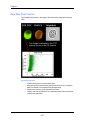
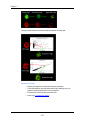
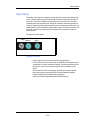
To move or resize a region on a graph
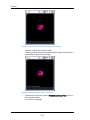
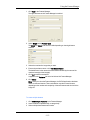
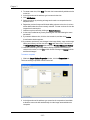
1 Click the Move/Resize Region toolbar button on the graph panel toolbar.
2 Click the region that you would like to move or resize.
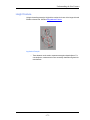
When the region is selected, squares that can be moved appear at the vertices
and the label.
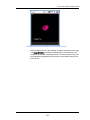
3 The first time that you drag the region, the entire region and label move.
4 Dragging a specific vertex or label moves only that vertex or label.
5 To finish moving or resizing the regions on the graph, click the Move/Resize
Region toolbar button again to deactivate the tool.
The populations and statistics are updated, and the Move/Resize Region toolbar
button is deactivated.
Note: The recalculation of statistics and populations may take a moment if the
data file is large or if many populations are dependent on the regions that are
being moved or resized.
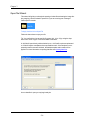
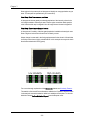
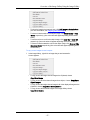
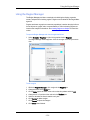
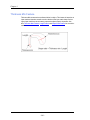
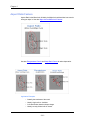
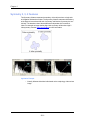
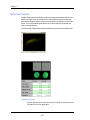
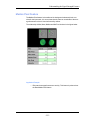
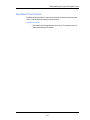
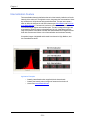
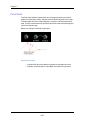
To zoom in on the scale of a graph
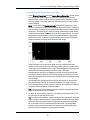
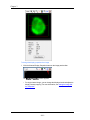
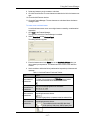
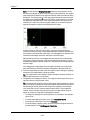
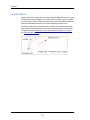
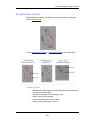
1 Click the Scaling toolbar button on the graph panel toolbar.
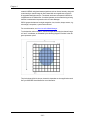
2 Click and drag to define a rectangular region for rescaling.
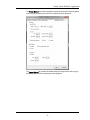
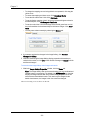
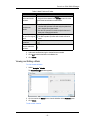
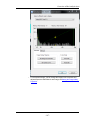
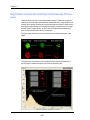
The Zoom Out Scaling toolbar button appears in the graph panel toolbar, next to
the Scaling toolbar button.
3 Click the Zoom Out Scaling toolbar button to automatically scale the graph.
The Zoom Out Scaling toolbar button is removed from the graph panel toolbar.
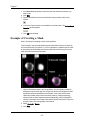
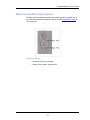
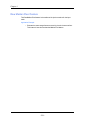
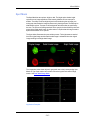
To resize a graph
- 101 -