1
Address Book
Creating a Mailing List
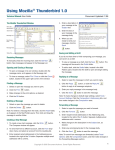
Opening the Address Book
When sending messages regularly to a group of recipients, it is
convenient to create a mailing list.
To open the Address Book, click the Address Book
button.
1. In the Address Book window, click the New List
button.
2. Click the Add to drop-down menu to select the address book
where you want to store the mailing list.
3. Enter the list name, nickname, and description of the mailing
list in the fields provided.
4. Enter the email addresses you want to include in the mailing
list. Press the Enter key after each entry.
5. Click the OK button.
Note: To edit the mailing list, double-click the mailing list name as
it appears in the card list.
Searching for an Entry
Creating an Address Book
1. In the Address Book window, select File / New / Address
Book.
2. In the Address Book Name window, enter a name for the new
address book.
3. Click the OK button. The address book will appear in the
Address Book pane.
Note: To edit the address book name, double-click the address
book.
Creating an Address Book Card
1. In the Address Book window, click the New Card
button.
2. Click the Add to drop-down
menu to select the address
book in which you want to
store the new card.
To search for an address book card, enter the name or email
address you want to search for in the Name or Email field,
located above the card list. As you type, Mozilla Thunderbird will
begin displaying matching items. Click the Close
button to
clear the search.
Note: For more advanced searching tools, select Edit / Search
Addresses.
Addressing Tools
Sending a Carbon Copy or Blind Carbon Copy
1. To send a carbon copy or a blind
carbon copy of a message you are
composing, click the To button,
located in the Addressing area.
2. Select Cc: or Bcc: from the resulting
menu.
3. Enter email addresses in the area to
the right of the Cc: or Bcc: button, separating multiple email
addresses with a comma.
3. Enter the contact’s information
in the fields provided.
4. Click the OK button.
Note: To edit the address book card, double-click the address
book card as it appears in the card list.
Note: After entering an email address in the first address field,
press the Enter key and a new To button will appear on the next
line.
Adding a Sender to the Address Book
Using Address AutoCompletion
When you receive a message, you can add the sender to the
address book.
As you type an
email address in the
Addressing area of the
Composition window,
Mozilla Thunderbird will
attempt to complete the address with a matching address in your
address book. To accept the suggested match, press the Enter
key. Or, if several matches appear, select the desired address and
press the Enter key.
1. To add a sender to the address book, click the sender’s name,
as it appears in the message.
2. Select Add to Address Book from the resulting menu.
3. Click the Add to drop-down menu to select the address book
where you want to store the new card.
4. Enter the contact’s information in the fields provided.
5. Click the OK button.
Copyright © 2006 Document Authors. Some Rights Reserved.
3