1
Page 15
_____________________________________________________________________________
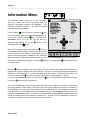
For complete alignment of the image in any direction, use the Information Menu as discussed in the
following pages.
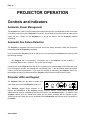
Volume Control Keys
If the Menu key
has not been pressed, the
keys will allow you to adjust the volume up or down.
If On-Screen Prompts are enabled in the Preferences Menu, a volume adjustment message will be
displayed whenever a volume key
is depressed. For complete audio control, use the Audio Menu as
discussed below.
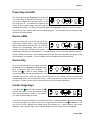
Menu Keys
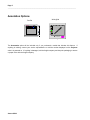
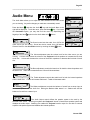
The Menu keys are used to enter, adjust and exit the Preferences, Video, Information and Audio menus.
These menus may also be accessed with the Remote Control or the Annotation device.
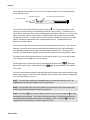
Depress the Menu key
and the menu at the right will be
displayed on the projected image. To select a specific menu,
depress the corresponding menu key on the Projector keypad
or Remote Control Pad. If you have the Annotation option, use
the Pen to directly select a menu with the fingertip of the hand
PREFERENCES
AUDIO
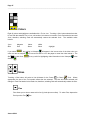
symbol. Depress the
key for the Audio Menu, the
key
for the Video Menu, the
key for the Preferences Menu or the
key for the Information Menu.
VIDEO
INFORMATION
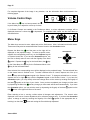
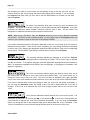
Once selected, the corresponding menu will be displayed on the projected image. The last selected item
on the chosen menu is outlined in red. To select a different item on a menu, depress one of the up or
down
keys with the Projector keypad or the Remote Control. To change a selected item on a menu,
depress the left or right
keys with the Projector keypad or the Remote Control. If you have the
Annotation option, you may directly select and change items on the menus by touching the fingertip of
the hand
symbol on the item of your choice. Once you have completed your changes, exit the menu
by depressing the Menu key
and any change you have made will be saved automatically. If you have
the Annotation option, you may exit the menu by depressing the fingertip of the hand
exit
symbol on the
button in the upper left corner of the menu.
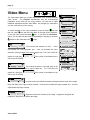
Either selecting a box or mov ing a slider makes all changes and adjustments. The numeric value
displayed in the corner of some adjustments is for reference purposes only. If you have the Annotation
option, a change is made by touching the fingertip of the hand
touching it on the slider
Aurora S500
symbol on the appropriate box or
button and moving the Pen with the tip depressed.