1
Reports
www.ShipConstructor.com
© Copyright 2012 ShipConstructor Software Inc. – Jan. 31, 13
ShipConstructor 2012 Reports
Published 2013-01-31
Copyright
Copyright © 2012 ShipConstructor Software Inc.
Information in this ShipConstructor manual is the property of ShipConstructor Software Inc. No part of it can be reproduced, translated,
resold, rented, adapted, modified, stored in a retrieval system or transmitted in any form or by any means, in whole or in part. All Rights
Reserved.
Trademarks
ShipConstructor
AutoMagic
SmartParts
Database Driven Relational Object Model
DDROM
Are all registered trademarks of ShipConstructor Software Inc.
ShipConstructor Software Inc.
Suite 304
3960 Quadra Street
Victoria, BC
Canada V8X 4A3
Toll Free:
Phone:
Fax:
1-888-210-7420
1-250-479-3638
1-250-479-0868
Information:
Support:
Sales:
[email protected]
[email protected]
[email protected]
Website:
www.ShipConstructor.com
SHIPCONSTRUCTOR LICENSE AGREEMENT
BEFORE PROCEEDING WITH THE INSTALLATION, YOU MUST ACCEPT THE TERMS OF THIS
AGREEMENT. INDICATE YOUR ACCEPTANCE OR REJECTION OF THIS AGREEMENT BY CLICKING ON THE
APPROPRIATE BUTTON. IF YOU CLICK ON “REJECT,” INSTALLATION WILL ABORT.
1. License Grant. ShipConstructor Software Inc., #304 – 3960 Quadra Street,
Victoria, B.C. Canada, V8X 4A3 (“SSI”) grants to the person accepting this
Agreement (the “Licensee”) a non-exclusive, non-transferable right to use (the
“License”) in object code form those program modules, application programming
interface (“API”), any other materials provided by SSI under this Agreement, and all
upgrades, revisions, fixes, updates or enhancements to any of the foregoing
(“Licensed Materials”) specified in the Licensee’s purchase order or request
(“Invoice) solely on the software and hardware listed in the Licensed Materials
manual (“System Configuration”).
2. Academic Institutions/Trial Versions.
A. In the event that the Licensee qualifies as an academic institution user in
accordance with SSI’s specifications (an “Academic Licensee”), the Academic
Licensee and its faculty, employees and students may use the Licensed Materials
for the singular purpose of either teaching, training users or undertaking
research provided that the Licensed Materials, and all copies of the Licensed
Materials, remain at all times at the Academic Licensee’s premises and the
Licensed Materials are used for no other purpose than that set forth above. The
above restrictions are in addition to the restrictions on use set out in Section 5
below.
B. In the event that the Licensee receives a trial version of the Licensed Materials
for evaluation purposes, the terms and conditions of this Agreement, excluding
Sections 15-19, shall continue to apply subject to the following provisions:
(a)
the License pursuant to Section 1 above shall terminate at the end of
the specified trial period;
(b)
the Licensee shall return the Hardware Key to SSI immediately upon
expiry of the specified trial period and in any event within 28 days of
the expiry of the specified trial period;
(c)
in the event that the Licensee does not return the Hardware Key in
accordance with Section 2B.(b) above, SSI shall be entitled to invoice
the Licensee for and the Licensee shall pay for the costs of the
Hardware Key plus all shipping and handling expenses and SSI
administrative charges; and
(d)
in the event that the Licensee elects to and does acquire a License, the
terms and conditions of this Agreement, excluding Section 2B herein,
shall continue on and apply.
3. Ownership. All rights, title and interests in and to the Licensed Materials and related
documentation shall remain the sole property of SSI. Licensee shall not remove or
alter any proprietary rights notices on the Licensed Materials and the
documentation, and shall reproduce such notices on any copies that it makes.
Licensee shall be liable for the security of the Licensed Materials and the
documentation in its possession.
4. Expertise Required. Licensee is responsible for evaluating whether the Licensed
Materials meets Licensee’s requirements, and for operating the Licensed Materials
and the results obtained. The Licensed Materials are intended for ship modeling and
construction purposes only, and must be used by a person who has expertise and
knowledge in this field. The Licensed Materials requires independent confirmation of
the reliability and accuracy of all designs, drawings and other Licensed Materials
output. An SSI representative may be made available under a separate consulting
agreement, at the Licensee’s request to provide training and consultation on the
operation or integration of licensed materials.
5. Limitations on Use.
Licensee shall:
(a)
not make more copies of the Licensed Materials than are necessary for the
Licensee’s installation of the Licensed Materials and shall only create
backup copies for archival or emergency restart purposes;
(b)
maintain a log of the number of and location of all originals and copies of
the Licensed Materials;
(c)
include SSI’s copyright, trademark and proprietary notices on any
complete or partial copies of the Licensed Materials in the same form and
location as the notice on any original work;
(d)
not attempt to defeat any copy protection;
(e)
not modify, any documentation, including any user manuals;
(f)
not modify, translate, reverse engineer, decompile or disassemble the
Licensed Materials;
(g)
not sublicense, transfer, assign, sell, loan, rent or lease the Licensed
Materials other than as permitted in this Agreement;
(h)
use the Licensed Materials for its own internal use only;
(i)
not permit any third party to use the Licensed Materials; and
(j)
thoroughly test any and all custom interfaces in accordance with general
engineering principles.
6. Delivery and Installation. All Licensed Materials will be delivered in an electronic
format by media or method as SSI may elect and will be sent to the Licensee’s
designated email address or shipping address as specified in the Invoice. Licensee
agrees to be responsible for installation of the Licensed Materials.
7. Term of License. The License term commences on the delivery of the Licensed
Materials to the Licensee, and, subject to Section 2B above, is either perpetual if so
requested on the Order, or on a month to month rental or lease basis. If Licensee
chooses a lease option the license converts to a perpetual term on Licensee’s
payment of the balance of the perpetual License fee (prior monthly payments
receiving 80% credit). All Licenses are subject to termination in accordance with
this Agreement.
8. System Configuration. Operation of the Licensed Materials requires use of the
specified System Configuration, which Licensee shall acquire and implement. SSI
shall not be responsible for any operational problems caused by the System
Configuration.
9. Security. The Licensed Materials includes security elements which support the
detection of unauthorized use or copying of the software and which may (a)report
such unauthorized use or copying to the Licensee, and (b)if applicable based on
Licensee’s configuration, may report back specific user information such as User
name and email address.
10.Hardware Keys. Licensed Materials use requires “Hardware Keys” supplied by SSI,
which can be used only at the site(s) authorized by SSI. In the event of a failure of
the Licensee’s System Configuration, the Licensee may upon advising SSI use the
Hardware Keys and Licensed Materials on another system and/or location.
11.License Fees. Licensee shall pay to SSI the License fees applicable for the Licensed
Materials as set out in and in accordance with SSI’s Invoice.
12.Services. Support services after the Warranty Period (as defined in Section 15
below) are provided by SSI under the terms of the SSI Subscription Agreement.
Installation, consulting, training and implementation services, if requested by the
Licensee, shall be provided by separate agreement and at an additional charge.
13.Taxes. All amounts payable by Licensee to SSI are exclusive of all commodity taxes,
including but not limited to applicable sales, use, value added, custom duties, excise
taxes and other similar government charges, all of which will be paid by Licensee. If
Licensee is required by law to withhold any taxes, then Licensee shall pay SSI a
gross amount of money such that the net amount received by SSI after deducting or
withholding the required taxes is equal to the amount of the fee originally charged
by SSI.
14.Interest Charges. If any amount payable under this Agreement is not paid within 30
days of becoming due, SSI shall have the right to impose a charge of 2% per month
(24% annually) on the unpaid balance of the amount, from the due date until the
date of receipt of all amounts in arrears including interest.
15.Purchase Orders. Any purchase order (an “Order”) delivered by Licensee shall at
all times be deemed to incorporate this Agreement by reference and shall be subject
to the applicable provisions of this Agreement. Any provisions of an Order shall not
apply and shall not be binding upon SSI unless they relate to information which was
requested by SSI. In the event of a conflict or an inconsistency between the
provisions of an Order and the terms and conditions of this Agreement, this
Agreement shall govern and supersede to the extent of such conflict or
inconsistency.
16.Limited Warranty. SSI warrants that during a period of 90 days from the date of
delivery of the Licensed Materials to Licensee (the “Warranty Period”), the
Licensed Materials will perform substantially in accordance with the Licensed
Materials documentation specifications, when used in accordance with this
Agreement on a properly operating System Configuration. SSI’s sole obligation
under this Warranty, and Licensee’s exclusive remedy, shall be to use reasonable
commercial efforts to correct Errors (a bug, defect or other problem incurred by a
user in operating the Software that prevents the Software from performing in a
manner consistent with the applicable specifications set out in the User Manual) that
the Licensee identifies to SSI through fixes or workarounds free of charge. If SSI
determines that it is unable to make the Licensed Materials perform substantially as
warranted, Licensee may terminate the License and receive a refund of a portion of the
License Fees paid to date.
17. WARRANTY EXCLUSIONS. THE LIMITED WARRANTY CONTAINED IN SECTION 15 IS
IN LIEU OF ALL OTHER WARRANTIES, EXPRESS OR IMPLIED. ALL OTHER
CONDITIONS, WARRANTIES, AND REPRESENTATIONS, EITHER EXPRESS OR
IMPLIED, ARE EXCLUDED, INCLUDING BUT NOT LIMITED TO CONDITIONS,
REPRESENTATIONS AND WARRANTIES RELATING TO MERCHANTABILITY AND
FITNESS FOR A PARTICULAR PURPOSE. SSI DOES NOT WARRANT THAT THE
LICENSED MATERIALS ARE COMPLETELY ERROR FREE OR THAT ITS OPERATION WILL
BE CONTINUOUS AND UNINTERRUPTED.
18.Maintenance Services. Licensee may elect, to obtain maintenance, support and
upgrade services from SSI in accordance with and subject to the terms of SSI’s
standard Subscription Agreement.
19.Loss of Data. SSI shall not be responsible for any loss of or damage to files or data
caused by the Licensed Materials, or be required to restore or rebuild files or data.
Licensee shall implementing adequate backup procedures to avoid any loss of files
and data.
20. Modifications. SSI may, from time to time, provide the Licensee with revisions to
the Licensed Materials (the “Revised Licensed Materials”). The Licensee shall test
any external applications using the revised API before implementing the new
version. While it is SSI’s intention that the Revised Licensed Materials shall be
backward-compatible with the immediately prior version of the Licensed Materials,
SSI does not guarantee or warrant that this shall be so, and SSI shall have no
liability whatsoever to the Licensee for any failure of the Revised Licensed Materials
to be backward compatible with any prior version of the Licensed Materials.
Modifications requested by the Licensee shall be subject to prior written agreement
as to scope and fees payable. Ownership of all Licensed Materials modifications
shall vest in SSI. SSI does not warrant, guarantee or otherwise commit to
supporting Licensed Materials that has been superseded by Revised Licensed
Materials.
21.Confidential Information. Each party will not use the confidential information of the
other party for any purpose except for the purpose described in this Agreement, and
shall not disclose it to any other person except on a confidential basis to its
employees and representatives who have a need-to-know the confidential
information for such purposes. This Section 23 shall not apply to confidential
information which (a) is or has become readily available to the public in the same
form other than by an act or omission of the receiving party, (b) was lawfully
obtained in the same form by the receiving party from a third party not under an
obligation of confidence to the disclosing party, (c) was in the receiving party’s
possession in the same and material form prior to its receipt from the disclosing
party and did not otherwise originate from the disclosing party, or (d) is required to
be disclosed by operation of law.
22. Audit Rights. Upon reasonable notice by SSI, which shall be delivered on no more
than an (annual?) basis, Licensee shall provide a signed statement verifying its
compliance with the terms of this Agreement. SSI shall also have the right, upon
reasonable notice and no more than on an annual basis, to inspect Licensee’s
facilities to verify Licensee’s compliance with such terms. Any such inspection or
audit shall be conducted either by SSI or by representatives authorized by SSI to
complete the inspection. If such inspections or audits disclose that the Licensee has
installed, accessed or permitted access to the Licensed Materials in a manner that is
not permitted under this Agreement, then Licensee shall be liable to pay for any
unpaid license fees as well as the reasonable costs of the audit.
23.Termination. This Agreement may be terminated by either party, immediately by
written notice, if the other party commits a breach of any material provision of this
Agreement, including a failure to make payment when due, and fails to correct or
rectify such breach within 30 days of receipt of the notice requesting it to do so.
SSI shall be entitled to place time-lock devices and other disabling features in the
Licensed Materials that become effective in the event that the Licensee has failed to
comply with its payment obligations hereunder and as set out in SSI Invoices.
24.Effect of Termination.
Upon termination of this Agreement Licensee shall
immediately cease using the Licensed Materials, and within 14 days of termination
return all Hardware Keys to SSI.
25.CONSEQUENTIAL DAMAGES. IN NO EVENT SHALL SSI BE LIABLE FOR ANY LOSS
OF DATA OR PROFITS, ECONOMIC LOSS OR SPECIAL, INDIRECT, INCIDENTAL,
CONSEQUENTIAL OR PUNITIVE DAMAGES WITH RESPECT TO THIS AGREEMENT
OR THE LICENSED MATERIALS, HOWEVER CAUSED, EVEN IF SSI HAD OR SHOULD
HAVE HAD ANY KNOWLEDGE OF THE POSSIBILITY OF SUCH DAMAGES.
26.DAMAGES LIMITATION. THE MAXIMUM LIABILITY OF SSI FOR ALL CLAIMS AND
DAMAGES OF ANY KIND, WHETHER FOR FUNDAMENTAL BREACH OR ANY OTHER
CAUSE UNDER THIS AGREEMENT, SHALL BE LIMITED IN THE AGGREGATE TO THE
TOTAL OF ALL FEES PAID BY LICENSEE.
27.LIMITATION OF NON-APPLICABILITY. IN SOME JURISDICTIONS THE EXCLUSION
OR LIMITATION OF WARRANTIES OR LIABILITY MAY NOT BE APPLICABLE, AND IN
SUCH JURISDICTIONS SSI HEREBY LIMITS ITS LIABILITY TO THE FULLEST EXTENT
PERMITTED BY LAW.
28.Applicable Law. This Agreement shall be subject to and construed in accordance
with the laws of the Province of British Columbia, Canada, excluding its conflict of
laws rules and the application of the UN Convention on Contracts for the
International Sale of Goods.
29.References. SSI shall be allowed to incorporate Licensee’s name in SSI’s customer
reference list and to use it for marketing.
30.Dispute. If any dispute arises under this Agreement, a good faith attempt to resolve
the dispute will be made by senior management of both parties at a mutually
agreeable site and time. If the parties are unable to reach agreement within 30
days after a request for such meeting, the dispute shall be referred to arbitration in
English, before one arbitrator in Victoria, British Columbia, Canada, in accordance
with the Commercial Arbitration Act of the British Columbia.
31.Entire Agreement. This Agreement contains the entire agreement between the
parties and shall supersede all prior discussions and agreements between the parties
regarding its subject matter.
32.Amendment. Any amendment of this Agreement must be in writing and signed by
duly authorized representatives of the parties.
33.Waiver. The waiver by any party of a breach by the other party of this Agreement
shall not be construed as a waiver by such party of any succeeding breach by the
other party of the same or another provision.
34.Assignments. Licensee may not assign or transfer the License or Licensee’s rights or
obligations under this Agreement without SSI’s prior written consent, and any such
assignment or transfer without consent shall be null and void. A transfer of all or
substantially all of the voting stock of the Licensee shall constitute a transfer for
these purposes and shall be subject to SSI’s prior written consent.
35.Successors and Assigns. This Agreement will bind and enure to the benefit of the
parties and their respective successors and permitted assigns.
36.Severability. In the event that any provision of this Agreement is declared invalid,
illegal or unenforceable by a court having jurisdiction, then the remaining provisions
shall continue in full force and effect.
37.Force Majeure. Except as related to Licensee’s obligation to make payments to SSI,
neither party shall be liable for delays or non-performance if such delays or nonperformance are beyond such party's reasonable control. A delayed party shall
promptly notify the other party in writing stating the cause of the delay and its
expected duration and shall use commercially reasonable efforts to remedy a delay
or non-performance as soon as reasonably possible.
38.Survival. The provisions of Sections 3, 5, 11, 13, 14, 17 and 20-30 shall survive the
expiry or termination of this Agreement.
39.Language. It is the express will of the parties that this Agreement and related
documents have been prepared in English. C’est la volonté expresse des parties que
la présente Convention ainsi que les documents qui s’y rattachent soient rédiges en
anglais.
#363338
28/05/2010
Contents
Contents
ShipConstructor Report
3
Starting ShipConstructor Report ..................................................................................................3
Report Basics
5
Sections and Sub-sections ..........................................................................................................5
Grouping .....................................................................................................................................6
Creating and Editing Report Definitions
8
Report Definition Window ............................................................................................................8
Report Tree ................................................................................................................................................................................8
Report Properties......................................................................................................................................................................9
Report Actions........................................................................................................................................................................ 10
Edit Report Definition Window ................................................................................................... 10
Report Section Tree............................................................................................................................................................... 10
Section Fields List.................................................................................................................................................................. 11
Edit Grouping.......................................................................................................................................................................... 11
Aggregate Functions on Report Groups..................................................................................... 12
Edit Sorting ............................................................................................................................................................................. 12
Generating a Report
13
Generating a Product Hierarchy Report ..................................................................................... 13
Generating a Distributed Systems Report .................................................................................. 14
Generating a Model Drawings Report ........................................................................................ 14
Generating a ‘Other’ Report....................................................................................................... 14
Exporting a Generated Report ................................................................................................... 15
Index
17
i
ShipConstructor Report
Reports
1
ShipConstructor Report
ShipConstructor Report
ShipConstructor Report is a tool for generating textual reports on parts, product hierarchy, system, and nesting data
contained within the ShipConstructor model.
Starting ShipConstructor Report
ShipConstructor Report can be started one of two ways:
1.
Choose ShipConstructor 2013 > Utilities > Report.
2.
Click the Report button,
, on the main ShipConstructor 2013 toolbar.
If you are already connected to a ShipConstructor project while opening Report using the latter option, you will be
automatically connected to that project within the report application. If you are not already connected to a
ShipConstructor project, then you will be prompted to connect to one. You will also be prompted at this time to acquire a
ShipConstructor report license.
3
ShipConstructor Report
4
Report Basics
Report Basics
Sections and Sub-sections
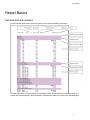
To understand how report output is broken into sections, please consider the following report output:
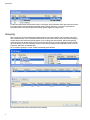
The report shown above is a build strategy report, containing 2 sections. The first section is the Assemblies section, and
is shown with a Purple background. The second section is the Plate Parts section, and is shown with a white background.
5
Report Basics
You will notice that because the Plate Parts section is a sub-section of the Assemblies section, plate parts will be shown
in the report broken out by the individual assemblies which contain the plate parts. If you were to not include the
Assemblies section in the report, all plate parts would be grouped together in a single section.
Grouping
Often, you will want to group all similar parts together based on one of their properties, such as by Stock. This can be
done in 2 different ways. You can include the Stock column as a field in your section, and sort by that field, resulting in
all parts with the same stock being ordered together, or you can Group your report by Stock. Not only does grouping
create sub-sections for all parts sharing the same stock, but it also allows you to perform aggregate functions on fields
these sub-sections, such as Count, Average, and Sum. This is ideal for creating a stock usage report, where you are not
interested in information on individual parts.
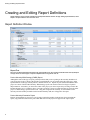
For an example of grouping in a report, consider the following report definition:
This report definition will result in output similar to the following:
6
Report Basics
As you can see, all of the parts using the PL04 stock have been grouped together, and you can see a count of the number
of parts using that stock in the group header, as well as the total area of all parts that use that stock. Where this really
comes in handy is when all you want is a summary report that does not show information on each individual part. To
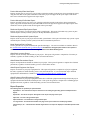
create a summary-style report, edit the report definition you just created, and remove all of the section fields from the
Plate Parts section, leaving only the Grouping options configured. This will leave you with a report similar to the following:
As you can see, this gives you a very compact, quick overview of your stock usage.
7
Creating and Editing Report Definitions
Creating and Editing Report Definitions
Report definitions can be created and edited via the Report Definitions window. To begin editing report definitions, select
Reports > Report Definitions from the main menu.
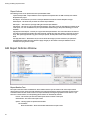
Report Definition Window
Report Tree
The tree in the Report Definitions window lists all report definitions you have created and breaks them down by discipline
and type. There are various types of reports to ShipConstructor can generate such as:
Product Hierarchy\Build Strategy (PWBS) Report
Although the name of this type of report generally indicates that you are reporting on the assembly breakdown of
your project, that is only a subset of the possible report definitions you can generate using this report type. Other
report definitions of this type include part lists, materials takeoff, etc. Reports on parts contained within the entire
project or a subset of the Product Hierarchy. Build strategy reports can contain sections for all types of parts in
ShipConstructor. At run time, you choose the subset of the project you wish to report on by selecting a node in the
Product Hierarchy tree. For instances where you want to generate a report on a particular part type across the entire
project. A Build strategy report should be used. Only parts assigned to the assembly, or sub-assemblies of the
currently selected assembly/assemblies in the Product Hierarchy (PH) tree will appear in the report.
Product Hierarchy\Penetration Report
Reports on penetrations in your project. By selecting a particular assembly in the PH tree when generating the
report, only penetrations that involve parts within that section of the project will appear in the report output.
8
Creating and Editing Report Definitions
Product Hierarchy\Plate Nest Report
Reports on plate nests in your project. By selecting a particular assembly in the PH tree when generating the report,
only plate nests that involve parts within that section of the project will appear in the report output. Parts which
have not been nested will not appear in the report output.
Product Hierarchy\Profile Nest Report
Reports on profile nests in your project. By selecting a particular assembly in the PH tree when generating the
report, only profile nests that involve parts within that section of the project will appear in the report output. Parts
which have not been profile nested will not appear in the report output.
Distributed Systems\Pipe System Report
Reports on pipe parts in your project based on their system/branch. This report will include only systems or parts
contained by the currently selected system(s) in the Pipe Distributed Systems tree.
Distributed Systems\HVAC System Report
Reports on HVAC parts in your project based on their system/branch. This report will include only systems or parts
contained by the currently selected system(s) in the HVAC Distributed Systems tree.
Model Drawings\Part List Report
Used to generate a list of parts modeled in the specified drawing(s). The sections available are similar to those in
the Product Hierarchy\Build Strategy (PWBS) Report, the difference being the parts shown in the report are
restricted to the ones modeled in the drawings selected in the Model Drawings tree.
Other\Stock Inventory Report
Reports on stock inventory and remnants in your project. This report will generate a complete list of inventory or
remnants, regardless of which assembly you have selected in the PH tree.
Other\Deleted Penetrations Report
Reports on all penetrations marked for deletion in your project. This report will generate a complete list of deleted
penetrations, regardless of which assembly you have selected in the PH tree.
Other\Project Equipment List Report
Reports on all items in your project equipment list. This report will generate a complete list of project equipment
list items, regardless of which assembly you have selected in the PH tree. If you are interested only in modeled
equipment, this information is available in a Product Hierarchy\Build Strategy (PWBS) Report.
Other\Equipment Stock Discrepancy Report
Reports on all items in your project equipment list that have a different equipment standard specified in the project
equipment list than that which the modeled part uses. This report will generate a complete list of offending project
equipment list items, regardless of which assembly you have selected in the PH tree.
Report Properties
The following fields are specified per report definition:
Report Name – The name that the report is referred to in the editing and generating portions of ShipConstructor
Report.
Report Title – The title of the report. This appears at the top of each page of the report.
Paper Size – The size of the generated report.
Paper Orientation – The orientation of the generated report.
Inc. Page Header – This determines whether each page of the report contains the standard page header.
Imperial Disp. 1/16” – This determines whether length values in the report are displayed in standard imperial format
or not.
9
Creating and Editing Report Definitions
Report Actions
The following actions can be performed via the report definition editor:
Import and Export XML – Report definitions can be imported and exported either via XML or directly from another
ShipConstructor project.
New Report – This button lets you create a new report definition beneath the selected discipline and type.
Delete Report – This button lets you delete the selected report definition.
Edit Report… – This button lets you begin editing the selected report definition.
Copy Report – This lets you copy the selected report definition. This makes it easy to make different variations of the
same report, or to “test” modifications to your report definition without having to worry about breaking your current
definition.
Copy Report for Excel Export – This lets you copy the selected report definition. The new version will be the same as
the original, except that page headers have been removed, and will have wider text columns so that they do not linewrap. This report might not look very good in the report preview, but will produce better results when exporting to
Excel.
OK, Apply and Cancel – These buttons let you save or discard the changes you have made since you opened the
Report Definition window. Until you click OK or Apply, changes you have made to the report definitions are not
available when you generate a report.
Edit Report Definition Window
Report Section Tree
The report section tree shows a breakdown of all the available sections you can include in the current report and the
report sections you have chosen to include. Selecting one of the included sections shows you the fields you have chosen
to include from that section. Certain sections can only be included by including the appropriate section above it. If you
select one of these sections, the corresponding parent sections are automatically selected.
Include – This is where you select the related report section to include in this report.
Section Name – The name of the report section.
Options – Filtering options for purchased assemblies
For assemblies:
Show all assemblies – Show all assemblies included in this report section
10
Creating and Editing Report Definitions
Show only non-purchased assemblies -- Show only assemblies that have a purchased flag not set
For parts:
Include all parts – Show all parts included in this report section
Include only parts in non-purchased assemblies – Show only parts in assemblies that have
a purchased flag not set
Font Size – The size of the font used for data in this report section.
Header – Options to determine the behavior of the section header in the case of a blank section.
Show – Always show the section header, even if there are no rows for that section
Hide – Never show the section header for this section
Hide If Blank – (default) Only show the section header if there are rows for that section.
Repeat Header – Options to determine how often the section header will be repeated.
Each Section Page - The section header will be repeated for all section/page breaks.
Once Per Section - Don't repeat header on page breaks, just show header at the beginning of each section.
Once Per Page - Don't repeat section header if section occurs multiple times on the same page.
Fore Color – The color of the text and other items in this report section.
Back Color – The background color for this report section.
Header Fore Color – The color of the text and other items in the header for this report section.
Header Back Color – The background color of the header for this report section.
Keep Together – If set to true, extra page breaks will be inserted if they can prevent the section from being
broken across multiple pages. If you would rather conserve paper, set this to “No”.
Section Fields List
The Section Fields list shows each of the fields chosen for the selected report section. The fields are listed in the order
they will appear in the report from left to right, and can be moved up and down as desired by dragging the left-most
column up and down in the list. Report fields can be added and removed via the Add Field and Remove Field buttons.
Field Name – The field in the ShipConstructor database the values will come from
Display Name – The name for the field as shown in report section headers in a generated report.
Field Width – The width of the field in the generated report. To assist you in judging how much space is
available in your report before running off the right-hand margin, there is a “Space Available” indicator in the
status bar at the bottom of the fields list.
Display Units – The units that values in this field should be converted to and displayed as.
Decimal Places – The number of decimal places to round numeric fields to. If you are formatting in standard
imperial format, the precision is dictated by this field. Values will be rounded to the nearest ½^n where n is the
“Decimal Places” value.
Example:
4 = Nearest 16th.
5 = Nearest 32nd.
Alignment – The text justification (Right/Left/Center) for the current field.
Edit Grouping
Opens the Edit Section Grouping window and lets you group the current report section where the values in the selected
field are the same across multiple rows in the report. Other calculated fields (Sum, Avg, and Count) can be included in
the group section based on available fields from that section. That is, the sum of all profile lengths can be included where
the report is grouped by the stock of those parts.
Groups can be nested, so if you wanted to group by stock first, and then have sub-groups for length, you would add two
groups, the first on the “Stock” Field, and the second on the “Length” field.
11
Creating and Editing Report Definitions
Aggregate Functions on Report Groups
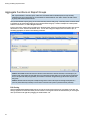
HINT: If you would like a “summary report”, which does not include data for individual parts, but only summary
information (part count, total length, etc), do not include any section fields for your “Parts” section, and add a group
(or groups) with Summary Fields instead.
Once you have defined a report group, you can create summary fields for that group. A summary field is a function which
is calculated on all corresponding values for parts contained within that group. Common examples for summary fields
would be a “Part Count”, or “Sum of Weight”calculation.
To get a “Part Count” column, select any field for the “Summary Fields” section that is guaranteed to hold a value, and set
the Function to “Count” instead of the default “Sum”. You can then change the display name of the field to “QTY”, or
something appropriate, as shown in the following screenshot.
WARNING: The COUNT function will count the number of rows that have a value for that field, so for example, if you
wanted a count of the number of parts with green, you could create 2 count fields, one on a CG point (to get total part
count, as CG point will always be populated), and another on the Green Length field (to get the number of parts that
have green).
WARNING: The AVG function computes a simple average of the values in the report. An average of CG points in a
system or product hierarchy assembly is not the same as the CG of the system or product hierarchy assembly.
Edit Sorting
Opens the Edit Section Sorting window and lets you sort the current report section by as many fields as you want. The
sorting is applied in the order of the fields you have selected. To change the order of the selected fields, you can drag the
rows up and down in the right list by dragging the “Order Number” cell.
12
Generating a Report
Generating a Report
All reports are generated based on the assembly or system you select before you generate the report. This lets you
generate the report for the whole project, a specific unit, or as small an assembly or system branch as you want.
Generating a Product Hierarchy Report
To generate a report based on a product hierarchy
1.
Choose ShipConstructor 2013 > Utilities > Report and select the Product Hierarchy tab in the Reports window.
2.
Select the product hierarchy you want to generate the report for in the secondary tab.
3.
Select the assembly you want to generate the report for in the product hierarchy tree for the selected product
hierarchy. If you would like a report on your entire project, select the root “Project” assembly.
a.
The generated report will automatically include any sub-assemblies of the assembly you have selected.
However if you would like to select multiple assemblies at the same level (Unit 3 and 4, but not Unit 1 and
2 for example), you can CTRL+click to select multiple assemblies in the tree.
4.
Select the desired report definition from the drop-down list.
5.
Click Generate
.
13
Generating a Report
Generating a Distributed Systems Report
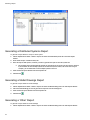
To generate a report based on a Pipe or HVAC system
1.
Choose ShipConstructor 2013 > Utilities > Report and select the Distributed Systems tab in the main Reports
window.
2.
Select either the Pipe or HVAC secondary tab.
3.
Select the Pipe or HVAC system (or branch) you want to generate the report for from the system tree.
a.
The generated report will automatically include any sub-systems of the system you have selected. However
if you would like to select multiple systems at the same level (Ballast and FO, but not ER SW Cooling for
example), you can CTRL+click to select multiple systems in the tree.
4.
Select the desired report definition from the drop-down list.
5.
Click Generate
.
Generating a Model Drawings Report
To generate a report based on model drawings
1.
Choose ShipConstructor 2013 > Utilities > Report and select the Model Drawings tab in the main Reports window.
2.
Check the model drawings you want to generate the report for from the drawings tree.
3.
Select the desired report definition from the drop-down list.
4.
Click Generate
.
Generating a ‘Other’ Report
To generate a report based on model drawings
1.
14
Choose ShipConstructor 2013 > Utilities > Report and select the Model Drawings tab in the main Reports window.
Generating a Report
2.
Select the desired report definition from the drop-down list.
3.
Click Generate
.
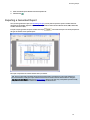
Exporting a Generated Report
Once you have generated a report (see Generating a Report) you may want to export the report to another format for
calculation or presentation purposes. Reports can be exported to four other formats: Microsoft Excel, HTML, Adobe PDF,
and Rich Text Format (RTF).
To export a report, generate the report and then click Export
the type and location of the exported report.
from within the report. You will be prompted for
The report is exported to the selected location when you click OK.
HINT: You may notice that some fields will line-wrap if the field width is not sufficient in your report definition. To
correct this situation, modify your report definition and increase the column width of affected columns. Using the
Copy Report for Excel Export command (see Report Actions) allows you to easily copy a completed report and modify
the report definitions of both to maintain correct formatting for PDF and Excel.
15
Index
Index
R
report 3
create, edit definitions 8
distributed systems 14
edit window 10
export 15
generate 13
product hierarchy 13
window 8
17