1
BIOPAC Systems, Inc. GLP Administrator
Page 7 of 36
Configuration
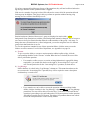
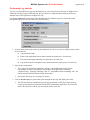
The search and selection of GLP
settings files is handled by a sequence
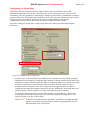
of two windows. The first window the
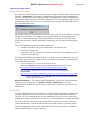
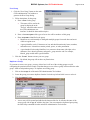
user will see is the progress window.
While this window is displayed, the
GLP Administrator will proceed to
search the local hard drives of the
computer for any glp_config.xml files.
It may take several minutes to fully search all of the local hard drives, particularly for large hard drives
with many files and folders. The search does not attempt to look on the network for settings files, only the
local computer.
The first line of the window changes to reflect the current location that is being searched. In general, the
contents of the hard drive are searched according to the top-level folder structure of the hard drive listed in
alphabetical order. This line is not as much of a progress indicator; it is intended to change frequently
enough to reassure the user that there is still activity progressing. The second line will increment each time
a new settings file is found.
Once all of the hard drives have been exhaustively
searched, this window will automatically disappear. The
user can choose to interrupt the search at any time by
clicking the “Stop” button.
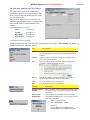
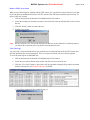
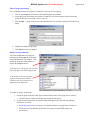
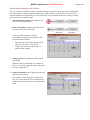
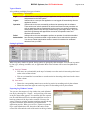
Once the search is complete or has been terminated, the
user will see a list of all of the settings files that were
found:
This dialog contains a list of all of the GLP settings files
that were located on the local hard drives. If the user
interrupted the search, it will list all of the settings files
located up until the time the user canceled. If no settings files were found, the list will be empty.
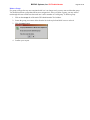
If the user clicks the “Choose Other...” button, a file chooser will be opened allowing the user to manually
locate the glp_config.xml file.
Normally the automated search for GLP settings will occur only on the first installation of the software.
After the first launch the persistent most recently used system should remember the appropriate location of
the GLP settings. If desired, users can re-initiate a search for the GLP settings files.
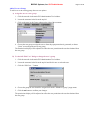
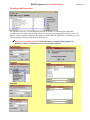
Mac OS X: the menu item “File > Search Local Drives for GLP Settings” triggers a new search.
Recent Setting Persistency
The location of the most recently used settings is stored in a properties file named “.glp_admin_mru”. The
GLP Administrator automatically creates this file when the application exits. Users will never need to
interact directly with this Properties file.
•
The most recently used settings are independent for each user account under which the GLP
Administrator tool is used.
•
Mac OS X: this file is invisible to the user in the Finder, but can be accessed from the Terminal.