1
®
CuteFTP Lite
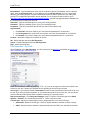
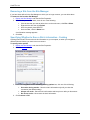
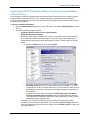
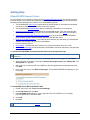
• Right-click the file, then click Move to.
4. In the Move items to box, specify the path at which to save the selected items.
5. Click OK.
CuteFTP does not create the folder. If the folder does not exist, an error message appears.
Changing File and Folder Permissions on Remote Sites
You can set who can open, change, or delete files and folders on remote sites.
To change permissions for a remote file(s) or folder(s)
1. Connect to a site.
2. Select the file(s) or folder(s) for which you want to change permissions.
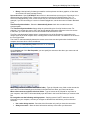
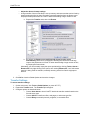
3. On the main menu, click File > Properties.
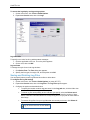
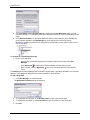
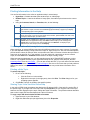
4. Select the check boxes next to the permissions you want for yourself (Owner), a Group of users,
and the Public.
•
When multiple items are selected, a gray check mark signifies the permission is granted
for some files in the group, but not in others. You can still change the permission for the
whole group.
•
If you cannot change permissions for a file or folder, the FTP server administrator must
modify your account or the file permissions.
5. Click OK.
Finding Files and Folders
CuteFTP Site Search function allows you to search local and remote drives and folders for files based on
all or part of the filename with wildcard support, modification date or date range, and file size or size
range.
To find a file or folder
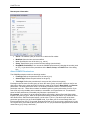
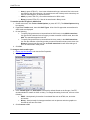
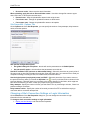
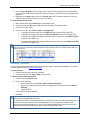
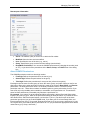
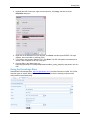
1. On the main menu, click Edit > Find. The Search Results dialog box opens.
2. Next to Search in, specify whether to search on the local or remove pane.
•
Local drives - If you want to search for a file in your local drive.
• Remote pane - If you want to search for a file in the remote pane.
3. In the Search for the files or folder named box, type the name of a file or folder, or the
extension of a file for which you want to search. The name or the extension of the file is added to
the drop-down list. You can also use wildcards.
4. In the Look in box, specify the folder to search or type the path.
5. To include the subfolders in the target folder, select the Search subfolders check box.
6. To define the file size, select the File size between check box, then type the number of kilobytes
in the text boxes.
7. To specify a date range, select the Date modified between check box, then type or select the
date range in which to search.
8. To start the search, click Search Now.
9. To stop the search, click Stop search.
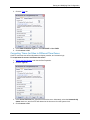
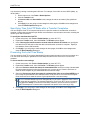
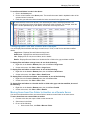
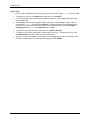
10. All of the files with the same extension or with same name with other details, such as size, type,
modified on, and attributes are listed in the Results pane of the Search Results dialog box.
Find and Find Next are not case sensitive and only search from the top to the bottom of your listings.
64