1
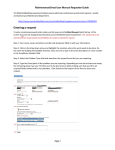
SCHOOLDUDE SAYS: If you need to add more than three
Date/Times/Locations for this event, simply fill in your first three and continue
through the form as written below and click Save at the bottom when you are
finished (this is because you can’t complete the fields that follow this section on the
form once you save the schedule so you must complete the form first and then save
it). The page will refresh as described below and the words “Your Schedule has
been saved” will show in red at the top of the form. Scroll back down to the New
Event section of the page to continue adding three more dates/times/locations for
this event. Then click the Save button directly beneath the New Event section. The
page will refresh as before and you will be taken back to the top of the page where
you can continue this process, if necessary.
•
•
•
•
•
•
•
•
Select any required Maintenance or IT Services and include a description
of the service needed in the “Service Description” box provided (Keep in
mind that if you enter a “Required Service” by checking its check-box, you will be
REQUIRED to enter a service description before your scheduling request can be
saved).
Number Attending
Number of Adults
Number of Children
Number of Extra Chairs
Number of Parking Spaces
Other Needs
Click Save.
¾ You will see the words “Loading schedule” as you wait for the new page to load.
When it’s finished loading your schedule and the page opens, you will see your
schedule as you just entered it with the words “Schedule has been saved” in red at
the top of the page. Your Schedule ID number will also be showing at the top of
the schedule.
16