1
TH3VODAFONE_UM_GB_27-07-04
27/07/04
14:50
Page 49
7.7 Direct access to the photo capture or to “My Items” from MMS
composition
With the option “Add image”, you can also access the photo function or “My Items” (picture/image/
video/sound) directly while you are writing a Multimedia Message (MMS) (see page 35).
8
Games & more ..........................................
Your Alcatel phone may include some Java™ applications and games. You can also download new
applications and games to your phone from Vodafone live!.
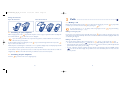
You have two ways to insert a photo in an MMS:
• Either by adding an existing photo to your MMS taken from “My Items/Pictures”:
when you are in the “Messages” menu, select successively “Create message”, “MMS”, press
press the “Options” softkey, select “Add image”, then “Image album” album and select a photo.
• Or by taking a new photo:
same process, but instead of selecting the “Image album” album, select “Take a picture”.
The “Games & more” menu allows you to manage the Java™ applications installed in your phone. It
includes the following folders:
,
General: contains all applications and games,
Settings: contains your sound, backlighting and network settings.
8.1 Launch an application
Select the application. Press the “Launch” softkey or
49
50
then “Launch”.