1
Getting started
16
Home screen
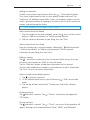
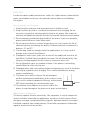
The home screen displays app icons, folders, and various widgets; such as weather
information, power controls and notes.
Home screen icons
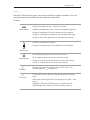
Tapping the Menu light key will allow you to change wallpaper. Tap any icon to
launch their respective app.
・ Browse
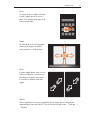
Swipe the home screen to the left and right to browse your icons.
・ Adding folders and widgets
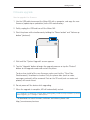
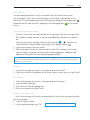
Tap on the phone's Menu light key to open the menu. Then, tap "Add" > "New
folder" or "Widgets" to add a new item to the Home screen.
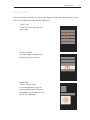
New folder
Use the Menu light key to quickly add a new folder. To edit the folder name,
open the folder > tap the folder title > enter the desired folder name in the
dialog box > tap "OK" to save.
Widgets
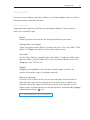
Widgets can be added for the calendar and notes apps, as well as for
weather information, search, and power controls.
・ Moving and deleting
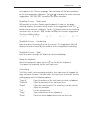
Anywhere on the Home screen you can tap and hold an icon to detach it
from the icons grid, and then drag the icon to move it to any blank area.
Drag the icon to the edges of the screen to jump to the previous or next
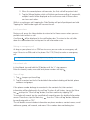
Home screen. A detached icon can also be deleted or uninstalled by dragging
it downwards unto the
area.
Note: System applications can not be uninstalled.