1
App guide
47
Video
Play high definition videos from a wide variety of video formats and enjoy a visual
feast. To launch the video player, tap the "Video" app from the Home screen.
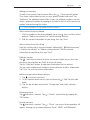
Video playback
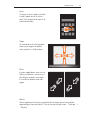
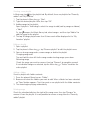
In the video app, tap a video thumbnail to play the video.
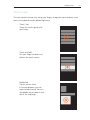
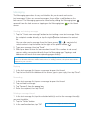
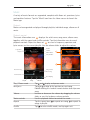
・ Playback control
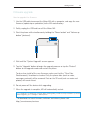
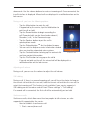
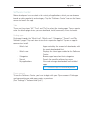
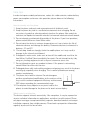
When playing a video, tap the screen to display video playback controls. Tap
again to hide.
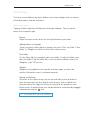
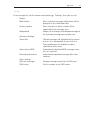
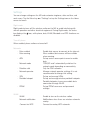
Playback control area
Play adjust the slider
Play time
Time remaining
Play / Pause
Previous
The next section
The volume axis
Adjust the volume slider
Play / pause
Adjust volume Skip Back to video list
Back to main screen
Auto-rotation
Brightness Zoom mode
Subtitles & Dubbing
Deleting video
Update media library
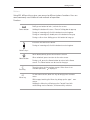
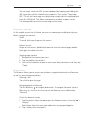
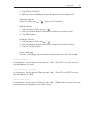
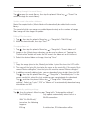
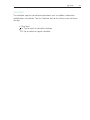
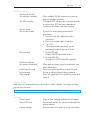
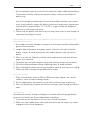
Tap or to play and pause.
Use the volume buttons to adjust the volume.
Drag anywhere along the timeline to skip in the video.
Tap to return to the video list.
Press the Home button.
Turn on to automatically rotate the screen.
Drag the Brightness slider to adjust video brightness.
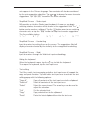
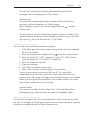
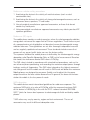
Tap the Menu key , select "
Zoom mode" or
double-tap on the video to switch between the three
zoom modes.
1 Fit width 2 Fit height 3 Enlarge proportionally
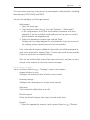
Tap the Menu key , then select "Subtitles" or
"Dubbing".
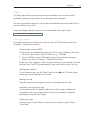
1 In the video list, tap and hold a video, and then
drag it to the trash can to delete it.
2 Tap the Menu key
> "Edit"> Select video>
"Delete".
Copy the video to the /Video folder. The media
library will be automatically updated when you
disconnect the USB.