1
WinCAT User Manual
Page 15
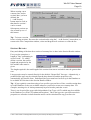
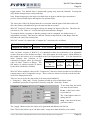
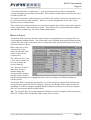
Tip - To create a large list of data values for catenary computation, use the Auto Step feature.
Then, if necessary, weed out or add extra values to create the required list.
When done with Catenary Setup, click the [ OK ] button.
Warning ! Clicking the [ Cancel ] button will cause all newly entered data and modifications to
existing data to be discarded.
Note: If Catenary Setup was invoked directly via the Edit menu or from Plot Options, then
WinCAT will automatically Compute and display the results for the new data. (If there are
several Catenary lines in the data set, only results for the edited line will be re-computed.)
Otherwise, WinCAT returns to the Catenary Lines window.
CATENARY LINES
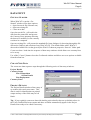
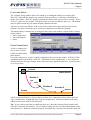
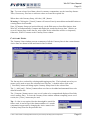
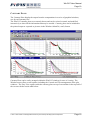
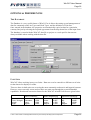
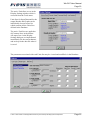
The Catenary Lines window presents a summary of all the Catenary lines in the current dataset.
Active lines are shown in blue and inactive lines in black.
The list may be re-ordered by selecting and dragging any line. The keyboard arrow keys or
mouse can be used to move the selection bar to any line. A double mouse click or the
[ View/Edit ] button will brings up the Catenary Setup form for the selected line.
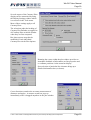
The [ + Add ] and [ - Delete ] buttons allow new lines to be added and unwanted lines to be
deleted from the list.
The [ Compute ] button causes a new set of results to be computed and displayed for all the
active catenary lines. To leave the Catenary Lines window without computing a new set of
results, the [ Close ] button may be used.
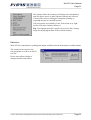
Tip - if a line is not required, but the data might be useful for
future work, it can be kept in the dataset and have it’s results
computation suppressed by changing the Active status in the
Catenary Setup form for the particular line.
SYN001:c:\documents
and settings\administrator\my documents\products\pisys\wcmanualpdf.doc
Page 15