1
Customizing the GUI
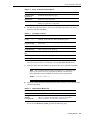
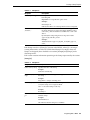
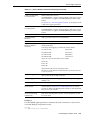
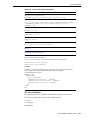
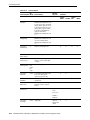
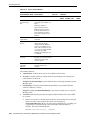
Table 12–5 (Cont.) Control Names
UI*
Control Name Mode Functionality
Control
Key List
Contexts
Popup
Status
Menu Toolbar Bar
RMB
VueAction
VCM
ToolsDrawing
Info
Get drawing information for
one entity, some entities or a
block
X
Note: This feature is
equivalent to the Show
Entitiy Properties option
from the AutoVue UI. For
more information, refer to
the Oracle AutoVue User's
Manual.
VueAction
OptionsBars
VCM
Hide or show toolbars or
status bar
X
VueActionFile VM
Browse
Opens the File Browse
dialog when browsing
documents from different
sources (local, DMS, server,
URL). The document is open
as soon as it is single clicked.
Available only when
EnableUniversalFileChooser
=1 (default).
X
VueActionFile VM
Convert
Launches the Convert dialog
that lets you convert a file to
different formats using
convert options.
X
VueActionFile VM
OpenNew
Window
Same as VueActionFileOpen,
but opens file in new
window.
X
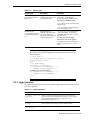
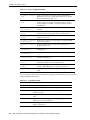
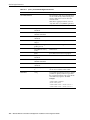
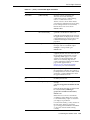
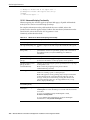
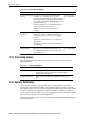
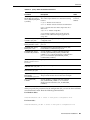
The columns indicate:
■
■
Control Name: Column shows the list of available control names.
UI modes: Column specifies in which modes (View, Markup, and Compare) the
control names can be used.
Example: VueActionFileOpen can be added to View and Compare Modes, but not
Markup mode.
■
Functionality: Column specifies which functionalities are provided when this
control is added to a context.
Example: Adding VueActionFileMarkup to any context enables you to switch to
Markup mode.
■
Control key list: Column provides the optional functionalities that can be added
to a context.
■
If there is no entry for a control name in this list, it means that there is only one
action to invoke. A list specifies sub-actions. For example, for
VueActionFileOverlays, there is no entry in the control key list, so adding it to
a popup menu will provide both select and modify functionalities for
overlays. The entry will look like this:
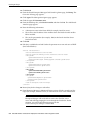
MENUITEM VueActionFileOverlays, , PERM_READ
12-16 Oracle® AutoVue Client/Server Deployment Installation and Configuration Guide