1
1. Installing the Software
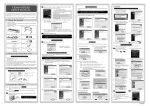
(3) The following window is displayed. Click [Next] to proceed.
This section explains how to install the software that is used with
the FC7000 Series cutting plotters, and how to install the FC7000
driver. Various software applications and the FC7000 driver are
included in the CD-ROM that is provided with your cutting plotter.
Select the software that you wish to install from the [Start] window.
Make sure that the software you select is suitable for your operating
environment.
Note: Be sure to read the “Readme.txt” file contained in your CD-ROM.
Compatible Operating Systems
Windows 98 Second Edition, Windows Me, Windows 2000, Windows XP
(4) The following window is displayed. Click [Next] to proceed.
Displaying the [Start] Window
(1) Launch Windows, and then insert the CD-ROM provided with your cutting
plotter into your computer’s CD-ROM drive.
(2) The [Start] window appears. Select the software you wish to install, making
sure that it is suitable for your operating environment.
Cutting Plotter Controller
FC7000 Driver
(5) The following window is displayed. Click [Finish] to complete the installation
operation.
Cutting Master 2
FC7000 User’s Manual
Acrobat Reader
Note: Only the FC7000 Driver can be installed if the operating system is
Windows 98 Second Edition or Me.
If the [Start] window does not appear, select “Run” from the Windows
[Start] menu, type in [CD-ROM]:\MultiSetup.exe, and then click [OK].
(6) The Graphtec driver installation window is displayed.
Installing the FC7000 Driver
(1) The following window is displayed when installation of the Controller has
been completed.
For Windows 98 Second Edition or Me, select “Run” from the Windows
[Start] menu, type in [CD-ROM]:\English\Driver\DSETUP.exe, and then
click [OK].
A window for installing the FC7000 driver is displayed.
Install FC7000 Software
(2) The following confirmation window is displayed. Check that the FC7000 is
not connected to the computer, and then click [OK].
Installing the Cutting Plotter Controller
The Cutting Plotter Controller enables you to perform settings for the main
FC7000 functions at your computer.
Note: The FC7000 Controller can only be used in a Windows 2000 or XP
environment with a USB connection.
(3) The following window is displayed. Click [OK].
(1) Display the [Start] window, and then click [Install FC7000 Software].
(2) The following window is displayed. Click [Next] to proceed.
(4) A window for selecting the connection port is displayed. Select the port you
wish to use from those displayed for “Port Name”, and then click [OK].
USB: Select this port if a USB cable is used for connection.
COM1:Select this port if an RS-232C (serial) cable is used for connection.
FILE: Select FILE to save plot data to a file.
E-2