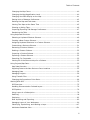
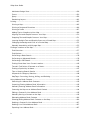
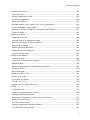
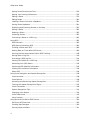
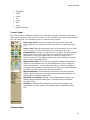
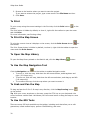
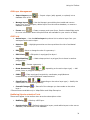
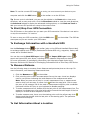
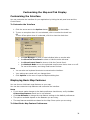
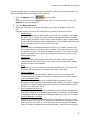
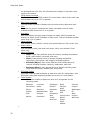
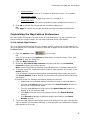
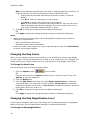
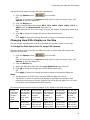
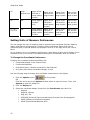
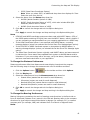
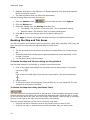
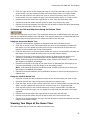
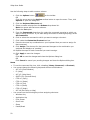
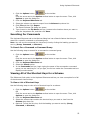
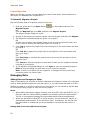
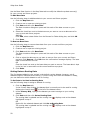
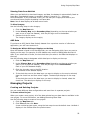
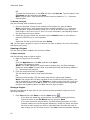
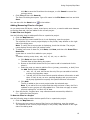
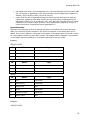
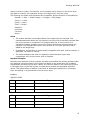
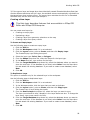
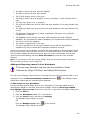
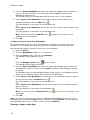
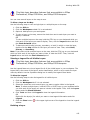
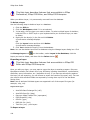
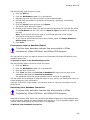
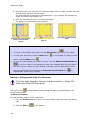
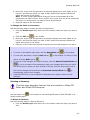
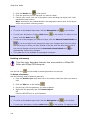
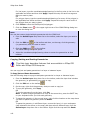
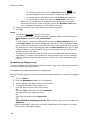
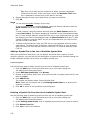
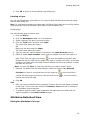
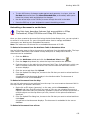
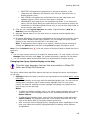
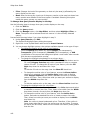
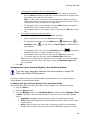
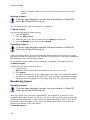
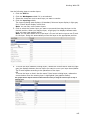
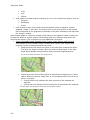
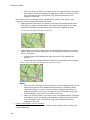
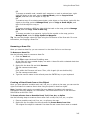
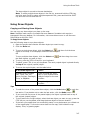
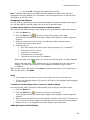
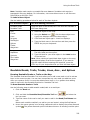
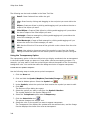
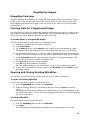
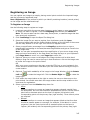
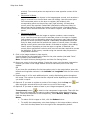
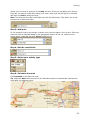
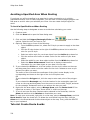
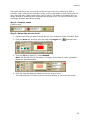
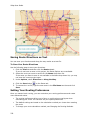
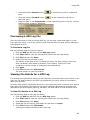
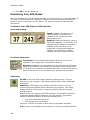
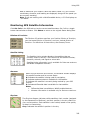
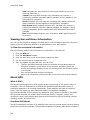
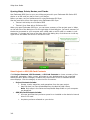
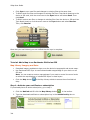
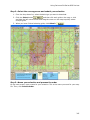
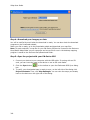
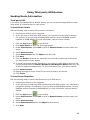
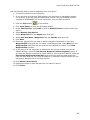
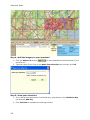
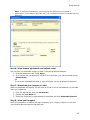
1
XMap User Guide Table of Contents Getting Started ........................................................................................................ 1 Welcome to XMap ................................................................................................. 1 What's New in XMap .............................................................................................. 2 How do I? ............................................................................................................ 3 Helpful Tips .......................................................................................................... 4 Frequently Asked Questions .................................................................................... 7 Chart of Supported Coordinate Formats .................................................................. 12 Migrating Data to the New DeLorme Docs Locations ................................................. 14 Basic Functions ................................................................................................... 15 About the Interface ............................................................................................. 20 Map Legend .......................................................................................................... 24 Map Legend........................................................................................................ 24 Using the Toolbar ................................................................................................... 28 Showing/Hiding Toolbar Options ............................................................................ 28 Reordering the Toolbar Options ............................................................................. 28 To Create New Projects ........................................................................................ 28 To Open a Project ............................................................................................... 29 To Migrate a Project ............................................................................................ 29 To Save a Project ................................................................................................ 29 To Print ............................................................................................................. 30 To Print the Map Screen ....................................................................................... 30 To Open the Map Library ...................................................................................... 30 To Use the Map Navigation Tool ............................................................................ 30 To Grab and Pan the Map ..................................................................................... 30 To Use the GIS Tools ........................................................................................... 30 To Create a Route ............................................................................................... 32 To Start/Stop Your GPS Connection ....................................................................... 33 To Exchange Information with a Handheld GPS ........................................................ 33 To Measure Distance............................................................................................ 33 To Get Information About a Location ...................................................................... 33 To Create a Profile ............................................................................................... 34 To Choose Options .............................................................................................. 35 Customizing the Map and Tab Display ....................................................................... 36 Customizing the Interface..................................................................................... 36 Displaying Basic Map Features .............................................................................. 36 Customizing the Map Feature Preferences ............................................................... 39 ii Table of Contents Changing the Map Colors ...................................................................................... 40 Changing the Map Magnification Level .................................................................... 40 Changing How POIs Display on the Map .................................................................. 41 Setting Units of Measure Preferences ..................................................................... 42 Resizing the Map and Tab Areas ............................................................................ 44 Viewing Two Maps at the Same Time ..................................................................... 45 Showing or Hiding Tabs........................................................................................ 46 Importing/Exporting Tab Manager Preferences ........................................................ 47 Reordering the Tabs ............................................................................................ 48 Using Keyboard Shortcuts ....................................................................................... 49 Selecting a Keyboard Shortcut Scheme .................................................................. 49 Creating a New Custom Scheme ............................................................................ 49 Assigning Keyboard Shortcuts in a Custom Scheme .................................................. 49 Customizing a DeLorme Scheme ........................................................................... 51 Renaming a Custom Scheme ................................................................................ 51 Deleting a Custom Scheme ................................................................................... 52 Importing a Custom Scheme................................................................................. 52 Exporting a Custom Scheme ................................................................................. 52 Searching For Commands ..................................................................................... 53 Viewing All of the Shortcut Keys for a Scheme ......................................................... 53 Using Projects/Map Data ......................................................................................... 55 Map Data Overview ............................................................................................. 55 Migrating Data to the New DeLorme Docs Locations ................................................. 55 Managing Data ................................................................................................... 56 Managing Projects ............................................................................................... 59 Using Transfer Files ............................................................................................. 62 Changing the Properties of Your Data ..................................................................... 66 Working With GIS .................................................................................................. 75 GIS Overview ..................................................................................................... 75 Handling Disconnected or Deleted Layers ................................................................ 76 GIS Options........................................................................................................ 76 Using Layers in a Subscription............................................................................... 78 Redlining ........................................................................................................... 80 Stationing .......................................................................................................... 82 Bulk Importing and Exporting ............................................................................... 83 Managing Layers in Your Workspace ...................................................................... 90 Classifying, Symbolizing, and Labeling a Layer ....................................................... 117 Attributes-Datasheet View ................................................................................... 131 iii XMap User Guide Attributes-Design View........................................................................................ 138 Forms ............................................................................................................... 150 Query ............................................................................................................... 156 Reordering Layers .............................................................................................. 162 Printing ............................................................................................................... 165 Printing a Map ................................................................................................... 165 Printing a Route and Directions ............................................................................ 166 Printing a Profile ................................................................................................ 167 Adding Text or Graphics to Your Map .................................................................... 168 Aligning Text and Graphic Items on Your Map......................................................... 170 Snapping Text and Graphic Items on Your Map ....................................................... 171 Layering Multiple Text and Graphic Items on a Printed Map ...................................... 172 Changing the Background Color of a Printed Map .................................................... 172 Manually Assembling a Multi-page Map .................................................................. 173 Finding a Location on the Map................................................................................. 177 Find Overview .................................................................................................... 177 Find Options ...................................................................................................... 177 Performing a Basic Search ................................................................................... 178 Performing an Advanced Search ........................................................................... 179 Performing a POI Search ..................................................................................... 182 Finding Points Near Your Current Location.............................................................. 183 Tutorial: Find Points of Interest on a Route ............................................................ 184 Finding a Symbol by its Name .............................................................................. 187 Tips on Viewing Search Results ............................................................................ 187 Keywords for Category Searches .......................................................................... 188 MapTags: Converting, Moving, Hiding, and Deleting ................................................ 191 Using Address Book Contacts .................................................................................. 193 Searching for Address Book Contacts .................................................................... 193 Importing Existing Address Book Information ......................................................... 193 Manually Entering Address Book Information .......................................................... 194 Centering the Map on an Address Book Contact ...................................................... 194 Editing a Contact In Your Address Book ................................................................. 195 Manually Moving a Contact on the Map .................................................................. 195 Relocating Address Book Contacts ........................................................................ 196 Showing/Hiding Address Book Contacts on the Map ................................................. 196 Deleting a Contact In Your Address Book ............................................................... 197 Deleting Your Entire Address Book ........................................................................ 197 Exporting Your Address Book ............................................................................... 197 iv Table of Contents Using the Draw Tools ............................................................................................. 199 Draw Overview .................................................................................................. 199 Viewing Hidden Draw Tools .................................................................................. 203 Draw File Management ........................................................................................ 204 Using Draw Objects ............................................................................................ 217 Routable Roads, Trails, Tracks, Lines, Arcs , and Splines .......................................... 223 Circles, Rectangles, and Polygons ......................................................................... 229 Waypoints, Symbols, MapNotes, Text Labels, and Images ........................................ 231 Custom Symbols ................................................................................................ 234 Registering Images ............................................................................................... 246 ImageReg Overview ........................................................................................... 246 Creating Data for a Registered Image ................................................................... 246 Opening and Closing Existing WorkFiles ................................................................. 246 Registering an Image.......................................................................................... 247 Modifying Existing WorkFiles ................................................................................ 249 Deleting an Existing WorkFile ............................................................................... 249 Hints for Placing Points ....................................................................................... 250 Profiling Linear Objects .......................................................................................... 252 Creating a Profile ............................................................................................... 252 Viewing the Profile Elevation Graphs ..................................................................... 253 Statistical Data .................................................................................................. 255 Manually Setting Minimum and Maximum Elevation ................................................. 257 Clearing a Profile ................................................................................................ 258 User Profile Data ................................................................................................ 258 Viewing Your Map in 3-D ........................................................................................ 261 Viewing a 3-D Map ............................................................................................. 261 Flying Over a 3-D Map ........................................................................................ 262 Tutorial: Fly in 3-D ............................................................................................. 263 Setting Your 3-D Map Preferences ........................................................................ 266 Routing ............................................................................................................... 267 Creating a Route ................................................................................................ 267 Adding and Inserting Stops and Vias ..................................................................... 268 Changing the Routing Method .............................................................................. 271 Changing the Properties of a Stop Along Your Route ................................................ 271 Viewing Route Directions ..................................................................................... 272 Tutorial: Create a Route ...................................................................................... 272 Avoiding a Specified Area When Routing ................................................................ 274 Tutorial: Create Route Avoids .............................................................................. 274 v XMap User Guide Saving Route Directions as Text ........................................................................... 278 Setting Your Routing Preferences.......................................................................... 278 Editing a Route .................................................................................................. 279 Editing Roads .................................................................................................... 280 Labeling a Route Point with a MapNote .................................................................. 281 Moving Route MapNotes ...................................................................................... 281 Displaying and Centering Routes on the Map .......................................................... 282 Saving a Route .................................................................................................. 282 Deleting a Route ................................................................................................ 283 Importing Routes ............................................................................................... 283 Converting a Route to a GPS Log .......................................................................... 283 Using GPS ............................................................................................................ 285 GPS Overview .................................................................................................... 285 GPS Options/Initializing GPS ................................................................................ 285 Tracking a Route with GPS .................................................................................. 288 Getting Back on Track When Off Course ................................................................ 289 Panning the Map Automatically While GPS Tracking ................................................. 289 Playing Back a Log File ........................................................................................ 290 Previewing a GPS Log File.................................................................................... 291 Viewing File Details for a GPS Log ......................................................................... 291 Monitoring Your GPS Status ................................................................................. 292 Monitoring GPS Satellite Information ..................................................................... 293 Viewing Sun and Moon Information ....................................................................... 294 About GPS ........................................................................................................ 294 Using Voice Navigation and Speech Recognition ........................................................ 296 Voice Overview .................................................................................................. 296 Voice Options .................................................................................................... 296 Activating and Monitoring Speech Recognition ........................................................ 297 Training the Speech Recognition Engine ................................................................ 297 Voice Commands ............................................................................................... 299 Speech Recognition Tips ...................................................................................... 301 Changing Voice Output ....................................................................................... 303 Voice Preferences ............................................................................................... 303 Voice Prompts ................................................................................................... 304 Using DeLorme PN-Series GPS Devices .................................................................... 306 PN-Series GPS Overview ..................................................................................... 306 Creating Map Packages ....................................................................................... 306 Syncing Maps and Data ....................................................................................... 311 vi Table of Contents Using Third-party GPS Devices ................................................................................ 325 Sending Route Information .................................................................................. 325 Sending Tracks .................................................................................................. 326 Sending Waypoints ............................................................................................. 326 Receiving a Route .............................................................................................. 327 Receiving a Track ............................................................................................... 328 Receiving Waypoints ........................................................................................... 328 Using NetLink ....................................................................................................... 330 NetLink Overview ............................................................................................... 330 Tutorial: Add Maps and Imagery ........................................................................... 331 Using the XMap API Command Window .................................................................... 335 XMap API Command Window ............................................................................... 335 API Commands and Parameters ........................................................................... 336 Legal Information ................................................................................................. 340 DeLorme XMap GIS Single-User License Agreement ................................................ 340 Important Notices .............................................................................................. 343 Apache License, Version 2.0 ................................................................................ 350 Index .................................................................................................................. 355 vii Getting Started Welcome to XMap For more information about XMap, visit our website at www.xmap.com. XMap GIS Enterprise, XMap GIS Editor, and XMap Professional provide a three-tiered GIS solution for efficiently creating, importing, editing, classifying, querying, and sharing your GIS data in an enterprise environment. XMap is equally suited as a standalone GIS software solution or as a supplement component to your existing GIS infrastructure. In addition to GIS, XMap includes powerful routing and in-vehicle navigation tools; advanced GPS support for field tracking and navigation; interoperability with Earthmate PNSeries GPS devices for field data collection and exchange of map data, waypoints, and tracks; 3-D terrain modeling with simulated fly-over functionality; advanced printing tools; and much more. XMap GIS Enterprise The upper tier of the XMap suite is designed to meet the specific needs of enterprise GIS managers who need to efficiently manage and deploy GIS data throughout a company. XMap GIS Enterprise also includes all of the features in XMap GIS Editor. Create and distribute GPS data collection forms to XMap Editor and XMap Professional users and PNSeries GPS owners. • Quickly sync layers—increased sync speed for large databases. • Establish database permissions for Windows security groups. • Ensure data integrity with check-out/check-in tools. • Share data across the enterprise with database synchronization tools. • Use the API Command Window to perform basic mapping functions from a thirdparty application. • Automate the import and export of standard spatial data files with the bulk importer/exporter. • Supports Microsoft® SQL Server® 2008R2 and 2012. • XMap GIS Enterprise in conjunction with multiple copies of XMap Professional provides a complete field force GIS data collection system. XMap GIS Editor XMap GIS Editor is a perfect choice for small GIS departments or for a company or organization that is considering the development of a GIS to increase productivity. XMap GIS Editor also includes all the features in XMap Professional. • Create forms in databases synchronized from an XMap Enterprise database. • Create zero and negative polygon buffers. • Export KML files. • Geocode by State Plane and UTM coordinate systems. • Cut individual GIS layers to a PN-Series GPS device for field work. • Search for GIS objects using enhanced real-time proximity search for GIS objects using GPS Radar on the Find tab. 1 XMap User Guide • Import and work with a variety of GIS file formats including, ESRI .shp and .e00; MapInfo .mif and .tab; AutoCAD .dwg and .dxf; and more. • Geocode your existing data in .mdb, .xls, and other formats to create GIS layers. • Create and edit points, lines, and polygons with freehand draw tools or with precise coordinate geometry input tools. • Access advanced classification, annotation, buffer, and geospatial query tools. • Create your own raster data layers with multi-point image registration. XMap Professional XMap Professional is ideally suited for field crews and mobile professionals. By offering access to GIS data that has been processed using the GIS Editor or GIS Enterprise editions of XMap, it provides an affordable alternative to a full-fledged GIS for use on the road and in the field. XMap Professional offers essential and fundamental mapping functions that include data visualization, access to aerial and satellite imagery, address-to-address routing, annotation tools, document linking, advanced printing, GPS support, and more. In addition, you can view and print GIS maps created using XMap GIS Editor and XMap GIS Enterprise. • Collect and edit data using forms synchronized from an XMap Enterprise database. • Optimize response time with the latest in-vehicle, voice-controlled navigation tools. • Perform country-wide searches of address locations and points of interest. • Easily redline data corrections to Enterprise GIS data and efficiently share these edits with your GIS administrator. • View your data in stunning 3-D with the latest terrain modeling technology. • Import ESRI shapefiles into the GIS tab and apply symbolization. What's New in XMap XMap continues to facilitate GPS data collection for mobile field workers across all industries with tools that create and work with data collection forms. 2 • Now supports syncing to multiple databases. Use as many subscription files as desired to sync with more than one database. • One-step selection of GIS Layer for use on the PN. Right click on a layer in the Handheld Export tab to automatically select all of the grids containing the layer. Getting Started • New Database Manager for Enterprise users allows for quick selection of groups and/or individual users for subscriptions and allows multi-select for both users and layers. • Improved Project File Management. Updated base maps can now be used to correct older project files. Missing layers can be corrected without having to start with a new project file. • Installation has been updated for both software and data. Future software updates can be easily patched verses having to reinstall the whole application. Data installations is also optimized for larger institutions. The same technology Microsoft uses for their patches can now be used to install DeLorme large base maps (call DeLorme for instructions). • New SQL technology. SQL LocalDB replaces the need to install SQL Server Express on field worker laptops easing installation and reducing help ticket calls. • New Team Tracking tab. When used with DeLorme's inReach devices multiple users can be tracked in real time. Receive SOS, No Motion and No Communication alerts. Supports geofencing based on GIS objects. Get an alert when user enters or leaves a designated area. • Updated Administrator Guide for custom installations along with configuration options for XMap. Contact DeLorme for a copy of the guide. How do I? Click a question to open the related Help topic. See also, Frequently Asked Questions. Controlling the Map How do I pan the map? How do I zoom the map in and out? How do I change the map view to show the left map view, right map view, or both? Display Preferences How do I change the map colors? Draw Tools How do I add a road or trail to my map? Searching for a Location How do I search for a location? GIS How do I import a layer into a database? How do I manage the layers in my workspace? What is a workspace? How do I classify a layer? How do I create a query? How do I use XMap Forms? GPS 3 XMap User Guide How do I start tracking with my GPS device? See also, Routing Handheld Export How do I use my mapping application with my PN-Series GPS? Map Data What is a project? How do I add or remove base data? How do I add data and imagery? How do I set data as routing data? Routing How do I create a route? How do I track a route with my GPS receiver? How can I automatically recalculate my route when I'm off course? How can I avoid a specific area when routing? Printing How do I print a map? Profile How do I view a profile of a route I've created? 1. Center the route you want to profile on the map. 2. Click the Profile tab. 3. Select a route on the map to generate its profile. When the object is selected, it is highlighted and the Profile graph displays in the Profile dialog area. 3-D How do I generate a 3-D map? How can I expand my 3-D map to fit the entire screen? Helpful Tips These tips may help you use the features in your DeLorme mapping program. The Did You Know? pop-up tutorials provide hints while you are working in the application. Tips • To disable a specific pop-up tutorial, select the Don't Show Again check box before you close it. • To disable all pop-up tutorials, click the Help button Shut Off All Pop-up Tutorials. • To enable all pop-tutorials after you have shut off one or more, click the Help button on the toolbar and click Reset All Pop-up Tutorials. Control Panel 4 on the toolbar and click Getting Started If you want to... Use this tip... Zoom the map out/in quickly Drag the map cursor in an up-left direction to zoom the map out or drag it in a down-right direction to zoom the map in. Pan the map quickly • Position your cursor on the edge of the map; it becomes a white hand that you can use to drag the map to the new location. • With your cursor anywhere on the map, press the CTRL key on your keyboard—the cursor becomes a white hand. Hold down your left mouse button to drag the map to a new location. Update the coordinate format that displays in the Control Panel Update your measurement preferences at any time using the Display tab in the Options dialog box. View the last map center Press the middle button in the Compass Rose in the Control Panel to center the map on the previous map view. This button performs an undo function for the last pan or zoom (up to 256 times). Draw If you want to... Use this tip... Create a route using a road or trail you have added to the map with the Draw tab When drawing a routable road/trail, click each existing road it crosses to ensure that you can route on the new road/trail. When you open a track you've imported from your GPS device, join the imported line with existing lines by right-clicking each intersection and selecting Manage Draw/Join. Find If you want to... Use this tip... Modify a Find search result Right-click a result item in the Find tab to add it as a MapNote, insert it as a stop in your route, copy the information to your clipboard, and so on. Find a custom point of interest (such as a Chinese restaurant) when performing a GPS radar search in Find You can use the Custom option to find other categories besides those listed, or to find multiple categories at once. GPS If you want to... Use this tip... View a GPS log on the map Use the Draw tab to import a GPS log file and view it as a line object on the map. 5 XMap User Guide Handheld Export If you want to... Use this tip... Modify the export area in Handheld Export When you click Preview, the default export area for the location you selected displays on the map as shaded rectangles. Click Select to confirm the area. To edit the area, click the Select/Edit tool and then click the map to add or remove rectangles to/from the export area. Info If you want to... Use this tip... Quickly view information for a location on the map. Hover your cursor over objects on the map to see information (such as road names, city/town, details about draw objects, etc.) in the status line that appears at the bottom of the map, just above the tab area. Map Data If you want to... Use this tip... Learn how to add route and/or draw layers to your project Add existing route and/or draw files to your project by clicking the Add button and selecting the Draw File or Route File option. Measurement Tool If you want to... Measure the area/perimeter of a location on the map Use this tip... Use the Measure tool on the toolbar to draw a polygon on the map and determine its area and perimeter. Just click point-by-point to draw the polygon on the map and then double-click to close the polygon. The area and perimeter display in the center of the polygon. Print If you want to... Use this tip... Stop a page in a multipage map from printing If you do not want to print all the pages in a multi-page map, on the Layout graphic, click each page you do not want to print. Route If you want to... Use this tip... Reorder inserted stops Reorder your inserted route stops using the Advanced features in the Route tab. Create a route quickly For quick route creation, right-click the map and select one of the Create Route options or use the Route buttons on 6 Getting Started the toolbar. Reorder the columns in the Route Directions list Click the Directions list column headers to change the column order. Determine the difference between adding and inserting stops and vias Added stops/vias are placed in the order you add them to the route. Inserted stops/vias are placed in the order you would approach them between the Start and Finish points of the route. View information about your second turn Click the Show Turns button when GPS tracking to view information about the following turn. Tab Area If you want to... Use this tip... Adjust the size of the tab area Adjust the size of the tab area by dragging the top or right side of the tab area. Show, hide, or reorder tabs Use the Tab Manager option in the Help menu to show, hide, or reorder tabs. Import or export a tab configuration file Use the Tab Manager option in the Help menu to import or export a tab configuration file Voice If you want to... Use this tip... Create new speech recognition profiles You can create a new speech recognition profile for each of your working environments (noisy, quiet) and users (your spouse or child) by clicking the Speech settings in the Windows Control Panel. Learn how to make the microphone more sensitive to your commands in noisy environments If there is background noise while you are speaking, it may be helpful to precede all of your voice commands with a special phrase (like Simon Says). See the Voice Settings tab of the Options dialog box. Frequently Asked Questions These questions are asked most frequently by our customers. • Why doesn't map data display in all projects? The procedure for adding data to XMap varies; it depends on if you want to add the data to the current project or if you want to add it to all projects. If you added the data to only the current project and you want to view it in all projects, you must add the data as base data in the application. Use the steps below to add a map dataset as base data. 1. Click the Map Data tab. 7 XMap User Guide 2. Click Data and then click Base Data. The Base Data Locations dialog box opens listing each of the data sources on your system. 3. Click Add, select the hard drive location where you saved your data from the Browse for Folder dialog box, and click OK. The OK button is enabled when you select a folder containing a file that contains the properties of the map data being added. 4. Click Done. • What map data is included with XMap? XMap includes a worldwide reference base map dataset that includes major roads, cities, boundaries, and geographic features, which is visible between data zoom levels 1 and 6. For more detailed map features or aerial imagery, you can purchase a variety of base map datasets from DeLorme or integrate your own data using XMap's import and data adding tools. Note that most of the maps used by DeLorme to convey the capabilities of the software are created using an optional DeLorme base map dataset and/or data or imagery from third-party sources. • How do I add non-DeLorme imagery to my map? Use the Map Data tab to add imagery in MrSID and GeoTIFF format to your map. 1. Click the Map Data tab. 2. Click Data and then click Add. The Add Data to Maps dialog box opens. 3. Browse to the file you want to add, select it, and then click Add. The imagery is added to the current project. Note Imagery will not display unless projection information is specified in the file. • How do I import files from an earlier version of XMap into this version? Use the Map Data tab to import projects, routes, and draw files from many other DeLorme mapping programs. For information about migrating data to XMap, see Migrating Data to the New DeLorme Docs Location. To Open A Project 1. Click the Map Data tab. 2. Click File and then click Open. 3. Select the project you want to view and then click Open. 4. Click OK. To Open a Route 5. Click the Map Data tab. 6. Click Data and then click Add. The Add Data to Maps dialog box opens. 7. Browse to the file you want, select it, and then click Add. The route is added to the current project. To Open a Draw File 8. Click the Map Data tab. 9. Click Data and then click Add. The Add Data to Maps dialog box opens. 8 Getting Started 10. Browse to the file you want, select it, and then click Add. The draw file is added to the current project. • What is my server name? XMap uses Microsoft SQL Server as its DeLorme OpenSpace database engine. Your server name varies, depending on if you are connecting to or creating a DeLorme database in Microsoft SQL Server 2005 Express/Microsoft SQL Server 2008 or a Microsoft Enterprise SQL Server at your company. • • • To establish a local connection to SQL Server 2005 Express or SQL Server 2008, use <computer name>\XMAP7 for the server name. To establish a connection to SQL Server 2005 Express on another computer in your network, use <computer name>\XMAP7. • To establish a connection to a Microsoft Enterprise Microsoft SQL Server, use <Server Name> for the server name. You will need to ensure that you have the proper server and database permissions and you are connected to the network. Contact your IT department if you experience problems. Why doesn't my Workspace display any layers? If there are no layers in your Workspace, you may have accidentally removed them. To retrieve the layers, click the GIS tab, click the Workspace subtab (if it is not currently selected), click the Layers button, and then click Manage. Select the Source Database you want to pull layers from, highlight the Layers in the Database, and then click the move or move all button to move the layers into your workspace. If the database where your layers are present is not listed in the Source Database drop-down list, you can connect to it by selecting the Other… option. If you have not yet created a database, you can do so by selecting the New… option in the Target Database drop-down list in the Create Layer and Import Wizard dialogs. • Where do I find the map settings and other Options settings? Click the Options button on the toolbar to modify GPS, voice, GIS, map feature, display, handheld, and keyboard shortcut, and 3-D preferences. For more information, see To Open the Options Dialog Box. • Upgraders only: What happens to my projects when I upgrade? In previous versions of XMap, your projects, draw files, route files, log files, and other DeLorme files were stored by default in the DeLorme Docs folder on the root of your computer's C drive unless you specified a different directory during installation. In XMap 6 and later versions, the DeLorme Docs folder for all files except NetLink downloads is located in the Documents folder under your user name. For NetLink downloads, the Downloads folder is located in the DeLorme Docs folder under Public Documents. For information about migrating data to XMap, see Migrating Data to the New DeLorme Docs Location. • Upgraders only: Why doesn't XMap overwrite the older version? 9 XMap User Guide XMap 5 and later versions do not overwrite older versions of XMap, such as XMap 4.5 or earlier. This allows you to view both versions on the same computer. • Upgraders only: Should I uninstall my previous version before installing the new version? You are not required to uninstall XMap 4.5 or earlier versions before installing XMap 8. • Can I see imagery and data from Topo USA or Street Atlas USA within XMap? Yes. The location of the Downloads folder changed beginning with XMap 6. If you stored your data in the DeLorme Docs Downloads folder in XMap 5 or earlier, it will automatically migrate to the new location. If you stored it in a different location, you can use the Map Data tab to browse to the location and add it. For information about migrating data to XMap, see Migrating Data to the New DeLorme Docs Location. • How do I get data updates or fix the roads on my map? If you find there is a local road that is missing, you can add it to the current draw layer using the Routable Roads Draw tool. For more information, see Drawing Routable Roads or Trails on the Map. To report a correction to us: • 1. Click the NetLink tab. 2. Click the Support subtab. 3. Click the Submit Correction link. 4. Use the Customer Revisions Wizard to submit the change. • How do I initialize my GPS receiver? Each time you use your GPS receiver, you initialize it, which means you set your starting position on the map by obtaining the initial coordinates of your location. This can be done automatically or manually. For more information, see GPS Options/Initializing GPS. • What's the difference between a stop and a via? When routing, you have the option of adding or inserting stops or vias in the route. A stop is a location in the middle of a route where you want to stop and then proceed from. A via is a road on the map that you want to specifically use when routing. For example, if you create a route between Portland, Maine, and Yarmouth, Maine, without any stops or vias, the route directions will tell you to take I-295. However, if you want to take US Route 1 instead, you can place vias in the route on US Route 1 to force the route to go by way of US Route 1. If you plan on stopping in Falmouth Foreside for lunch, you will want your route directions to reflect that stop. When you add a stop, the route can be recalculated to include the stop in the middle of your route. 10 Getting Started The map below shows the area between Portland, Maine, and Yarmouth, Maine, with two vias and one stop. • What's the difference between adding and inserting a stop or via? The Insert Stop/Via function arranges stops/vias geographically in the route. The Add Stop/Via function adds stops/vias in the order you add them to the route. • Why did my route fail to calculate? Your route will fail to calculate if you create a route: • • • With a route start, stop, via, or finish point in an area that you have designated as a Route Avoid. • That includes route points outside the United States, Mexico, or Canada. • On an island without roads. In this case, XMap will look for the nearest road to that island to place the route point. If the nearest road is not routable (for example, it is the only road on the island and/or the island does not have ferry access), you will get an error message saying "Route failed to calculate." Why do X marks display on the map when I calculate a route? 11 XMap User Guide • • When you place a route point in a location that isn't on a street, XMap finds the closest street to that location, marks the space between the point you clicked and the street with X marks, and starts the route at the street. • If you perform a Find for an address that is on a walkway and place a route point on it, XMap finds the closest street to that location, marks the space between the point you clicked and the street with X marks, and starts the route at the street. Why are the tab area and control panel so narrow? XMap was designed to accommodate resolutions of 1024 x 768 or higher. If you are using a very high resolution (such as 1920 x 1200), the tab area and control panel in XMap may appear to be very narrow. You can modify the size of the map and tab area or use the Windows Control Panel to adjust your display settings. • What's the best way to measure the distance of a road or trail? The best way to determine the distance of a particular road or trail, is to create a route. You can create a route using right-click functionality, the toolbar, or the Route tab. For more information, see Creating a Route. The best way to determine the distance of a particular road or trail, is to create a route. You can create a route using right-click functionality, the toolbar, or the Route tab. For more information, see Creating a Route. The best way to determine the distance of a particular road or trail is to create a route. You can create a route using right-click functionality, the toolbar, or the Route tab. For more information, see Creating a Route. • What's the best way to measure a large area on the map? The best way to measure a large area on the map is with the area tools in the Draw tab, such as the polygon tool. When you draw an area object on the map, the area displays next to the object on the map. If you click off of the object, you can view the area again by clicking the Select tool in the Draw tab and then clicking the area object on the map. For more information about drawing area objects, see Drawing a Circle, Rectangle, or Polygon on the Map. • What's the best way to measure a short distance on the map? The best way to measure a short distance that is not made up of a road/trail on the map is to use the Measure tool on the toolbar. The measure tool allows you to measure linear distance and area on the map based on the units chosen in the Display tab of the Options dialog box. For instructions on how to use the measure tool, see Measuring Distance and Area. • Why won't 3-D billboards display? If you receive a message saying that 3-D billboards cannot be displayed, ensure that you have a 32 MB video card with the latest drivers and that it supports DirectX and transparencies. For more information, see the DeLorme Forums. Chart of Supported Coordinate Formats These are the supported search formats. Sample coordinates are for Yarmouth, Maine. 12 Getting Started Tip Examples of search formats are listed in the Advanced search drop-down text boxes along with a history of your most current search criteria. Coordinate Format QuickSearch Advanced Search Latitude/Longitude N 43 48 30, W70 9 52 N 43 48 30 W70 9 52 N 43 48.4910, W 070 09.8440 N 43 48.4910 W 070 09.8440 N434829.4600, W0700950.6400 N434829.4600 W0700950.6400 N43-48-30, W70-9-52 N43-48-30 W70-9-52 N 43:48:29.46, W 70:9:50.64 N 43:48:29.46 W 70:9:50.64 4348, -7009 4348 -7009 4348N, 7009W 4348N 7009W N4348, W7009 N4348 W7009 4348n, 7009w 4348n 7009w n4348, w7009 n4348 w7009 4348 N, 7009 W 4348 N 7009 W N 4348, W 7009 N 4348 W 7009 4348 n, 7009 w 4348 n 7009 w n 4348 w 7009 n 4348 w 7009 434829, -700950 434829 -700950 4348.491, -7009.844 4348.491 -7009.844 4348.491, -7009.844 4348.491 -7009.844 434829.46, -700950.64 434829.46 -700950.64 43.80818333, 70.16406667 43.80818333 -70.16406667 43 48.4910 N, 70 09 50.64 W 43 48.4910 N 70 09 50.64 W 43 48.4910 n, 70 09 50.64 w 43 48.4910 n 70 09 50.64 w N 43 48.4910, W 70 09 50.64 N 43 48.4910 70 09 50.64 W 434829.46 N, 700950.64 W 434829.46 N 700950.64 W 43, -70 43 -70 13 XMap User Guide MGRS/USNG 19TDJ 06354 51187 Same as QuickSearch 19TDJ0635451187 (NAD27)* 19TDJ06355109 19TDJ064511 19TDJ0651 UTM/UPS 19T 0406311E 4850964N Zone 19T Easting 0406311E Northing 4850964N 19T 0406311 4850964 Zone 19T Easting 0406311 Northing 4850964 19T / 0406311 / 4850964 Zone 19T Easting 0406311 Northing 4850964 SPCS ME-W 0500490 0355150 Zone ME-W Easting 0500490 Northing 0355150 * Use this example for USNG with non-standard datum. Migrating Data to the New DeLorme Docs Locations In versions of XMap prior to XMap 6 and in other DeLorme products, your projects, draw files, route files, log files, imagery, and other DeLorme files were stored by default in the DeLorme Docs folder on the root of your computer's C drive unless you specified a different directory during installation. For XMap 6 and newer versions: • The DeLorme Docs folder for all files except NetLink downloads is located in the Documents folder under your user name. • The DeLorme Docs folder for NetLink downloads is located in the DeLorme Docs folder under Public Documents. This allows all users on the computer to access NetLink downloads. What is Migration? The migration process does not move your files—it copies them to the new locations. When you are sure your files are working correctly in the new locations, you can delete them from the old locations as long as you are not using them for another DeLorme program. For example, if you have an imagery file you use in Topo USA or XMap (5.x or earlier), keep both files. Because all new information you add to a project will be saved to the new file location— even if you open it from the old location, we strongly recommend that you migrate your files. If you do not, you could have project data in two DeLorme Docs locations; your project will work correctly, but your data will not all be in the same location. 14 Getting Started Project Migration When you migrate a project, all associated files (routes, draw layers, and connections to GIS layers in a database) are moved with it. To Manually Migrate a Project Use the following steps to migrate a project at any time. 1. Click the arrow next to the Open button on the toolbar and then click Migrate Project. OR Click the Map Data tab, click File, and then click Migrate Project. The Migrate Project dialog box opens. 2. Browse to the project you want to migrate, click the project, and then click Migrate. 3. The Migration Completed dialog box opens. Go to step 5. OR If a file with the same name already exists in the new DeLorme Docs location, the Confirm Link to Existing File dialog box opens. Go to step 4. 4. Click Link to replace the project link to the existing file in the new location and then go to step 5. OR Click Link All to replace any project links to existing files in the new location and then go to step 5. OR Click Save Copy to maintain the project link to the current file and save it with a different name. OR Click Cancel to stop the migration process and roll back any file migration that has occurred up to this point. 5. In the Migration Completed dialog box, click Open to open the migrated project or Close to close the dialog box and return to your last active project. Note If there is a problem with the migration, a message will notify you of any corrective action you need to take. Basic Functions Zooming In and Out You can use the drag and zoom feature, zoom tools, or the data zoom level(Data zoom level is the relationship between what you see in a map view and how it exists in reality. It is the amount of geographic data displayed on a computer monitor. The data zoom level is similar to the traditional fractional relationship expressed on paper maps. For example, 1:24,000, 1:100,000, 1:500,000, and so on.) to quickly change the zoom level of the map view. Notes • Increase the data zoom level number to show a smaller geographic area at greater detail. • Decrease the data zoom level number to show a larger geographic area at lesser detail. • If you view both the right (primary) and left (secondary) maps at different data zoom levels, a box (or lines, depending on the current data zoom level) displays on the map that is zoomed out the furthest. The box/lines indicate the area that is in 15 XMap User Guide view on the other map. You can disable this feature by clearing the Show Ref check box at the top of the secondary map window. • If you view the right and left maps at the same data zoom level but they are not equally represented on the screen (50/50), a box (or lines) displays on the map that is covering the most screen area. The box/lines indicate the area that is in view on the other map. To Drag and Zoom In Use the following steps to zoom in either the right or left map. 1. Click and hold down the left mouse button as you drag the mouse in a down-right direction on the map to encompass the area you want to display. A view box displays on the screen and changes dimension as you move the mouse. A label displays the data zoom level at the current map center. 2. Once you reach the map area or data zoom level you want to display, release the mouse button. The area you selected fills the map window, the map re-centers, and the map view adjusts to show the appropriate level of detail. Tip To move the view box to another location, press the SHIFT key at any time. To Drag and Zoom Out Use the following steps to zoom in either the right or left map. 1. Click and hold down the left mouse button as you drag the mouse in an up-left direction on the map. A staircase with a small circle displays on the screen. 2. Continue dragging the mouse in an up-left direction. The small circle moves up the steps, one step per data zoom level. A label displays the data zoom level to the bottom-right of the staircase. 3. Once you reach the data zoom level you want to display, release the mouse button. The map view adjusts to display the appropriate level of detail. The map center is retained on your screen. To Zoom In/Out Using the Zoom Tools There are two sets of zoom tools. The zoom tools for the right map are located in the Control Panel. The zoom tools for the left map are located at the top of the left map view. Click the up arrow to zoom out one minor data zoom level at a time. Click the down arrow to zoom in one minor data zoom level at a time. Right Map Controls Click the Zoom In 1 tool to increase the detail number to the next full level. Click the Zoom Out 1 tool to decrease the detail number to the next full level. Click the Zoom Out 3 tool to decrease the detail number by three full levels. Left Map Controls 16 Click the plus button to increase the detail number to the next full level. Click the minus button to decrease the detail number to the next full level. The data zoom level of the left map displays in the text area to the left of the buttons. Getting Started Tips • Press ALT+PAGE UP on your keyboard to zoom out to the next full data zoom level. Press ALT+PAGE DOWN on your keyboard to zoom in to the next full data zoom level. • Use the mouse wheel to zoom the map in and out. Rotate the mouse wheel to zoom in by individual data zoom level steps or hold the SHIFT key while rotating the mouse wheel to zoom to the next full data zoom level. Panning/Centering the Map Use any of the following methods to pan (move) or center the map. • Click anywhere on the map. The point you click becomes the new map center. • Double-click a layer name in the GIS workspace. • When you point near the map edge, a white hand displays. Drag the hand to move the map in that direction. • With your cursor anywhere on the map, press the CTRL key on your keyboard—the cursor becomes a white hand. Hold down your left mouse button to drag the map to a new location. • Click the Map Panning button in any direction. • Click anywhere on the overview map. The point you click becomes the new map center. This allows you to traverse greater distances with each mouse click than you can within the main map. • Point anywhere on the black view box in the overview map window. When the pointer becomes a on the toolbar to drag/pan the 2-D or 3-D map , drag the view box to the new location. • Use the search features on the Find tab to center the map on a particular location. • Assign shortcut keys to pan the map up, down, left, or right in small increments. Copying Your Map to the Clipboard Click the Copy to Clipboard button on the Print tab to copy your map to the clipboard. You can then paste it into another program. You can also right-click anywhere on the map and click Copy Map to Clipboard. Saving a Map as a Bitmap or JPEG Image You can save the current map view as a bitmap (.bmp) or JPEG (.jpg) image in all page layout formats: Single, 2 x 2, and 3 x 3. If you select a multi-page format, all the active 17 XMap User Guide pages are saved as individual bitmaps or JPEGs. The file name is the specified file name with an incremental page number at the end. See Printing a Map for information about printing a map without saving it as a file. To Save a Map as a Bitmap or JPEG Use the following steps to save a map as an image. 1. Locate the area on the map that you want to save as an image. 2. Click the Print tab and then click the Map subtab (if it is not already selected). 3. Under Map, select Left, Right, or Both. 4. Under Print Layout, select Page(the map print area is based on the paper size specified in the Setup options) or Screen(the map print area is based on the screen size). The print area for a Page map displays as a red box and the print area for a Screen map displays as a blue box on the overview map. 5. If you selected Page in step 4, the following options are available. 18 • Under Print Layout, select a layout option (Single, 2 x 2, or 3 x 3). The print area displays on both the Map and the Overview Map. In the example below, 2 x 2 is selected. This means the print area encompasses four standard pages at whatever paper size you specified in the Setup options. You can assemble a multipage map into a large map. • If you selected 2 x 2 or 3 x 3 and do not want to save all the pages in the multipage map on the map layout graphic, click each page you do not want to save. The page appears dimmed or gray. In the example below, page 4 will not print. • Verify this is the location and photo zoom you want to save. If not, pan the map to the location and zoom to the level you want. Note Changing the photo zoom enlarges/reduces the map features and changes the map area that you save as an image. If you increase the photo zoom level, map text, lines, symbols, etc. are larger and your map area is reduced. If you decrease the photo zoom level, map text, lines, symbols, etc. are smaller and your map area is enlarged. The reduction/enlargement percentages for your photo zoom level display under the Photo Zoom dropdown list. • If you want to use other tabs and functions but not lose your current print area, print photo zoom, or other settings, select the Lock Print Center check box. This locks the print area and changes the tab label to red. • Add text or graphics to your map. • Select the Print Preview check box to zoom the map and view the entire area that will be saved as a bitmap image. Clear the check box to return to your previous data zoom level. Getting Started 6. Click the Save button . The Save 2D Map Image dialog box opens. 7. Type the file name in the File Name text box, select to save the file as a .bmp or .jpg from the Save as Type drop-down list, select the DPI (dots per inch) value (optional), and click Save. Measuring Distance and Area Use the Measure tool on the toolbar to measure linear distance and area on the map based on the units chosen in the Display tab of the Options dialog box. The snap function snaps (attaches) the point of a measurement line to a point on a road or another measurement object. This ensures a more accurate measurement of distance or area. To measure area, you must completely enclose the area by snapping your finish point to your starting point. Notes • The Measure tool is the best way to measure short distances on the map. If you want to measure the distance of a road, try creating a route. If you want to measure a large area on the map, use the area object tools in the Draw tab. • To disable the auto-snap function, hold down the ALT key on your keyboard while using the Measure tool. • Measure objects (lines and areas) are saved with the current project. When you create a new project, the measure objects do not display. If you want the same measure objects on your new project, you must recreate them. • To view information about a measurement line, right-click it and click Info. The measurement information is automatically displayed in the Info tab. To Measure Distance or Area Use the following steps to measure linear distance or area on the map. 1. Verify you have the correct units of measure selected in the Display tab of the Options dialog box. For more information, see Setting Units of Measure Preferences. 2. On the toolbar, click the Measure tool . The pointer changes to . 3. Click point-by-point to draw a measurement line on the map. A text box displays next to your pointer indicating the total distance of the measurement taken. Note When you pass over a point in a road, measurement line, or measurement area to which you can snap, a yellow circle defines the snap point. Click to snap the point of the measure line to the road or measurement object's point coordinate. 4. To end a measurement line, double-click the last point of the measurement line. OR Click the last point of your measure line or area and then click the Measure tool on the toolbar. The measure line is a two-pixel wide yellow line and the total length of the line is displayed in a label at each endpoint of the line. 5. To end a measure area, hover over the starting point until the yellow snap circle displays, and then double-click the last point to the starting point. The closure area is transparently shaded, and the area and perimeter measurements display. Searching Tips 19 XMap User Guide When you use the Quick Search subtab on the Find tab or the Route tab to search for a location, you must enter the information in a specific format. Tips • Use punctuation as in the examples in the table below. • Do not use periods. • Search with the minimum amount of information to increase the number of results. For example, if you are searching for a road, and you are not sure of the spelling, type in part of the name and then scroll through the list of results until you find a match. This table shows formats for search types. For this type of search... Use this format... Example Address Street address, City, State 100 Baxter Blvd, Portland, ME Street address, ZIP Code 100 Congress St, 04101 Street address, City, State, ZIP Code 100 Congress St, Portland, ME 04101 City City, State Atlanta, Georgia ZIP/Postal Code Within the U.S.: ##### (5digit ZIP Codes only) 04096 Within Canada: ### (6digit Postal Codes only) J8E756 Minor Point of Interest POI name, City, State Subway, Columbus, OH Major Point of Interest or Landmark POI/landmark name Mount Rushmore POI/landmark name, State Space Needle, WA Latitude/Longitude See Chart of Supported of Supported Coordinate Formats For more information about the Find tab, see the Help topics under Finding a Location on the Map. About the Interface Tab Area You can access most of the application's functions from the tab area at the bottom of the screen. To access Help for a specific tab, click the Help button on the tab. You can also reorder the tabs, show or hide individual tabs or show or hide the tab panel. 20 • Map Data • GIS • Print • Find • Info • NetLink Getting Started • ImageReg • Draw • Profile • 3-D • Route • GPS • Voice • Handheld Export Control Panel The Control Panel, located to the right of the map view, displays information pertinent to the current map view and map cursor position. It also includes zoom and map pan buttons. You can customize your interface to show or hide the Control Panel. Data Zoom Level—The current data zoom level of the map view; ranges between 0-0 (maximum zoom out) and 20-0 (maximum zoom in). Zoom Tools—Buttons that quickly zoom out three levels, out one level, or in one level. For more information, see Zooming In and Out. Compass Rose—A group of nine buttons on a globe. The outer buttons have yellow arrows; click one of the arrow buttons to pan the map in that direction. Click the middle button to center the map on the previous map view. This button performs an undo function for the last pan or zoom (up to 256 times). Map Rotation Tool—The arrow in the graphic indicates True North in relation to the rotated map. Use the Map Rotation Tool to rotate the map in any direction. You can rotate the map by clicking or dragging the square map graphic in the direction you want or by selecting/typing the degree of map rotation from the drop-down list. Map Coordinates—Coordinates for the current map cursor position display based on the units of measurement preferences chosen in the Display tab of the Options dialog box. Elevation and Interval—Display in the measurement chosen in the Display tab of the Options dialog box. The data zoom level affects interval display. Scale Bar—Indicates the distance one scale bar unit equals in the measurement chosen under in the Display tab of the Options dialog box. Overview Map 21 XMap User Guide The overview map is a small map in the lower-right corner of the screen that offers a wideangle view of your current map view area. It is approximately three data zoom-levels out from the current map view. Tips • Click anywhere on the overview map and that point becomes the new map center. This allows you to travel greater distances with each mouse click than you can within the larger, current map view. • Use the black view box in the overview map window to pan the map. Point anywhere on the view box. When the pointer becomes a location. , drag the view box to the new Toolbar Use the toolbar to perform many functions in the application without navigating through the tab area. Tips • Not all of the toolbar features are activated by default. To modify which toolbar items you want to view, right-click the toolbar. Toolbar options with selected check box next to them are currently displayed on the toolbar. Click the item to activate or inactivate it on the toolbar. • In addition to customizing which toolbar features are displayed, you can also reposition the toolbar segments horizontally or vertically. Just drag the vertical dotted bar that separates each segment to the new location (left, right, up, or down). You cannot move a toolbar segment above the top-most line on the toolbar, customize toolbar groups, or remove toolbar groups from the toolbar. Exchange • Exchange GIS layers, draw layers, maps, routes, waypoints, or tracks with an Earthmate PN-Series GPS device. • Export and import GIS points to and from an Earthmate PN-Series GPS device. See the Help topics under Using Handheld Devices for more information. GIS Layer Management See To Use the GIS Tools. GIS Tools See To Use the GIS Tools. 22 Getting Started GPS • Start or stop your GPS connection (also available on the GPS tab). Info/Profile • Get information about a location on the map. You can also right-click a location on the map and click Info. • Profile a linear object on the map. You can also select the Profile tab, right-click the linear object on the map and then click Profile. Map Library • Open the NetLink tab to download or purchase data and imagery. Map Navigation • Recenter the map and zoom it in and out. • Grab and pan the map in any direction. Measure • Measure linear distance and area on the map based on the units chosen in the Display tab of the Options dialog box. Options/Help • Open the Options dialog box to set GIS, GPS, display, map feature, voice navigation, 3-D, search, and keyboard shortcut preferences. • Open the Help menu to access the XMap Help topics, Map Legend, and more. Print • Print your current map screen. See the Print tab for more printing options. • Quick print with the current Print tab settings. Project • Create, save, and/or open projects. You can also access these options on the Map Data tab. Redline/Synchronization Tools Available when an active subscription exists. See To Use the GIS Tools. Route • Set route start, finish, and stop, and via points and calculate a route. You can also access these options from the Route tab. Undo/Redo • Undo/redo your last GIS edit and measure tool actions. 23 Map Legend Map Legend The features that display on the map may display differently depending on which map colors you chose on the Display tab of the Options dialog box. The tables below show the symbolization of each feature, by map color. Notes • Not all features are available at all zoom levels. • Not all features are available in all datasets. • High-contrast Color features display the same as Street Color features (except for land, which displays as black). Routable Trail Features Topo Colors Street Colors Description Major Trail (National Scenic, National Historic, etc.) 4-wheel Drive Trail Trail/Walkway/Foot Trail Important Some trails may cross private property. Contact the applicable trail department to ensure you have the appropriate permissions before following a major trail. For contact information, see Recreational Contacts. Routable Road Features Ferry Passenger Ferry Vehicle Interstate Highway (can also include this symbol: ) Limited Access Road Local Road Major Connector, Forest Road Minor Connector Non Limited Access Interstate Primary State Route State Route (can also include this symbol: ) Toll Road U.S./National Route (can also include this symbol: ) Unclassified Road Unimproved Road 24 Map Legend Land Cover Topo Colors Street Colors Description n/a Bare Rock or Sand Bureau of Land Management Land Bureau of Mine Reclamation Land n/a Forest, evergreen n/a Forest, mixed Ice or Snowfield Indian Reservation (at data zoom level 11) Indian Reservation (at data zoom level 2 thru 10-7) Intermittent Water Land Military Area (at data zoom level 11) Military Area (at data zoom level 2 thru 10-7) n/a Mine or Quarry Parks River/Stream n/a Transitional Area, Lava, Salt Flats, or Mixed Barren Water n/a Wetlands Point Features Topo Colors Street Colors Description Amusements Airport (private) Airport (commercial public) Airport (general aviation public) Business (Amusement, Recreation, Specialty or Dept. Store) Camping (at data zoom level 14) Camping (at data zoom level 11 thru 13) Cemetery 25 XMap User Guide Educational Facility Exit, with services (at data zoom levels 10 thru 11-7) Exit, without services (at data zoom levels 10 thru 11-7) Exit, food (at data zoom levels 12 thru 17) Exit, gas (at data zoom levels 12 thru 17) Exit, lodging (at data zoom levels 12 thru 17) Exit, other (at data zoom levels 12 thru 17) Fast Food Gas Hospital Lodging Metropolitan City National Capital (data zoom level 7 thru 10) National Capital (data zoom levels 2 thru 6) Point of Interest (smaller black square) Population Center Public Service Religious (buildings) Rest Area with Facilities (at data zoom levels 10 thru 11) Rest Area with Facilities (at data zoom level 12) Rest Area without Facilities (at data zoom levels 10 thru 11) Rest Area without Facilities (at data zoom level 12) Restaurants (general) Restaurants (specialty) Small City State Capital Unique Natural Feature (at data zoom level 8) Line Features Topo Colors Street Colors Description County Boundary 26 Map Legend Dam Game Management District International Boundary Park Boundary Pipeline Power Line Railroad (Abandoned) Railroad Runway State Boundary DeLorme Atlas and Gazetteer Symbols Symbol Description Developed Boat Ramp (at data zoom levels 11 and 12) Developed Boat Ramp (at data zoom level 13) Freshwater Fishing (at data zoom levels 11 and 12) Freshwater Fishing (at data zoom level 13) Hunting (at data zoom levels 11 and 12) Hunting (at data zoom level 13) Saltwater Fishing (at data zoom levels 11 and 12) Saltwater Fishing (at data zoom level 13) Undeveloped Boat Ramp (at data zoom levels 11 and 12) Undeveloped Boat Ramp (at data zoom level 13) 27 Using the Toolbar Showing/Hiding Toolbar Options You can customize the toolbar to show the options you use most. You can also activate toolbar options that are not turned on by default or hide or show the entire toolbar. Some toolbar options are grouped—for these, you can show or hide the group of buttons. To Modify the Toolbar 1. Right-click the toolbar. Toolbar options with a selected check box next to them are displayed on the toolbar. 2. Click an item to activate or inactivate it in the toolbar. Reordering the Toolbar Options To reposition the toolbar groups horizontally or vertically, just drag the dotted vertical bar that separates each group to the new location (left, right, up, or down). To Create New Projects 28 Using the Toolbar To create a new project, click the New button on the toolbar. If you made changes to the open project, the Save Changes dialog box opens to ask you if you want to save your changes. For more information, see Creating and Deleting Projects. To Open a Project To open an existing project: 1. Click the Open button on the toolbar. OR Click the arrow next to the Open button, and then click Open Project. If you made changes to a project that is already open, the Save Changes dialog box opens. Note Projects have .xmp extensions and are saved by default in C:\...\DeLorme Docs\Projects. The Open File dialog box opens. 2. Select the project you want to view and click Open. Note If the project has not been migrated to the new DeLorme Docs location, you will be prompted to migrate it. Click Migrate to create a copy of the file in the new DeLorme Docs location. Click No to cancel. For more information about migrating projects, see Migrating Data to the New DeLorme Docs Location. For more options for opening files, see To Migrate a Project To migrate an existing project from C:\DeLorme Docs\Projects to C:\...\DeLorme Docs\Projects: 1. Click the arrow next to the Open button, and then click Migrate Project. The Migrate Project dialog box opens. 2. Browse to the project you want to migrate and click Migrate. After the migration is complete, a confirmation message appears. 3. Click Open to open the project or Close to close the message. For more information about migrating projects, see Migrating Data to the New DeLorme Docs Location. To Save a Project To save the project that is currently open: 1. Click the Save button on the toolbar. The Save File dialog box opens. 29 XMap User Guide 2. Browse to the location where you want to save the project. If you want to rename the project, type a new name in the File Name text box. 3. Click Save. To Print To print a map using the current settings in the Print tab, click the Print button toolbar. on the The Print button is hidden by default; to show it, right-click the toolbar to open the menu and click Print. For more information, see Printing a Map. To Print the Map Screen To print the current view as it displays on the screen, click the Print Screen button the toolbar. on The Print Screen button is hidden by default; to show it, right-click the toolbar to open the menu and click Print Screen. To Open the Map Library To open the Map Library subtab on the NetLink tab, click the Map Library button. To Use the Map Navigation Tool Click the Navigation tool on the toolbar to enable Navigation mode. • To zoom in, click the map, hold down the left mouse button, and drag down and right. (2-D maps only) • To zoom out, click the map, hold down the left mouse button, and drag up and left. (2-D maps only) • To re-center the map, click the map where you want to center it. To Grab and Pan the Map To drag and pan the 2-D or 3-D map in any direction, click the Map Panning button on the toolbar. Tip With your cursor anywhere on the map, press the CTRL key on your keyboard—the cursor becomes a white hand. Hold down your left mouse button to drag the map to a new location. To Use the GIS Tools There are many GIS tools available on the toolbar, including tools that allow you to edit geometries, create redline layers, perform COGO editing, and more. 30 Using the Toolbar GIS Layer Management • Import Layers menu database from a file. • Manage Layers — Use the Manage Layers dialog box to add and remove layers from your workspace, delete layers from the source database, or remove a database reference. • Forms menu — Create, manage, and open forms. See the related Help topics for more information about the options that are available for your version of XMap. — Import a layer (add, append, or replace) into a GIS Tools • Active Layer — Use the Active Layer drop-down list to select a layer from your workspace as the active layer. • Selection editing. • Edit • Edit Points • Edge Matching polygon/line.* • Rotate • Draw Geometries ( , , or points, lines, or polygons to a layer.* • COGO — Place a polygon/line/point by coordinates, angle/distance measurements, or bearing/distance measurements.* • Classification ( , , or depending on the active layer type) — Modify the classification for a selected geometry. • Commit Changes layer.* — Highlight geometries on the map without the risk of accidental —Move or change the size of a geometry.* —Edit points in a polygon/line layer.* — Match shape points in a polygon/line to those in another — Rotate a geometry.* depending on the active layer type) — Add — Save all of the changes you have made to the active *These tools are available only in XMap Editor and XMap Enterprise. Redlining/Synchronization Tools These tools appear in the toolbar when an active subscription exists. • Redlining • Synchronizing —Refresh subscription layers, send redline layers to the source database, and send edits to the database. —Mark up a GIS layer. 31 XMap User Guide • Add Synchronized Layers subscription to your workspace. • Revert — Discard changes made to a layer before synchronizing the active layer with the database on the Enterprise database server. — Add all of the layers that are in the active Undo/Redo • Undo and Redo — Use these tools to undo/redo your last action as long as the action is not committed. The Undo button may not be available for XMap Professional users as most actions are automatically committed. To Create a Route To set route points using the toolbar: 1. Type the location where you want to start your route in the Start text box (next to the green Start button). OR Click the green Start button and then click the location on the map where you want to start your route. OR Select an address book entry, a previous location, or your current GPS position from the Start drop-down list. 2. Type the location where you want to end your route in the Finish text box (next to the red Finish button). OR Click the red Finish button and then click the location on the map where you want to end your route. OR Select an address book entry or your current GPS position from the Finish dropdown list. 3. Optional. If you want to add a stop or via to your route, click the Stop button or the Via button and then click the location on the map where you want to add or insert the stop or via. Repeat this step for each stop or via you want to add to your route. Note If the Add option is selected in the Route tab, stops and vias are added in the order they are added to the route. If the Insert option is selected in the Route tab, stops and vias are added in the order they are approached in the route. For more information, see Adding and Inserting Stops and Vias. 4. Click the Calculate button . Important If you have only the left map window open, the route Start, Finish, and Stop buttons on the toolbar and on the Route tab are grayed out. To activate the options, use the map resize tool to expose the right map window. 32 Using the Toolbar Note To use the current GPS location in a route, you must connect your device to your computer and click the GPS button on the toolbar or on the GPS tab. Tip Once a route is calculated, you can use the subtabs in the Route tab to view route directions, edit a route, and more. Click the Directions subtab to view the route directions, the Advanced subtab to display the advanced routing options, or click Back on Track to add your current GPS position as a stop to the current route. To Start/Stop Your GPS Connection The GPS button on the toolbar lets you start your GPS connection if the device is not active or stop the connection if it is active. To start or stop your GPS connection, click the GPS button area opens so you can monitor your GPS status. on the toolbar. The GPS tab To Exchange Information with a Handheld GPS Use the Exchange button on the toolbar (also on the GPS and Handheld Export tabs) to exchange objects such as maps (Earthmate PN-Series GPS only), waypoints, tracks, and routes with a handheld device. You can also use the Send GIS Layer button and Import GIS Layer button export and import GIS point layers, including forms, between XMap and your device. to For more information on exchanging information, see Help topics listed under Using DeLorme PN-Series GPS Devices or Exchanging Information with a Third-Party GPS Device. To Measure Distance Use the following steps to measure linear distances and perimeter/area on the map. For more information, see Measuring Distance and Area. 1. Click the Measure tool on the toolbar. 2. Click point-by-point to draw a measurement line on the map. A text box displays next to your pointer indicating the total distance of the measurement taken. Note When you pass over a point in a road, measurement line, or measurement area to which you can snap, a yellow circle defines the snap point. Click to snap the point of the measure line to the road or measurement object's point coordinate. Press and hold the ALT key on your keyboard to disable snapping. 3. To end a measurement line, double-click the last point of the measurement line. The measure line displays as a two-pixel wide yellow line and the total length of the line displays in a label at each endpoint of the line. 4. To end a measure area, hover over the starting point until the yellow snap circle displays and then double-click the last point to the starting point. The perimeter measurements display. To Get Information About a Location 33 XMap User Guide Use the Information button on the toolbar to click a point, symbol, feature, measurement line, track, or area on the map to identify it and view detailed information about it. The Information button is hidden by default; to show it, right-click the toolbar to open the menu and click Information. Use the following steps to get information about a particular map feature. 1. Click the Information button. 2. Click the map feature you want information for, such as a road, town, measurement line, waypoint, track, draw symbol, or point of interest. The Info tab opens and displays a list of information categories. Note Descriptive information may include a name or feature type, length/area, ZIP/Postal Code, town name, county name, state/province, coordinates, and Standard Industrial Classification categories. 3. Click the plus sign next to each of the information categories to expand the category to view more detailed information. OR Right-click in the information box and click Expand All to expand all of the information categories. Right-click in the information box again and click Collapse All to minimize all of the information categories. 4. Optional. Repeat steps 1–3 to get information about another location. 5. Optional. Right-click in the information box and click Print to print your map feature information. Notes • You can also get information about a location using the right-click option. Just rightclick the location and click Info. • The status bar (located above the tab area) displays draw object type, draw file information, point of interest name (if applicable), street name/address, highway, city, state/province, and ZIP/Postal Code information for the map location that your cursor is positioned on. • Some map features (such as campgrounds, national scenic/historic trail information centers, and state parks) display with a blue outline at higher data zoom levels. The blue outline indicates that the feature has a hyperlink to its website. To open the hyperlink, right-click the feature and then click Open Hyperlink OR click the URL in the Info tab. To Create a Profile To create a profile: 1. Center your 2-D map on the area with the linear object you want to profile. OR Center the route you want to profile on the map. 2. Click the Profile button on the toolbar. 3. Move your pointer over the map. The pointer changes from passes over an object that you can profile. 34 to when it Using the Toolbar 4. Select a linear object or route on the map to generate its profile. When the object is selected, it is highlighted and the Profile graph displays in the Profile tab area. Note Move your pointer along the elevation profile in the Profile graph. The intersection of the vertical and horizontal blue lines travels along the top of the terrain profile. These lines indicate the height and distance of the particular location. A small crosshair follows along the corresponding object on the map. You can also right-click a linear object or route on the map and click Profile. For more information about profiles, see the Help topics under Profiling Linear Objects. To Choose Options To open the Options dialog box, click the Options button the Options dialog box to set preferences for program options. on the toolbar. Use The Options dialog has the following tabs: • GIS • GPS • Voice • Find (GPS Radar) • Map Features (Basic and Custom) • Display • Keyboard Shortcuts • 3-D An Options button that opens the Options dialog box is also available on the 3-D, Find>GPS Radar, and GPS tabs. To open the Options menu, click the arrow next to the Options button toolbar. The following menu options are available: on the • Options—Opens the Options dialog box. • Tab Manager—Opens the Tab Manager dialog box where you can show or hide individual tabs and reorder tabs. • Netbook Mode—Allows you to turn the Netbook Mode on or off. If the mode is turned on, the check box next to it is selected. Click Netbook Mode to turn it on or off. For more information, see Using Small-screen Devices. You can also customize your interface: • Show Tab Area Panel—Allows you to show or hide all the tabs. If Show All Tabs is turned on, the check box next to it is selected. Click Show Tab Area Panel to show or hide the tab area. • Show Control Panel—Allows you to show or hide the Control Panel. If Show Control Panel is turned on, the check box next to it is selected. Click Show Control Panel to show or hide it. 35 Customizing the Map and Tab Display Customizing the Interface You can customize the interface for your application by hiding the tab panel area and the Control Panel. To Customize the Interface 1. Click the arrow next to the Options button on the toolbar. 2. To turn on an option when it is not selected, click it to select the check box. OR To turn off an option when it is selected, click it to clear the check box. • Use Tab Manager to show or hide individual tabs or reorder tabs. • Use Show Tab Area Panel to show or hide the entire tab area. • Use Show Control Panel to show or hide the Control Panel. • Use Netbook Mode to turn the optimized small-screen device view on or off. For more information, see Using Small-screen Devices. Notes • You can also use keyboard shortcuts to customize the interface. • Your settings are saved until you change them. • Click Options in the menu to open the Options dialog box. Displaying Basic Map Features You can show or hide basic map features on your map. You can also customize map features and customize the interface. Notes • If you cannot make changes to the basic preference check boxes, verify the Use Custom Map Features check box is not selected. • Click Use Defaults to change the map feature settings to the default preferences. • The options available depend on the datasets you are using. • The map features available are based on the Map Colors option you are using. To Select Basic Map Feature Preferences 36 Customizing the Map and Tab Display Use the following steps to change the basic map feature preferences. Changes made to the map view display almost immediately after selection. 1. Click the Options button on the toolbar. OR Click the arrow next to the Options toolbar button to open the menu. Then, click Options to open the dialog box. 2. Click the Map Features tab. 3. Select the check box next to the map features you want to display on the map. OR Clear the check box next to the map features you want to hide on the map. • Shaded Relief Shaded relief becomes visible at data zoom level 6-0 or greater. It simulates the effect of sun shining on terrain features and casting shadows, providing greater depth perception of the image. Lighter shades of gray indicate gentle terrain and darker shades indicate steep terrain. Using shaded relief may slow down the draw time of the map screen as you pan. • Contours Contour lines are available at data zoom level 6-0 or greater. Contour lines show the elevation of the land in feet or meters. The closer the contour lines, the greater the slope. The distance between the lines is the contour interval, which is indicated in the Control Panel (distance units are controlled in the Options dialog box). • Land Cover Land cover colors are available at all data zoom levels. Colors indicate vegetation and land cover areas on the map such as rock and sand, forests, transitional areas, and wetlands. • Grids The Grids option can be used to identify coordinate points on the map. Grid lines automatically adjust for the data zoom level of your map. • Parks or Reserves Parks and Reserves are available at data zoom level 7-0 or greater and include areas such as parks, preserves, recreational area and public forests. • Publicly Managed Lands Publicly Managed Lands are only available when the Bureau of Land Management (BLM) dataset is downloaded and installed. The feature includes areas such as lands managed through the Bureau of Land Management and displays at all data zoom levels. • Game Management Districts Wildlife Management Units are only available when the Wildlife Management Units (WMU) dataset is downloaded and installed. The feature includes areas of managed wildlife and game and displays at data zoom level 6-0 or greater. • USGS Quadrangle Coverage The USGS 7.5 minute quadrangle coverage is indicated by red lines. These display at data zoom level 8-0 or greater. Quadrangle names display at data zoom level 9-0 and higher. To view quad info such as Orig Date and Quad Order ID number (needed when purchasing quads), right-click a point within 37 XMap User Guide the quad and then click Info. An information box displays in the lower-right corner of the screen. • 3DTQ Region Coverage Displays the DeLorme 3DTQ product CD volume label, which covers each map area at data zoom level 10-0 or greater. • Map Center Crosshair The map center crosshair indicates the map center at any data zoom level. • Exits View exits on primary limited access roads, interstates, and toll roads. Available at data zoom level 10-0 or greater. • One Ways One ways display as bright green triangles on roads, pointing toward the direction of travel (most noticeable in large cities). They are available at data zoom level 13-0 or greater. • Places (Minor) View smaller towns, suburbs, locales, and natural features. Zoom levels vary. • Roads (Minor) View secondary roads, local and rural routes, trails, and railroads. Zoom levels vary. • • Points of Interest • Major—View many different points of interest, including recreational areas, public safety, rest areas, and more. • Minor—View general points of interest including educational, technology, government, and religious buildings/locations. • Business (Major)—View many different travel-related points of interest including hospitals, camping, restaurants, and more. • Business (Minor)—View general points of interest including small shops and food stores, laundromats, and golfing. ZIP-Postal Codes ZIP/Postal Code boundaries display at data zoom level 8-0 and greater, with ZIP/Postal Code labels displaying at data zoom level 10-0 and greater. • Town Borders • View town borders at data zoom level 10-0 and greater for the following states: Arkansas Louisiana Mississippi Connecticut Maine Missouri Illinois Maryland Nebraska Indiana Massachusetts Iowa Michigan New Hampshire Kansas Minnesota New Jersey New York • 38 North Carolina Vermont North Dakota Washington DC Ohio Pennsylvania Rhode Island South Dakota Virginia West Virginia Wisconsin Customizing the Map and Tab Display • County Borders View shaded outlines of U.S. counties at data zoom levels 7-0 or greater. • International Labels View country labels at data zoom levels 0-0 through 4-0. • Urban Area Color Displays a shaded map area in populated regions at data zoom levels 5-0. 4. Click OK to commit the change and exit the Options dialog box. OR Click Apply to commit the change and keep working in the Options dialog box. Customizing the Map Feature Preferences You can change the display of a wide variety of map features so you can customize your map to meet your specific needs. You can even customize which POIs display. To Set Custom Map Features This is an advanced feature that lets you create a specific, custom set of map features for your map display from hundreds of options. Note that changes are not visible until you click the Done button. 1. Click the Options button on the toolbar. OR Click the arrow next to the Options toolbar button to open the menu. Then, click Options to open the dialog box. 2. Click the Map Features tab. 3. Select the Use Custom Map Features check box and then click Customize Features to display the custom options. Note Custom map feature selections override selections in the basic features list. 4. To quickly search for a particular type of feature, type the name of the item in the Search text box. A list of matching keywords displays and corresponding feature types are listed in the Search Results window. Results for the number of keywords and types found also display. A selected check box indicates the feature displays on the map. • Select/clear the individual feature check box to show or hide that feature. • Click the small None button to the right of the Search Results window to show none of the features listed. • Click the small All button to the right of the Search Results window to display all of the features listed. • Click Only to display only those features listed in the Search Results window. • Click Exclude to display all features except those listed in the Search Results window. 5. To use the map feature tree to select which POIs display on the map, click the plus signs to expand the individual branches. A selected check box indicates the feature type displays on the map. 39 XMap User Guide Note Some branches expand further than others. Selecting/clearing a check box at a certain branch of the tree shows/hides all the items below that level. • Select/clear the individual map feature check box to show or hide that feature. • Click All to select all map features in the program. • Click None to select none of the types in the program. Note A small number of features cannot be turned off. They are part of the base map display and cannot be changed. This is why certain levels on the tree remain unavailable (appear dimmed or gray). 6. Click OK to accept the change and exit the Options dialog box. OR Click Apply to accept the change and keep working in the Options dialog box. Notes • o When you save the current project, the following feature preferences are saved in reference to map features: o Major map features preferences o Individual custom feature preferences When you create a new project, the current map settings are used. Click Use Defaults to return to the default settings. Changing the Map Colors When you use a laptop computer while traveling, it can be difficult to see the map display on your screen. This can be especially true at night or on a bright sunny day. Changing your default map colors to high-contrast map colors can make your map display easier to see. To Change the Map Colors Use the following steps to change the map display. 1. Click the Options button on the toolbar. OR Click the arrow next to the Options toolbar button to open the menu. Then, click Options to open the dialog box. 2. Click the Display tab. 3. From the Map Colors drop-down list, select High-Contrast Colors to make the map display darker for improved in-vehicle visibility, Street Colors to emphasize streets and highways on the map, or Topo Colors to emphasize contours, parks and public lands, land cover, and so on. 4. Click OK to accept the change and exit the Options dialog box. OR Click Apply to accept the change and keep working in the Options dialog box. Changing the Map Magnification Level If you want to change the size of the map image, but not change the degree of geographic detail on the map, use the magnification settings in the Options dialog box. To Change the Map Magnification 40 Customizing the Map and Tab Display Use the following steps to change the map magnification. 1. Click the Options button on the toolbar. OR Click the arrow next to the Options toolbar button to open the menu. Then, click Options to open the dialog box. 2. Click the Display tab. 3. Select a magnification percentage (50%, 75%, 100%, 125%, 150%, 175%, or 200%) from the Magnification drop-down list. Note Although the size of the image changes, the degree of geographic detail does not. 4. Click OK to accept the change and exit the Options dialog box. OR Click Apply to accept the change and keep working in the Options dialog box. Changing How POIs Display on the Map You can change the data zoom level at which large POI symbols display on the map. To Change the Data Zoom Level for Large POI Symbols Use the following steps to change the data zoom level at which large POI symbols are displayed on the map. 1. Click the Options button on the toolbar. OR Click the arrow next to the Options toolbar button to open the menu. Then, click Options to open the dialog box. 2. Click the Display tab. 3. Select the data zoom level from the Large Symbols At drop-down list. 4. Click OK to accept the change and exit the Options dialog box. OR Click Apply to accept the change and keep working in the Options dialog box. Notes • The appearance of a POI many change at different data zoom levels. • The number of points of interest that displays is dependent on the basic map features you selected on the Map Features tab in the Options dialog box. For more information, see Displaying Basic Map Features. This table shows the actions that may happen if you display major and minor POIs. If you view large symbols at data zoom level... You will see the following information at data zoom level 13-0 You will see the following information at data zoom level 14-0 You will see the following information at data zoom level 15-0 You will see the following information at data zoom level 16-0 You will see the following information at data zoom level 17-0 14 names and small square symbols name of the POI and the large symbol name of the POI and the large symbol name of the POI and the large symbol name of the POI and the large symbol 41 XMap User Guide 15 small squares only name of the POI and a small square symbol name of the POI and the large symbol name of the POI and the large symbol name of the POI and the large symbol 16 N/A small square symbols only name of the POI and a small square symbol name of the POI and the large symbol name of the POI and the large symbol 17, 18, 19, or 20 N/A small square symbols and some names of POIs name of the POI and a small square symbol name of the POI and a small square symbol name of the POI and the large symbol Setting Units of Measure Preferences You can change the units of measure used to represent how coordinate formats, distance, datum, and bearing listings display. Changing these preferences affects how units of measure display in several areas of the program: such as on the map and in the Control Panel. As you change your unit of measure preferences, a description of each choice displays in the information box (in the center of the Options dialog box) immediately after you select it. To Change the Coordinate Preferences Changing the coordinate preferences affects the: • Coordinates display on the Control Panel. • Coordinate MapNotes. • Grid label display, if Grids are selected in Map Features. • Any other place where coordinates display or print. Use the following steps to change how coordinate measurement units display. 1. Click the Options button on the toolbar. OR Click the arrow next to the Options toolbar button to open the menu. Then, click Options to open the dialog box. 2. Click the Display tab. 3. Select the coordinate display format from the Coordinates drop-down list. 42 • Degrees • Degrees, Minutes • Deg, Min, Sec • UTM/UPS (Universal Transverse Mercator/Universal Polar Stereographic) • MGRS (Military Grid Reference System) • USNG (United States National Grid) Customizing the Map and Tab Display • SPCS (State Plane Coordinate System) Note When you select SPCS, an additional drop-down box displays for Zone. Select the zone from the list. 4. Select the datum from the Datum drop-down list. • WGS84 (World Geodetic System of 1984) • NAD27 (North American Datum of 1927), which also includes OOH (Old Hawaiian) Datum when in Hawaii • NAD83 (North American Datum of 1983) 5. Click OK to commit the change and exit the Options dialog box. OR Click Apply to commit the change and keep working in the Options dialog box. Notes • UTM/UPS and MGRS coordinate systems are best used with NAD27 datum. 95% of the USGS quads containing UTM grid lines uses the NAD27 datum, which is helpful if you are comparing a map generated from your mapping application to a USGS map. • If the USNG coordinate system is not matched with NAD83 datum, a warning message displays (unless you selected the Do Not Show This Message Again option). • If the UTM/UPS or MGRS coordinate system is mismatched to WGS84 datum, a warning message displays (unless you selected the Do Not Show This Message Again option). • The State Plane Coordinate System originally used NAD27 datum and was measured in statute miles. Some states have updated their systems to WGS84 datum and/or kilometers. If you are working with a site map, verify the datum, distance measures, and zone used and match them in your application. To Change the Distance Preferences Distance preferences affect how distance and areas display throughout the program. Use the following steps to change the measurement units for distance and area. 1. Click the Options button on the toolbar and then click Options. 2. Click the Display tab. 3. Select the measurement from the Measurements drop-down list. • Statute Miles (statute feet are used for small distances) • Kilometers (meters are used for small distances) • Nautical Miles/Feet (statute feet are used for small distances) • Nautical Miles/Meters (meters are used for small distances) 4. Click OK to commit the change and exit the Options dialog box. OR Click Apply to commit the change and keep working in the Options dialog box. To Change the Bearing Preferences Bearing listings are created as the result of creating route directions in the Route tab or from an Advanced (Distance From) search in the Find tab. Bearing refers to the compass direction of a given object measured clockwise in degrees (for example, 30°) or nearest compass point (for example, NNE) and indicated from True North or Magnetic North. Notes: 43 XMap User Guide • Magnetic declination is the difference in degrees between True North and Magnetic North at a specific location. • The bearing setting does not affect map appearance. Use the following steps to change the bearing. 1. Click the Options button on the toolbar and then click Options. 2. Click the Display tab. 3. Select the bearing from the Bearing drop-down list. • True North—The direction to the north pole. This is the default setting. • Magnetic North—The direction that a compass needle points. 4. Click OK to commit the change and exit the Options dialog box. OR Click Apply to commit the change and keep working in the Options dialog box. Resizing the Map and Tab Areas You can horizontally and vertically resize the primary (right) map, secondary (left) map, tab area, and overview map with the map and tab area resize tools. Notes • The tab and overview map window size does not change when you choose another tab. • Some tab areas that provide search results automatically resize depending on the number of results. • You can also hide the tab area panel. To Resize the Map and Tab Area Using the Drag Method Use the drag method to horizontally or vertically resize these areas. 1. Point to the frame area between the tab and overview map windows. The pointer becomes a . OR Point to the horizontal edge of the tab/main map window. The pointer becomes a . 2. Drag to resize. 3. To cancel the resize while dragging, press the ESC key on your keyboard. The size just prior to this resize is restored. To Resize the Map Area Using the Resize Tools The map resize tool runs perpendicular to the tab area. If the secondary and primary maps are both displaying, the resize tool is the bar that separates them. When the bar is moved all the way to the left of the map, only the primary map displays. When the bar is moved all the way to the right of the map, only the secondary map displays. There are several methods you can use to resize the map area: 44 • Drag the bar left to expose the area of the primary map you want to see. • Drag the bar right to expose the area of the secondary map you want to see. Customizing the Map and Tab Display • Click the right arrow on the resize tool once to move the secondary map 1/4 of the screen width. You can repeat this step until the primary map is no longer visible. • Click the left arrow on the resize tool once to move the primary map 1/4 of the screen width. You can repeat this step until the secondary map is no longer visible. • Double-click the bar above the right arrow to show only the secondary map. • Double-click the bar below the left arrow to show only the primary map. • Double-click the bar between the right and left arrows to display an equal percentage of both the secondary and primary maps. To Resize the Tab and Map Area Using the Resize Tools There are two tab area resize tools. The horizontal resize tool is located above the tab area and lets you adjust the height of the tab area. The vertical resize tool is located between the tab area and the overview map lets you resize the width of the tab area. Using the Horizontal Resize Tool • Drag the horizontal bar up/down to expose the tab area you want to see. • Click the up arrow on the horizontal resize tool once to incrementally increase the tab height. You can repeat this step until the top of the tab area is flush with the bottom of the compass rose in the control panel. • Click the down arrow on the horizontal resize tool once to incrementally decrease the tab height. You can repeat this step until only the tab names display. • Double-click the bar to the right of the up arrow to expand the tab height to its maximum percentage (if the tab height is at the default mode or higher). Note If the tab area is below the default mode, double-click the bar to return the tab height to its default percentage. • Double-click the bar to the left of the down arrow to decrease the tab height to its minimum percentage (if the tab height is at the default mode). Note If the tab area is above the default mode, double-click the bar to return the tab height to its default percentage. • Double-click the bar between the up and down arrows to return the tab height to its default view. Using the Vertical Resize Tool • Drag the vertical bar left to expose the area of the overview map you want to see. • Drag the vertical bar right to expose the tab area you want to see. • Click the right arrow on the vertical resize tool once to incrementally increase the tab width. You can repeat this stop until the overview map is no longer exposed. • Click the left arrow on the vertical resize tool once to incrementally increase the width of the overview map. You can repeat this step until the tab area is no longer exposed. • Double-click the bar above the right arrow to show only the tab area. • Double-click the bar below the left arrow to show only the overview map. • Double-click the bar between the right and left arrows to return the tab and overview maps to their default views. Viewing Two Maps at the Same Time The split-window lets you view two maps at the same time. 45 XMap User Guide The maps interact as follows: • If you are viewing both the right and left maps at different data zoom levels, a box (or lines, depending on the current data zoom level) displays on the map that is zoomed out the furthest. The box/lines indicate the area that is in view on the opposite map. • If you are viewing the right and left maps at the same data zoom level but they are not equally represented on the screen (50/50), a box (or lines) displays on the map that is covering the larger amount of screen area. The box/lines indicate the area that is in view on the opposite map. • Both windows are centered on the same coordinate position. Panning or rotating in one map causes the same action on both maps. • The left map window has its own zoom level controls. You can change the zoom level of the left map without affecting the zoom level in the right map window. However, after you adjust the zoom level in the left map window, the zoom tools on the Control Panel incrementally adjust the map. For example, if the left map is at zoom level 6-0 and the right map at zoom level 8-0, and you click the Zoom Out 1 tool, the left map displays at zoom level 5-0 and the right map at 7-0. • The overview map in the tab area is always associated with the right map window. • Other tab functionality may be affected by use of the split-screen function, as follows: Draw—The line and polygon draw tools work in either map window. The Select tool highlights the same draw object on both maps and you can then manipulate both objects at the same time. Draw files are created for both windows in the same project. Route—You can create routes only in the right window; routes display in both windows. GPS—You can log with GPS in the right map window; log playback displays in both windows. 3-D—The 3-D map always displays in the left map window. Showing or Hiding Tabs The Tab Manager feature allows you to customize your program by showing or hiding individual tabs. You can access Tab Manager: • During installation • After installation using the Tab Manager option in the Options menu • From the Start menu Notes • If you use Tab Manager while the program is open, you must exit and restart the program to view the tab changes. • To show or hide the entire tab area panel, click the arrow next to the Options button on the toolbar. If the tab area is showing and you want to hide it, click Show Tab Area Panel to clear the check box next to it. If the tab area is hidden and you want to show it, click Show Tab Area Panel to select the check box. To Show Individual Tabs 46 Customizing the Map and Tab Display Use the following steps to show tabs using Tab Manager. 1. Open XMap, click the arrow next to the Options button on the toolbar, and select Tab Manager from the menu. OR From the Start menu, point to Programs> DeLorme>XMap...>Tools, and then click Tab Manager. 2. Select the check box next to each tab you want to display in the program. Note Click Default to show all the tabs in the program in the default order. 3. Click OK. 4. Exit XMap. 5. Open XMap. To Hide Individual Tabs Hiding tabs may significantly increase the startup speed of XMap. Use the following steps to hide tabs using Tab Manager. 1. Open XMap, click the arrow next to the Options button on the toolbar, and select Tab Manager from the menu. OR From the Start menu, point to Programs> DeLorme>XMap...>Tools, and then click Tab Manager. 2. Clear the check box next to each tab you want to hide in the program. OR Click Minimum. Only the required tabs will display in the program. Note Find, Map Data, Info, GIS, and NetLink are required tabs and cannot be hidden. 3. Click OK. 4. Exit XMap. 5. Open XMap. Importing/Exporting Tab Manager Preferences Tab Manager includes a feature that allows you to share your custom tab manager preferences with other XMap users. To Import Tab Manager Preferences Use the following steps to import another user's Tab Manager preferences. 1. If your application is open, click the arrow next to the Options button on the toolbar and click Tab Manager. OR From the Start menu, point to Programs > DeLorme > XMap... > Tools and then click Tab Manager. 2. Click File and then click Import. The Import Tab Configuration dialog box opens. 3. Browse to the location of the configuration (preferences) file, select it, and then click Open. Tab Manager displays with the preferences saved in the imported configuration file. 47 XMap User Guide 4. Click OK to close Tab Manager. 5. Exit your application. 6. Open your application. To Export Tab Manager Preferences Use the following steps to export your Tab Manager preferences as a configuration file. 1. If your application is open, click the arrow next to the Options button on the toolbar and click Tab Manager. OR From the Start menu, point to Programs > DeLorme > XMap... > Tools, and then click Tab Manager. 2. Click File and then click Export. The Export Tab Configuration dialog box opens. 3. Type a name for the configuration (preferences) file in the File Name text box and then click Save. Configuration files are saved by default in C:\...\DeLorme Docs\Configuration. 4. Click OK to close Tab Manager. Reordering the Tabs Use the Tab Manager feature to customize your program by reordering tabs. You can access Tab Manager: • During installation • After installation using the Tab Manager option in the Options menu • From your computer's Start menu Note If you use Tab Manager to make changes while the program is open, you must exit and restart the program to view the tab changes. To Reorder the Tabs Use the following steps to reorder the tabs with Tab Manager. 1. Open XMap, click the arrow next to the Options button and click Tab Manager.XMap... on the toolbar 2. Click the tab you want to reorder to highlight it. 3. Click the up arrow or the down arrow to move the tab to the new position. 4. Repeat steps 2 and 3 for each tab you want to reorder. 5. Optional. Click Default to cancel the reordering process and use the default tab order (showing all available tabs). 6. Click OK. 7. Exit XMap. 8. Open XMap. 48 Using Keyboard Shortcuts Selecting a Keyboard Shortcut Scheme Your application comes with the following DeLorme keyboard shortcut schemes: • 3-D Navigation • Desktop Mapping • In-vehicle Navigation You cannot edit DeLorme schemes, but you can create custom schemes that you can edit. You can create as many additional custom schemes as you need. To Select a Keyboard Shortcut Scheme Use the following steps to select a keyboard shortcut scheme. 1. Click the Options button on the toolbar. OR Click the arrow next to the Options toolbar button to open the menu. Then, click Options to open the dialog box. 2. Click the Keyboard Shortcuts tab. 3. Select a scheme from the Scheme drop-down list. 4. Click Apply to activate the selected scheme. Creating a New Custom Scheme You can create a custom keyboard shortcut scheme for different program uses. To Create a Custom Scheme Use the following steps to create a custom scheme. 1. Click the Options button on the toolbar. OR Click the arrow next to the Options toolbar button to open the menu. Then, click Options to open the dialog box. 2. Click the Keyboard Shortcuts tab. 3. Click File and then click New. The Scheme drop-down list is completed with Custom Scheme# (where # indicates the incremental number for the number of custom scheme files you have created). Note If you want to rename the new scheme file, click File, click Rename, and then type a new name in the Scheme text box. Press the ENTER key on your keyboard when finished. The new name displays. 4. Assign keyboard shortcuts for the commands that are listed. Assigning Keyboard Shortcuts in a Custom Scheme There are three DeLorme keyboard shortcut schemes that you cannot edit; however, you can create a custom scheme that you can edit with Keyboard Shortcuts tab in the Options dialog box. To Assign Keyboard Shortcuts in a Custom Scheme 49 XMap User Guide Use the following steps to edit a custom scheme. 1. Click the Options button on the toolbar. OR Click the arrow next to the Options toolbar button to open the menu. Then, click Options to open the dialog box. 2. Click the Keyboard Shortcuts tab. 3. Select a custom scheme from the Scheme drop-down list. Note You cannot edit DeLorme schemes. 4. Select the List option. 5. From the Commands drop-down list, select the command grouping to which you want to assign shortcuts. If you want assign shortcuts to several groupings, select All Commands. 6. Click to select the command to which you want to assign a shortcut. 7. Click inside the Customize Shortcut text box. 8. Press the shortcut key combination on your keyboard that you want to assign for that command. 9. Click Assign. The shortcut for that command changes to the combination you assigned and displays as "pending." 10. Repeat the steps for each command you want to assign. 11. Click Apply to save the changes. OR Click OK to save the changes and close the Options dialog box. OR Click Cancel to cancel your pending changes and close the Options dialog box. Notes • To sort the command list view, click a heading (Group, Command, or Shortcut). • You cannot change the following keyboard shortcut combinations: o 50 o ALT+F4 (Close Window) o F1 (Help) o ALT+F1 (Help Menu) o SHIFT+F10 (Context Menu) o CTRL+C (Copy) o CTRL+V (Paste) o CTRL+X (Cut) o CTRL+Y (Redo) o CTRL+Z (Undo) o ALT+M (Set Focus on Map) You cannot use the following keys when assigning shortcuts: o Windows Key o Application Key o Print Screen o Scroll Lock o Sleep o Pause/Break Using Keyboard Shortcuts o o Enter o Caps Lock o Num Lock o Spacebar o Insert o Backspace o Multi-media Keys You cannot assign a letter or number on its own. For example, you cannot assign a keyboard shortcut with the number 3; you must use a modifier (such as CTRL or ALT) with letters and numbers. Customizing a DeLorme Scheme You cannot edit DeLorme schemes; however, you can create a copy of a DeLorme scheme that you can modify to fit your needs. To Customize a DeLorme Scheme Use the following steps to customize a DeLorme scheme. 1. Click the Options button on the toolbar. OR Click the arrow next to the Options toolbar button to open the menu. Then, click Options to open the dialog box. 2. Click the Keyboard Shortcuts tab. 3. Select the DeLorme scheme you want to copy from the Scheme drop-down list. 4. Click File and then click Copy. The active scheme changes to Copy of Desktop Mapping#, Copy of In-vehicle Navigation#, Copy of 3-D Navigation#, etc. (depending on the DeLorme scheme you chose to copy). 5. Assign keyboard shortcuts for the copied scheme. 6. Optional. Rename the scheme. Renaming a Custom Scheme Custom schemes can be renamed to whatever name you choose. You cannot rename DeLorme schemes. To Rename a Custom Scheme Use the following steps to rename a custom scheme. 1. Click the Options button on the toolbar. OR Click the arrow next to the Options toolbar button to open the menu. Then, click Options to open the dialog box. 2. Click the Keyboard Shortcuts tab. 3. Select the custom scheme you want to rename from the Scheme drop-down list. 4. Click File and then click Rename. The Scheme text box becomes active. 51 XMap User Guide 5. Type the name in the Scheme text box. 6. Click Apply. The new name displays. OR Press the ENTER key on your keyboard. The new name displays. OR Press the ESC key on your keyboard to keep the old name. Deleting a Custom Scheme Once you have created a custom scheme, you can delete it at any time. You cannot delete DeLorme schemes. To Delete a Custom Scheme Use the following steps to delete a custom keyboard shortcut scheme. 1. Click the Options button on the toolbar. OR Click the arrow next to the Options toolbar button to open the menu. Then, click Options to open the dialog box. 2. Click the Keyboard Shortcuts tab. 3. Select the custom scheme you want to delete from the Scheme drop-down list. 4. Click File and then click Delete. 5. Click Yes when asked if you are sure you want to delete the scheme. Importing a Custom Scheme You can share their keyboard shortcut schemes with other DeLorme users. To Import a Custom Scheme Use the following steps to import a custom scheme. 1. Click the Options button on the toolbar. OR Click the arrow next to the Options toolbar button to open the menu. Then, click Options to open the dialog box. 2. Click the Keyboard Shortcuts tab. 3. Click File and then click Import. The Import Scheme File dialog box opens. 4. Browse to the location where you saved the .keyscheme file, select it, and then click Open. The imported file is now your active scheme. Exporting a Custom Scheme You can share their keyboard shortcut schemes with other DeLorme users. To Export a Custom Scheme Use the following steps to export a custom scheme. 52 Using Keyboard Shortcuts 1. Click the Options button on the toolbar. OR Click the arrow next to the Options toolbar button to open the menu. Then, click Options to open the dialog box. 2. Click the Keyboard Shortcuts tab. 3. Select the scheme you want to export from the Scheme drop-down list. 4. Click File and then click Export. The Export Scheme File dialog box opens. 5. Type a name in the File Name text box, browse to the location where you want to save the .keyscheme file, and then click Save. Searching For Commands The Keyboard Shortcuts tab in the Options dialog box has a Search feature that lets you search for a specific command or command group. Note You can sort the command list view at any time by clicking the heading you want to sort by (Group, Command, or Shortcut). To Search For a Command or Command Group Use the following steps to search for a command or command group. 1. Click the Options button on the toolbar. OR Click the arrow next to the Options toolbar button to open the menu. Then, click Options to open the dialog box. 2. Click the Keyboard Shortcuts tab. 3. Select the Search option. 4. In the Commands text box, begin typing the name of the command or command group you are searching for. As you type, the list box under the Commands text box displays word matches. Viewing All of the Shortcut Keys for a Scheme The Reference Card option in the Keyboard Shortcuts tab lets you view a complete list of all of the scheme's shortcut keys. To View a List of Shortcut Keys Use the following steps to view a list of shortcut keys for a scheme. 1. Click the Options button on the toolbar. OR Click the arrow next to the Options toolbar button to open the menu. Then, click Options to open the dialog box. 2. Click the Keyboard Shortcuts tab. 3. Select the scheme that contains the shortcut keys you want to view from the Scheme drop-down list. 4. Optional. To sort the list view, click the heading you want to sort by (Group, Command, or Shortcut). 53 XMap User Guide 5. Click Reference Card. The list displays in your default Web browser and is sorted by the same column you selected in step 3. 6. Optional. Print the list from your Web browser. Print a reference card from your web browser 54 • Use the Print Preview functionality in your web browser to see if the list will display as you want it to. If you do not like the way the list looks in the preview (for example, the list prints without grid lines in the table or does not print in color), change the advanced print settings in your Web browser. • If you want to remove the header and footer text from the printout, from the File menu, select Page Setup. Remove the text and the header and footer text boxes and then click OK. • Changes made to the browser's advanced print settings and page setup affect the printing of all web pages. Using Projects/Map Data Map Data Overview XMap lets you save all of the work that you have done as a single project file so you can open it again later. You can create different map views and save each in a different project. What is a Project? A project includes the current GIS workspace, map center coordinates, the current data zoom level, the current magnification, rotation, preferences, and links to routes or draw layers you have added to it. As you create routes, draw, and GIS layers, they are added to the currently selected project. Projects are saved by default in C:\...\DeLorme Docs\Projects. Each associated file is saved in its respective folder in the DeLorme Docs directory. For example, a draw layer is saved in C:\...\DeLorme Docs\Draw. Can I Reuse Draw Layers and Routes in Other Projects? After you create routes or add your own roads, you may not want to do all of the work again in another project. You can share routes and draw layers between projects using the Add button on the Map Data tab. Can I Send Routes or Draw Layers to Another XMap User? You can package projects, including their routes and draw layers, into one transfer file for convenience. The transfer file facilitates e-mailing, copying project information to other computers, and copying projects between DeLorme programs. Migrating Data to the New DeLorme Docs Locations In versions of XMap prior to XMap 6 and in other DeLorme products, your projects, draw files, route files, log files, imagery, and other DeLorme files were stored by default in the DeLorme Docs folder on the root of your computer's C drive unless you specified a different directory during installation. For XMap 6 and newer versions: • The DeLorme Docs folder for all files except NetLink downloads is located in the Documents folder under your user name. • The DeLorme Docs folder for NetLink downloads is located in the DeLorme Docs folder under Public Documents. This allows all users on the computer to access NetLink downloads. What is Migration? The migration process does not move your files—it copies them to the new locations. When you are sure your files are working correctly in the new locations, you can delete them from the old locations as long as you are not using them for another DeLorme program. For example, if you have an imagery file you use in Topo USA or XMap (5.x or earlier), keep both files. Because all new information you add to a project will be saved to the new file location— even if you open it from the old location, we strongly recommend that you migrate your files. If you do not, you could have project data in two DeLorme Docs locations; your project will work correctly, but your data will not all be in the same location. 55 XMap User Guide Project Migration When you migrate a project, all associated files (routes, draw layers, and connections to GIS layers in a database) are moved with it. To Manually Migrate a Project Use the following steps to migrate a project at any time. 1. Click the arrow next to the Open button on the toolbar and then click Migrate Project. OR Click the Map Data tab, click File, and then click Migrate Project. The Migrate Project dialog box opens. 2. Browse to the project you want to migrate, click the project, and then click Migrate. 3. The Migration Completed dialog box opens. Go to step 5. OR If a file with the same name already exists in the new DeLorme Docs location, the Confirm Link to Existing File dialog box opens. Go to step 4. 4. Click Link to replace the project link to the existing file in the new location and then go to step 5. OR Click Link All to replace any project links to existing files in the new location and then go to step 5. OR Click Save Copy to maintain the project link to the current file and save it with a different name. OR Click Cancel to stop the migration process and roll back any file migration that has occurred up to this point. 5. In the Migration Completed dialog box, click Open to open the migrated project or Close to close the dialog box and return to your last active project. Note If there is a problem with the migration, a message will notify you of any corrective action you need to take. Managing Data Adding Data and Imagery to XMap XMap is compatible with a variety of DeLorme datasets and imagery formats. You may have some of these datasets installed on your hard drive, or you may access the data on a DVD. Whether the data is on a DVD or saved on your hard drive, you can choose to add the data to current and future projects or only the current project. Notes • When adding third-party imagery formats, such as MrSID (.sid) and GeoTIFF (.tif), a DeLorme .adc file is automatically created in the directory where the data resides. This file is a connection between the original data and the DeLorme application. • When you add MrSID or GeoTIFF to future projects, you can select the .adc file to automatically add the data. If you select the .sid or .tif extension, an .adc file with the same name is created and you are prompted to overwrite the file name if it exists. Adding Data to Current and Future Projects 56 Using Projects/Map Data Data that is in current and future projects is considered "base data." If your data is saved on your hard drive, you must update the Base Data settings in the Map Data tab to include that data in your current and future projects. Note If you are accessing data from a DVD, your data is added to every project you create while the DVD is in the DVD drive and it is not necessary for you to follow the steps below. Use the following steps to add data to current and future projects. 1. Click the Map Data tab. 2. Create a new or open an existing project. 3. Click Data and then click Base Data. The Data Locations dialog box opens listing each of the data sources on your system. 4. Click Add, select the hard drive location where your saved your data from the Browse for Folder dialog box, and click OK. The OK button is enabled when you select a folder containing a file that contains the .adc file of the map data being added. Note Your hard drive location may already be listed in the Data Location dialog box, but the check box for that location might not be selected. Ensure all of the data locations you want to display in your current and future projects have selected check boxes. 5. Click Done. Adding Data to the Current Project You can choose to add data to only the current project if the data is saved on your hard drive. Any data on a DVD in your DVD drive displays in your projects as long as the DVD is in the drive. Use the following steps to add data to the current project. 1. Click the Map Data tab. 2. If the project you want to add data to is not displaying, open the project. Note To verify the project you want is displaying, check the title bar. The project name displays directly after the product name. 3. Click Data and then click Add. The Add Data to Maps dialog box opens. 4. Browse to the folder where the file you want to add is located and click the file to select it. 5. Select the map you want to add the file to (primary, secondary, or both) from the Add To drop-down list. 6. Click Add. The file is added to the current project under the selected map. Note If you add a file to a project and later update the file, the file is updated in every project you have added to. 7. Save your project. Projects have .xmp extensions and are saved by default in C:\...\DeLorme Docs\Projects. Notes • For information about migrating data to XMap, see Migrating Data to the New DeLorme Docs Location. • Select the check box next to a file to display it. Clear the check box to hide it. • Use the Move to Primary Map and Move to Secondary Map datasets from one map to the other. buttons to move Adding/Removing Base Data 57 XMap User Guide Use the Base Data function in the Map Data tab to modify the default map data source(s) for your current and future projects. To Add Base Data Use the following steps to add base data to your current and future projects. 1. Click the Map Data tab. 2. Create a new or open an existing project. 3. Click Data and then click Base Data. The Data Locations dialog box opens and lists each of the data sources on your system. 4. Select the check box next to the data source you want to use as a data source for your current and future projects. AND/OR Click Add, select a data folder from the Browse for Folder dialog box, and click OK. 5. Click Done. To Remove Base Data Use the following steps to remove base data from your current and future projects. 1. Click the Map Data tab. 2. Create a new or open an existing project. 3. Click Data and then click Base Data. The Data Locations dialog box opens and lists each of the data sources on your system. 4. Click to select the data source you want to remove from your current and future projects. Click Remove. Click OK when the confirmation message displays. The base data is removed from the list. OR Clear the check box next to the base data you want to remove. The base data is kept in the list, but is removed from the current and future projects. 5. Click Done. Setting Data as Routing Data The first dataset added to your project is the default routing dataset; however, not all datasets support road and direct routing. If you are using more than one dataset in XMap, you can determine which dataset to use for routing. To Set Data to be Used as Routing Data Use the following steps to assign a dataset for routing. 1. Click the Map Data tab. In the Primary Map window, the dataset that is currently set to be used for routing displays the routing icon to the left of the dataset name. 2. Under Primary Map, highlight the dataset you want to assign as your routing dataset. 3. Click Data and then click Set as Routing Data. The routing data is updated and the routing icon displays next to the dataset highlighted in step 2. OR Right-click the selected dataset and click Set as Routing Data. The routing data is updated and the routing icon displays next to the dataset highlighted in step 2. 58 Using Projects/Map Data Viewing Data from NetLink When you use NetLink to download imagery and data, the dataset is automatically listed as base data. Downloaded imagery is saved by default in saved in C:\...\DeLorme Docs\Downloads. If you purchased a DVD, you can add your imagery and data to your current and future projects by adding it as base data. Note Not all data displays at all data zoom levels. To View Imagery Use the following steps to view imagery. 1. Click the Map Data tab. 2. Under Primary Map and/or Secondary Map (depending on the map window you want to use to view the dataset), click the plus sign next to the dataset. 3. Double-click the file name. The imagery displays on the map(s). ADP Data If you have an ADP (Aerial Data Packet) dataset from a previous version of a DeLorme application, you still have access to it. To Designate Which ADP Layer Displays on the Map Once the dataset is listed in the Map Data tab, you can designate which layer you want to display on the map. For example, an ADP dataset may consist of DOQQ data and Sat 10 data. If you select both of these, the last check box you select is the data that displays on the map. Use the following steps to designate which data layer to display on the map. 1. Click the Map Data tab. 2. Under Primary Map and/or Secondary Map (depending on the map window you want to use to view the dataset), click the plus sign next to ADP Dataset. Each of your ADP datasets display. 3. Click the plus sign next to the ADP location. The contents of the dataset display. 4. If the check box next to the data layer you want to display on the map is selected, clear the check box and then select it again. The data layer displays on the map. OR If the check box next to the data layer you want to display is cleared, select the check box. The data layer displays on the map. Managing Projects Creating and Deleting Projects You can create different data configurations and save them in separate projects. To Create a New Project When you create a new project, all of the data selected as your base data is available in the new project. For more information, see Adding/Removing Base Data. Use the following steps to create a new project. 1. Click the Map Data tab. 2. Click File and then click New. A new untitled project opens, using the last map view as the default view. Untitled # displays in the title bar after the product name. 59 XMap User Guide OR To name the file and save it, click File and then click Save As. Type the name in the File Name text box and then click Save. Note Projects have .xmp extensions and are saved by default in C:\...\DeLorme Docs\Projects. To Delete a Project Use the following steps to delete a project. 1. On your computer, browse to the location of the project you want to delete. Note Projects have .xmp extensions and are saved by default in C:\...\DeLorme Docs\Projects. Projects created in XMap 5.x or earlier are stored in the DeLorme Docs folder on the root of your C drive. For more information, see Migrating Data to the New DeLorme Docs Location. 2. Select the file from the file list and then click the Delete button on the toolbar or press the DELETE key on your keyboard. OR Right-click the file in the file list and click Delete. Tip You can open a project to verify it is the one you want to delete. For more information, see Opening a Project. Opening a Project You can open projects created in all versions of XMap. To Open a Project Use the following steps to open a project. 1. Open a project from the toolbar. OR Click the Map Data tab, click File, and then click Open. The Open File dialog box opens. Note If you made changes to a project that is already open, the Save Changes dialog box opens. Note Projects have .xmp extensions and are saved by default in C:\...\DeLorme Docs\Projects. 2. Click the project and then click Open. The last saved map view for that project displays. OR Double-click the project. The last saved map view for that project displays. Note If the project has not been migrated to the new DeLorme Docs location, you will be prompted to migrate it. Click Migrate to create a copy of the file in the new DeLorme Docs location. Click No to cancel. For more information about migrating projects, see Migrating Data to the New DeLorme Docs Location. Saving a Project Use the Map Data tab to save each of your projects quickly and easily using one of the following methods: • 60 Click File and then click Save or click the Save button . o If you have not saved the project before, the Save File dialog box opens. Type a file name in the File Name text box and click Save. o If you have saved the project before, the Save dialog box opens. All of the changes made to the current project display as a check list. Select the check box next to each change you want to save and clear the check box next to each change you do not want to save. Click Yes to save the selected changes, Using Projects/Map Data click No to save the file without the changes, or click Cancel to cancel the saving process. • Click File and then click Save As. The Save File dialog box opens. Type a file name in the File Name text box and click Save. You can also click the Save button on the toolbar. Adding/Removing Files in a Project As you create new GIS layers, routes, draw layers, and so on, or need to add more datasets to the Map Data tab, they are added to the current project. To Add Files to a Project Use the following steps to add specific files to a particular project. 1. Click the Map Data tab. 2. If the project you want to add files to is not displaying, open the project. The contents of the current project display in the primary map window on the right side of the dialog area. Note To verify the correct project is displaying, check the title bar. The project name displays directly after the product name. 3. To add a new route or draw file, click Data, click New, and then click Draw File or Route File. A new draw or route file is added to your project. OR To add an existing route, draw, .adc, .dcf, .tif, .sid, .txt, or .dds file: a. Click Data and then click Add. The Add Data to Maps dialog box opens. b. Browse to the folder where the file you want to add is located and click to select it. c. Select the map you want to add the file to (primary, secondary, or both) from the Add To drop-down list.Notes • .adc, .txt, .tif, and .sid files are the only files you can add to both the primary and secondary maps. • .sid and .tiff/.tif files must contain spatial reference information to add them. If they do not, an error message displays and you must use a third-party application to specify the spatial reference information. d. Click Add. The file is added to the current project under the selected map. Note If you add a file to a project and then edit and save it later, the file is updated in every project you have added it to. This does not apply to raster property settings for .sid and .tiff/.tif data. 4. Save the project. Projects have .xmp extensions and are saved by default in C:\...\DeLorme Docs\Projects. To Remove Files in a Project Use the following steps to add or delete specific files in a particular project. 1. Click the Map Data tab. 2. If the project you want to remove files from is not displaying, open the project. The contents of the current project display in the primary map window on the right side of the dialog area. 61 XMap User Guide Note To verify the correct project is displaying, check the title bar. The project name displays directly after the product name. 3. To remove a file, select that file from the project list on the Map Data tab and then click the Remove button . Note This does not delete the file; it removes it from the selected project. 4. Save the project. Projects have .xmp extensions and are saved by default in C:\...\DeLorme Docs\Projects. Notes • Projects created in XMap 5.x or earlier are stored in the DeLorme Docs folder on the root of your C drive. For more information, see Migrating Data to the New DeLorme Docs Location. • Select the check box next to a file to display it. Clear the check box to hide it. • Use the Move to Primary Map and Move to Secondary Map datasets from one map to the other. buttons to move Renaming a Project Projects are untitled when you first add them to XMap. When you save the map, you can accept the default name or give it a specific name. When you have many different projects and are trying to locate a specific map view, you may find it more helpful to rename the project. To Rename a Project Use the following steps to rename a project. 1. Click the Map Data tab. 2. If the project you want to add/delete files for is not displaying, open the project. The contents of the current project display in the Primary Map window on the right side of the dialog area. Note To verify the correct project is displaying, check the title bar. The project name displays directly after the product name. 3. Click File and then click Save As. The Save File dialog box opens. 4. Type the name in the text box and then click Save. You now have two files; one with the original name and one with the new name. Using Transfer Files Using Transfer Files Overview This section describes how to create, import, and e-mail a transfer file. You can package projects, including their routes, draw layers, and other contents, into one transfer file for convenience. The transfer file facilitates e-mailing, copying project information to other computers, and copying projects between DeLorme programs. Transfer files do not include map data or GIS data. Creating Transfer Files A project and its contents can be packaged into a single file, called a transfer file, to facilitate e-mailing or copying. You can create a transfer file with or without hyperlinked file attachments. When you create a transfer file with hyperlinked files, you have the option of saving the common directory structure of the hyperlinked files. Saving the directory structure of common files can be 62 Using Projects/Map Data helpful when you are sharing and updating transfer files. Transfer files do not include map data or GIS data. To Create a Transfer File Use the following steps to create a transfer file. 1. Click the Map Data tab. 2. Open the project you want to create as a transfer file. 3. Click File, click Transfer, and then click Create. The Create Transfer File dialog box opens. 4. In the File Name text box, type the file name. Transfer files have .dmt extensions and are saved by default in C:\...\DeLorme Docs\Projects. 5. Click Create. Your file is created and saved in the specified location. To Maintain the Directory Structure When Creating a Transfer File with Hyperlinked Files When you create a transfer file containing hyperlinked files, you can select to maintain part of the directory structure for files with at least a common drive location. Use the following steps to create a transfer file with hyperlinked files. 1. Click the Map Data tab. 2. Open the project you want to create as a transfer file. 3. Click File, click Transfer, and then click Create. The following dialog box opens. 63 XMap User Guide 4. Verify the Include Hyperlink Files for Transfer check box is selected. If you do not want to include hyperlink files in your transfer file, clear this check box and go to step 8. 5. Under File Options, select Maintain Directory Info to save the directory structure of the hyperlinked files. If you do not want to include the directory information for the hyperlinked files in the transfer file, select Do Not Include Directory Info and go to step 7. 6. Type the common base directory location of the hyperlinked files (up to the folder location that you want to maintain) in the text box. OR Click the Browse button and browse to the common base directory location. 7. Under Select Files to Be Included, clear the check box next to each file you do not want to include in your transfer file. 8. Click OK. The Create Transfer File dialog box opens. 9. In the File Name text box, type the file name. Transfer files have .dmt extensions and are saved by default in C:\...\DeLorme Docs\Projects. 10. Click Create. Your file is created and saved in the specified location. The default location for imported transfer file attachments is C:\...\DeLorme Docs\Transfer Files. 64 Using Projects/Map Data Importing Transfer Files You can package a project and its contents into a single file, called a transfer file, to facilitate e-mailing or copying. You can also import transfer files, allowing you to share your projects with other DeLorme users. You can import a transfer file with or without attached hyperlink files. When you create a transfer file with hyperlinked files, you can choose to maintain the directory information of common files. By doing this, the recipient of the transfer file can keep a similar directory structure as the creator. This is helpful when a transfer file is shared and updated between users. Transfer files do not include map data or GIS data. To Import a Transfer File Use the following steps to import a transfer file, including transfer files that have been emailed to you by other DeLorme users. 1. Click the Map Data tab. 2. Click File, click Transfer, and then click Import. The Import Transfer File dialog box opens. The default location is C:\...\DeLorme Docs\Projects. Browse to another location to change it. Transfer files have .dmt extensions. 3. Click a file to select it. The name displays in the File Name text box. 4. Click Import to finish the import process. The imported project opens and displays in the map view. To Import a Transfer File with Hyperlinked Files Use the following steps to import a transfer file that includes hyperlinked file attachments. 1. Click the Map Data tab. 2. Click File, click Transfer, and then click Import. The Import Transfer File dialog box opens. The C:\...\DeLorme Docs\Projects directory displays by default. Browse to another location to change it. Transfer files have .dmt extensions. 3. Click a file to select it. The name displays in the File Name text box. 4. Click Import. The Browse for Folder dialog box opens. 5. Select the folder where you want to save the hyperlinked files. The default location is C:\...\DeLorme Docs\Transfer Files. Transfer files have .dmt extensions. 6. Click OK. The imported project opens in the map view. E-mailing a Transfer File You can package a project and its contents into a single file, called a transfer file, to facilitate e-mailing or copying. Transfer files do not include map data or GIS data. To E-mail a Transfer File This procedure creates an attachment file but does not permanently save a file to C:\...\DeLorme Docs\Projects. Use the following steps to e-mail a transfer file. 1. Click the Map Data tab. 2. Open the project you want to e-mail as a transfer file. 65 XMap User Guide 3. Click File, click Transfer, and then click E-mail. A transfer file is created and your computer's default operating system e-mail program opens with the transfer file included as an attachment. 4. Complete the e-mail in accordance with your e-mail program. Changing the Properties of Your Data Changing the Properties in Your Data Overview You can adjust the properties of some data categories to accommodate your needs. For example, you can adjust the shaded relief properties to account for the sun shining in a different direction, have contours display at varying densities at particular zoom levels, etc. Each dataset contains its own sub-categories of data (raster, vector, contours, etc.). Because of this, not all of the property information in this section of the Help will pertain to every dataset. Note It is important to remember that any changes made to the dataset properties are permanent only when saved in a project. Changing Imagery Display When you use the Map Data tab to add imagery files, such as GeoTIFF, imagery, and ImageReg data, or data and imagery downloads from NetLink, to a map—by default, the image appears on top of any DeLorme vector base map by default. However, you can customize the layering sequence so that selected vector map features (roads, contours, etc.) appear on top of the image. Any added imagery files are listed in the Map Data tree view under the appropriate series. To Change the Properties of an Imagery File Use the following steps to change the properties of an imagery file. 1. Click the Map Data tab. 2. Under Secondary Map or Primary Map, click the plus sign next to the imagery series you want to modify. 3. Click the plus sign next to the specific imagery file you want to modify. The types of imagery in the file display. 4. Right-click the imagery file and click Properties. The Raster Properties dialog box opens. 5. Optional. For MrSID and some types of GeoTIFF data, you may be able to select a color to display as transparent (for example, black). To do so, select the Transparent Color check box, select a color, and click OK. Note that doing so makes the default transparent color (bright pink) show around the imagery. OR If you do not want to select a color to display as transparent, click Next. 6. Type the minimum and maximum data zoom range for your custom raster properties in the text boxes. 7. Select the raster data position for that data zoom range from the drop-down list. Note The raster data position you select includes all of the options above it in the list. 8. Click Add Change to update your data positioning selections to the map. You must perform this step to apply any change. 9. Click Next. 10. Drag the gray tab markers to the minimum and maximum data zoom levels at which you want to see the imagery file on the map. 66 Using Projects/Map Data 11. Click Next. 12. Select the check box next to each connection usage you want to include with your raster properties. 13. Click Finish. Changing Point Properties Use the Properties option on the Map Data tab to change the properties of various map features such as rasters, vectors, shaded relief, contours, points, etc. Note You must use the Map Features tab of the Options dialog box to set the options for viewing any changes made to the point properties on the map. See Displaying Basic Map Features for information on showing/hiding points of interest. To Change Point Properties Use the following steps to change the properties of point data. 1. Click the Map Data tab. 2. Under Secondary Map or Primary Map, click the plus sign next to the dataset for which you want to modify the properties. 3. Click the plus sign next to the sub-data category. 4. Highlight Map Points, click Data, and then click Properties. The Point Properties dialog box opens. OR Right-click Map Points and click Properties. The Point Properties dialog box opens. 5. Under Set Data Zoom Range For Display, drag the gray tab markers to the minimum and maximum level you want. The minimum and maximum zoom range displays above the Set Zoom Range For Display area. Note The Show URLs check box is enabled if your dataset supports showing points as hyperlinks on the map. 6. Click Next. 7. Review the dataset information and click Next, if applicable. 8. Select the check box next to each connection usage you want to include with your point properties. 9. Click Finish. The Point Properties for that dataset are modified and are visible on the map. Note The point property changes are made only in the current project. You must save your project to retain the property changes. Changing Vector Properties Use the Properties option on the Map Data tab to change the properties of various map features such as rasters, vectors, shaded relief, contours, points, etc. Note You must select to show land thoroughfares in the Display tab of the Options dialog box to view any changes made to the vector properties on the map. See Customizing the Map Features Preferences for information on showing/hiding land thoroughfares. To Change Vector Properties Use the following steps to change the properties of vector data. 1. Click the Map Data tab. 2. Under Secondary Map or Primary Map, click the plus sign next to the dataset for which you want to modify the properties. 67 XMap User Guide 3. Click the plus sign next to the sub-data category. 4. Highlight Vectors, click Data, and then click Properties. The Vector Properties dialog box opens. OR Right-click Vectors and click Properties. The Vector Properties dialog box opens. 5. Under Set Data Zoom Range For Display, drag the gray tab markers to the minimum and maximum level you want. The minimum and maximum zoom range displays above the Set Zoom Range For Display area. 6. Click Next. 7. Select the check box next to each connection usage you want to include with your vector properties. 8. Review the dataset information and click Next, if applicable. 9. Click Finish. The vector properties for that dataset are modified and are visible on the map. Note The vector property changes are made only in the current project. You must save your project to retain the property changes. Changing the Contour Properties Use the Properties option in the Map Data tab to change the properties of various map features such as rasters, vectors, shaded relief, contours, points, DEM properties, etc. Notes • You must select to show contours in the Map Features tab of the Options dialog box to view any changes made to the contour properties on the map. See Displaying Basic Map Features for information on showing/hiding contours. • XMap remembers the last customized contour values. For example, if you customize your contour settings and then change the settings to the default, the next time you try to customize your contour settings the last saved customized values display. To Change the Contour Properties Use the following steps to change the properties of contours. 1. Click the Map Data tab. 2. Under Secondary Map or Primary Map, click the plus sign next to the dataset for which you want to modify the properties. 3. Click the plus sign next to the sub-data category. 4. Right-click Contours and click Properties. The Contour Properties dialog box opens (for Contours). 5. Select a contour option (Default, High Density, Low Density, or Custom) from the drop-down list. 68 • Default—Uses the default values for displaying contours and labels. • High Density—Approximately doubles the default values for displaying contours and labels. • Low Density—Approximately halves the default values for displaying contours and labels. • Custom—Allows you to customize how contours and labels display on the map. Using Projects/Map Data 6. For Contours, select the data zoom level at which you want labels to begin to display. 7. Click Next. 8. If you selected Default, High Density, or Low Density in step 5, go to step 9. OR If you selected Custom in step 5, you can customize the contour display by choosing the distance (in feet or meters) between contours and how many minor (unlabeled) contour lines for every major (labeled) contour line. • For a given range of data zoom levels, type the distance (in feet or meters) between contour lines for those data zoom levels. • Type the number of minor lines for each major line. For example, type 0 to label every contour line or type 2 to label every third contour line. Note Labels display only on major lines beginning at the zoom level that you specified step 6. • Click Add/Change to update the contour rules list. OR Click Reset to reset the settings to what displayed when you first launched the dialog box. OR Click Use Defaults to use the default values to display contours and labels. 9. Click Next. 10. Under Set Data Zoom Range For Display, drag the gray tab marker to the minimum and maximum level you want. The minimum and maximum zoom range displays above the Set Zoom Range For Display area. 11. Click Next. 12. Select the check box next to each connection usage you want to include with your point properties. 13. Click Finish. The Contour Properties for that dataset are modified and are visible on the map. Notes • The contour property changes are only made in the current project. You must save your project to retain the property changes. • Selecting Custom changes the Interval section in the Control Panel to read, "Custom." Changing Coordinate Grid Properties Use the Properties option on the Map Data tab to change the properties of various map features, such as coordinate grids, rasters, vectors, shaded relief, contours, points, and so on. You must select to show grids in the Display tab of the Options dialog box to view any changes made to the coordinate grid properties on the map. See Displaying Basic Map Features for information on showing/hiding grids. To Change Coordinate Grid Properties Use the following steps to change the properties of coordinate grids. 1. Click the Map Data tab. 2. Under Secondary Map or Primary Map, click the plus sign next to the dataset for which you want to modify the properties. 69 XMap User Guide 3. Click the plus sign next to the sub-data category. 4. Highlight Grid Lines, click Data, and then click Properties. The Coordinate Grid Properties dialog box opens. OR Right-click Grid Lines and click Properties. The Coordinate Grid Properties dialog box opens. 5. Under Set Data Zoom Range For Display, drag the gray tab markers to the minimum and maximum level you want. The minimum and maximum zoom range displays above the Set Zoom Range For Display area. 6. Click Next. 7. Select the check box next to each connection usage you want to include with your coordinate grid properties. 8. Click Finish. The Coordinate Grid Properties for that dataset are modified and are visible on the map. Note The coordinate grid property changes are made only in the current project. You must save your project to retain the property changes. Changing USGS Quad Line Connection Properties Use the Properties option on the Map Data tab to change the properties of various map features such as USGS quad line connections, rasters, vectors, shaded relief, contours, points, etc. Note You must select to show USGS quadrangle coverage in the Display tab of the Options dialog box to view any changes made to the USGS quad line connection properties on the map. See Displaying Basic Map Features for information on showing/hiding USGS quadrangle coverage. To Change USGS Quad Line Connection Properties Use the following steps to change the properties of USGS quad line connections. 1. Click the Map Data tab. 2. Under Secondary Map or Primary Map, click the plus sign next to the dataset for which you want to modify the properties. 3. Click the plus sign next to the sub-data category. 4. Highlight USGS Quad Lines, click Data, and then click Properties. The USGS Quad Line Connection Properties dialog box opens. OR Right-click USGS Quad Lines and click Properties. The USGS Quad Line Connection Properties dialog box opens. 5. Under Set Data Zoom Range For Display, drag the gray tab markers to the minimum and maximum level you want. The minimum and maximum zoom range displays above the Set Zoom Range For Display area. 6. Click Next. 7. Select the check box next to each connection usage you want to include with your USGS quad line connection properties. 8. Click Finish. The USGS quad line connection properties for that dataset are modified and are visible on the map. 70 Using Projects/Map Data Note The USGS quad line connection property changes are only made in the current project. You must save your project to retain the property changes. Changing Draw Connection Properties Use the Properties option on the Map Data tab to change the properties of various map features, such as draw objects, rasters, vectors, shaded relief, contours, points, and so on. To Change Draw Connection Properties Use the following steps to change the properties of draw objects. 1. Click the Map Data tab. 2. Under Secondary Map or Primary Map, click the plus sign next to the draw file for which you want to modify the properties. 3. Right-click the draw file and click Properties. The Draw Connection Properties dialog box opens. 4. Under Set Data Zoom Range For Display, drag the gray tab markers to the minimum and maximum level you want. The minimum and maximum zoom range displays above the Set Zoom Range For Display area. 5. Click Next. 6. Select the check box next to each connection usage you want to include with your draw connection properties. 7. Click Finish. The Draw Connection Properties are modified and are visible on the map. Note The draw connection property changes are made only in the current project. You must save your project to retain the property changes. Changing the Raster Properties Use the Properties option on the Map Data tab to change the properties of various map features such as rasters, vectors, shaded relief, contours, points, DEM properties, etc. Note You must select to show images in the Display tab of the Options dialog box to view any changes made to the raster properties on the map. See Customizing the Map Features Preferences for information on showing/hiding images. To Change Raster Properties Use the following steps to change the raster properties. 1. Click the Map Data tab. 2. Under Secondary Map or Primary Map, click the plus sign next to the dataset for which you want to modify the properties. 3. Click the plus sign next to the sub-data category. 4. Right-click Quad Rasters and click Properties. The Raster Properties dialog box opens. 5. Under Set Data Zoom Range For Display, drag the gray tab marker to the minimum and maximum level you want. The minimum and maximum data zoom range displays above the Set Data Zoom Range For Display area. 6. Click Next. 7. Type the minimum and maximum data zoom range for your custom raster properties in the text boxes. 71 XMap User Guide 8. Select the raster data positions from the drop-down list for that data zoom range. Note The raster data position you select also includes all of the options above it in the list. 9. Continue to enter data zoom ranges and choose a position for each range. 10. Click Add Change to update your data positioning selections to the map. Note You must perform this step to apply any change. 11. Optional. Click Use Default to use the default zoom range and data positioning options. 12. Click Next. 13. Review the dataset information and click Next, if applicable. 14. Select the check box next to each connection usage you want to include with your raster properties. 15. Click Finish. The Raster Properties for that dataset are modified and are visible on the map. Note The raster property changes are only made in the current project. You must save your project to retain the property changes. Changing the Shaded Relief Properties Use the Properties option on the Map Data tab to change the properties of various map features such as rasters, vectors, shaded relief, contours, points, etc. Note You must select to show shaded relief in the Display tab of the Options dialog box to view any changes made to the shaded relief properties on the map. See Displaying Basic Map Features for information on showing/hiding shaded relief. To Change the Shaded Relief Properties Use the following steps to change the properties of shaded relief. 1. Click the Map Data tab. 2. Under Secondary Map or Primary Map, click the plus sign next to the dataset for which you want to modify the properties. 3. Click the plus sign next to the sub-data category. 4. Right-click Shaded Relief and click Properties. The Digital Elevation Model (DEM) Properties dialog box opens (for Shaded Relief). 5. Select the direction from which you want the sun to shine for displaying the shaded relief from the Sun Bearing drop-down list. 6. Select how many degrees you want the sun to be above the horizon from the Sun Inclination drop-down list. 7. Under Brightness Range, drag the gray tab markers to the minimum and maximum levels you want. 8. Optional. Click Reset if you have previously changed your shaded relief properties and want to return to the settings which were in effect before you opened the Properties dialog. 9. Optional. Click Use Defaults to change to the product defaults. 10. Click Next. 11. Under Set Data Zoom Range For Display, drag the gray tab markers to the desired minimum and maximum levels. The minimum and maximum zoom range displays above the Set Zoom Range For Display area. 12. Click Next. 72 Using Projects/Map Data 13. Select the check box next to each connection usage you want to include with your shaded relief properties. 14. Click Finish. The Shaded Relief Properties for that dataset are modified and are visible on the map. Note The shaded relief property changes are made only in the current project. You must save your project to retain the property changes. Changing the Radio Coverage Ellipses Properties Use the Properties option on the Map Data tab to change the properties of various map features such as radio ellipses, rasters, vectors, shaded relief, contours, points, etc. To Change the Radio Coverage Ellipses Properties Use the following steps to change the properties of radio coverage ellipses. 1. Click the Map Data tab. 2. Under Secondary Map or Primary Map, click the plus sign next to the dataset for which you want to modify the properties. 3. Click the plus sign next to the sub-data category. 4. Highlight Radio Coverage Ellipses, click Data, and then click Properties. The Ellipse Connection Properties dialog box opens. OR Right-click Radio Coverage Ellipses and click Properties. The Ellipse Connection Properties dialog box opens. 5. Under Set Data Zoom Range For Display, drag the gray tab markers to the minimum and maximum level you want. 6. Click Next. 7. Select the check box next to each connection usage you want to include with your properties. 8. Click Finish. The Radio Coverage Ellipse Connection Properties for that dataset are modified and are visible on the map. Note The radio coverage ellipse property changes are made only in the current project. You must save your project to retain the property changes. Changing the Elevation Properties Use the Properties option on the Map Data tab to change the properties of various map features such as elevations, rasters, vectors, shaded relief, contours, points, DEM properties, etc. To Change the Elevation Properties Use the following steps to change the properties of elevation. 1. Click the Map Data tab. 2. Under Secondary Map or Primary Map, click the plus sign next to the dataset for which you want to modify the properties. 3. Click the plus sign next to the sub-data category. 4. Right-click Elevation and click Properties. The Digital Elevation Model (DEM) Properties dialog box opens (for Elevation). 5. Select a priority (1-100) from the Priority scroll list. Note When the program has more than one elevation connection, the connection with the highest priority takes precedence in areas where there is coincident data. 73 XMap User Guide 6. Select the data zoom level at which you want elevations to begin to display. 7. Click Next. 8. Under Connection Usages, select or clear the appropriate check boxes to show or hide elevation data. 9. Click Finish. The Elevation Properties for that dataset are modified and are visible on the map. Note The elevation property changes are made only in the current project. You must save your project to retain the property changes. 74 Working With GIS GIS Overview The topics that are in the Working with GIS Help section cover functionality that is included in XMap Professional, XMap GIS Editor, and XMap GIS Enterprise. Check the important note at the top of each topic to see if it pertains to your version of XMap. With the GIS tab, you can view and analyze the data in your ESRI files (.shp, .e00), MapInfo (.mif, .tab), AutoCAD (.dxf, .dwf, dwg), Geocode Type files (.asc, .csv, .dbf, .txt, .tab, .mdb, .xls), Draw files (.an1), or DeLorme OpenSpace transfer files (.openspace) on the map. Once the data is imported as a layer, you can choose to classify, symbolize, and label the data in the layers to your specifications. You can also: • Create a database on a network server to share data among group members. • Create attribute queries using the fields in your layer. • Embed documents and link URLs to attribute records. • Use XMap Forms to easily collect data. • Create spatial queries between layers. • Add fields to your layer. • Create a new layer—a new empty layer or a new layer based on an existing layer, query results, or map selections. • Send GIS layers to an Earthmate® PN-Series GPS device. • Create default option settings for layers and queries. • And much more! The GIS tab has five subtabs: Subtab Name Description Workspace The Workspace subtab is the primary area for using the GIS tab. You can use the tools in the Workspace subtab to manage and analyze layers in your databases as well as manage the databases themselves. See also, Handling Disconnected or Deleted Layers. Attributes The Attributes subtab has two different views, the Datasheet View and the Design View. The Datasheet View displays the fields that are selected to be "visible" in the Design View and lets you edit the attribute values. The Design View lets you edit properties of the fields, view field metadata, create fields, and import and link additional fields to your layer. Query The Query subtab lets you create custom attribute and spatial queries to perform analysis on your layers. You can also rename, save, copy, delete, and symbolize custom queries in the selected layer. Layering The Layering subtab lets you move the layers in your workspace above, below, or equal to other layers and/or the standard DeLorme data layers. Moving a layer up in the list helps to ensure the layer will be visible on the map. 75 XMap User Guide Registration The Registration tab appears when you import a CAD layer that has no spatial reference to the Earth’s surface. The tab functions the same as the ImageReg tab by allowing you to place control points between the unregistered layer (in the left map) and the corresponding location on the ground (in the right map). Note If a shared layer in a single database is being manipulated by more than one user at the same time, any analysis of that layer may produce unpredictable results. Handling Disconnected or Deleted Layers When a layer is disconnected or deleted, a red exclamation point (disconnected) or a red X (deleted) displays next to the layer name in the Workspace. This happens if the database the layer was connected to has been moved or deleted or if the local source is unavailable. For example, if the database is on a laptop computer that is turned off, the connection will be broken. You can try to refresh the connection, establish a new connection, or remove the disconnected or deleted layer from the Workspace. • To refresh the connection for all layers, click the Layers button and click Refresh All Layers. OR To refresh the connection for specific layers; highlight the layers, right-click the highlighted area, and click Refresh Selected Layers. • To reconnect all layers to the original database or to connect them to a new database, click the Layers button and click Reconnect. The Connect Layers dialog box opens. OR To reconnect/connect specific layers, highlight the layers, right-click the highlighted area, and click Reconnect. The Connect Layers dialog box opens. • To remove the active layer, click the Layers button and click Remove. OR To remove specific layers, highlight the layers, right-click the highlighted area, and click Remove. GIS Options GIS Layer Options You can customize the default settings for managing GIS layers. To Set GIS Layer Options Use the following steps to create default settings for GIS layers. 1. Click the Options button on the toolbar. OR Click the arrow next to the Options toolbar button to open the menu. Then, click Options to open the dialog box. 76 Working With GIS 2. Click the GIS tab, and then click the Layers subtab. 3. Set the following options: • Add imported layers to Workspace–Select this check box to automatically add imported layers to the Workspace subtab. • Show imported layers on map–If you selected the above check box, select this check box to show layers on the map after they are imported to the Workspace subtab. • Zoom to full layer extent–Select this check box to automatically zoom the map to show the full extent of hte layer after import. • Show layers added from Manage Layers on map–Select this check box to show layers on the map when you add them using the Manage Layers dialog box. • Zoom map when centering on points–Use the drop-down list to select the zoom level to use when you double-click a point geometry to center it on the map in the Attributes subtab Datasheet View. • Default List method–Use the drop-down list to select the default setting for the List filter on the Attributes subtab for layers added to the Workspace. You can manually change the filter after a layer is added to Workspace. Options are Map Region (default), All, and Toolbar Select. • Refresh attribute records for Map Region filter–Select this check box to automatically refresh the Attributes subtab Datasheet View when the map extent changes and Map Region is selected in the Show drop-down list. The Map Region filter hides all attribute records whose map bounding region (MBR) is not currently within the map window. • Switch the List method to Toolbar Select–Select this check box to automatically switch the method used by the List filter to Toolbar Select when you are selecting an object that is not in the current list. • Large layer definition (# of geometries)–Type the minimum number of geometries a layer must include to define it as a large layer. When a layer includes at least that number of geometries, XMap will handle the layer differently to improve processing speed. For example, the map will not zoom to the location of the geometries and the count function for query results is suppressed. The default number of geometries for a large layer is 50,000. • Geometry selection color–Click the button to open the Color dialog box and click the color for selection highlights on the map. Select geometries with the Selection Tool in the toolbar or by selecting records on the Attributes subtab in datasheet view. • Limit geometries from database to–If you want to limit the number of geometries that the database is allowed to return, type the number in the box. The database will return up to that number and then return no more results. A zero in the box indicates that there is no limit. • Edit off-screen objects-Select this check box to allow editing or deleting of objects that are partially off the screen. • Drag objects with the Edit tool-Select this check box to allow the use of the Edit tool to drag objects. GIS Query Options 77 XMap User Guide Use the Query subtab on the GIS tab in the Options dialog box to create default settings for managing queries. Note Changes to query options apply only to the queries you create after you make the changes. To Set GIS Query Options Use the following steps to create default settings for GIS queries. 1. Click the Options button on the toolbar. OR Click the arrow next to the Options toolbar button to open the menu. Then, click Options to open the dialog box. 2. Click the GIS tab, and then click the Queries subtab. 3. Set the following options: • Zoom map to query results–Select this check box to zoom the map to show the results of a query. • Count results when running query–Select this check box to show a count of the results in the Query Results area on the Query subtab when you run a query. • Attribute effect–Use the drop-down list to select the default attribute effect of a new query for any layer. Options are Highlight, Filter, and None. • Map effect–Use the drop-down list to control the default map effect of a new query for any layer. Options are Highlight, Filter, and None. Using Layers in a Subscription Opening a Subscription File This Help topic describes features that are available in XMap Professional, XMap GIS Editor, and XMap GIS Enterprise. Once a database administrator sends you a subscription file, you must open it in XMap to activate the subscription. A subscription to an Enterprise database allows you to synchronize your local copy of the layers with the Enterprise database on the server. You can edit a layer and then synchronize your edits with the Enterprise database. You can also use the redlining feature to make edits to the layer in a draw file. To Open a Subscription File Use the following steps to open a subscription file. 1. Double-click the file either within an e-mail or after you save it to your computer. If XMap is not already open, it opens automatically. 2. When prompted, restart XMap. 3. Click the Synchronize button on the toolbar. A progress bar indicates the synchronization percentage complete. 4. Click OK to acknowledge the synchronization completed. The layers in the subscription are added to the workspace on the GIS tab. 5. To view a layer on the map, click the GIS tab, click the Workspace subtab, and then select the check box next to the layer in the workspace. 78 Working With GIS OR To center the layer on the map, double-click the layer in the workspace. Note Only one subscription file can be active at a time. Editing a Layer in a Subscription This Help topic describes features that are available in XMap Professional, XMap GIS Editor, and XMap GIS Enterprise. You can edit a layer you are subscribed to and then synchronize the edits with the Enterprise database on the server. Editing a Layer in a Subscription 1. Open a subscription file. OR If you are using a subscription file you are already subscribed to, click the Synchronize button on the toolbar to refresh the layers. 2. Use the GIS editing tools to make edits to the layer. If the layer includes a form, depending on the form permissions and your user permissions, you can use the form to view or edit existing layer geometries or add new geometries. Notes • If you edit an object that has been deleted from the Enterprise database since you last synchronized, it will be restored to the database when you synchronize again. • If you decide that you do not want to synchronize your edits with the Enterprise database, click the Revert button on the toolbar to discard the edits. The layer will synchronize with the Enterprise database but not include the edits. • To view the history of changes made against each geometry in a layer, click the Ext Sets button and then click Show Extended Sets; a secondary table opens below the primary table and displays the changes. Refreshing the Layers in a Subscription This Help topic describes features that are available in XMap Professional, XMap GIS Editor, and XMap GIS Enterprise. To ensure the layers that were part of your subscription are the most recent files available, click the Synchronize button on the toolbar. The layers are refreshed with the latest version from the source database. Adding Subscription Layers to Your Workspace This Help topic describes features that are available in XMap Professional, XMap GIS Editor, and XMap GIS Enterprise. Click the Add Synchronized Layers tool on the toolbar for a quick and easy way to add all of the layers that are in the active subscription to your workspace. The tool is active 79 XMap User Guide only when at least one layer in the active subscription has been removed from the workspace. Redlining Creating Redline Edits This Help topic describes features that are available in XMap Professional, XMap GIS Editor, and XMap GIS Enterprise. Redlining refers to the process of adding MapNotes/symbols or drawing shapes to "mark up" GIS layers without actually editing the layers themselves. Redlines utilize the draw capabilities of the Draw tab and are saved in a draw layer that is created when redlining begins. Redline draw layers have connections with a special type of GIS layer (called Redline Layer) on an Enterprise database that the user has a subscription to. After redlines are made on the map, they will be synchronized with the redline GIS layer during the subscription synchronization process. The layers are stored as attribute records within the redline GIS layer, with the draw file imbedded in a column with a document link that opens the draw file when clicked. To Create Redline Edits Use the following steps to create redline edits. 1. View a layer that is part of a subscription. 2. Click the Redline tool on the toolbar. The Redline toolbox opens. 3. If you want to place a symbol on the map, click the Symbol tool , select the symbol set that contains the symbol you want from the Set drop-down list, and then select the symbol from the Style drop-down list. Then, click the location on the map where you want to place the symbol. OR If you want to draw a line on the map, click the Line tool and line style, and then draw the line at the map location. OR , select the line color If you want to draw freehand on the map, click the Scribble tool , select the scribble color and style, and then draw the scribble at the map location. OR If you want to place a MapNote on the map, click the MapNote tool , select the font color and size, and then click the location on the map where you want to place the MapNote. OR If you want to draw a polygon on the map, click the Polygon tool , select the polygon fill color and fill style, and then draw the polygon at the map location. 80 Working With GIS 4. Click the Close button in the upper-right corner of the Redline toolbox to close the toolbox. Note You can access the full range of draw options for each symbol type in the Redline toolbox by selecting the same option in the Draw tab. Sending Redline Edits to the Enterprise Database This Help topic describes features that are available in XMap Professional, XMap GIS Editor, and XMap GIS Enterprise. Once you create redline edits in the GIS layers included in a subscription, you can send those edits to the Enterprise database on the server by clicking the Synchronize button on the toolbar. This also refreshes the layers that were part of your subscription and retrieves the most recent changes. Viewing Redline Edits This Help topic describes features that are available in XMap Professional, XMap GIS Editor, and XMap GIS Enterprise. After users synchronize their redline layers with the redline GIS layer in the Enterprise database, those users with permissions to view the redline GIS layer can review all of the redlines. 1. Add the redline GIS layer to your workspace. 2. Once the redline layer is in your workspace, select the check box next to the layer in the Workspace view. Outlined boxes display on the map (red indicates incomplete redline edits and blue indicates completed redline edits), depicting the map bounding rectangles for each redline record. 3. Click the Attributes subtab and click the Datasheet View button . The attributes of the layer display. Each record in the redline layer has the user's name, date, and a copy of the original redline file (.an1). 4. To view a specific redline draw layer: Click its hyperlink in the Redline Layer column. A message asks if you want to save or open the file. OR Hover your cursor in the specific cell in the Redline Layer column. A floating arrow displays. Click the arrow and then select Open. A message asks if you want to save or open the file. 5. Click Save to save the file to your hard drive (ensure that the Open in XMap check box is selected). The draw layer is added to your project and displays on the map. OR Click Open to open the file from its current location (ensure that the Open in XMap check box is selected). The draw layer is added to your project and displays on the map. 6. Use the notes and annotations in the draw layer to make the appropriate edits to the corresponding GIS layers to which the user was subscribed. 81 XMap User Guide Stationing Stationing This Help topic describes features that are available in XMap GIS Editor and XMap GIS Enterprise. Stationing is a linear referencing method that calculates numeric values along a line based on user-defined From and To values. These values are entered into Fr_Station and To_Station attribute fields for a line in a GIS layer, which are automatically assigned by XMap to the start and end points of the line. Stationing is commonly used in the pipeline industry to locate station values (numeric point locations) along pipelines. For example, field personnel may be given work orders of sections of pipeline to inspect or repair. These locations may be referenced by their station values or a range of values along the pipeline. Using a GIS line layer of the pipeline that has the station values present, the field worker is able to locate the exact point of the station along the line and navigate to it. Although stationing has its roots in the pipeline industry, it is a convenient method of referencing data to a location for any type of linear data. XMap Professional users can view stationing fields created in XMap Editor or Enterprise. To Add Stationing Attributes to a Layer Use the following steps to add stationing attributes to a layer. 1. Click the GIS tab. 2. Click the Workspace subtab if it is not selected. 3. View an existing line layer, create a new line layer, or import a line layer. 4. Highlight the layer to which you want to add stationing points. 5. Click the Attributes subtab. 6. If it is not already in Design View mode, click the Design View button . 7. Add fields "Fr_Station" and "To_Station" to the line layer. From the Data Type drop-down list, select any numeric type: Integer, Big Integer, Byte, Double, Float, or Small Integer. 8. Click the Datasheet View button. 9. Type numeric values in the Fr_Station and To_Station records for the layer. The Fr_Sation value is automatically assigned to the start point of the line, and the To_Station is automatically assigned to the end point of the line. The station value for every location along the line is calculated based on the start and end point values. To View Stationing Attributes Hover over a line on the map that includes stationing data. Stationing values display in the Info bar at the bottom of the map. 82 Working With GIS Bulk Importing and Exporting Bulk Importing This Help topic describes features that are available in XMap GIS Editor and XMap GIS Enterprise. XMap includes a command prompt utility that allows you to import multiple files (from potentially different locations) into a database at one time through user-created batch files (.bat or .cmd). You can also import entire directories of files using the wildcard capability of command prompt. Import individual files either through manual entry of the import commands or by referencing user created .ini files on the command line. You can use the XMap Bulk Importer to import all file types that can be imported with the XMap Import Wizard, except for non-spatial types that require geocoding. You can import files with the bulk importer through four different mechanisms: • Enter import parameters directly into the command line • Create a .ini file that specifies the import parameters, then reference this .ini file in the command line • Create a .bat or .cmd batch file that specifies the import parameters for multiple files, then run this batch file directly in the command line • Use a wild card entry to import all files of a like type in the same directory. This option imports only files of the type that is specified by the wild card and that contain spatial reference information. Note For more information on importing parameters, see Bulk Importing Parameters. To Import Files Using the Command Line All import command lines of this type begin with xmapimport in the command line. All parameters are separated by a single space and parsed with -- on the command line. 1. From the Start menu, point to Programs>DeLorme>XMap>Tools, and then click the XMap Bulk Importer-Exporter option. 2. Type the following in the command line: xmapimport --target-server=server name -target-db=database name --source-file=file path [--datum=datum of the file (e.g., NAD83) --coordinate-system=the coordinate system of the file (e.g., SPCS) --spcszone=me-w --spcs-units=surveyfeet] only needed when spatial reference information is not specified in the file. Notes • The coordinate information varies depending on the type of coordinate system you specify (for example, if you select SPCS, you must also specify the SPCS zone and units). • If the server was created on your local machine, type <computer name>\xmap7. If you are connecting to an external server, see your Database Administrator to obtain the server name information. 3. Press the ENTER key on your keyboard. A confirmation message displays after the file is imported; the message includes the file name, number of geometries, and the time it took for the file to import. 4. Add the layer to your workspace. To Import Files Creating an .ini File 83 XMap User Guide This option works on a single file or wild card basis using the parameters described in previous sections. You can create the initialization file (.ini) using a text editor such as Notepad or Wordpad. All parameters are separated by a return in the .ini file. The name and path of the .ini file are referenced in the command line. 1. Open your preferred text editing program, such as Wordpad or Notepad. 2. Type the following parameters in the text document: target-server=server name target-db=database name source-file=file path datum=the datum of the file coordinate-system=the coordinate system of the file Note The coordinate information varies depending on the type of coordinate system you specify (for example, if you select SPCS, you will also need to specify the SPCS zone and units). 3. Save the text document with an .ini extension (rather than a .txt extension). 4. From the Start menu, point to Programs>DeLorme>XMap>Tools, and then click the XMap Bulk Importer-Exporter option. 5. Type the following parameters in the command line: xmapimport the path to the .ini file you created in steps 1-3. 6. Press the ENTER key on your keyboard. A confirmation message displays after the file is imported; the message includes the file name, number of geometries, and the time it took for the file to import (in days, hours, minutes, and seconds). 7. Add the layer to your workspace. To Import Files Creating a Batch File This option allows you to automate several iterations of import with a user-created batch file. You can create batch files with a text editor such as Notepad or Wordpad. Each line of the batch file pertains to a single import command line and contains the same parameters as would be specified with manual entry in the command line. You can import multiple file types located in different folders into different OpenSpace databases using the automated method. 1. Open your preferred text editing program, such as Wordpad or Notepad. 2. Type the following parameters in the text document (text in red reflect the user's information): xmapimport --target-server=server name --target-db=database name --sourcefile=file path --datum=datum --coordinate-system=coordinate system --spcszone=specify --spcs-units=surveyfeet Note Ensure that the text is contained within a single line and there are no character returns. 3. Save the text document with a .bat or .cmd extension (rather than a .txt extension). 4. From the Start menu, point to Programs>DeLorme>XMap>Tools, and then click the XMap Bulk Importer-Exporter option. 5. Type the path for the .bat/.cmd file you created in steps 1-3 in the command line (for example, c:\test_batch.bat). 6. Press the ENTER key on your keyboard. A confirmation message displays after the file is imported (the message includes the 84 Working With GIS file name, number of geometries, and the time it took for the file(s) to import (in days, hours, minutes, and seconds). 7. Add the layer(s) to your workspace. To Import Files with a Wild Card This option allows you to import all files of the same type located within the same directory. These files must contain the same spatial reference information. This type of import is useful for importing entire directories of files in a quick and automated process. A wild card has an asterisk, a period, and then the extension abbreviation (for example, *.shp). Type an asterisk to indicate any number of characters. Type a question mark to indicate any single character or nothing. 1. From the Start menu, point to Programs>DeLorme>XMap>Tools, and then click the XMap Bulk Importer-Exporter option. 2. Type the following parameters in the command line (text in red reflects the user's information): xmapimport --target-server=server name --target-db=database name --sourcefile=file path (e.g., *.shp) Note Ensure that the text is contained within a single line and there are no character returns. 3. Press the ENTER key on your keyboard. A confirmation message displays after the file is imported; the message includes the file name, number of geometries, and the time it took for the file(s) to import (in days, hours, minutes, and seconds). 4. Add the layer(s) to your workspace. Bulk Importing Parameters This Help topic describes features that are available in XMap GIS Editor and XMap GIS Enterprise. Type xmapimport on the command line and then press the ENTER key on your keyboard to display a list of instructions and general required import parameters (parameters vary based on the type of files being imported). Notes • File names with embedded spaces should be in quotes (for example,"Yarmouth Parcels.shp"). • If the server was created on your local machine, type <computer name>\xmap7. If you are connecting to an external server, see your Database Administrator to obtain the server name information. Viewing the Supported File Types and Required Parameters Type xmapimport --list-supported-files in the command line and then press the ENTER key on your keyboard to see a list of supported file types. File Types That Contain Spatial Reference Information Supported spatial file types that contain spatial reference information include: • ArcInfo Interchange files (.e00)* • AutoCAD Data Exchange file (.dxf or .dwf)* 85 XMap User Guide • AutoCAD Draw file (.dwg)* • DeLorme Draw files (.an1) • DeLorme OpenSpace files (.openspace) • ESRI Shapefiles (.shp)* • MapInfo Table files (.tab)* • MapInfo Exchange files (.mif)* * These files often contain intrinsic spatial reference information, but this is not always the case. When they do not, additional parameters will need to be supplied in the command line to enable import. If these parameters are not specified, you will receive the following notice when trying to import: “The spatial data source does not offer spatial hints and none were specified on the command line.” Required parameters for this file type: xmapimport --target-server=SQL Server name --target-db=OpenSpace DB name --source-file=file and path Optional parameters include: --layer-name=name of the layer to be created --replace-layer=name of the layer to be replaced --append-layer=name of the layer to append to --replace-all=replace database layers with source layers when both name and type match Additional parameters required when spatial reference information is not included. File Types That Do Not Contain Spatial Reference Information Supported spatial file types that do not contain spatial reference information include: • ESRI Shapefiles (.shp) that do not have an accompanying Projection file (.prj) • All file types marked with * above Required parameters for this file type: xmapimport --target-server=SQL Server --target-db=OpenSpace DB --source-file=file and path --datum=datum** --coordinate-system=coordinate system** If the coordinate system is UTM, you must specify two additional parameters in the command line: --utm-zone-number=zone-number*** --utm-band-letter=band letter*** If the coordinate system is SPCS, you must specify two additional parameters in the command line: --spcs-zone=zone** 86 Working With GIS --spcs-units=units*** ** obtain valid options for these parameters by running a separate command in the command prompt. *** valid options for these parameters are listed in the instructions that display when running xmapimport in the command line. Optional Parameters include: --layer-name=name of the layer to be created --replace-layer=name of the layer to be replaced --append-layer=name of the layer to append to --replace-all=replace database layers with source layers when both name and type match Viewing a List of Supported Coordinate Systems Type xmapimport --list-coordinate-systems to see a list of supported coordinate systems. All files are converted to the Latitude/Longitude coordinate system with the World Geodetic System datum during import. Note that the list of supported coordinate systems is for spatial file types that do not contain spatial reference information. For spatial file types that do contain spatial reference information, the XMap Import Command Prompt is able to convert from a much larger library of coordinate systems. Viewing a List of Supported Datums Type xmapimport --list-datums to see a list of supported datums. Note that the list of supported coordinate systems is for spatial file types that do not contain spatial reference information. For spatial file types that do contain spatial reference information, the XMap Import Command Prompt is able to convert from a much larger library of coordinate systems. Viewing a List of State Plane Zones Type xmapimport --list-spcs-zones to see a list of the state plane coordinate system zones. Bulk Exporting This Help topic describes features that are available in XMap GIS Editor and XMap GIS Enterprise. XMap includes a utility that allows you to export one layer at a time (from potentially different OpenSpace databases) to one of the supported file formats at one time through user-created batch files (.bat or .cmd). You can also export individual layers, either through manual entry of the export commands or with referencing user created .ini files on the command line. You can use the XMap Bulk Importer-Exporter to export all file types supported in the Export dialog box. You can export files with the bulk exporter in three different ways: • Enter export parameters directly into the command line • Creating a .ini file that specifies the export parameters, then reference this .ini file in the command line 87 XMap User Guide • Creating a .bat or .cmd batch file that specifies the export parameters for multiple files, then run this batch file directly in the command line All exported OpenSpace layers require you to specify at least four parameters in the command line following the xmapexport command. The required exporting parameters include (text in red reflect the user's information): • source-server=the SQL server where the database for exporting resides Note If the server was created on your local machine, type <computer name>\xmap7. If you are connecting to an external server, see your Database Administrator to obtain the server name information. • source-db=the OpenSpace database the layers are being exported from • output-file=the file format and extension for the exported layers • source-layer=the name of the OpenSpace layer being exported OR source-layerid=the identification number of the layer in the openspace database Optional exporting parameters include (text in red reflect the user's information): • query=name of the query being referenced OR queryid=identification number of the query in the database being referenced • attributes=the name of attribute field to include in the exported layer Note If this parameter is left blank, all attribute fields in the layer will be exported. Also, not all attribute field data types that are supported in XMap are supported in the exported file formats. To Export Files Using the Command Line All export command lines of this type begin with xmapexport in the command line. All parameters are separated by a single space and parsed with -- on the command line. 1. From the Start menu, point to Programs>DeLorme>XMap>Tools, and then click the XMap Bulk Importer-Exporter option. 2. Type the parameters into the command line. An example of the format would be: xmapexport --source-server=username\xmap7 --source-db=database_test --outputfile-file=C:\gisdata\states.shp --source-layer=states 3. Press the ENTER key on your keyboard. A confirmation message displays after the file is exported; the message includes the file name, number of geometries, and the time it took for the file to export (in days, hours, minutes, and seconds). Note To send the results of a command to a logfile, type '>path\filename.log 2>1' at the end of the command. Results and errors will be sent to the logfile and will not appear in the command line. If no path is specified, the logfile will be created in the default target directory. To Export Files Creating an .ini File This option works on a single file basis using the parameters described in previous sections. You can create the initialization file (.ini) with a text editor such as Notepad or Wordpad. All parameters are separated by a return in the .ini file. The name and path of the .ini file are referenced in the command line. 1. Open your preferred text editing program, such as Wordpad or Notepad. 2. Type the following export parameters in the text document: 88 • source-server=the SQL server where the database for exporting resides • source-db=the OpenSpace database from which the layers are being exported Working With GIS • output-file=the file format and extension for the exported layers • source layer=the name of the OpenSpace layer being exported OR sourcelayerid=the identification number of the layer in the OpenSpace database The following parameters are optional: • query=name of the query being referenced OR queryid=identification number of the query in the database being referenced • attributes=the name of the attribute field to include in the exported layer Note If this parameter is left blank, all attribute fields in the layer will be exported. 3. Save the text document with an .ini extension (rather than a .txt extension). 4. From the Start menu, point to Programs>DeLorme>XMap>Tools, and then click the XMap Bulk Importer-Exporter option. 5. Type the following parameters in the command line: xmapexport=-the path to the .ini file you created in steps 1-3. 6. Press the ENTER key on your keyboard. A confirmation message displays after the file is exported; the message includes the file name, number of geometries, and the time it took for the file to export (in days, hours, minutes, and seconds). To Export Files Creating a Batch File This option allows you to automate several iterations of export with a user-created batch file. You can create batch files with a text editor such as Notepad or Wordpad. Each line of the batch file pertains to a single export command line and contains the same parameters as would be specified with manual entry in the command line. Multiple layers located in different OpenSpace databases can be exported into different file formats and directories using this method. 1. Open your preferred text editing program, such as Wordpad or Notepad. 2. Type the export parameters in the text document. Note Ensure that the text is contained within a single line and there are no character returns. 3. Save the text document with a .bat or .cmd extension (rather than a .txt extension). 4. From the Start menu, point to Programs>DeLorme>XMap>Tools, and then click the XMap Bulk Importer-Exporter option. 5. Type the path for the .bat/.cmd file you created in steps 1-3 in the command line (for example, c:\test_batch.bat). 6. Press the ENTER key on your keyboard. A confirmation message displays after the file is exported; the message includes the file name, number of geometries, and the time it took for the file(s) to export (in days, hours, minutes, and seconds). To send the results of a command to a logfile, type '>path\filename.log 2>1' at the end of the command. Results and errors will be sent to the logfile and will not appear in the command line. If no path is specified, the logfile will be created in the default target directory. Bulk Exporting Parameters 89 XMap User Guide This Help topic describes features that are available in XMap GIS Editor and XMap GIS Enterprise. Type xmapexport on the command line and then press the ENTER key on your keyboard to display a list of instructions and general required export parameters; parameters vary based on the type of files you are exporting. All OpenSpace layers that you export require you to specify at least four parameters in the command line following the xmapexport command. The required exporting parameters include (text in red reflect the user's information): • source-server=the SQL server where the database for exporting resides • source-db=the OpenSpace database the layers are being exported from • output-file=the file format and extension for the exported layers • layer=the name of the OpenSpace layer being exported OR layerid=the identification number of the layer in the OpenSpace database Optional exporting parameters include (text in red reflect the user's information): • filter=name of the query being referenced OR filterid=identification number of the query in the database being referenced • attributes=the name of the attribute column to include in the exported layer Note If this parameter is left blank, all attribute columns will be exported. • relax-polygon=yes|no (When no (default value,) polygons may be restructured when exporting a shapefile to ensure they conform to the shapefile standard; if the restructuring fails, the polygon is excluded. When yes, all polygons are exported without being restructured. To send the results of a command to a logfile, type '>path\filename.log 2>1' at the end of the command. Results and errors will be sent to the logfile and will not appear in the command line. If no path is specified, the logfile will be created in the default target directory. Managing Layers in Your Workspace Workspace Overview Some of the features that are introduced in this topic are not included in XMap Professional. The Workspace subtab is the primary area for using the GIS tab. You can use the Workspace subtab to manage and analyze layers in your databases, as well as manage the databases themselves. What is a Layer? A layer consists of geometries (points, lines, or polygons) that have corresponding attribute records and contain information that describes the properties of the geometries. In the GIS 90 Working With GIS tab, a layer is considered to be the contents of an imported file that you can view and analyze on the map. What is a Workspace? A workspace is the area where you import layers to a database and visualize the data on the map. Within this area is a table that displays in the center of the Workspace subtab. To modify which columns display in the workspace, right-click the bar at the top of the table to see all of the available columns (column names with a selected check box are currently displaying in the table). You can also sort the table by a particular column by clicking the column you want to sort by, change the order of the workspace columns by dragging a column to the desired location, or resize the width of the columns by dragging the line that separates the column names to a different position. Your workspace is saved in your current project. Each time you create a new project, the workspace is reset; resetting a workspace does not delete layers. Managing the Layers in a Database Use the Layers button in the Workspace subtab to make changes to the local workspace, such as: • Create a new layer to add to a database • Import a layer into a database • Delete a layer from a database • Add a layer from a database to your workspace • Remove a layer from your workspace • Export a layer as a Shapefile, text file, or DeLorme OpenSpace Transfer File • Refresh all layers in the workspace (from the database) • Rename a layer in a database • Copy a layer from one database to another Modifying How Your Layers Display on the Map Once you highlight a layer in your workspace, you can use the Tools button (or right-click menu) to modify how the layer displays on the map. Use the Tools button to: • Classify your layer according to the attributes (properties) of the layer • Symbolize your layer so that you have complete control of how the layer displays on the map • Label your layer by using a formula based on the attributes in the layer • Modify the display properties of a layer • View a legend of the visual characteristics of a layer • Create a buffer around geometries in a layer • Open the Options dialog box to modify the default layer settings Importing a Layer into a Database Not all of the import types listed in this Help topic are available in XMap Professional. You can import ESRI (.shp, .e00), MapInfo (.mif, .tab), AutoCAD (.dxf, .dwf, .dwg), Geocode Types (.asc, .csv, .dbf, .txt, .mdb, .xls. .tab), DeLorme draw files (.an1), and DeLorme OpenSpace Transfer Files (.openspace) into a database that you can then query, 91 XMap User Guide classify, symbolize, and label. The import process depends on the type of file you are importing (if the file contains spatial reference information, if it is a geocode file type, etc.). You can import a new layer, import a layer to append to an existing layer, or import a layer to replace an existing layer. To Import a Layer from a File Use the following steps to import a layer from a file. 1. Click the GIS tab. 2. Click the Workspace subtab if it is not selected. 3. Click the Layers button, point to Import, and then click New Layer, Append Layer, or Replace Layer. The Import Layer wizard opens. OR Click the Import Layers tool on the toolbar, and then click Import - New Layer, Import - Append Layer, or Import - Replace Layer. 4. If you are an XMap GIS Enterprise user, under Source, select File. 5. Under Data File, click the Browse button and browse to the file location you want to import. Once you find the file, double-click it or select it and then click Open. The Layer text box is automatically completed with the default layer name (the file name portion of the file location or the name within the file) once you select the file you want to import. The file information, such as file name, location, file geometries, attribute fields, and coordinate boundaries, displays in the information area. Notes • To rename layers once the file is imported, right-click the layer in Workspace, click Rename, and then type a new name for the layer. Layer names need not be unique in the database. • If the layer you are importing contains many layers, select the layer you want to import from the Layer drop-down list. You can import only one layer at a time. 6. Optional. For a new layer, type a new name for the layer in the Name text box. 7. From the Database drop-down list, select the database that you want to add the layer to. You can also select Other to attach a different database. If you are importing a new layer, you can select New if you want to create a new database. 8. If you are appending or replacing a layer, select the destination layer from the Layer drop-down list. 9. Click Next. 10. If you are importing a layer that contains spatial reference information (coordinates, datum, and projection), a progress bar displays and the import process is complete. OR If you are importing a layer that does not contain spatial reference information and is not a Geocode File Type (.asc, .csv, .dbf, .txt, .mdb, .xls, .tab), go to the next step. OR If you are importing a Geocode File Type... a. Verify how the data displays under Geocode Fields. If it does not display correctly, under Data Delimiter Type, select the option that separates your data into the appropriate columns. If your first row is not a header row, clear the First Row is Header check box. 92 Working With GIS b. Under Geocode Fields, click the header for each column and select the appropriate field option from the drop-down list. c. Under Geocode By, select how you want to locate your field information (Street Address, ZIP Code, or Coordinates). Note The available Geocode By options are based on which fields are assigned to the columns in step b. d. Click Next. If you selected Street Address or ZIP Code as the Geocode By option in step c, the import process is complete. If you selected the Coordinates option in step c, click Next and go to the next step. OR If you are importing a layer that contains a relative coordinate system... a. Select a transform from the Solution drop-down list. For more information about transforms, see Registering an Image). If you select Bilinear or Linear Conformal, you must also provide rotation and distance unit information. b. Click the Select tool and place one point on the image and a corresponding point on the map. OR If you do not know the rotation or units of the imported file, click the Select tool and place two pairs of points on the image and the map. XMap automatically calculates the rotation and scale automatically when you place two pairs of points. Notes • If you want to delete a pair of points you have placed, highlight the point information in the Point list and click the delete button . • You cannot pan or zoom the map when the Select tool is enabled. • When you place a point on the image, the coordinates for that point display in the ImageX and ImageY columns of the Point list; the coordinates are based on the coordinates in the imported image file. When you place a point on the map, the coordinates for that point display in the Latitude and Longitude columns. • The X and Y values for the image update as your cursor moves over the image. Move your cursor over the image to view the X and Y coordinates for a point in the image for the image at a given point. You should be able to tell what the coordinate format of the image is by viewing the X and Y coordinates. a. Optional. Use the Magnify drop-down list in the upper-left corner of the Image Window to magnify the image in the Image Window and zoom in on the map in the Map Window until the image and map are approximately the same viewing resolution. Note Use the Magnify function and zoom in on the map to place more accurate points and more accurately register. b. Optional. Click the Rotate Left tool OR Click the Rotate Right tool to rotate the image left. to rotate the image right. c. Optional. If you want to change the color of the background of the image, select a color from the Background drop-down list. 93 XMap User Guide d. Click Done. The image and map are linked and display at the same scale. Note Click Cancel at any time to cancel the import process. 11. Under Datum Selection, select a coordinate format from the Coordinate dropdown list and then select the datum that applies to your imported file (WGS84, NAD83, or NAD27) from the Datum drop-down list. If you selected this coordinate system... Perform this action... Degrees (Lat/Lon) Go to the next step. UTM/UPS Under UTM Parameters, enter the zone number and band letter in the boxes. SPCS Under SPCS Parameters, select the applicable zone and units from the drop-down lists. Note If you select a coordinate format that does not match the data in the file you are importing, the information area under Converted Boundaries displays, "Invalid Boundary Coordinates." 12. Click Finish. Append and Replace Examples This topics provides additional information about appending and replacing imported files. Go to Replace Examples. Append This import method is used to append, or merge, a new layer to an existing GIS layer. The new layer must be of the same geometry type as the existing layer, and attribute columns must have an exact name match in order to append to each other. In addition, like-named attributes in the incoming layer must be of the same type family in order to append. The importer will be as tolerant as possible within a type family, allowing data to convert or widen. For example, a 100-character string column in the source layer will widen to match a 200-character string in the target layer, and vice versa. The following list shows which attributes are compatible, and the direction of compatibility: Boolean -> Byte -> Small Interger -> Interger -> Big Integer String <-> URLs String -> Memo Float -> Double Datetime Document Currency Memo Notes 94 • By definition, any attribute is automatically compatible with itself, and its precision, if applicable, can widen or narrow. • The master attribute and changes tables of the target layer are not emptied. The incoming data is written to the primary attributes table. The changes table has an entry written to it for each geometry that is added to the target layer. Working With GIS • Geocoded point layers can be appended only if all their attribute columns match AND the source layer is geocoded by the same procedure as the target layer (Address & Address, Zip Code & Zip Code, Lat/Lon & Lat Lon). • Layers that are left unregistered during the import process and have not had any registration applied to them after import can only have other unregistered layers appended to them. This is possible for .dxf, .dwf, and .dwg files that have no spatial reference to the earth surface. However, once registration is applied to a layer, it cannot have other unregistered layers appended to it. Append Example Below are two examples of how an append operation would affect the primary attribute table. Any attribute columns present in the import but absent in the target layer will be added. Any columns absent in the import but present in the target layer will be left in place. All unpopulated records are given NULL values. The spatial effect of Append is the same as a copy/paste operation;abutting or overlapping geometries are not joined. Example 1 SOURCE LAYER ID Name Type 1 Rt 1 Pavement 2 Deering Ave Pavement 3 Higgins Rd Dirt TARGET LAYER ID Name Type 4 Rt 46 Pavement 5 DeLorme Drive Pavement 6 Merrill Lane Dirt RESULT ID Name Type 1 Rt 1 Pavement 2 Deering Ave Pavement 3 Higgins Rd Dirt 4 Rt 46 Pavement 5 DeLorme Drive Pavement 6 Merrill Lane Dirt Example 2 SOURCE LAYER 95 XMap User Guide ID Name Type 1 Rt 1 Pavement 2 Deering Ave Pavement 3 Higgins Rd Dirt TARGET LAYER DFCC FOO BAR 1566 1 1 34 1 1 34 1 1 RESULT ID Name Type DFCC FOO BAR 1 Rt 1 Pavement <NULL> <NULL> <NULL> 2 Deering Ave Pavement <NULL> <NULL> <NULL> 3 Higgins Rd Dirt <NULL> <NULL> <NULL> <NULL> <NULL> <NULL> 1566 1 1 <NULL> <NULL> <NULL> 34 1 1 <NULL> <NULL> <NULL> 34 1 1 OpenSpace Considerations When appending OpenSpace layers, the following rules apply: 1) If the source layer has a column with a formula that differs from the formula of the same column in the target layer, the target layer's formula overwrites the source's layer's formula and is automatically applied to the entire layer. 2) Classifications are preserved in both the target layer and source layer. The target layer's active and default classifications are adopted in the resulting layer. 3) If the source layer and target layer have identically named Extended Attribute Sets that contain different attributes and join rules, the attribute sets are automatically unlinked from the source layer when appending occurs. The target layer maintains the link for its Extended Attribute Sets. 4) If the source layer has a different label structure than the target layer, the target layer's formula is adopted and automatically applied to the entire layer. Replace This import method is used to replace, or overwrite, an existing GIS layer with a new layer. The new layer must be of the same geometry type as the existing layer, and attribute columns must have an exact name match in order to append to each other. In addition, like-named attributes in the incoming layer must be of the same type family in order to append. The importer will be as tolerant as possible within a type family, allowing 96 Working With GIS data to convert or widen. For example, a 100-character string column in the source layer will widen to match a 200-character string in the target layer, and vice versa. The following list shows which attributes are compatible, and the direction of compatibility: Boolean -> Byte -> Small Interger -> Interger -> Big Integer String <-> URLs String -> Memo Float -> Double Datetime Document Currency Memo Notes • The master attribute and changes tables of the target layer are emptied. The extended attributes tables are not emptied, but they must be manually rejoined after the import process is completed. The changes table has an entry written to it indicating a replace operation occurred to ensure OpenSpace Synchronization still operates. The changes table has an entry written to it for each geometry that is added to the target layer. • By definition, any attribute is automatically compatible with itself, and its precision, if applicable, can widen or narrow. • The same conditions that exist for Append for Geocoded point layers and unregistered .dxf, etc layers also exist for Replace. Replace Examples Below are two examples of how a replace operation would affect the primary attribute table. Any attribute columns present in the import but absent in the target layer will be added. Unpopulated records are given NULL values. Any columns absent in the import but present in the target layer will be left in place, the data will be erased and populated with NULL values. The spatial affect of Replace is the same as deleting all geometries in the target layer and pasting in all geometries from the source layer. Example 1 SOURCE LAYER ID Name Type 1 Rt 1 Pavement 2 Deering Ave Pavement 3 Higgins Rd Dirt TARGET LAYER ID Name Type 4 Rt 46 Pavement 5 DeLorme Drive Pavement 6 Merrill Lane Dirt RESULT 97 XMap User Guide ID Name Type 1 Rt 1 Pavement 2 Deering Ave Pavement 3 Higgins Rd Dirt Example 2 SOURCE LAYER ID Name Type 1 Rt 1 Pavement 2 Deering Ave Pavement 3 Higgins Rd Dirt TARGET LAYER DFCC FOO BAR 1566 1 1 34 1 1 34 1 1 RESULT ID Name Type DFCC FOO BAR 1 Rt 1 Pavement <NULL> <NULL> <NULL> 2 Deering Ave Pavement <NULL> <NULL> <NULL> 3 Higgins Rd Dirt <NULL> <NULL> <NULL> OpenSpace Considerations When appending OpenSpace layers, the following rules apply: 1) If the source layer has a column with a formula that differs from the formula of the same column in the target layer, the target layer's formula overwrites the source's layer's formula and is automatically applied to the entire layer. 2) Classifications are preserved in both the target layer and source layer. The target layer's active and default classifications are adopted in the resulting layer. 3) If the source layer and target layer have identically named Extended Attribute Sets that contain different attributes and join rules, the attribute sets are automatically unlinked from the target layer when replace occurs. The source layer maintains the link for its Extended Attribute Sets, and the new result layer adopts it. 4) If the source layer has a different label structure than the target layer, the target layer's formula is adopted and automatically applied to the entire layer. 98 Working With GIS 3) If the source layer and target layer have identically named Extended Attribute Sets that contain different attributes and join rules, the attribute sets are automatically unlinked from the target layer when replace occurs. The source layer maintains the link for its Extended Attribute Sets, and the new result layer adopts it. Creating a New Layer This Help topic describes features that are available in XMap GIS Editor and XMap GIS Enterprise. You can create new layers by: • Creating an empty layer • Duplicating a layer • Creating a layer from geometry selections on the map • Creating a layer from query results To Create an Empty Layer Use the following steps to create an empty layer. 1. Click the GIS tab. 2. Click the Workspace subtab if it is not selected. 3. Click the Layers button, point to Create, and then click Empty Layer. The Create Empty Layer dialog box opens. 4. Select the layer type: Point, Line, or Polygon. 5. From the Shape drop-down list, select the shape for the layer type. 6. In the Name text box, type a name for the layer. 7. From the Target Database drop-down list, select the database where you want to store the new layer. If the database is not listed, select Other from the drop-down list and attach the existing database. If you want to create a new database, select New. 8. Click OK. To Duplicate a Layer This option is available only for the selected layer in the workspace. Use the following steps to duplicate a layer. 1. Click the GIS tab. 2. Click the Workspace subtab if it is not selected. 3. In the Workspace table, click the layer that you want to duplicate. 4. Click the Layers button, point to Create, and then click Copy Layer. The Create Copy of Layer dialog box opens. 5. From the Source Layer drop-down list, select the layer you want to copy. The layer you selected in step 3 displays in the Layer Name text box. To change the layer name, type a new name in the box. 6. From the Target Database drop-down list, select the database where you want to store the new layer. If the database is not listed, select Other from the drop-down list and attach the existing database. If you want to create a new database, select New. 7. Click OK. 99 XMap User Guide To Create a New Layer From Current Geometry Selections This option is activated when geometries in the selected layer in the workspace have been selected with a GIS tool or within the Attributes Datasheet View. Only one layer can have active selections at a time. Use the following steps to create a new layer from current geometry selections. 1. Click the GIS tab. 2. Click the Workspace subtab if it is not selected. 3. Click the Layers button, point to Create, and then click Layer from Selection. The Create Layer from Selection dialog box opens. 4. To change the layer name, type a new name in the Name text box. 5. From the Target Database drop-down list, select the database where you want to store the new layer. If the database is not listed, select Other from the drop-down list and attach the existing database. If you want to create a new database, select New. 6. Click OK. To Create a New Layer From Query Results This option is available only when there is an active query for the selected layer in the workspace. Use the following steps to create a new layer using query results. 1. Click the GIS tab. 2. Click the Workspace subtab if it is not selected. 3. Click the Layers button, point to Create, and then click Layer from Query Results. The Create Layer from Query Results dialog box opens. The name of the active query displays in the Active Query text box and the number of query results display. Note To change the active query, click Cancel to exit the Layer from Query Results dialog, click the Query subtab, and select the query you want to make active from the Query drop-down list. To proceed, repeat steps 2–4. 4. To change the layer name, type a new name in the Name text box. 5. From the Target Database drop-down list, select the database where you want to store the new layer. If the database is not listed, select Other from the drop-down list and attach the existing database. If you want to create a new database, select New. 6. Click OK. Viewing Layer Information in the Workspace This Help topic describes features that are available in XMap Professional, XMap GIS Editor, and XMap GIS Enterprise. The Workspace subtab displays all of the GIS layers in your project; you can view the following information: • The layer name (right-click and then click Rename to edit; double-click to center the map on the layer) • The layer ID (LayerID) • The database in which the layer is stored • The server on which the database resides 100 Working With GIS • The date on which the layer was last updated • The date on which the layer was created • The Z-level (display order) of the layer • The map on which the layer displays; primary, secondary, or both (double-click to edit) • The layer type (point, line, or polygon) • The minimum data zoom level at which that layer displays on the map (double-click to edit) • The maximum data zoom level at which the layer displays on the map (double-click to edit) • The geometry shape (spherical, planar, topological (line layers only), geocode, unregistered, or redline) • The database version used for the layer (408 represents an XMap 7/XMap 8 database; 401 represents an XMap 6 database; 400 represents an XMap 5 database) • The user's role for the database • The number of geometries in the layer • The active classification for the layer (double-click to edit the classification)— available only when a classification has been created for the layer If any of the columns do not display, right-click the table heading in the Workspace subtab and click the column name you want to view. To show/hide a column from the table, rightclick the table heading and click the column name you want to show/hide. You can also right-click the table heading and click Show All Columns to view all of the available columns. Note To sort columns, click the column header, drag it to the new position, and drop it. The sort order is saved in your project file. Adding and Removing Layers In Your Workspace This Help topic describes features that are available in XMap Professional, XMap GIS Editor, and XMap GIS Enterprise. You can use the Manage Layers function to change the set of layers currently listed in your workspace. Click the Remove Database Connection button dialog box to deactivate the selected source database. in the Manage Layers To Add a Layer to Your Workspace Use the following steps to add a layer to your workspace. If you want added layers to automatically display on the map once they are added, select the Show layers added from Manage Layers on map check box on the GIS > Layer tab in the Options dialog box. 1. Click the GIS tab. 2. Click the Workspace subtab if it is not selected. 3. Click the Layers button, and then click Manage. The Manage Layers dialog box opens. OR Click the Manage Layers button on the toolbar. The Manage Layers dialog box opens. 101 XMap User Guide 4. From the Source Database drop-down list, select the database that contains the layer(s) you want to add to your workspace or select Other to attach a new database to add layers to. The available layers for that database display under Layers in the Database. 5. Under Layers in the Database, click the layer that you want to add to your workspace and then click the Add button . The layer displays in the Layers in the Workspace list. OR Under Layers in the Database, double-click the layer that you want to add to your workspace. The layer displays in the Layers in the Workspace list. Note You can also click the Add All button database to your workspace. to add all of the layers in the 6. Click OK. To Remove a Layer From Your Workspace This process removes the layer from the workspace, but does not remove it from the database. For information on removing a layer from a database, see Deleting a Layer. Use the following steps to remove a layer from your workspace. 1. Click the GIS tab. 2. Click the Workspace subtab if it is not selected. 3. Click the Layers button, and then click Manage. The Manage Layers dialog box opens. OR Click the Manage Layers button on the toolbar. The Manage Layers dialog box opens. 4. From the Source Database drop-down list, select the database that contains the workspace you want to remove or select Other to attach a new database you want to modify. The available layers for that database display under Layers in the Database and the layers in the workspace display under Layers in the Workspace. 5. Under Layers in the Workspace, click the layer in the workspace that you want to remove and then click the Remove button . The layer displays in the Layers in the Database list. OR Under Layers in the Workspace, double-click the layer in the workspace that you want to remove. The layer displays in the Layers in the Database list. Note You can also click the Remove All button workspace. to remove all of the layers in the 6. Click OK. Note You can also remove a layer from the database by highlighting the layer(s) in the workspace table, clicking the Layers button, and then clicking Remove. Or, just right-click the highlighted layers that you want to remove and click Remove. Viewing a Layer on the Map 102 Working With GIS This Help topic describes features that are available in XMap Professional, XMap GIS Editor, and XMap GIS Enterprise. You can view several layers on the map at once. To View a Layer on the Map Use the following steps to view a single layer or multiple layers on the map. 1. Click the GIS tab. 2. Click the Workspace subtab if it is not selected. 3. Optional. Add layers to your workspace. 4. To view a layer on the map, ensure the check box next to each layer you want to display is selected. OR To view multiple layers on the map, hold the CTRL key on your keyboard while you click each of the layers you want to display. Then, click the Layers button and click the Check Selected option. 5. To determine which map (primary, secondary, or both) in which to view the layer, double-click the Map column for the layer you want to view. Then, select Both, Primary, or Secondary. Note If you want to hide multiple layers on the map, hold the CTRL key on your keyboard while you click each of the layers you want to hide, or hold the SHIFT. Then, click the Layers button and click the Clear Selected option. Viewing a Legend for all Visible Layers This Help topic describes features that are available in XMap Professional, XMap GIS Editor, and XMap GIS Enterprise. Use the Legend feature to view a legend for all of the visible layers in your workspace. The legend title is the name of the layer's active classification, which is set to match the layer name by default. Use the Symbolize dialog box to modify the Legend Class labels. To View the Legend Use the following steps to view the legend for all visible layers. 1. Click the GIS tab. 2. Click the Workspace tab if it is not selected. 3. Select the check box next to each layer you want to make visible in the legend. Note To select multiple layers, hold the CTRL or SHIFT keys on your keyboard while you click each of the layers you want to include in the legend. Then, click the Layers button and click Check Selected. 4. Click Tools and then click Legend to view the legend information. OR Right-click the layer(s) for which you want to view legend information and click Legend. 5. Click the Close button window. in the upper-right corner of the legend to close the Legend Deleting a Layer 103 XMap User Guide This Help topic describes features that are available in XMap Professional, XMap GIS Editor, and XMap GIS Enterprise. When you delete a layer, it is permanently removed from the database. To Delete a Layer Use the following steps to delete a layer in a database. 1. Click the GIS tab. 2. Click the Workspace subtab if it is not selected. 3. In the table, click the layer you want to delete. To select multiple layers for deletion, hold the CTRL or SHIFT keys on your keyboard while you click each layer you want to delete. 4. Right-click the layer(s) in the list and click Delete. A confirmation message displays. OR Click the Layers button and then click Delete. A confirmation message displays. 5. Click Yes to delete the layer(s) from the database. Note You can also delete layers from a database using the Manage Layers dialog box. Click the Manage Layers tool on the toolbar; under Layers in the Database, click the layers you want to delete; and then click the Delete button . Exporting a Layer This Help topic describes features that are available in XMap GIS Editor and XMap GIS Enterprise. Once you edit your layer, you may want to export the layer to another program. DeLorme OpenSpace transfer files contain all of your GIS data, including classification, symbolization, attributes, query information, etc. (shapefiles do not). If you have an active query against the layer you are exporting, you can choose to export the results of the query only. You can also control which attribute fields are exported by turning them on/off in the Attributes Design View. Note Not all attribute field data types are supported in all of the export file types (for example, .shp, .txt). Supported File Types • AutoCAD Data Exchange file (.dxf) • AutoCAD Draw file (.dwg) • DeLorme XMap Transfer file (.openspace) • ESRI Shapefile (.shp) • GPX file (.gpx) • OGC KML file (.kml) • Text files (.txt) - point layers To Export a Layer 104 Working With GIS Use the following steps to export a layer. 1. Click the GIS tab. 2. Click the Workspace subtab if it is not selected. 3. Highlight the layer you want to export in the workspace table. 4. Edit the layer as needed, by changing the attributes, classifying, symbolizing, querying, etc. 5. Click the Layers button and then click Export. The Export Layer dialog box opens. 6. Browse to the location where you want to save the exported file, type the file name in the File Name text box, and, from the Save as Type drop-down list, select the file type. Note If you choose .shp as the type, a .prj file that stores all of the project information for the layer is created. 7. If you want to export only the active query results, select the Export Results of Active Query check box. 8. Click Save. Previewing a Layer in Handheld Export This Help topic describes features that are available in XMap Professional, XMap GIS Editor, and XMap GIS Enterprise. You can preview a layer you want to export to an Earthmate PN-Series GPS device in the Handheld Export tab. To Preview a Layer in the Handheld Export Tab Use the following steps to preview a layer for export. 1. Click the GIS tab. 2. Click the Workspace subtab if it is not selected. 3. Click the layer to preview. 4. Click Tools and then click Preview in Handheld OR right-click the layer in the workspace table and click Preview in Handheld. The Handheld Export tab opens and map area for the layer is highlighted. You can create a map package to send GIS layers to your device; see Adding GIS Layers to a Map Package for more information. From the Tools menu or the toolbar, you can also export or import a point layer to a PNSeries device. Refreshing Your Database Connection This Help topic describes features that are available in XMap Professional, XMap GIS Editor, and XMap GIS Enterprise. XMap has a Refresh View option that refreshes the data connections for each selected layer in the workspace, getting the latest updates from the server. This is especially helpful when multiple users are accessing the same layers in a database. To Refresh Your Database Connection 105 XMap User Guide Use the following steps to refresh your database connections and get the latest update from the server. 1. Click the GIS tab. 2. Click the Workspace subtab if it is not selected. 3. Click the Layers button and then click Refresh View. OR Right-click in the workspace table and click Refresh View. Modifying the Properties of a Layer This Help topic describes features that are available in XMap Professional, XMap GIS Editor, and XMap GIS Enterprise. Use the Layer Properties dialog box to modify a layer's name, minimum and maximum data zoom levels, geometry shape, layering level and more. To Modify the Properties of a Layer Use the following steps to modify the properties of a layer. 1. Click the GIS tab. 2. Click the Workspace subtab if it is not selected. 3. Click the layer for which you want to view/modify the properties. 4. Right-click the selected layer and then click Properties. The Layer Properties dialog box opens. OR Click the Tools button and then click Properties. The Layer Properties dialog box opens. 5. To change the layer's name, type a new name in the Layer Name text box. Tip You can also change a layer's name in the workspace table by clicking the layer name twice. Be sure to click the layer name twice instead of double-clicking; doubleclicking centers the map on the layer and does not activate the layer name cell for editing. 6. To change the geometry shape of the layer, select an option from the Geometry Shape drop-down list. • Planar (default) This geometry shape is best for medium or large-scale mapping and is a simpler, and subsequently faster when performing spatial analysis, way of storing spatial data. It does not take the curvature of the earth into account, so line and polygon geometries that span long distances do not appear curved on the map. • Spherical This geometry shape is best for large-scale mapping and is more complex than Planar. As a result, spatial analysis operations may take more time. It does take the curvature of the earth into account, so line and polygon geometries that span long distances appear curved on the map. Note Changing a layer to or from the Spherical Geometry type may lock up the database while you perform the operation. • Unregistered (.dxf, .dwg, and .dwf layers only) This geometry shape is used for imported layers (dxf, .dwg, .dwf) that have no spatial reference on the Earth. Until these layers are registered with the 106 Working With GIS Register tool, you cannot perform spatial analysis. Once registration is completed for a layer, it is automatically assigned the Planar type. • Geocode (geocoded layers only) This geometry shape is used for geocoded point layers and has special attribute properties. When you edit the attributes of a geometry by which the layer was geocoded, the spatial location of that geometry is repositioned accordingly. • Redline (redline layers only) This geometry shape is used for the GIS Redline layer automatically produced in Enterprise databases. GIS Redline layers are special layers that are the repositories of all redlines produced by the redlining/sync process as part of an Enterprise database subscription. The Redline geometry shape is stored as a Planar type. If the layer is a point layer, Planar is the only Geometry Shape option available unless the point layer was geocoded and then the option is Geocode Points. If the layer is a polygon layer, the Geometry Shape options are Planar and Spherical. If the layer is a line layer, the Geometry Shape options are Planar and Spherical. If the layer is a redline layer, Redline is the only Geometry Shape available. Note The Geometry Shape option is disabled when there are uncommitted edits against the layer. 6. To change the minimum and maximum zoom levels at which the layers display on the map, select the zoom levels from the Min. Zoom Level and Max. Zoom Level drop-down lists. 7. To change on which map the layer is viewed (primary, secondary, or both), select the option from the Map drop-down list. 8. To change the layering level, click inside the Layering Level text box and edit the value. For more information, see Reordering Layers. 9. If you want to show labels related to the layer, select the Labels check box. 10. Click OK. Creating a Buffer Around a Geometry This Help topic describes features that are available in XMap GIS Editor and XMap GIS Enterprise. Use the Buffer feature in XMap to create a buffer around a geometry based on a specific distance. This tool is helpful in GIS spatial analysis when proximity issues are of concern, such as site planning or risk assessment. To Create a Buffer Use the following steps to create a buffer around a geometry. 1. Click the GIS tab. 2. Click the Workspace subtab if it is not selected. 3. Click Tools and then click Buffer. The Buffer Layer dialog box opens. 4. From the Source Layer drop-down list, select the layer for which you want to create a buffer (the list displays only layers in the workspace). 5. Select the Source Geometries option: • All–Build buffers around all geometries in the source layer. 107 XMap User Guide • Selected–Build buffers around selected geometries in the source layer. Make selections with the GIS tools on the toolbar or select attribute records within the Attributes subtab. Note This option is grayed out when there are no selections in the source layer. • Query Results–Build buffers around geometries in the source layer that are contained within the results of the active query. Note This option is grayed out when there is no active query in the source layer. 5. Under Output Location, select New Layer or Existing Layer. 6. If you selected the New Layer option in step 5, type the name of the new layer in the Layer Name text box. Then, select the database for the new layer from the Target Database drop-down list or select Other to attach a new database. OR If you selected the Existing Layer option in step 5, from the Layer Name drop-down list, select an existing polygon layer in your workspace. 7. Type the buffer distance in the Distance text box. For point and line layers, this number must be greater than zero. For polygon layers, the number can be positive, negative, or zero. 8. Select the distance measurement (feet, meters, miles, kilometers, nautical miles) from the drop-down list. 9. Select the Merge Overlapping Buffer Regions check box if you want to convert buffer polygons that overlap each other into one continuous polygon. OR Clear the Merge Overlapping Buffer Regions check box if you want to retain the individual buffer polygons even when the buffers overlap. 10. Click OK. Adding Geometries to a Layer This Help topic describes features that are available in XMap GIS Editor and XMap GIS Enterprise. Use the toolbar to edit existing GIS data or build GIS data in an empty/existing layer. To Add Geometries to a Layer Use the following steps to add geometries (points, lines, or polygons) to a layer. 1. From the Active Layer drop-down list on the toolbar, select the layer you want to edit. 2. To add points to a point layer, click the Draw Point tool on the toolbar and then click the location on the map where you want to place the points. OR To add lines to a line layer, click the Draw Line tool on the toolbar and then click the map to designate the start and end points of each line segment you want to add, or drag the cursor to create a freehand line. To finish the line, double-click the last point of the line. If the layer to which you are adding lines to is a topological line layer, the start and end nodes are annotated with the following symbols: 108 Working With GIS Used for a start or end node of a line that has connections with three or more nodes (for example, a four-way intersection). The number on the symbol indicates the number of connections at that node. Used for a start or end node of a line that has connections with two other nodes (for example, a three-way intersection). Used for a start or end node of a line that has connections with one other node (for example, a two-way intersection). Used for the start or end node of a line that has no connections with other nodes (for example, a dead end). A node and a shape point are coincident. OR To add polygons to a polygon layer, click the Draw Polygon tool on the toolbar and then click the map to enter each point of the polygon. To finish the polygon, double-click the last point of the polygon. Notes • To return to the default map mode, click the Navigation tool • While adding polygon or line geometries, you can disable snapping by holding the ALT key on your keyboard. To enable the measurement information box, which can display on the map when adding geometries, hold the SHIFT key while you draw. • To undo your last action, click the Undo button • To save all of the changes you make to a layer, click the Manual Commit Mode tool action, click the Redo button on the toolbar. on the toolbar. To redo your last . . If you do not want to be prompted to save your changes each time you switch the Active Layer or when you work outside of the tab, click the down arrow next to the commit changes tool and select the Automatic Commit Mode tool automatically commit your changes. to Editing Points in a Polygon/Line Layer This Help topic describes features that are available in XMap GIS Editor and XMap GIS Enterprise. Use the Edit Points button an empty/existing layer. on the toolbar to edit existing GIS data or build GIS data in To Edit Points in a Polygon/Line Layer Use the following steps to edit shape points in a polygon/line layer. 1. From the Active Layer drop-down list on the toolbar, select the polygon/line layer you want to edit. 109 XMap User Guide 2. Click the Edit Points tool on the toolbar and select a geometry. The shape points in the geometry display as white squares outlined in black. If you edit a line or polygon layer, the start and end nodes are annotated with the following symbols: Used when the edited shape point is being snapped to the start node of a polygon geometry or the end node of a line geometry. Used when the edited shape point is being snapped to the shape point of another geometry. Used when the edited shape point is being snapped to the edge of another geometry when there are no shape points. If you edit a topological line layer, the start and end nodes of the lines in the layer are annotated with the following symbols: Used for a start or end node of a line that has connections with three or more nodes (for example, a four-way intersection). The number on the symbol indicates the number of connections at that node. Used for a start or end node of a line that has connections with two other nodes (for example, a three-way intersection). Used for a start or end node of a line that has connections with one other node (for example, a two-way intersection). Used for the start or end node of a line that has no connections with other nodes (for example, a dead end). A node and a shape point are coincident. 3. Move your cursor over the shape point you want to edit. 4. Drag the point you want to edit to the new position. To Delete Points in a Polygon/Line Layer 1. From the Active Layer drop-down list on the toolbar, select the polygon/line layer you want to edit. 2. Click the Edit Points tool on the toolbar and select a geometry. The shape points in the geometry display as white squares outlined in black. 3. Click each shape point or drag and select multiple shape points. The selected points have pink highlighted lined around them. 4. Press the DELETE key on your keyboard or right-click the selection and click Delete Point. Notes • When you click the Edit Points tool on the toolbar, the default map mode, which provides several right-click features when you click the map, is disabled on the map area (primary, secondary, or both) where the layer is displayed. To return to the default map mode, click the Navigation tool 110 on the toolbar. Working With GIS • To undo your last action, click the Undo button action, click the Redo button • on the toolbar. To redo your last . To save all of the changes you make to a layer, click the Manual Commit Mode tool . If you do not want to be prompted to save your changes each time you switch the Active Layer or when you work outside of the tab, click the down arrow next to the commit changes tool and select the Automatic Commit Mode tool automatically commit your changes. • to Many right-click options are available when editing topological lines, including: • Deleting points • Joining/splitting lines • Breaking the selected node—breaks the selected node from the nodes it is connected to but keeps the other nodes connected • Breaking multiple nodes—breaks all nodes away from each other at the selected point of connection • Extending a line • Deleting an object Matching Edges for Polygons/Lines This Help topic describes features that are available in XMap GIS Editor and XMap GIS Enterprise. Use the Edge Matching tool those in another polygon/line. on the toolbar to match shape points in a polygon/line to To Match Edges Use the following steps to match the edges of a polygon or line to another polygon or line by matching two anchor points on one object with two anchor points on another object. 1. From the Active Layer drop-down list on the toolbar, select the layer you want to edit. 2. Click the Edge Matching tool on the toolbar. 3. Move your cursor over the object (polygon or line) on the map. A box displays around each object as you hover over it—and click the object you want to edit. Shape points (small white squares) indicate the edges of the object. 4. Click the first point you want for an anchor point. A pink box appears around each anchor point once it is selected. 5. Click the second anchor point. 6. Click the object you want to match to select it. 7. Click the point on the second object to create an anchor point to match with the first anchor point on the first object. If you need to reverse the anchor point selection order on the first object, right-click it and click Switch Anchor Points. 111 XMap User Guide 8. Move the cursor over the point on the second object that you want to match with the second anchor point on the first object. The edge that will be matched is highlighted blue. If you create a self-intersecting shape, the edge is highlighted pink. 9. Click the second anchor point on the second object. The edges on the two objects are matched. Hovering over second anchor point on second object Matching second anchor point Two polygons with matched edges (step 9) (step 8) Notes • To return to the default map mode, click the Navigation tool • To undo your last action, click the Undo button • To save all of the changes you make to a layer, click the Manual Commit Mode tool action, click the Redo button on the toolbar. on the toolbar. To redo your last . . If you do not want to be prompted to save your changes each time you switch the Active Layer or when you work outside of the tab, click the down arrow next to the commit changes tool and select the Automatic Commit Mode tool automatically commit your changes. to Moving or Changing the Scale of a Geometry This Help topic describes features that are available in XMap GIS Editor and XMap GIS Enterprise. Use the Edit tool on the toolbar to edit existing GIS data or build GIS data in an empty/existing layer. To Move a Geometry Use the following steps to move a geometry. 1. From the Active Layer drop-down list on the toolbar, select the layer you want to edit. 2. Click the Edit tool 112 on the toolbar. Working With GIS 3. Move your cursor over the geometry (a gray box displays over each object as you hover it) and click the object you want to edit. Small white squares indicate the edges and corners of the object. Note To move multiple geometries, drag your cursor to encompass all of the geometries you want to move. Then, position your cursor over one of the geometries and move it in the direction you want to move all geometries. 4. Drag the object to the new location. To Change the Scale of a Geometry Use the following steps to change the scale of a geometry. 1. From the Active Layer drop-down list on the toolbar, select the layer you want to edit. 2. Click the Edit tool on the toolbar. 3. Move your cursor over the geometry (a gray box displays over each object as you hover it) and click the object you want to edit. Small white squares indicate the edges and corners of the object. 4. Drag any of the small white squares to achieve the size and proportion you want. Notes • To return to the default map mode, click the Navigation tool • To undo your last action, click the Undo button • To save all of the changes you make to a layer, click the Manual Commit Mode tool action, click the Redo button on the toolbar. on the toolbar. To redo your last . . If you do not want to be prompted to save your changes each time you switch the Active Layer or when you work outside of the tab, click the down arrow next to the commit changes tool and select the Automatic Commit Mode tool automatically commit your changes. • to Hold the SHIFT key on your keyboard to add/remove an object to/from a multiselection. Rotating a Geometry This Help topic describes features that are available in XMap GIS Editor and XMap GIS Enterprise. Use the Rotate tool empty/existing layer. on the toolbar to edit existing GIS data or build GIS data in an To Rotate a Geometry Use the following steps to rotate a geometry. 1. From the Active Layer drop-down list on the toolbar, select the layer you want to edit. 113 XMap User Guide 2. Click the Rotate tool on the toolbar. 3. Click the geometry on the map that you want to rotate. 4. Position your cursor over one of the green circles and drag the object until it has reached the new position. Note Geometries are rotated based on the geographic center point of the object, which may produce confusing results. Notes • To return to the default map mode, click the Navigation tool • To undo your last action, click the Undo button action, click the Redo button on the toolbar. on the toolbar. To redo your last . To save all of the changes you make to a layer, click the Manual Commit Mode tool • . If you do not want to be prompted to save your changes each time you switch the Active Layer or when you work outside of the tab, click the down arrow next to the commit changes tool and select the Automatic Commit Mode tool automatically commit your changes. to The rotate tool is not available for topological line layers. • Deleting a Geometry This Help topic describes features that are available in XMap GIS Editor and XMap GIS Enterprise. Use the Edit tool on the toolbar to delete geometries on the map. To Delete a Geometry Use the following steps to delete a geometry. 1. From the Active Layer drop-down list on the toolbar, select the layer you want to edit. 2. Click the Edit tool on the toolbar . 3. On the map, click the geometry you want to delete. 4. Right-click the geometry and click Delete Object. OR Press the DELETE key on your keyboard. Notes • To return to the default map mode, click the Navigation tool • To undo your last action, click the Undo button 114 on the toolbar. on the toolbar. To redo your last Working With GIS action, click the Redo button • . To save all of the changes you make to a layer, click the Manual Commit Mode tool . If you do not want to be prompted to save your changes each time you switch the Active Layer or when you work outside of the tab, click the down arrow next to the commit changes tool and select the Automatic Commit Mode tool automatically commit your changes. to Making COGO Edits This Help topic describes features that are available in XMap GIS Editor and XMap GIS Enterprise. COGO editing (coordinate geometry editing) is used for precision data creation or editing. Points, lines, or polygons can be built, edited, or centered by coordinates, angle/distance measurements, or bearing/distance measurements. COGO editing is useful when you know the exact location of points or the shape points of the line or polygon geometries you would like to create or edit. It is also helpful when you know the exact location of the points, lines, or polygons on which you want to center. To Make COGO Edits Use the following steps to use the COGO dialog box. 1. Select the layer you want to edit from the Active Layer drop-down list on the toolbar. 2. Click the COGO tool . The COGO Editing dialog box opens. 3. If you want to place your point/line/polygon by coordinate, click the Coordinates tab. The information that is required in this tab varies depending on the coordinate system chosen in the Display settings in the Options dialog box. OR If you want to place your point/line/polygon by angle and distance measurements, click the Angle tab. The angle information is based on the angle from the last point that was placed. The distance information is the distance from the last point that was placed. OR If you want to place your point/line/polygon by bearing and distance measurements, click the Bearing tab. The bearing information is not related to the last point, rather fixed angular measurements. 4. Select the Pan to Points check box if you want the map to center on each COGO placement you make in the next step. OR Clear the Pan to Points check box if you do not want the map to center on the COGO points. 5. For point layers, type the coordinates/angle/bearing of the point in the applicable text boxes and then click Apply. Repeat this step for each point that you want to place. OR 115 XMap User Guide For line layers, type the coordinates/angle/bearing for the first point in the line in the applicable text boxes and then click Apply. Repeat this step for each line segment that you want to place. OR For polygon layers, type the coordinates/angle/bearing of a corner of the polygon in the applicable text boxes and then click Apply. Repeat this step for each corner of the polygon that you want to place. 6. Click Finish to close the COGO point/line/polygon. 7. Click the Close button to close the dialog box. in the upper-right corner of the COGO Editing dialog box Note You can also center single/multiple geometries with the COGO tool. 1. From the Active Layer drop-down list on the toolbar, select the layer you want to edit. 2. Click the Edit tool on the toolbar and then, on the map, click the geometry (or geometries) that you want to center. 3. Click the COGO tool on the toolbar. The COGO Editing dialog box opens. 4. Adjust the coordinates/angle/bearing values to center the geometries at that location. Copying/Cutting and Pasting Geometries This Help topic describes features that are available in XMap GIS Editor and XMap GIS Enterprise. You can copy/cut and paste geometries in a layer or between layers. To Copy/Cut and Paste Geometries Use the following steps to copy/cut and paste geometries in a layer or between layers. 1. From the Active Layer drop-down list on the toolbar, select the layer that includes the geometry (or geometries) you want to copy. 2. Click the Edit tool on the toolbar . 3. On the map, right-click the geometry that you want to copy/cut. 4. To copy the geometry, click Copy. OR To cut the geometry from the layer, click Cut. Note To select multiple geometries to copy at the same time, press the SHIFT key on your keyboard while you click each geometry. 5. To paste the geometry in the current layer, right-click the location on the map where you want to paste the geometry and click Paste. OR To paste the geometry in a different layer, ensure the layer is in your workspace (and selected to be shown on the map) and then select a different layer from the Active Layer drop-down list on the toolbar. Right-click the map and click Paste. 116 Working With GIS The geometry is placed in the same location where it was in the original layer. To move the geometry to a different location, see Moving or Changing the Scale of a Geometry. Classifying, Symbolizing, and Labeling a Layer Classifying Classifying a Layer This Help topic describes features that are available in XMap GIS Editor and XMap GIS Enterprise. You can classify a layer based on one of the following three options: • Unique Value–When you classify a layer in a database with a unique value, each attribute with fewer than 100 values displays differently on the map. • Range–When you classify a layer with a range, the data in the layer can be grouped, given color (or size) characteristics, and labeled so that it can be visually analyzed. • Single Value–When you classify a layer in a database with a single value, you make all the records look the same on the map. For example, they all have the same fill color on the map. Classifying a Layer with a Unique Value This Help topic describes features that are available in XMap GIS Editor and XMap GIS Enterprise. When you classify a layer in a database with a unique value, each attribute with fewer than 100 values that you classified is put into its own class and displays differently on the map. If you classify a layer with a unique value on a float/double column, undesirable results may occur due to precision limitations. Try classifying the layer with a range instead. If you are classifying a layer for use with a PN-compatible form, see the PN-Compatible Forms Help topic for more information. To Classify a Layer with a Unique Value Use the following steps to classify a layer with a unique value. 1. Click the GIS tab. 2. Click the Workspace subtab if it is not selected. 3. Click the layer you want to classify. 4. Click the Tools button and then click Classify. The Classify Layer dialog box opens. OR Right-click the layer and click Classify. The Classify Layer dialog box opens. 5. To edit/view an existing classification for the selected layer, select it from the Classification drop-down list. OR 117 XMap User Guide To create a new classification for the selected layer, click the Manage button and then click New. 6. From the Type drop-down list, select Unique Value. 7. From the Field drop-down list, select the field in your layer that you want to classify. Note for small layers Only fields containing fewer than 100 unique values display in the Field drop-down list. The options in the Field list are based on the visible attributes in the Design View of the Attributes subtab. When you select Unique Value as the classification method, all visible numbers and strings are available in the Field drop-down list. 8. If you selected a numeric field in step 7, select the field by which you want to divide the field in step 6 from the Normalize By drop-down list. Note When you select a field to normalize by, classes are created based on the ratio of data in the first field to the second field for each attribute record. 9. If you selected a numeric field in step 7, select the decimal place to which you want to round your value from the Round At drop-down list. 10. From the Vary By drop-down list, select how you want to vary your value. Note The Custom option allows you to customize classifications that do not follow a set scheme or pattern. If you change the symbolization of a class in an existing classification, the Vary By option automatically changes to Custom and any new classes that you add to the classification are assigned the default symbology for that layer's geometry type; for example, green in color. 11. If you selected Fill Color in step 10, select a color scheme from the Scheme dropdown list. • Sequential–Displays a color that progresses from low to high (or high to low) in color value. • Qualitative–Displays colors that vary in color hue to represent different legend classes. • Diverging–Puts equal emphasis on mid-range critical values and extremes at both ends of the data range. Then, select a color pattern from the Pattern drop-down list. 12. Optional. Click the Reverse Order button classes are varied. to reverse the style for how your 13. Optional. To edit an existing classification, click the Recalculate button recalculate the classification. 14. Optional. To add a class to your classification, click the Add Class button Double-click in the Value and/or Legend Label fields to edit the values. to . 15. Optional. To remove a class from your classification, click the Remove Class button . 16. Click OK. Note Once you create a unique value classification, you can use the classification menu on the toolbar to edit the classification of a selection on the map. The classification tool on the toolbar is available only for active layers with a unique value classification and only after you click either the edit points tool, the edit tool, or the draw tool and select a geometry. 118 Working With GIS Classifying a Layer with a Range This Help topic describes features that are available in XMap GIS Editor and XMap GIS Enterprise. When you classify a layer with a range, the data in the layer is clustered into classes based on a statistical algorithm and each class is varied by color or size) characteristics. The Classification drop-down list in the Classify Layer dialog box displays all classifications created for a layer. To Classify a Layer with a Range Use the following steps to classify a layer with a range. 1. Click the GIS tab. 2. Click the Workspace subtab if it is not selected. 3. Click the layer you want to classify. 4. Click the Tools button and then click Classify. The Classify Layer dialog box opens. OR Right-click the layer and click Classify. The Classify Layer dialog box opens. 5. To edit/view an existing classification for the selected layer, select it from the Classification drop-down list. OR To create a new classification for the selected layer, click the Manage button and then click New. 6. From the Type drop-down list, select Range. 7. From the Field drop-down list, Select the field in your layer that you want to classify. Note The options in the Field list are based on the visible layers in the Design View of the Attributes subtab. When Range is selected as the classification method, all visible numeric fields are available in the Field drop-down list. 8. From the Normalize By drop-down list, select the field by which you want to divide the field in step 7. Note When you select a field to normalize by, classes are created based on the ratio of data in the first field to the second field for each attribute record. 9. From the Method drop-down list, select the method you want to use. • Equal Interval–Divides the range of attribute values into equal sized subranges. • Natural Break–Identifies breakpoints among groups using the Jenk's Optimization statistical formula and finds groupings and patterns inherent in the data. • Quantile–Divides the range of attribute values so that each group contains the same number of records in the classification field. • Standard Deviation–Measures the difference between a single record and the average of all of the records in the layer. • Maximum Break–Identifies large gaps between groups and finds groupings and patterns inherent in the data. 119 XMap User Guide Custom–Lets you manually update the classification boundaries of any of the other methods. Note Minimum and maximum range values cannot overlap. • 10. If you selected Standard Deviation in step 9, from the Classes drop-down list, select the number of standard deviations you want to use. OR If you did not select Standard Deviation in step 9, in the Classes text box, type how many classes you want to set in the range method. 11. From the Round At drop-down list, select the decimal place to which you want to round your range. 12. From the Vary By drop-down list, select how you want to vary your ranges (options vary based on layer type). Note The Custom option is used for classifications that do not follow a set scheme or pattern and are customized by the user. If you change the symbolization of a class in an existing classification, the Vary By option will change to Custom automatically and any new classes that are added to the classification will be assigned the default symbols for that layer's geometry type (for example, green in color). 13. If you selected a color option in step 12, from the Scheme drop-down list, select a color scheme. • Qualitative–Displays colors that vary in color hue to represent different legend classes. • Sequential–Displays a color that progresses from low to high (or high to low) in color value. • Diverging–Puts equal emphasis on mid-range critical values and extremes at both ends of the data range. Then, select a color pattern from the Pattern drop-down list. 14. Optional. Click the Reverse Order button to reverse the style for how your ranges are varied. For example, if you selected to vary your range by color and the color represents the lowest value as the lightest color and the highest value as the darkest color, you can click the reverse button to have the darkest color represent the lowest value and the lightest color represent the highest value (or vice versa). 15. Optional. If you are editing an existing classification, click the Recalculate button to recalculate the row counts for each class. 16. Optional. To add a class to your classification, click the Add Class button Double-click in the Min, Max, Legend Label fields to edit the values. . 17. Optional. To remove a class from your classification, click the Remove Class button . 18. Click OK. The classification is saved for future use. To view it again, select it from the Classification drop-down list. Classifying a Layer with a Single Value 120 Working With GIS This Help topic describes features that are available in XMap GIS Editor and XMap GIS Enterprise. When you classify a layer in a database with a single value, all of the records are in the same class and look the same on the map. For example, they all have the same fill color on the map. By default, single-value classifications are automatically assigned to all layers. If you are classifying a layer for use with a PN-compatible form, see the PN-Compatible Forms Help topic for more information. To Classify a Layer with a Single Value Use the following steps to classify a layer with a single value. 1. Click the GIS tab. 2. Click the Workspace subtab if it is not selected. 3. Click the layer you want to classify. 4. Click the Tools button and then click Classify. The Classify Layer dialog box opens. OR Right-click the layer and click Classify. The Classify Layer dialog box opens. 5. To edit/view an existing classification for the selected layer, select it from the Classification drop-down list. OR To create a new classification for the selected layer, click the Manage button and then click New. 6. Select Single Value from the Type drop-down list. 7. Click OK. Saving a Classification to a Template File This Help topic describes features that are available in XMap GIS Editor and XMap GIS Enterprise. Use the Save as Template feature in the Classify Layer dialog box to save the parameters of a selected classification into a template that you can apply to another layer. The Save as Template feature is useful only when the layer to which you are applying the template has the same attribute fields (name and data type) as those used in the original template. If the layer does not have the same attribute fields as those used in the template, an error will appear when applying the template to the layer. To Save a Classification to a Template File Use the following steps to save a classification as a template. 1. Click the GIS tab. 2. Click the Workspace subtab if it is not selected. 3. Click the layer that contains the classification that you want to save as a template. 121 XMap User Guide 4. Click the Tools button and then click Classify. The Classify Layer dialog box opens. OR Right-click the layer and click Classify. The Classify Layer dialog box opens. 5. From the Classification drop-down list, select the classification you want to save as a template . 6. Click the Manage button and then click Save as Template. The Save Template dialog box opens. 7. Browse to the location where you want to save the template, name the template, and click Save. Note Classification templates have .xmc extensions. 8. Click OK. Creating a Classification From a Template File This Help topic describes features that are available in XMap GIS Editor and XMap GIS Enterprise. Use the Load Template feature in the Classify Layer dialog box to attach a classification template to classification. The layer to which you are applying the template must have the same attribute fields (name and data type) as those used in the original template. If the layer does not have the same attribute fields as those used in the template, an error will appear when you apply the template to the layer. To Apply a Template to a Classification Use the following steps to attach a template to a classification. 1. Click the GIS tab. 2. Click the Workspace subtab if it is not selected. 3. Click the layer that you want to classify. 4. Click the Tools button and then click Classify. The Classify Layer dialog box opens. OR Right-click the layer and click Classify. The Classify Layer dialog box opens. 5. Click the Manage button and then click Load Template. The Open Template dialog box opens. 6. Browse to the location where the template was saved and click Open. Note Classification templates have .xmc extensions. 7. Optional. Recalculate or classify the layer based on the settings in the template. 8. Click OK. Copying a Classification This Help topic describes features that are available in XMap GIS Editor and XMap GIS Enterprise. 122 Working With GIS You can copy an existing classification if you want to make minor adjustments to it without overwriting the classification. Copied classifications are created as new, independent classifications. To Copy a Classification Use the following steps to create a copy of an existing classification. 1. Click the GIS tab. 2. Click the Workspace subtab if it is not selected. 3. Click the layer that contains the classification that you want to copy. 4. Click the Tools button and then click Classify. The Classify Layer dialog box opens. OR Right-click the layer and click Classify. The Classify Layer dialog box opens. 5. From the Classification drop-down list, select the classification you want to copy. 6. Click the Manage button and then click Copy. 7. The original classification is retained and the new classification is named "Copy of <classification name>." 8. Click OK. Renaming a Classification This Help topic describes features that are available in XMap GIS Editor and XMap GIS Enterprise. Classifications names are based on the field name by default. You can change the default classification name using the Rename feature in the Classify Layer dialog box. The classification is used in the print legend. To Rename a Classification Use the following steps to rename a classification. 1. Click the GIS tab. 2. Click the Workspace subtab if it is not selected. 3. Click the layer that contains the classification that you want to rename. 4. Click the Tools button and then click Classify. The Classify Layer dialog box opens. OR Right-click the layer and click Classify. The Classify Layer dialog box opens. 5. From the Classification drop-down list, select the classification you want to rename. 6. Click the Manage button and then click Rename. The Classification text box opens for editing. 7. Edit the classification name and then press the ENTER key on your keyboard. 8. Click OK to close the Classify Layer dialog box. Deleting a Classification 123 XMap User Guide This Help topic describes features that are available in XMap GIS Editor and XMap GIS Enterprise. Because all completed classifications are retained, you may want to delete an existing classification that you no longer need. To Delete a Classification Use the following steps to delete an existing classification. 1. Click the GIS tab. 2. Click the Workspace subtab if it is not selected. 3. Click the layer that contains the classification that you want to delete. 4. Click the Tools button and then click Classify. The Classify Layer dialog box opens. OR Right-click the layer and click Classify. The Classify Layer dialog box opens. 5. From the Classification drop-down list, select the classification you want to delete. 6. Click the Manage button and then click Delete. 7. Click OK. Symbolizing and Labeling Symbolizing and Labeling Overview You can symbolize your layer so that you can control of how the layer displays on the map. The symbolize options vary based on the type of layer—point, polygon, or line—you are modifying. With the Symbolize Layer dialog box, you can make line changes, color changes, symbol changes, and font changes (for labels). Tip Click the icon next to the layer name to quickly open the Symbolize Layer dialog box. Adobe® Acrobat® PDF files of the lines and symbols are available by clicking a link below. Line Styles PDF Symbol Styles PDF Symbolizing a Line Layer Use the Symbolize Layer dialog box to customize the layer's visual properties or select to show/hide certain elements or classes of the layer produced by a classification. If you change the visual property of a class produced from a classification, the Vary By scheme is automatically set to Custom in the Classify Layer dialog box. To Change the Color/Outline/Label Properties of a Line Layer Use the following steps to change the color/outline/label properties of a feature in a line layer. 124 Working With GIS 1. Click the GIS tab. 2. Click the Workspace subtab if it is not selected. 3. Click the layer you want to symbolize. 4. To open the Symbolize Layer dialog box: Click the layer icon next to the layer name. OR Click the Tools button and then click Symbolize. The Symbolize Layer dialog box opens. OR Right-click the layer and click Symbolize. OR XMap GIS Editor and Enterprise only Right-click a line on the map and click Symbolize. Under Symbolization, each row in the table displays each of the classes in the layer. Each column in the table indicates: This Column... Displays... Field name/Feature The minimum and maximum (or unique) values of each class. Sample The current visual property for each class. Legend Label The current label for each class. The Null Class indicates any object for which the attribute value falls out of the classification. The Highlight Features label lets you visually identify which records have been queried. The field you chose while classifying the layer displays each of the features for that layer. Each of the features are selected by default to show on the map. 5. Click the feature for which you want to change the properties. • To change the opacity of the color of your feature... from the Opacity drop-down list, select Opaque (0% transparent), Transparent (100% transparent), Blended (50% transparent), or XOR (combination of the source and background pixels—most useful when records with the same symbolization overlap). • To change the line color of your feature... click the Color button and select a standard or custom line color. Then, select a line width from the Width drop-down list and a line style from the Style drop-down list. • To change the outline color of your feature... click the Outline Color button and select a standard line color or create a custom line color. Then, select how wide you want your outline to display from the Width drop-down list and an outline style from the Style drop-down list. Note An outline is placed underneath a line. Therefore, if the outline is thinner than the line, the outline may not be visible. To ensure an outline will be visible, make sure the outline is at least 1 pixel greater than the line. Tip If you outline a line, you can make it look like a highway. • To change the properties of your label... ensure the Show Label check box is selected and then: 125 XMap User Guide • Select a different font from the Font drop-down list. • To change the font style, click the Bold button , Italic button , or Underline button . You can also click More Styles for additional font style options. Tip Select the Outline option under More Styles to outline the text with white, making the text easier to read on the map. • To change the font color, click the Font Color button select a standard font color or create a custom font color. • To change the font size, select a size from the Size drop-down list. • To hide the label on the map, clear the Show Label check box. and Tip Once you modify the font properties of labels, the text may appear cluttered on the map. If this is the case, ensure the Declutter Text check box is selected to remove some of the text on the map. 6. Repeat the steps for each layer feature you want to symbolize. 7. Click OK. Notes • You can also show/hide a feature on the map. To show a feature that is currently disabled, select the feature and then select the Show Feature check box under Line Feature. OR To hide a feature, select the feature and then clear the Show Feature check box under Line Feature. The feature displays as “Disabled” in the Symbolization dialog box. To hide multiple features, press the CTRL key on your keyboard while you click the features you want to hide and then clear the Show Feature check box. To hide a block of features, press the SHIFT key on your keyboard while you click the first and last records in the block. • To select multiple features, press the CTRL key on your keyboard while you select each feature. To select a block of features, press the SHIFT key on your keyboard while you select the first and last records in the block. To select all features, press CTRL+A. Symbolizing a Point Layer You can use the Symbolize Layer dialog box to modify the symbols, modify the text properties, and show/hide certain features in a layer. If you are symbolizing a layer for use with a PN-compatible form, see the PN-Compatible Forms Help topic for more information. To Change the Symbolization of a Point Layer Use the following steps to change the symbolization of a point layer. 1. Click the GIS tab. 2. Click the Workspace subtab if it is not selected. 3. Select (highlight) the layer you want to symbolize. 4. To open the Symbolize Layer dialog box: Click the layer icon next to the layer name. OR Click the Tools button and then click Symbolize. 126 Working With GIS The Symbolize Layer dialog box opens. OR Right-click the layer and click Symbolize. OR XMap GIS Editor and Enterprise only Right-click a point on the map and click Symbolize. Under Symbolization, each row in the table displays each of the classes in the layer. Each column in the table indicates: This Column... Displays... Field name/Feature The minimum and maximum (or unique) values of each class. Sample The current visual property for each class. Legend Label The current label for each class. The Null Class indicates any object whose attribute value falls out of the classification. The Highlight Features label lets you visually identify which records have been queried. The field you chose while classifying the layer displays each of the features for that layer. Each of the features are selected by default to show on the map. 5. Click the feature for which you want to change the properties. • To change the opacity of the color of your feature... from the Opacity drop-down list, select Opaque (0% transparent), Transparent (100% transparent), Blended (50% transparent), or XOR (combination of the source and background pixels—most useful when records with the same symbolization overlap). • To change the type of symbol you want to display... select a symbol set from the Set drop-down list and then use the symbol list below the Set drop-down list to select a new symbol. Note To add a new symbol set, click the Add button and then use the dialog box to add a new symbol set. The symbol set must contain .dim or .bmp symbols (.bmp symbols do not scale well). • To change the color of your stock symbol... click the Color button and select a standard fill color or create a custom fill color. • To change the size of your stock symbol... select a size from the Size drop-down list. • To change the properties of your label... ensure the Show Label check box is selected and then: • Select a different font from the Font drop-down list. • To change the font style, click the Bold button , Italic button , or Underline button . You can also click More Styles for additional font style options. Tip Select the Outline option under More Styles to outline the text with white, making the text easier to read on the map. 127 XMap User Guide • To change the font color, click the Font Color button select a standard font color or create a custom font color. • To change the font size, select a size from the Size drop-down list. • To hide the label on the map, clear the Show Label check box. and Tip Once you modify the font properties of labels, the text may appear cluttered on the map. If this is the case, ensure the Declutter Text check box is selected to remove some of the text on the map. 6. Repeat the steps for each layer feature you want to symbolize. 7. Click OK. Notes • You can also show/hide a feature on the map. To show a feature that is currently disabled, select the feature and then select the Show Feature check box under Line Feature. OR To hide a feature, select the feature and then clear the Show Feature check box under Line Feature. The feature displays as “Disabled” in the Symbolization dialog box. To hide multiple features, press the CTRL key on your keyboard while you click the features you want to hide and then clear the Show Feature check box. To hide a block of features, press the SHIFT key on your keyboard while you click the first and last records in the block. • To select multiple features, press the CTRL key on your keyboard while you select each feature. To select a block of features, press the SHIFT key on your keyboard while you select the first and last records in the block. To select all features, press CTRL+A. Symbolizing a Polygon Layer Use the Symbolize Layer dialog box to modify the layer's color, text, and outline properties or select to show/hide certain features. To Change the Color/Outline/Label Properties of a Polygon Layer Use the following steps to change the color/outline/label properties of a feature in a polygon layer. 1. Click the GIS tab. 2. Click the Workspace subtab if it is not selected. 3. Select (highlight) the layer you want to symbolize. 4. To open the Symbolize Layer dialog box: Click the layer icon next to the layer name. OR Click the Tools button and then click Symbolize. The Symbolize Layer dialog box opens. OR Right-click the layer and click Symbolize. OR XMap GIS Editor and Enterprise only Right-click a polygon on the map and click Symbolize. Under Symbolization, each row in the table displays each of the classes in the layer. Each column in the table indicates: 128 Working With GIS This Column... Displays... Field name/Feature The minimum and maximum (or unique) values of each class. Sample The current visual property for each class. Legend Label The current label for each class. The Null Class indicates any object whose attribute value falls out of the classification. The Highlight Features label lets you visually identify which records have been queried. The field you chose while classifying the layer displays each of the features for that layer. Each of the features are selected to be shown on the map by default. 5. Click the feature for which you want to change the properties. • To change the opacity of the color of your feature... from the Opacity drop-down list, select Opaque (0% transparent), Transparent (100% transparent), Blended (50% transparent), or XOR (combination of the source and background pixels—most useful when records with the same symbolization overlap). Tip The Blended option is very useful for viewing polygons and map data. Type your drop-down text here. • To change the fill color of your feature... ensure the Show Fill check box is selected, click the Fill Color button, and select a standard fill color or create a custom fill color. To change the fill style for your feature using one of the many hatch-fill options, click the Fill Style drop-down list and select a style. OR To hide the fill color on the map, clear the Show Fill check box. • To change the outline color of your feature... ensure the Show Outline check box is selected, click the Outline Color button next to Outline under Polygon Features, and select a standard line color or create a custom line color. Then, select how wide you want your outline to display from the Width drop-down list. OR To hide the outline color on the map, clear the Show Outline check box. • To change the properties of your label... ensure the Show Label check box is selected and then: • Select a different font from the Font drop-down list. • To change the font style, click the Bold button , Italic button , or Underline button . You can also click More Styles for additional font style options. • To change the font color, click the Font Color button select a standard line color or create a custom line color. • To change the font size, select a size from the Size drop-down list. • To hide the label on the map, clear the Show Label check box. and 129 XMap User Guide Tip Once you modify the font properties of labels, the text may appear cluttered on the map. If this is the case, ensure the Declutter Text check box is selected to remove some of the text on the map. 6. Repeat the steps for each layer feature that you want to symbolize. 7. Click OK. Notes • You can also show/hide a feature on the map. To show a feature that is currently disabled, select the feature and then select the Show Feature check box under Line Feature. OR To hide a feature, select the feature and then clear the Show Feature check box under Line Feature. The feature displays as “Disabled” in the Symbolization dialog box. To hide multiple features, press the CTRL key on your keyboard while you click the features you want to hide and then clear the Show Feature check box. To hide a block of features, press the SHIFT key on your keyboard while you click the first and last records in the block. • To select multiple features, press the CTRL key on your keyboard while you select each feature. To select a block of features, press the SHIFT key on your keyboard while you select the first and last records in the block. To select all features, press CTRL+A. Adding a Symbol Set to the List of Available Symbol Sets When you symbolize a point layer, you can identify the points with a variety of stock symbols. However, you can also use the Add button in the point layer Symbolize dialog box to add a different symbol set to the list of available symbol sets. To Add a Symbol Set Use the following steps to add a symbol set to the list of available symbol sets. 1. Click the Add button in the Symbolize Layer (for a point layer) dialog box. The Add Symbols dialog box opens. 2. Under Add New Symbol Set, click Browse. 3. Browse to the location where your .dim symbol set file is located, select the file, and then click Open. 4. Click Add to List. The symbol set displays under Existing Symbol Sets. Note Select the new symbol set in the Existing Symbol Sets list to preview the symbols it contains. 5. Click OK to return to the Symbolize Layer dialog box. Deleting a Symbol Set from the List of Available Symbol Sets Use the following steps to delete a symbol set from the list of available symbol sets. 1. Click the Add button in the Symbolize Layer (for a point layer) dialog box. The Add Symbols dialog box opens. 2. Under Existing Symbol Sets, click to highlight the symbol set you want to remove. 3. Click Delete From List. 4. Click Yes to confirm the deletion. 130 Working With GIS 5. Click OK to return to the Symbolize Layer dialog box. Labeling a Layer You can use the attribute information in your layer to label the features on the map using the Set Label dialog box. Note To view labels created using these steps, the Show Label check box on the Symbolize Layer dialog box must be selected. Labels have a 1000-character limit. To Label a Layer Use the following steps to label a layer. 1. Click the GIS tab. 2. Click the Workspace subtab if it is not selected. 3. Select (highlight) the layer you want to label. 4. Click the Tools button and then click Label. The Label Layer dialog box opens. OR Right-click the layer and click Label. The Label Layer dialog box opens. 5. Type any text you want to display in the label in the Label Formula text box. 6. Optional. Under Label Columns, select a column header from the file to add as a label. Then, click the right arrow button to move the header to the label area. Repeat this step for each column header you want to include in the label. As you add headers to the label area, the Label Formula updates and shows an example of what the label will look like. Note You can click Clear to clear the selections you made in steps 5 and 6. 7. Optional. To reorder how the label displays, select the column under Selected Columns you want to move and then click the up arrow near/at the beginning of the label or click the down arrow near/at the end of the label. to move the column to move the column 8. Click OK. Tips • Once you have modified the font properties of labels, the text may appear cluttered on the map. If this is the case, ensure the Declutter Text check box is selected in the Symbolize Layer dialog box. • To create a multi-line label, type \n between the segments of the label that you want to separate in the Label Formula text box. Attributes-Datasheet View Editing the Attributes of a Layer 131 XMap User Guide This Help topic describes features that are available in XMap GIS Editor and XMap GIS Enterprise. XMap Professional users can edit embedded documents. Use the Attributes subtab to view and/or edit the attributes of a layer. The columns that display in the Datasheet View of the Attributes subtab are field headings that were selected to be "visible" in the Design View of the Attributes subtab. You can make some headings invisible by clearing the appropriate check boxes in the Design View. To Edit the Attributes of a Layer Use the following steps to edit the attributes of a layer. 1. Click the GIS tab. 2. Click the Attributes subtab and click the Datasheet View button . 3. From the Layer drop-down list, select the layer to edit. 4. To view all of the attributes for the selected layer regardless of what is currently displaying on the map, select All from the List drop-down list. OR To view only the attributes in the current map rectangle, select Map Region from the List drop-down list. OR To view only attribute information for geometries you click on the map, select Toolbar Select from the List drop-down list. 5. Optional. From the Query drop-down list, select a query against which to run the layer. Note This option is unavailable when there have been no queries made against the layer. 6. To change a value in the layer, double-click inside the cell you want to modify, type your edits in the appropriate cell, and then press the ENTER key on your keyboard. Notes • You cannot edit the area, length, perimeter, or other XMap-generated fields because they are maintained by XMap. These fields are automatically updated when a geometry is edited. • When editing dates, ensure the date is between 1/1/1753 and 12/31/9999. If you have a date that is outside of these parameters, change your date value to a string value in the source database. • Geocoded point layers have special properties that may significantly alter the layer when edited. • You can embed documents in or link URLs to attributes, if the attribute type allows. Tips • To edit multiple records, press the SHIFT key on the keyboard to select the records. Then, hold the ALT key on the keyboard while you double-click within the row you want to edit. Make the change and then press ENTER. Click Yes when asked if you are sure you want to apply the edit to all of the selections. • Click a heading in the Datasheet View to sort the contents of the layer by that heading. You cannot sort document fields. • To change the size of a column in the Datasheet View, drag the bar to the right of 132 Working With GIS the heading name to the new column size. • To view the history of changes made against each geometry in a layer, click the Ext Sets button and then click Show Extended Sets; a secondary table opens below the primary table and displays the changes. • Use the arrow keys or the TAB key to move through the cells in the table. • Press the ESC key on your keyboard to cancel the editing process. Embedding a Document in an Attribute This Help topic describes features that are available in XMap Professional, XMap GIS Editor and XMap GIS Enterprise. Once you have created a document field using the Attributes Design view, you can upload it to embed it in the record. For more information about how to manage embedded documents, see Working with Embedded Documents. Note The maximum size allowed for an embedded document is 50 MB. To Embed a Document from the Attribute Table in Datasheet View Use the following steps to link a document to an attribute from the attribute table. The layer must contain a document field created in XMap Enterprise or XMap Editor before a document can be embedded. 1. Click the GIS tab. 2. Click the Attributes subtab and click the Datasheet View button . 3. From the Layer drop-down list, select the layer that contains the attribute. 4. Find the column in the table for the document field. Then, find attribute in which you want to embed a document and hover over the cell under the document column. An arrow displays. 5. Click the arrow and then click Upload. 6. From the Upload File dialog box, browse to the file that you want to embed and then click Open. A hyperlink to that document displays in the Attribute table. The document is embedded in the source database. To Embed a Document from the Map You can link a document to an attribute from the map. You must create a document field in the layer before you embed a document. 1. Right-click a GIS object (geometry) on the map, point to Documents, point to Upload, and then click the option you want to use; you can upload a document or replace a document that you previously uploaded. If there are multiple documents or multiple objects on the map where you click, then all of the options available are displayed. 2. From the Upload File dialog box, browse to the file that you want to embed and then click Open. A hyperlink to that document displays. The document is embedded in the source database. To Embed a Document from a Form 133 XMap User Guide When a form contains a document field (created from a layer with a document field), you can upload a document when you have the proper form permissions. 1. Open the form and select the geometry or geometries for which you want to upload a document. 2. Click Upload next to the document field on the form and browse to the document's location on your computer. The document displays in the form and a hyperlink to that document displays in the Attributes table. The document is embedded in the source database. Working with Embedded Documents This Help topic describes features that are available in XMap GIS Editor and XMap GIS Enterprise. XMap Professional users can view and edit embedded documents. Embedded documents give you the ability to store images, rich text documents, spreadsheets and other files in a record of your GIS layer. You can view, edit, or replace embedded documents from the Attributes tab, from a form, or right on the map. • You must create a document field in Attributes-Design View before you can embed a document. • The embedded documents menu displays the options available for each document. The options that are available depend on the type of document and user permissions. The menu options are: • View–Opens the document for viewing in the document's editor but does not allow editing. You can also view the document by clicking the document link in the table. More... • You can open and close multiple views of a document without affecting the database. • Viewing is faster than using the Edit option and is guaranteed to protect your database from accidental changes. • Run–For certain file types (bat,com,cpl,exe,js,jse,lnk,msc,msi,msp,pif,reg,scr,sct,shb,shs,url,vb,v be,vbs,wsc,wsf,wsh), the Run option is available instead of the View option. It opens the file. • Edit–Opens the document for editing in the document's editor. The document is updated in the database when you close the document editor. See Tips for more information. • Open in XMap–Opens a compatible file within XMap. • Save As–Save the document as a file external to your XMap database. • Upload–Upload a new document or replace an existing document. See Tips for more information. • Delete–Delete the document from the GIS object (geometry). Tips • 134 If you encounter a problem with a file you are editing, use the editor's Save As option to get a current copy of the document from the database and then use the Upload option to replace the document with a new Working With GIS version. If there is no editor on your computer for a type of document, you can use Upload to store a file in the database and Save As to copy the document from the database back to your hard drive. • • • You can open the embedded documents menu from the Attributes subtab, from the map, or with a form: • Attributes-Datasheet View–Hover over a cell in a document column until you see an arrow. Click the arrow to open the menu. • On the map–Right-click a GIS object (geometry) that contains at least one document column. If that object contains a document, a Documents option is available in the menu. If there are multiple documents or multiple objects on the map where you click, then all of the options available for the action you select are displayed. • With a form–When a form includes an embedded document, the form creator sets permissions that allow viewing the document within the form; editing a document from the form; deleting the document; or uploading a new document to replace the one in the form. Changes made from a form are made to the layer, just as if you were working with the document from the Attributes tab or the map. See Forms Overview for more information about Forms and Forms requirements. Edit, Upload, and Delete actions are added to your Undo history until you commit your changes. You can use the Undo and Redo reverse your changes until you commit them. buttons in the toolbar to • Once a document is in the database, there is no connection to the version on your computer's hard drive. If you move or change the file on your hard drive it does not affect the version in the database. and vice versa. • Embedded documents become shared information in the database. For example, if a document where information is logged is embedded, each user who edits the document updates the database. • Embedded documents are included when you synchronize a database. Viewing the Attributes of a Geometry on the Map This Help topic describes features that are available in XMap Professional, XMap GIS Editor, and XMap GIS Enterprise. To view the attributes of a geometry that is in the active layer on the map, right-click the location on the map and then click Show Attributes. You can also select the geometry with one of the GIS tools, such as the Selection tool . The attribute information for that geometry is highlighted in the Datasheet View of the Attributes subtab and is also highlighted on the map. Viewing Redline Edits This Help topic describes features that are available in XMap Professional, XMap GIS Editor, and XMap GIS Enterprise. 135 XMap User Guide After users synchronize their redline layers with the redline GIS layer in the Enterprise database, those users with permissions to view the redline GIS layer can review all of the redlines. 1. Add the redline GIS layer to your workspace. 2. Once the redline layer is in your workspace, select the check box next to the layer in the Workspace view. Outlined boxes display on the map (red indicates incomplete redline edits and blue indicates completed redline edits), depicting the map bounding rectangles for each redline record. 3. Click the Attributes subtab and click the Datasheet View button . The attributes of the layer display. Each record in the redline layer has the user's name, date, and a copy of the original redline file (.an1). 4. To view a specific redline draw layer: Click its hyperlink in the Redline Layer column. A message asks if you want to save or open the file. OR Hover your cursor in the specific cell in the Redline Layer column. A floating arrow displays. Click the arrow and then select Open. A message asks if you want to save or open the file. 5. Click Save to save the file to your hard drive (ensure that the Open in XMap check box is selected). The draw layer is added to your project and displays on the map. OR Click Open to open the file from its current location (ensure that the Open in XMap check box is selected). The draw layer is added to your project and displays on the map. 6. Use the notes and annotations in the draw layer to make the appropriate edits to the corresponding GIS layers to which the user was subscribed. Searching for Attributes This Help topic describes features that are available in XMap Professional, XMap GIS Editor, and XMap GIS Enterprise. Use the Attribute Search feature in the Attributes subtab to quickly search for particular attributes within a layer. Once the search is complete, the results are saved as a query and display in the Query drop-down list as Attribute Search. Note Attribute Searches filter the attribute table in the Datasheet View to only show the results of the search; the geometries are not highlighted or filtered on the map. To Search for Attributes Use the following steps to use the Attribute Search dialog box. 1. Click the GIS tab. 2. Click the Attributes subtab and click the Datasheet View button . 3. From the Layer drop-down list, select the layer from which to search the attributes. 4. Click the Attribute Search button . The Attribute Search dialog box opens. The name of the layer you selected displays in the Name text box. 136 Working With GIS 5. From the Attribute drop-down list, select the Attribute field for which you want to search. 6. Type the specific attributes for which you want to search in the Values text box. Separate multiple values with a comma or a comma and a space (for example; portland,me OR portland, me). Note If you copy a column of attributes or multiple attributes from an application such as Microsoft® Excel and paste them into the Values text box, they are automatically comma delimited. 7. Optional. To restrict the search to the visible map on your desktop, select the Restrict Search to Map Region check box. 8. Click Apply. The Datasheet View table is filtered and shows only the results of the search. Note To view all of the attributes of the layer, select Cancel Query from the Query drop-down list. 9. Click Close. Using Right-Click Options in the Datasheet View This Help topic describes features that are available in XMap Professional, XMap GIS Editor, and XMap GIS Enterprise. Several right-click options are available in the Datasheet View when you right-click inside the attributes table. Tip To select multiple records individually, press and hold the CTRL key and click each record. To select a block of records, press and hold the SHIFT key and click the first and last record. If you click this right-click option... Then the following will result... Zoom to Selection The map zooms to display all of the selected records. Reverse Selection All of the selected records become unselected and unselected records become selected. Delete Selection (CTRL+Del) Deletes the selected record or records. Before the deletion is committed, you can use the Undo button in the toolbar to reverse it. You must commit the change to finalize the deletion. Clear Selection Clears the selection. Select All All of the records in the Attributes subtab are selected in the attributes table and on the map. Copy to Clipboard Each selected record in the attributes table is copied and can be pasted into another program. Place Point* When selected for a record, the corresponding point geometry is selected with the Edit Tool, and the cursor changes to the Edit tool. Click the map to move the point from its previous location to the clicked location. 137 XMap User Guide Geocode Selection* When selected, the selected records are re-geocoded (placed on the map according to the attributes they were geocoded by). This option is relevant when a user removes their map data (Streets or Topo) after geocoding a layer during import, and they edit the attributes of the geometry that were used in geocoding. Zoom to Query Results** The map zooms to display all of the geometries that satisfy the query results. Zoom to Record The map centers on the selected record. Refresh The attributes table refreshes (updates) to include any changes that were made. * These right-click options display only for geocoded point layers. ** This right-click option displays only when there is an active query. Attributes-Design View Showing/Hiding Attributes in a Layer This Help topic describes features that are available in XMap GIS Editor and XMap GIS Enterprise. Use the Attributes Datasheet View to view and/or edit the attributes of a layer. The column headings that display in the Datasheet View of the Attributes subtab are attribute fields that are selected to be visible in the Design View of the Attributes subtab. To not show a heading, clear the appropriate check box in the Visible column in Design View. To Show/Hide Attributes in a Layer Use the following steps to show/hide attributes in a layer. 1. Click the GIS tab. 2. Click the Workspace subtab. 3. Click the layer for which you want to show/hide attributes. 4. Click the Attributes subtab and click the Design View button The following table describes the columns in the Design View. . Column Name Description Attribute Set The name of the attribute set that to which the field belongs. Source Name Displays the original field name that is stored in the database. Field Name Displays any associated field labels for the heading. To edit a cell, click it, make the change, and press the ENTER key on your keyboard. You cannot edit field names in bold text. Visible 138 Selected check boxes indicate that the fields display as headings in the Datasheet View of the Attributes subtab, the Classification dialog box, and the layer export results. Working With GIS Data Type The data type for the field. Includes the character limit if the data type is String. Description The field description. To edit a cell, click it, make the change, and press the ENTER key on your keyboard. You cannot edit XMapmanaged fields. 6. From the Attribute Sets drop-down list, select a dataset . Select All Sets to view attributes for all of the datasets or select a particular set to view the attributes contained in that dataset. Your selection determines which attributes display in the Datasheet View and Design View. 7. To show an attribute in a layer, select the check box under Visible in the row. OR To hide an attribute in a layer, clear the check box under Visible in the row. Tip Right-click the table and click Check All to select all check boxes or Clear All to clear all check boxes. 8. Click Options and then click Save. Note To undo a previous change before you save, click Options and then click Reset to return the table to the previously saved view. Adding/Editing a Field in a Layer This Help topic describes features that are available in XMap GIS Editor and XMap GIS Enterprise. You can add fields to a layer in Design View. Once you add a field, you can edit it. You can add several data types, including documents and URLs. To Add a Field to a Layer Use the following steps to add a field to a layer. 1. Click the GIS tab. 2. Click the Workspace subtab. 3. Highlight the layer to which you want to add a field. 4. Click the Attributes subtab and click the Design View button . 5. To add a field to the layer, click Options and then click the type of field you want to add. • Add Simple Field 1. Type a name for the field in the Field Name box. This will be used as the column heading. 2. Select a data type from the Data Type drop-down list. 3. If you selected String, Unicode String, Memo, Unicode Memo, or URL, in the String Size text box, type the maximum number of characters allowed. 4. Click OK. • Add Formula Field 1. Type a name for the field in the Field Name box. This will be used as the column heading. 139 XMap User Guide 2. Select a data type from the Data Type drop-down list. 3. If you selected String, Unicode String, Memo, Unicode Memo, or URL, in the String Size text box, type the maximum number of characters allowed. 4. From the Fields drop-down list, select a field type to filter the field list or select All fields to view all available fields. 5. To add a field to the Formula box (above the Fields/Functions area), double-click it in the list. 6. From the Functions drop-down list, select a category to filter the function or click All categories to view all available functions. 7. Click OK. • Add Constrained Field • 1. Type a name for the field in the Field Name box. This will be used as the column heading. 2. Select a data type from the Data Type drop-down list. • If you select String, Unicode String, Memo, Unicode Memo, or URL, in the String Size text box, type the maximum number of characters allowed. • If you select Double(15) or Float(6), in the Precision text box type the number of digits to which the field should be rounded. 3. If the data type supports constraints: • 1. a. Select the type of constraint from the Constraint Type dropdown list. b. Define the constraint. (May be left blank.) The options vary depending on the data type. Range constraint–Type the maximum and minimum values in the boxes. String length constraint–Type the maximum and minimum values in the boxes. Value constraint–Type a value in the Enter Values box and click Add. You can enter up to 20 values. To move a value in the list, click it and use the up and down arrows. You can paste values from your computer's clipboard. To delete a value, click it and then select Delete. 4. To set an initial value for the field, type it in the Initial Value box. For a document, to set a default initial document, click the Browse button and browse to the document's location. The initial value affects only new geometries that you add and not existing geometries in the layer. 5. Click OK. To Edit a Field in a Layer Use the following steps to edit fields that were added to a layer. 140 Working With GIS 1. Click the GIS tab. 2. Click the Workspace tab. 3. Highlight the layer that contains the field you want to edit. 4. Click the Attributes subtab and click the Design View button . 5. Click the row for the field you want to edit to highlight it, and then right-click and select Edit Field. The Edit Constrained Field dialog opens for simple or constrained fields. The Edit Formula Field dialog opens for formula fields. 6. Make the changes (see step 5 in the To Add a Field to a Layer section above). Deleting a Field from a Layer This Help topic describes features that are available in XMap GIS Editor and XMap GIS Enterprise. Use the Delete Field feature to delete custom fields you have added to your layer or to delete default fields that came with your imported layer. When you delete a field from a layer, it is permanently deleted from the database (including all involved elements such as labels, dependent formulas, classifications, etc.). To Delete a Field from a Layer Use the following steps to delete a field from a layer. 1. Click the GIS tab. 2. Click the Workspace subtab if it is not selected. 3. Click the layer from which you want to delete a field. 4. Click the Attributes subtab and click the Design View button . 5. Click the Options button and then click Delete Field. A confirmation message displays. OR Right-click the field you want to delete and then click Delete Field. A confirmation message displays. 6. Click OK to permanently delete the field from the database. OR Click Cancel if you do not want to delete the field from the database. Function and Operator Descriptions This Help topic describes features that are available in XMap GIS Editor and XMap GIS Enterprise. The following definitions describe some of the terms used in the function descriptions table below. Data_type–One of integer, float, string or datetime. String may have an optional length specification: string(integer). For example, string(40). Date_expression–An expression yielding a datetime result. Datepart–A special specifier used in date functions. Jump to the bottom of this topic for a list of datepart specifiers. 141 XMap User Guide Expression–The result of combining several functions or operators. Field–The name of a field in the table, enclosed in brackets. For example: [Population2000]. A field has an associated data type in the table. Logical_expression–An expression yielding either TRUE or FALSE. Float_expression–An expression yielding a float result. Integer_expression–An expression yielding an integer result. Numeric_expression–An expression yielding a numeric result, either integer or float. String_expression–An expression yielding a string result. Function Basic Function Syntax Description AND logical_expression AND logical_expression Returns TRUE if both of two logical expressions are TRUE, and FALSE otherwise. The result type is logical_expression. AVG AVG( field ) Returns the average of a field's values. The result type is the same as the data type of field. CAST CAST( expression AS data_type ) Transforms an expression of one data type into another data type. The result type is as specified by data_type. CEILING CEILING( numeric_expression ) Returns the smallest integer greater than or equal to a number. The result type is integer_expression. CHARINDEX CHARINDEX( string_expression , string_expression [, integer_expression] ) Returns the index to the beginning of the first string expression in second string. An optional starting location may be specified. The result type is integer_expression. CONTAINS CONTAINS( string_expression , string_expression ) Return TRUE if the first string contains an instance of the second string, and FALSE otherwise. The result type is logical_expression. COUNT COUNT Return the number of rows in table. The result type is integer_expression. DATEADD DATEADD( datepart, numeric_expression, date_expression ) Returns a new datetime value based on adding an interval to the specified date, in units specified by datepart. The result type is date_expression. DATEDIFF DATEDIFF( datepart, date_expression, date_expression ) Returns the interval between two datetime values, in units specified by datepart. The result type is integer_expression. DATENAME DATENAME( datepart, date_expression ) Returns a string representing the specified datepart of the specified date. 142 Working With GIS The result type is string_expression. DATEPART DATEPART( datepart, date_expression ) Returns an integer representing the specified datepart of the specified date. The result type is integer_expression. DAY DAY( date_expression ) Returns an integer representing the day datepart of the specified date. The result type is integer_expression. EQUALS expression EQUALS expression Returns TRUE if the two expressions are equal and FALSE otherwise. 'EQUALS' is synonymous with the '=' operator. The result type is logical_expression. FLOOR FLOOR( numeric_expression ) Returns the largest integer less than or equal to a number. The result type is integer_expression. GETDATE GETDATE() Returns the current date/time as a datetime value. The result type is date_expression. IF IF( logical_expression , value_if_true , value_if_false ) Returns one value if a condition you specify evaluates to TRUE and another if it evaluates to FALSE. The result type is derived from value_if_true and value_if_false, which must either be both string or both numeric. If numeric, then if either of the values is float, then the return type is float_expression, and otherwise it is integer_expression; if string, then the result type is string_expression. IS [NOT] EMPTY field IS [ NOT ] EMPTY Returns TRUE if the string field field is empty and FALSE otherwise. NOT may be use to reverse the sense of the test. The result type is logical_expression. IS [NOT] NULL field IS [ NOT ] NULL Returns TRUE if field is NULL and FALSE otherwise. NOT may be use to reverse the sense of the test. The result type is logical_expression. LEN LEN( string_expression ) Returns the length of a string. The result type is integer_expression. LEFT LEFT( string_expression , number_of_characters ) Return the leftmost number_of_characters characters of a string, where number_of_characters is of type integer_expression. The result type is string_expression. LTRIM LTRIM( string_expression ) Return a string with spaces removed from its left end. The result type is string_expression. 143 XMap User Guide LOWER LOWER( string_expression ) Returns a string with its letters converted to lowercase. The result type is string_expression. MAX MAX( field ) Return the maximum value of a field. The result type is the same as the data type of field. MID SUBSTRING( string_expression , start , length ) Return the length characters of a string beginning at start. start and length are both of type integer_expression. MID is synonymous with the SUBSTRING function. The result type is string_expression. MIN MIN( field ) Return the minimum value of a field. The result type is the same as the data type of field. MONTH MONTH( date_expression ) Returns an integer representing the month datepart of the specified date. The result type is integer_expression. OR logical_expression OR logical_expression Returns TRUE if either of two logical expressions are TRUE, and FALSE otherwise. The result type is logical_expression. POWER POWER( numeric_expression , power ) Raise a number to a power. power must be of type integer_expression . The result type is float_expression. PREFIX PREFIX( string_expression , string_expression ) Return TRUE if the first string begins with the second string, and FALSE otherwise. The result type is logical_expression. REPLACE REPLACE( string_expression , string_expression , string_expression ) Returns the string generated by replacing all occurrences of the second string expression in the first string expression with the third string expression. The result type is string_expression. RIGHT RIGHT( string_expression , number_of_characters ) Return the rightmost number_of_characters characters of a string. number_of_characters must be of type integer_expression. The result type is string_expression. RTRIM RTRIM( string_expression ) Return a string with spaces removed from its right end. The result type is string_expression. ROUND ROUND( numeric_expression , number_of_digits ) Round number to number_of_digits decimal places to the right of the decimal point (negative values of 144 Working With GIS number_of_digits are to the left of the decimal point). number_of_digits must be of type integer_expression. The result type is float_expression. SQRT SQRT( numeric_expression ) Returns the square root of a number. The result type is float_expression. STUFF STUFF( string_expression , start , length , string_expression ) Return the string formed by replacing the length characters of the first string beginning at start with the second string. length and start must be of type integer_expression. The result type is string_expression. STR STR( numeric_expression , length , decimal ) Returns a string of length characters representing numeric_expression to decimal places. SUBSTRING SUBSTRING( string_expression , start , length ) Return the length characters of a string beginning at start. SUBSTRING is synonymous with the MID function. length and start must be of type integer_expression. The result type is string_expression. SUFFIX SUFFIX( string_expression , string_expression ) Return TRUE if the first string ends with the second string, and FALSE otherwise. The result type is logical_expression. SUM SUM( field ) Return the sum of the values of a numeric field. The result type is the same as the data type of field. UPPER UPPER( string_expression ) Returns a string with its letters converted to uppercase. The result type is string_expression. YEAR YEAR( date_expression ) Returns an integer representing the year datepart of the specified date. The result type is integer_expression. + numeric_expression + numeric_expression Returns the result of adding one number to another. If either of the expressions is floating point, then the result type is floating point; otherwise the result type is integer. - numeric_expression numeric_expression Returns the result of subtracting one number from another. If either of the expressions is floating point, then the result type is floating point; otherwise the result type is integer. * numeric_expression * numeric_expression Returns the result of multiplying one number by another. If either of the expressions is floating point, then the 145 XMap User Guide result type is floating point; otherwise the result type is integer. / numeric_expression / numeric_expression Returns the result of dividing one number by another. If either of the expressions is floating point, then the result type is floating point; otherwise the result type is integer. % numeric_expression % integer_expression Returns the remainder of dividing one number by an integer. If the first expression is floating point, then the result type is floating point; otherwise the result type is integer. & string_expression & string_expression Returns the concatenation of two strings. The result type is a string. = expression = expression Returns TRUE if the two expressions are equal and FALSE otherwise. '=' is synonymous with the EQUALS operator. The result type is logical_expression. <> expression <> expression Returns TRUE if the two expressions are not equal and FALSE otherwise. The result type is logical_expression. <= expression <= expression Returns TRUE if the first expression is less than or equal to the second expression, and FALSE otherwise. The result type is logical_expression. < expression < expression Returns TRUE if the first expression is less than the second expression, and FALSE otherwise. The result type is logical_expression. > expression > expression Returns TRUE if the first expression is greater than the second expression, and FALSE otherwise. The result type is logical_expression. >= expression >= expression Returns TRUE if the first expression is greater than or equal to the second expression, and FALSE otherwise. The result type is logical_expression. Datepart Specifiers Dates are made up of dateparts: hours, minutes, seconds, years, months, days, and so on. For example, the month datepart of the date July 4, 1776 is 7. The day part is 4, and the year part is 1776. In a field creation formula, datepart specifiers are used as parameters to date functions (e.g. YEAR(), DATEDIFF(), etc.). D: A datepart representing the day part of a date. 'DD' is a synonym for 'D'. DW: A datepart representing day of the week for a date. DY: A datepart representing the day of the year for a date. 'Y' is a synonym for 'DY'. 146 Working With GIS HH: A datepart representing the hour part of a date. M: A datepart representing the month part of a date. 'MM' is a synonym for 'M'. MI: A datepart representing the minutes part of a date. 'N' is a synonym for 'MI'. MS: A datepart representing the milliseconds part of a date. Q: A datepart representing quarters. 'QQ' is a synonym for 'Q'. S: A datepart representing the seconds part of a date. 'SS' is a synonym for 'S'. WK: A datepart representing the week part of a date. 'WW' is a synonym for 'WK'. YY: A datepart representing the year part of a date. 'YYYY' is a synonym for 'YY'. Importing a Set to Link to an Attribute This Help topic describes features that are available in XMap GIS Editor and XMap GIS Enterprise. Each layer contains a set of attributes relative to that layer; you can import an additional attribute set relative to that layer. Once you import the attribute set, you can link it to the layer's attributes to view additional information about the layer. To Import a Set to Link to an Attribute Use the following steps to import a set to link to an attribute. 1. Click the GIS tab. 2. Click the Workspace subtab if it is not selected. 3. Select a layer from the workspace list. 4. Click the Attributes subtab and click the Design View button . 5. Click Options. 6. Click Manage Sets and then click Import. The Append Attributes dialog box opens. OR Click Import. The Append Attributes dialog box opens. 7. Click the browse button to locate the file you want to import (supported file types include: .xls, .dbf, .sds, .txt, .csv, .tab, .asc, .mdb, .mdw, .mda). The name of the set displays in the Set Name text box and descriptive text displays in the Set Statistics area. The Set Name text box is editable. 8. If you are importing a file other than a text file, select the table/spreadsheet you want to append from the list. 9. Click Next. 10. If the file you are importing is a text file, select whether it is a tab delimited, comma delimited, or other delimited text file. If you want to use the first row as the header, select the Use First Row as Header check box. 11. Click Finish. 12. To link the attributes to another set, click Link. The Link Attribute Sets dialog box opens. For more information, see Linking a Set to an Attribute. Note To unlink an attribute set, select it in the list and click Unlink. Note If your imported set includes date information, ensure the dates are between 1/1/1753 and 12/31/9999. If you have a date that is outside of these parameters, change your date value to a string value in the source database. 147 XMap User Guide Linking a Set to an Attribute This Help topic describes features that are available in XMap GIS Editor and XMap GIS Enterprise. Once you import an attribute set using the option in the Design View of the Attributes subtab, you can link that attribute set to view more specific attribute information for your layer. Notes • XMap supports one-to-one (A one-to-one attribute set is used to add editable properties to a layer. Any time there is a single row in the first set (left side of dialog box) and a single row in the additional set (right side of dialog box) with the same linking value, a connection is formed. This is where the name "one-to-one’"comes from, since there is one attribute in a set that is linked to one attribute in another set. An example is parcel layer with an assessor’s dataset attached to as a one-to-one link.) and many-to-one (A many-to-one dataset is used to add reference data to a layer. There will be multiple rows in the first set (left side of dialog box) that correspond with a single row in the additional set (right side of dialog). As a result of this duplication of right side values, the data is read only and meant solely for reference. An example is a counties layer that links to state-based reference information. There will be multiple counties linked to a single state.) linking. Many-to-one linking requires an XMap 7/ XMap 8-compatible database. • Once you link an attribute set to a layer, you can unlink it by clicking the Options button, clicking Manage Sets, selecting the attribute set, and then clicking Unlink. To Link a Set to an Attribute Use the following steps to link a set to an attribute. 1. Click the GIS tab. 2. Click the Workspace subtab if it is not selected. 3. Select a layer from the workspace list. 4. Click the Attributes subtab and click the Design View button . 5. Click Options. 6. Click Link. The Link Attribute Sets dialog box opens. OR Click Manage Sets and then click Link. The Link Attribute Sets dialog box opens. 7. Under Layer Attribution, select the existing layer or previously imported attribute set you want to link to the imported file from the Set drop-down list. Then, select the attribute in the attribute set that has an identical field in the imported file from the Attribute drop-down list 8. Under Additional Attribution, select the attribute set that contains the attribute selected in step 8 from the Set drop-down list. Then, select the attribute you want to link from the Attribute drop-down list. If you do not choose a compatible attribute type, you will be warned. 9. Under Linkage Type, select One-to-One or Many-to-One. 10. The results display in the link table. The table below describes the tabs in the link table. To copy results displayed in the table to your computer's clipboard, click Copy. 148 Working With GIS Tab Name Description Results Displays all of the records that were successfully linked. Unmatched in <Layer Attribution Set> Displays all unmatched records in the Layer Attribution Set. Unmatched records can be edited so that they can be successfully linked. Unmatched in <Additional Attribution Set> Displays all unmatched records in the Additional Attribution Set. Duplicates in <Layer Attribution Set> Displays any duplicate records from the Layer Attribution Set. Duplicate records can be edited so that they can be successfully linked. Duplicates in <Additional Attribution Set> Displays any duplicate records from the Additional Attribution Set. 11. Click OK. Selecting a Geometry to be Read Only This Help topic describes features that are available in XMap GIS Editor and XMap GIS Enterprise. You can use the Design View in the Attributes subtab to save existing geometries to be read only, ensuring that the geometry will not be edited. Read-only geometries display in the Attributes table with a yellow padlock next to them. To Make a Geometry Read Only Use the following steps to set a geometry to be read only. 1. Click the GIS tab. 2. Click the Workspace subtab if it is not selected. 3. Select the layer that includes the geometry you want to modify as read only from the workspace list. 4. Click the Attributes subtab and click the Design View button . 5. In the table, select the Visible check box for the Source Name ReadOnly. 6. Click the Datasheet View button . The attributes of the layer display and the new ReadOnly column displays. 7. To select an individual geometry, click to select it in the Attributes table. Double-click in the ReadOnly cell and select True from the drop-down list. Then, press the ENTER key on your keyboard. OR To select multiple geometries: a. Hold the CTRL key on your keyboard while you click each geometry you want to make read only, or hold the SHIFT key to select a block of geometries. b. Hold the ALT key on your keyboard and double-click in one of the geometries' ReadOnly cells. 149 XMap User Guide c. Select True from the drop-down list. d. Press the ENTER key on your keyboard. e. At the confirmation message, click Yes to confirm that you want to apply the edit to the entire selection. Using Right-Click Options in Design View This Help topic describes features that are available in XMap Professional, XMap GIS Editor, and XMap GIS Enterprise. Several right-click options are available in the Design View when you right-click inside the attributes table. The available options depend on the type of field you right-click. Right-click a row in the table and then: • Click Check All to select the Visible check box for all attribute records. • Click Clear All to clear the Visible check box for all attribute records. • Click Edit Field to open a dialog box where you can edit the attribute field. • Click Recalculate Formula to update the formula calculation. • Click Delete Field to delete the attribute field. Forms Forms Overview This Help topic describes features that are available in XMap Professional, XMap GIS Editor, and XMap GIS Enterprise. A database created with XMap GIS Enterprise is required to use XMap Forms in XMap Professional. XMap Editor can create forms locally but cannot share them with other XMap users. The functions available in a form depend on the permissions set by the database and by the form itself. What is XMap Forms? Use XMap Forms with XMap to create electronic forms that make it easy to automate field data collection with a PN-Series GPS or laptop and to simplify viewing and editing GIS objects on your desktop alongside your map. When you synchronize the edited layers with an Enterprise database, it updates the database attributes. You can even embed documents, such as text files, images, spreadsheets, and more within a form. XMap Forms are associated with a layer and display attribute fields chosen by the administrator when the form is created. The administrator can create multiple forms for a GIS layer. Authorized users with access to a layer can open forms to view them and those with the proper permissions can edit a form. XMap Editor and XMap Enterprise users can create and manage forms (see chart below). To use XMap Forms with XMap Professional, an administrator is required to own one license of XMap 8 GIS Enterprise, which includes the form builder and enables database synchronization across the network. (Note: See chart below on Form Rights to understand when an XMap product can create and access forms) 150 Working With GIS Types of Forms There are three types of forms: • XMap-only–These forms are based on the attributes selected by the form creator. Some attribute types are not available for forms. • PN-compatible–These forms are for use with GIS point layers on Earthmate PNSeries GPS devices and support only certain attribute types. For example, document attributes cannot be displayed on a PN-Series GPS device. For more information about forms for PN-Series GPS devices, see PN-Compatible Forms. • Custom–To create a custom form, you can create and export an XMap-only form to your computer, edit it using your own HTML/JavaScript tools, and then import it into XMap. Multiple Forms in a Layer You can create multiple forms for a layer and tailor each of them to meet different user needs. • Create forms that contain different attribute subsets. • Create one form for viewing, one for editing, and one for adding geometries (GIS objects). • Create forms with different permissions by making specific attributes read only. Suggested Uses for XMap Forms • Use in the field or office to set up regulatory compliance reporting and data collection. • Combine with XMap pipeline stationing functionality to set up more productive field navigation and data collection. • Attach images and other files to forms. • Develop your own completely new approach to data collection. Form Rights (Create/Access) (localDB)1 Remote Server Remote Server Local Server Local Server (non-Enterprise DB)2 (Enterprise DB)3 (nonEnterprise DB) (Enterprise DB)3 XMap Professional No/Sync only No/Sync only No/Sync only No/No No/Sync only XMap Editor Yes/Yes Yes/Yes Yes/Yes No/No Yes/Yes XMap Enterprise Yes/Yes Yes/Yes Yes/Yes No/No Yes/Yes (Note: 1 Cannot share layers stored on a localDB, 2 Forms cannot be shared over the network, 3 Forms can be shared over the network) PN-Compatible Forms Supported Attributes for PN-Series Compatible Forms 151 XMap User Guide Only the following field types are supported for use in PN-Series compatible forms. • BigInteger • Boolean • DateTime • Double • Float • Integer • String • Memo • Unicode • UnicodeMemo Classification and Symbolization To make full use of the symbol set that is available on a PN-Series GPS, classify and symbolize the GIS point layer using the Earthmate PN-Series symbol set. • You can use a single value or unique value classification. • You must symbolize the null value for a unique value classification. Symbolization is not required for a single value classification. • Each PN-compatible form allows only one classification. If multiple classifications exist, you can select the one you want to use when you create the form. Symbols You must use Earthmate PN-Series symbol set for symbolization when using a PNcompatible form. Important Do not use the following geocache symbols or the objects will be sorted to the Geocaches Page on the device. Linking PN-compatible forms support only one-to-one linking. Creating or Modifying a Form This Help topic describes features that are available in XMap GIS Editor and XMap GIS Enterprise. The functions available in a form depend on the permissions set by the database and Forms administrator. You can create forms to use within a GIS layer in XMap and on PN-Series GPS devices. You can also modify forms as your organization's needs change. For more information about XMap Forms, see the Forms Overview. To Create a Form Use the following steps to create a form. 152 Working With GIS 1. To open the Create New Form dialog box, do one of the following: • • Click the GIS tab and ensure the Workspace tab is selected. • Click Tools, point to Forms, and click Create. OR • Right-click a layer in the workspace table, point to Forms, and click Create. In the toolbar, click the Forms menu button and click Create Forms. 2. From the Choose Layer drop-down list, select the layer to which you are adding the form. Forms are associated with a layer. You cannot move a form from one layer to another. 3. Type a name for the form in the Form Name box. For clarity, give each form a unique name within the layer. The form name appears in the title bar of the form when it is opened. 4. From the Form Type drop-down list, select the type of form. Only the form types you can use with the layer are available in the list. • XMap-only These forms are based on the layer attributes you select. • PN-compatible These forms are for use with GIS point layers on Earthmate PN-Series GPS devices and support only certain attribute types. For example, document attributes cannot be displayed on a PN-Series GPS device. If the layer is not classified and symbolized, the default red pushpin is used as the symbol on the device and it cannot be edited on the form. To choose symbols, use the Earthmate PN-Series symbol set. Do NOT use the geocaching symbols in that set to symbolize your layer. If you do, they will be sorted to the Geocaches Page on the device and the form will not work properly. For more information about forms for PN-Series GPS devices, see PNCompatible Forms. For more information about sending forms to a PN-Series GPS, see Sending GIS Points and Forms. • Custom To create a custom form, you must first create and export an XMap-only form to a folder on your computer (the form is comprised of HTML and JavaScript files), edit the files using your own tools, and then zip the files and import them to use as a custom form. Custom forms cannot be used on a PN-Series GPS device. For help with custom forms, visit www.xmap.com/forms. 6. Under Form Operations, select the actions the form allows the user to make. The available options depend on the layer type (For point layers, all three options are available. For polygon and line layers the Add option is not available.) and the form type. You can lock specific fields so they are view only (see step 10). • View Data–The form user can only view the form. • Edit Data–The form user can view and edit attributes for a selected geometry (GIS object). • Add Data–The form user can use the form to add new geometries, as well as view and edit data. 153 XMap User Guide • Allow Deletions–A button is added to the form; the user can delete the selected geometries from the layer. Use caution when enabling this feature. PN-compatible forms do not allow deletions. 7. In the Form Description box, type a description for the form. This appears at the top of the form (HTML is allowed). 8. Under Attributes in Layer, select the attributes from the layer that you want to add to the form. Note that if the fields in the attributes have constraints, it will affect what data appears on the form. 9. Click the single arrow button (>) to move selected attributes to the Attributes in Form list. If you want to send all the attributes, you can click the double arrow button (>>) without selecting individual items. Note To remove items from the Attributes in Form list, reverse this process. 10. To lock an attribute field so that it cannot be edited in the form, click the check box next to it in the Attributes in Form list. A red lock icon appears next to the attribute. You can select multiple items to lock at the same time. 11. To view the form immediately after you create it, select the Open form after editing check box. This is not available for PN-compatible forms. 12. Click Create. (Note If you are modifying a form, click OK.) OR If you are going to create a custom form, click Export. OR Click Cancel to exit the dialog. To Modify a Form Use the following steps to modify a form. 1. To open the Manage Forms dialog box, do one of the following: • • Click the GIS tab and ensure the Workspace tab is selected. • Click Tools, point to Forms, and click Manage. OR • Right-click a layer in the workspace table, point to Forms, and click Manage. In the toolbar, click the Forms menu button Forms. and click Manage 2. From the Layer drop-down list, select the layer with the form you want to modify or select All Layers. 3. Select the form you want to update and click Modify. The Forms Designer dialog box opens. This provides the same options as the Create New Form dialog, except you cannot change the layer. 4. Follow the steps in To Create a Form above to modify the form. Opening a Form This Help topic describes features that are available in XMap Professional, XMap GIS Editor, and XMap GIS Enterprise. The functions available in a form depend on the permissions set by the database and Forms administrator. 154 Working With GIS Within XMap, you can use forms to change the attributes for one or more geometries. For more information about opening PN-compatible forms on a device, see Sending GIS Points and Forms. Notes • XMap designates some attributes as read only—a black lock icon these fields on the form. appears next to • For items the form creator had designated as read only, a red lock icon next to the item. • The title and description for a form are established when the form is created. • You can use the Undo and Redo changes until you commit them. • For more information about XMap Forms, see the Forms Overview. appears buttons in the toolbar to reverse your To Open a Form Use the following steps to open a form. 1. To open a form, do one of the following: • Click the GIS tab and ensure the Workspace tab is selected. • Click Tools, point to Forms, and click Open. • Right-click a layer in the workspace table, point to Forms, and click Open. • In the toolbar, click the Forms menu button and click Open Form. • Assign a keyboard shortcut to the Open GIS Form command in the DeLorme scheme. Note In the toolbar, Tools, and right-click menus, a list of the most recently used forms for the current project displays below the main options. Click a form to open it without using the Open Form dialog and skip to step 4. 2. From the Layer drop-down list, select the layer with the form you want to open or select All Layers. 3. Select the form in the list and then click Open. 4. With the form open, you can select the geometries (GIS objects) you want to view or edit in the form on the map or in the attributes table in the workspace. If you select multiple geometries, the values which are common to all of the selected geometries populate the form. This feature is useful for setting the same value for multiple objects. • On the map–Click the Selection tool on the toolbar and then click one geometry on the map or sweep select multiple geometries. • In the Attributes subtab–Select the geometry or geometries in the attributes table. 4. Depending on the form permissions, you can: • View information, including embedded documents. If you click a document link, the document is opened in view only mode. • Edit information, including embedded documents. • Change a point geometry's location Click the button for the method you want to use to move the point: 155 XMap User Guide • • GPS–Ensure you have a GPS device connected to your computer and you have a 2-D or better GPS fix. The geometry moves to the current GPS location. • Manual–Click the new location on the map. • Map Center–Moves the geometry to the map center. Delete geometries To delete the selected geometries, click the Delete button. • Add new geometries 5. Once you have finished using the form, click Close or close the dialog. Managing Forms This Help topic describes features that are available in XMap GIS Editor and XMap GIS Enterprise. Use the Manage Forms dialog to view your existing forms, copy forms, and modify forms; it is available only when you have forms in the active layer. For more information about XMap Forms, see the Forms Overview. To Manage Forms Use the following steps to modify a form. 1. To open the Manage Forms dialog box, do one of the following: • • Click the GIS tab and ensure the Workspace tab is selected. • Click Tools, point to Forms, and click Manage. OR • Right-click a layer in the workspace table, point to Forms, and click Manage. In the toolbar, click the Forms menu button Forms. and click Manage 2. You can do the following: • View details about the form Click the form in the list. Its details appear in the area below the form list. • Open a form • Modify a form • Create a copy of a form Select a form or forms and then click Open. Select the form you want to copy and click Create Copy. The Forms Designer dialog box opens. You can modify the new form or just click OK to create an exact copy. If you do not rename the form, it is named "Copy of <form name>." • Delete a form Select the form you want to delete and click Delete. You cannot undo a deletion. 3. To exit the dialog box, click Close. Query 156 Working With GIS Creating a Query This Help topic describes features that are available in XMap GIS Editor and XMap GIS Enterprise. Use the Query subtab to build custom attribute queries to run against the layer selected in the workspace. You can also use the Query subtab to create spatial queries, allowing you to see patterns between two layers. Queries saved in a database are available to everyone you share your data with. You can customize your default query option settings. To Create an Attribute Query Use the following steps to create an attribute query using the GIS tab. 1. Click the GIS tab. 2. Click the Query subtab. 3. Select the layer you want to query from the Layer drop-down list; only layers in the workspace display in this list. 4. If a query is already displaying in the Query subtab, click the Manage button and then click New. 5. Optional. To name the query something other than the default (the default name is Query#), click the Manage button and then click Rename. The Query text box activates and lets you edit the query name. 6. Click the cell under Attribute. A drop-down list displays all of the attribute fields in the selected layer. Select the field you want to query. Note Selecting the GEOMETRY attribute creates a spatial query (see the To Create a Spatial Query section below). 7. Click the cell under Operator and select an operator from the drop-down list. The options in this list vary based on the Attribute field's data type. 8. Click the cell under Criteria. A drop-down list displays all of the records available for the field selected in step 6. Select the value (or enter a custom value) that you want to use in your query. 9. If you want to create a complex query, click the cell under Logical Operator and select a logical operator (And, Or, or And Not) from the drop-down list. 10. Optional. If you want to allow Web users or other XMap users to enter their own values for the query, select the User Input check box next to the query you want to share. 11. Optional. Repeat steps 6-10 in the next row(s) if you are creating a complex query. 12. Click Run. 13. If you selected User Input in step 10, the Run Query dialog box opens. Verify the query is correct and then click Run. 14. All objects that satisfy the query are highlighted on the map and the number (count) of query results displays under Query Results. You can change how query results display on the map using the tools in the Query tab. You can change how the highlight is symbolized by clicking the Edit button to the right of the Query table. Note To decrease the time it takes to run a query, disable the Count function by clicking the Query button and then clicking Count to toggle the feature on/off. To Create a Spatial Query 157 XMap User Guide Use the following steps to create a spatial query using the GIS tab. 1. Click the GIS tab. 2. Click the Query subtab. 3. If a query is already displaying in the Query subtab, click the Manage button and then click New. 4. Optional. To name the query something other than the default (the default name is Query#), click the Manage button and then click Rename. The Query text box activates and lets you edit the query name. 5. Click the cell under Attribute and select the GEOMETRY option from the drop-down list. 6. Click the cell under Operator and select an operator from the drop-down list. • INTERSECTS–Available for all geometry types. Returns any geometries in the source layer that touch the boundary of, partially contain, completely contain, are partially within, or are completely within the geometries in the specified layer/criteria. • CONTAINS–Available for only for polygon layers. Returns any geometries in the source layer that completely contain the geometries in the specified layer/criteria. Note If any portion of a polygon or line is outside of the polygons in the source layer, the polygons will not be returned in the query results. • IS CONTAINED BY–Available for all geometry types. Returns any geometries in the source layer that are completely contained by the geometries in the specified layer/criteria. • DOES NOT INTERSECT–Available for all geometry types. Returns the inverse of INTERSECTS for the selected source layer. • DOES NOT CONTAIN–Available only for polygon layers. Returns the inverse of CONTAINS for the selected source layer. Note If any portion of a polygon or line is outside of the polygons in the source layer, the polygons are returned in the query results. • IS NOT CONTAINED BY–Available for all geometry types. Returns the inverse of IS CONTAINED BY for the selected source layer. • WITHIN A DISTANCE OF–Available for all geometry types. Returns any geometries in the source layer that are within the user-specified distance of the geometries in the specified layer/criteria. If you select this option, the Edit Query dialog box opens and you are prompted to specify the distance parameters. • IS NOT WITHIN A DISTANCE OF–Available for all geometry types. Returns the inverse of WITHIN A DISTANCE OF for the selected source layer. If you select this option, the Edit Query dialog box opens and you are prompted to specify the distance parameters. • EQUALS–Available for all geometry types. Returns any geometries in the source layer that equal the criteria specified in the Criteria column. • DOES NOT EQUAL–Available for all geometry types. Returns the inverse of EQUALS for the selected source layer. 7. Click the cell under Criteria. A drop-down list displays all applicable layers that are loaded into Workspace (the list varies depending on the source layer and operator chosen), as well as the following options: 158 Working With GIS • SELECTED–Acts against the geometries in the active selection, if any. (Selections are made with the Selection tool, Edit tool, Edit Points tool, or Rotate Geometry tool). • MAP CENTER–Acts against the coordinate of the current map center and updates the query every time the map center is changed. • COORDINATE–Acts against the user-specified coordinate. If you select this option, the Edit Query dialog box opens and you are prompted to specify the coordinates (in latitude/longitude format only) or you can click Map Center to use the current map center 8. Click the cell under Logical Operator and select a logical operator (And, Or, or And Not) from the drop-down list. 9. Optional. Repeat steps 5-8 in the next row(s) to create a complex spatial query. 10. Click Run. 11. All objects affected by the query are highlighted on the map and the number (count) of query results displays under Query Results. You can change how query results display on the map using the edit tools in the Query tab. Note To decrease the time it takes to run a query, disable the Count function by clicking the Query button and then clicking Count to toggle the feature on/off. Note Click the Delete button the query. in the left column of the Query table to delete that row in Tips • You can copy a query and use it as a base for another query. To copy a query, click the Manage button and then click Copy. The copied information is placed in a new query. • You can combine spatial and attribute queries to build powerful complex queries. Changing How Query Results Display on the Map This Help topic describes features that are available in XMap GIS Editor and XMap GIS Enterprise. The Query subtab has a Map Effect feature that lets you change how query results display on the map: • Highlight–Depicts the query results on the map based on the selected query results color/style. Query results display on the map with the specified highlight color. You can use the editing tools in the Query tab to create custom highlight colors for your query results. The steps for creating a custom highlight color/design vary based on the type of layer you are querying. Notes • To delete the default highlight color or any other custom highlight colors you've created, right-click the highlight feature in the Symbolization table and click Delete Feature. • To add multiple highlight colors, right-click the Symbolization table and select Insert Feature. The highlight colors are in the Symbol drop-down list to the right of the Query table (in the Query Results group box). • After running a custom highlight query, changing the active classification of the layer may cause the currently highlighted objects to display with a different symbolization. 159 XMap User Guide • Filter–Changes the look of the geometry so that only the area(s) affected by the query display on the map. • None–Does not show any visual cue of the query results on the map but shows how many records were affected if the Count option is enabled. Selecting this option makes the query process run more quickly. To Change How Query Results Display on the Map Use the following steps to change how query results display on the map. 1. Click the GIS tab. 2. Click the Query subtab. 3. Click the Manage button, click Map Effect, and then select Highlight, Filter, or None. The option with a selected check box next to it is the currently selected option). Proceed with the steps below if you chose Highlight in step 3. 4. Under Query Results, click Edit. The Symbolize Highlight Query dialog box opens. 5. Right-click in the Symbolization table and click Insert Feature. 6. You can change highlight options—the options available depend on the type of layer: • To change the opacity of the color of your feature... From the Opacity drop-down list, select Opaque (0% transparent), Transparent (100% transparent), Blended (50% transparent), or XOR (combination of the source and background pixels—most useful when records with the same symbolization overlap. • • 160 To change the highlight color/design for a polygon layer... • To change the fill color of your feature, click the Fill Color button next to Fill under Polygon Features and select a standard fill color or create a custom fill color. To change the fill style of your feature, click the Fill Style drop-down list and select the style. OR To hide the fill color on the map, clear the Show Fill check box. • To change the outline color of your feature, ensure the Show Outline check box is selected, click the Outline Color button next to Outline under Polygon Features) and select a standard line color or create a custom line color. Then, select how wide you want your outline to display from the Width drop-down list. OR To hide the outline color on the map, clear the Show Outline check box. To change the highlight color for a line layer... • To change the line color of your feature, click the Color button and select a standard or custom line color. Then, select a line width from the Width drop-down list and a line style from the Style drop-down list. • To change the outline color of your feature, click the Outline Color button, and select a standard line color or create a custom line color. Then, select how wide you want your outline to display from the Width drop-down list. Note An outline is placed underneath a line. Therefore, if the outline is fewer pixels wide than the line, the outline may not be visible. To ensure an outline will be visible, make sure the outline is at least 2 pixels greater than the line. Working With GIS • • To change the highlight color for a point layer... • To change the type of symbol you want to display, select a symbol set from the Set drop-down list and then use the symbol scroll list below the drop-down list to select a new symbol. Note To add a new symbol set, click the Add button and then use the dialog box to add a new symbol set. The symbol set must contain .dim or .bmp symbols (.bmp symbols do not scale well). • To change the color of your symbol, click the Color button and select a standard fill color or create a custom fill color. • To change the size of your symbol, select a size from the Size drop-down list. To change the properties of your label... Ensure the Show Label check box is selected and then: • Select a different font from the Font drop-down list. • To change the font style, click the Bold button Underline button style options. , Italic button , or . You can also click More Styles for additional font • To change the font color, click the Font Color button standard line color or create a custom line color. • To change the font size, select a size from the Size drop-down list. • To hide the label on the map, clear the Show Label check box. and select a Tip Once you modify the font properties of your labels, the text may appear cluttered on the map. If this is the case, ensure the Declutter Text check box is selected. 7. Click OK. Changing How Query Results Display in the Attributes Subtab This Help topic describes features that are available in XMap GIS Editor and XMap GIS Enterprise. The Query subtab contains an Attributes Effect feature that lets you change how query results display in the Attributes subtab. To Change How Query Results Display in the Attributes Subtab Use the following steps to change how query results display in the Attributes subtab. 1. Click the GIS tab. 2. Click the Query subtab. 3. Click the Manage button, click Attributes Effect, and then select Highlight, Filter, or None. The option with a selected check box next to it is the currently selected option. • Highlight–Highlights the query results yellow in the Attributes subtab. • Filter–Filters the Datasheet View of the Attributes tab so that only the query results display. • None–Does not show any visual cue of the query results in the Attributes subtab but will show how many records were affected as long as the Count 161 XMap User Guide option is enabled. Select this option to make the query process run more quickly. Deleting a Query This Help topic describes features that are available in XMap GIS Editor and XMap GIS Enterprise. You can delete a query from a workspace or a database. To Delete a Query Use the following steps to delete a query. 1. Click the GIS tab. 2. Click the Query subtab. 3. Select the query you want to delete from the Query drop-down list. 4. Click the Manage button and then click Delete. Cancelling a Query This Help topic describes features that are available in XMap GIS Editor and XMap GIS Enterprise. When you cancel a query, the map and attribute effects used by the query are no longer applied to the layer but the query is still available in the Query list in the Query subtab and the Datasheet View of the Attributes subtab. To permanently delete a query from a workspace or database, see Deleting a Query. To Cancel a Query Use the following steps to cancel a query. 1. Create a query. Note The Cancel button is not available until you have run a query. 2. Click Cancel. The query results are no longer highlighted on the map or in the Attributes subtab, but the query is available in the query list in both the Query and Attribute subtabs. The query will not disappear from the query view until you exit the Query subtab. Reordering Layers Reordering Layers This Help topic describes features that are available in XMap GIS Editor and XMap GIS Enterprise. When you import layer, the layer is automatically set to appear at Z-level 4500. The acceptable value range is from 1 to 31,000. You can use the Layering subtab to drag and drop layers and adjust their Z-levels. Layers are placed according to their Z-level; layers with a high Z-level are placed on top of the map display, layers with a low Z-level are placed on the bottom of the map display. To Reorder Layers 162 Working With GIS Use the following steps to reorder layers. 1. Click the GIS tab. 2. Click the Workspace subtab if it is not selected. 3. Select the check box next to each layer you want to reorder. 4. Click the Layering subtab. The Layering dialog area displays. All standard, DeLorme layers display in light gray font. Custom layers display in bold font. Note You can only move custom layers. 5. Click to select the custom layer you want to move and then drag the layer to the desired position. When you drag the layer, a light gray line displays between each layer you pass (see graphic below). Note You can also double-click in the layer's Z-Level cell and re-type a new Z-level for the layer. Doing this automatically moves the layer to the appropriate position. 6. To move the layer between existing layers, release the mouse button when the light gray line displays between the two layers you want to move your layer above/below. The Z-level adjusts according to the placement of the layer. OR To move the layer so that it has the same Z-level as an existing layer, release the mouse button when the existing layer is highlighted (see graphics below). The graphic below depicts what the table looks like when you drag the custom layer on top of existing layer. 163 XMap User Guide The graphic below depicts what the table looks like once the custom layer has been moved and assigned the same Z-level as the existing layer. 164 Printing Printing a Map You can print a 2-D or 3-D map based on your paper size or screen size. If you choose to print a map based on your paper size, you can also print a multi-page map that you can assemble using the Manually Assembling a Multi-page Map instructions. To Print a Map Use the following steps to print a map. 1. Locate the area you want to print. 2. Click the Print tab. 3. Click the Map subtab. 4. Under Map, select Left map, Right map, or Both maps. Note If the left or right and/or both options are unavailable, it is because only one map view is displayed. To make all selections available, use the map resize tool to expose the left and right map views. To print a full-page 3-D map, use the map resize tool to expose only the left map window. 5. Under Print Layout, select Page (the map print area is based on the paper size you have specified in the Setup options) or Screen (the map print area is based on the screen size). The print area for a Page map displays as a red box on the map, which may not always be visible. The overview map and the print area for a Screen map display as a blue box on the overview map. 6. If you selected Screen in step 5, go to step 7. If you selected Page in step 5, select your options and then go to step 7. • Under Print Layout, select a layout option (Single, 2 x 2, or 3 x 3). The print area displays on both the map and the overview map. • If you selected 2 x 2 or 3 x 3 on the map layout graphic, and you do not want to print all the pages in the multi page map, click each page you do not want to print. The page appears dimmed or gray. (You can click a dimmed/gray page again to print it.) Note In the example below, page 4 will not print for the 2 x 2 map. • Verify this is the location and photo zoom you want to print. • If not, pan the map to a new location and zoom to the correct level. OR • To change the photo zoom, select an option from the Photo Zoom drop-down list or type the photo zoom in the text box. Note Changing the photo zoom enlarges or reduces the map features and changes the map print area. If you increase the photo zoom level, map text, lines, symbols, etc. display larger and your map print area is reduced. If you decrease the photo zoom level, map text, lines, symbols, etc. display smaller and your map print area is enlarged. The reduction/enlargement percentages for your photo zoom level display under the Photo Zoom drop-down list. 165 XMap User Guide • If you want to use other tabs and functions but not lose your current print area or other settings, select the Lock Print Center check box. Selecting this check box locks the print area and changes the tab label to red. • Select the Print Preview check box to zoom the map and view the entire print area. Clear the check box to return to your previous data zoom level. • Add text or graphics to your map 7. To change printers or make choices for transparent/yellow background, paper orientation, paper size, and paper source, click Setup. The Print Setup dialog opens. Note From the Setup dialog box, click Properties to view additional options. If the options are available, set the graphics mode to use raster graphics and set TrueType fonts to print as graphics. Consult your printer manual for additional information. 8. Click the Print button to print your map. Tips • To save a map to a file, see Saving a Map as a Bitmap or JPEG Image. • To adjust the print area of a Page map, select the Lock Print Center check box, select the Select tool , and then drag the frame to the new position. Printing a Route and Directions You can print maps of your route and route directions for any route you create. Additionally, you can save your directions or along the way results in a text file. For more information, see Saving Route Directions as Text. For specific recommendations on best printing results, see your printer manual. To Print a Route Use the following steps to print an existing route. 1. Click the Print tab and then click the Route subtab. Note If you do not have a route on this project, the route options are unavailable. 2. Optional. Click Setup to open the Print Setup dialog box and select a printer, change printer properties, select a transparent/yellow background, select paper size, and select paper orientation. Click OK when finished. If the options are available under Printer Properties, set the graphics mode to use raster graphics and set TrueType fonts to print as graphics. 3. Select the route you want to print from the Name drop-down list. Only routes contained in the current project display in this list. 4. Under Options, select from one of the following choices: 166 • Overview–Provides an optimized map of your route and the route summary—trip distance, trip time, start, total stops, and finish. • Travel Package–Provides maps of the route with corresponding directions. • Turn Details–Prints 2" x 2" maps of each of the turns in your route directions. • Directions–Provides action-based directions (turn, merge, bear, depart, arrive, and continue) including the time frame for each action. Note You can save route directions as a text file. • Along the Way–Prints the search results of a previous Advanced Find search within a current route. The search results are listed as they are listed in the Find results. The Along the Way option is only available if you have recently Printing performed a find/category within current route search in the Advanced Find subtab. For more information, see Performing an Advanced Search. • Strip Maps–Provides detailed maps in the direction of travel of the route along with directions that appear in the map margin. Strip maps are not printed North Up like other printed maps. They are printed so that the direction of travel is always at the top of the printed map. 5. If you selected Travel Package or Strip Maps in step 4, select the miles per page that you want your route to cover from the Miles Per Page drop-down list. Note When setting the number of miles per page, keep in mind that the number of miles is not the distance of the route. Instead, it equals the width of the strip map and determines the scale of the map. 6. Select Increasing from the Trip Time/Distance drop-down list to end the route directions with the total time and distance. OR Select Decreasing from the Trip Time/Distance drop-down list to start the directions with the total time and distance — similar to a countdown. 7. Optional. To view a preview of your selection, click View. 8. Click Print. Printing a Profile You can print a profile you have created. To Print a Profile Use the following steps to print a profile. 1. Create a profile. 2. Click the Print tab and click the Profile subtab to display the Profile options. 3. Optional. Click Setup to open the Print Setup dialog box and select a printer, change printer properties, select paper size, and select paper orientation. Click OK when finished. 4. Under Profile, select On Map or Profile Only. If you select On Map, select whether you want to print the profile as shown on the Left or Right map. IF you select this option... THEN you will print... On Map The background map with the main Profile graph at the bottom of the page. Profile Only The main Profile graph without the map. Note Click the Copy to Clipboard button to copy your profile to the clipboard so that you can paste it into a graphics program such as Microsoft Paint or Adobe Photoshop. When you copy the map to the clipboard, the map is saved at current monitor resolution. 5. If you want to print all of the profile's Statistical Data Options, select the Profile Stats check box. The statistics are printed on the same page as the profile. 167 XMap User Guide 6. Optional. Click the Save button to save your profile as a bitmap or JPEG image. Rename the file (if necessary) and click Save. 7. Optional. To view a preview of your selection, click View. 8. Click Print to print the map using the selected print options. Adding Text or Graphics to Your Map You can add text (framed or unframed) and graphics (north arrows, scale bars, images, and GIS legends) to your map. • To modify the properties of a text/graphic item, click the Select tool item on the map. • To make graphic items added to your map the same size, press and hold the SHIFT key on your keyboard or drag to select two items, right-click, select Make Same Size, and select Width, Height, or Both from the menu. • After you add text/graphic items to your map, you can align, snap, or layer them on the map. and click the To Add Text to Your Map Use the following steps to add text to your map. 1. Click the Print tab and then click the Map subtab. 2. Select your Map and Print Layout options. For more information, see Printing a Map. 3. Under Layout Tools, click and hold the text and graphics button to reveal the hidden text and graphic tools. 4. Click the Framed Text tool OR Click the Unframed Text tool . . 5. Click the location on the map where you want to add your text. A text box displays. When not in editing mode, you can reposition your text by dragging the text box to the new position. 6. Type the text in the text box. To type more than one line of text, press SHIFT+ENTER on your keyboard to advance to another line. Press the ENTER key on your keyboard when finished typing your text. 7. Under Layout Tools, select the font, style, and size for your text from the dropdown lists. 8. To underline your text, click the Underline tool . 9. To change the color of your text, click the Font Color tool dialog box, you can: • Click to select an alternative color. Click OK when finished. • Click Define Custom Colors and create a custom color by assigning red/green/blue or hue/sat/lum values. Click Add to Custom Colors and then click OK. 10. Click the Align Left button OR 168 . From the Color to align the text in your text box to the left. Printing Click the Center button OR to align the text in the center of the text box. Click the Align Right button to align the text in your text box to the right. 11. Click the Text Box Size button if you want the size of your text box to grow with the amount of text typed. The Text Box Size button is a toggle button. If the button is not activated, any text placed on the map is placed in a default-sized text box. You can resize the default size text box by selecting the text box on the map and dragging any of the white boxes on the corners/sides of text box. To Add a North Arrow to Your Map Use the following steps to add a North arrow to your map. 1. Click the Print tab and then click the Map subtab. 2. Select your Map and Print Layout options. For more information, see Printing a Map. 3. Under Layout Tools, click and hold the text and graphics button to reveal the hidden text and graphic tools. 4. Click the North Arrow tool . All of the North Arrow styles display to the right. 5. Select the North Arrow style and then click the location on the map where you want to add the graphic. Once you place the North Arrow on the map, you can resize it by dragging any of the white boxes on the corners/sides of the graphic. Reposition the North Arrow at any time by dragging the graphic to the new position. To Add a Scale Bar to Your Map Use the following steps to add a scale bar to your map. 1. Click the Print tab and then click the Map subtab. 2. Select your Map and Print Layout options. For more information, see Printing a Map. 3. Under Layout Tools, click and hold the text and graphics button to reveal the hidden text and graphic tools. 4. Click the Scale Bar tool . All of the Scale Bar styles display to the right. 5. Select the check box to the left of the Scale Bar style options and then select the Scale Bar style. AND/OR Select the Scale check box to display the current scale on the map. AND/OR Select the Scale Reference Length check box to display the scale reference length on the map. AND/OR Select the Zoom check box to display the current data zoom level on the map. 6. Click the location on the map where you want to add the graphic. Once you place the Scale Bar on the map, you can resize it by dragging any of the white boxes on the corners/sides of the graphic. To Add an Image to Your Map 169 XMap User Guide Use the following steps to add an image to your map. 1. Click the Print tab and then click the Map subtab. 2. Select your Map and Print Layout options. For more information, see Printing a Map. 3. Under Layout Tools, click and hold the text and graphics button to reveal the hidden text and graphic tools. 4. Click the Image tool . 5. Click the location on the map where you want to add your image. The Select Image File dialog box opens. You can reposition the image at any time by dragging it to the new position. 6. Select an image file (.jpg, .bmp, or .gif) to place on your map and then click Open. The image displays on the map and the file name displays in the text box next to the Image tool under Layout Tools. You can update the image at any time by clicking the Browse button browsing to an alternative image. and 7. Select the Maintain Aspect Ratio check box to maintain the image's width-toheight ratio while resizing. 8. Select the Preview Image check box to preview the image on the map. To Add a GIS Legend to Your Map Use the following steps to add a GIS legend to your map. 1. Click the GIS tab. 2. Click the Workspace subtab if it is not currently displaying and then select the check boxes next to each layer for which you want to add the legend to your map. 3. Click the Print tab and then click Map to view the Print/Map dialog area. 4. Select your Map and Print Layout options. For more information, see Printing a Map. 5. Under Layout Tools, click and hold the text and graphics button to reveal the hidden text and graphic tools. 6. Click the GIS Legend tool . 7. Select the layer with the legend you want to add to the map from the Layer dropdown list. 8. Click the location on the map where you want to add your GIS legend. The legend displays on the map. You can reposition or resize legends on the map. To reposition, drag the legend to the new location. To resize, drag any of the white boxes on the corners/sides of the legend. 9. Select the Show Highlight Feature check box to view the highlight color in the legend. Aligning Text and Graphic Items on Your Map After you add a text or graphic tool to your map, you can use the right-click options to align each object with a certain location on the map. Aligning Multiple Text and Graphic Items on Your Map 170 Printing Use the following steps to align multiple text and graphic items on the map. 1. Click the Print tab and then click the Map subtab. 2. Place more than one text or graphic item on your map. For more information, see Adding Text or Graphics to Your Map. 3. While pressing the SHIFT key on your keyboard, click each text/graphic item on the map. OR Drag your mouse over the text/graphic items on the map to select multiple items at once. 4. Right-click one of the items, point to Align, and then click: • Left to align the left sides of all of the items; placement is based on the left side of the left-most item. • Right to align the right sides of all of the items; placement is based on the right side of the right-most item. • Top to align the top side of all of the items; placement is based on the top side of the top-most item. • Bottom to align the bottom side of all of the items; placement is based on the bottom side of the bottom-most item. • Vertical Center to center the items based on the average of the vertical placement of the items. • Horizontal Center to center the items based on the average of the horizontal placement of the items. • Center to center the items based on the center of the average area that the items cover on the map. • Stack Vertically to stack the items vertically on top of each other. • Stack Horizontally to position the items side-by-side. Tips • To make multiple graphic items the same size, press the SHIFT key on your keyboard and select each item. Then, right-click, point to Make Same Size, and click Width, Height, or Both. When you attempt to make multiple items the same size, the largest item is always the basis for the size change. Important: For an item to be made the same size as another item, the item must not be locked — for example, the Maintain Aspect Ratio check box should be cleared for any images, only text items with default size text boxes can be resized, and so on. • To delete multiple text or graphic items, click the Edit tool, drag the mouse on the map to encompass the items you want to delete, and then press the DELETE key on your keyboard. Snapping Text and Graphic Items on Your Map After you add a text or graphic tool to your map, you can snap each item to the location you want it by dragging the item along the edges of the map or by dragging the item to snap it to the horizontal center of the page. To disable the auto-snap function, hold down the ALT key on your keyboard while dragging the text/graphic items on the map. To Snap Text and Graphic Items on Your Map Use the following steps to snap text and graphic items on a printed map. 171 XMap User Guide 1. Add text or graphics to your map. 2. Drag each text/graphic item you placed on the map to the location you want them on the map. If you drag an item to the edge of the map print area, the text/graphic snaps to the edge. If you drag the item to the horizontal center of the edge of the map print area, the text/graphic snaps to the center of the edge. You can also drag the item to the center of the map print area to snap it to the center of the printed map. Tips • To make multiple text and graphic items the same size, press the SHIFT key on your keyboard and select each item. Then, right-click, select Make Same Size, and click Width, Height, or Both. When you attempt to make multiple items the same size, the largest item is always the basis for the size change. • To delete multiple text/graphic items, select the Edit tool, drag the mouse in a downright direction on the map to encompass the items you want to delete, and then press the DELETE key on your keyboard. Layering Multiple Text and Graphic Items on a Printed Map You may want to layer text or graphic items on your printed map. In this case, use the right-click Bring to Front/Send to Back options so that each can still be displayed. To Layer Multiple Text or Graphic Items on a Printed Map Use the following steps to layer multiple text or graphic items on the map. 1. Click the Print tab and then click the Map subtab. 2. Place more than one text or graphic item on your map (see Adding Text or Graphics to Your Map), placing the text/graphic items on top of each other. 3. If one of the text/graphic items you want to display is partially underneath another text/graphic item, select the item you want to display, right-click, and click Bring to Front. To reverse this step, right-click the item and select Send to Back. Tips • To make multiple text and graphic items the same size, press the SHIFT key on your keyboard and select each item. Then, right-click, point to Make Same Size, and click Width, Height, or Both. When you attempt to make multiple items the same size, the largest item is always the basis for the size change. • To delete multiple text/graphic items, select the Edit tool, drag the mouse in a downright direction on the map to encompass the items you want to delete, and then press the DELETE key on your keyboard. Changing the Background Color of a Printed Map When you print a map, a yellow (or black if you are using High Contrast Colors) background automatically displays on the printout. If you want a transparent background — for example, if you are printing transparencies — you can change the Print settings to print with a transparent background. To Print Maps With a Transparent Background Use the following steps to turn off the yellow background when printing a map. 1. Center the map on the area you want to print. 2. Click the Print tab and then click the Map subtab. 172 Printing 3. Select the Print Layout options. For more information, see Printing a Map. 4. Click Setup. The Print Setup dialog box opens. 5. At the bottom of the dialog box, select the Print Maps with a Transparent Background check box. 6. Click OK. All map printouts print with a transparent background. To Print Maps With a Yellow/Black Background Use the following steps to turn on the yellow/black background when printing a map. 1. Center the map on the area you want to print. 2. Click the Print tab and then click the Map subtab. 3. Select the Print Layout options. For more information, see Printing a Map. 4. Click Setup. The Print Setup dialog box opens. 5. At the bottom of the dialog box, clear the Print Maps with a Transparent Background check box. 6. Click OK. All map printouts print with a yellow background (or black if you are using High Contrast Colors). Manually Assembling a Multi-page Map After you have printed the sheets for your multi-page map, you are ready to assemble the map. Before you begin, be sure you have a clear work surface large enough to accommodate the final map size. You will need the following tools to assemble your map: • Pencil • Razor knife • Straight-edge ruler (longer than the edge of the longest sheet) • Permanent tape (invisible or "magic" type) • Removable tape To Manually Assemble a Multi-page Map Use the following steps to manually assemble a multi-page map. 1. For each sheet that needs to be trimmed, mark the edges of the sheet to indicate the areas to trim. 2. Use the straight edge ruler and razor knife to trim each sheet to the thin black line bordering the map. Note For adjacent sheets, trim only one page. This makes piecing the sheets together easier. The following diagrams of a 2 x 2 and 3 x 3 multi-page map provide additional information on where to trim the sheets. The arrows indicate the edges to be trimmed. 2 x 2 multi-page Map 173 XMap User Guide 3 x 3 multi-page Map 3. Align two adjacent sheets, placing the trimmed edge on top of the non-trimmed edge. Notes 174 • Piece together the multi-page map one seam at a time. This is especially important for a 3 x 3 multi-page map. • Build the multi-page map from the inside out to minimize any misalignment. Printing 4. Using two small pieces of removable tape, tack together the aligned sheets. Note This is a temporary measure. Steps 6 through 10 describe how to completely secure the sheets. 5. Repeat steps 3 and 4 until all the sheets are pieced together. 6. With the multi-page temporarily pieced together, use small pieces of removable tape to secure the corners and edges of the multi-page map. Note Place the removable tape on the corners and edges, not along the seams. 7. For each seam, fix the tape to the work surface, not on the sheet, so the tape is in alignment with the seam. 8. Spool off enough permanent tape to cover the entire seam. Be careful not to let the tape touch the map until you are ready to apply it (in step 9). 175 XMap User Guide 9. Keeping the length of the tape taut, carefully apply the tape to the seam until both sides are fixed to the work surface. 10. Press the tape along the seam to remove any air gaps. 11. Repeat steps 6 through 10 until all seams are completely pieced together. 12. Using the straight-edge ruler, carefully trim the edges of the map at the seams (where the tape is affixed to the workspace). 13. Peel off the removable tape at the corners and the edges. You are now ready to display your multi-page map. 176 Finding a Location on the Map Find Overview There are four Find options you can use to search for and locate places and other map items. The search options available depend on your datasets. • QuickSearch–Search for places, addresses, cities/towns, ZIP/Postal Codes, and coordinate positions. If the item you are looking for is not recognized, the Advanced tab displays automatically. • POIs–Search for specific points of interest, such as hotels, restaurants, hospitals, department stores, etc. Search a specified distance from the current map center or along an active route. • GPS Radar–Search for points of interest, waypoints, and GIS points within a designated distance from your current location while tracking a route with a GPS receiver. Before you use GPS Radar, check the Find settings in the Options dialog box. • Advanced–Control what you are looking for with the Find field, and where you are looking for it with the Within field while you conduct a more detailed search. Find Options Use the Find tab in the Options dialog box to set your preferences when you use GPS Radar to find POIs when tracking with GPS. To Set GPS Radar Find Options 1. Click the Options button on the toolbar (or click the menu arrow and click Options) and then click the Find tab. OR Click the Find tab and click the Options button . 2. Select your preferences: • Calculate the distance to objects by–The method to search for objects. • Select Road to calculate the distance by road. • Select Distance to calculate the distance as the crow flies. • miles–The search distance (for a Search area equals road search) or radius (for a direct search). Select the distance from the drop-down list. The results returned are based on the calculation method. For example, if you are looking for gas stations and you have set your calculation method as Road and the search area for 10 miles, the results will not show you gas stations that are 10 miles or less in distance as the crow flies if the distance to get to them by road is more than 10 miles. • Search only in direction of travel–Select the check box if you want to search only in the direction you are traveling (when you are moving). • minute(s)–The interval at Repeat the search every which to repeat the search. Select the check box and then select the number of minutes from the drop-down list. You can also start or stop the search 177 XMap User Guide repeat with the Repeat Timer button on the GPS Radar subtab. The repeat search status you select is saved when you close the program, but to start the timer you must click the Search button on the GPS Radar subtab. If you click Stop Search on the GPS Radar tab, the timer is turned off. • Only repeat search when GPS is tracking–Select the check box if you want to suspend searching when the GPS is disabled. • Only highlight the selected object–Select the check box to highlight only the selected result on the map, rather than all results. • Enable voice reporting–Select the check box to allow voice reporting of results. • Report: option for reporting. • Interrupt report for new search results–Select this check box if you want a new result to interrupt voice reporting. –From the drop-down box, select the To restore the default settings, click Use Defaults. Performing a Basic Search Use the QuickSearch tab to locate places, addresses, ZIP/Postal Codes, coordinate positions, and more. To search for other items, such as an area codes, street intersections, or a category (such as Park, Interstate, and so on), use the Advanced subtab. The search options available depend on your datasets. To Perform a Basic Search Follow the steps below to use the QuickSearch subtab. 1. Click the Find tab and then click the QuickSearch button. OR Press CTRL+F on your keyboard. 2. Type a name, address, ZIP/Postal Code, town name, coordinate, draw object label, address book contact name, street intersection, etc. in the Search For text box. See Searching Tips for a description of input formats. OR Select From Address Book from the Search For drop-down list to find an address book entry in your DeLorme Address Book and then click OK. Notes • The Book check box (under the Address Book buttons) must be selected to search for address book contacts. For more information, see Searching for Address Book Contacts. • Do not enter more than five digits for a ZIP Code search or six characters for a Postal Code search (you do not need to include spaces in a Postal Code). • Address searches should be in the following formats: street address, city, state OR street address, ZIP/Postal Code OR street address, city, state, Zip/Postal Code. 3. Click Search. If your search is: 178 Very Successful Finding a Location on the Map The results list displays and, if there is one excellent match, the map centers on that place. A MapTag displays if the MapTags check box is selected. The only time a MapTag is not placed is when you find and then go to a labeled area that has no single map point associated with it (for example, a large park). Successful The results list displays. Scroll or browse through the list of search results until you find the one you want to locate. To center an item on the map, double-click it or select it and then click Go To. A MapTag displays if the MapTags check box is selected. Tip Single click an item in the results list to highlight it on the map without adding a MapTag or centering it in the map view. For more information on viewing results, see Tips on Viewing Search Results. Not Successful The Advanced dialog area displays. The program makes its best guess about the type of search you were trying and your search word(s) display in the upper-right text box. Click Search to proceed. For more information, see Performing an Advanced Search. Tips • Use a comma to separate city and state/country (Atlanta, Georgia; Montreal, Canada), major point of interest and state (Mt Washington, NH), parts of an address (444 E Pk Drive, Milford, CT or 444 E Pk Dr, 06460), or coordinate points (N 43.8, W 70.2). • You can find major landmarks or points of interest, such as Yellowstone National Park and Mount Rushmore, without using the state as part of the search criteria. • Separate street intersections with an ampersand (Congress St & High St, Portland, ME or Congress St & High St, 04101). • Avoid entering a period in your text. • Click the Search For down arrow to view a drop-down list of previously used search words and examples. • The Search For drop-down list keeps a history of your successful search words during a session and between sessions. To delete your search history, select Clear History from the drop-down list. Click No to delete the search history in the QuickSearch drop-down list. Click Yes to delete the search history in both the QuickSearch and Advanced subtabs. • Use the right-click feature to copy search result information to the clipboard; center a search result on the map (go to); select all search results; add a result as a MapTag, MapNote, Detailed MapNote, Waypoint, or Address Book Entry; preview a result on the Handheld Export tab; or assign it a start, stop, or finish in a route. Just right-click a search result and click the option. Performing an Advanced Search The Advanced search option allows you to perform more detailed searches by controlling what you are looking for using the Find field and where you are looking for it using the Within field. • The fields available for selection under Within vary based on your Find selection. 179 XMap User Guide • Type text in the fields and use the drop-down list to see examples and your recent searches. • The fill-in fields located in the center of the tab vary based on both your Find and Within selections. You can also search for more types of items than you can in the QuickSearch tab, such as by category, street intersection, and more. To Perform an Advanced Search Follow the steps below to use the advanced search function. 1. Click the Find tab and then click the Advanced subtab. Note This screen automatically displays if you performed an unsuccessful QuickSearch. 2. From the Find drop-down list, select the Find type. When more than one match is available, the closest match displays first in the Results list. Click a Find type in the list below for more information. • Name Use Name to locate a city, town, landmark, object label, and so on. • Street Address Use Street Address to locate by street number and name, highway number, and so on. You can use standard abbreviations like Rd (Road), St (Street or Saint), Mt (Mount), Dr (Drive), and Ct (Court). • Street Intersection Use this search to locate the intersection of two specified roads. • ZIP/Postal Code(s) Use at least a partial ZIP/Postal Code to locate the covered regions. The results display in a browse list. Use at least a partial ZIP/Postal Code to locate the covered regions. The results are displayed in a browse list. This means you are taken into the ZIP/Postal Code database at the closest matching, valid ZIP/Postal Code. You can browse through results in either direction. Use at least a partial ZIP Code to locate the covered regions. The results are displayed in a browse list. • Name and/or Category Searches for a specific name in a specific category. For example, if you want to find a particular restaurant in your town, you would type restaurant in the Keywords text box, type the name of the restaurant in the Name text box, and then type your location information in the available text boxes. For more information on category searches, see Keywords for Category Searches. Note Category keywords must be at least three characters in length. • Category Searches for a category of items within the specified area. For more information on category searches, see Keywords for Category Searches. Notes 180 Finding a Location on the Map • • In all category searches, the Keywords field is optional. If the Keywords field is left blank, all objects in the selected Within area display in the Results list. • Category keywords must be at least three characters in length. Area Code and Exchange There are no Within options for Area Code and Exchange search. Use at least a partial Area Code and Exchange to locate the covered regions. This is not an individual phone search. The results display in a browse list. • Latitude/Longitude A single result is returned using a latitude/longitude coordinate search. There are no Within options. Coordinates must be in one of the many formats recognized by the program and are based on your Display settings in the Options dialog box. 3. From the Within drop-down list, select an option. Available choices are based on what you selected as your Find type. Click a Within type in the following list for more information. • World • North America Searches for a name or ZIP/Postal Code within these countries. Searches for a name in North America. • US/Canada Searches for ZIP/Postal Code within the United States and Canada. Available only when ZIP/Postal Code(s) is selected as the Find parameter. • City or County Searches for the specified name within the ZIP/Postal Codes associated with the city/county and state/province specified in the text boxes. • ZIP/Postal Code Searches for the specified name within a ZIP/Postal Code. Displays a ZIP/Postal Code text field. A U.S. search for a ZIP+4 Code is treated the same as a five-digit ZIP Code. A Canadian search for a 3-character Postal Code is treated the same as a six-character Postal Code. Searches for the specified name within a ZIP/Postal Code. Displays a ZIP/Postal Code text field. A U.S. search for a ZIP+4 Code is treated the same as a 5-digit ZIP Code. A Canadian search for a 3-character Postal Code is treated the same as a 6-character Postal Code. Searches for the specified name within a ZIP Code. Displays a ZIP Code text field. A search for a ZIP+4 Code is treated the same as a five-digit ZIP Code. • U.S. State Searches for a name within a specific U.S. state. This option is available only when Category or Name and/or Category is selected as the Find parameter. Note If you are searching within a larger state, this type of search may take longer than others because a lot of data is being searched to obtain a result. • Current Map City Searches for the specified name within the boundaries of all ZIP/Postal Codes associated with the city at the current map center. • Current Map Rectangle Searches for the specified location within the currently visible map area. 181 XMap User Guide • Distance from Map Center Performs a search in all directions from the center of the map using the specified distance. Also called a radius search. The minimum distance you can use is 50 feet; the maximum distance is 100 miles. • Current Route Searches for objects within the specified distance from your currently active, calculated route. The minimum distance you can use is 500 feet; the maximum distance is 10 miles. Results are listed in the sequence they occur along the route, from start point to finish point. Note This search may take longer than other types of searches. 4. Type information in the text boxes to the right of the Find and Within fields. The text boxes available are based on the selected Find and Within fields. Tip A few text boxes are optional and you may get more results by leaving them blank. To see if a text box is optional, hold your cursor over the text box label or down arrow and read the ToolTip for that text box. 5. Click Search or press the ENTER key on your keyboard. The Results list displays your search results with closest matching items at the top of the list. 6. Scroll or browse through the list of search results until you find the one you want to locate. To center an item on the map, select it and then click Go To or double-click it. A yellow MapTag displays at the location if the MapTags check box is selected. Tips • Single click an item in the results list if you want to highlight it on the map without adding a MapTag or centering it in the map view. For more information on viewing results, see Tips on Viewing Search Results. • Use the right-click feature to copy search result information to the clipboard; center a search result on the map (go to); select all search results; add a result as a MapTag, MapNote, Detailed MapNote, Waypoint, or Address Book Entry; preview a result on the Handheld Export tab; or assign it a start, stop, or finish in a route. Just right-click a search result and click the option. • The program keeps a history of your search words during a session. If you want to delete your Advanced search history, click the QuickSearch subtab and select Clear History from the Search For drop-down list. Then, click Yes to delete the search history in both the QuickSearch and Advanced subtabs. Performing a POI Search The POIs subtab gives you an easy way to find the places of interest you are looking for. You can search over four million places of interest including Wal-Mart stores, post offices, hospitals, and much more. • Some POIs contain extended information, such as website links, hours of operation, and so on. To view this extended information, right-click the POI search result, point to Add, and then click Detailed MapNote to view the information on the map. Or, rightclick the POI search result and click Info to view the extended information in the Info tab. • POI searches will find more objects than may be currently visible on the map. To see all POIs on the map, click the Options button on the toolbar (or click the menu arrow and click Options), click the Map Features tab, select the Points of 182 Finding a Location on the Map Interest (Minor) and the Business Points of Interest (Minor) check boxes, and click OK. To Find a Point of Interest Use the following steps to find a point of interest with the POIs subtab. 1. Click the Find tab. 2. Click the POIs subtab. 3. Type the name of the point of interest you are searching for (for example, Wal-Mart or Sheraton) in the Name text box. 4. Type the category that best fits your POI name (for example, type Hotel if you are searching for a Sheraton, type Department Store if you are searching for WalMart) in the Keywords text box. See Keywords for Category Searches for more information. OR Select an appropriate keyword from the Keywords drop-down list examples and history. 5. Type the distance you want to search in the Distance text box. Type the number of miles followed by "mi" — for example, 5 mi. 6. Select From Map Center or Along Current Route. 7. Click Search. If your search is: Very Successful–The results list displays and, if there is one excellent match, the map centers on that place and a yellow box displays at the location of the POI match. Successful–The results list displays. Scroll or browse through the list of search results until you find the one you want to locate. To center an item on the map, double-click it or select it and then click Go To. Tips • Single click an item in the results list to highlight it on the map without adding a MapTag or centering it in the map view. For more information on viewing results, see Tips on Viewing Search Results. • Use the right-click feature to copy search result information to the clipboard; center a search result on the map (go to); select all search results; add a result as a MapTag, MapNote, Detailed MapNote, Waypoint, or Address Book Entry; preview a result on the Handheld Export tab; or assign it a start, stop, or finish in a route. Just right-click a search result and click the option. Finding Points Near Your Current Location Use the GPS Radar option on the Find tab to search for points of interest (POIs) such as gas stations, restaurants, accommodations, rest areas, and so on near your current location (if tracking with a GPS) or near the current map center when viewing another location. You can also search for GIS points and waypoints. If you enable voice reporting on the Find tab in the Options dialog box, you can hear the nearest search result. Once you find the waypoint, GIS point, or POI you want, you can use the GPS Radar subtab to center the map on the route on that point or POI and get directions to it. What you need to know • Before you start, set your Find preferences in the Options dialog. 183 XMap User Guide • A GPS Radar search finds items that are the shortest driving distance from your current location—within just a few miles. Unless you select the Only in Direction of Travel check box, some of the search results may be behind you. GPS radar calculates a route to each point and the fastest destination for you to drive to is listed first. If you are on a one-way road or freeway, GPS Radar takes into account the fact that you need to drive further to get off at an exit. You can click each item in the result list to see each option, to highlight the route to each destination, and to see a description of each one as well as driving directions. This should help you choose the best one for your needs. • The time required for a GPS Radar search varies by the distance, density of objects in the area, the categories chosen, and whether you are searching only in the direction of travel. • In GPS tab view, click the Stop Search button to interrupt a long search and see a listing of the nearby points. Driving directions will not be provided. Voice reporting will stop. To Find Points Near Your Location Use the following steps to find points near your location. 1. Set your GPS Radar preferences on the Find tab in the Options dialog box. 2. In the program's tab area, click the Find tab. 3. Click the GPS Radar subtab button. 4. From the Find drop-down list, select the category to search (for example, Gas Stations, Restaurants, etc.). OR From the Find drop-down list, select Custom and then click the Custom button. In the Radar dialog, type a keyword or phrase to search for a specific point or to search for multiple POI types, such as "Chinese restaurant or Mexican restaurant." To use the Custom search to search for waypoints or GIS points, use search general or specific terms such as "draw symbol," "map pin," "GIS layer," "GIS point," "GIS layer or waypoint", "<layer name> for example, "hydrant," or "waypoint." 5. To turn the search repeat on or off click the Repeat Timer button (this button controls the Repeat Search Every check box on the Find tab in the Options dialog box). 6. Click Search. The search results display in the list box. 7. Click a search result to select it. A green, highlighted line displays on the map between your current/specified location and the point of interest's location. Note Click Recenter to center the map on the selected point in the route. Click Insert Stop to insert the selected search result into your current route. 8. Select the Info option to view the information about the point, including the distance from the current location. OR Select the Directions option to view directions to the point from your current/specified location. Tutorial: Find Points of Interest on a Route You can search for points of interest (POIs), such as restaurants and truck stops, along a route using the POIs subtab in the Find tab. If you are traveling with GPS, you can use the 184 Finding a Location on the Map Radar subtab to find the closest waypoint, GIS point, or point of interest to your current location. Note You must install the XMap North America Topographic Data to use routes and POIs. Step 1—Create a route The route in this tutorial was created with right-click menu options. For more information about the different ways you can create routes, see Creating a Route. 1. Right-click the location on the map that you want to set as your route start, point to Create Route, and then click Set as Start. 2. Right-click the location on the map that you want to set as your route finish, point to Create Route, and then click Set as Finish. You can follow this same procedure if you want to add/insert stops or vias in your route. Step 2—Use the Find tab to search for POIs 1. Click the Find tab and then click the POIs subtab. 2. Type the name of the point of interest you want to search for (such as Flying J, Exxon, McDonalds, etc.) in the Name text box. 3. Type a keyword for the point of interest (such as truck stop, gas station, restaurant, etc.) in the Keywords text box. 4. Type the distance within which you want to search for the POI. 5. To find POIs along the route, select the Along Current Route option. Then, click Search. You may be prompted to select which route you want to search within and/or to select from a group of general POI categories. 185 XMap User Guide Step 3—Add results to the map The search results display in the Find tab. To view the results on the map, hold the CTRL key on your keyboard while you click to select each of the search results. Then, right-click the results you highlighted, point to Add, and click Add MapNote. 186 Finding a Location on the Map Step 4—Add more POIs Repeat the steps for each point of interest you want to search for along your route. Finding a Symbol by its Name Within the Draw tab, you can attach a name to any symbol you add to your map. For more information on adding symbols to the map, see Adding a Waypoint, Symbol, MapNote, or Text Label to the Map. You can use a name to help locate a symbol you have already placed on a map using the QuickSearch feature on the Find tab. For example, if you named a symbol "My House" when you placed it on the map, use the following steps for conducting a search on the unique symbol name. To Find a Symbol by its Name Use the following steps to find a symbol by its name. 1. Click the Find tab. 2. Using QuickSearch, type the symbol name followed by the town and state abbreviation (for example, My Office, Yarmouth, ME) in the Search For text box. 3. Click Search. The closet matches display in the list view to the right of the Search For text box. The symbol name displays in the Name column. 4. Double-click the item or select the item and click Go To to locate your selection on the map. The map view centers on the item. A MapTag displays the symbol name at the symbol location. Note To display MapTags, select the MapTags check box on the Find tab. Tips on Viewing Search Results These tips can help you view Find tab search results. • To make it easier to view a long list of search results, increase the height of the tab by dragging the top of the tab area up or by clicking the increase (up) tab height arrow at the top of the tab. • To sort results by another column, click the column header. An arrow identifies the sort column. Click a second time to reverse the sort order. Note This feature is not available when in browse mode; see last item in this list. • To copy the information for the selected item or items, press CTRL+C on your keyboard. You can then paste the text into another program, such as a word processing program. • Right-click an item in the results list to display the following options: 187 XMap User Guide Copy to Clipboard–Copies the detailed information for the selected item or items and is available for pasting into another program. Go To–Centers the map on the selected item. Select All–Selects all items in the list and highlights up to 350 on the map. If you right-click again with all items selected, you can select Copy to Clipboard; point to Add and then click MapTag, MapNote, Detailed MapNote, Address Book Entry, or Waypoint; or point to Route and click Insert Stop. You must have the MapTags checkbox on the Find tab selected to add a MapTag. Add–Adds a MapTag, MapNote, Detailed MapNote, Address Book Entry, or Waypoint for the selected item or items. You must have the MapTags checkbox on the Find tab selected to add a MapTag. Route–Places a start, stop, or finish point at that location on the map based on your selection. The location is listed in the Start text box, Stop text box, or Finish text box in the Route tab. • To locate an item on the map without moving the map, single click an item in the results list. It is highlighted on the map as long as it is in the current map view. This is especially helpful when you are at the data zoom level you want but point labels are not displaying. Notes To select multiple items, press and hold the CTRL key while clicking up to 350 items in the results list. If the items are listed continuously, click the first item in the list and then press and hold the SHIFT key while clicking the last item you want. • You can adjust column widths. The new size is retained until changed again. You cannot rearrange the column order. Different search types result in different column orders. • There are two types of results lists: Most searches provide a fixed number of results. If all of the results do not fit in the screen area, a scroll bar automatically displays. Some searches provide results you can browse. This means the entire database displays with the best match highlighted. It is possible to continue browsing to the first or last item in the database. Scroll Bar Browse Buttons Keywords for Category Searches Your DeLorme application recognizes hundreds of English words to generate both general and specific searches using category keywords. Try entering words that seem appropriate. Keyword Samples The list below shows a few of the categories that expand to reveal sample keywords. Sample keywords may be listed in more than one category. Boundaries, Map, and Surveying Border Boundary Contour Crosshair 188 Finding a Location on the Map Grid Line Point ZIP/Postal Code Buildings and Structures Airport Bridge Business Landmark Library Businesses Hotel Gasoline Restaurant Pizza Education and Cultural College Local Park Park School State Park University Natural Features Beach Canyon Crater Desert Forest Glacier Hill Island Mountain River Stream Valley Water Miscellaneous Cemetery Hiking Mine Note Park 189 XMap User Guide Object Types All of the stock draw symbols (such as blue map pin, red flag, canoe, etc.) Draw symbols GIS Layers Objects in non-DeLorme data Roads and Trails Bridge Exit Ferry Foot Trail Highway Hiking Interstate One Way Railroad Road Street Trail Tunnel Travel Amenities Airport Exit Landmark Rest Area Unique Natural Features Geographic Feature Landmark Locale Mining Trail Park or Other Open Space Tourist Attraction Notes on Category Searches The following list provides notes you may find helpful for performing category searches. • Category keyword searches must be at least three characters in length. • Keywords are not case-sensitive. Using all capital letters or no capital letters does not affect the search. • Some generic keywords (water, for example) match many categories and display a dialog box with specific categories. Select or clear these categories, depending on what you want to locate. 190 Finding a Location on the Map • In the Keyword Category samples below, some keywords are used together to narrow the search. The following two examples provide information on how results may differ using words together and separately: • Example 1–Using Local Road provides many category results, such as Ferry Crossing Local Road, Local or Rural Road, and Railroad Local Line. • Example 2–Using Road provides over 100 results from more categories. • Partial words are recognized when performing a search. • You can use keywords in any order. You get the same results using Local Road as for Road Local. • A keyword may find categories related to the word rather than including the word. • Use the word "or" in the Keywords text box to search for multiple categories. For example, "pizza" or "fast food." MapTags: Converting, Moving, Hiding, and Deleting When you search for and go to a Find search result, a yellow MapTag displays at that location if the MapTags check box on the Find tab is selected. If MapTags are cluttering your view of the map, you can move the text area of the MapTag, hide them from view, or delete one, several, or all MapTags. To Convert MapTags to MapNotes To change all of the MapTags on the map to MapNotes, which can be retained when you save the project, right-click the map, click Manage Draw, and then click Convert All MapTags to MapNotes. A new draw layer called MapNotes is created in your project. To Move a MapTag You cannot detach a MapTag from its anchor point; you can move only the text area. Use the following steps to move the MapTag text area. 1. Use the Find tab, search for a place, street address, coordinate, category item, or street intersection. MapTags are placed on the map at each point you locate. 2. Click the Select tool . 3. Click the text area for the MapTag you want to move and drag it to the position on the map where you want it. The anchor point does not move. 4. Click the Select tool again to resume normal map operations. To Hide MapTags The MapTags check box controls if existing MapTags display on the map. • MapTags are visible when the MapTags check box is selected. • MapTags are hidden from view when the MapTags check box is cleared. Select the MapTags check box at any time to display existing MapTags. To Delete MapTags You can delete one, several, or all MapTags. To delete MapTags from the Find tab: 191 XMap User Guide • To delete one MapTag, click the Select tool , click the MapTag, click the Delete Tag tool , and click the Select tool again. OR Right-click the MapTag you want to delete and select Delete MapTag. • To delete several MapTags, click the Select tool , hold down the SHIFT key on your keyboard while clicking the MapTags, click the Delete Tag the Select tool again. • To delete all MapTags, click the Delete Tag tool . A message box displays "Delete all MapTags?" Click OK to confirm deletion. Click Cancel to retain all MapTags. To delete MapTags from other tabs: • 192 tool, and click Right-click the MapTag and click Delete MapTag. Using Address Book Contacts Searching for Address Book Contacts You have several ways to search for address book contacts: • Use the QuickSearch function on the Find tab to search for the name of a contact; browse for the contact or type the name of the contact • Use the Route tab to search for an address book entry as a route start, stop, or finish; browse for the contact or type the name of the contact • Use the toolbar to search for an address book entry as a route start or finish; browse for the contact or type the name of the contact With these functions, you can select the <From Address Book> option from the applicable drop-down list or you can type the name of the contact directly in the text box to find the entry. If you type the name of the contact, you must select the Book check box in the Find tab (underneath the Address Book buttons). To disable the address book search functionality, clear the Book check box. Notes • The address book has a 200-record limit. • You can resize and move the Address Book dialog box. • You can resize the columns inside the Address Book dialog box. Importing Existing Address Book Information You can import an existing address book or build a new address book by manually entering each record. Imported address book items are merged with your existing address book. Items with identical names are not replaced during the import process. To Import an Existing Address Book Use the following steps to import an existing address book and view its contents on the map. 1. Click the Find tab. 2. Click the Address Book button . The DeLorme Address Book dialog box opens. 3. Click Import. 4. Click Browse to find the .dab, .txt, .csv, or .tab address book file. Click the file and then click Open. 5. If the first line of the title contains column names, select the First Row is Header check box. 6. If you want to adjust the column headers for your address book information, select a default column label from the available drop-down lists. There is a list for Name, Street Address, City, State Abbreviation, ZIP/Postal Code, Telephone, Latitude, Longitude. The information in your address book displays to the right of these lists. 7. Click OK. The address book contacts are imported into the program. All street address or latitude/longitude matches display on the map with the following symbol and the 193 XMap User Guide name of the contact. Note If your contacts do not display on the map, check the Located? column in the Address Book dialog box to verify a successful match was made. If Not Located displays next to any of your records, either address/coordinate information was not provided with the contact or the address/coordinate information could not be found in the program. Notes • The address book has a 200-record limit. • You can resize and move the Address Book dialog box. • You can resize the columns inside the Address Book dialog box. Manually Entering Address Book Information You can import an existing address book or build a new address book by manually entering each record. You can also add an address book entry by right-clicking the map, selecting Create Address Book Entry, and following steps 4–6 below. If you right-click the map at the location for the address book entry, some of the information, such as coordinates, street name, city, state, etc., automatically complete the Edit a DeLorme Address Book Entry dialog box. To Manually Enter Address Book Information Use the following steps to manually enter address book information. 1. Click the Find tab. 2. Click the Address Book button . The DeLorme Address Book dialog box opens. 3. Click New. The Edit a DeLorme Address Book Entry dialog box opens. 4. Enter the information for the entry. 5. From the Update Location drop-down list, select the method for updating the location on the map; From Street Address, From Lat/Lon, or No (if you do not want to update the location. 6. Click OK. 7. Repeat steps 2-6 for each contact you want to add. Notes • The address book has a 200-record limit. • You can resize and move the Address Book dialog box. • You can resize the columns inside the Address Book dialog box. Centering the Map on an Address Book Contact You can center the map on any address book contact you have with the Go To function in the Address Book dialog box. To Center the Map on an Address Book Contact Use the following steps to center the map on an address book contact. 1. Click the Find tab. 194 Using Address Book Contacts 2. Click the Address Book button . The DeLorme Address Book dialog box opens. 3. Click the contact. 4. Click Go To. The map centers on the selected contact. Notes • The address book has a 200-record limit. • You can resize and move the Address Book dialog box. • You can resize the columns inside the Address Book dialog box. Editing a Contact In Your Address Book Once you have imported your address book contacts, you may need to edit the information if your contacts have moved, changed phone numbers, etc. Instead of importing the information again, you can simply edit the information. To Edit a Contact In Your Address Book Use the following steps to edit a contact in your address book. 1. Click the Find tab. 2. Click the Address Book button . The DeLorme Address Book dialog box opens. 3. Double-click the record you want to edit. OR Click the record you want to edit and then click Edit. 4. Edit the applicable information. 5. If you want to move the contact, select the method to place it on the map from the Update Location drop-down list. 6. Click OK. Notes • The address book has a 200-record limit. • You can resize and move the Address Book dialog box. • You can resize the columns inside the Address Book dialog box. Manually Moving a Contact on the Map Once you have created a contact in an address book, you can manually move it on the map using the move address book entry function. To Manually Move a Contact's Location on the Map Use the following steps to manually move a contact's location on the map. 1. Click the Find tab. 2. Click the Move Address Book Entry button Your cursor changes to contact. . when you hover over the location of an address book 195 XMap User Guide 3. Click and drag the contact to a different location on the map. The Located status for that record (in the Address Book dialog box) changes to Manual. 4. Click the move address book entry icon again to resume normal map operations. Notes • The address book has a 200-record limit. • You can resize and move the Address Book dialog box. • You can resize the columns inside the Address Book dialog box. Relocating Address Book Contacts Once you import an address book from a previous version of your application, you can relocate your address book entries (except for manual entries) so they match the most recent data. You are prompted to do this the first time you open the address book after installing a new version of your application; however, if you do not relocate the entries at that time, you can do it later. Important If you do not relocate your address book, the entries may not be accurately placed according to the latest DeLorme road data. To Relocate Contacts In Your Address Book Use the following steps to relocate address book entries (except manual entries) on the map. 1. Click the Find tab. 2. Click the Address Book button . The DeLorme Address Book dialog box opens. 3. Click Relocate All. A confirmation message displays. 4. Click OK to relocate the entries. Notes • The address book has a 200-record limit. • You can resize and move the Address Book dialog box. • You can resize the columns inside the Address Book dialog box. Showing/Hiding Address Book Contacts on the Map Once you add contacts to your address book, you can show or hide the contact information on the map. To Show/Hide Address Book Contacts on the Map Use the following steps to show/hide address book contacts on the map. 1. Click the Find tab. 2. Select the Book check box to show address book contacts on the map and enable address book searching with the Find tab, Route tab, and toolbar. OR Clear the Book check box to hide address book contacts on the map and disable address book searching with the Find tab, Route tab, and toolbar. Notes 196 Using Address Book Contacts • The address book has a 200-record limit. • You can resize and move the Address Book dialog box. • You can resize the columns inside the Address Book dialog box. Deleting a Contact In Your Address Book Once you successfully create an address book, you can delete the contact information at any time. To Delete a Contact In Your Address Book Use the following steps to delete a contact in your address book. 1. Click the Find tab. 2. Click the Address Book button . The DeLorme Address Book dialog box opens. 3. Click the record you want to delete. 4. Click Delete. 5. Click OK to confirm the deletion. 6. Click Done. Notes • The address book has a 200-record limit. • You can resize and move the Address Book dialog box. • You can resize the columns inside the Address Book dialog box. Deleting Your Entire Address Book Once you have created an address book, you can delete the records it contains one at a time or all at once. To Delete an Entire Address Book Use the following steps to delete an entire address book. 1. Click the Find tab. 2. Click the Address Book button . The DeLorme Address Book dialog box opens. 3. Click Clear All. A confirmation message displays. 4. Click OK to delete the address book. 5. Click Done. Notes • The address book has a 200-record limit. • You can resize and move the Address Book dialog box. • You can resize the columns inside the Address Book dialog box. Exporting Your Address Book You can export your address book to another program using the Export function in the Address Book dialog box. Exported address books are in DeLorme Address Book binary 197 XMap User Guide format (*.dab) or comma-separated file (*.csv) format. Latitude and longitude values are not exported. To Export Your Address Book Use the following steps to export your address book. 1. Click the Find tab. 2. Click the Address Book button . The DeLorme Address Book dialog box opens. 3. Click Export. The Save As dialog box opens. 4. Browse to the location where you want to save the exported address book file. 5. Type the file name for your exported file in the File Name text box. 6. Select DeLorme Address Book (*.dab) or Comma-separated File (*.csv) from the Save as Type drop-down list. DeLorme Address Book files retain all of their information and can be imported into compatible DeLorme programs. Commaseparated files do not contain coordinate information. You can view text files in thirdparty applications such as Microsoft® Excel. 7. Click Save. 8. Click OK to acknowledge the export location. 9. Click Done. Notes • The address book has a 200-record limit. • You can resize and move the Address Book dialog box. • You can resize the columns inside the Address Book dialog box. 198 Using the Draw Tools Draw Overview You can add draw objects, such as routable roads, routable trails, waypoints, tracks, text, symbols, MapNotes, images, lines, arcs, splines, circles, polygons, and rectangles to your map with the tools provided in the Draw tab. You can save draw objects in a single draw file or in multiple draw files. You can view draw files individually or with other draw files. What is a Draw File? Imagine a draw file as a sheet of glass laying on top of your map. You can add various objects to the draw file to help enhance or pinpoint specific areas on the map, but these objects do not become part of the map. They exist in a draw file that overlays the map. There are five different types of draw files: draw, road, trail, waypoint, and track. You can create more than one draw file and overlay one on top of the other while still viewing the map beneath. See Editing/Locking Draw Files. When you clear or delete a draw file, the objects in the draw file do not display and are deleted along with the draw file. When you create and save draw files, they are saved within the current project. Some additional draw file facts: • A draw file is automatically generated the first time you add a draw object to the map. • As you create draw files, they are added to the current project. • You can add draw files to multiple projects. • You can control the creation of new draw files in the draw file editing area. • Draw files are saved by default in C:\...\DeLorme Docs\Draw with the default name; for example, DrawLayer#.an1, with # indicating the number order in which the file was created. You can rename draw files to better identify your specific information. See Creating a New Draw File. • You can have multiple draw files displaying at once while working on your map. Work can be done on one draw file at a time, while viewing other files beneath it. You can select different draw files to be the active, editable file from within the Draw tab. For more information, see Editing/Locking Draw Files. • Draw files created in a particular project are displayed only if that project is currently displaying. For example, if DrawLayer27 is created in a project named Yarmouth Zoom 14 only, DrawLayer27 does not display if a project named Old Port is currently displaying. • Routable roads and routable trails are not tied to a project; they do not change even when a project is changed. What Are Draw Objects? Draw objects are those objects you add to a draw file with the tools provided in the Draw tab. Draw objects consist of line, area, or point objects. You can copy, move, delete, and add draw objects to other draw files and add them to another project. • Line objects are those objects consisting of line segments and points, such as: • Routable Roads • Routable Trails • Tracks 199 XMap User Guide • • • Lines • Arcs • Splines Area objects are those objects consisting of one or more closed line objects, such as: • Polygons • Rectangles • Circles Point objects consist of one anchor point attached to either a waypoint, symbol, MapNote, image, or text label. The anchor point is the pixel position on the symbol that corresponds to the geographic coordinate of the point selected on the map when the symbol is placed. Draw objects added to a draw file contain points that give the object its shape or allow you to snap one object to another object. Points display and act in different ways within the various draw objects. Click a link below to view additional information. • Points in Routable Roads, Routable Trails, Tracks, Lines, Splines, and Polygons Draw objects such as routable roads, routable trails, tracks, lines, splines, and polygons consist of shape points and end points. • Shape points are the points you place on the map when creating the object. They give the object its shape. When you select a draw object on the map, shape points display along the active object as small magenta squares. The line object below was drawn with the spline tool. • End points are the first and last points of individual line segments on a draw object. When you select a shape point of a line segment within an active line, spline, or polygon: • A small green circle indicates the start end point of the selected line segment. • A small red circle indicates the last end point of the selected line segment. The same spline with end points indicating a selected spline segment. 200 Using the Draw Tools Notes • When you click the start or last end point of the line segment within a line draw object and the Show Measurement check box is available (when using the Polygon or Line tool) and selected, it displays the bearing or angle of that point of the line, the length of the line segment (leg), and the total length of the entire line object on the map. • When you click the start or end point of the line segment within a polygon draw object, a text box displays the bearing or angle of that point of the line, the length of the line segment (leg), and the total area of the polygon on the map. Draw objects such as routable roads, routable trails, tracks, lines, splines, and polygons consist of shape points and end points. • Shape points are the points you place on the map when creating the object. They give the object its shape. When you select a draw object on the map, shape points display along the active object as small magenta squares. The line object below was drawn with the spline tool. • End points are the first and last points of individual line segments on a draw object. When you select a shape point of a line segment within an active line, spline, or polygon: • A small green circle indicates the start end point of the selected line segment. • A small red circle indicates the last end point of the selected line segment. The same spline with end points indicating a selected spline segment. Notes • When you click the start or last end point of the line segment within a line draw object and the Show Measurement check box is available (when using the Polygon or Line tool) and selected, it displays the bearing or angle of that point of the line, the length of the line segment (leg), and the total length of the entire line object on the map. 201 XMap User Guide • When you click the start or end point of the line segment within a polygon draw object, a text box displays the bearing or angle of that point of the line, the length of the line segment (leg), and the total area of the polygon on the map. Draw objects such as routable roads, routable trails, tracks, lines, splines, and polygons consist of shape points and end points. • Shape points are the points you place on the map when creating the object. They give the object its shape. When you select a draw object on the map, shape points display along the active object as small magenta squares. The line object below was drawn with the spline tool. • End points are the first and last points of individual line segments on a draw object. When you select a shape point of a line segment within an active line, spline, or polygon: • A small green circle indicates the start end point of the selected line segment. • A small red circle indicates the last end point of the selected line segment. The same spline with end points indicating a selected spline segment. Notes • • When you click the start or last end point of the line segment within a line draw object and the Show Measurement check box is available (when using the Polygon or Line tool) and selected, it displays the bearing or angle of that point of the line, the length of the line segment (leg), and the total length of the entire line object on the map. • When you click the start or end point of the line segment within a polygon draw object, a text box displays the bearing or angle of that point of the line, the length of the line segment (leg), and the total area of the polygon on the map. Points in Rectangles, Circles, and Arcs Draw objects such as rectangles, circles, and arcs also contain points, but they are treated differently. 202 Using the Draw Tools Rectangles–Contain shape points at the four corners, but the lines between the shape points contain no editable end points. When you click one of these shape points, a text box displays the width, height, and area of the rectangle on the map. Circles–Contain no shape points, but have a central point that does not display until you snap it (see Note below) to another object. Clicking the circle displays a central crosshair within the circle and a text box containing information on the area and radius of the circle on the map. Arcs–Contain three shape points. When you click any of the points, a text box displays the angle or bearing of the selected point, the radius of the arc, and the total length of the arc line on the map. Only the first and second points you placed on the map when creating the arc are treated as start and end points (i.e., show red or green when clicked). The central magenta shape point, or third point you placed, determines the shape of the arc. Note For information on snapping a draw object to another draw object, see Snapping Draw Objects. • Points in Point Draw Objects Point objects, such as waypoints, symbols, and text, do not have shape or end points. Text label objects contain a point at the bottom center of the text label box and are only visible during a snap. • Points in MapNotes MapNotes do not have shape or end points. They contain an anchor point at the end of the text box. Clicking the MapNote displays a central crosshair at the anchor point. Viewing Hidden Draw Tools The Draw tab tools allow you to add routable roads, trails, waypoints, tracks, lines (straight lines, arcs, and splines), shapes (polygons, rectangles, and circles), MapNotes, text labels, images, and symbols to a draw file. Some of these tools are hidden tools available in pullout menus. To View the Hidden Draw Tools Five draw tool options have pull-out menus with hidden tools. These draw tools each have a small arrow at the bottom-right of the draw tool button as shown in this sample . Use the following steps to view the hidden draw tools. 1. Click the Draw tab. 2. Click and hold one of the visible tools shown below to display and select one of the options. Selecting a hidden tool changes the default option. Routable Road/Routable Trail Tool Waypoints/Tracks Tool Line/Arc/Spline Tool Polygon/Rectangle/Circle Tool 203 XMap User Guide MapNote/Text Label/Symbol/Image Tool Draw File Management Creating a New Draw File Note Routable roads require a routable DeLorme dataset. Routable trails require a topographic DeLorme dataset. For information, visit www.delorme.com or call DeLorme Direct Sales at 800-561-5105. There are five different types of draw files: • DrawLayer—Created when you add a line, arc, spline, circle, rectangle, polygon, symbol, MapNote, or text label to the map. • RoadLayer—Created when you add a routable road. • TrailLayer—Created when you add a routable trail to the map. • WaypointLayer—Created when you add a waypoint to the map. • TrackLayer—Created when you add a track to the map. A draw file is automatically created when you add a draw object to the map and there are no draw files of that type included in or contained in the current project. You can control the creation of new draw files in the draw file editing area. To Create a New Draw File Use the following steps to create a new draw file. 1. Click the Draw tab. 2. Click File to open the draw file editing area. A selected check box next to the draw file's name in the file list indicates the file is displaying on the map. Note The draw file editing area is categorized by draw file type. For example, all roadlayer files are grouped together in the list, all drawlayer files are grouped together, and so on. 3. Click New and then click Draw, Road, Trail, Waypoint, or Track. The new file is now the active draw file. Each draw file type has an active file. 4. Optional. If you want to rename the draw file: Right-click the draw file in the draw file editing area and click Rename. Type the new name in the Name box and press the ENTER key on your keyboard. OR Click the draw file in the draw file editing area and then click it again (do not doubleclick). Type the new name in the Name box and press the ENTER key on your keyboard. 5. Optional. If you want to ensure no changes are made to a particular draw file, select the Lock check box for that draw file in the draw file editing area. 6. Click Save. 7. Click Done to return to the main Draw tab area. Note You can save new draw files any time. For more information, see Saving a Draw File. Saving a Draw File 204 Using the Draw Tools After you finish adding draw objects to a draw file, you can save them in a draw file that you can view or edit later. Any time you edit a draw file, click Save to save your changes. To Save a New Draw File Use the following steps to save a draw file. 1. Click the Draw tab. 2. Click File. 3. Click Save. Draw files are saved by default in C:\...\DeLorme Docs\Draw with .an1 extensions. 4. Click Done to return to the main Draw tab area. Deleting a Draw File You can delete a draw file you just created or one you previously saved. To Delete a Draw File Use the following steps to delete a draw file. 1. Open the project that contains the draw file you want to delete. 2. Click the Draw tab. 3. Click File to open the draw file editing area. A draw file with a selected check box displays on the map. Note The draw file editing area is categorized by draw file type (for example, all road layers are grouped together in the list, all draw layers are grouped together, and so on). 4. Select a draw file from the file list and then click Delete. Click Yes in the confirmation message box to delete the object or click No to cancel. OR Right-click the draw file in the list and click Delete. Click Yes in the confirmation message box to delete the object or click No to cancel. 5. Click Done to return to the main Draw tab area. Hiding Draw Files You can hide draw files you created. This removes from view all the draw objects in that file without permanently deleting them. To Hide a Draw File Use the following steps to hide a draw file. 1. Click the Draw tab. 2. Click File to open the draw file editing area. Note The draw file editing area is categorized by draw file type. For example, all road layers are grouped together in the list, all draw layers are grouped together, and so on. 3. Hide any files in the file list by clearing the check box next to the file name. • A draw file with a selected check box displays on the map. • A draw file with a cleared check box does not display on the map. 4. Click Done to return to the main Draw tab area. 205 XMap User Guide Editing/Locking Draw Files You can edit the current active (editable) draw file. You can also lock a draw file, making it uneditable. To Edit a Draw File Use the following steps to edit a draw file. 1. Click the Draw tab. 2. Click File to open the draw file editing area. 3. Verify the draw file you want to edit is displaying on the map. A draw file with a selected check box displays on the map. 4. Verify that the file is selected in the Active column in the file editing area. 5. Click Done to return to the main Draw tab area. 6. Click the Select tool want to edit. and then click the draw file object on the map that you 7. Click File and then click Save to save the changes you made to the draw file. 8. Click Done to return to the main Draw tab area. To Lock a Draw File Use the following steps to lock a draw file. 1. Click the Draw tab. 2. Click File to open the draw file editing area. 3. Select the Lock check box for each draw file you want to lock. Note Clear the Lock check box to make changes to a draw file. 4. Click Done to return to the main Draw tab area. Exporting Draw Files to Text Files You can export draw files as text files. Draw objects exported to text files contain coordinate information for each line, area, or point object. You can open these text files in other DeLorme products. To Export Draw Files to Text Files Use the following steps to export an existing draw file to a text file. 1. Click the Draw tab. 2. Click File to open the draw file editing area. A draw file with a selected check box displays on the map. The Active column shows the active layers. 3. From the file list, click the draw file to export. 4. Click Export. The Export Draw File dialog box opens. 5. Browse to a directory in which to save the file or use the default destination of C:\...\DeLorme Docs\Export. 6. Select Text File from the Save as Type drop-down list. 206 Using the Draw Tools 7. Type a name for the file in the File name text box. The default name is root name of the layer. 8. Select the datum and coordinate format for the text file. 9. Click Save. 10. Click Done to return to the main Draw tab area. Exporting Track Data Files to Text Files You can export track files containing athletic data as text files. Tracks with athletic data exported to text files contain the data from the device, such as speed, heart rate, etc. To Export Track Data Files to Text Files Use the following steps to export an existing draw file to a text file. 1. Click the Draw tab. 2. Click File to open the draw file editing area. Any draw file with a selected check box displays on the map. The Active column shows the active layers. 3. From the file list, click the track file to export. 4. Click Export. The Export Draw File dialog box opens. 5. Browse to a directory in which to save the file or use the default destination of C:\...\DeLorme Docs\Export. 6. Select Channel Data Text File from the Save as Type drop-down list. 7. Type a name for the file in the File name text box. The default name is root name of the layer. 8. Select the datum and coordinate format for the text file. 9. Click Save. 10. Click Done to return to the main Draw tab area. Exporting Track or Waypoint Files to GPX Files You can export track or waypoint files as GPX files. GPX files derived from tracks contain the elevation, time, and GPS status for each point in the track. GPX files derived from a waypoint file include the waypoint name, comment, URL, lat/lon, elevation, time, GPS status and the symbol name. You cannot export more than one waypoint/track layer into a single GPX file. To Export Track or Waypoint Files to GPX Files Use the following steps to export an existing track or waypoint file to a GPX file. 1. Open the project containing the track or waypoint file you want to export. OR Create a new track or waypoint file for exporting. 2. Click the Draw tab. 3. Click File to open the draw file editing area. A draw file with a selected check box displays on the map. The Active column shows the active layers. 4. Select the track or waypoint file to export from the file list. 207 XMap User Guide 5. Click Export. The Export Draw File dialog box opens. 6. Browse to a directory in which to save the file or use the default destination of C:\...\DeLorme Docs\Export. 7. Select GPX File from the Save as Type drop-down list. 8. Type a name for the file in the File name text box. The default name is DrawExport. 9. Click Save. 10. Click Done to return to the main Draw tab area. Importing Files to Draw Files You can import many types of files as draw files. The file items display as draw objects within the draw file. You can also use the Exchange dialog to download waypoint and tracks to the Draw tab. See the Help topics under Using Handheld Devices for more information. See the chart at the end of this topic to learn what is imported for each type of file. Important To add a track Draw file (*.an1), to a project, click the Add button on the Map Data tab. For more information, see Adding/Removing Files in a Project. To Import Files Use the following steps to import a file. 1. Click the Draw tab. 2. Click File to open the draw file editing area. 3. Click Import. The Import Draw File dialog box opens. 4. Browse to the source folder of the file. The default location is C:\...\DeLorme Docs\Export. 5. From the Files of type drop-down list, select the type of file you want to import. 6. If you selected Text File or All Files from the Files of Type drop-down list, select the file's coordinate and datum from the applicable drop-down lists. OR If you selected GPS Log File format, select how you want the file to display on the map from the Import As drop-down list. 7. Select the file and then click Open. The draw objects in the imported file display. A new draw file is automatically created for the imported file. 8. Click Done to return to the Draw dialog area. Notes You can import a file containing survey information as long as the survey information is formatted correctly. • The file must start with Begin Survey and end with End. • The second line must be a coordinate. • The remainder of the file can be made up of lines or arcs. A line is defined by direction and length. 208 Using the Draw Tools • A curve is defined by the word curve, followed by a letter representing the side of the arc to put the radius. This is followed by the length of the radius and the length of the arc. The arc is completed with a bearing from the start to finish point. • For more information, see Sample Survey File. If you import this type of file... That results from this source... The following is imported... Address Book (.txt, .csv) Address Book File Draw objects display with the current symbol and style selections. Notes Files must be tab or commadelimited. Format: name, address, city, state, ZIP Code, phone. Files must be less than 250 records long. Text File (.txt) Lat/Lon Text File Draw objects display with the current symbol and line style selections. GPS Log File (.gpl) Any DeLorme product that supports GPS tracking Line or waypoint object displays with the current line preferences. GPX File (.gpx) DeLorme product or thirdparty application May contain one or more routes, tracks, or waypoints, as well as comments. Notes When you import a GPX file, all the waypoints, tracks, comments, and routes found in the file are imported at the same time. When you download a GPX file from www.geocaching.com, the hints on the website are added to the Comments column of the file. When you export the file to an Earthmate PN series GPS device, the comments are included. Location File (.loc) Waypoint file from www.geocaching.com Coordinate information, name, and URL link. Magellan Track File (.log) Magellan Track Log Latitude, longitude, elevation, name and date/time (if specified). Magellan Waypoint File (.upt) Magellan Waypoint File Latitude, longitude, elevation, name, comment, and symbol are imported. 209 XMap User Guide Draw Layer Files MapDocs (.sa7, .sa8, .sa9, .mn5, .mn6, .mn7) Topo USA 2.0 (.ano) Street Atlas USA 8.0, 8.0, and 9.0. AAA Map'n'Go 5.0, 6, and 8.0 Draw objects display with the current symbol and line style selections. Draw objects display with the current symbol and line style selections. Formatting a Text File to Import as a Draw File These are the formatting conventions, with examples, for creating a text file to import as a draw file. Draw Object Format Example Line BEGIN LINE BEGIN LINE LAT, LON 43.807801,-70.164440 LAT, LON 43.807629,-70.163801 LAT, LON 43.807211,-70.162746 END 43.806707,-70.163400 43.806696,-70.163905 43.807125,-70.164768 43.807801,-70.164440 END Spline BEGIN SPLINE BEGIN SPLINE LAT, LON 43.807801,-70.164440 LAT, LON 43.807629,-70.163801 LAT, LON 43.807211,-70.162746 LAT, LON 43.806707,-70.163400 END 43.806696,-70.163905 43.807125,-70.164768 43.807801,-70.164440 END Arc BEGIN ARC BEGIN ARC LAT, LON 43.807801,-70.164440 LAT, LON 43.807704,-70.162775 LAT, LON 43.807211,-70.162746 LAT, LON 43.807430,-70.163644 END END Polygon BEGIN POLY BEGIN POLY Rectangle LAT, LON 43.808692,-70.165392 LAT, LON 43.808692,-70.162493 LAT, LON 43.806621,-70.162493 210 Using the Draw Tools LAT, LON 43.806621,-70.165392 END 43.808692,-70.165392 END Circle Symbol MapNote Text Label BEGIN CIRCLE BEGIN CIRCLE LAT, LON, Radius END 43.807662,70.163935,0.114611 BEGIN SYMBOL BEGIN SYMBOL LAT, LON, Name, Symbol Name END 43.807662,70.163935,DeLorme, Blue Pin BEGIN NOTE BEGIN NOTE LAT, LON, Text END 43.807662,70.163935,DeLorme BEGIN TEXT BEGIN TEXT LAT, LON, Text 43.807662,70.163935,DeLorme END END END END END Copying a Map Line to a Draw File Map lines that you can copy to draw objects include segments of all types of roads and highways, railroads, power lines, pipelines, rivers or streams, Zip Code boundaries, and grid lines. To Copy a Map Line Use the following steps to copy a map line to a draw file. 1. Pan the map and zoom to the data zoom level. OR Open the project with the map view you want. 2. Right-click the object on the map you want to bring into the draw file, point to Manage Draw, point to Copy to Draw Object, and then click the object in the list. The object is copied into the draw file using the current line style selections. Saving a Track as a GPS Log You can save any track as a GPS log with the right-click feature. To Save a Track as a GPS Log Use the following steps to save a track as a GPS log. 1. Place a track on the map. 2. Right-click the track, point to Manage Draw, and then click Save as GPS Log File. 211 XMap User Guide 3. Browse to the location where you want to save the .gpl file. The default location is C:\...\GPSLogs Docs\GPSLogs. 4. Type the file name in the File Name text box. 5. Click Save. The original track is retained in its draw file and a new GPS log is created. Viewing the Contents of a Draw File Once you create a draw file (draw, road, trail, waypoint, or track layer), you can view the contents of that file using the More button in the File view of the Draw tab. Note Routable roads require a routable DeLorme dataset. Routable trails require a topographic DeLorme dataset. For information, visit www.delorme.com or call DeLorme Direct Sales at 800-561-5105. To View the Contents of a Draw File Use the following steps to view the contents of a draw, road, trail, waypoint, or track file. 1. Click the Draw tab. 2. Click File to open the draw file editing area. All the files you have created display in a table. A draw file with a selected check box displays on the map. 3. Click to select the file that includes the contents you want to view. 4. Click More. The tab area increases in height and the file contents table displays. The information that displays in the table is dependent on the file type that is selected. • Draw layer contents include the draw object label (name), comments about the draw object, the URL assigned when the draw object was added to the map, the date and time the object was last modified, and the draw object type (symbol, line, polygon, circle, etc.). • Road layer contents include the routable road name, comments about the routable road, the URL assigned when the routable road was added to the map, the date and time the routable road was last modified, and the length of the road (in the measurement chosen in the Display settings). • Trail layer contents include the routable trail name, comments about the routable trail, the URL assigned when the routable trail was added to the map, the date and time the routable trail was last modified, and the length of the trail (in the measurement chosen in the Display settings). • Waypoint layer contents include comments about the waypoint, the URL assigned when the waypoint was added to the map, the date and time the waypoint was last modified, the coordinates of the waypoint, the elevation of the waypoint, and the symbol name. • Track layer contents include comments about the track, the URL assigned when the track was added to the map, the date and time the track was last modified, the start and finish time of the track, the total time of the track, the distance of the track (in the measurement chosen in the Display settings), and the number of readings that the track includes. 5. Optional. Double-click a draw object in the table to center the map on its location. OR Right-click the draw object in the table and click Go To. 212 Using the Draw Tools 6. Optional. To sort the columns of data in the table in ascending order, click the column header. Click the column header again to sort in descending order. 7. Optional. To modify a draw object's name, comment, or URL, in the table, click the draw file in the draw file editing area and then click it again (do not double-click). Type the new name in the Name box and press the ENTER key on your keyboard. OR Right-click the draw file in the draw file editing area and click Rename. Type the new name in the Name box and press the ENTER key on your keyboard. Note To add a line break to text in the Comment field, press CTRL+ENTER on your keyboard. 8. Optional. To view the contents of a track file in a dialog box, right click the file in the draw file editing area and click Details. 9. Optional. To launch a Web browser for a draw object that includes a URL, right-click the file in the draw file editing area and click Launch Browser. 10. Optional. To delete a draw object, click the draw object in the table and click the Delete button. Click Yes in the confirmation message box to delete the object or click No to cancel. OR Right-click the draw object in the table and click Delete. Click Yes in the confirmation message box to delete the object or click No to cancel. 11. Optional. Click Less to return the tab height to its default height. Note To edit the Comments field, click once in the cell, type your text in the box, and then press ENTER on your keyboard. When you hover your cursor over a comment, the entire comment displays as a ToolTip. Copying a Draw File You can copy the contents of an existing file and save it as a different file type (for example, convert a road layer to a draw layer). Note Routable roads require a routable DeLorme dataset. Routable trails require a topographic DeLorme dataset. For information, visit www.delorme.com or call DeLorme Direct Sales at 800-561-5105. To Copy a Draw File Use the following steps to copy a draw file. 1. Click the Draw tab. 2. Click File to open the draw file editing area. 3. Click to select the file that you want to copy. 4. Click Copy To and select the layer type you want to copy to. Draw options: Select Road, Trail, Waypoint, or Track. A new file is created and inserted into the table. GIS Layer option: If you want to create an exact copy of the original file, select the layer type that matches the original file. GIS Layer has options for New Layer, Append Layer, and Replace Layer. When you select an option, the Import Source Selection dialog box opens so you can define the import parameters. A new file is created and added to the Workspace subtab on the GIS tab. OR If you want to copy the file and save it as a different layer type, select the option you 213 XMap User Guide want. A new file is created and added to the Workspace subtab on the GIS tab. Note If a layer type is not available in the menu, it is because the original draw file that you are copying does not contain data that is pertinent to that file type. For example, you cannot copy a draw layer that contains area objects (such as circles) to a road layer that requires line objects. Tip You can also change a draw object type using the right-click feature on the map. For more information, see Changing Draw Object Types. Changing Draw Object Types When you add a draw object to the map, a draw file is automatically created that includes that object. The draw file type varies depending on the draw object that was created. Note Routable roads require a routable DeLorme dataset. Routable trails require a topographic DeLorme dataset. For information, visit www.delorme.com or call DeLorme Direct Sales at 800-561-5105. Draw Object Type Draw File Type Routable Road Road Layer Routable Trail Trail Layer Waypoint Waypoint Layer Track Track Layer Area Object (Polygon, Circle, Rectangle) Draw Layer Point Object (MapNote, Text Label, Symbol, Image) Line Object (Line, Arc, Spline) You can right-click a draw object on the map and change it to a road, track, trail, waypoint, or draw layer, depending on the type of draw object you selected. When the draw file type is changed, the original draw file is maintained and a copy is made and switched to the new draw file type, leaving you with two files: the original draw file and the copied draw file, which has a new draw file type. To Change a Draw Object Use the following steps to change a draw object type. 1. Use the Draw tab to place a draw object on the map. 2. To change a routable trail, track, or line to a road layer, right-click the object on the map, point to Manage Draw, and then click Copy to Active Road Layer. OR To change a routable road or routable trail to a track layer, right-click the object on the map, point to Manage Draw, and then click Copy to Active Track Layer. OR To change a routable road, track, or line to a trail layer, right-click the object, point to Manage Draw, and then click Copy to Active Trail Layer. 214 Using the Draw Tools OR To change a routable road, routable trail, waypoint, or track to a draw layer, rightclick the object on the map, point to Manage Draw, point to Copy to Draw Object, and then click the object to copy to. OR To create a copy of an existing area object, point object, or line object, right-click the object on the map, point to Manage Draw, point to Copy to Draw Object, and then click the object to copy to. OR To change a track to a GPS log, right-click the track on the map, point to Manage Draw, and click Copy Track to GPS Log. OR To change a symbol to a waypoint, right-click the symbol on the map, point to Manage Draw, and click Copy Symbol to Waypoint. Tip You can also change a draw file type using the File section of the Draw tab. For more information, see Copying a Draw File. Renaming a Draw File Once you create a draw file, you can rename it in the draw file list or on the map. To Rename a Draw File Use the following steps to rename a draw file. 1. Click the Draw tab. 2. Click File to open the draw file editing area. All the files you have created display in a table. A draw file with a selected check box displays on the map. 3. Right-click the draw file and click Rename. The file name area activates. OR Click within the file name cell once. Then, click it again (do not double click). The file name area activates. 4. Type the new file name in the cell and press the ENTER key on your keyboard. Creating a Direct Route from a Line Object Once you have placed a routable road, trail, line, arc, or spline on the map, you can use the right-click feature to create a direct route using the points in that line object. Note Routable roads require a routable DeLorme dataset. Routable trails require a topographic DeLorme dataset. For information, visit www.delorme.com or call DeLorme Direct Sales at 800-561-5105. To Create a Route from a Routable Road, Trail, Line, Arc, or Spline Use the following steps to create a direct route from a road, trail, line, arc, or spline. 1. Place a routable road, trail, line, arc, or spline on the map. 2. Right-click the line object on the map and click Create Route from Line. The original line object is retained in its draw file and a new direct route is created. 215 XMap User Guide 3. To view information about the route, click the Route tab and then click the Directions subtab. Copying a Draw Object From One Draw File to Another You can copy draw objects from one draw file to another using the right-click feature in the draw file list. Copying retains the draw object in the original draw file while placing a copy of it in a selected draw file. If you want to move a draw object to another draw file, see Moving a Draw Object to a Different Draw File. To Copy a Draw Object to a Different Draw File Use the following steps to copy a draw object. 1. Click the Draw tab. 2. Click File to open the draw file editing area. All the files you created display in a table. A draw file with a selected check box displays on the map. 3. Click to select the file that includes the contents you want to copy. 4. Click More. The tab area increases in height and the file details table displays. The information that displays in the table is dependent on the file type that is selected. 5. Right-click the draw object that you want to copy to another draw file, point to Copy To, and then click the draw file you want to copy the object to. The draw object remains in the original draw file and is copied to the selected draw file. Note To select multiple draw objects in the file list, press and hold the CTRL key and click each file OR to select multiple sequential files, press and hold the SHIFT key and click the first and last file. Moving a Draw Object to a Different Draw File You can move a draw object to a different draw file using the right-click feature in the draw file list. In order to move a draw object to another draw file, a secondary, compatible draw file must exist. Moving a draw object removes it from the current draw file. If you do not want to remove it, but copy it to another draw file, see Copying a Draw Object from One Draw File to Another. To Move a Draw Object to a Different Draw File Use the following steps to move a draw object. 1. Click the Draw tab. 2. Click File to open the draw file editing area. All the files you have created display in a table. A draw file with a selected check box displays on the map. 3. Click to select the file that includes the contents you want to copy. 4. Click More. The tab area increases in height and the file details table displays. The information that displays in the table is dependent on the file type that is selected. 5. Right-click the draw object you want to move, point to Move To, and then click the draw file you want to copy the object to—all compatible draw files display in the Move To list. 216 Using the Draw Tools The draw object is moved to the new destination. Note To select multiple draw objects in the file list, press and hold the CTRL key and click each file OR to select multiple sequential files, press and hold the SHIFT key and click the first and last file. Using Draw Objects Copying and Placing Draw Objects You can copy any draw object you place on the map. Note Routable roads require a routable DeLorme dataset. Routable trails require a topographic DeLorme dataset. For information, visit www.delorme.com or call DeLorme Direct Sales at 800-561-5105. To Copy Draw Objects Use the following steps to copy draw objects. 1. Open the project that contains the draw object you want to copy. 2. Click the Draw tab. 3. To copy a single draw object, click the Select tool and then click the draw object on the map. A box displays around the active object. OR To copy multiple draw objects, click the Select tool the draw objects you want to copy. and then drag a box over 4. To copy, press the CTRL+C keys on your keyboard. 5. To paste, press CTRL+V on your keyboard. The newly copied object is placed directly on top of the original (copied) object. 6. To move the copied object, use the table below. If the draw object is a... Then... Routable Road, Routable Trail, Track, Line, Arc, Spline, Polygon, Rectangle, Circle, or MapNote Press and hold the SHIFT key on your keyboard and drag the object to the new location. Symbol or Text Drag the object to the new location. Tips • To undo the move of the pasted draw object, click the Undo button to undo the last action. If you decide not to undo the last action, click the Redo button . • If you undo the first move of the pasted object, the object is placed back on top of the original (copied) object. • To copy and move a single object, select the draw object you want to copy, press the CTRL key on your keyboard, and drag the draw object to the new location. • If the item you copied does not successfully paste, it may be because you clicked out of the map display. To focus the cursor back on the map, click inside the map display. Then, try pasting again. 217 XMap User Guide Moving Draw Objects You can move any draw object you place on the map using the Draw tab from one location to another. Note Routable roads require a routable DeLorme dataset. Routable trails require a topographic DeLorme dataset. For information, visit www.delorme.com or call DeLorme Direct Sales at 800-561-5105. To Move Draw Objects Use the following steps to move draw objects. 1. Open the project that contains the object you want to move. 2. Click the Draw tab. 3. Click the Select tool and click the draw object you want to move. A box displays around the active object. You can move draw objects in different ways: If the object is a(n)... Then... Routable Road, Routable Trail, Track, Line, Arc, Spline, Polygon, Rectangle, or Circle Press and hold the SHIFT key on your keyboard and drag the object to the new location. OR Press the arrow keys on your keyboard to move the object up, down, right, or left. Symbol or Text Press the arrow keys on your keyboard to move the object up, down, right, or left. OR Drag it to the new location. MapNote To move the entire MapNote, press and hold the SHIFT key on your keyboard and drag the object to the new location, or position your cursor between the MapNote text and the anchor and drag the entire MapNote to the desired location. OR To move the MapNote's anchor, drag the MapNote's anchor to the new location. OR To move the MapNote's text, drag the MapNote's text to the desired location. Tip To undo a draw object move, click the Undo button to undo the last action. If you decide not to undo the last action, click the Redo button . Notes You can also move draw objects or their points by typing a new coordinate or distance and bearing/angle number within the corresponding text boxes. 218 Using the Draw Tools Type new coordinates and click Apply to move circles, symbols, text, and MapNotes. The whole object moves to the entered location. If you change the distance and bearing numbers, the object moves in relationship to the object's last location. Type new coordinates and click Apply to move individual end points (small red circles) in line segments in routable roads, trails, lines, splines, polygons, rectangles, and arcs. If you change the distance and bearing numbers of the individual points (not recommended for rectangles), the end point's distance and bearing/angle change in relationship to the start point of the segment. Renaming a Draw Object Once you create a draw object, you can rename it in the draw file list or on the map. To Rename a Draw Object in the File List Use the following steps to rename a draw object in the file list. 1. Click the Draw tab. 2. Click File to open the draw file editing area. All the files you have created display in a table. Any draw file with a selected check box displays on the map. 3. Click to select the file that includes the draw object you want to rename. 4. Click More. The tab area increases in height and the file details table displays. The information that displays in the table is dependent on the file type that is selected. 5. Right-click the draw object and select Rename. OR Click within the file name cell once. Then, click it again (do not double click). 6. The file name area activates. Type the file name and press the ENTER key on your keyboard. To Rename a Draw Object on the Map Use the following steps to rename a draw object on the map. 1. Open the project that contains the draw object you want to rename. 2. Right-click the waypoint, point to Manage Draw and click Edit Draw Object Text. The waypoint text box opens. Note If you have more than one waypoint close together, you may have to select from a list. OR Click the Select tool , click the waypoint, and click the waypoint again (do not double-click). The waypoint text box opens. 3. Type the new name in the box and press ENTER on your keyboard OR click away from the box. Deleting Draw Objects Once you place a draw object on a draw file, you can delete the object. You can also delete multiple or all draw objects in the active draw file. To Delete One Draw Object Use the following steps to delete a draw object. 219 XMap User Guide 1. Open the existing project that contains the draw object you want to delete. 2. Click the Draw tab. 3. Click the Select tool and then click the draw object on the map to select it. A box displays around the selected object. 4. Click Delete in the Draw dialog area. OR Press the DELETE key on your keyboard. OR Right-click the object and then select Manage Draw/Delete Draw Object. Tip To bring back the last draw object you deleted, click the Undo button last action. You can undo approximately 200 events in a single project. to undo the Note You can also delete a draw object using the right-click feature in the draw file list. Click the File button in the Draw tab, click to select the Draw File that contains the object you want to delete, click More, right-click the object, and then click Delete. To select multiple draw objects in the file list, press and hold the CTRL key and click each file OR to select multiple sequential files, press and hold the SHIFT key and click the first and last file. To Delete Multiple Draw Objects Use the following steps to delete several draw objects. 1. Click the Draw tab. 2. To select multiple draw objects, click the Select tool , click the first draw object on the map to select it, and then press and hold the SHIFT key on your keyboard while clicking each additional draw object you want to delete. A box displays around each selected object. OR To select multiple draw objects, click the Select tool objects you want to delete. , drag a box over the draw 3. Click the Delete button in the Draw dialog area. OR Press the DELETE key on your keyboard. OR Right-click the object and then click Manage Draw/Delete Draw Object. A message box displays asking if you want to delete the draw objects from the current file. • If you click Yes, all selected draw objects in the file are deleted. You cannot undo this action. • If you click No, no objects are cleared from the file. To Delete All Draw Objects To delete all draw objects from an unsaved draw file, click the Draw tab and, click a draw object button that represents the draw file you want to clear (for example, if you want to clear a RoadLayer, click the Routable Roads tool ) and then click Clear All. A message box displays asking if you want to clear all draw objects from the current file. • 220 If you click Yes, all draw objects in the file are cleared. You cannot undo this action. Using the Draw Tools • If you click No, no objects are cleared from the file. Note Routable roads require a routable DeLorme dataset. Routable trails require a topographic DeLorme dataset. For information, visit www.delorme.com or call DeLorme Direct Sales at 800-561-5105. Snapping Draw Objects You can snap any draw object to the exact coordinates of a point in another draw object. You can also snap the central shape point of an arc to another object. To Snap a Draw Object to the Coordinates of Another Object Use the following steps to snap a draw object to the coordinates of another draw object. 1. Click the Draw tab. 2. Click the Select tool and then click the draw object on the map. A box displays around the active object. Shape points display as small, magenta squares. 3. Select an end point from any of the line segments within the draw object. It displays as a red or green circle. 4. Drag the point to: • Any other shape point within a line, spline, polygon, arc, or rectangle. • The center point of a circle. • The anchor of a symbol. • The base point of a text label. • The text box anchor point of a MapNote. When you drag your shape point over a point on the draw object, a yellow diamond defines the snap point . Release the point you dragged when the snap point displays. The active draw object is then snapped to the other object's point coordinate. Tip To undo a draw object snap, click Undo to undo the last action. If you decide not to undo the last action, click Redo. Notes • Do not snap one end point of an arc to the other end point in the same arc. • To turn the snapping feature off, press the ALT key on the keyboard while dragging the draw object. To Snap the Central Shape Point of an Arc to Another Object Use the following steps to snap the central shape point of the arc to another object. 1. Click the Draw tab. 2. Click the Select tool and then click the arc on the map. A box displays around the active object. Shape points display as small, magenta squares. 3. While pressing the SHIFT key on the keyboard, drag the center point of the arc line over a point on the draw object until the snap point (the yellow diamond) displays. 4. Release the arc. It is snapped to the other object's point coordinate. Adding Points to Draw Objects 221 XMap User Guide You can add points to routable road, trail, line, spline, and polygon draw objects to change the shape of the object. Note Routable roads require a routable DeLorme dataset. Routable trails require a topographic DeLorme dataset. For information, visit www.delorme.com or call DeLorme Direct Sales at 800-561-5105. To Add Points to Draw Objects Use the following steps to add points to routable roads, trails, lines, splines, and polygons. 1. In the Draw tab, click the Select tool , and then click the draw object you want to edit. A box displays around the line indicating it is active. The shape points of the draw objects display as small, magenta squares. 2. Click the line between two shape points in the object and drag. A new point is created, as well as a new line segment within the object. The new segment displays with its first and last end points, as well as a text box indicating the new point's bearing or angle, length of the new segment (leg), and total object's length on the map. Tip To undo the addition of the point to the draw object, click the Undo button the last action. If you decide not to undo the last action, click the Redo button to undo . Deleting Points and Line Segments from Draw Objects You can delete points from routable road, routable trail, track, line, spline, and polygon draw objects to change the shape of the object. Note Routable roads require a routable DeLorme dataset. Routable trails require a topographic DeLorme dataset. For information, visit www.delorme.com or call DeLorme Direct Sales at 800-561-5105. To Delete Points and Line Segments from Draw Objects Use the following steps to delete points and line segments from draw objects. 1. Click the Draw tab. 2. Click the Select tool and click the draw object you want to edit. A box displays around the line indicating it is active. The shape points of the linear objects display as small, magenta squares. 3. Select the shape point. The point displays as either a green or red end point depending upon the line segment it is associated with. 4. Click Delete in the Draw display area. OR Press the DELETE key on your keyboard. The point is deleted, as well as the line segment within the draw object that was associated with that point. Tip To undo the addition of the point to the draw object, click the Undo button the last action. If you decide not to undo the last action, click the Redo button to undo . Labeling a Draw Object You can label any draw object. Once you label a draw object, you can search for it using the QuickSearch function in the Find tab or by typing the draw object label in any of the routing fields in the Route tab. 222 Using the Draw Tools Note Routable roads require a routable DeLorme dataset. Routable trails require a topographic DeLorme dataset. For information, visit www.delorme.com or call DeLorme Direct Sales at 800-561-5105. To Label a Draw Object See the labeling procedures below for each of the draw objects. For this Draw Object... Use this labeling procedure... Routable Roads Routable Trails Type the name of the street/trail in the text box available in the Draw dialog area. Arcs 1. Place the object on the map. Circles Lines Polygons Rectangles Splines 2. Using the Select tool , click the draw object once. A gray box displays around the draw object. 3. Click the draw object again. A text box displays. 4. Type the label name in the text box and then press the ENTER key on your keyboard. Tracks Waypoints Images MapNotes Symbols Text Labels Waypoints 1. Place the object on the map. The URL/Label text box opens. 2. Type the label for your draw object in the Label section of the text box. Note When viewing a hyperlinked draw object on the map, the object displays as an active hyperlink. If you want to click the object without opening the hyperlink, press the CTRL key on your keyboard while you click the draw object. Routable Roads, Trails, Tracks, Lines, Arcs , and Splines Drawing Routable Roads or Trails on the Map The Routable Road and Routable Trail tools allow you to add a new road or trail to a draw layer in the current project. You can then incorporate any new roads you add to a route when you create a route. You must be at data zoom level 11-0 or greater when adding roads or trails with the Routable Road tool or Routable Trail tool. To Draw Routable Roads or Trails Use the following steps to add routable roads/trails to a road layer. 1. Click the Draw tab. 2. Click and hold the Routable Road/Routable Trail tool tool you want. and select the 3. Type the name of the road or trail you want to add in the Road/Trail Name text box. Name each routable road/trail you add so you can locate it using the find feature. 4. Hover the mouse pointer over existing roads and trails to display the yellow diamond symbol . The yellow diamond symbol indicates where on an existing road the point 223 XMap User Guide for your new road will connect (connection point). Notes • The new road must connect to an existing non-limited access road for routing to occur on the new road. • Each time you intersect an existing road or trail, hover the mouse over the road/trail to display the yellow diamond symbol and click to create a connection point before continuing to draw. If you draw the line over the road/trail without creating a connection point, routing cannot occur along the intersection. 5. Once you locate the connection point for your new road or trail, click the map to place the first point. Click point-to-point or drag to add the new road/trail to the draw layer. The following information is available as you add each point in your road or trail: • The coordinates of each point display in the corresponding text boxes. • The distance and bearing/angle of each new point from its previous point display in the corresponding text boxes. 6. To finish the line draw for the new road or trail, enter the last point on the map screen and click Done. The new road or trail displays on the map with the name you typed in the Road/Trail Name text box. You can also finish the line draw by pressing the ENTER key on your keyboard or double-clicking while entering the last point of the line. Drawing a Line, Arc, or Spline on the Map You can add lines, arcs, and splines to a draw file and adjust their line style, color, width, and display them with map line features. • Use lines to mark boundaries or to add railroads or utility lines. You can draw lines with varied line styles, weights, and colors, including lines that reflect actual map line types. • Use arcs to add curved line features to a draw file. You can draw arcs with varied line styles, weights, and colors, including lines that reflect actual map line types. Note An arc is created by entering only three points on the map. The first and second points determine the distance of the first arc base from the last arc base. The third point, placed between the first two, determines the radius of the arc and fixes the arc in place. • Use splines to add trails or any other map feature that contains curves. You can draw splines with varied line colors, weights, and styles, including lines that reflect actual map line types. Note As you draw a spline, points are entered in much the same way as those entered when creating a line. The difference between a line and a spline is that when you enter each point, the line segment between the points curves instead of staying straight. To Draw a Line, Arc, or Spline Use the following steps to draw a line/arc/spline. 1. Click the Draw tab. 2. Click and hold the Line/Arc/Spline tool want. and select the tool you 3. Select a line/arc/spline style from the Style drop-down list. 224 Using the Draw Tools 4. Click the color button next to the Style drop-down list to select a line/arc/spline color. 5. If available, select a line/arc/spline width from the Width drop-down list. 6. If available, select the Highlight check box to make your line/arc/spline appear translucent on the map. 7. Select the Show Measurement check box to display information about the points on the map as you draw the line/arc/spline. As you add each point, a text box displays next to your pointer indicating the bearing or angle, leg (line segment) length, and total length of the line/arc/spline on the map. Labels display when end points are clicked if the Show Measurement check box is selected. 8. To draw a line or spline, click the map to designate the start and end points of each line segment. You can also drag your cursor on the map to draw a squiggly line. OR To draw an arc, click the map to designate the start and end points of the arc. • The coordinates of each point display in the corresponding text boxes to the right of the line options. • The distance and bearing/angle of each new point from its previous point display in the corresponding text boxes. 9. To finish the line/arc/spline, click the last point on the map screen and then click Done. OR Click the last point on the map screen and press the ENTER key on your keyboard. OR Double-click the last point of the line/arc/spline. Drawing a Track on the Map You can add tracks to the map and adjust their line style, color, width, and display them with map line features. To Draw a Track Use the following steps to draw a track. 1. Click the Draw tab. 2. Click and hold the Track/Waypoint tool and select the Track tool . 3. Select a track style from the Style drop-down list. 4. Click the color button next to the Style drop-down list to select a track color. 5. Select a track width from the Width drop-down list. 6. Select the Highlight check box to make your track appear translucent on the map. 7. Select the Show Measurement check box to display information about the points on the map as you draw the track. As you add each point, a text box displays next to your pointer indicating the bearing or angle, leg (line segment) length, and total length of the track on the map. Labels display when end points are clicked if the Show Measurement check box is selected. 8. Click the map to designate the start and end points of each line segment. You can also drag your cursor on the map to draw a squiggly line. • The coordinates of each point display in the corresponding text boxes to the right of the line options. 225 XMap User Guide • The distance and bearing/angle of each new point from its previous point display in the corresponding text boxes. 9. To finish the track, click the last point on the map screen and then click Done. OR Click the last point on the map screen and press the ENTER key on your keyboard. OR Double-click the last point of the track. Tip To get information about a track, right-click it on the map and click Info. The Info tab opens with information about the track. Editing a Routable Road, Routable Trail, Line, Arc, or Spline Once you create a line object (routable road, routable trail, line, arc, or spline) you can edit (including reshaping or changing line color or width), copy, move, or delete it at any time. To Edit a Line Object Use the following steps to edit the shape of a routable road/trail, line, arc, or spline. 1. Open the project containing the draw layer with the line object you want to edit. 2. Click the Draw tab. 3. If the line object you want to edit is not active, click File and activate the draw file in the file list. Then, click Done. 4. Click the Select tool and then click the line object you want to edit. • A box displays around the selected line. • The shape points used to create the line object display as small, magenta squares. 5. Perform any of the following edits to the line object: • To edit any label on the line object, select it twice, then type the label in the text box that displays next to the line object. OR Select the line object and edit its label. • Reshape the line object by dragging any of its points to a new location. When you select a shape point of a line segment within an active line object: • • A small green circle indicates the start end point of the selected line segment. • A small red circle indicates the last end point of the selected line segment. Select the Coordinate or the Distance and Bearing/Angle option and edit the numbers. Click Apply to initiate the changes. Note You can display either bearing or distance by clicking the drop-down arrow next to the Bearing or Angle text located below the distance text in the Distance and Bearing/Angle option. 6. Click Done to finish your edit. OR Press the ENTER key on your keyboard. OR Click outside the object's active box on the map. Editing a Track Once you download a track from a GPS receiver, you can edit (including reshaping or changing line color or width), copy, move, or delete it at any time. 226 Using the Draw Tools To Edit a Track Use the following steps to edit a track. 1. Open the project containing the draw file with the track you want to edit. 2. Click the Draw tab. 3. If the track you want to edit is not in the active draw file, click File and select the draw file from the draw file dialog area. Then, click Done. 4. Click the Select tool and click the track you want to edit. • A box displays around the selected track. • The shape points used to create the line display as small, magenta squares. 5. Change any of the track style, color, or weight options of the existing track. • To edit any label on a track, click the Select tool, select the line twice, then type the label in the text box that displays next to the track. • Reshape the track by dragging any of the points in the line to a new location. When you select a shape point of a line segment within an active line: • • A small green circle indicates the start end point of the selected track segment. • A small red circle indicates the last end point of the selected track segment. Select the Coordinate or the Distance and Bearing/Angle option and edit their numbers. Click Apply to initiate the changes. 6. Click Done to finish your edit. OR Press the ENTER key on your keyboard. OR Click outside the object's active box on the map. Placing a Routable Road, Routable Trail, Line, Arc, or Spline at a Specific Location You can place any line object (routable road, routable trail, line, arc, or spline) at a specific coordinate location. To Place a Line Object at a Specific Location Use the following steps to place your line object at a specific coordinate location. 1. Click the Draw tab. 2. To place a routable road or trail, click and hold the Routable Road/Routable Trail tool OR and select the tool you want. To place a line/arc/spline, click and hold the Line/Arc/Spline tool and select the tool you want. Then, select the line, style, width (if available), and color for your line/arc/spline. 3. Select the Coordinate option, or use the Distance and Bearing/Angle option in conjunction with the Coordinate option, and enter the appropriate coordinates or numbers into the corresponding text boxes to the right of the text style options box. Note If you are placing an arc, enter new numbers into the Distance and Bearing/Angle text boxes for the two base points of the arc only. When the central 227 XMap User Guide shape point of the arc is selected, the text options change from Distance and Bearing/Angle to Radius and Direction. Enter the appropriate radius number and direction to change the radius for this point. 4. Click Apply and repeat the procedure for the second point. The line object displays on the map at those coordinates, distance, and bearing or angle. OR After placing the first point coordinate, move your pointer to the map screen and place the other points by hand by clicking on the screen. 5. To place additional points, lines, or other draw objects on the map in reference to the first line, enter a specific distance and bearing into the corresponding text boxes and click Apply. Joining and Breaking Linear Objects You can join two or more routable roads/trails, tracks, lines, arcs, or splines into a single entity. You can also break routable roads/trails, tracks, lines, or splines. You cannot break arcs. To Join Use the following steps to join linear objects. 1. Click the Draw tab. 2. Click the Select tool , press and hold the SHIFT key on the keyboard, and select any lines, arcs, or splines you want to join. OR Click the Select tool and drag a box around the linear objects you want to join. Note When joining the preceding types of line objects, you can mix and match lines, arcs, and splines. The result is always a line. However, when you join multiple splines, the resulting joined object is a spline. 3. Right-click, point to Manage Draw, and then click Join Lines. OR Join the lines by pressing CTRL+J or the keyboard shortcut combination you assigned for the joining function. The selected lines are joined. Note Any other objects selected during the multi-select process are ignored. To Break Use the following steps to break linear objects. 1. Click the Draw tab. 2. Click the Select tool and select the line object you want to break. • A box displays around the active line. • The shape points used to create the line display as small, magenta squares. 3. Click the shape point where you want to break the line, right-click, point to Manage Draw, and then click Break Line. OR Break the line by pressing CTRL+B or the keyboard shortcut combination you assigned for the breaking function. The line is broken into two segments at the designated point and you can edit each line separately. Note It is important that you perform steps 2 and 3 consecutively. If you pan the 228 Using the Draw Tools map, use another tab, and so on between steps, you may need to repeat the steps again to break your linear object. Circles, Rectangles, and Polygons Drawing a Circle, Rectangle, or Polygon on the Map You can add area objects (circles, rectangles, and polygons) to a draw file in your current project. Area objects are those objects consisting of one or more closed line objects. • Use circles to designate circular map features. • Use rectangles to designate land boundaries or any other rectangular map feature. • Use polygons to designate water bodies, land boundaries, or any other irregular map feature. Once you have created an area draw object, you can edit (including reshaping or changing line color or weight), copy, move, or delete it at any time. Note The best way to measure a large area on the map is with the circle, rectangle, and polygon tools in the Draw tab. When you draw an area object on the map, the area displays next to the object on the map. If you click off of the object, you can view the area again by clicking the Select tool in the Draw tab and then clicking the area object on the map. To Draw a Circle, Rectangle, or Polygon Use the following steps to add circles, rectangles, or polygons to the map. 1. Click the Draw tab. 2. Click and hold the Polygon/Rectangle/Circle tool options. Select the tool you want. to view its hidden 3. From the Fill drop-down list, select the fill style you want to apply to the area object. 4. Click the Fill Color button to the right of the Fill drop-down list to select the color for your fill style. 5. Select an outline style for your circle from the Outline drop-down list. 6. Click the outline color button to select a color for the outline of your area object. 7. Select the width for your area object outline from the Width drop-down list. 8. Select the Show Measurement check box to display area (and radius information for circles) on the map as you draw the object. 9. To draw a circle, click the location for the circle's center on the map and drag away from center to set the radius for the circle. Release as soon as you achieve the radius you want. The radius of the circle and the coordinates of the circle's center display in the corresponding text boxes to the right of the circle fill option area. OR To draw a rectangle, click the location for the rectangle's upper-left corner on the map and drag away from the corner to set the width, height, and area for the rectangle. Release as soon as you achieve the size you want. The coordinates of the upper-left corner point display in the corresponding text boxes to the right of the fill options. The distance and bearing/angle of the final corner point from the first corner point display in the corresponding text boxes to the right of the fill options. OR To draw a polygon, click the map to enter each point of the polygon. The coordinates of each point display in the corresponding text boxes to the right of the fill options. The distance and bearing/angle of each new point from its previous point 229 XMap User Guide display in the corresponding text boxes. Labels display when end points are clicked if the Show Measurement check box is selected. 10. Click the Select tool and then click the area object on the map. A box displays around the object indicating that it is active. 11. Click the object again. A text box displays. Type the label in the text box and press the ENTER key on your keyboard. Editing a Circle, Rectangle, or Polygon Once you have created an area draw object, you can edit (including reshaping or changing line color or weight), copy, move, or delete at any time. To Edit a Circle, Rectangle, or Polygon Use the following steps to edit an area draw object. 1. containing the draw file with the area object you want to edit. 2. Click the Draw tab. 3. If the object you want to edit is not in the active draw file, click File and select the draw file from the draw file dialog area. Then, click Done. The Draw dialog area displays. 4. Click the Select tool and then click the object on the map. A box displays around the object indicating that it is active. OR To edit multiple objects, click the Select tool objects that you want to edit. and then drag a box around the 5. Change the object's fill, outline, and/or width option. OR If you selected a single circle, drag one of the magenta squares around the circle to change the circle's size. The center of the circle remains in its original location. OR If you selected a single rectangle, click one of the corner points of the rectangle and drag to change its width, height, and area on the map. OR If you selected a single polygon, click one of the shape points of the polygon and drag to change its bearing or angle, the leg length, and polygon area on the map. Reshape the polygon by dragging any of the points in the polygon to a new location. When you select a shape point of a line segment within an active polygon, a small green circle indicates the start end point of the selected line segment and a small red circle indicates the last end point of the selected line segment. Select the Coordinate option or the Distance and Bearing/Angle option and edit their numbers. Click Apply to initiate the changes. Notes You can display either bearing or distance by clicking the drop-down arrow next to the Bearing or Angle text located below the distance text in the Distance and Bearing/Angle option. You can also delete points and line segments from or add points to a polygon. 6. Press the ENTER key on your keyboard to finish your edit. OR Click outside the object's active box on the map. Placing a Circle, Rectangle, or Polygon on the Map You can place any area object (circle, rectangle, or polygon) at a specific coordinate location. 230 Using the Draw Tools To Place an Area Object on the Map Use the following steps to place a circle, rectangle, or polygon on the map. 1. Click the Draw tab. 2. Click and hold the Polygon/Rectangle/Circle tool tool you want. and select the 3. Select the circle fill, outline, and/or width options. 4. To place a circle on the map, enter the coordinates for the circle's center into the corresponding text boxes. Then, enter the radius for the circle into the radius text box. OR To place a rectangle on the map, select the Coordinate option or use the Distance and Bearing/Angle option in conjunction with the Coordinate option. Enter the appropriate coordinates or numbers for the rectangle's upper-left corner point into the corresponding text boxes to the right of the fill options box. OR To place a polygon on the map, select the Coordinate option or use the Distance and Bearing/Angle option in conjunction with the Coordinate option, and enter the appropriate coordinates or numbers for the first polygon point into the corresponding text boxes to the right of the fill options box. 5. Click Apply. Note If you are placing a polygon on the map, repeat the procedure for the other points. Waypoints, Symbols, MapNotes, Text Labels, and Images Adding a Waypoint, Symbol, MapNote, Text Label, or Image to the Map You can add point draw objects to a draw file in your current project. Point objects consist of one anchor point attached to a waypoint, symbol, MapNote, image, or text label. The anchor point is the pixel position on the symbol that corresponds to the geographic coordinate of the point selected on the map when the symbol is placed. • Use the Waypoint tool to label waypoints on a map. You can exchange waypoints with a GPS receiver. • Use the Symbol tool to identify certain areas on the map such as houses, monuments, or points of interest. • Use the MapNote tool to point to and label a specific area on the map. See Map Notes for more information. • Use text labels to name features or give details about features on the map. • Use the Image tool to add, edit, or place .bmp, .jpg, and .gif images on the map. To Add a Point Object to the Map • Add a MapNote, text label, or symbol From the Draw tab: 1. Click and hold the MapNote/Text/Label/Symbol/Image tool and select the tool you want. Then, select the font, style, size, and color for your point object's label from the text style options. 2. Click the location for the point object on the map. The URL/Label text box opens. 231 XMap User Guide 3. Optional. Click the Hyperlink button and browse to the document you want to link your point object to. Then, click the file name and click Open. The address appears in the URL field. 4. Type the name or phrase into the Label field. The coordinates or distance and bearing/angle numbers of the location appear in the corresponding Coordinate or Distance and Bearing/Angle text boxes. 5. Press the ENTER key on your keyboard or click the map outside of the object's active area when you are finished. Notes These steps describe how to add Draw MapNotes. To show/delete Route MapNotes, see Setting Your Routing Preferences. You can also add a MapNote by right-clicking the map on the point you want to label, pointing to Add MapNote, and then selecting a MapNote option. • Add a waypoint From the Draw tab: 1. Click and hold the Tracks/Waypoints tool and select Waypoint . Then, select the waypoint symbol from the Symbols options. You can also select a different font, style, size, and color for the waypoint name. 2. Click the location for the point object on the map. The URL/Label text box opens. 3. Optional. Click the Hyperlink button and browse to the document you want to link your point object to. Then, click the file name and click Open. The address appears in the URL field. 4. Type the name or phrase into the Label field. The coordinates or distance and bearing/angle numbers of the location appear in the corresponding Coordinate or Distance and Bearing/Angle text boxes. 5. Press the ENTER key on your keyboard or click the map outside of the object's active area when you are finished. • Add an image From the Draw tab: 1. Click and hold the MapNote/Text Label/Symbol/Image tool and select Image . Under Images, select an existing image, or click Add, browse to an image, and click Open to add a new image to your Images selection. Note To delete an image from the Images selection, select the image and then click Delete. 2. Click the location for the point object on the map. The URL/Label text box opens. 3. Optional. Click the Hyperlink button and browse to the document you want to hyperlink your point object to. The address appears in the URL field. 4. Type the name or phrase into the Label field. The coordinates or distance and bearing/angle numbers of the location appear in the corresponding Coordinate or Distance and Bearing/Angle text boxes. 5. Press the ENTER key on your keyboard or click the map outside of the object's active area when you are finished. 232 Using the Draw Tools Tip Search for a point object by its label name using the QuickSearch function in the Find tab or by typing the label name in the Start, Finish, Stop, or Via text boxes when creating a route in the Route tab. Editing a Waypoint, Symbol, MapNote, Text Label, or Image Once you add a point object to a draw file, you can edit (name only), copy, move, or delete it at any time. You can edit multiple point objects at the same time by dragging a box around the objects you want to edit. Any changes are made to all of the point objects included in the box. To Edit a Point Object Use the following steps to edit a waypoint, symbol, MapNote, text label, or image. 1. Click the Draw tab. 2. Click the Select tool and then click the point object on the map twice. 3. Type a new name or phrase in the Label field, change the name's font, style, size, or color; select a new symbol; or click the Hyperlink button to change the URL address. 4. Press the ENTER key on your keyboard or click the map outside of the point object's active area when you are finished. Moving and Deleting Draw MapNotes You can add your own MapNotes to a map. MapNotes have a white background that make them highly visible on the map. They can contain multiple lines of text and can be moved off of the labeled area without losing their visual links with the points. You can use MapNotes for directions or explanations. Notes • This Help topic describes the steps necessary to move and delete Draw MapNotes. To show/delete Route MapNotes, see Setting Your Routing Preferences. • When you use right-click functionality to add a MapNote, it is light blue unless it is a blank MapNote. • You can search for a MapNote by its label name using the QuickSearch function in the Find tab or by typing the label name in the Start, Finish, Stop, or Via text boxes when creating a route in the Route tab. To Move a MapNote Use the following steps to move a MapNote. 1. Click the Draw tab. 2. Click the Select tool . 3. Click the MapNote to select it. The MapNote is enclosed with a box. 4. You can: • Drag the stem to a new location to move the MapNote. • Drag the text box to a new location, leaving the anchor point in the same location on the map. 233 XMap User Guide • Drag the anchor point to a new location, leaving the text box in the same location on the map. To Delete a MapNote Use the following steps to delete a MapNote. 1. Click the Draw tab. 2. Click the Select tool . 3. Click the MapNote to select it. 4. Press the DELETE key on your keyboard. Custom Symbols Custom Symbols Overview DeLorme XSym lets you create and edit your own symbols, which you can edit and add to maps within DeLorme mapping programs. The symbols created are 24 x 24 pixels. New and edited symbols are saved within a symbol set (.dim file) and can contain up to 250 symbols. Symbol set files are located at C:\...\DeLorme Docs\Symbols. The DeLorme XSym Dialog Box The XSym dialog box provides all the tools you need to create and edit symbols for your DeLorme mapping program. Click an area on the diagram below to view information on the various parts of the dialog box. Tip To close the pop-up information box that displays when you click the diagram, click outside the image or click another part of the image. 234 Using the Draw Tools Opening a Symbol Set Open an existing symbol set (.dim) to add new symbols or edit existing ones. To Open a Symbol Set Use the following steps to open a symbol set. 1. Click the Draw tab. 2. Click and hold the Symbol/MapNote/Text Label/Image tool to view its hidden options. Select the Symbol tool . 3. Under Symbols, select the symbol set from the drop-down list. The DeLorme XSym dialog box opens. The symbol selection for the new symbol set displays under Symbols in Set and the Symbol Editing Grid displays the first symbol of the new symbol set. Creating a New Symbol Set Symbols created in DeLorme XSym are saved within a symbol set (.dim file) which can contain up to 250 symbols. 235 XMap User Guide To Create a New Symbol Set Use the following steps to create a new symbol set. 1. Click the Draw tab. 2. Click and hold the Symbol/MapNote/Text Label/Image tool to view its hidden options. Select the Symbol tool . 3. Under Symbols, select [New...] from the drop-down list. The DeLorme XSym dialog box opens. 4. Under Symbol Set Name, type the name for your new symbol set. The default name for the new symbol set is CustomSymbolSet. 5. Import a bitmap into your new symbol set. OR Create a new symbol to add to your new symbol set. To Create a New Symbol Set from an Existing Symbol Set You can make a copy of an existing symbol set and save it as a custom symbol set. 1. Click the Draw tab. 2. Click and hold the Symbol/MapNote/Text Label/Image tool to view its hidden options. Select the Symbol tool . 3. Under Symbols, select the symbol set you want to copy from the drop-down list. The DeLorme XSym dialog box opens. 4. Under Symbol Set Name, type the name for your new symbol set. You can edit symbols, create symbols, or import bitmaps for your new symbol set. Creating a New Symbol With DeLorme XSym you can add a new symbol to an existing or new symbol set (.dim) file. You can assign a new category name for the symbol to help locate it under the Find tab in the DeLorme mapping program. To Create a New Symbol Use the following steps to create a new symbol. 1. Click the Draw tab. 2. Click and hold the Symbol/MapNote/Text Label/Image tool to view its hidden options. Select the Symbol tool . 3. Under Symbols, select the symbol set you want to add your new symbol to from the drop-down list OR select New to create a new symbol set. 4. Under Symbols, click Edit to display the DeLorme XSym dialog box. 5. Under Symbols in Set, click New to clear the Symbol Editing Grid. 6. Use the tools in the Draw Tool Box and the tools under Transparency and Anchor to create the new symbol. • 236 To undo the last action, click the Undo button under Edit Symbol. Using the Draw Tools • To repeat the last action, click the Redo button under Edit Symbol. 7. To assign a symbol name to the current symbol, type a name or phrase in the Symbol Name text box under Edit Symbol. Note Once a name is assigned to a symbol in a symbol set, each occurrence of that symbol placed on the map retains the new symbol name in addition to the default symbol name of "symbol." 8. Click OK when finished. Notes • As you create a symbol, an image preview displays to the upper-left of the Symbol Editing Grid. You can make edits to the symbol in either the Image Preview or the Symbol Editing Grid. Any edits done in one view are mirrored in the other view. • See also: Importing a Bitmap, Copying and Pasting, Pasting a Bitmap into XSym, Dragging a Bitmap into XSym Editing a Symbol With DeLorme XSym, you can edit an existing symbol in a symbol set (.dim) file and save the change or save it as a new symbol to be added to another symbol set. You can assign a new category name for the symbol to help locate it under the Find tab in the DeLorme mapping program. To Edit a Symbol Use the following steps to edit a symbol. 1. Click the Draw tab. 2. Click and hold the Symbol/MapNote/Text Label/Image tool view its hidden options. Select the Symbol tool to . 3. Under Symbols, select the symbol set that contains the symbol you want to edit. 4. Click Edit. The DeLorme XSym dialog box opens. 5. Select the symbol you want to edit from the symbol selection of the default symbol set or from another symbol set you have created. The symbol displays in the Symbol Editing Grid. 6. Use the tools in the Draw Tool Box and under Transparency and Anchor to edit the symbol. • To undo the last action, click the Undo button • To repeat the last action, click the Redo button under Edit Symbol. under Edit Symbol. 7. To assign a symbol name to the current symbol, type a name or phrase in the Symbol Name text box under Edit Symbol. Note Once you assign a name to a symbol in a symbol set, each occurrence of that symbol you place on the map retains the new symbol name in addition to the default symbol name of "symbol." 8. Click OK when finished. Note • As you create a symbol, an image preview displays to the upper-left of the Symbol Editing Grid. You can make edits to the symbol in either the Image Preview or the Symbol Editing Grid. Any edits done in one view are mirrored in the other view. • See also: Importing a Bitmap, Copying and Pasting, Pasting a Bitmap into XSym, Dragging a Bitmap into XSym 237 XMap User Guide Finding a Custom Symbol The symbol name you assign to a symbol in XSym is different than the label you attach to the symbol on the map using the symbol draw tool. You can use the symbol name to help locate a custom symbol you have already placed on a map using the Advanced feature under the Find tab. To Find a Custom Symbol Use the following steps to find a symbol by its symbol name. 1. Click the Find tab and then click Advanced. 2. Select Category from the Find drop-down list 3. Select the applicable option from the Within drop-down list. 4. Type the symbol name in the Keywords text box. 5. Click Search. 6. Click OK. The closet matches display in the list view to the right of the Search For text box. The Symbol Name displays in the Map Feature Type column just before the symbol's feature type (draw object). 7. Double-click the item or select the item and click Go To to locate your selection on the map. The map view centers on the item. If you assigned a name for the symbol under the Draw tab, a MapTag displays the name at the symbol location. If you did not assign a name for the symbol, a MapTag displays the Symbol Name at the symbol location. Notes • If you do not assign a symbol name to a symbol in XSym, you can locate it with the generic keyword of "symbol" or by the name or phrase given the symbol in the Draw tab. For more information, see Finding a Symbol by its Name. • If you assigned a Symbol Name to a custom symbol in XSym and placed the symbol on the map, the Symbol Name displays in the demographic information area when you right-click the symbol and select Info. Importing a Bitmap You can import a bitmap into DeLorme XSym to use as a symbol, but any bitmap you import must be 24 x 24 pixels or less. You can assign a new category name for the symbol to help locate it under the Find tab in the DeLorme mapping program. To Import a Bitmap Use the following steps to import a bitmap to use as a symbol. 1. Click the Draw tab. 2. Click and hold the Symbol/MapNote/Text Label/Image tool to view its hidden options. Select the Symbol tool . 3. Under Symbols, click Edit. The DeLorme XSym dialog box opens. 4. Under Symbols in Set, click New to clear the Symbol Editing Grid. 238 Using the Draw Tools 5. Click Import to display the Open Bitmap File dialog box. Browse to the location of the bitmap and click Open. The imported bitmap displays in the Symbol Editing Grid. See important Notes below. 6. Use the tools in the Draw Tool Box and under Transparency and Anchor to edit the symbol. To undo the last action, click the Undo button • • under Edit Symbol. To repeat the last action, click the Redo button under Edit Symbol. 7. To assign a symbol name to the current symbol, type a name or phrase in the Symbol Name text box under Edit Symbol. Note Once you assign a name to a symbol in a symbol set, each occurrence of that symbol you place on the map retains the new symbol name in addition to the default symbol name of "symbol." 8. Click OK when finished. Notes • If you attempt to import a bitmap larger than 24 x 24 pixels into XSym, a message box warns you the selected bitmap is larger than 24 x 24 pixels and the image is reduced. • If the bitmap is less than 24 x 24 pixels, the remaining area is filled to the edge of the Symbol Editing Grid with one of the symbol pixel colors. • As you create a symbol, an image preview displays to the upper-left of the Symbol Editing Grid. You can make edits to the symbol in either the Image Preview or the Symbol Editing Grid. Any edits done in one view are mirrored in the other view. Copying and Pasting You can copy and paste portions of a symbol or whole symbols to create new symbols or edit existing ones. To Copy and Paste in XSym Use the following steps to copy a symbol or portions of a symbol to edit an existing symbol or to create a new symbol. 1. Click the Draw tab. 2. Click and hold the Symbol/MapNote/Text Label/Image tool to view its hidden options. Select the Symbol tool . 3. Under Symbols, select the symbol set that contains the symbol you want to edit. 4. Click Edit. The DeLorme XSym dialog box opens. 5. Under Symbols in Set, select a symbol from the symbol selection. 6. In the Draw Tool Box, click the Select tool. 7. Select the area of the symbol you want to copy or select the whole symbol, and then click the Copy button under Edit Symbol. 8. Click the Paste button under Edit Symbol. The copied image is pasted into the current symbol in the Symbol Editing Grid. Drag the pasted piece into the place you want it within the current symbol. 239 XMap User Guide OR To create a new symbol with the copied image, click New under Symbols in Set to clear the Symbol Editing Grid, and then click the Paste button to add the pasted image into the grid. Note You can assign a new symbol name for the symbol to help locate it under the Find tab in the DeLorme mapping program. To assign a symbol name to the current symbol, type a name or phrase in the Symbol Name text box under Edit Symbol. 9. Click OK when finished. Notes • To undo an action, click the Undo button • To repeat an action, click the Redo button under Edit Symbol. under Edit Symbol. Pasting a Bitmap into XSym You can copy a bitmap or part of a bitmap to the clipboard and paste the image into DeLorme XSym to use as a symbol. Ideally, the pasted bitmap should be 24 x 24 pixels in size. You can assign a new symbol name for the symbol to help locate it under the Find tab in the DeLorme mapping program. To Paste a Bitmap into XSym Use the following steps to paste a bitmap into XSym. 1. Click the Draw tab. 2. Click and hold the Symbol/MapNote/Text Label/Image tool to view its hidden options. Select the Symbol tool . 3. Under Symbols, select the symbol set that contains the symbol you want to edit. 4. Click Edit. The DeLorme XSym dialog box opens. 5. Under Symbols in Set, click New to clear the Symbol Editing Grid. 6. Open a bitmap in another image editing program, and select the bitmap or a part of the bitmap you want to copy. Press CTRL+C on your keyboard to copy the selection to the clipboard. 7. Click the Paste button under Edit Symbol. The copied image is pasted into the current symbol in the Symbol Editing Grid. See important Notes below. 8. Use the tools in the Draw Tool Box and under Transparency and Anchor to edit the symbol. • To undo the last action, click the Undo button • To repeat the last action, click the Redo button under Edit Symbol. under Edit Symbol. 9. To assign a symbol name to the current symbol, type a name or phrase in the Symbol Name text box under Edit Symbol. 10. Click OK when finished. Notes • 240 If you attempt to import a bitmap larger than 24 x 24 pixels into XSym, a message box warns you the selected bitmap is larger than 24 x 24 pixels and the image is reduced. Using the Draw Tools • If the bitmap is less than 24 x 24 pixels, the remaining area is filled to the edge of the Symbol Editing Grid with one of the symbol pixel colors. • As you create a symbol, an image preview displays to the upper-left of the Symbol Editing Grid. You can make edits to the symbol in either the Image Preview or the Symbol Editing Grid. Any edits done in one view are mirrored in the other view. Dragging a Bitmap into XSym You can drag a bitmap into DeLorme XSym to use as a symbol. Using drag to bring in an image is much like importing a bitmap into XSym. Ideally, the new bitmap should be 24 x 24 pixels in size. You can assign a new symbol name for the symbol to help locate it under the Find tab in the DeLorme mapping program. To Drag a Bitmap into XSym Use the following steps to drag a bitmap into XSym. 1. Click the Draw tab. 2. Click and hold the Symbol/MapNote/Text Label/Image tool to view its hidden options. Select the Symbol tool . 3. Under Symbols, select the symbol set that contains the symbol you want to edit. 4. Click Edit. The DeLorme XSym dialog box opens. 5. Under Symbols in Set, click New to clear the Symbol Editing Grid. 6. Browse your computer to locate the bitmap (.bmp) file. 7. Drag the file into XSym. The bitmap image displays in the Symbol Editing Grid. See important Notes below. 8. Use the tools in the Draw Tool Box and under Transparency and Anchor to edit the symbol. • To undo the last action, click the Undo button • To repeat the last action, click the Redo button under Edit Symbol. under Edit Symbol. 9. To assign a symbol name to the current symbol, type a name or phrase in the Symbol Name text box under Edit Symbol. 10. Click OK when finished. Notes • If you attempt to import a bitmap larger than 24 x 24 pixels into XSym, a message box warns you the selected bitmap is larger than 24 x 24 pixels and the image is reduced. • If the bitmap is less than 24 x 24 pixels, the remaining area is filled to the edge of the Symbol Editing Grid with one of the symbol pixel colors. • As you create a symbol, an image preview displays to the upper-left of the Symbol Editing Grid. You can make edits to the symbol in either the Image Preview or the Symbol Editing Grid. Any edits done in one view are mirrored in the other view. Removing a Symbol You can remove a symbol from the default symbol set or from any other symbol set you have created. To Remove a Symbol Use the following steps to remove a symbol from a symbol set. 241 XMap User Guide 1. Click the Draw tab. 2. Click and hold the Symbol/MapNote/Text Label/Image tool to view its hidden options. Select the Symbol tool . 3. Under Symbols, select the symbol set that contains the symbol you want to edit. 4. Click Edit. The DeLorme XSym dialog box opens. 5. Select the symbol to remove from the symbol selection. The symbol displays in the Symbol Editing Grid. 6. Click Remove. The symbol disappears from the symbol selection under Symbols in Set and the next symbol within the selection displays in the Symbol Editing Grid. 7. Click OK when finished. GPS Device Custom Symbols You can use DeLorme XSym to create custom symbol sets for use with your DeLorme PNSeries GPS device or a compatible third-party GPS device. If you are assigning waypoint IDs to symbols for a third-party device, use the Waypoint ID text box (shaded green) to make the assignment. If you are assigning symbols to use with a PN-Series GPS, click the button in the GPS area (shaded orange). The image on the button changes based on the symbol you have selected. PN-Series Devices You can create a custom symbol set and assign the symbols to the symbols on your PNSeries GPS. To Assign Symbols to Symbols on a PN-Series GPS 1. Click the Draw tab. 2. Click and hold the Waypoint/Track tool the Waypoint tool to view its hidden options. Select . 3. Create a new symbol set. 4. Create a symbol. 5. Under GPS, click the symbol button (the image on the button varies) to open the PN-Series symbol set. 6. Click the PN-Series symbol to which you want to map your symbol. 7. Click OK. 242 Using the Draw Tools Third-Party GPS Devices You can create a custom symbol set that includes all of the waypoint symbols on your thirdparty GPS device. By creating this custom symbol set, the waypoints you create display the same in both the mapping application and on your third-party GPS device, no matter where they originated. Third-party GPS waypoint symbols are identified by their waypoint ID number, which is assigned by the device's manufacturer. To successfully view third-party GPS waypoint symbols in the mapping application, you must assign the proper waypoint identification number to each symbol you add to the custom symbol set. Important To create a custom symbol set of your third-party GPS device's waypoint symbols, you must contact the device's manufacturer to obtain the graphic files and the waypoint ID number associated with each symbol. To Assign a Waypoint ID to a Custom Symbol Use the following steps to assign a waypoint ID to a custom symbol. 1. Click the Draw tab. 2. Click and hold the Waypoint/Track tool the Waypoint tool to view its hidden options. Select . 3. Create a new symbol set. 4. Paste the third-party GPS device's waypoint symbol into XSym. 5. Use the transparency option to make the area behind the symbol transparent. 6. Type the waypoint identification number for the symbol in the Waypoint ID text box. 7. For each additional symbol, click New and then repeat steps 4–7. 8. Click OK when finished. Notes • Waypoint ID numbers vary by manufacturer and model. • If you import multiple waypoints from a third-party GPS device without assigning a waypoint ID to each first, all of the waypoints display in the mapping application with a single default symbol. • If you do not know the identification number for a third-party GPS device's waypoint, import the waypoint file into the mapping application. Then, use one of the two methods below to learn the waypoint ID: o Open the symbol set that holds the waypoint and view the waypoint's ID number in XSym. o Click the Info tool on the toolbar and click the symbol on the map. The waypoint ID displays in the Info tab. Symbol Editing Tools Draw Tool Box DeLorme XSym has a Draw Tool Box that lets you create and edit symbols within the Symbol Editing Grid independently of the DeLorme mapping program. The tools provided help you to create unique symbols to add to your map. 243 XMap User Guide The following are the tools available in the Draw Tool Box. Pencil—Draw freehand lines within the grid. Line—Draw lines by clicking and dragging to the end point you want within the grid. Ellipse—Create an ellipse by clicking and dragging until you achieve the size or shape of the ellipse you want. Filled Ellipse—Create a filled ellipse by clicking and dragging until you achieve the size or shape of the filled ellipse you want. Rectangle—Create a rectangle by clicking and dragging until you achieve the size of the rectangle you want. Filled Rectangle—Create a filled rectangle by clicking and dragging until you achieve the size of the filled rectangle you want. Fill—Use the fill tool to fill an area of the grid with a color chosen from the color palette. Select—Use select to choose an area of the symbol to copy from the Symbol Editing Grid and then paste into the same symbol or another symbol in the grid. Using the Transparency Option The transparency option in DeLorme XSym lets you display a selected color as transparent in the final symbol image you place on a map within a DeLorme mapping program. For example, you may want to view the symbol object without the square of the surrounding background color. You would then select the background color to appear transparent. To Make Part of a Symbol Transparent Use the following steps to make part a symbol transparent. 1. Click the Draw tab. 2. Click and hold the Symbol/MapNote/Text Label/Image tool to view its hidden options. Select the Symbol tool . 3. Under Symbols, select the symbol set that contains the symbol you want to edit. 4. Click Edit. The DeLorme XSym dialog box opens. 5. Select the symbol you want to edit from the Symbol Selection. The symbol displays in the Symbol Editing Grid. 6. Select the Transparent option under Transparency. 7. Click the Select Color tool . The pointer changes to a dropper tool. 8. Select the color on the symbol you want to appear transparent. The Transparent Color display box updates with the selected color, and the Image Preview displays the chosen color area as transparent. 244 Using the Draw Tools 9. To display all colors, select the Opaque option under Transparency. The Image Preview reflects this change. 10. Click OK when finished. Note Be sure the color in the symbol you want to appear transparent is not repeated in another part of the symbol you want to display as opaque. Select a new color from the color palette and fill the area on the symbol you want to display as transparent with the new color. Use the Select Color tool to select the new color in the symbol grid. Anchor Position Being aware of Cursor Position is important for choosing the anchor position of a symbol. The anchor is the pixel position on the symbol that corresponds to the geographic coordinate of the point selected on the map when the symbol is placed. Any newly created symbol, whether imported, pasted or dragged into the XSym Symbol Editing Grid, has a default position of center anchor. XSym lets you change the anchor position of your symbol. To Select the Anchor Position Use the following steps to select the anchor position of a symbol. 1. Once your symbol is created, click the Anchor Position button. When you pass your pointer over the Symbol Editing Grid, it changes to a small cross hair (plus sign). 2. Click the pixel grid within the symbol to position your anchor. The anchor location pixel coordinate numbers display after the position text to the right of the Anchor Position button. The large cross hair in the Symbol Editing Grid moves from its default anchor position to the new anchor position. To Center the Anchor Position Click Center Anchor to place the anchor point in the exact center of the Symbol Editing Grid. Cursor Position Any symbol created in XSym is 24 x 24 pixels square. Each of these pixels is represented in the Symbol Editing Grid. When you move your cursor over the Symbol Editing Grid, the cursor position by pixel number displays to the right of the Cursor Position text next to the Image Preview (as shown below). Image Preview and Cursor Position As you move the cursor over the grid, the numbers update according to where you are in the 24 x 24 grid. The first number in the above sample, 16, refers to the number of pixels across (the X coordinate) from the upper left corner of the grid, beginning with zero. The second number, 14, refers to the number of pixels down (the Y coordinate) from the upperleft corner of the grid, beginning with zero. 245 Registering Images ImageReg Overview Use the ImageReg tab to register an image to a base map by adding corresponding control points on the image and the map. Once these control points are then pinned to the map, the ImageReg tab transforms all points from the image to the map using a user-selected transformation. Creating Data for a Registered Image The information in a WorkFile (the image reference and control point pairs) is used to make the necessary calculations to create a map dataset. Once the dataset has been created, it can be used as a base map and utilized in a project map view. To Create Data for a Registered Image Use the following steps to create data for a registered image. 1. Register an image or open an existing WorkFile. 2. Click Create Data. 3. In the Name text box under Dataset, type a name for the new dataset to create. The dataset has a .dat extension and an associated index file with a .ind extension. 4. Use the default path to the C:\...\DeLorme Docs\ImageReg directory within the Path text box or click the browse button if you want to select another path for the dataset. 5. In the Comments text box, type information related to the registered image. This information can help you identify the dataset later. 6. Click Process to generate a raster dataset. 7. Click OK when data creation is complete. The new dataset displays in the map window on top of your original source data. 8. To view the new image in the entire screen, click WorkFile and click Close to close the image window. Opening and Closing Existing WorkFiles You can save your control point list and a reference to the image in a WorkFile. To Open an Existing WorkFile Use the following steps to open an existing WorkFile. 1. Click the ImageReg tab and then click WorkFile. 2. Select an existing WorkFile in the WorkFile directory and click Open to load the image. The registered image and the points you created display in the Image Window on the left side of your screen. You are now in the Register mode and the Point Box displays your point information. To Close a WorkFile Use the following steps to close a WorkFile. 1. Click the ImageReg tab and then click WorkFile. 2. Click Close. The image window closes and the registration/control point values are cleared. 246 Registering Images Registering an Image You can register any image to a map by placing control points on both the imported image and the (previously registered) map. Note Registration is the process by which you identify matching locations (control points) on the image and the referenced map. To Register an Image Use the following steps to register an image. 1. Locate an area within the source raster image or vector image on your map window to which you want to register. Click the ImageReg tab and then click WorkFile. Note The source raster can be a base map, aerial photo, or satellite image that has been previously registered. 2. Click Load Image to open the Open File dialog box. 3. Select the image file you want to register from its directory and click Open. The source image loads and the Image Window displays on the left side of the screen and the map window is on the right. You are now in Register mode. 4. Select a magnification percentage from the Magnify drop-down box or type a magnification percentage to increase/decrease magnification and get an overall view of the image area. Note You can also increase/decrease the magnification of your source image using drag and zoom functionality or the Page Down and Page Up keys on your keyboard— press Page Down to zoom in or press Page Up to zoom out. 5. Optional. Move your cursor to the edge of the image window until a white hand displays. Drag the hand to move the map in that direction or click on the image area to center the image on the point clicked. OR With your cursor anywhere on the map, press the CTRL key on your keyboard—the cursor becomes a white hand. Hold down your left mouse button to drag the map to a new location. 6. Optional. To aid with readability of the image in the Image Window, click the Rotate Left tool image right. to rotate the image left. Click the Rotate Right tool to rotate the 7. Click within the map window on the right to center the source or base map on the point clicked. You should enter both the image window and the map window on the same area for registration. 8. Select a solution from the Solution drop-down list. • Affine Use this transform to correct an image that appears sheared; parallel lines are acceptable, but lines that should be perpendicular are not. Use the control point tool to associate points on the layer to register (left window) with corresponding points on the primary map (right window). Three control points are required. • Bilinear Use this transform to correct an image that appears tilted so that lines that should be parallel appear to converge; for example, if the data is in a conic projection. Use the control point tool to associate points on the layer to register (left window) with corresponding points on the primary map (right 247 XMap User Guide window). Two control points are required at or near opposite corners of the dataset. • Polynomial 2d Order Use this transform when objects in the image appear curved, such as when a page is scanned from a bound book near the binding. Use the control point tool to associate points on the layer to register (left window) with corresponding points on the primary map (right window). At least three control points are required. Undesirable interpolation effects are likely for data points that fall outside the cluster of control points. Consider placing control points around the border of the data to register, then adding interior points. • Polynomial 3d Order Use this transform when the image to register contains a more complex curve. Use the control point tool to associate points on the layer to register (left window) with corresponding points on the primary map (right window). At least 10 control points are required. Undesirable interpolation effects are likely for data points that fall outside the cluster of control points. Consider placing control points around the border of the data to register, then adding interior points. Depending on how the layer to register is distorted, the control points may define a solution with more curves than required to correct the distortion. If this occurs, consider using the second order polynomial or triangulated transform. 9. Click in the image window to place a point. A point displays on the image with a label for the point number (the label "Point" with a number is the default label). Note For helpful hints on placing points, see Hints for Placing Points. 10. Move your cursor to the map window. Center the cursor over the same intersection location you chose in the image window and click that same point in the map window. OR If you know the coordinates for the intersection point in the map window, enter the latitude and longitude numbers in the Latitude and Longitude fields for the current point. 11. Repeat steps 9–10 for each additional point, evenly distributing points throughout the image. The number of points that are required varies depending on the solution you chose in step 8. 12. Optional. If you want to register a portion of the image, click the Crop tool draw a polygon around the area you want to crop out of the image. and 13. Optional. If you want to make an area in your image transparent, click the Transparency button to switch to the transparent image mode. Then click the area within the image that you want to make transparent when displayed on the map. To alter the tolerance of the transparency, select Normal, Sharp, or Broad from the drop-down list. Notes 248 • To reduce 24-bit images to 8-bit, click the Reduce button. • To modify the transparency color that displays in the image window, select a color from the drop-down list to the right of the transparency button. Registering Images 14. Click WorkFile. Note The WorkFile contains the registration points and a reference to the source image file. WorkFiles are saved in C:\...\DeLorme Docs\WorkFiles. 15. Change the WorkFile name in the WorkFile text box. 16. Click Save. The WorkFile is available in the table in the WorkFile subtab. Tips • Magnify the image in the image window and zoom in on the map in the map window until image and source are approximately the same viewing resolution. For example, zoom in on the source map in the map window to a street that appears to be about an inch in length on your screen. Now, adjust the magnification of the image in the image window until the same street is also about an inch in length on the screen. If your images or maps appear too pixilated, decrease magnification on the left and zoom out on the right. • Clear the Link to Map check box to pan and zoom the map window without affecting the map center of data zoom level of the image window. • Select the Enable check box to preview the map features which were not made transparent. • To undo/redo a transparency selection, click the Undo tool Click Reset to clear all transparency edits to the image. or Redo tool. Modifying Existing WorkFiles You can modify an existing image by adding or deleting points. To Modify an Existing WorkFile Use the following steps to modify an existing WorkFile. 1. Click the ImageReg tab and then click WorkFile. 2. Select an existing WorkFile in the WorkFile directory and click Open to load the image. The registered image and the points you created display in the image window on the left side of the screen. You are now in Register mode and the Point Box displays your point information. 3. Modify the points as appropriate. To change a specific point, enter new coordinate information by clicking and typing in the point information boxes in the Point Box or click the point number in the Point Box and then click the highlighted point in the image or map window and drag it to a new location. Note If you must move the same point in each window, the best method is to delete that point and then add a new point. To delete a point, click it in the Point Box and then click Delete. 4. Click Done when edits are complete. 5. Click WorkFile. 6. Change the WorkFile name in the WorkFile text box if you want to save your previous point information. 7. Click Save. Deleting an Existing WorkFile To Delete an Existing WorkFile 249 XMap User Guide Use the following steps to delete an existing WorkFile. 1. Click the ImageReg tab and then click WorkFile. 2. Select an existing WorkFile in the WorkFile directory and click Delete. The workfile is deleted from the WorkFile directory. 3. Click Yes to confirm the deletion. The WorkFile is deleted from the WorkFile directory. Note The image to which it refers is not deleted. Hints for Placing Points Place control points in locations where it is easy to distinguish the same location on both the image and the map. For example, you might find it helpful to place control points at survey points, street intersections, or other point features. It is also important to remember that the more corresponding control points you place on your image and map, the better. A large number of control points should only increase the accuracy of your resulting map. Note Collinear points should be avoided. A small number of points in a line will not produce a good solution. See example below. To Place Control Points on an Image With Flat Terrain If your image covers relatively flat terrain and/or has some distortion, the easiest method for registering an image on a map is to find four matching points on the image and the map. These four matching points can be on or near the four corners of the image and base map (see example to the right). Selecting matching points ties the image you are registering to the map and warps it accordingly. The resulting map will be the most accurate in areas where the points were more closely matched. Note If your image covers a large area, you may want to add some matching points in the center of the image and map. To Place Control Points on a Distorted Image and/or an Image With Varied Terrain 250 Registering Images If your image is distorted or covers terrain with varied elevation, the best method for registering your image to the map is to have control points distributed evenly around the image and the map (see example to the right). Note For this method, it is preferable, but not essential, for the points to be evenly spaced. 251 Profiling Linear Objects Creating a Profile You can use the Profile tab to create elevation graphs of linear objects on the map. Linear objects can be part of the map or part of a draw layer. A linear object is profiled from one end of the line to the other. The profile includes statistical data; you can determine which available data you want to display. You can also create a profile that includes user data from some athletic devices from Timex® and Suunto®. The list below includes samples of map features and draw objects that you can profile. • Routes (created using the Route tab) • • • • • • Trails Roads Boundaries Railroads Power lines • • Streams • • • • Lines (created using the Draw tab) Tracks (created using the Draw tab or imported from a GPS device) Arcs (created using the Draw tab) Splines (created using the Draw tab) Measure Lines (created with the Measure tool) Pipelines Notes • You can create profiles only on 2-D maps; however, with split-screen functionality, you can view the highlight of the profiled object on a 3-D map. • To profile an object or route at any time, right-click the item and click Profile. • The Profile graph automatically updates when you select a new object to profile. • Double-click a location on the Profile graph to center the map on the location without changing the data zoom level. • The highlighted profile object on the map is retained if you go to another tab and then return to the Profile tab. The selected object is not retained between program sessions. • To view all the features available on the Profile tab, click the More button near the bottom of the tab to expand the view. To Create a Profile Use the following steps to create a profile. 1. Center your map on the area with the linear object you want to profile. OR Center the route you want to profile on the map. 2. Click the Profile button on the Profile tab or on the toolbar to activate it. 3. Move your pointer over the 2-D map. The pointer changes from it passes over an object that you can profile. to when 4. Select a linear object or route on the map to generate its profile. When you select the object, it is highlighted and the Profile graph displays in the Profile tab area. 5. Move your pointer along the elevation profile in the Profile graph. The intersection of the vertical and horizontal blue lines travels along the top of the 252 Profiling Linear Objects terrain profile. These lines indicate the elevation and distance of the particular location. A small crosshair follows along the corresponding object on the map. An Info box displays the profile statistics and user data (see Statistical Data and User Profile Data for more information). To Profile Multiple Linear Objects • To profile multiple linear objects, press the SHIFT key on the keyboard while clicking the items you want to profile. Thin vertical dashed lines display in the Profile graph indicating the beginning and end of each chosen segment. • To make it easier to profile multiple linear objects, use the Draw tab to join them. • To clear one of the multiple objects you have profiled, press the CTRL key on your keyboard while clicking the profiled object on the map. Viewing the Profile Elevation Graphs The Profile tab lets you view two profile elevation graphs; the profile graph and the overview profile graph. To View the Profile Graph The profile graph automatically displays when you select an object to profile. It shows a two-dimensional image of the elevation associated with the selected object. Distance and elevation are indicated below and to the left of the graph respectively. Use the following steps to view a profile graph. 1. Create a profile of an object or route. For more information see Creating a Profile. 2. Move your cursor along the elevation profile in the profile graph. • The intersection of the vertical and horizontal blue lines travels along the top of the terrain profile. These lines indicate the height and distance of the particular location as you move along the graph. • As you move your cursor along the graph, an info box provides statistical data about the profile, such as coordinates, elevation, grade, and so on. See Statistical Data for more information about this data. If you downloaded an object with supported profile data, the info box may also include additional data (for example, speed). See User Profile Data for more information. • As you move your cursor along the profile graph, a small crosshair follows along the corresponding object on the map. 3. Click the More button near the bottom of the tab area to expand the view. 4. Optional To generate a profile from a route you have created, select the Show Text check box to view route numbers, road names, waypoint numbers, and their associated waypoint names. 253 XMap User Guide Notes The route displays in the profile graph with small markers indicating the start and finish for the route as well as any waypoints it contains. 5. Optional If the profile object contains additional supported data, such as that downloaded from an athletic device, a toolbar appears above the graph. See User Profile Data for more information about viewing and managing this data. 6. View the current statistical information options you have selected to the right of the profile graph. See Statistical Data for more information about adding, removing, and reordering the statistics. Tips • You can also profile an object or route on the map by right-clicking the item and then clicking Profile. • To view your object's profile in the opposite direction, click the Reverse button The profile order flips horizontally. • The profile graph automatically updates when you select a new object to profile. • Double-click a location on the profile graph to center the map on the location without changing the data zoom level. OR Right-click the place on the graph you want to see on the map and click Go To. To View the Overview Profile Graph Use the following steps to view the overview profile graph. 1. Click More . The overview profile graph displays at the bottom of the screen—it is a smaller version of the main profile graph. 2. To zoom in to a specific part of the profile, place the cursor over one of the horizontal bars on either side of the overview profile graph. When the pointer changes to a horizontal arrow, drag the bar towards the center of the overview profile graph. • 254 When you move the bars, the main profile graph adjusts to show the area within the borders and the right and left vertical scales adjust to fit the data you are viewing. The area you are not viewing in the main graph is highlighted with grey in the overview graph. Profiling Linear Objects • When you hover your cursor over the area within the bars, the cursor changes to a hand. Left-click to grab the area and drag it horizontally to reposition the border focus area or to center the selection on that point. 3. To hide the overview profile graph, click Less . Statistical Data You can manage the type of statistical data you want to view for a profile graph. The profile statistic options display to the right of the profile graph. The applicable selected options display in the info box when move your cursor along the profile graph. An info box can also contain user data that you add to the mapping program—see User Profile Data for more information. To View Your Current Options To view all options you currently have selected, click the More button bottom of the Profile tab to expand your view. near the To Remove an Option Use the following steps to remove an option from the statistics list. 1. Move your cursor over the statistic you want to delete. An X appears in the cell. 2. Click the X to remove the option. To Add an Option 255 XMap User Guide When one or more options have been removed, use the following steps to made add an option to the statistics list. 1. Move your cursor over Click to add statistics and click. A list of available statistic options opens. 2. Click an option to add it. 3. Repeat steps 1-2 to add more options. This table describes the statistic options available in the statistic list and/or the profile info box. List options are bold. Statistical Data Option Description Linear Distance* The flat distance of the profile. Does not take elevation into account. Terrain Distance* The 3-D distance of the profile accounting for elevation rise and descent. Climbing Distance* The total distance where the terrain is uphill. Descending Distance* The total distance where the terrain is downhill. Current Elevation The elevation above sea level at a specific point. Elevation Gain* The difference in elevation from the start of the profile to the end of the profile. Climbing Elevation The amount of ascending vertical distance. Descending Elevation* The amount of descending vertical distance. Grade Actually percent grade, rise over run (100 x (rise/run)). For example, 6 means that for every 100 ft, you gain 6 ft in elevation. 256 Profiling Linear Objects Average Grade* Average of the grade from the start to the current cursor position (or finish). Minimum Elevation The elevation of the lowest point on a profile. Maximum Elevation The elevation of the highest point on a profile. Zone** A named grid system of any of the UTM/UPS, MGRS, or State Plane coordinate systems used as a basis for coordinate display. For example, UTM zone 19 specifies the six-degree swath between longitude 66W to 72W and running from 84S to 80N. Another example is zone ME-W in the State Plane coordinate system, which specifies an area that covers the western half of Maine. When using one these coordinate systems, the current zone and coordinates east and north (the eastings and northings) of the zone origin are displayed. Easting** The measure of a position relative to the x-axis (horizontal) of a grid system. Northing** The measure of a position relative to the y-axis (vertical) of a grid system. Latitude*** The measure of a position on the earth's surface north or south of the equator in degrees, minutes, and seconds. Defined as the angle from the equator's horizontal plane perpendicular to the polar axis. Latitude is measured in degrees minutes and seconds. All lines of latitude are parallel and are often referred to as parallels. Longitude*** The measure of a position on the surface of the earth east or west of the Prime Meridian in degrees, minutes, and seconds. Defined as the angle from the vertical plane running through the polar axis and the prime meridian. Longitude is measured in degrees minutes and seconds. All lines of longitude meet at the poles and are often referred to as meridians. *Calculated from the start of the profile to the current cursor position. If the cursor is not in the profile area, then the value is calculated from the start of the profile to the end of the profile. **This statistical information is available only if UTM/UPS, SPCS, USNG, or MGRS is selected as the coordinate system in the Display tab of the Options dialog box. ***This statistical information is available only if a latitude/longitude format is selected as the coordinate system in the Display tab of the Options dialog box. Note For information on manually setting your minimum and maximum elevation, see Manually Setting Minimum and Maximum Elevation. Manually Setting Minimum and Maximum Elevation You can manually set a maximum or minimum elevation to display in your profile graph. To Manually Adjust Minimum and Maximum Elevation Use the following steps to manually adjust minimum and maximum elevation. 1. Create a profile. 257 XMap User Guide 2. Click the More button . 3. To control the maximum height displayed on the profile graph, under Manual Scale, select the Max Elev check box and type the maximum height in the text box. This adjusts the top end of the vertical scale of the profile graph to not display heights above the defined height. 4. To control the minimum height displayed on the profile graph, under Manual Scale, select the Min Elev check box and type the minimum height in the text box. This adjusts the base level of the vertical scale of the profile graph to not display heights below the height specified. Note Distance displays in the units you set in the Options dialog box. For more information, see Setting Units of Measure Preferences. Clearing a Profile Once you select an object to profile, you can clear the highlighted feature from the map and the profile graphs from the Profile tab. To Clear a Profile Use one of the options below to clear the map object highlight and the currently displaying Profile graph. Click the Clear button • on the Profile tab. OR Press the CTRL key on your keyboard while clicking a profiled object on the map. • OR • Right-click the profiled object and click Clear Profile. User Profile Data User profile data is data you add to a DeLorme mapping program. Types of Data You can profile several types of data. When you profile a track or a .gpl file that includes the data, the profile graph displays a colored line for each type of data. The types of data, their scales, and default graph colors (modifiable) are: Data Type Default Color Map Elevation Black Default type - from map topographic data Track Elevation Scale ft, mi, m, or km Matches the units set on the Display tab in the Options dialog box. Green ft, mi, m, or km Matches the units set on the Display tab in the Options dialog box. Speed Blue fps, mph, mps, or kmh Matches the units set on the Display tab in the Options dialog box. 258 Profiling Linear Objects Pedal Cadence Purple rps, rpm, rph Depends on data. Heart Rate Red bpm Temperature Maroon °F or °C Depends on data. To View Information for a Specific Data Type When you have multiple types of user data, you can choose which type to focus on using the "follow" function. 1. Profile a track with user data. The data types display in the profile toolbar. The scale for the currently followed data type displays to the right of the graph. 2. To follow a different data type: • In the toolbar, click the arrow next to the data type and click Follow. OR • Right-click the line for the data type on the graph, point to Follow in the menu, and click the data type. 3. Move your cursor along the data profile in the profile graph to view the data in the info box. For more information about viewing the profile graph, see Viewing the Profile Elevation Graphs. To Hide or Show a Specific Data Type You can hide and show data on the profile graph. 1. Profile a track with user data. The data types display in the profile toolbar. The scale for the currently followed data type displays to the right of the profile graph. 2. To hide or show a data type, on the toolbar, click the data type button to toggle it on or off. To Change the User Data Type Color You can change the user data type default colors or change from a user-defined color back to the default. 1. Profile a track with user data. The data types display in the profile toolbar. The scale for the currently followed data type displays to the right of the profile graph. 2. To change the default data type color: 3. To a new color—on the toolbar, click the arrow next to the data type, click Choose Color, and select a new color in the color dialog box. OR 4. To the default color—on the toolbar, click the arrow next to the data type and click Use Default Color. 259 XMap User Guide 260 Viewing Your Map in 3-D Viewing a 3-D Map On the 3-D tab, you can view your map data in 3-D and change the look of your 3-D map using the tools on the tab or keyboard shortcuts. Notes • You can view 3-D maps only in the left (secondary) map window; however, you can expand the left map window to fit the entire map area. For more information, see Resizing the Map and Tab Areas. • You can customize how a 3-D map displays with the 3-D tab in the Options dialog box. For more information, see Setting Your 3-D Map Preferences. • The 3-D Navigation keyboard shortcut scheme is for 3-D use. When you select the scheme, you can use keyboard shortcuts to perform all of the same functions that you can complete on the 3-D tab. For more information, see Flying Over a 3-D Map. • If the 3-D tab does not work properly, it may be because you have turned off hardware acceleration in your display settings. To check you hardware acceleration status, view the Advanced Display Settings in the Windows Control Panel. To View a Map in 3-D Use the following steps to view a 3-D map. 1. Expose the left map window using the map resize tool and then select 3-D from the drop-down list at the top of the left map window. A progress bar displays in the lower-left corner of the map to display the 3-D drawing status. OR Click the 3-D tab and then click Show 3-D. A progress bar displays in the lower-left corner of the map to display the 3-D drawing status. 2. On the 3-D tab, under 3-D View, select the viewing mode. The top option is an Outside-looking-in perspective. This view focuses on the center of the map — this allows you to spin the map around the center point. The bottom option is an Inside-looking-out perspective. This view is from the center of the map — this allows you to spin the map around you. 3. Use the Rotate controls to rotate the 3-D map to the new position. The reference arrow points to the direction that you will be viewing on the map, which varies depending on the 3-D View selection you made in step 2). The degree of map rotation displays above the Rotate arrows. You can rotate the 3-D map using one of the following methods: • Press and hold the left arrow button to rotate the map clockwise. • Press and hold the right arrow button to rotate the map counter-clockwise. • Drag the square map in the Rotate graphic to the new position. • Click anywhere on the square map in the Rotate graphic to move the map in that direction. • Click a directional letter (N, S, W, or E) to rotate the map in that direction. 261 XMap User Guide • Click the brown area that surrounds the square map to rotate the map in that direction. 4. Use the Pitch controls to change the pitch of the 3-D map. The pitch range depends on the terrain. 90° looks straight up, -90° looks straight down, and 0° is horizontal. You can control the pitch using one of the following methods: • Press and hold the up arrow to increase the pitch. • Press and hold the down arrow to decrease the pitch. • Drag the reference arrow to the new pitch. • Click anywhere on the graphic to update the pitch. 5. If you selected the Outside-looking-in perspective, you can adjust the distance from the map center using the Distance up/down buttons, by clicking the Distance graphic at the distance you want or by dragging the numeric distance display in the Distance graphic. OR If you selected the Inside-looking-out perspective, you can adjust the elevation of the view over the 3-D map using the Elevation up/down buttons, by clicking the Elevation graphic at the elevation, or by dragging the numeric elevation display in the Elevation graphic. Note Elevation indicates the height above terrain, not the height above sea level. 6. To pan the 3-D map and simulate a fly-over, drag the circle in the Pan graphic in the direction you want. 7. Click Hide 3-D when finished. The map changes to a 2-D view. OR Select 2-D from the drop-down list at the top of the left map window when finished. Tips • When the 3-D map window is open, you can use the grab and pan tool on the toolbar, Compass Rose navigation tools, zoom tools, and/or the overview map window to adjust the 3-D map. • Scroll along the edges of the 2-D map or pan with the navigation tools to redraw the 2-D background; the 3-D map redraws with the new map center. • Click a point on the 3-D map to center the map on that point. • When you move your cursor on the right map, a 3-D cursor echoes that movement on the left map. Flying Over a 3-D Map You can simulate flying over the 3-D terrain. Access these features using the Pan feature in the 3-D tab or by activating the 3-D Navigation keyboard shortcut scheme. To Fly Over a 3-D Map Using Keyboard Shortcuts Use the following steps to fly over a 3-D map using keyboard shortcuts. 1. View a map in 3-D. 2. Click the Options button Shortcuts tab. OR 262 on the toolbar and then click the Keyboard Viewing Your Map in 3-D Click the 3-D tab, click the Options button Shortcuts tab. , and then click the Keyboard 3. Select 3-D Navigation (DeLorme Scheme) from the Scheme drop-down list. 4. Click OK to activate the selected scheme. 5. To rotate the map to the right, press ALT+D on your keyboard. OR To rotate the map to the left, press ALT+A on your keyboard. 6. To increase the pitch, press ALT+W on your keyboard. OR To decrease the pitch, press ALT+S on your keyboard. 7. To increase the distance/elevation, press ALT+Page Up on your keyboard . OR To decrease the distance/elevation, press ALT+Page Down on your keyboard. 8. To pan the map to the right, press ALT+Right (the right arrow) on your keyboard. OR To pan the map to the left, press ALT+Left on your keyboard. 9. To pan the map forward, press ALT+Up on your keyboard. OR To pan the map backward, press ALT+Down on your keyboard. To Fly Over a 3-D Map Using the Pan Tool Use the following steps to fly over a 3-D map. 1. View a map in 3-D. 2. Click the 3-D tab to open it and drag the circle in the Pan graphic in the direction to view. Tutorial: Fly in 3-D The 3-D feature lets you “fly” over the 3-D map, letting you simulate an upcoming hike or road trip. This is great for when you want to get a feel for the elevation differences and surroundings along the way. Step 1—Create a route Create a trail route using right-click options, the toolbar, or the Route tab. For more information on creating a route, see the Creating a Route tutorial or Creating a Route Help topic. 263 XMap User Guide Step 2—Save the route as a GPS log file Right-click the calculated route and click Save as GPS Log File. 264 Viewing Your Map in 3-D Step 3—Open the GPS log file Open the newly created GPS Log file using the GPS Log subtab in the GPS tab. Step 4—Play the GPS log file Click the Play button to play back the GPS Log file. Step 5—Adjust 3-D settings Use the tools in the 3-D tab to adjust the rotation, pitch, and more. Step 6—View the map in 3-D while you play back the GPS log file Drag the resize tool to the right (or double-click the bar above the right arrow) to view the map in full, 3-D mode. Make sure 3-D is selected in the select map view drop-down list. 265 XMap User Guide Setting Your 3-D Map Preferences Use the 3-D tab in the Options dialog box to customize your 3-D maps with increased vertical exaggeration, billboards, a GPS tracking cursor type, and more. To Set Your 3-D Map Preferences Use the following steps to set your 3-D map preferences. 1. Click the Options button on the toolbar and then click Options. Then, click the 3-D tab. (You may have to scroll the tab area to see the 3-D tab.) OR Click the 3-D tab to open it and click the Options button . • If you want the right map to rotate/pan in the same direction as the left map, select the Link 2-D and 3-D Map Rotation check box. The 2-D map updates after the 3-D map finishes panning/rotating. Note If you do not select this check box, you can use the data zoom level tools above the left map window to adjust the zoom level of the 3-D map. • If you want to view billboards on your 3-D map, select the Show Billboards check box. Note If you receive a message saying that 3-D billboards cannot be displayed, ensure that you have a 32 MB video card with the latest drivers and that it supports DirectX and transparencies. • To select the cursor graphic that you want to display on the 3-D map when GPS tracking, select the symbol type from the GPS Tracking Cursor dropdown list. • To select a vertical exaggeration value, click one of the vertical exaggeration graphics (from left to right—flat, 1x, 2x, 4x, or 8x). 2. Click OK to accept the changes and close the Options dialog box. OR Click Apply to accept the changes and remain working in the Options dialog box. 266 Routing Creating a Route You can create a road, trail, or direct route using the Route tab, right-click feature, or the toolbar. Once you create a route, you can use the Route tab to view route directions, edit a route, and display routes on a map. Routes are calculated using the default routing preferences. To show/remove routing MapNotes, waypoint labels, state borders, and route vias, enable/disable GPS voice navigation, or to change the default speed, road type, or routing preference, see Setting Your Routing Preferences. Important If you have only the left map window open, the route start, finish, via, and stop icons in the Route tab and on toolbar are grayed out. To activate the options, use the map resize tool to expose the right map window. To Create a Route Using the Route Tab Use the following steps to create a route. 1. Click the Route tab and then click New/Edit (if it is not already selected). 2. Click File, click New, and then type the name for your route in the Name text box. 3. Click the Start tool and then click the point on the map where you want to begin your route. OR To use an address book entry as your start location, select Start From Address Book from the Start drop-down list, click to select an Address Book entry, and then click OK. OR To use your current GPS position as your start location, select Start From GPS Location from the Start drop-down list. OR Type your start location in the Start drop-down text box. You can type the name of an address book contact, user-added waypoint, or address. Notes An address must be in one of the following formats: street address, city, state OR street address, ZIP/Postal Code. The Book check box (underneath the Address Book buttons in the Find tab) must be selected to search for address book contact names. 4. Optional. Add or insert stops or vias. 5. Click the Finish tool and then click the spot on the map where you want to end your route. OR To use an address book entry as your finish location, select Finish From Address Book from the Finish drop-down list, click to select an Address Book entry, and then click OK. OR Type your finish location in the Finish drop-down text box. You can type in the name of an address book contact, user-added waypoint, or address. Notes An address must be in one of the following formats: street address, city, state OR street address, ZIP/Postal Code. 267 XMap User Guide The Book check box (underneath the Address Book buttons in the Find tab) must be selected to search for address book contact names. 6. Select a calculation method — the program adjusts the default calculation values based on your selection: Driving–Use this method to calculate the route when you are driving a vehicle. Cycling–Use this method to calculate a bicycle route. Walking/running–Use this method to calculate routes when you are on foot. 7. Select a route type (Road-Shortest, Road-Quickest, Trail, or Direct) from the drop-down list. 8. If the Auto check box is not selected, click Calculate. If the program is unable to find an exact match for the item that you typed, a dialog box opens with a list of the closest matches. Scroll through the list of search results until you find the one you want to locate, click the item to select it, and then click OK. 9. Click Directions to view the route directions. AND/OR Click Advanced to display the advanced routing options. AND/OR Click Back on Track to add your current GPS position as a stop to the current route. To Create a Route Using the Right-click Function Use the following steps to create a route. 1. Right-click the map location where you want to begin your route, point to Create Route, and click Set as Start. 2. Optional. Add or insert stops or vias. 3. Right-click the map location where you want to end your route, point to Create Route, and click Set as Finish. 4. If the route doesn't automatically calculate, right-click the route, point to Manage Route, and click Calculate Road Quickest, Calculate Road Shortest, Calculate Trail, or Calculate Direct. Note If the program is unable to find an exact match for the item that you typed, a dialog box opens with a list of the closest matches. Scroll through the list of search results until you find the one you want to locate, click the item to select it, and then click OK. 5. Optional. Click the Route tab. Then click the Directions subtab to view the route directions, the Advanced subtab to display advanced routing options, or Back on Track to add your current GPS position as a stop to the current route. To Create a Route Using the Toolbar Click here to view the steps for creating a route using the toolbar. Adding and Inserting Stops and Vias Use stops and vias to route you through a particular place or along a particular road. You can add or insert stops or vias in any route you create using the Route tab, the route options on the toolbar, or by right-clicking the map (2-D only). • 268 A stop is a location along a route where you want to stop and then proceed from. Routing • A via is a point on the map that you want your route to go through. • Add stops or vias to follow a route in a particular order. • Insert stops or vias to arrange them geographically in the route. Tips • Turn off Auto Calculate when you are adding many stops and vias. • Use Add instead of Insert when your start and finish are at the same place. • Don't place the finish point until you add all your stops and vias. • Place vias near the beginning of the road or trail you want to use. • When you calculate the route, if it goes to a via and then returns to the original path, insert another via toward the end of that road (where you want to turn onto the next road) to force it to use that road. • When using a road as a stop or via, zoom in to ensure you select the correct road. The selected road segment is highlighted when you click it. To Add a Stop or Via To Your Route The Add Stop/Via function adds stops and vias in the order you add them to the route. Use the following steps to add a stop or via to your route. 1. Create a route. 2. In the New/Edit dialog area in the Route tab, make sure the button next to the Stop tool (if you are adding a stop) or the Via tool (if you are adding a via) is labeled Add. If it is not, click the arrow next to the button and select Add. 3. To add a stop or via to the route, click the Stop or Via tool and then click the location on the map. OR • To use an address book entry as your stop or via location 1. Select Stop From Address Book from the Stop drop-down list. OR Select Via From Address Book from the Via drop-down list. 2. Select an Address Book entry, and then click OK. • To use your current GPS position as your stop or via location Select Stop at GPS Location from the Stop drop-down list. OR Select Via at GPS Location from the Via drop-down list. • Type the stop or via location in the Stop or Via text box Type the name of an address book contact, user-added waypoint, or address. If you type an address, it must be in one of the following formats: street address, city, state OR street address, ZIP/Postal Code. The Book check box (underneath the Address Book buttons in the Find tab) must be selected to search for address book contact names. • Right-click the map to add a last stop or via 1. Right-click the map where you want to add the last stop or via. 2. Point to Create Route, and then click Add as Last Stop or Add as Last Via. • Use the toolbar to add a stop or via. 2. If the Auto check box is not selected, click Calculate to recalculate your route to include the stop or via. 269 XMap User Guide OR Click the Calculate button on the toolbar. OR If the Auto check box is not selected, right-click the route, point to Manage Route, and click Calculate Road Quickest, Calculate Road Shortest, Calculate Trail, or Calculate Direct. Note If the program is unable to find an exact match for the item that you typed, a dialog box opens with a list of the closest matches. Scroll through the list of search results until you find the one you want to locate, click the item to select it, and then click OK. 3. Click Directions to view the route directions. OR Click Advanced to display the advanced routing options. OR Click Back on Track to add your current GPS position as a stop to the current route. To Insert a Stop or Via Into Your Route The Insert Stop/Via function arranges stops/vias geographically in the route. Use the following steps to insert a stop or via to your route. 1. Create a route. 2. In the New/Edit dialog area in the Route tab, make sure the button next to the Stop tool (if you are adding a stop) or the Via tool (if you are adding a via) is labeled Insert. If it is not, click the arrow next to the button and select Insert. 3. To insert a stop or via to the route, click the Stop or Via tool and then click the location on the map. OR • To use an address book entry as your stop or via location 1. Select Stop From Address Book from the Stop drop-down list. OR Select Via From Address Book from the Via drop-down list. 2. Select an Address Book entry, and then click OK. • To use your current GPS position as your stop or via location Select Stop at GPS Location from the Stop drop-down list. OR Select Via at GPS Location from the Via drop-down list. • Type the stop or via location in the Stop or Via text box Type the name of an address book contact, user-added waypoint, or address. If you type an address, it must be in one of the following formats: street address, city, state OR street address, ZIP/Postal Code. The Book check box (underneath the Address Book buttons in the Find tab) must be selected to search for address book contact names. • Right-click the map where you want to insert the stop or via 1. Right-click the map where you want to insert the stop or via. 2. Point to Create Route, and then click Insert Stop or Insert Via. • Use the toolbar to insert a stop or via. 3. If the Auto check box is not selected, click Calculate to recalculate your route to include the stop or via. 270 Routing OR Click the Calculate button on the toolbar. OR If the Auto check box is not selected, right-click the route, point to Manage Route, and click Calculate Road Quickest, Calculate Road Shortest, Calculate Trail, or Calculate Direct. Note If the program is unable to find an exact match for the item that you typed, a dialog box opens with a list of the closest matches. Scroll through the list of search results until you find the one you want to locate, click the item to select it, and then click OK. 4. Click Directions to view the route directions. OR Click Advanced to display the advanced routing options. OR Click Back on Track to add your current GPS position as a via to the current route. Changing the Routing Method You can change your routing calculation method at any time. You may need to do this to update your routing preferences. To Change the Route Calculation Method 1. From the Route tab, click the New/Edit subtab. 2. Select a calculation method: Driving–Use this method to calculate the route when you are driving a vehicle. Cycling–Use this method to calculate a bicycle route. Walking/running–Use this method to calculate routes when you are on foot. 3. Select a route type (Road-Shortest, Road-Quickest, Trail, or Direct) from the drop-down list. Changing the Properties of a Stop Along Your Route You can change the properties of a stop along your route by using the Stop Prefs function in the Advanced sub-tab under Route. To Change the Properties of a Stop Use the following steps to change the properties of a stop. 1. Click the Route tab and then click Advanced. 2. Click a stop from the waypoint list and then click Stop Prefs. The Stop Time Preferences dialog box opens. 3. To designate the stop as an end of day stop, select the End of Day check box, click Apply, and then click Done. OR To designate the stop as a fuel break, select the Fuel check box, click Apply, select the Duration check box, select the duration of the fuel break using the Hrs and Mins drop-down lists, and then click Done. Note It is not necessary to allocate a fuel stop duration. 271 XMap User Guide Viewing Route Directions After you create a route, you can view the accompanying route directions. To View the Route Directions Use the following steps to view the route directions. 1. Click the Route tab and then click Directions to open the Route Directions dialog area. The list of routes you have created display in the route list on the left. A selected check box indicates the route is displaying on the map. 2. Click a route to select and highlight it. OR Double-click a route to center it on the map. 3. The route directions for the selected route display in the right window. Adjust the size of the tab area to expand the view. Tip Click the header of a column to open a menu from which you can select the type of information you want to display in each column. 4. Click a leg to select it and then click Go To to center the map on the leg. OR Double-click a leg to center the map on the leg. Tip When tracking with a GPS receiver, select the GPS Track check box to follow along with the route directions in real time as you travel. Click Show Turns to display the current distance and time to your finish. Tutorial: Create a Route There are several different methods for creating a route on the Route tab. You can designate a start, stop, via, and finish for your route. You can also designate: • Your method of transportation—car, bicycle, or on foot • The route calculation—road quickest, road shortest, direct, or trail Special routing preferences, such as establishing speeds for particular road types, preferred roads, roads to avoid, and more. You can also create a route on a map using the right-click function or with the route buttons on the toolbar. These two features let you create routes while using any tab in the program. For more information on using these alternative methods, see Creating a Route. For more information about adding stops and vias, see Adding and Inserting Stops and Vias. Note You must install XMap North America Topographic Data to use routes. This tutorial provides steps for creating a driving route with one stop and one via. Step 1—Set the route start Click the Route tab and type the start location for your route in the Start text box. Step 2—Add a stop 272 Routing Assign your first stop by typing it in the Stop text box. Since you are adding your stops in the order you want to reach them along your route, make sure the Add option is selected and then click Add to assign the stop. Note The Stop text box clears itself after you click the Add button. This allows you to use the text box to add more stops. Step 3—Add a via To use a specific road or go through a certain town, type the place in the Via box. Since you want the route to calculate based on the geographic location of the via, make sure the Insert option is selected and click Insert to add the via. Step 4—Set the route finish Step 5—Select your activity type Step 6—Calculate the route Click Calculate to calculate the route. Tip Select the Auto check box next to the Calculate button to automatically calculate the route after you add each point. 273 XMap User Guide Avoiding a Specified Area When Routing If you know you will be travelling in an area that is under construction or is a highlypopulated area with a lot of traffic congestion, you can draw a circle/rectangle/polygon over that area to avoid it when you calculate your route. You can create multiple regions to avoid. To Avoid a Specified Area When Routing Use the following steps to designate an area to avoid when calculating your route. 1. Create a route. 2. Click the Draw tab to open the Draw dialog area. 3. Click and hold the Polygon/Rectangle/Circle tool options. Select the tool you want to use. to view its hidden 4. Optional. Select one or more of the following: • From the Fill drop-down list, select the fill style you want to apply to the draw object. • Click the fill color button to the right of the Fill drop-down list to select the color for your fill style. • Select an outline style for your draw object from the Outline drop-down list. • Click the outline color button to select a color for the outline of your draw object. • Select the width for your draw object outline from the Width drop-down list. • Select the Show Measurement check box to display measurement information for your draw object as your draw it on the map. 5. If you selected the Circle tool, click the location for the circle's center on the map and drag away from center to set the radius for the circle. Release as soon as you achieve the radius you want. The radius of the circle and the coordinates of the circle's center display in the corresponding text boxes to the right of the circle fill option area. OR If you selected the Polygon tool, click the map to enter each point of the polygon. OR If you selected the Rectangle tool, click the location for the rectangle's upper-left corner on the map and drag away from the corner to set the width, height, and area for the rectangle. Release as soon as you achieve the size you want. 6. Right-click the draw object, point to Manage Draw, and click Route Avoid. If the object has no name, it the name "Route Avoid" is visible on the map. 7. If you do not have the Auto Calculate option selected in the Route tab, click the Route tab and then click Calculate to recalculate your route. Note To undo your route avoid, right-click it on the map, point to Manage Draw, and click Route Avoid to clear the check box. To delete the route avoid from the map, click the Select tool in the Draw tab and click the draw object on the map. Then, press the DELETE key on your keyboard. Tutorial: Create Route Avoids 274 Routing Ever been planning a trip only to find out that a major road you're planning to take is currently under construction? How about when you're in the middle of your travels and you see a sign that says "Road Construction next 35 miles"? The Route Avoid feature lets you assign an area to avoid and even recalculate an existing route. For more information, see Avoiding a Specified Area When Routing. Step 1—Create a route Create a route. Step 2—Select the area to avoid 1. Decide which area you want to avoid. On this trip, we want to avoid Columbus, Ohio. 2. Click the Draw tab, and then click and hold the Polygon tool shape you want. We are going to use a rectangle. and select the 3. From the Fill drop-down list, select Blended. Note See Placing a Circle, Rectangle, or Polygon on the Map for more information about the options available. 4. Click the map and drag the shape to cover the area to avoid. The measurements of the area you are covering display as you move the mouse. 275 XMap User Guide 5. When you have the area you want, release the mouse. The selected area is indicated by the fill color' Step 3—Create the route avoid Right-click the new draw object on the map, point to Manage Draw, and then click Route Avoid. 276 Routing Step 4—View the new route The route automatically recalculates the best way to your destination, avoiding the specified area. Note If the route does not automatically recalculate, the Auto check box in the Route tab is not selected. 277 XMap User Guide Saving Route Directions as Text You can save your directions and along the way results as a text file. To Save Your Route Directions Use the following steps to save your directions. 1. Click the Print tab and then click the Route subtab. If you do not have a route in this project, the Route Options are unavailable. 2. Select the route you want to save from the Name drop-down list. If the route you want to save is not available in the Name drop-down list, you may not have the correct project open. 3. Under Options, select Directions or Along the Way. 4. Click the Save button on the Route tab. 5. To rename the .txt file, type the new name in the File Name text box and click Save. Setting Your Routing Preferences Once you master basic routing, you can customize your routing preferences and create more advanced routes. • The routing preferences allow you to favor or avoid various road types when calculating your route. You can also set your speed preferences. • The default settings are based on the calculation method you chose when creating the route. • To change your route calculation method, see Changing the Routing Methods. 278 Routing To Set Your Routing Preferences Use the following steps to set your routing preferences. 1. Click the Route tab and then click the Advanced subtab. 2. Click Route Prefs to display the Route Preferences dialog area. 3. Select the route type (Direct, Trail, or Road) from the Route Type drop-down list. 4. From the Road Type drop-down list, select the road type for which to set preferences. 5. If you selected Trail or Road as your route type in step 3, select Preferred, Standard, or Avoid from the Routing Preference drop-down list. Preferred favors this type of road whenever possible, Standard is the default level, and Avoid avoids this type of road whenever possible. An avoided road may be used when no other road is available. 6. In the Speed text box, type your average driving speed for this road type. These speeds are used to compute the travel time for a route. 7. If you selected Road as your route type in step 3, type your average driving speed within an urban area for this road type in the Urban Speed text box. These speeds are used to compute the travel time for a route. The Urban Speed text box is available only for road routes. 8. Repeat these steps for each road type. 9. When you are finished setting your road preferences, click Review to display your settings. 10. In the Route Features list, select the check box for each feature you want to display: • Show Location MapNotes–Displays Location MapNotes with their coordinate information for each point in your route. • Show Comments MapNotes–Displays comments about your route. • Show Summary MapNotes–Displays time and distance information for each waypoint and the finish point of your route. • Display Waypoint Labels–Displays start/stop/via/finish labels on the map when the route is created. • Include State Borders–Shows or hides state borders in your route directions (only available when Road is the selected route type). • GPS Voice Navigation–Provides spoken route directions when you are tracking with a GPS receiver. After initializing, the computer speaks the directions for the next turn in your route. It repeats the instructions approximately 90 seconds prior to arriving at the turn. • Display Route Vias—Shows or hides your route vias on the map. 11. In the Voice Alert text box, type the amount of time (in seconds) that you want to elapse before the computer alerts you of your next two turns. Note Because it may take the computer a while to speak turn information, it is recommended that you designate at least 60 seconds for the voice alert. 12. Click Done. Note Click Use Defaults to restore all route preferences and road type preferences to the default settings. Editing a Route 279 XMap User Guide You can modify existing routes by: • Adding, removing, and rearranging stops and vias. • Adjusting your route preferences based on road type. • Customizing your route based on your driving style and speed. • Reversing a route. Tips • Zoom in to set accurate points for your route. • Use the right-click option for routing. Just right-click the route, stop, or via, point to Manage Route, and click the applicable option. To Edit a Route To edit a route, click the Route tab and then click the Advanced subtab. Select the route from the Name drop-down list box. The route becomes active. The following list describes the edit functions. • To change the route name, select the name in the Name text box, type the new route name, and then press the ENTER key on your keyboard. • To change a route point, click the corresponding tool and then click the new spot on the map. OR Select a route point on the map and drag it to the new location on the map. Note If you try to add a start or finish point to an existing route, the "Would you like to move your Start location or create a New route?" message opens. Click New to begin creating a new route. Click Move to move the Start or Finish point to the last location clicked. • To add or insert a stop or via to your route, click the corresponding tool and then click the spot on the map where you want to add or insert your stop or via. For more information, see Adding and Inserting Stops and Vias. • To rearrange stops and vias, click the point to select it and then click the Move Up or Move Down tools to relocate it in the route. • To delete a stop or via, select the stop or via in the route list and then click the Delete button. • To change a stop to a via, select the stop and click Make Via. To change a via to a stop, select the via and click Make Stop. • Click Reverse Rte to reverse the order of all of the points in the route. • Click Calculate if the Auto check box is not selected in the New/Edit subtab. • Click Stop Prefs to make a stop in your route a fuel or end of day stop. For more information, see Setting Your End of Day and Fuel Break Preferences. Editing Roads You can change the characteristics of any road on a map to: • Two Way • One Way N or E • No Left Turn N or E • No Right Turn N or E 280 Routing • No Way • One Way S or W • No Left Turn S or W • No Right Turn S or W To Edit a Road Use the following steps to edit a road. 1. Click the Route tab and then click the Advanced subtab. 2. Click Edit Roads. 3. Select the Display Road Edits check box to show existing road edits on the map. 4. Click the Select tool and select the road on the map you want to edit. 5. Select a direction. • If you select Two Way, you can also select No Left Turn No Right Turn. • If you select One Way, you can also select No Left Turn or No Right Turn. • If you select No Way, you cannot select any other options. Note Click Default to change the road properties to the default settings. Click Clear All Edits to remove all road options and return all road properties to their default settings. 6. Click Done. Labeling a Route Point with a MapNote The easiest way to label your route points (start, stop, via, and finish) with a MapNote is to use the Route Preferences section of the Route tab. If you select more than one option, each category of information (location, comments, and/or summary) displays in the same MapNote. To Label a Route Point with a MapNote Use the following steps to label a route point with a MapNote. 1. Click the Route tab and then click the Advanced subtab. 2. Click Route Prefs to display the Route Preferences dialog area. 3. Under Route Features, select the check box next to each MapNote you want to display at your route points: • Show Location MapNotes–Displays the coordinate information for each point in your route. • Show Comments MapNotes–Displays comments about each point of the route as specified in the Route Advanced subtab. To modify route comments, click the Route tab, click the Advanced subtab, select the route, and then click in the Comments column twice (do not double click) next to the route point you want to create a comment for. The information you type in the Comments field for that point is placed in a Comments MapNote when you selected to show it on the map. • Show Summary MapNotes–Displays time and distance information for each point in your route. 4. Click Done. Moving Route MapNotes 281 XMap User Guide You can move route MapNotes. The text box moves, but the point stays on the map location. To show/delete route MapNotes, see Setting Your Routing Preferences. To move and delete draw Map Notes, see Moving and Deleting Draw MapNotes. To Move a Route MapNote Use the following steps to move a MapNote. 1. Click the Route tab and then click the Advanced subtab. 2. Click the Move Route MapNotes button . 3. Click the MapNote to select it. 4. Drag the text box to the new location. Displaying and Centering Routes on the Map All the routes you create are automatically displayed. The active route displays as a gold line outlined in red. Each inactive route displays as a dashed, orange line outlined in green. You can choose to display only certain routes without deleting them from the map. To Display a Route on the Map Use the following steps to display a hidden route on the map. 1. Click the Route tab and then click the Directions subtab. 2. In the route list on the left, select the check box next to the route you want to display. OR To center the map on the route, double-click the route name. To Hide a Route on the Map Use the following steps to hide a route from view on the map. 1. Click the Route tab and then click the Directions subtab. 2. In the route list on the left, clear the check box next to each route you want to hide from view on the map. OR Right-click the route you want to clear from the map view, point to Manage Route, and then click Hide Route. To Center the Map on a Route Use the following steps to center a route on the map. 1. Click the Route tab and then click the Directions subtab. 2. Double-click the route in the route list on the left. Tip To center a route that is not in the current map view, click the Route tab, click the New/Edit subtab, and select the route from the Name drop-down list. Saving a Route The route in memory is retained as you create it. You are prompted to save your route when you create a new project or exit the program. 282 Routing • Creating a new project–When you click File/New in the Files dialog area on the MapData tab, you are asked if you want to save changes to the most recently used project. A separate dialog box asks if you want to save changes to an unsaved route. • Exiting the application–The Save Changes dialog box asks if you want to save your changes. You can also save the route using the Route tab. Routes have .anr extensions and are saved by default in C:\...\DeLorme Docs\Navigation. To Save a Route Using the Route Tab Use the following steps to save a route using the Route tab. 1. Create a route. 2. Click the Route tab and then click the New/Edit subtab. 3. Click File and then click Save. Deleting a Route You can permanently delete routes. To Delete a Route Use the following steps to delete a route. 1. Click the Route tab and then click the New/Edit subtab. 2. Select the route from the Name drop-down list. 3. Click File and then click Delete. OR Right-click the route, point to Manage Route, and then click Delete Route. Importing Routes Routes can be imported from many other DeLorme mapping programs using the Route tab. To Import an Existing Route Using the Route Tab Use the following steps to import an existing route using the Route tab. 1. Click the Route tab and then click the New/Edit subtab. 2. Click File and then click Import. The Import dialog box opens. 3. Browse to select the route file and then click Open. The map centers on the imported route and is available in the Name drop-down list. Converting a Route to a GPS Log You can convert any route to a GPS log file (.gpl). To Convert a Route to a GPS Log File Use the following steps to convert a route to a GPS log file. 1. Create a route. 283 XMap User Guide 2. Right-click the route, point to Manage Route, and then click Save as GPS Log File. The Save Route as GPS Log File dialog box opens. 3. Browse to the location where you want to save the .gpl file. The default location is C:\...\DeLorme Docs\GPSLogs. 4. Type the file name in the File Name text box. 5. Click Save. 284 Using GPS GPS Overview Using your DeLorme application, a portable computer, and your GPS receiver, you can display a "bread crumb trail" to track your progress as you travel. • GPS tab view–This option allows you to use the GPS tab to control navigating and tracking. By default, the tabs and Control Panel are visible, but you can opt to hide them. Safety Warnings • Bring a passenger along to serve as GPS operator while you are driving a vehicle. • Do not use this application with automatic navigation, guidance systems or for any purpose requiring precise measurement of distance or direction. GPS Options/Initializing GPS Before beginning your GPS setup, read the user manual for your GPS receiver. Also, ensure you have the appropriate cable and any necessary adapters to connect your GPS receiver to the communications port of your portable computer. If you have an Earthmate GPS device, it is automatically enabled when it is connected. Just click Start GPS to begin tracking. To Set GPS Options • Manually change the location coordinates Each time you track with GPS, the initialization process uses the coordinates from the last initialized location. Use the following steps to change these coordinates to those of your choice. 1. Connect your GPS receiver to your computer, set the receiver to the mode specified in your owner manual, and then turn the receiver on. 2. Click the Options button and then click the GPS Settings tab. 3. Under GPS Options, verify that the Automatically detect GPS check box is cleared. 4. Type the coordinates in the text boxes. Note Coordinates display in the format specified in the Display tab of the Options dialog box. OR Click Use Map Center to set the coordinates to the latitude and longitude of the current map center. • Update the date/time options You can use the date and time on your computer or you can change the date and time settings used by the GPS device to those of your choice. 285 XMap User Guide Use the following steps to change the date and/or time settings. 1. Connect your GPS receiver to your computer, set the receiver to the mode specified in your user manual, and then turn the receiver on. 2. Click the Options button and then click the GPS Settings tab. 3. To use the date and time on your computer, select the Use Current System Date/Time check box. OR To use the time and date of your choice, clear the Use Current System Date/Time check box, and then: • • To manually set the time, select the time zone from the Zone dropdown box, and if Daylight Saving Time is currently in effect where you are, select the DST check box. Then, use the scroll box to select the desired time. Note Time is displayed in 24-hour format, with Midnight as 00:00:00. • To manually set the date, click the down arrow next to the Date field and select the date from the calendar. Set your preferences You can set various options for how GPS works. Use the following steps to change the When tracking... and GPS Options. 1. Click the Options button Settings tab. on the toolbar and then click the GPS 2. Set the preferences you want to use. When tracking... • 286 Snap to route–Automatically locates the place on the route that is closest to your vehicle's current location. Start GPS log–Automatically generates a GPS log. Use High-Contrast colors–Automatically enables high-contrast map colors. Magnify map–Automatically magnifies the map view to the specified magnification (125%, 150%, 175%, or 200%). Recenter map on GPS–Automatically centers the map on the GPS. Rotate map in GPS direction–Automatically rotates the 2-D/3-D map in the direction of travel. Direction of travel always displays as the top of the screen, regardless of compass direction. Auto zoom to turn (2-D only)–Automatically pans and zooms the map to display both the current GPS position and the position of the next turn. Select data zoom levels from the Minimum zoom and Maximum zoom drop-down lists to stop the map from zooming out/in further than you want it to when approaching the next turn. Show GPS bread-crumb trail–Automatically displays your GPS progress on the map as a "bread-crumb" trail up to the maximum specified number of points. 5,000 points is approximately one hour and 20 minutes worth of points. This setting does not affect the number of points captured in the GPS log file. To change the point number, type the new number in the Trail length box. Using GPS Enable GPS voice navigation–Provides spoken directions when tracking a route with a GPS receiver. Recalculate when off route–Automatically recalculates the route by the designated threshold distance (100 ft, 200 ft, 300 ft, 400 ft, or 500 ft) when the GPS is off of the route. Display GPS overview (2-D only)–When selected, opens the GPS overview window after the GPS is connected. You can adjust the size of the map and overview areas. Enable stationary logging–Displays all GPS points on the map when the GPS device is stationary; for example, when the recorded speed is below a certain threshold. You must select this option to record points for Averaging. Disable screen saver–Overrides the system screen saver so that the display stays activated during GPS tracking. GPS Options Start GPS with the program–Automatically starts GPS tracking each time you open the program. Automatically detect GPS–Automatically sets up your GPS connection. Suggestion: If your GPS receiver has a USB cable, select Automatically Detect GPS to ensure the correct COM port is detected for your device and that a connection can be made. Enable WAAS use (USB Earthmate)–Enables WAAS use. Enable LED on GPS device (USB Earthmate)—Turns on the LED on the Earthmate. When the check box is cleared, the LED does not display. To Initialize Your GPS Receiver If you are using a non-DeLorme Earthmate GPS receiver, you must initialize it before you use it. The initializing process can take several minutes before the program detects the correct communications (COM) port and updates the current settings. Use the following procedure to initialize your GPS receiver for use with your application. 1. Connect your GPS receiver to your computer, set the receiver to the mode specified in your user manual, and then turn the on receiver, if necessary. 2. Click the GPS tab and then click Clear Trail to delete any GPS points from the current map display. 3. Click the Options button on the toolbar (or click the menu arrow and click Options) and then click the GPS tab in the Options dialog box. OR Click the GPS tab and click the Options button . 4. From the Device drop-down list, select the type of GPS receiver you are using. If your device is not listed, select Generic NMEA. Note The Settings text box automatically displays the default settings for the selected device. 5. From the Port drop-down list, select the communications port you are using to attach the GPS receiver to your computer. See your computer manual for further information. 6. You can also change the location coordinates, update the date/time options, set tracking options, and select GPS options. See To Set GPS Options above. 287 XMap User Guide 5. Click OK to exit the Options dialog and return to the main GPS tab. 6. Click Start GPS on the GPS tab OR Click the Start GPS button on the toolbar. Notes • The status of your GPS connection displays on the screen. Once your GPS receiver acquires a fix on your location, your position on the map displays as a yellow or green dot that changes to an arrow as you travel. For more information, see Monitoring Your GPS Status. • While your receiver is acquiring data, many red dots display on your map (except with Magellan receivers). You may have to zoom in to see them clearly. These red dots are positioned at the readings taken by the GPS receiver as it is acquiring data. • Magellan receivers do not display any data until you are moving. • If you have the HotSync manager loaded in the startup (the default configuration), it reserves the COM port. If that is the one where the GPS receiver is attached, you must exit HotSync manager for the GPS receiver to initialize. To do this, right-click the HotSync icon on the taskbar and click Exit. If you have two COM ports, verify the correct COM port is selected for use with your application. This pertains to older devices. • Any questions or problems regarding the operation of your GPS receiver should be directed to its manufacturer. Tracking a Route with GPS When tracking, you can follow along a road route you created using any of the routing methods in your mapping program. As you travel, the current leg (segment) of your route is highlighted on the map. Notes • To automatically recalculate your route when off track, on the Route tab, select the Auto check box next to the Back on Track button on the New/Edit subtab. If you do not want the program to automatically recalculate your route when off track, clear the Back on Track check box and click Back on Track whenever you want to recalculate the route based on the current GPS position. • If you want to create a log of your travels, select the Start GPS Log check box in the GPS tab of the Options dialog to log automatically. Or, click the Record button in the GPS Log subtab to log manually start recording. • The Turns option is available in routes only when GPS tracking. To Start GPS Tracking Use the following steps to track your movement as you travel. 1. Create a route. Important If the current project includes hidden routes, they may recalculate if you selected the Auto Back on Track check box or if you selected the Recalculate When Off Route check box in the GPS Settings. To ensure this does not occur, clear these check boxes or delete the routes you do not want to recalculate. 2. Connect your GPS device to your computer. 3. Initialize the device. This step is not necessary if you are using an Earthmate GPS device. 288 Using GPS 4. In GPS tab view, click the GPS tab and then click the Status subtab. For more information, see Monitoring Your GPS Status. Then, click Start GPS or click the GPS button on the toolbar. Click here for a description of the Show Turns area on the Route tab. • Next Turn–Displays the next turn and a turn graphic indicating the direction; the distance to the next turn, based on the units selected on the Display tab in the Options dialog box; and the time to the next turn. • Next Stop–The distance and estimated time to the next stop. • Finish–The distance and estimated time to the finish. Click the Show More Turns button following turn. to view information for the turn after the click Show List to return to the Directions dialog area. To Stop GPS Tracking In GPS tab view, click the GPS button Stop GPS. on the toolbar or click the GPS tab and then click Getting Back on Track When Off Course To automatically recalculate your route when off course, select the Auto check box next to the Back on Track button in the Route tab. If you do not want the program to automatically recalculate your route when off track, clear the Auto check box and click the Back on Track button to manually recalculate the route. Panning the Map Automatically While GPS Tracking When using the application with a GPS receiver to track a route, your map automatically pans and redraws as you travel, always indicating your position on the map when Center on GPS is activated. To Automatically Pan the Map The following procedure demonstrates how the check box and button work together to automatically pan the map. 1. Click the Options button on the toolbar (or click the menu arrow and click Options) and then click the GPS Settings tab. OR Click the GPS tab to open it and click the Options button . 2. Under When Tracking, clear the Recenter Map on GPS check box. If you pan the map manually during GPS tracking, Center on GPS displays in the Control Panel. OR Select the Recenter Map on GPS check box. If you pan the map manually during GPS tracking, the map automatically re-centers itself on your location after 5 seconds. 3. Click OK. 289 XMap User Guide 4. Click the GPS tab and click Start GPS. OR Click the GPS button on the toolbar. Notes • The Center on GPS button displays and is activated by default on the Control Panel when the Recenter Map on GPS option is selected. • If you deactivate the Center on GPS button, you can continue to manually pan the map or use the search function in the Find tab. • When you are done with other tasks, click Center on GPS in the Control Panel to resume tracking. Playing Back a Log File After you log a route with your GPS receiver, you can play it back in the mapping application and review your entire journey on-screen. Notes • You cannot play back a log file if you are currently tracking with a GPS receiver. • Zooming in on the map allows you to see the log file in greater detail. To Play Back a Log File Use the following steps to play back and review a log file. 1. Click the GPS tab and then click the GPS Log subtab. 2. Click Clear Trail to clear any existing GPS points from the map display. 3. Click File and then click Open. 4. Single click the file you want to view. The bottom of the Open a GPL File dialog box opens the start location, start time, start coordinate, total distance, duration, finish location, finish time, finish coordinate, and the number of readings for the selected log. Log files have .gpl extensions and are saved by default in C:\...\DeLorme Docs\GPSLogs. 5. Click Open. 6. Click the Play button to begin playing back your log. OR Drag the slider in the Progress Bar (see graphic at the end of this topic) to the point in the log you want to play. Note Playing back a log file defaults to 1x, which occurs in real time and takes the same amount of time as the original trip did; for example, if your trip took six hours, the on-screen tracking process also takes six hours. You can also: 290 • From the Playback Speed drop-down list, select an option (2x, 5x, 10x, 25x, or 50x) to increase the tracking speed accordingly. • Click the Pause button to pause the tracking of the log file. The Pause button turns blue to indicate the file is paused. Click the Play button to continue playing back the file. • Click the Stop button the Play button again. to stop the play back. To start the file over, click Using GPS • Click and hold the Rewind button point. • Click and hold the Forward button particular point. • Drag the slider in the Progress Bar to view a particular point in the log. You can drag the slider forward or backward. to rewind the log file to a particular to fast forward the log file to a Previewing a GPS Log File There are two ways to view an existing GPS log. You can play it back and watch it in real time (point-by-point), or you can preview it and view the entire log area without waiting for the playback to finish. To Preview a Log File Use the following steps to preview a log file. 1. Click the GPS tab and then click the GPS Log subtab. 2. Click Clear Trail to clear any existing GPS points from the map display. 3. Click File and then click Open. 4. Single click the file you want to view. The bottom of the Open a GPL File dialog box opens the start location, start time, start coordinate, total distance, duration, finish location, finish time, finish coordinate, and the number of readings for the selected log. 5. Click Open. 6. Click File and then click File Preview. The map centers on your log location. Viewing File Details for a GPS Log If you want more information about your GPS log than just seeing where you've been on the map, the File Details option in the GPS Log subtab can give you a variety of information about your journey. For even more specific information about your log, simply play back or preview your log and then right-click a specific GPS point on the map to learn the date and time the point was obtained as well as the speed, bearing, elevation, and GPS status for that particular point. To View File Details for a GPS Log Use the following steps to view log file details. 1. Click the GPS tab and then click the GPS Log subtab. 2. Click Clear Trail to clear any existing GPS points from the map display. 3. Click File and then click Open. 4. Select the file you want to view details for and then click Open. 5. Click File and then click File Details. A dialog box shows information about your log. 291 XMap User Guide 6. Click OK to exit the dialog box. Monitoring Your GPS Status Once you initialize your GPS and begun tracking, you can continue to monitor the status of your GPS connection and other information. Status information accuracy is affected by speed (3 mph or more) and your GPS status. 3-D status provides the most accurate information. To Monitor Your GPS Status in GPS Tab View Speed and Heading Speed–Displays the speed you are traveling based on the units you selected on the Display tab in the Options dialog box. Heading–Displays the direction you are traveling as degrees T (True North) or M (Magnetic North) based on the bearing selected on the Units area on the Display tab in the Options dialog box. Heading is provided as a numerical value as well as a compass direction. Coordinates/Elevation Coordinates–The coordinate fields display based on the units you selected on the Display tab in the Options dialog box. Elevation–Displays the current elevation if the GPS status is 3-D and is based on the selected Units preference. Elevation can be displayed with a 2-D status; your position is indicated accurately on your screen as you travel unless you are in an area where your elevation varies greatly. GPS Status No GPS–A red circle with a slash indicates the GPS receiver is not yet detected by your computer. This status usually displays when initialization first begins. Acquiring–A red blinking circle indicates the GPS receiver is not yet receiving sufficient satellite data to determine your position. This status displays while the GPS receiver is acquiring satellite data and can take several minutes. 2-D–A yellow circle indicates the GPS connection is successful but there is insufficient satellite data to determine your GPS position. This usually indicates insufficient data for an accurate location due to: • Only three satellites being used • Poor signals from the satellites. Move your receiver to another location until you get better reception. 3-D–A green circle indicates the GPS receiver is receiving sufficient satellite 292 Using GPS data to determine your location. When the status reads 3-D, your current coordinates, elevation, and heading are displayed, along with the speed you are currently traveling. Note If you are tracking with a WAAS-enabled device, a 3-D fix displays as "3-D DGPS." Monitoring GPS Satellite Information Click Sat. Info in the GPS tab to view the current satellite status. Sat. Info is a toggle button that switches to Status. Click Status to return to the original Status dialog area. Dilution of Precision The Dilution of Precision area lists your Position Dilution of Precision, your Horizontal Dilution of Precision, and your Vertical Dilution of Precision. For definitions of these terms, see Glossary Terms. Satellite Listing The Satellite Listing window displays the satellites that are currently visible in the sky. The columns list the satellite number, elevation, azimuth, and signal-to-noise ratio. Satellite Listing information is only available for DeLorme receivers and NMEA-compatible receivers. Almanac When using a DeLorme GPS receiver, the Almanac window displays the satellite number and its current status. N–Indicates the satellite is being used for navigation. E–Indicates ephemeris data is available for the satellite. T–Indicates the satellite is currently being tracked by your GPS receiver. D–Indicates differential data is available for that satellite. Notes • Differential data is available on WAAS-enabled devices. • Almanac information is available only for DeLorme receivers. Skyview The Skyview diagram indicates visible satellites, their number (assigned by the Department of Defense), and their position in the sky relative to your current position. Each satellite is color coded, based on the quality of data it is transmitting. Gray–Indicates the satellite's position in the sky. 293 XMap User Guide Red–Indicates your GPS receiver is tracking the satellite but it is not receiving data from it. Yellow–(DeLorme GPS receivers only) Indicates your receiver is tracking the satellite, ephemeris data is available, but the satellite is not being used for navigation. Green–Indicates your GPS receiver is tracking the satellite, ephemeris data is available, and the satellite is being used for navigation. Dark Green–WAAS-enabled receivers only. Indicates your receiver is tracking the satellite, ephemeris data is available, the satellite is being used for navigation, and the satellite has DGPS and WAAS corrections available. Blue–WAAS-enabled receivers only. Indicates a WAAS satellite used for corrections. Viewing Sun and Moon Information You can use the Sun/Moon subtab in the GPS tab to view information about the rising and setting of the Sun and Moon relative to a specified date, time, and location. To View Sun and Moon Information Use the following steps to view Sun and Moon information in the GPS tab. 1. Click the GPS tab. 2. Click the Sun/Moon subtab. 3. Click the down arrow next to the date to change the date. 4. Use the scroll arrows to change the time. 5. After you update the date and time, you can view: • The Sun and Moon traveling across the compass as time passes with the Sun/Moon compass. In the center of the compass, a shadow grows and shrinks and changes direction as the Sun moves across the compass (similar to a sun dial). • Sun rise/set and Moon rise/set information. • Moon cycle information (such as the day of the moon cycle and the phase). About GPS What is GPS? The Global Positioning System (GPS) applies modern technology to the ancient basics of navigation. The U.S. Department of Defense has developed and launched a series of positioning satellites in an orbiting constellation. These satellites are used as reference points much the same way stars have been used in conventional navigation. Using these satellites, a GPS receiver can determine your position anywhere on the globe. GPS provides accurate information about coordinate position, elevation, speed, and direction of travel. Many people have discovered the benefits of GPS for tracking vehicles, recording routes, and much more. How Does GPS Work? The GPS constellation consists of 24 satellites, each carrying several atomic clocks to ensure the most accurate time possible. The satellites broadcast low-power radio waves containing 294 Using GPS the satellite's identity code and the exact time (to the nanosecond) that the message was sent. When a GPS receiver picks up a satellite signal, it identifies the satellite and compares the signal time with its own clock. The time difference represents the time it has taken for that radio wave to travel from the satellite to the receiver. Since radio waves travel at the speed of light, the time difference can be used to calculate the distance from the satellite to the GPS receiver. The satellite's identity code provides the location of the satellite, and the distance to the receiver creates a sphere of possible locations for the GPS receiver. Without more information, the receiver only knows that it is located somewhere on that sphere. Two additional satellites are necessary to narrow down the receiver's possible position. Each of these satellites sends a similar radio message containing time and identity information. The GPS receiver checks the orbital location of each satellite and uses the elapsed time to create two additional spheres of possible locations. These three spheres intersect at two points; however, one of these points is eliminated because it is far away from the earth's surface. Therefore, the second point is assumed to be correct. The data from these three satellites provides the receiver with a two-dimensional location. Data acquired from a fourth satellite pinpoints the receiver's exact location. This additional positioning information allows the GPS receiver to calculate its elevation, which is particularly important for GPS users in mountainous locations. GPS Position Accuracy The accuracy of the data your GPS receiver provides is dependent upon many factors, including the quality of your equipment. A low-quality clock within the receiver decreases the accuracy of your location. The atmosphere, the ionosphere, and the number of channels your receiver can handle all affect the accuracy of your system. Consult your GPS hardware manuals for information on how your receiver adjusts for errors. Any buildings, natural structures, or heavy foliage that obstruct the GPS antenna's view of the sky prevent satellite signals from reaching the receiver and decreases the accuracy of your position. Your accuracy will also depend on your level of clearance with the U.S. Department of Defense. There are two available radio signals that receivers can use: the Standard Positioning Service (SPS) for civilians and the Precise Positioning Service (PPS) for military and authorized personnel. 295 Using Voice Navigation and Speech Recognition Voice Overview To use voice navigation, you must have a 2-D or 3-D GPS fix and a route calculated. Using the speech recognition and text-to-speech technology included in your application, you can issue a series of voice commands to a laptop computer. The voice commands activate basic navigation, map control, and GPS features, providing you with hands-free program navigation so you can concentrate on your driving. When tracking with a GPS receiver, you can receive spoken updates about your route directions, next turn, next stop, current location, etc. Notes • The Voice label on the Voice tab displays red when the microphone is activated. • Your application comes equipped with Microsoft® English Recognizer Version 5.1. You can also use other speech recognition engines that you may have purchased separately from other software companies. Such speech recognition engines must support SAPI 5.1 to be available to you in your application. See the Speech settings in the Windows Control Panel for more information about your engine. • If you have purchased other voices (text-to-speech engines) that are SAPI 5.1compatible, they are available in your application. • You must have a microphone attached to your computer to use speech recognition (for input). • For tips on using the speech recognition feature and setting up your microphone, see Speech Recognition Tips. • If you are having difficulty hearing the voice output, adjust the volume on your external speakers or adjust your computer's volume using the settings in the Windows® Control Panel. • If you chose the custom installation option when you installed your application, you were asked whether or not to install a speech recognition engine for voice input. If you want to use voice input and selected not to install a speech recognition engine when you installed the program, you must uninstall and then reinstall the application, making sure to select to install the speech recognition engine. • The speech recognition engine is automatically installed on Windows 7 operating systems. • If you have another DeLorme product installed and already opted to install the speech recognition engine, you may not see the option to install it again. Voice Options Click a link to learn more about the Voice tab in the Options dialog box: • Training the Speech Recognition Engine 296 Using Voice Navigation and Speech Recognition • Speech Recognition Tips • Changing Voice Output • Voice Preferences Activating and Monitoring Speech Recognition To use voice navigation, you must have a 2-D or 3-D GPS fix and a route calculated. Use the Voice tab to view status information about your microphone and the list of available voice commands. • The Microphone bar (VU meter) indicates the level of sound received from the microphone. • The Command Status area displays either the last recognized voice command or one of the following error messages: • • • Too noisy • No signal • Input too loud • Input too quiet The Commands box lists the voice commands for accessing the Voice tab, navigating, using the map, and using GPS. It shows the availability of the commands and their shortcut keys. You can double-click a command to issue it. To Activate and Monitor the Speech Recognition Feature Use the following steps to activate and monitor the speech recognition feature. 1. Click the Voice tab. 2. Select the Microphone check box to activate your microphone and to turn on the speech recognition feature. The tab name turns red if the microphone is listening to your commands. Note If your microphone is active when you exit the program, it will still be active when you re-enter the application. 3. To trigger an audible signal when a voice command is recognized, select the Beep When Heard check box. 4. To display all of the possible voice commands, including variations of the commands, select the Show All Commands check box. Both enabled and disabled commands are displayed. Note Some commands are disabled if a route is not calculated or if the GPS is not initialized. Training the Speech Recognition Engine To use voice navigation, you must have a 2-D or 3-D GPS fix and a route calculated. 297 XMap User Guide You should train the speech recognition engine to provide good speech recognition results. Before training, ensure your microphone is active and the speech recognition feature is on. For more information, see Activating and Monitoring Speech Recognition. To Train the Engine to Recognize Your Speech Patterns You should train the speech recognition engine to recognize your specific speech patterns. This is often done by reading a predetermined piece of text supplied by the creator of the speech recognition engine. If the engine supports multiple user models, you can train the engine to recognize more than one speech pattern. Use the following steps to train the speech recognition engine to recognize your speech patterns. 1. Click the Options button on the toolbar. OR Click the arrow next to the Options toolbar button to open the menu. Then, click Options to open the dialog box. 2. Click the Voice Settings tab. 3. Select the microphone you intend to use from the Microphone drop-down list. 4. Select your preferred user voice model from the User Profile drop-down list. Note To create a new speech recognition profile for each of your working environments (noisy, quiet) and users (your spouse, your child), click Speech in the Windows Control Panel. 5. Select your preferred speech recognition engine from the Recognizer drop-down list. Note Select the most recent version available in the drop-down list. 6. Click Speech Profile Training to display the speech training wizard specific to your speech recognition engine. Note This feature is available only if it is supported by your speech recognition engine. 7. Follow the on-screen instructions. Tips For best results: • Use a close-talk microphone that rests near the side of your mouth instead of a desktop or built-in microphone. • Train the speech recognition engine in the same environment in which you will use it. For example, if you use the engine mostly in the car, perform training in the car. Perform three training sessions to get the best results. • When training, speak the same voice as you will when giving voice commands to the computer. Speak distinctly and at an average speed, as if giving a command. • Use the Microphone Wizard to ensure your microphone is working correctly and to view tips on microphone selection and placement. To use the wizard, click Microphone Setup on the Voice tab of the Options dialog. Or, from the Start menu on your computer, browse to the Control Panel and double-click the Speech icon to open the Speech Properties dialog box. • To increase the likelihood of correct speech recognition, on the Voice Settings tab in the Options dialog box, select the Commands start with check box and then type the appropriate word/phrase in the text box (if using a single word, use a word with more than one syllable). For example, if you type computer, you would then say "Computer, zoom in." 298 Using Voice Navigation and Speech Recognition Voice Commands To use voice navigation, you must have a 2-D or 3-D GPS fix and a route calculated. Your application includes Route, Map, GPS, and Voice tab control commands. Select the Show All Commands check box to view all options, including those which are variations or unavailable. Route Tab Commands The following table shows navigation voice commands for the Route tab. If there is a keyboard shortcut available, it is listed after the command. Spoken Command Response What is the next turn? (F5) Speaks the next turn name, time to turn, distance to turn, bearing to turn, and turn direction. Displays the Directions subtab in the Route tab. What's the next turn? (F5) Next turn. (F5) Show next turn. (F6) Displays current location and next turn. Displays the Directions subtab in the Route tab. Center on next turn. Centers map on the next turn. Displays the Directions subtab in the Route tab. What is the next stop? Speaks the next stop name, distance to stop, bearing to stop, and time to stop. Displays the Directions subtab in the Route tab. What's the next stop? Next stop Show next stop. (F7) Displays current location and next stop. Displays the Directions subtab in the Route tab. Center on next stop. Centers map on the next stop. Displays the Directions subtab in the Route tab. After that. Speaks the next stop or turn information, depending on the previous spoken direction. Are we there yet? Speaks the finish name, time to finish, and distance to finish. Show finish. (F8) Displays current location and finish on the map. Center on finish. Centers map on the finish. Displays the Directions subtab in the Route tab. Directions. Speaks the next turn, next stop, finish, name, time, and distance. Displays the Directions subtab in the Route tab. Where am I? Speaks current route segment, heading, speed, town, county, and state. 299 XMap User Guide Coordinates. Speaks the coordinate of your current location. Shush. (F4) Silences GPS voice navigation, but does not turn it off. Be quiet. (F4) Voice nav on. (F2) Turns voice navigation (spoken turn directions) on. Voice nav off. (F2) Turns voice navigation (spoken turn directions) off. Show route. Displays your route on the map. Back on track. Adds current GPS location as a stop and recalculates the route. Continue route from here. (F9) Adds current location as a stop and recalculates the route. Show turns. Activates the Show Turns dialog area in the Route tab. Show directions. Activates the Directions subtab in the Route tab. Show list. Map Commands The following table shows main map voice commands. If there is a keyboard shortcut available, it is listed after the command. Spoken Command Response Pan left. (ALT+Left) Pans (or scrolls) the map left. Scroll left. (ALT+Left) Pan right. (ALT+Right) Pans (or scrolls) the map right. Scroll right. (ALT+Right) Pan up. (ALT+UP) Pans (or scrolls) the map up. Scroll up. (ALT+UP) Pan down. (ALT+DOWN) Pans (or scrolls) the map down. Scroll down. (ALT+DOWN) Zoom in. (ALT+PAGE DOWN) Zooms in one level. Zoom out. (ALT+PAGE UP) Zooms out one level. Zoom in <#> times. Zooms in the specified number of levels. Zoom out <#> times. Zooms out the specified number of levels. Zoom level <#>. Zooms to specified level. Previous map. Displays the previous map. Go back. 300 Using Voice Navigation and Speech Recognition GPS Tab Commands The following table shows GPS voice commands. If there is a keyboard shortcut available, it is listed after the command. Spoken Command Response Start GPS. (CTRL+G) Starts GPS tracking. Stop GPS. (CTRL+G) Stops GPS tracking. GPS status. Displays the GPS Status subtab. Monitor GPS. Displays the GPS Monitor subtab. GPS Monitor. Center on GPS. (ALT+P) Recenters the map on the current GPS location. Stop centering on GPS. (ALT+P) Stops the map from recentering on your current GPS location. Stop center on GPS. (ALT+P) Clear GPS. Clears the GPS "bread crumb trail" from the map. Autorotate map on. (ALT+R) Turns automatic map rotation on. Autorotate map off. (ALT+R) Turns automatic map rotation off. Autozoom map on. (ALT+Z) When GPS tracking, turns automatic zoom on. Autozoom map off. (ALT+Z) When GPS tracking, turns automatic zoom off. Voice Tab Commands The following table shows Voice tab voice commands and the response. Spoken Command Response What can I say? Displays the Monitor dialog box. More commands. Displays next page of voice commands. Repeat last command. Repeats your last spoken command. Speech Recognition Tips To use voice navigation, you must have a 2-D or 3-D GPS fix and a route calculated. The following tips provide information on using the speech recognition feature and setting up your microphone. 301 XMap User Guide • Speech recognition is only active when your application is the active window. • Commands become enabled based on your current GPS status, your data zoom level, and other factors. Enabled commands do not have a red "x" on the icon. • Disabled commands have a red "x" on the icon. Note Some commands are disabled if a route is not calculated or if the GPS has not been initialized. • Avoid noisy environments when using voice command navigation. • Use a close-talk microphone for best speech recognition results. • Properly position your microphone to achieve the best speech recognition results. For a close-talk microphone, the recommended position is a thumb-width from the corner of your mouth and slightly to the side. For more information, see the note at the end of this topic. • When issuing commands to the computer, use the same tone that was used when during the speech recognition engine training. • Keep the microphone as far as possible from the car radio or console, computer speakers, or other speakers. • If your microphone is near your speakers, and you are using the microphone together with voice reminders (GPS VoiceNav), the program may recognize some of the words that it is speaking and react to them. Here are ways to eliminate this problem: • Make sure that you have chosen the Voice Output device (speakers, headset) and the Input device (on-board microphone, headset microphone) that you intend to use with DeLorme GPS voice navigation. Use the selections that are available in the Voice settings tab in the Options dialog box. • If more than one speech recognizer is available in the drop-down list, choose the most recent (highest version number). • Your best speech recognition responses will always be to use a close-talk microphone with voice output using the laptop speakers rather than a headphone speaker so that the computer will not "hear itself." • If you are speaking with someone else in the room, have a radio or television on, and so on, the computer may think those sounds are commands to follow. Select the Microphone check box on the Voice tab only when you intend to use it. If you exit the program with the Microphone check box selected, the program will start speech recognition again when you restart the program. Voice recognition requires a lot of disk space and slows down the system if you are not using it. Remember: the Voice tab displays with red font whenever the microphone is listening. • Use the Commands Start With feature in the Voice tab in the Options dialog to clearly distinguish commands from other noise and speech. Set the Commands Start With phrase to something like “computer” or “Simon Says” to reduce the chances of an unexpected command recognition. When choosing a phrase, make sure that it is more than one syllable. The phrases "computer" or "Simon Says" work well. But the simple word "map" probably will not. • Train the speech recognition system in the environment in which you will use it (for example, in a noisy car). Note To find out the proper position for your microphone model, or to find tips on how to purchase a microphone, click the Options button 302 on the toolbar (or click the Using Voice Navigation and Speech Recognition arrow next to the Options toolbar button to open the menu; then, click Options to open the dialog box), click the Voice Settings tab, and then click Microphone Setup. Or, from the Start menu on your computer, browse to the Control Panel and double-click the Speech icon to open the Speech Properties dialog box. Changing Voice Output To use voice navigation, you must have a 2-D or 3-D GPS fix and a route calculated. Your application offers text-to-speech technology so you can receive spoken updates about your route directions, next turn, next stop, current location, time to finish, or current coordinates when navigating with a GPS receiver. Text-to-speech allows hands-free navigation of the program on your computer. Use your text-to-speech engine to change and preview the tone and quality of the computer's voice. To Change the Voice Output Use the following steps to change your computer's voice. 1. Click the Options button on the toolbar. OR Click the arrow next to the Options toolbar button to open the menu. Then, click Options to open the dialog box. 2. Click the Voice Settings tab. 3. From the Voice drop-down list box, select a voice from the list of options. A description of the selected voice displays to the right of the drop-down list box. Note If you have purchased SAPI 5.1-compatible voices from another software vendor, they are included in this list. 4. From the Device drop-down list box, select the output device from which you want to hear the computer's voice (for example, your speakers or a headset). 5. To preview the voice, click Test Voice, type a sample sentence, and then click OK. The sample sentence is spoken in the selected voice. 6. Use the Voice Volume spin box to adjust the output volume relative to the other programs you are running. By default, this is set to 100 (maximum). Note that you cannot set the volume higher than your speakers or Windows Control Panel settings capabilities. Note Click Audio Controls to access additional volume settings. 7. Use the Speaking Rate spin box to adjust the rate at which the computer's voice will speak. A value of 50 is normal. Voice Preferences To use voice navigation, you must have a 2-D or 3-D GPS fix and a route calculated. The Voice tab in the Options dialog displays a series of Engine Option buttons. These option buttons allow you to view information or change preference settings in your speech 303 XMap User Guide recognition or text-to-speech engines. Some speech recognition or text-to-speech engines do not support some of the preference options. To View and Update Speech Recognition Preferences To change speech input preferences, click the Options button on the toolbar (or click the arrow next to the Options toolbar button to open the menu; then, click Options to open the dialog box), and then click the Voice Settings tab. The following options are available under the Speech Recognition area of the dialog box. • Microphone Setup–Opens the Microphone Wizard to adjust speech recognition whenever you change microphone or noise environments. • Speech Profile Training–Opens Voice Training Wizard to train the engine to recognize your speech patterns. This process may take 10–15 minutes to complete. • DeLorme Training–Opens an abbreviated version of the Voice Training Wizard. This dialog trains the system on DeLorme voice commands. • Add/Delete Words–Opens the Add/Delete Words Wizard with the pronunciation wizard specific to your speech recognition engine. You can enter, edit, or view the words in your pronunciation vocabulary. Use this wizard when the speech recognition has trouble understanding a specific word that you are saying. • Recognition Settings–Opens the Recognition Profile Settings dialog. Use this to change preferences for sensitivity and tolerance of errors in recognizing your voice. Note Your application comes equipped with Microsoft English Recognizer Version 5.1. You may have a premium version (for example, Microsoft Office 2003 installs Microsoft English U.S. Version 6.1 Recognizer). Select the most recent version. To View and Update Voice Output Preferences To change voice output preferences, click the Options button on the toolbar (or click the arrow next to the Options toolbar button to open the menu; then, click Options to open the dialog box), and then click the Voice Settings tab. The following options are available under the Voice Output area of the dialog box. • Test Voice–Choose to display the preview voice dialog box for your text-to-speech engine. Type in a sentence and click OK to hear it spoken. • Audio Controls–Choose to adjust the speaker volume for all programs on your computer. This is equivalent to the same adjustment in the Windows Control Panel. Voice Prompts Directions (spoken first or alone) Proceed… Continue straight... Bear right… Bear left… Turn right… Turn left… Turn hard right… Turn hard left… Go east… 304 Using Voice Navigation and Speech Recognition Go west… Go north… Go northeast… Go northwest… Go south… Go southeast… Go southwest… Direction distance modifiers (spoken second) …in [distance in tenths of a mile] Other (spoken alone) At finish. [was: “Destination reached.”] Last leg. Approaching finish. Off route. 305 Using DeLorme PN-Series GPS Devices PN-Series GPS Overview This section of the Help explains how to use XMap® with your Earthmate PN-Series GPS device. For help with using the device, see your User Manual. In addition, the DeLorme Forums is a great resource for using your device. The latest versions of the device's documentation are available there. Creating Map Packages Creating a Custom Map Package You can export maps that you create in XMap to use on a DeLorme Earthmate PN-Series GPS device. You can customize (Custom map packages are created using the Handheld Export tab. The data that is included in a custom map package depends on the data that is available for the export area.) your map with imagery and data from NetLink's Map Library, GIS layers, draw layers, and user raster data. For more information about data types, see the Data and Zoom Level Information box below. To Create a Map Package Use the following steps to create a custom map to send to an Earthmate PN-Series GPS. 1. Click the Handheld Export tab. 2. Under the select layers list, select the check box next to each layer to include in the map package. For information about layers, click a data type in the Data and Zoom Level Information box below. Tips • If you installed the PN-Series detailed DVD data on your device, clear the XMap North America Topographic Data check box so you do not duplicate data. • You can select multiple layers and then click one check box to select or clear the check boxes for all selected items. 3. To change the maximum and minium zoom levels for the data, click the cell under Min or Max and type the new number. Click the arrow next to the range in the table to open a dialog with more zoom controls. For more information about zoom levels, see the Data and Zoom Level Information box below. 4. Select an appropriate grid size from the Grid Size drop-down list (for more information, see Grid Size Comparisons), click the Select/Edit button, and click grids on the map to add or remove them. Grids selected for export are shaded red. You can click and drag to quickly select multiple grids. If you used the Preview in Handheld feature on the GIS tab or the Find tab to preview a layer, you can click the Select All export area for the layer. button to select the default 5. Type a name for your map package in the Enter map package name box. 6. Click Save . When you sync your project, the map package will be sent to your device. Notes • To clear the highlighted grids from the map, click the Clear All button 306 Using DeLorme PN-Series GPS Devices • To view a previously exported map, select it from the Saved Map Packages list and • To delete a previously exported map, select it from the Saved Map Packages list then click View and then click Delete • Vector data (points, lines, polygons) may look slightly different in the software than on the device. • • • Lines • Blazed Trail • Sewer Line • Water Line • Drain Line • Gas Line • Electric Line • Telephone Line • Ticked Fence • Post and Rail Fence • Barbed Wire Fence • Guard Rail • Stone Wall • Vegetation Line • Completed Dozer Line • Line Break Completed • Highlighted Geographic Feature • Man Made Feature • Uncontrolled Fire Edge • Fire Break Incomplete • Directional Arrow Polygons • Wetlands • Bare Ground • Rock, Lake or Pond • Island • Land • Mixed Forest • Evergreen Forest Points • Only Earthmate PN-Series point symbols are supported on PN-Series GPS devices. If you use other symbols, they will be changed to PN symbols for display on the device. Data and Zoom Level Information • IMPORTANT The data types listed may not exist in your project. The data shown in 307 XMap User Guide the list is determined by the data you have connected on the Map Data tab. Click a data type below for more information. The optimum data zoom level ranges for each raster data type is provided: • o GIS Layers — 0-20 Selected GIS layers in the current GIS project. You can preview a GIS layer in the Handheld Export tab from your workspace in the GIS tab. These layers will be visible on your device but cannot be edited. To edit GIS points on your device, you can use the Export Points dialog to send a GIS point layer or specific points to an SD card in the device using a GPX file. If the point layer includes a form, you can attach it. Once you have finished editing points or adding new points to your device (with the proper permissions), you can import them to XMap and merge them with your GIS layer. o Draw Layers — 1-20 All draw layers in the current project, excluding waypoints and tracks. o User Raster Data — 0-20 Selected MrSID and GeoTIFF data in the current project. o Image Data Series — 0-20 User raster data registered to the map using the ImageReg tab. o DeLorme USA Street Level Data — 9-17 DeLorme XMap USA/Canadian Street Level Data. All vector data (points, lines, and polygons), excluding draw objects, in XMap Street Level Data and all user vectors on the map (MapTags and so on). The Street Level Data must be installed separately from the XMap application. If you do not have this data installed, you do not see this option. Note DeLorme Street Level data is not included in the map if the Export Map Format is set to DeLorme Earthmate. o Satellite Imagery (SAT10) — 9-11 True-color 10-meter resolution imagery from the French based SPOT satellite (Satellites d’observation de la Terre). Downloaded using the NetLink tab. o USGS Quads (3DTQ) — 12-14 Color contour topographic maps produced by the United States Geological Survey. Downloaded using the NetLink tab. o Aerial Imagery (DOQQ) — 15-17 Black and white 1-meter resolution digital aerial photography. Downloaded using the NetLink tab. o Color Aerial Imagery (DOQQ) — 13-17 True-color 1-meter resolution digital aerial photography. Downloaded using the NetLink tab. o 1:50K Canada Topographic Map Sheets — 10-15 Coverage for most of Canada. Can overlay other maps. These maps are made from original Canadian map sheets and are a combination of Toporama maps, photomaps, and scanned maps. They include not only topographic contour lines and water but also significant buildings, historic sites, and other man-made features in urban areas. Downloaded using the NetLink tab. o 308 NOAA Nautical Charts (varies) Using DeLorme PN-Series GPS Devices Color bathymetric nautical charts produced by the National Oceanic and Atmospheric Administration (NOAA). Downloaded using the NetLink tab. o USGS Hi-resolution 133 City Imagery — 13-17 Color aerial imagery over the country's largest metropolitan areas with a resolution of approximately 1/3 meter (or about 1 foot). • Click Use Defaults to return the slider controls to their default minimum and maximum values. • Raster imagery (such as USGS Quads, aerial imagery, NOAA nautical charts, and satellite imagery) includes color-coded data zoom level suggestions under Zoom Range. • Green indicates the data zoom levels at which the data is best viewed on the device. The default values are set to only export data zoom levels that are in the green area. • Red indicates zoom levels at which the data is available but not necessarily the best viewed. • Maps with multiple data types have large file sizes. To decrease the file size when exporting multiple map data types, try exporting raster data with small data zoom level ranges. • For information on how data zoom levels display on Earthmate PN-Series GPS devices, see Data Zoom Level/Scale Bar Translation. Grid Size Comparisons When you use the Handheld Export tab to export maps, you can choose a grid size. A grid of the same size gets progressively larger in coverage (square area) the closer it is to the equator. This is because the grid system is based on the latitude/longitude coordinate system. 60 seconds = 1 minute 60 minutes = 1 degree A 1.5 degree grid = 9 30 minute grids, 324 5 minute grids, 8,100 1 minute grids, or 202,500 12 second grids. A 30 minute grid = 36 5 minute grids, 900 1 minute grids, or 22,500 12 second grids. A 5 minute grid = 25 1 minute grids or 625 12 second grids. A 1 minute grid = 25 12 second grids. Grid Size Factor # of Grids # of Grids # of Grids # of Grids Display Range 1.5 degree 9 x 30 minute 1 N/A N/A N/A 4-20 30 minute 36 x 5 minute 9 1 N/A N/A 6-20 5 minute 25 x 1 minute 324 36 1 N/A 8-20 309 XMap User Guide 1 minute 25 x 12 second 8,100 900 25 1 11-20 12 second N/A 202,500 22,500 625 25 13-20 Data Zoom Level/Scale Bar Translation Your DeLorme application and your Earthmate PN-Series GPS device use different methods for representing the map's scale. In XMap, scale is represented as a data zoom level (1-19). The Earthmate PN-Series GPS device uses a scale bar, based on the measurement units chosen in Device Setup. The following table describes the correlation between data zoom levels in your DeLorme application and the scale bars on the device. Data Zoom Level km/m mi/ft NM/ft NM/m 1 1000km 500mi 500NM 500NM 2 500km 250mi 250NM 250NM 3 250km 125mi 125NM 125NM 4 125km 64mi 64NM 64NM 5 64km 32mi 32NM 32NM 6 32km 16mi 16NM 16NM 7 16km 8mi 8NM 8NM 8 8km 4mi 4NM 4NM 9 4km 2mi 2NM 2NM 10 2km 1mi 1NM 1NM 11 1km 0.5mi 12 400m 0.25mi 0.25NM 0.25NM 13 200m 640ft 640ft 200m 14 100m 320ft 320ft 100m 15 50m 160ft 160ft 50m 16 25m 80ft 80ft 25m 17 12m 40ft 40ft 12m 18 6m 20ft 20ft 6m 19 3m 10ft 10ft 3m 310 Scale Bar Label 0.5NM 0.5NM Using DeLorme PN-Series GPS Devices Syncing Maps and Data Sync Overview You can use Earthmate GPS Sync dialog box to sync waypoints, tracks, routes, and maps in XMap with an Earthmate PN-Series GPS device (PN-30 and later models). Click the Sync button on the toolbar to open the Earthmate GPS Sync dialog box. You can also open the Sync dialog box by clicking the Sync button on the Handheld Export tab or the GPS tab. See the following Help topics for more info about syncing. • Syncing Maps, Points, Routes, and Tracks • Tutorial: Add a Map to a PN-Series GPS • Tutorial: Sync Data with a PN-Series GPS • Deleting Files from a PN-Series GPS GIS Layers, Draw Layers, and User Raster Data GIS layers, draw layers, and user raster data (MrSID and GeoTIFF files) can be included in a map package. To send a point, line, or polygon GIS layer, a draw layer, or user raster data to a PN-Series device, include it in a map package. You can also use the Send GIS Layer button and Import GIS Layer button export and import GIS points layers, including forms, between XMap and your device without using the Exchange dialog or including them in a map package. For more information, see Sending GIS Points and Forms and Importing GIS Points. to 311 XMap User Guide Syncing Maps, Points, Routes, and Tracks Use Earthmate GPS Sync to sync your XMap projects with your Earthmate PN-Series GPS device or an SD card you plan to use in your device. Before you start, set your preferences for using Earthmate GPS Sync. See the tutorials to learn more about using Earthmate GPS Sync: • Tutorial: Add a Map to a PN-Series GPS • Tutorial: Sync Data with a PN-Series GPS When you open Earthmate GPS Sync, you can see a summary of the project open in XMap on the left side of the dialog box. On the right side of the dialog box, you see a summary of the device connected to your computer with a USB cable or an SD card in a reader in your computer. To change the view on the right side of the dialog box, click the arrow in the top right corner and select the device or SD card to view. View Project or GPS/SD Card Contents Click Project Contents, GPS Contents, or SD Card Contents to view a summary of the waypoints, geocaches, tracks, routes, and maps on your desktop and on the connected device/SD card. When a category contains files, the number of files is indicated and an arrow displays. Click the category to view the list of contents. • • 312 Project Contents include: • Routes, tracks, waypoints, and geocaches from the open project. • Map files that you have downloaded from the NetLink Map Library Note Only maps in the DeLorme Docs/Mobile Maps folder on your computer are displayed. GPS/SD Card Contents include: • All maps and files that you have synced to or installed on the device's internal drive or SD card. • Any data you have collected on your device. Using DeLorme PN-Series GPS Devices Make Changes You can change what will sync and where it will sync to. Each layer, file, route, or map can be individually controlled. • To exclude something from syncing, clear its check box. • To change the location for the file after sync, click the toggle Destination column. The selected location is blue. in the Select • The toggle on the project side indicates where you are sending the file to— select GPS for the device's internal drive. Select SD for an SD card in the device. • The toggle on the GPS side allows you to move a file, layer, or map. For example, if you have a waypoint file on your device's internal drive, you might want to move it to the SD card. • If an option is grayed out, it is unavailable for that data. View Available Memory The Memory Preview area shows the approximate amount of memory that will be available on your device and SD card after you sync. This can help you make decisions about where to sync your data. Sync When you sync, only files you have selected on either side are included. 313 XMap User Guide • Click Sync to sync new files and changes to existing files at the same time. • To ONLY send new files and changes to existing files from Topo North America to the device or SD card, click the arrow next to the Sync button and select Send. Then click Send. • To ONLY receive new files or changes to existing files from the device or SD card into Topo North America, click the arrow next to the Sync button and select Receive. Then, click Receive. Once the sync has finished, you are notified that the sync is complete. Tutorial: Add a Map to an Earthmate PN-Series GPS Map Library Imagery and Data • Download imagery and data to layer over the device's topographic and street maps. • Use Earthmate GPS Sync to send a downloaded map package to your device or an SD card. Note You can create a custom map package if you want to control the zoom levels at which the map displays or include GIS layers or draw layers. • Click the Help button Help. on the Map Library subtab to access the online NetLink Step 1—Activate your certificate or subscription If you already have an active subscription, go to step 2. 1. Click the NetLink tab OR click the Map Library button in the toolbar. 2. Type the download certificate or subscription key in the Validation Key box to activate it. 314 Using DeLorme PN-Series GPS Devices Step 2—Select the coverage area and submit your selection 1. From the drop-down list, select the data type you want to download. 2. Click the Select button and then click each grid on the map, or click and hold the left mouse button and drag the cursor on the map to quickly select multiple grids. 3. When you have finished selecting grids, click Submit Step 3—Name your selection and process the order On the next screen, type a name for your selection. This is the name you want for your map file. Then, click Process Order. 315 XMap User Guide Step 4—Download your imagery or data You will be notified by email when the download is ready. You can also check the download progress on the Downloads subtab. When your file is ready, go to the Downloads subtab and download your map files. Note For each selection, a map file for your PN-Series GPS device is saved to the DeLorme Docs/Mobile Maps folder on your computer and a map file for use in the desktop mapping program is saved to the DeLorme Docs/Downloads folder. Step 5—Sync the project with your PN-Series GPS 1. Connect your device to your computer with the USB cable. If syncing with an SD card, you can insert the card in the device or use an SD card reader. 2. Click the Sync button on the toolbar to open the Earthmate GPS Sync dialog box. 3. To verify your downloaded map is ready to sync, on the left side of the dialog click Project Contents. Then, click Map Packages. You can view the maps you already have on the device on the right side of the dialog. 316 Using DeLorme PN-Series GPS Devices Step 6—View the imagery on the device Disconnect your device from your computer. On the device, go to Map > MENU > Data Management. Then, highlight the map file, press MENU and select View Map. Tutorial: Sync Data with a PN-Series GPS Use Earthmate GPS Sync to send and receive waypoints, including geocaches, tracks, and routes to and from an Earthmate PN-Series GPS. When planning a trip, use XMap to create 317 XMap User Guide a set of waypoints, a track, and a route that identify the locations you are interested in visiting. • See Syncing Maps, Points, Routes, and Tracks for more information about syncing. • See the Add a Map to a PN-Series GPS tutorial for more information about adding maps and imagery and syncing them. For this tutorial, we are transferring data to a PN-60w connected to the computer. Step 1—Create your trip information Use XMap to create your trip information. To easily manage your information, create a new project for each trip. For more information, see the following Help topics: • Creating a Route • Adding Waypoints to the Map • Drawing a Track on the Map Step 2—Connect your device to your computer Connect the device to your computer with the USB cable and power it on. Then, click the Sync button on the toolbar. • The connected device displays on the right of the dialog box. • The left side of the dialog box shows the Topo North America project that you have open on your computer. 318 Using DeLorme PN-Series GPS Devices Step 3—View what will sync To view the contents of the project, click Project Contents. To view what is on the device/SD card, click GPS Contents. To view a detailed list for a category with contents, click it. Step 4—Make changes • To include or exclude a specific file, layer, or map, select or clear its check box. • To change the location for the file after sync, click the toggle Destination column. The selected location is blue. in the Select • The toggle on the project side indicates where you are sending the file to— select GPS for the device's internal drive. Select SD for an SD card in the device. • The toggle on the GPS side allows you to move a file, layer, or map. For example, if you have a waypoint file on your devices' internal drive, you might want to move it to the SD card. • If an option is grayed out, it is unavailable for that data. 319 XMap User Guide Step 5—Sync Click Sync on the dialog box. You are notified when sync is complete. 320 Using DeLorme PN-Series GPS Devices Deleting Files from a PN-Series GPS You can use Earthmate GPS Sync to delete maps, routes, tracks, waypoints, and geocaches from your Earthmate PN-Series GPS or an SD card in an SD card reader. 1. Connect your device or SD card reader to your computer. 2. Click the Sync button box. on the toolbar to open the Earthmate GPS Sync dialog 3. On the right (device/SD card) side of the dialog box, click GPS Contents and then click the category for the file you want to delete to display the files on the device/SD card. The last column shows the file location. 4. Select the red X outline for each file to delete. A solid red X indicates a file is selected for deletion; the check box for the file is cleared so it isn't copied to Topo North America. 5. Click Sync on the dialog box. The sync process removes the files selected for deletion from the device or SD card. 321 XMap User Guide Firmware Updates Occasionally, DeLorme releases updates for Earthmate PN-Series GPS devices. When an update is available for a device connected to your computer with the USB cable, you will be notified when you start Earthmate GPS Sync. An Internet connection is required for firmware update notification and download. 322 Using DeLorme PN-Series GPS Devices Sending GIS Points and Forms To edit GIS points on an Earthmate PN-Series GPS device, you can use the Export Points dialog to send a GIS point layer or specific points in a layer to an SD card in the device using a GPX file. If the point layer includes a PN-compatible form, you can attach it and send it to the device as part of the GPX file. The maximum number of points allowed in a GPX file is 900. Once you have finished editing points or adding new points to your device (with the proper permissions), you can import them to XMap and merge them with your GIS layer. To use the symbol set on the device, you must classify and symbolize your layer. See the Classification and Symbolization section below. Note This Help topic explains how to use XMap to export GIS points and forms to your device; for information about working with GPX files and forms on your device, see the PN Pro Firmware Update document on the Earthmate PN-Series Wiki. To Send GIS Points and Forms to a PN-Series GPS Use the following steps to send GIS points to your PN-Series GPS device. 1. Click the GIS tab and ensure the Workspace subtab is selected. 2. Select the check box for the point layer that contains the points you want to send. OR To manually select the points, click the Selection Tool or drag and select the points. OR Create a query. in the toolbar and click 3. Connect your PN-Series GPS device to your computer and power it on. On the device's Connect to Computer screen, select Map Transfer and then Transfer to SD Card OR from any screen, press MENU, go to Device Setup > Connect to Computer, and select Transfer to SD Card from the USB Setting drop-down list. 4. In XMap, click the Send GIS Layer button on the toolbar. OR Click the layer in the workspace, click Tools, and click Send to PN-Series Device. OR Right-click the layer in the workspace table and click Send to PN-Series Device. The Export Points dialog box opens. 5. Ensure the correct layer is displaying in the Source Layer box. 6. Under Points, select All, Selected, or Query Results. Unavailable options are grayed out. If you select Query, the active query displays in the Active Query box. 7. Select a form from the Attach Form drop-down list, if available. 8. Information about the number of points selected for export displays in the information box. 9. In the GPX File Name box, type a name for the file. 10. If your device is not showing as a removable drive, such as Removable Disk (E:), in the Export box, click Connect to connect your PN-Series GPS device for transfer. Note You can also select a different location for exporting the file from the Export drop-down list or click the Browse button to browse to a new location. 11. Click OK. Classification and Symbolization 323 XMap User Guide To make full use of the symbol set that is available on a PN-Series GPS, classify and symbolize the GIS point layer using the Earthmate PN-Series symbol set. • You can use a single value or unique value classification. • You must symbolize the null value for a unique value classification. Symbolization is not required for a single value classification. • Do not use the following geocache symbols from the Earthmate PN-Series symbol set or the objects will be sorted to the Geocaches Page on the device. Importing GIS Points Once you have finished editing points or adding new points to your device (with the proper permissions) for a GIS layer you sent to your device as a GPX file, you can import them to XMap and merge them with your GIS layer. Note This Help topic explains how to use XMap to import GIS points from your device to XMap; for information about working with GPX files and forms on your device, see the PN Pro Firmware Update document on the Earthmate PN-Series Wiki. To Import GIS Points to a PN-Series GPS Use the following steps to import GIS points from your PN-Series GPS device to XMap. 1. In XMap, open the project that contains the source GIS layers for the points you want to import. 2. Connect your PN-Series GPS device to your computer and power it on. On the device's Connect to Computer screen, select Map Transfer and then Transfer to SD Card OR from any screen, press MENU, go to Device Setup > Connect to Computer, and select Transfer to SD Card from the USB Setting drop-down list. 3. In XMap, click the Import GIS Layer button on the toolbar. OR Click the layer in the workspace, click Tools, and click Import from PN-Series Device. OR Right-click the layer in the workspace table and click Import from PN-Series Device. The Import from PN-Series Device dialog box opens. 4. If your device is not showing as a removable drive, such as Removable Disk (E:), in the Data Source box, click Connect to connect your PN-Series GPS device for transfer. Note You can also select a different location from which to import the file from the Data Source drop-down list or click the Browse button to browse to a new location. 5. The list of GPX files on the device and their associated layers displays. Select the check box for each file you want to merge. 6. If you want to delete the GPX files from the device or other location once they are merged into XMap, select the Delete GPX files from source after merge check box. 7. Click Merge. The files are merged into the GIS layer. 324 Using Third-party GPS Devices Sending Route Information Third-party GPS If you have a compatible GPS or athletic device, you can use the Exchange Wizard to send route points or route directions to your device. To Send Route Points Use the following steps to send route points to your device. 1. Connect your device to your computer. 2. If you are using a third-party GPS receiver, you may have to use specific settings. For example, if you are using a GARMIN GPS receiver, set your GARMIN receiver interface to GRMN/GRMN. For more information, see your owner manual. 3. Click the Sync button on the toolbar. 4. Click Other Device to open the Exchange Wizard. 5. Under Select Device, select GPS or point to Athletic Device and then select your device. 6. Select Send to Device. 7. Select Route Points from the Object drop-down list. 8. Click Next. 9. From the Route drop-down list, select the route file that contains the route points you want to send to your device. 10. To avoid overwriting existing waypoints on your device, type a starting point for the new points and select the Prefix a Number to the Waypoint Name check box. Not all devices support starting points. For more information, see your device manual. 11. Click Send to Device. 12. Repeat the steps for every route file you want to send to your device. 13. Click Finish. To Send Route Directions Use the following steps to send route directions to your GPS device. 1. Connect your device to your computer. 2. If you are using a third-party GPS receiverthird-party GPS receiver, you may have to use specific settings. For example, if you are using a GARMIN GPS receiver, set your GARMIN receiver interface to GRMN/GRMN. For more information, see your device manual. 3. Click the Sync button on the toolbar. 4. Under Select Device, select GPS or point to Athletic Device and then select your device. 5. Select Send to Device. 6. Select Route Directions from the Object drop-down list. 7. Click Next. 325 XMap User Guide 8. From the Route drop-down list, select the route file that contains the route directions you want to send to your device. 9. Designate a route name and/or a route number for the file on the device (device dependent). 10. To avoid overwriting existing waypoints on your device, type a starting point for the new points and select the Prefix a Number to the Waypoint Name check box. Not all devices support starting points. For more information, see your device manual. 11. Click Send to Device. 12. Repeat the steps for each route file you wan to send to your device. 13. Click Finish. Sending Tracks Third-party GPS If you have a compatible GPS or athletic device, you can use the Exchange Wizard to send tracks to your device. To Send Tracks Use the following steps to send tracks to your device. 1. Connect your device to your computer. 2. If you are using a third-party GPS receiver, you may have to use specific settings. For example, if you are using a GARMIN GPS receiver, set your GARMIN receiver interface to GRMN/GRMN. For more information, see your device manual. 3. Click the Sync button on the toolbar. 4. Click Other Device to open the Exchange Wizard. 5. Under Select Device, select GPS or point to Athletic Device and then select your device. 6. Select Send to Device. 7. Select User Map Data - Track from the Object drop-down list. 8. Click Next. 9. Select the track file you want to send to your device from the Track File drop-down list. 10. Optional. Designate a track name or a track number for the file on the device. 11. Click Send to Device. 12. Repeat the steps for every route file you want to send to your device. 13. Click Finish. Sending Waypoints Third-party GPS If you have a compatible GPS or athletic device, you can use the Exchange Wizard to send waypoints to your device. To Send Waypoints Use the following steps to send waypoints to your device. 1. Connect your device to your computer. 326 Using Third-party GPS Devices 2. If you are using a third-party GPS receiver, you may have to use specific settings. For example, if you are using a GARMIN GPS receiver, set your GARMIN receiver interface to GRMN/GRMN. For more information, see your device manual.. 3. Click the Sync button on the toolbar. 4. Click Other Device to open the Exchange Wizard. 5. Under Select Device, select GPS or point to Athletic Device and then select your device. 6. Select Send to Device. 7. Select User Map Data - Waypoints from the Object drop-down list. 8. Click Next. 9. Select the waypoint file you want to send to your device from the Waypoint File drop-down list. 10. To avoid overwriting existing waypoints on your device, type a starting point for the new points and select the Prefix a Number to the Waypoint Name check box. Not all devices support starting points. For more information, see your device manual. 11. Click Send to Device. 12. Repeat the steps for every route file you want to send to your device. 13. Click Finish. Receiving a Route Third-party GPS If you have a compatible GPS or athletic device, you can use the Exchange Wizard to receive routes created on your device. Once imported, you can use the file in your mapping program. To Receive a Route Use the following steps to receive a route from your device. 1. Connect your device to your computer. 2. If you are using a third-party GPS receiver, you may have to use specific settings. For example, if you are using a GARMIN GPS receiver, set your GARMIN receiver interface to GRMN/GRMN. For more information, see your device manual. 3. Click the Sync button on the toolbar. 4. Click Other Device to open the Exchange Wizard. 5. Under Select Device, select GPS or point to Athletic Device and then select your device. 6. Select Receive from Device. 7. Select Route from the Object drop-down list. 8. Select Route from the Save As drop-down list. 9. Click Next. 10. Select the route name or route number on the device that you want to receive. 11. Select the route file you want to add the route information to. If you want to create a new route file, select New from the Route drop-down list and type the new route name in the available text box. 12. Click Receive from Device. 327 XMap User Guide 13. Repeat the steps for every route file you want to receive from your device. 14. Click Finish. Receiving a Track Third-party GPS If you have a compatible GPS or athletic device, you can use the Exchange Wizard to receive tracks created on your device. Once imported, you can use the file in your mapping program. Note When you open a track you've imported from your GPS device, you may notice that the track does not join existing roads. Use the select tool in the Draw tab to snap the end node of the track to a road. For more information, see Snapping Draw Objects. To Receive a Track Use the following steps to receive a track from your device and save it as a track. 1. Connect your device to your computer. 2. If you are using a third-party GPS receiver, you may have to use specific settings. For example, if you are using a GARMIN GPS receiver, set your GARMIN receiver interface to GRMN/GRMN. For more information, see your device manual. 3. Click the Sync button on the toolbar. 4. Click Other Device to open the Exchange Wizard. 5. Under Select Device, select GPS or point to Athletic Device and then select your device. 6. Select Receive from Device. 7. Select Track from the Object drop-down list. 8. Select User Map Data - Track from the Save As drop-down list. 9. Click Next. 10. Select the track name or track number on the device that you want to receive. Not all devices support downloading individual track logs. See your device manual for more information. 11. Select the track file you want to add the track information to. To create a new track file, select New from the Track File drop-down list and type the new track file name in the New Track File text box. 12. Optional. Type a label for your track in the Track Label text box. 13. Click Receive from Device. 14. Repeat the steps for every track file you want to receive from your device. 15. Click Finish. Receiving Waypoints Third-party GPS If you have a compatible GPS device, you can use the Exchange Wizard to receive waypoints created on your device and save them as a draw file or as a waypoint file. Once imported, you can use the file in your mapping program. To Receive Waypoints as a Waypoint File 328 Using Third-party GPS Devices Use the following steps to receive waypoints from your device. 1. Connect your device to your computer. 2. If you are using a third-party GPS receiver, you may have to use specific settings. For example, if you are using a GARMIN GPS receiver, set your GARMIN receiver interface to GRMN/GRMN. For more information, see your device manual. 3. Click the Sync button on the toolbar. 4. Click Other Device to open the Exchange Wizard. 5. Under Select Device, select GPS or point to Athletic Device and then select your device. 6. Select Receive from Device. 7. Select Waypoints from the Object drop-down list. 8. Select User Map Data - Waypoints from the Save As drop-down list. 9. Click Next. 10. Select the waypoint file you want to add the waypoint information to from the Waypoint File drop-down list. To create a new Waypoint file, select New from the Waypoint File drop-down list and type the new waypoint file name in the New Waypoint File text box. 11. If you want all of the waypoints to display with the current symbol (such as the default red flag), select the Use Current Waypoint (active waypoint) option. If you want the waypoint symbols to match those on your third-party device, select the Use Custom Waypoint Symbol Set option and then select the appropriate set from the drop-down list. For more information on creating a custom symbol set, see Assigning a Waypoint ID to a Custom Symbol. 12. Click Receive From Device. 13. Repeats the steps for each waypoint file you want to receive. 14. Click Finish. 329 Using NetLink NetLink Overview NetLink is an online portal within XMap®. You must have an Internet connection to use NetLink. The NetLink tab has four subtabs. Within each subtab, follow the on-screen instructions or click the NetLink Help button on the Map Library subtab for more information. Home Purchase or activate a Map Library subscription, activate a Data Download Dollars certificate, and learn more about our products. Map Library Purchase Methods • Map Library subscription The most cost-effective method for purchasing datasets is an annual DeLorme Map Library subscription. For just $29.95 a year, you can download an unlimited number of our available datasets. • DeLorme Data Download Dollars certificate Included with your purchase is a certificate for $40 worth of data downloads. This gives you the opportunity to see how imagery and data can enhance your maps. • Purchase You can always purchase downloads. If you prefer to receive your datasets on DVD, you must use this method. Datasets The following datasets are available. Click a link to view more information about a dataset. Click Show All to view information about all datasets. • USGS 1:24K (Scanned Maps) 7.5-minute, 1:24,000-scale quadrangle series. • SAT10 (Satellite Imagery) True-color 10-meter resolution imagery from the French based SPOT satellite (Satellites d’observation de la Terre). • Color DOQQ (Aerial Imagery) True-color 1-meter resolution digital aerial photography. • USGS DOQQ (Aerial Imagery) Black and white 1-meter resolution digital aerial photography. • NOAA Nautical Charts (Scanned Maps) Color bathymetric nautical charts produced by the National Oceanic and Atmospheric Administration (NOAA). • USGS Hi-resolution 133 City (Aerial Imagery) Color aerial imagery over the country's largest metropolitan areas with a resolution of approximately 1/3 meter (or about 1 foot). 330 Using NetLink Downloads View and receive downloads and software updates. If you have an Earthmate PN-Series GPS, you can also access firmware updates. Support Your connection to DeLorme—links to technical support, the forums, the DeLorme blogs, and more. You can also submit a map correction to us. Tutorial: Add Maps and Imagery Your purchase of XMap® includes a Data Download Dollars certificate for $40 of imagery downloads. You can download aerial, satellite, USGS Quad data, NOAA nautical charts, and more. You must be a registered user to receive your imagery. If you did not register during the product installation, you can register using the NetLink tab. Once you have used your certificate downloads, the most cost-effective way to purchase data is through the Map Library subscription plan. This tutorial explains how to download color imagery using your certificate. To learn about adding maps from NetLink directly to a an Earthmate PN-Series GPS device, see the Create Custom Maps for an Earthmate PN-Series GPS tutorial. Step 1—Find the area you want to download Center the map on the area for which you want to download imagery and zoom the map in to data zoom level 11-0 or greater. Step 2—Activate your certificate 1. Click the NetLink tab and then click the Map Library subtab. 2. The first time you open the Map Library subtab, The activation screen displays. Type your certificate key in the Validation Key box to activate it. Note If you bypass this screen, you can enter your certificate key when you check out. Step 3—Select the coverage area Click the Select button and then click inside the grids that cover your area. The selected grids are highlighted. The blue info box updates to show the size and cost of the download. Note This special offer is available for download delivery only, so be sure to select Download from the Delivery Method drop-down list. 331 XMap User Guide Step 4—Add the imagery to your download 1. Click the Add to List button selection list. to name and add the selected areas to your 2. Type the name of your map in the Name Your Selection box and then click OK. Step 5—View your selections 1. If you did not previously enter a certificate key, type the key in the Validation Key box and click Add Key. 2. Click Checkout to complete the ordering process. 332 Using NetLink Note If the order exceeds $40, you must pay the difference or purchase a subscription. If the order is less than $40, your certificate number is credited with the difference. Step 6—View license agreement and submit order The first time you download imagery or data, a license agreement displays. 1. Read the agreement and click I Agree. 2. If your order did not exceed the value of your certificate, you are prompted to click Submit Order. OR If your order exceeded the value of your certificate, you are prompted for payment. Step 7—Download your imagery or data When the download is available, you are sent an e-mail to the e-mail address you provided when you registered. 1. Click the NetLink tab, and click Downloads. 2. Expand the Your Data list. 3. Select the check box for each dataset to download and click Download Selected. Step 8—View your imagery Once the download is complete, the map will display your imagery or data. You can also view NetLink data through the Map Data tab. 333 XMap User Guide 334 Using the XMap API Command Window XMap API Command Window XMap includes a command prompt utility (XMapi) that allows you to control the application via the command line. The interface provides access to simple commands for performing a variety of basic operations such as panning and zooming the map, performing quick searches and creating routes. All operations are triggered from the command line but control the running application. You can create scripts and use the XMapi executable to run them within your organization. Any commands that require further input prompt the user through the standard XMap user interface. To Open the Command Window To open the command window: From the Start menu, point to Programs>DeLorme>XMap 8>Tools, and then click XMap API Command Window. The command window opens. To See a List of Commands and Parameters To see a list of available commands and their parameters, follow these steps: 1. Open the command window. 2. On the command line, type xmapi A list of commands and parameters displays. For more information, see API Commands and Parameters. To Execute a Command Using the Command Line To execute a command, follow these steps: 1. Open the command window. 2. On the command line, type a command and parameter. Note All commands begin with xmapi and all parameters are separated by a single space. For more information, see API Commands and Parameters. Example: Type the following in the command line: xmapi quicksearch "yarmouth, me" and press ENTER on the keyboard. XMap launches (if not already running) and switches to the Find tab. A quick search is run and the application centers the map on Yarmouth, ME. Note To send the results of a command to a logfile, type '>path\filename.log 2>1' at the end of the command. Results and errors will be sent to the logfile and will not appear in the command line. If no path is specified, the logfile will be created in the default target directory. To Get Help Within the Command Window To view help within the command window, including examples, follow these steps: 1. Open the command window. 2. On the command line, type the help command (xmapi help) and the command you need help for. Example: Type xmapi help createroute. The following displays: 335 XMap User Guide Help for the "findshortcut" command. Searches the keyboard shortcuts for all commands with a specified search term. Example: Type "GIS" as the search term. The list of shortcuts appears in this format: GIS .Show Check-out/in; GIS.Layer Properties, etc. A description is provided. API Commands and Parameters These commands are available in the XMap API Command Window. Notes: • All commands begin with xmapi. • Parameters are separated by a space. • An optional parameter is indicated with brackets. Example: [data-zoom-step] • If your parameter includes spaces, use quotation marks. Example: "2 delorme dr, yarmouth, me" • You may have to complete further actions within the application. For example, if you run the quicksearch command with the parameter of Boston, the Find tab will open with a list of matches. Select one to center the map on that location. • To send the results of a command to a logfile, type '>path\filename.log 2>1' at the end of the command. Results and errors will be sent to the logfile and will not appear in the command line. If no path is specified, the logfile will be created in the default target directory. Command Description Parameters Example(s) refreshmap Refreshes the current map view. n/a n/a zoompoint Positions the map on the specified location. latitude longitude data-zoom-level [data-zoom-step] 4348 -7009 12 0 Use formats in the Latitude/Longitude section of the Chart of Supported Coordinate Formats. zoommbr Positions the map on the specified bounding box. nwlatitude nwlongitude selatitude selongitude Use formats in the Latitude/Longitude section of the Chart of Supported Coordinate Formats. 336 OR "N 43 48 30" "W70 9 52" 12 4 "N39 45.717" "W104 57.010" "N39 43.95" "W104 51.510" Using the XMap API Command Window quicksearch findshortcut Performs the QuickSearch action on the Find tab. Searches the keyboard shortcuts for all commands with a specified search term. search-term "yarmouth, me" See Performing a Basic Search for options. "2 delorme dr, yarmouth, me" search-term Type "route" as the search term. The list of shortcuts appears in this format: route.back on track; route.calculate, etc. A description is provided. group.commandname "find.find street address in zip" opens the Find within ZIP/Postal Code option in the Advanced subtab on the Find tab. See the topics under Using Keyboard Shortcuts in the online Help for additional information. runshortcut Executes the specified keyboard shortcut. Use the group.command and include all punctuation. "route.center on next stop" centers the map on the next stop. See the topics under Using Keyboard Shortcuts in the online Help for additional information. createroute Creates a route using a start point, optional stop(s), and a finish point. All locations must be in the QuickSearch format. If a GPS is enabled, any string starting with "GPS" (all caps) triggers Boston start-location [stop-location(s)] finish-location See Performing a Basic Search for options. "2 delorme dr, yarmouth, me" "portsmouth, nh" "4 yawkey way, boston, ma" "Bob Smith" "Mary Jones" "John Doe" (address book entries) "GPS" "yarmouth, me" (route from current location to 337 XMap User Guide the current GPS location to be used as the location. optimizeroute Creates a route between the specified start and finish points, inserting any stops to the route in the order they are passed in the command line. This re-orders the points to find a nearoptimal pathway that connects the stops. yarmouth, me) start-location [stop-location(s)] finish-location See Performing a Basic Search for options. "2 delorme Dr, yarmouth, me" "portsmouth, nh" "4 yawkey way, Boston, MA" "Bob Smith" "Mary Jones" "John Doe" (address book entries) "GPS" "yarmouth, me" (route from current location to yarmouth, me) All locations must be in the QuickSearch format. If a GPS is enabled, any string starting with "GPS" (all caps) triggers the current GPS location to be used as the location. selecthandheldgrids Selects the specified geographic area for handheld cutting. nwlatitude nwlongitude selatitude selongitude "N39 45.717" "W104 57.010" "N39 43.95" "W104 51.510" Use formats in the Latitude/Longitude section of the Chart of Supported Coordinate Formats. cuthandheldmap 338 Constructs a handheld map package using the current map mapfilename "Boston, MA" camp Using the XMap API Command Window settings and selected grids. clearhandheldselection Deselects any currently selected grids. n/a n/a help Provides help and examples for each command within the command window. command-name help findshortcut 339 Legal Information DeLorme XMap GIS Single-User License Agreement DeLorme XMap 8 GIS Single-User License Agreement This is an Agreement between you, the end user, and DeLorme. By using the XMap 8 software (all titles and versions), data, and documentation (the “System”), you are agreeing to be bound by the terms of this Agreement. The XMap 8 system consists of three possible software titles: XMap 8 Professional, XMap 8 GIS Editor, and XMap 8 GIS Enterprise Edition. If you do not agree with the terms of this Agreement, you may not use the System. Return all materials within thirty (30) days of receipt to the dealer from which you obtained them or to DeLorme for a full refund. Any term or condition of an approved purchase order that differs from or adds to the terms or conditions of this Agreement, as well as any other modification or amendment to this Agreement, will not be effective unless expressly agreed to in writing by both parties. LICENSE TERMS AND CONDITIONS THE LICENSED SYSTEM The System consists of DeLorme's patented (U.S. Pat. Nos. 4,972,319; 5,030,117; 5,559,707; 5,802,492; and 6,321,158; other patents pending) processes for the formatting, storage, retrieval, and presentation of geographic and geographically-related data; DeLorme's copyrighted computer program for the use of those processes and related functions; and compilations of geographic and supplemental data that are proprietary to DeLorme or its licensors. The entire System, including the software, documentation, data compilations, screen displays, and map printouts are protected by U.S. and foreign copyright. You have no ownership rights in the System. Rather, you have a license to use the System as long as this Agreement remains in full force and effect. YOUR USE OF THE SYSTEM Permitted Use. This Agreement permits a registered user to use the System on a nonexclusive basis for personal, reference, or business purposes on a single computer at one time. You may install the System on an auxiliary computer in addition to your principal computer. However, one of these two computers must be portable and the software may not be used simultaneously on both computers. Otherwise, once you have installed the System on one computer you may use the System on a second computer only if you delete the System from the first computer or purchase a separate license. Installation of any part of the System on a network is prohibited unless you have a separate network license. For information on network or multiple-user licensing, contact DeLorme at [email protected] or 800-293-2389. You may use the System as instructed by the documentation to perform its designed functions only for the purposes authorized by this Agreement. Paper Map Printout Rights. You may reproduce paper copies of any System map printouts for personal or household use or, if you are a business or institution, for in-house purposes provided that distribution and use of such printouts and copies of printouts is limited to the location where the System is installed or limited to use by employees based at that location. Paper Locator Map Distribution Rights. You may distribute to family and friends, including via fax, paper copies of System map printouts depicting locations of personal interest. You may distribute to your colleagues, clients, customers or prospects, including via fax, paper copies of System map printouts depicting the location of your business or 340 Legal Information institution or the locations of your business or institution-related meetings or events and in flyers or brochures that contain no paid advertising. GPS Receiver Link. You may use the System with a DeLorme GPS receiver or with any other GPS receiver recommended by DeLorme to display your approximate position on the screen, as described and with the limitations explained in the documentation. You may use the System to transfer waypoints between the System and GPS receivers recommended by DeLorme for that purpose. Earthmate PN Series GPS Device Map Data Distribution Rights. Earthmate PN series GPS devices are supported by all of the XMap 8 software titles. You may use the System for the distribution of duplicate copies of map data to multiple PN series device owners provided you are a licensed XMap 8 GIS Enterprise user and provided that you do not receive any remuneration in exchange for your distribution of such map data. Paper Report Distribution Rights. You may reproduce for distribution to colleagues or clients up to one thousand (1,000) paper copies of any System map printouts for use in paper reports such as appraisals or environmental studies, provided that no such report includes more than fifty (50) different System maps and that the distribution does not constitute a general and unrestricted publication for sale or resale or contain paid advertising. Periodical Illustrations. You may reproduce paper copies of any System map printouts as illustrations to articles in printed paper periodical works, such as magazines, newspapers and newsletters, provided that the publication is not primarily a collection of maps, and provided that a proper legend, as described below, accompanies the output. Such articles may also be posted on your Web site. Graphic printers hired by licensee to print DeLorme map images are required to purchase a license. Special Presentation Rights. You may use paper copies of System map displays and printouts in presentations to live audiences only with prior written permission from DeLorme. Web Site Map Display Rights. You may display on your personal, business, or institutional static Web site map images derived from the System, provided that you include the Legend indicated below and that you provide a link to the DeLorme Web site at www.delorme.com from any page featuring a DeLorme map image. If you subcontract a Web developer to display map images, said Web developer must purchase a license. Legend. Any System output that is provided to a third party must include the following credit and copyright notice: “© 2012 DeLorme (www.delorme.com) XMap®”. You may not remove, alter, or conceal any copyright or trademark notices appearing on any System output, except that when creating a mural map you need only retain a single legend with scale, for use in the field. Copy Services. You may use a commercial copy service to reproduce paper copies that are authorized by this Agreement. NetLink Tab. All data downloaded or purchased through the NetLink tab is subject to DeLorme’s specific data use license agreement associated with those products. Commercial resale of NetLink data is prohibited. You understand and agree that the trademarks, trade names, service marks, copyrights, and other proprietary rights of DeLorme are and shall remain the sole and exclusive property of DeLorme, and that you will not hold yourself out as having any ownership rights thereto. You further agree that you will make no use of such rights except as provided in this Agreement. PROHIBITIONS ON USE No Resale or Distribution. Except as expressly permitted in this Agreement, you do not have the right to sell, or to reproduce or distribute for sale, any part of the System or 341 XMap User Guide output of the System alone or in combination with any other text, data, software, or graphic matter. No Interactive Use. You do not have the right to combine the System interactively with the operation of other software unless licensed to do so by DeLorme. No Modifications or Decompilation. Except through use of any software modification functions provided with the System, you have no right to modify the System in any way, incorporate any part or product of it into a compilation, or create any derivative work. You may not reverse engineer, decompile, disassemble, or otherwise access source code or the logical structure and contents of the System database. No Third-Party/Service Bureau Use. Except as specifically provided in this Agreement, you may not (a) permit any third party to use the System or transfer, disclose, or otherwise make available the System to any third party, (b) use the System in the operation of a service bureau or (c) allow access to the System through terminals located outside your premises. You agree to secure and protect the System in a manner consistent with the maintenance of DeLorme’s rights therein and to take appropriate action by instruction or agreement with your employees who are permitted access to the System to satisfy your obligations hereunder. No Copies. The copying of the System, any portion of the System, or any of the printed materials accompanying the System, is strictly prohibited. All rights not specifically granted by this Agreement are reserved by DeLorme. ADDITIONAL USE AND PUBLICATION RIGHTS MAY BE AVAILABLE UNDER A SEPARATE EXTENDED LICENSE AGREEMENT. CONTACT DELORME AT [email protected] FOR DETAILS AND PRICING. WARRANTIES AND DISCLAIMER Limited Warranty on Media. DeLorme warrants that the media on which the System is furnished shall, for a period of sixty (60) days from date of receipt (the "Warranty Period"), be free from defects in material and workmanship under normal use. If a defect in the media appears during the Warranty Period, return all materials to DeLorme for replacement or, at DeLorme’s option, a refund of the license fee. Disclaimer of Warranty. DeLorme does not warrant the completeness or accuracy of the System, or that its use will meet your needs or be uninterrupted or error-free. TO THE MAXIMUM EXTENT PERMITTED BY LAW, EXCEPT FOR THE WARRANTIES SET FORTH ABOVE, THE SYSTEM IS LICENSED “AS IS” AND DELORME DISCLAIMS ANY AND ALL OTHER WARRANTIES, EXPRESS OR IMPLIED, INCLUDING, WITHOUT LIMITATION, IMPLIED WARRANTIES OF MERCHANTABILITY OR FITNESS FOR A PARTICULAR PURPOSE. No Consequential Damages. IN NO EVENT SHALL DELORME BE LIABLE FOR ANY SPECIAL, INDIRECT, INCIDENTAL, OR CONSEQUENTIAL DAMAGES INCLUDING, BUT NOT LIMITED TO, LOSS OF REVENUES OR PROFITS EVEN IF DELORME HAS BEEN ADVISED OF THE POSSIBILITY OF SUCH DAMAGES. No Implied Right of Use. Please note that there may be private in-holdings within the boundaries of land indicated or designated by the data included in the System as public. Nothing in this Agreement grants the use of, or is intended to imply the right to use, private property. You should respect all landowner restrictions. You are responsible for your own safety and for the consequences of your actions in your use of the data. TERMINATION AND TRANSFER DeLorme may terminate this Agreement at any time for any reason including, but not limited to, if DeLorme finds that you have violated any of the terms of this Agreement or that you have attempted to exceed the licensed uses in any way. Termination will be effective upon written notice to you. Upon termination of this Agreement, you agree to 342 Legal Information promptly return all copies of the System, documentation, and other materials furnished to you or made by you, including unauthorized copies. Termination is in addition to and not in lieu of any other remedies available to DeLorme. All provisions relating to property rights shall survive termination. You are not authorized to transfer your rights under this Agreement. OTHER This Agreement contains the complete understanding between the parties and supersedes and replaces any prior or contemporaneous agreement or understanding, whether oral or written, with respect to its subject matter. This Agreement shall be governed by the laws of the State of Maine, applicable to agreements wholly executed and wholly performed in Maine. Any action relating to this Agreement shall be brought in federal or state court in Maine and the parties consent to the personal jurisdiction of either such court. U.S. Government Rights in Commercial Software Use, duplication, or disclosure by the Government of all parts of the System except any USGS data is subject to restrictions set forth in the commercial computer software license agreement under which the software is delivered by DeLorme and as provided in DFARS 227.7202-1(a) and 227.7202-3(a) or DFARS 227.225-7013 (OCT 1988), as applicable, or FAR 12.212(a), FAR 52.227-14 or FAR 52.227-19, as applicable. Copyright © 2012 DeLorme. Important Notices Patent and Copyright Notice XMap is a limited field of use license under United States Patent law including the following patents owned by DeLorme: U.S. Pat. Nos. 4,972,319; 5,030,117; 5,559,707; 5,802,492; and 6,321,158. Other patents pending. All software, data compilations, screen displays and map printouts are all protected by U.S. and foreign copyright and owned by DeLorme or its licensors. Purchaser of license acquires no rights that are not specifically set forth in the License Agreement included in the documentation. U.S. Government Rights in Commercial Software Use, duplication or disclosure by the Government is subject to restrictions set forth in the commercial computer software license agreement under which the software is delivered by DeLorme and as provided in DFARS 227.7202-1(a) and 227.7203-3(a) or DFARS 227.2257013 (OCT 1988), as applicable, or FAR 12.212(a), FAR 52.227-14 or FAR 52.227-19, as applicable. Copyright © 2009 DeLorme. Curl License Copyright © 1996-2009, Daniel Stenberg, <[email protected]> All rights reserved. Permission to use, copy, modify, and distribute this software for any purpose with or without fee is hereby granted, provided that the above copyright notice and this permission notice appear in all copies. THE SOFTWARE IS PROVIDED "AS IS", WITHOUT WARRANTY OF ANY KIND, EXPRESS OR IMPLIED, INCLUDING BUT NOT LIMITED TO THE WARRANTIES OF MERCHANTABILITY, FITNESS FOR A PARTICULAR PURPOSE AND NON INFRINGEMENT OF THIRD PARTY RIGHTS. IN NO EVENT SHALL THE AUTHORS OR COPYRIGHT HOLDERS BE LIABLE FOR ANY CLAIM, 343 XMap User Guide DAMAGES OR OTHER LIABILITY, WHETHER IN AN ACTION OF CONTRACT, TORT OR OTHERWISE, ARISING FROM, OUT OF OR IN CONNECTION WITH THE SOFTWARE OR THE USE OR OTHER DEALINGS IN THE SOFTWARE. Except as contained in this notice, the name of a copyright holder shall not be used in advertising or otherwise to promote the sale, use or other dealings in this Software without prior written authorization of the copyright holder. LibTiff License Copyright © 1988-1997 Sam Leffler Copyright © 1991-1997 Silicon Graphics, Inc. Permission to use, copy, modify, distribute, and sell this software and its documentation for any purpose is hereby granted without fee, provided that (i) the above copyright notices and this permission notice appear in all copies of the software and related documentation, and (ii) the names of Sam Leffler and Silicon Graphics may not be used in any advertising or publicity relating to the software without the specific, prior written permission of Sam Leffler and Silicon Graphics. THE SOFTWARE IS PROVIDED "AS-IS" AND WITHOUT WARRANTY OF ANY KIND, EXPRESS, IMPLIED OR OTHERWISE, INCLUDING WITHOUT LIMITATION, ANY WARRANTY OF MERCHANTABILITY OR FITNESS FOR A PARTICULAR PURPOSE. IN NO EVENT SHALL SAM LEFFLER OR SILICON GRAPHICS BE LIABLE FOR ANY SPECIAL, INCIDENTAL, INDIRECT OR CONSEQUENTIAL DAMAGES OF ANY KIND,OR ANY DAMAGES WHATSOEVER RESULTING FROM LOSS OF USE, DATA OR PROFITS,WHETHER OR NOT ADVISED OF THE POSSIBILITY OF DAMAGE, AND ON ANY THEORY OF LIABILITY, ARISING OUT OF OR IN CONNECTION WITH THE USE OR PERFORMANCE OF THIS SOFTWARE. CSMap License Copyright © 2008, Autodesk, Inc. All rights reserved. Redistribution and use in source and binary forms, with or without modification, are permitted provided that the following conditions are met: * Redistributions of source code must retain the above copyright notice, this list of conditions and the following disclaimer. * Redistributions in binary form must reproduce the above copyright notice, this list of conditions and the following disclaimer in the documentation and/or other materials provided with the distribution. * Neither the name of the Autodesk, Inc. nor the names of its contributors may be used to endorse or promote products derived from this software without specific prior written permission. THIS SOFTWARE IS PROVIDED BY Autodesk, Inc. ``AS IS'' AND ANY EXPRESS OR IMPLIED WARRANTIES, INCLUDING, BUT NOT LIMITED TO, THE IMPLIED WARRANTIES OF MERCHANTABILITY AND FITNESS FOR A PARTICULAR PURPOSE ARE DISCLAIMED. IN NO EVENT SHALL Autodesk, Inc. OR CONTRIBUTORS BE LIABLE FOR ANY DIRECT, INDIRECT, INCIDENTAL, SPECIAL, EXEMPLARY, OR CONSEQUENTIAL DAMAGES (INCLUDING, BUT NOT LIMITED TO, PROCUREMENT OF SUBSTITUTE GOODS OR SERVICES; LOSS OF USE, DATA, OR PROFITS; OR BUSINESS INTERRUPTION) HOWEVER CAUSED AND ON ANY THEORY OF LIABILITY, WHETHER IN CONTRACT, STRICT LIABILITY,OR TORT (INCLUDING NEGLIGENCE OR OTHERWISE) ARISING IN ANY WAY OUT OF THE USE OF THIS SOFTWARE, EVEN IF ADVISED OF THE POSSIBILITY OF SUCH DAMAGE. 344 Legal Information Boost License Boost Software License - Version 1.0 - August 17th, 2003 Permission is hereby granted, free of charge, to any person or organization obtaining a copy of the software and accompanying documentation covered by this license (the "Software") to use, reproduce, display, distribute,execute, and transmit the Software, and to prepare derivative works of the Software, and to permit third-parties to whom the Software is furnished to do so, all subject to the following: The copyright notices in the Software and this entire statement, including the above license grant, this restriction and the following disclaimer,must be included in all copies of the Software, in whole or in part, and all derivative works of the Software, unless such copies or derivative works are solely in the form of machine-executable object code generated by a source language processor. THE SOFTWARE IS PROVIDED "AS IS", WITHOUT WARRANTY OF ANY KIND, EXPRESS OR IMPLIED, INCLUDING BUT NOT LIMITED TO THE WARRANTIES OF MERCHANTABILITY,FITNESS FOR A PARTICULAR PURPOSE, TITLE AND NONINFRINGEMENT. IN NO EVENT SHALL THE COPYRIGHT HOLDERS OR ANYONE DISTRIBUTING THE SOFTWARE BE LIABLE FOR ANY DAMAGES OR OTHER LIABILITY, WHETHER IN CONTRACT, TORT OR OTHERWISE,ARISING FROM, OUT OF OR IN CONNECTION WITH THE SOFTWARE OR THE USE OR OTHER DEALINGS IN THE SOFTWARE. JasPer License JasPer License Version 2.0 Copyright © 1999-2000 Image Power, Inc. Copyright © 1999-2000 The University of British Columbia Copyright © 2001-2003 Michael David Adams All rights reserved. Permission is hereby granted, free of charge, to any person (the"User") obtaining a copy of this software and associated documentation files (the "Software"), to deal in the Software without restriction,including without limitation the rights to use, copy, modify, merge,publish, distribute, and/or sell copies of the Software, and to permit persons to whom the Software is furnished to do so, subject to the following conditions: 1. The above copyright notices and this permission notice (which includes the disclaimer below) shall be included in all copies or substantial portions of the Software. 2. The name of a copyright holder shall not be used to endorse or promote products derived from the Software without specific prior written permission. THIS DISCLAIMER OF WARRANTY CONSTITUTES AN ESSENTIAL PART OF THIS LICENSE. NO USE OF THE SOFTWARE IS AUTHORIZED HEREUNDER EXCEPT UNDER THIS DISCLAIMER. THE SOFTWARE IS PROVIDED BY THE COPYRIGHT HOLDERS"AS IS", WITHOUT WARRANTY OF ANY KIND, EXPRESS OR IMPLIED, INCLUDING BUT NOT LIMITED TO THE WARRANTIES OF MERCHANTABILITY, FITNESS FOR A PARTICULAR PURPOSE AND NON INFRINGEMENT OF THIRD PARTY RIGHTS. IN NO EVENT SHALL THE COPYRIGHT HOLDERS BE LIABLE FOR ANY CLAIM, OR ANY SPECIAL INDIRECT OR CONSEQUENTIAL DAMAGES, OR ANY DAMAGES WHATSOEVER RESULTING FROM LOSS OF USE, DATA OR PROFITS, WHETHER IN AN ACTION OF CONTRACT,NEGLIGENCE OR OTHER TORTIOUS ACTION, ARISING OUT OF OR IN CONNECTION WITH THE USE OR PERFORMANCE OF THIS SOFTWARE. NO ASSURANCES ARE PROVIDED BY THE COPYRIGHT HOLDERS THAT THE SOFTWARE DOES NOT INFRINGE THE PATENT OR OTHER INTELLECTUAL PROPERTY RIGHTS OF ANY OTHER ENTITY. EACH COPYRIGHT HOLDER DISCLAIMS ANY LIABILITY TO THE USER FOR CLAIMS BROUGHT BY ANY OTHER ENTITY BASED ON INFRINGEMENT OF 345 XMap User Guide INTELLECTUAL PROPERTY RIGHTS OR OTHERWISE. AS A CONDITION TO EXERCISING THE RIGHTS GRANTED HEREUNDER, EACH USER HEREBY ASSUMES SOLE RESPONSIBILITY TO SECURE ANY OTHER INTELLECTUAL PROPERTY RIGHTS NEEDED, IF ANY. THE SOFTWARE IS NOT FAULT-TOLERANT AND IS NOT INTENDED FOR USE IN MISSION-CRITICAL SYSTEMS, SUCH AS THOSE USED IN THE OPERATION OF NUCLEAR FACILITIES,AIRCRAFT NAVIGATION OR COMMUNICATION SYSTEMS, AIR TRAFFIC CONTROL SYSTEMS, DIRECT LIFE SUPPORT MACHINES, OR WEAPONS SYSTEMS, IN WHICH THE FAILURE OF THE SOFTWARE OR SYSTEM COULD LEAD DIRECTLY TO DEATH,PERSONAL INJURY, OR SEVERE PHYSICAL OR ENVIRONMENTAL DAMAGE ("HIGH RISK ACTIVITIES"). THE COPYRIGHT HOLDERS SPECIFICALLY DISCLAIM ANY EXPRESS OR IMPLIED WARRANTY OF FITNESS FOR HIGH RISK ACTIVITIES. ShapeLib License Copyright © 1999, Frank Warmerdam Permission is hereby granted, free of charge, to any person obtaining a copy of this software and associated documentation files (the "Software"), to deal in the Software without restriction, including without limitation the rights to use, copy, modify, merge, publish, distribute, sublicense, and/or sell copies of the Software, and to permit persons to whom the Software is furnished to do so, subject to the following conditions: The above copyright notice and this permission notice shall be included in all copies or substantial portions of the Software. THE SOFTWARE IS PROVIDED "AS IS", WITHOUT WARRANTY OF ANY KIND, EXPRESS OR IMPLIED, INCLUDING BUT NOT LIMITED TO THE WARRANTIES OF MERCHANTABILITY, FITNESS FOR A PARTICULAR PURPOSE AND NON INFRINGEMENT. IN NO EVENT SHALL THE AUTHORS OR COPYRIGHT HOLDERS BE LIABLE FOR ANY CLAIM, DAMAGES OR OTHER LIABILITY, WHETHER IN AN ACTION OF CONTRACT, TORT OR OTHERWISE, ARISING FROM, OUT OF OR IN CONNECTION WITH THE SOFTWARE OR THE USE OR OTHER DEALINGS IN THE SOFTWARE. GDAL Proj4 License Copyright © 2000, Frank Warmerdam Permission is hereby granted, free of charge, to any person obtaining a copy of this software and associated documentation files (the "Software"), to deal in the Software without restriction, including without limitation the rights to use, copy, modify, merge, publish, distribute, sublicense, and/or sell copies of the Software, and to permit persons to whom the Software is furnished to do so, subject to the following conditions: The above copyright notice and this permission notice shall be included in all copies or substantial portions of the Software. THE SOFTWARE IS PROVIDED "AS IS", WITHOUT WARRANTY OF ANY KIND, EXPRESS OR IMPLIED, INCLUDING BUT NOT LIMITED TO THE WARRANTIES OF MERCHANTABILITY, FITNESS FOR A PARTICULAR PURPOSE AND NON INFRINGEMENT. IN NO EVENT SHALL THE AUTHORS OR COPYRIGHT HOLDERS BE LIABLE FOR ANY CLAIM, DAMAGES OR OTHER LIABILITY, WHETHER IN AN ACTION OF CONTRACT, TORT OR OTHERWISE, ARISING FROM, OUT OF OR IN CONNECTION WITH THE SOFTWARE OR THE USE OR OTHER DEALINGS IN THE SOFTWARE. GDAL gtiff Format License Copyright © 2002, Industrial Light & Magic, a division of Lucas Digital Ltd. LLC 346 Legal Information All rights reserved. Redistribution and use in source and binary forms, with or without modification, are permitted provided that the following conditions are met: * Redistributions of source code must retain the above copyright notice, this list of conditions and the following disclaimer. * Redistributions in binary form must reproduce the above copyright notice, this list of conditions and the following disclaimer in the documentation and/or other materials provided with the distribution. * Neither the name of Industrial Light & Magic nor the names of its contributors may be used to endorse or promote products derived from this software without specific prior written permission. THIS SOFTWARE IS PROVIDED BY THE COPYRIGHT HOLDERS AND CONTRIBUTORS"AS IS" AND ANY EXPRESS OR IMPLIED WARRANTIES, INCLUDING, BUT NOT LIMITED TO, THE IMPLIED WARRANTIES OF MERCHANTABILITY AND FITNESS FORA PARTICULAR PURPOSE ARE DISCLAIMED. IN NO EVENT SHALL THE COPYRIGHT OWNER OR CONTRIBUTORS BE LIABLE FOR ANY DIRECT, INDIRECT, INCIDENTAL,SPECIAL, EXEMPLARY, OR CONSEQUENTIAL DAMAGES (INCLUDING, BUT NOT LIMITED TO, PROCUREMENT OF SUBSTITUTE GOODS OR SERVICES; LOSS OF USE,DATA, OR PROFITS; OR BUSINESS INTERRUPTION) HOWEVER CAUSED AND ON ANY THEORY OF LIABILITY, WHETHER IN CONTRACT, STRICT LIABILITY, OR TORT (INCLUDING NEGLIGENCE OR OTHERWISE) ARISING IN ANY WAY OUT OF THE USE OF THIS SOFTWARE, EVEN IF ADVISED OF THE POSSIBILITY OF SUCH DAMAGE. GDAL hdf4 Format License Copyright © 1996 Hughes and Applied Research Corporation Permission to use, modify, and distribute this software and its documentation for any purpose without fee is hereby granted, provided that the above copyright notice appear in all copies and that both that copyright notice and this permission notice appear in supporting documentation. GDAL pcraster Format License Copyright © 1997-2003, Utrecht University All rights reserved. Redistribution and use in source and binary forms, with or without modification, are permitted provided that the following conditions are met: * Redistributions of source code must retain the above copyright notice, this list of conditions and the following disclaimer. * Redistributions in binary form must reproduce the above copyright notice, this list of conditions and the following disclaimer in the documentation and/or other materials provided with the distribution. * Neither the name of Utrecht University nor the names of its contributors may be used to endorse or promote products derived from this software without specific prior written permission. THIS SOFTWARE IS PROVIDED BY THE COPYRIGHT HOLDERS AND CONTRIBUTORS"AS IS" AND ANY EXPRESS OR IMPLIED WARRANTIES, INCLUDING, BUT NOT LIMITED TO, THE IMPLIED WARRANTIES OF MERCHANTABILITY AND FITNESS FORA PARTICULAR PURPOSE ARE DISCLAIMED. IN NO EVENT SHALL THE COPYRIGHT OWNER OR CONTRIBUTORS BE LIABLE FOR ANY DIRECT, INDIRECT, INCIDENTAL,SPECIAL, EXEMPLARY, OR 347 XMap User Guide CONSEQUENTIAL DAMAGES (INCLUDING, BUT NOT LIMITED TO, PROCUREMENT OF SUBSTITUTE GOODS OR SERVICES; LOSS OF USE,DATA, OR PROFITS; OR BUSINESS INTERRUPTION) HOWEVER CAUSED AND ON ANY THEORY OF LIABILITY, WHETHER IN CONTRACT, STRICT LIABILITY, OR TORT (INCLUDING NEGLIGENCE OR OTHERWISE) ARISING IN ANY WAY OUT OF THE USE OF THIS SOFTWARE, EVEN IF ADVISED OF THE POSSIBILITY OF SUCH DAMAGE. GDAL grib Format License The degrib and g2clib source code are modified versions of code produced by NOAA NWS and are in the public domain subject to the following restrictions: http://www.weather.gov/im/softa.htm DISCLAIMER The United States Government makes no warranty, expressed or implied, as to the usefulness of the software and documentation for any purpose. The U.S. Government, its instrumentalities, officers, employees, and agents assumes no responsibility (1) for the use of the software and documentation listed below, or (2) to provide technical support to users. http://www.weather.gov/disclaimer.php The information on government servers are in the public domain, unless specifically annotated otherwise, and may be used freely by the public so long as you do not 1) claim it is your own (e.g. by claiming copyright for NWS information -- see below), 2) use it in a manner that implies an endorsement or affiliation with NOAA/NWS, or 3) modify it in content and then present it as official government material. You also cannot present information of your own in a way that makes it appear to be official government information.. The user assumes the entire risk related to its use of this data. NWS is providing this data "as is," and NWS disclaims any and all warranties, whether express or implied, including (without limitation) any implied warranties of merchantability or fitness for a particular purpose. In no event will NWS be liable to you or to any third party for any direct, indirect, incidental, consequential, special or exemplary damages or lost profit resulting from any use or misuse of this data. As required by 17 U.S.C. 403, third parties producing copyrighted works consisting predominantly of the material appearing in NWS Web pages must provide notice with such work(s) identifying the NWS material incorporated and stating that such material is not subject to copyright protection. GDAL Info-ZIP License This is version 2005-Feb-10 of the Info-ZIP copyright and license. The definitive version of this document should be available at ftp://ftp.info-zip.org/pub/infozip/license.html indefinitely. Copyright (c) 1990-2005 Info-ZIP. All rights reserved. For the purposes of this copyright and license, "Info-ZIP" is defined as the following set of individuals: Mark Adler, John Bush, Karl Davis, Harald Denker, Jean-Michel Dubois, Jean-loup Gailly, Hunter Goatley, Ed Gordon, Ian Gorman, Chris Herborth, Dirk Haase, Greg Hartwig, Robert Heath, Jonathan Hudson, Paul Kienitz, David Kirschbaum, Johnny Lee, Onno van der Linden, Igor Mandrichenko, Steve P. Miller, Sergio Monesi, Keith Owens, George Petrov, Greg Roelofs, Kai Uwe Rommel, Steve Salisbury, Dave Smith, Steven M. Schweda, Christian Spieler, Cosmin Truta, Antoine Verheijen, Paul von Behren, Rich Wales, Mike White 348 Legal Information This software is provided "as is," without warranty of any kind, express or implied. In no event shall Info-ZIP or its contributors be held liable for any direct, indirect, incidental, special or consequential damages arising out of the use of or inability to use this software. Permission is granted to anyone to use this software for any purpose, including commercial applications, and to alter it and redistribute it freely, subject to the following restrictions: 1. Redistributions of source code must retain the above copyright notice, definition, disclaimer, and this list of conditions. 2. Redistributions in binary form (compiled executables) must reproduce the above copyright notice, definition, disclaimer, and this list of conditions in documentation and/or other materials provided with the distribution. The sole exception to this condition is redistribution of a standard UnZipSFX binary (including SFXWiz) as part of a self-extracting archive; that is permitted without inclusion of this license, as long as the normal SFX banner has not been removed from the binary or disabled. 3. Altered versions--including, but not limited to, ports to new operating systems, existing ports with new graphical interfaces, and dynamic, shared, or static library versions--must be plainly marked as such and must not be misrepresented as being the original source. Such altered versions also must not be misrepresented as being Info-ZIP releases--including, but not limited to, labeling of the altered versions with the names "Info-ZIP" (or any variation thereof, including, but not limited to, different capitalizations), "Pocket UnZip," "WiZ" or "MacZip" without the explicit permission of Info-ZIP. Such altered versions are further prohibited from misrepresentative use of the Zip-Bugs or Info-ZIP e-mail addresses or of the Info-ZIP URL(s). 4. Info-ZIP retains the right to use the names "Info-ZIP," "Zip," "UnZip, "UnZipSFX," "WiZ," "Pocket UnZip," "Pocket Zip," and "MacZip" for its own source and binary releases. GDAL Intronurbs.cpp License This code is derived from the code associated with the book "An Introduction to NURBS" by David F. Rogers. More information on the book and the code is available at: http://www.nar-associates.com/nurbs/ Copyright (c) 2009, David F. Rogers All rights reserved. Redistribution and use in source and binary forms, with or without modification, are permitted provided that the following conditions are met: * Redistributions of source code must retain the above copyright notice, this list of conditions and the following disclaimer. * Redistributions in binary form must reproduce the above copyright notice, this list of conditions and the following disclaimer in the documentation and/or other materials provided with the distribution. * Neither the name of the David F. Rogers nor the names of its contributors may be used to endorse or promote products derived from this software without specific prior written permission. 349 XMap User Guide THIS SOFTWARE IS PROVIDED BY THE COPYRIGHT HOLDERS AND CONTRIBUTORS "AS IS" AND ANY EXPRESS OR IMPLIED WARRANTIES, INCLUDING, BUT NOT LIMITED TO, THE IMPLIED WARRANTIES OF MERCHANTABILITY AND FITNESS FOR A PARTICULAR PURPOSE ARE DISCLAIMED. IN NO EVENT SHALL THE COPYRIGHT HOLDER OR CONTRIBUTORS BE LIABLE FOR ANY DIRECT, INDIRECT, INCIDENTAL, SPECIAL, EXEMPLARY, OR CONSEQUENTIAL DAMAGES (INCLUDING, BUT NOT LIMITED TO, PROCUREMENT OF SUBSTITUTE GOODS OR SERVICES; LOSS OF USE, DATA, OR PROFITS; OR BUSINESS INTERRUPTION) HOWEVER CAUSED AND ON ANY THEORY OF LIABILITY, WHETHER IN CONTRACT, STRICT LIABILITY, OR TORT (INCLUDING NEGLIGENCE OR OTHERWISE) ARISING IN ANY WAY OUT OF THE USE OF THIS SOFTWARE, EVEN IF ADVISED OF THE stePOSSIBILITY OF SUCH DAMAGE. OpenSSL License Copyright (c) 1998-2008 The OpenSSL Project. All rights reserved. This product includes software developed by the OpenSSL Project for use in the OpenSSL Toolkit (http://www.openssl.org/) SSLeay License Copyright (C) 1995-1998 Eric Young ([email protected]) All rights reserved. This product includes software written by Tim Hudson ([email protected]) Apache License, Version 2.0 Apache License Version 2.0, January 2004 http://www.apache.org/licenses/ TERMS AND CONDITIONS FOR USE, REPRODUCTION, AND DISTRIBUTION 1. Definitions. "License" shall mean the terms and conditions for use, reproduction, and distribution as defined by Sections 1 through 9 of this document. "Licensor" shall mean the copyright owner or entity authorized by the copyright owner that is granting the License. "Legal Entity" shall mean the union of the acting entity and all other entities that control, are controlled by, or are under common control with that entity. For the purposes of this definition, "control" means (i) the power, direct or indirect, to cause the direction or management of such entity, whether by contract or otherwise, or (ii) ownership of fifty percent (50%) or more of the outstanding shares, or (iii) beneficial ownership of such entity. "You" (or "Your") shall mean an individual or Legal Entity exercising permissions granted by this License. 350 Legal Information "Source" form shall mean the preferred form for making modifications, including but not limited to software source code, documentation source, and configuration files. "Object" form shall mean any form resulting from mechanical transformation or translation of a Source form, including but not limited to compiled object code, generated documentation, and conversions to other media types. "Work" shall mean the work of authorship, whether in Source or Object form, made available under the License, as indicated by a copyright notice that is included in or attached to the work (an example is provided in the Appendix below). "Derivative Works" shall mean any work, whether in Source or Object form, that is based on (or derived from) the Work and for which the editorial revisions, annotations, elaborations, or other modifications represent, as a whole, an original work of authorship. For the purposes of this License, Derivative Works shall not include works that remain separable from, or merely link (or bind by name) to the interfaces of, the Work and Derivative Works thereof. "Contribution" shall mean any work of authorship, including the original version of the Work and any modifications or additions to that Work or Derivative Works thereof, that is intentionally submitted to Licensor for inclusion in the Work by the copyright owner or by an individual or Legal Entity authorized to submit on behalf of the copyright owner. For the purposes of this definition, "submitted" means any form of electronic, verbal, or written communication sent to the Licensor or its representatives, including but not limited to communication on electronic mailing lists, source code control systems, and issue tracking systems that are managed by, or on behalf of, the Licensor for the purpose of discussing and improving the Work, but excluding communication that is conspicuously marked or otherwise designated in writing by the copyright owner as "Not a Contribution." "Contributor" shall mean Licensor and any individual or Legal Entity on behalf of whom a Contribution has been received by Licensor and subsequently incorporated within the Work. 2. Grant of Copyright License. Subject to the terms and conditions of this License, each Contributor hereby grants to You a perpetual, worldwide, non-exclusive, no-charge, royaltyfree, irrevocable copyright license to reproduce, prepare Derivative Works of, publicly display, publicly perform, sublicense, and distribute the Work and such Derivative Works in Source or Object form. 3. Grant of Patent License. Subject to the terms and conditions of this License, each Contributor hereby grants to You a perpetual, worldwide, non-exclusive, no-charge, royaltyfree, irrevocable (except as stated in this section) patent license to make, have made, use, offer to sell, sell, import, and otherwise transfer the Work, where such license applies only to those patent claims licensable by such Contributor that are necessarily infringed by their Contribution(s) alone or by combination of their Contribution(s) with the Work to which such Contribution(s) was submitted. If You institute patent litigation against any entity (including a cross-claim or counterclaim in a lawsuit) alleging that the Work or a Contribution incorporated within the Work constitutes direct or contributory patent infringement, then 351 XMap User Guide any patent licenses granted to You under this License for that Work shall terminate as of the date such litigation is filed. 4. Redistribution. You may reproduce and distribute copies of the Work or Derivative Works thereof in any medium, with or without modifications, and in Source or Object form, provided that You meet the following conditions: You must give any other recipients of the Work or Derivative Works a copy of this License; and You must cause any modified files to carry prominent notices stating that You changed the files; and You must retain, in the Source form of any Derivative Works that You distribute, all copyright, patent, trademark, and attribution notices from the Source form of the Work, excluding those notices that do not pertain to any part of the Derivative Works; and If the Work includes a "NOTICE" text file as part of its distribution, then any Derivative Works that You distribute must include a readable copy of the attribution notices contained within such NOTICE file, excluding those notices that do not pertain to any part of the Derivative Works, in at least one of the following places: within a NOTICE text file distributed as part of the Derivative Works; within the Source form or documentation, if provided along with the Derivative Works; or, within a display generated by the Derivative Works, if and wherever such third-party notices normally appear. The contents of the NOTICE file are for informational purposes only and do not modify the License. You may add Your own attribution notices within Derivative Works that You distribute, alongside or as an addendum to the NOTICE text from the Work, provided that such additional attribution notices cannot be construed as modifying the License. You may add Your own copyright statement to Your modifications and may provide additional or different license terms and conditions for use, reproduction, or distribution of Your modifications, or for any such Derivative Works as a whole, provided Your use, reproduction, and distribution of the Work otherwise complies with the conditions stated in this License. 5. Submission of Contributions. Unless You explicitly state otherwise, any Contribution intentionally submitted for inclusion in the Work by You to the Licensor shall be under the terms and conditions of this License, without any additional terms or conditions. Notwithstanding the above, nothing herein shall supersede or modify the terms of any separate license agreement you may have executed with Licensor regarding such Contributions. 6. Trademarks. This License does not grant permission to use the trade names, trademarks, service marks, or product names of the Licensor, except as required for reasonable and customary use in describing the origin of the Work and reproducing the content of the NOTICE file. 7. Disclaimer of Warranty. Unless required by applicable law or agreed to in writing, Licensor provides the Work (and each Contributor provides its Contributions) on an "AS IS" BASIS, WITHOUT WARRANTIES OR CONDITIONS OF ANY KIND, either express or implied, including, without limitation, any warranties or conditions of TITLE, NON-INFRINGEMENT, 352 Legal Information MERCHANTABILITY, or FITNESS FOR A PARTICULAR PURPOSE. You are solely responsible for determining the appropriateness of using or redistributing the Work and assume any risks associated with Your exercise of permissions under this License. 8. Limitation of Liability. In no event and under no legal theory, whether in tort (including negligence), contract, or otherwise, unless required by applicable law (such as deliberate and grossly negligent acts) or agreed to in writing, shall any Contributor be liable to You for damages, including any direct, indirect, special, incidental, or consequential damages of any character arising as a result of this License or out of the use or inability to use the Work (including but not limited to damages for loss of goodwill, work stoppage, computer failure or malfunction, or any and all other commercial damages or losses), even if such Contributor has been advised of the possibility of such damages. 9. Accepting Warranty or Additional Liability. While redistributing the Work or Derivative Works thereof, You may choose to offer, and charge a fee for, acceptance of support, warranty, indemnity, or other liability obligations and/or rights consistent with this License. However, in accepting such obligations, You may act only on Your own behalf and on Your sole responsibility, not on behalf of any other Contributor, and only if You agree to indemnify, defend, and hold each Contributor harmless for any liability incurred by, or claims asserted against, such Contributor by reason of your accepting any such warranty or additional liability. 353 Index 3 3-D ..................................261, 262, 266 3D Fix ...................... 285, 292, 297, 303 3DTQ Region Coverage ....................... 36 A About GPS ...................................... 294 Activating Speech Recognition ........... 297 Active Layer ...................................... 30 Add Field ........................................ 139 Add Synchronized Layers .............. 30, 79 Add/Delete Words ............................ 303 Adding a Field to a Layer ................... 139 Adding a Symbol.............................. 231 Adding a Symbol Set ........................ 130 Adding a Text Label .......................... 231 Adding a Waypoint ........................... 231 Adding Data to XMap .......................... 56 Adding Draw Objects .. 224, 225, 229, 231 Adding Files in a Project ...................... 61 Adding Geometries to a Layer ............ 108 Adding Layers to your Workspace ....... 101 Adding Points to Draw Objects ........... 221 Adding Stops and Vias ...................... 268 Adding Subscription Layers to your Workspace ..................................... 79 Adding Text or Graphics .................... 168 Address Book ..... 193, 194, 195, 196, 197 Advanced Search ............................. 179 Aligning Text and Graphic Items on Your Map ............................................ 170 Almanac ......................................... 293 Along the Way .......................... 166, 278 Anchor Position ................................ 245 Arc(s) ..............................224, 226, 227 Assembling a Multi-page Map............. 173 Assigning a Waypoint ID to a Custom Symbol ........................................ 242 Assigning Keyboard Shortcuts .............. 49 Attribute(s) 131, 136, 138, 139, 141, 147, 149, 156, 161 Audio Controls ................................. 303 Auto Zoom To Turn .......................... 285 AutoCAD ........................................... 91 Automatically Detect GPS .................. 285 Average Grade ................................ 255 Avoiding a Specified Area When Routing ........................................... 274, 275 B Back on Track ................................. 289 Base Data ........................................ 56 Basic Map Features ........................... 36 Basic Search ................................... 178 Batch File.................................... 83, 87 Beep When Heard ............................ 297 Big Integer ...................................... 139 Bitmap ....................... 17, 238, 240, 241 Blended .................... 124, 126, 128, 159 Boolean .......................................... 139 Breaking Linear Objects .................... 228 Buffer ............................................. 107 Bulk Exporting ............................. 87, 89 Bulk Importing ............................ 83, 85 Byte ............................................... 139 C Cancelling a Query ........................... 162 Category......................................... 238 Category Searches ........................... 189 Center on GPS ................................. 289 Centering Routes on the Map ............. 282 Centering the Map ............................. 17 Centering the Map on an Address Book Contact ........................................ 194 Changing Coordinate Grid Properties .... 69 Changing Draw Connection Properties .. 71 Changing Draw Object Types ............. 214 Changing How POIs Display on the Map 41 Changing How Query Results Display in the Attributes Subtab ..................... 161 Changing How Query Results Display on the Map ....................................... 159 Changing Point Properties .................. 67 Changing the Background Color of a Printed Map .................................. 172 Changing the Contour Properties ......... 68 Changing the Elevation Properties ....... 73 Changing the Map Colors.................... 40 Changing the Map Magnification .......... 40 Changing the Properties in Your Data ... 66 Changing the Properties of a Stop ...... 271 Changing the Radio Coverage Ellipses Properties ..................................... 73 Changing the Raster Properties ........... 71 Changing the Scale of a Geometry ...... 112 Changing the Shaded Relief Properties . 72 Changing USGS Quad Line Connection Properties ..................................... 70 Changing Vector Properties ................ 67 Changing Voice Output ..................... 303 Chart of Supported Coordinate Formats 12 355 XMap User Guide Circle(s) .................................. 229, 230 Classification Tools ............................. 30 Classifying a Layer with a Range ........ 118 Classifying a Layer with a Single Value 120 Classifying a Layer with a Unique Value .................................................. 117 Clear Trail ....................................... 290 Clearing a Profile ............................. 258 Climbing Distance ............................ 255 Climbing Elevation ........................... 255 Closing Existing WorkFiles ................. 246 COGO....................................... 30, 115 Commit Changes ............................... 30 Compass Rose ................................... 21 Constrained field .............................. 139 Contour Properties ............................. 68 Contours .......................................... 36 Control Panel..................................... 21 Converting a Route to a GPS Log........ 284 Converting MapTags to MapNotes ....... 191 Coordinate Formats ............................ 12 Coordinate Geometry Editing ............. 115 Coordinate Preferences ................. 42, 69 Coordinates .............................. 42, 292 Copy Symbol to Waypoint ................. 214 Copy to Active Road Layer................. 214 Copy to Active Track Layer ................ 214 Copy to Active Trail Layer ................. 214 Copy to Draw Object ........................ 214 Copy Track to GPS Log ..................... 214 Copying a Classification .................... 122 Copying a Draw File ......................... 213 Copying a Draw Object From One Draw File to Another .............................. 216 Copying a Map Line to a Draw File ...... 211 Copying and Pasting ......................... 239 Copying and Placing Draw Objects ...... 217 Copying Your Map to the Clipboard ....... 17 County Borders.................................. 36 Create a Layer From Current Selection .. 99 Create a Layer From Query Results ...... 99 Create an Empty Layer ....................... 99 Create Route from Line .............. 215, 224 Creating a Buffer Around a Geometry . 107 Creating a Classification From a Template File ............................................. 122 Creating a New Custom Scheme .... 49, 51 Creating a New Draw File .................. 204 Creating a New Layer ......................... 99 Creating a New Symbol..................... 236 Creating a New Symbol Set ............... 235 Creating a Profile ............................. 252 Creating a Query ............................. 156 356 Creating a Route .............................. 267 Creating an .ini File ...................... 83, 87 Creating Data for a Registered Image . 246 Creating Projects .............................. 59 Creating Redline Edits ........................ 80 Creating Transfer Files ....................... 62 Criteria ........................................... 156 Currency ......................................... 139 Current Elevation ............................. 255 Cursor Position ................................ 245 Custom Points of Interest ................... 39 Custom Symbols .............................. 234 Customizing a DeLorme Scheme ......... 51 Customizing the Map Feature Preferences ................................................... 39 D Data................................................ 56 Data Corrections .............................. 333 Data Zoom Level .......................... 15, 21 Datasheet View .......... 131, 136, 137, 149 Date Time ....................................... 139 Deleting a Classification .................... 123 Deleting a Contact In Your Address Book .................................................. 197 Deleting a Custom Scheme ................. 52 Deleting a Draw File ......................... 205 Deleting a Field from a Layer ............. 141 Deleting a Layer .............................. 103 Deleting a Route .............................. 283 Deleting a Symbol Set ...................... 130 Deleting an Existing WorkFile ............. 249 Deleting Draw Objects ...................... 219 Deleting Files in a Project ................... 61 Deleting Points and Line Segments from Draw Objects ................................ 222 Deleting Projects ............................... 59 Deleting Your Entire Address Book ...... 197 DeLorme OpenSpace Transfer Files ...... 91 Descending Distance ........................ 255 Descending Elevation ........................ 255 Design View .............. 138, 141, 147, 149 Dilution of Precision .......................... 293 Directions ........................ 166, 272, 278 Disable Screen Saver ........................ 285 Display ....................................... 40, 41 Display Route Vias ........................... 278 Display Waypoint Labels.................... 278 Displaying Basic Map Features ............ 36 Displaying Routes on the Map ............ 282 Diverging ........................................ 117 Drag and Zoom................................. 15 Dragging a Bitmap into XSym ............ 241 Index Draw .. 199, 203, 204, 205, 206, 207, 208, 212, 213, 214, 216, 217, 218, 219, 221, 222, 224, 225, 229, 230, 231, 235, 238, 241, 274 Draw Connection ............................... 71 Draw Geometries Tool ........................ 30 Draw Layer ..................................... 204 Draw Line Tool ................................ 108 Draw Point Tool ............................... 108 Draw Polygon Tool ........................... 108 Draw Tool Box ................................. 243 Duplicate the Source Layer .................. 99 E Easting ........................................... 255 Edge Match ............................... 30, 111 Edit Points Tool .......................... 30, 109 Edit Tool ........................................... 30 Editing a Contact In Your Address Book .................................................. 195 Editing a Route ................................ 280 Editing a Symbol .............................. 237 Editing Draw Objects ..........226, 230, 233 Editing Points in a Polygon/Line Layer . 109 Editing Roads .................................. 280 Editing the Attributes of a Layer ......... 131 Editing/Locking Draw Files................. 206 Elevation ...................... 21, 73, 257, 292 Elevation Gain ................................. 255 Elevation Graphs.............................. 253 Elevation Properties ........................... 73 E-mailing a Transfer File ..................... 65 Embedded document ........................ 134 Enable GPS Voice Navigation ............. 285 Enable LED on GPS Device ................ 285 Enable Stationary Logging ................. 285 Enable WAAS Use ............................ 285 Entering Address Book Information..... 194 Equal Interval.................................. 118 ESRI ................................................ 91 Exchange Wizard ....... 328, 329, 330, 331 Exporting a Custom Scheme ................ 52 Exporting a Layer............................. 104 Exporting Draw Files to Text Files ....... 206 Exporting Tab Manager Preferences ...... 47 Exporting Track or Waypoint Files to GPX Files ............................................ 207 Exporting Your Address Book ............. 197 F FAQs ................................................. 7 File Preview..................................... 291 Filter ....................................... 159, 161 Find ... 177, 182, 183, 187, 191, 194, 196, 238 Find Options .................................... 177 Finding a Custom Symbol .................. 238 Finding a Symbol by Its Name ........... 187 Finding Points Near Your Current Location .................................................. 183 Float .............................................. 139 Flying Over a 3-D Map ...................... 262 Formatting a Text File to Import as a Draw File ..................................... 210 Forms....................... 150, 152, 154, 156 Frequently Asked Questions .................. 7 Fuel ............................................... 271 Function Descriptions........................ 141 G Game Management Districts ............... 36 Geocode ................................... 91, 106 Geometry Shape .............................. 106 GeoTIFF ........................................... 56 Getting Back on Track....................... 289 GIS 30, 75, 81, 90, 91, 99, 100, 101, 102, 103, 104, 105, 106, 107, 117, 118, 120, 121, 122, 123, 124, 126, 128, 130, 131, 136, 138, 139, 141, 147, 149, 156, 159, 161, 162 Global Positioning System ................. 294 GPS .... 33, 183, 285, 288, 289, 290, 291, 292, 294 GPS Options .................................... 285 GPS Radar ...................................... 183 GPS Voice Navigation ................296, 303 Grab and Pan ................................... 30 Grade ............................................. 255 Grid Lines ........................................ 69 Grids ............................................... 36 H Heading .......................................... 292 Hidden Draw Tools ........................... 203 Hide Route ...................................... 282 Hiding Address Book Contacts on the Map .................................................. 196 Hiding Attributes in a Layer ............... 138 Hiding Draw Files ............................. 205 Hiding Tabs ...................................... 46 Hiding Toolbar Buttons....................... 28 High-contrast Colors .......................... 40 Highlight ..................................159, 161 Hints for Placing Points ..................... 250 Horizontal Resize Tool ........................ 44 357 XMap User Guide I Image ................. 17, 231, 238, 240, 241 ImageReg ................. 246, 247, 249, 250 Import Layers ................................... 30 Importing a Bitmap .......................... 238 Importing a Custom Scheme ............... 52 Importing a Layer Into a Database ....... 91 Importing a Set to Link to an Attribute 147 Importing Existing Address Book Information .................................. 193 Importing Files to Draw Files ............. 208 Importing Routes ............................. 283 Importing Tab Manager Preferences...... 47 Importing Transfer Files ...................... 65 Info ................................................. 33 Initializing GPS ................................ 285 Inserting Stops and Vias ................... 268 Integer ........................................... 139 International Labels ........................... 36 Interval ............................................ 21 J Joining Linear Objects....................... 228 JPEG ................................................ 17 K Keyboard Shortcuts .... 49, 51, 52, 53, 262 Keywords for Category Searches ........ 189 L Labeling a Draw Object ..................... 222 Labeling a Layer .............................. 130 Labeling a Route Point with a MapNote 281 Land Cover ....................................... 36 Large POI Symbols ............................. 41 Latitude .......................................... 255 Layering ......................................... 162 Layering Multiple Text and Graphic Items on a Printed Map ........................... 172 Learning the Basics ............................. 3 Legend ..................................... 24, 103 Line ............................................... 224 Linear Distance ................................ 255 Linking a Set to an Attribute .............. 147 Load Template................................. 122 Logfile .......................... 87, 89, 338, 339 Longitude ....................................... 255 Low Density ...................................... 68 M Magic Wand Tool................................ 30 Magnification ............................. 40, 285 Make Stop ...................................... 280 Make Via ........................................ 280 Manage Layers .......................... 30, 101 358 Map Center Crosshair ........................ 36 Map Colors ....................................... 40 Map Coordinates ............................... 21 Map Data .. 55, 56, 58, 59, 60, 61, 62, 65, 67, 68, 69, 70, 71, 72, 73 Map Effect ....................................... 159 Map Features............................... 36, 39 Map Legend ..................................... 24 Map Points ....................................... 67 Map Rotation Tool ............................. 21 MapInfo ........................................... 91 MapNote ......................................... 231 MapTags Converting, Moving, Hiding, and Deleting .................................... 191 Maximum Break ............................... 118 Maximum Elevation .......................... 255 Measure ..................................... 33, 42 Microphone ..............................297, 303 Minimum Elevation ........................... 255 Modifying Existing WorkFiles .............. 249 Modifying the Properties of a Layer ..... 106 Monitoring GPS Satellite Information ... 293 Monitoring Speech Recognition........... 297 Monitoring Your GPS Status ............... 292 Moving a Contact's Location On the Map .................................................. 195 Moving a Draw Object to a Different Draw File.............................................. 216 Moving and Deleting MapNotes ...233, 282 Moving Draw Objects ........................ 218 MrSID ........................................ 61, 66 N Natural Break .................................. 118 Navigation Tool ................................. 30 Netbook .................................... 35, 36 NetLink ..................................... 59, 333 Northing ......................................... 255 O OGIS Geographic Markup Language ..... 91 Opaque .................... 124, 126, 128, 159 Opening a Project ............................. 60 Opening a Subscription File ................ 78 Opening a Symbol Set ...................... 235 Opening Existing WorkFiles ................ 246 Operator ..................................141, 156 Options Dialog Box 35, 36, 39, 40, 41, 42, 49, 51, 266, 285, 303 Overview Map ................................... 21 P Panning the Map ........................ 17, 289 Index Parks or Reserves .............................. 36 Pasting a Bitmap into XSym .............. 240 PhotoFlight ........................................ 7 Picture ................ 17, 231, 238, 240, 241 Pitch .............................................. 261 Placing Draw Objects ................. 227, 230 Planar ............................................ 106 Playing Back a Log File ..................... 290 PN ...................................324, 325, 326 POI Search ..................................... 182 POIs ........................................ 36, 182 Polygon ................................... 229, 230 Previewing a GPS Log File ................. 291 Print 17, 30, 165, 166, 167, 170, 172, 278 Print Maps with a Transparent Background .................................................. 172 Print Maps With a Yellow/Black Background .................................. 172 Profile .......... 34, 252, 253, 255, 257, 258 Projects ................................. 59, 60, 62 Properties . 67, 68, 69, 70, 71, 72, 73, 106 Publicly Managed Lands ...................... 36 Q Qualitative ...................................... 117 Quantile ......................................... 118 Query....................... 156, 159, 161, 162 QuickSearch ............................. 178, 187 R Radio Coverage Ellipse Connection ....... 73 Range ............................................ 118 Raster Properties ............................... 71 Read Only ....................................... 149 Recalculate When Off Route............... 285 Receiving a Route ............................ 330 Receiving a Track ............................. 331 Receiving Waypoints ........................ 331 Recenter Map on GPS ................ 285, 289 Recognition Settings ......................... 303 Rectangle ................................ 229, 230 Redline .............. 30, 78, 80, 81, 106, 135 Reference Card .................................. 53 Refreshing the Layers in a Subscription . 79 Refreshing Your Database Connection . 105 Registering an Image ....................... 247 Relocating Address Book Contacts ...... 196 Removing a Symbol ......................... 241 Removing Layers from your Workspace .................................................. 101 Renaming a Classification .................. 123 Renaming a Custom Scheme ............... 51 Renaming a Draw Object .................. 219 Renaming a Project ............................ 62 Reordering Layers ............................ 162 Reordering the Tabs .......................... 48 Reordering the Toolbar ...................... 28 Resizing the Map and Tab Areas .......... 44 Reverse Route ................................. 280 RoadLayer....................................... 204 Rotate Map in GPS Direction .............. 285 Rotating a Geometry ........................ 113 Routable Roads ................. 223, 226, 227 Routable Trails.................. 223, 226, 227 Route .. 32, 215, 268, 271, 272, 280, 281, 282, 283 Route Avoid .................................... 274 Route Directions .............................. 272 Route Prefs ..............................278, 281 Routing Data .................................... 58 S Satellites .................................293, 294 Save as GPS Log File .................211, 284 Saving a Classification to a Template File .................................................. 121 Saving a Draw File ........................... 204 Saving a Map as a Bitmap or JPEG Image ................................................... 17 Saving a Project................................ 60 Saving a Route ................................ 283 Saving a Track as a GPS Log.............. 211 Saving Route Directions as Text ......... 278 Scale Bar ......................................... 21 Searching for Address Book Contacts .. 193 Searching for Attributes .................... 136 Searching For Commands ................... 53 Searching Tips .................................. 19 Selecting a Geometry to be Read Only 149 Selecting a Keyboard Shortcut Scheme 49 Selection Tool ................................... 30 Sending Route Information ................ 328 Sending Tracks to Your GPS Device .... 329 Sending Waypoints ........................... 329 Sequential ...................................... 117 Server Name ...................................... 7 Setting Data to be Used as Routing Data ................................................... 58 Setting Minimum and Maximum Elevation .................................................. 257 Setting Units of Measure Preferences ... 42 Setting Your 3-D Map Preferences ...... 266 Setting Your Routing Preferences ....... 278 Shaded Relief .............................. 36, 72 Show All Commands ..................297, 299 Show Attributes ............................... 135 Show Comments MapNotes ............... 281 359 XMap User Guide Show GPS Bread Crumb Trail ............. 285 Show Location MapNotes .................. 281 Show Summary MapNotes ................. 281 Show Turns ..................................... 272 Showing Address Book Contacts on the Map ............................................ 196 Showing Attributes in a Layer ............ 138 Showing Tabs .................................... 46 Showing Toolbar Features ................... 28 Single Value .................................... 120 Skyview.......................................... 293 Small Integer .................................. 139 Snapping Draw Objects ..................... 221 Snapping Text and Graphic Items on Your Map ............................................ 171 Speech Profile Training .............. 297, 303 Speech Recognition ................... 297, 301 Speed ............................................ 292 Spherical ........................................ 106 Spline ............................................ 224 Standard Deviation .......................... 118 Start GPS ................................ 285, 289 Statistical Data Options .................... 255 Stop Prefs ................................ 271, 280 Stops ............................................. 268 Street Colors ..................................... 40 String............................................. 139 Strip Maps ...................................... 166 Subscription ...................................... 78 Sun/Moon ....................................... 294 Supported Coordinate Formats............. 12 Symbol........................................... 231 Symbolizing a Line Layer .................. 124 Symbolizing a Point Layer ................. 126 Symbolizing a Polygon Layer ............. 128 Synchronize ........................... 78, 79, 81 Synchronizing Tool ............................. 30 T Tab Configuration ................... 44, 46, 47 Tab Manager ............................... 46, 47 Template ........................................ 122 Terrain Distance .............................. 255 Text Label ....................................... 231 Tips on Viewing Search Results .......... 188 Toolbar....... 22, 28, 29, 30, 32, 33, 34, 35 Topo Colors ....................................... 40 Topological .............................. 106, 108 Town Borders .................................... 36 Track . 207, 211, 225, 226, 288, 289, 329, 331 TrackLayer ...................................... 204 TrailLayer ....................................... 204 360 Training the Speech Recognition Engine .................................................. 297 Transfer File ................................ 62, 65 Transparent .............. 124, 126, 128, 159 Travel Package ................................ 166 Turn Details .................................... 166 Tutorial.............. 184, 263, 272, 275, 334 U UMPC ......................................... 35, 36 Unique Value ................................... 117 Unregistered ................................... 106 Urban Area Color .............................. 36 Use Custom Map Features .................. 39 Use High-Contrast Colors .................. 285 USGS Quad Line Connection ............... 70 USGS Quadrangle Coverage ............... 36 Using the Command Line .............. 83, 87 Using the Transparency Option .......... 244 V Vector ............................................. 67 Vertical Resize Tool ........................... 44 Vias ............................................... 268 Viewing a 3-D Map ........................... 261 Viewing a Layer on the Map ............... 102 Viewing a Legend for all Visible Layers 103 Viewing All of the Shortcut Keys for a Scheme ........................................ 53 Viewing File Details for a GPS Log....... 291 Viewing Hidden Draw Tools................ 203 Viewing Layer Information in the Workspace Subtab......................... 100 Viewing Route Directions ................... 272 Viewing the Attributes of a Geometry on the Map ....................................... 135 Viewing the Contents of a Draw File .... 212 Viewing the Profile Elevation Graphs ... 253 Viewing Two Maps Simultaneously ....... 45 Voice ........................ 296, 297, 299, 303 W Waypoint ........................................ 231 Waypoint ID .................................... 242 WaypointLayer................................. 204 Wild Card ......................................... 83 Workspace .... 7, 78, 90, 91, 99, 100, 101, 102, 103, 104, 105, 106, 107, 117, 118, 120, 121, 122, 123, 130 X XMap Bulk Importer-Exporter ........ 83, 87 XOR ......................... 124, 126, 128, 159 XSym . 234, 235, 236, 237, 238, 239, 240, 241, 242, 243, 244, 245 Index Z ZIP/Postal Codes ............................... 36 Z-level ........................................... 162 Zone .............................................. 255 Zoom Tools ................................. 15, 21 Zooming In and Out .......................... 15 361