1
DIRECTUS NAVIGATION
4.3” Rearview Mirror
User Manual
TD43TOUCH
Introduction
Thank you for choosing DIRECTUS
1. Visit our website www.directusnav.com for a copy of this manual
as well as any updated information on your device.
2. Please be sure to copy the contents of the SD card in case of file
corruption, or data loss.
3. Pictures in the manual are for reference only.
Caution:
1) If you are having trouble receiving a GPS signal, please check the
following possible causes:
a): Please check the connection of the GPS antenna on the rear of the
device.
b): For initial satellite reception, it may take up to 20 minutes, please
allow time for updates and satellite reception.
c): Please be sure that GPS antenna has a clear view of the sky, tall
buildings may interfere with GPS reception.
2) Driver should not operate this navigation device while driving. Please
be sure to obey all traffic laws and regulations while using this product.
3) Due to firmware updates, some differences may occur with manual
and actual product. Please refer to www.directusnav.com for any
updates to your device.
Contents
GPS Introduction ....................................................... 4
Product Appearance.................................................. 5
Basic Operation......................................................... 6
Bluetooth Function .................................................... 7
Bluetooth Function (continued) ................................. 8
Settings ................................................................... 10
Cable Connection.................................................... 13
Technical Parameter Form ...................................... 13
GPS Trouble Shooting............................................. 14
DIRECTUS GPS Introduction
Product Appearance
GPS NAVIGATION
Insert supplied SD memory card with map data content, choose
navigation, then operate according to menu to start navigation.
NAVIGATION FUNCTION
This unit receives signals from satellites with the GPS receiver to
pinpoint and display your location on the map. The system will
calculate the best route automatically after the user sets the
destination. Please refer to the tutorial included in your navigation
software for further instructions.
ABOUT MAP DATA
The device uses the latest map data for navigation. Please be sure to
check your local rules and regulations of the road as they may have
changed without the knowledge of the map data supplier.
1. Handsfree Answer
2. Handsfree End Call
3. Power On/Off
4. Handsfree Shortcut Key
5. Main Menu
Basic Operation
Turn ON car ignition, GPS mirror will automatically power on.
When car ignition is turned OFF GPS mirror will automatically
power off.
NAVIGATION
This GPS device supplies the suggested routing for reference only.
RECEIVING GPS SIGNAL
Receiving a GPS signal can be affected by many variables (examples:
tunnels, tall buildings, underground parking structures and solar flares)
Please allow up to 20 minutes for GPS reception.
GPS ACCURACY
The accuracy of the GPS system is usually within 30 feet.
4
Settings: Navigation, Volume, Languages etc.
Navigation: Start Navigation
Bluetooth: Pair Bluetooth Phone, Hands-free calling
5
Bluetooth Function
3. Dialing
Once a bluetooth phone is paired with this device, you can use this
device as a hands-free device to send and receive telephone calls.
Click “Bluetooth” on main menu
1. Pairing
To Pair with your mobile phone:
Press “pairing” in BT main menu, device will begin pairing countdown,
then use your Bluetooth enabled phone to “SEARCH” for this device.
BTA will appear, please select on your mobile phone and enter the
default pincode: 8888. Once pincode is entered correctly you will
successfully be paired to the device.
Call Instruction
Making a call: In Bluetooth menu, click “Dial Pad”
1. Delete
1-810-355-2266
2. Call
3. Hang up
4. Call record
2. Previously Paired Phones
Accepting/Declining Call while in Navigation
Click “Paired Device” to check the paired phones record
Paired Device
2
3
1
4
Ready
1.List of previously paired phones
2.Re-pair to selected phone
3.Disconnect from selected phone
4.Delete all stored phone profiles
6
1-810-355-2266
Click
to answer, click
7
to hang up.
3. Dialing (Continued)
4: Setting
During Call:
Bluetooth Setting: In Bluetooth menu, click “Setting”
During call
4. Volume up
1-810-355-2266
5. Volume down
6. Mute
During call.....
1. Dial Pad
2. Switch Between 3.Hang up
Phone and
Hands-free
Bluetooth on the GPS Mirror is always ON, to disconnect Bluetooth you must
do so on your mobile phone.
Call record
Click
To enable auto answer you must
to check call record.
Click
the box next to Auto Answer.
to set PIN code.
Call record
Dial Pad
Dialed number
Received number
Missed number
Call out
Ready
8
9
Setting
Click “Setting” in main menu
Click Search Navigation to find
the path of navigation software.
Using the folder structure, find “AMIGO.exe” file, double click it to set
the path. Return to main menu, start navigate at GPS menu.
1. GPS setting
Click
2. Volume set up
to set up navigation.
Click
to set up volume.
Search
Navigation
3.Language setting
Click
to set up language
Click
choose “Navigation Autorun at Power on” We suggest to choose this
option, when powering on, the system will automatically launch run navigation,
otherwise it will not auto run launch the navigation software.
4. Brightness setting
Click
10
to set up brightness.
11
5. System set up
Click
CABLE CONNECTION
to set up system.
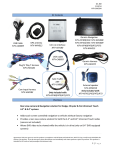
BT Mic
System info: ENTER ID: Device hardware ID number
Bracket Location
GPS Antenna
VER: Software version number
RAM: Built-in RAM size, usable size/ total size
Green: Reverse (+12V)
Flash: Built-in Flash size, usable size/total size
Black: To Ground
Red: ACC (+12V)
Yellow: Batt (+12V)
Camera Two input
AV2 reverse camera input
Emend Touch screen
If touch screen becomes less responsive, due to high heat or use,
please emend touch screen..
Click
to emend screen.
Technical Parameter Form
12
13
System
Parameter
GPS Trouble Shooting
Problem
Does not work
Probable Reason
1. Power cable not properly
connected
Solution
1. Check power cable
connected properly
2. High temperature may cause 2. Power off for a while,
after unit cools, restart it
device not to work correctly
1. GPS antenna not properly
connected
No GPS signal
2. Unit may take up to 20 min
to receive initial signal.
2. The device need some time
to run and get GPS signal,
please wait for a while
3. Under bridge or in tunnel,
bad GPS signal
3. Drive to a wide road to get
good signal
Device fails
Possible software hangup
while using
Corrupted sd card
Panel keeps
1. Check GPS antenna
Restart device
Check power cable
flashing
Power cable not properly
connected
No voice
1. Happens when recalculating 1. This is normal when system
re-routes, please wait
route
guidance,
2. New road not in map data
Navigation
picture is wrong
3. On covered road, bad
GPS signal
14
2. Keep driving, GPS will
automatically recalculate
3. Make sure vehicle has
good view of the sky
15
16