1
Universe (Multi-Fund) Analysis
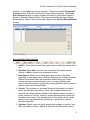
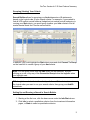
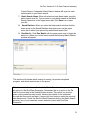
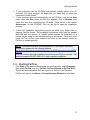
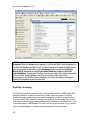
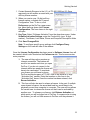
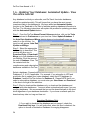
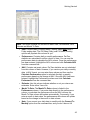
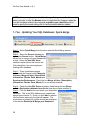
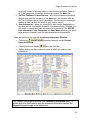
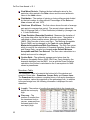
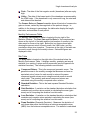
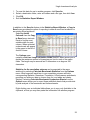
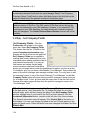
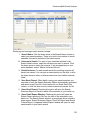
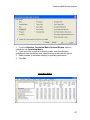
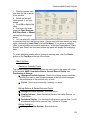
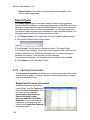
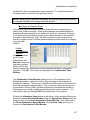
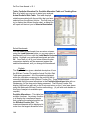
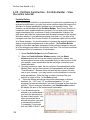
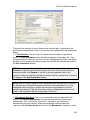
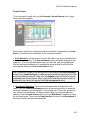
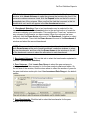
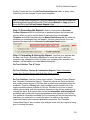
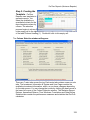
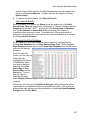
Setting up and running a batch search is simple.
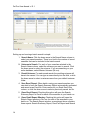
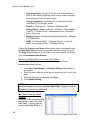
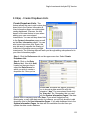
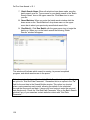
1. Search Name: Click the down arrow in the Search Name column to
select your saved searches. There is no limit to the number of saved
searches that can be included in the batch search.
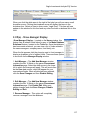
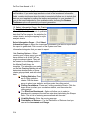
2. Universe to Search: For each of your searches selected in the
Search Name column, select the universe you want to search. Click
the down arrow to select the universe. If you are searching on your
entire database, select “Master Universe (All.unv)”.
3. Result Universe: For each saved search the resulting universe will
have to be named. You can type a name directly into the field, or click
the down arrow to select a universe name from your default universe
folder.
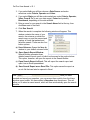
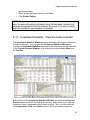
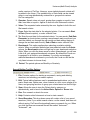
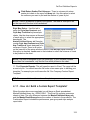
4. Save Excel Report: When batch running your saved searches you
can elect to have the Search Summary Report automatically generated
and saved as an Excel file. Enter names for you Excel files in this
column, or click the down arrow to select a previously saved .xls file.
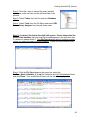
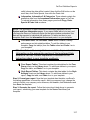
5. Open Excel Report: Checking this option will open the Search
Summary Report in Excel for each of the searches in your batch run.
6. Open Detail Report Window: Checking this option will open the
Search Report window in PerTrac for each of the searches in your
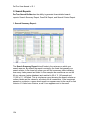
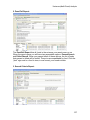
batch run. The Search Report window, as mentioned above contains
three reports: Search Summary Report, Pass/Fail Report and Search
Criteria Report. A separate Search Report window will open for each
saved search in your batch search.
129