1
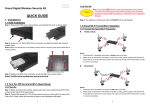
3. PLAYBACK 2.2 MOTION DETECTION RECORD Directly press the (MD) button on the remote controller/ panel button under Quad view, all the 4 cameras will start motion detection record. Or press the (MD) button under single view, and the specific camera will start motion detection record. Press the (MD) button again to stop motion detection record. Step 1: Press the ENTER button when the cursor moves to PLAYBACK. You can also press the (PLAY) button on remote control or the button on panel button to directly enter the PLAYBACK mode under Quad view. Step 2: Select the CH1 ~ CH4, and the file list will appear. 2.3 SCHEDULE RECORD Press the MENU button, and select RECORD, the screen will appear as shown below. SCHEDULE: To enable or disable the Schedule Record function. Step 1: Press the ENTER button, and then press the and buttons to select ENABLE or DISABLE. Step 2: Press the button to make setting. CH SETTING: To set the record mode. Step 1: Select ALL CHANNEL or individual channel “CHANNEL 1 ~ CHANNEL 4”, and then press the ENTER button. If the Grand Wi-Fi Quad Viewer displays SCANNING DISK on screen, it means the system found an error of HDD. It attempts fix it. It will take around 15~20 minutes or longer depend on the hard disk size and the errors. 1. ALL CHANNEL means all the 4 cameras will use the same settings 2. Other individual channel settings (CH1 ~ CH4) could be set separately. and Whenever you shutdown your system in some improper way or the system time is disorder (please check the battery of RTC), it will appear. Remark: Step 2: Press the Notice: Do not turn off the power while it is scanning. buttons to set NONE, RECORD or RECORD+MD. Remark: 1. RECORD means pure record. 2. RECORD+MD means record while motion detection was trigged. Step 3: Press the button to make setting and exit. START TIME: To set the time when the Grand Wi-Fi Quad Viewer will start recording. DUARTION: To set the recording duration. WEEKLY SETTING: To set the week schedule (set the specific days for recording). 5 PS. Please consult the “User Manual.doc” in Driver CD for more detail. 6