1
Zemplar (P12-269) Study
User's Manual
V2.1
http://zemplar.planimeter.hu
Study protocol (1)
This is a non-interventional, observational, open-label, multi-country,
multicenter post-marketing study in which Zemplar is prescribed in the
usual manner in accordance with the terms of the local market
authorization with regards to dose, population and indication.
All patient data entered in the patient's case report form (CRF) will be
forwarded - without naming the patient - for evaluation to Abbott. In order
to maintain patient confidentiality, instead of date of birth, the patient’s
year of birth will be documented in the CRF.
2
Inclusion Criteria
1) Patients > 18 years
2) Patients with CKD stage 3 or 4 and also has SHPT
3) Patients with iPTH > 70 pg/ml and with CKD stage 3 or with
4)iPTH > 110 pg/ml and with CKD stage 4
5) Patients clinically indicated for the treatment with Zemplar cps
6) Patient must provide the authorization to use his/her data for
statistical evaluation before entering to the PMOS. Local Law
requirements to be followed.
3
Exclusion Criteria
1) Patients with clinically important hypercalcemia =Ca> 2.6 mmol/l
(10.5 mg/dL)
2) Patients suffering from proven intoxication of vitamin D or patient
with proven hypersensitivity of paricalcitol or any other part of the
product
4
User Activation
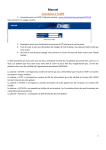
1) If you are a contracted
physician of this study,
please provide your e-mail
address to the sponsor
3)
2) Then you will receive eCRF link from the service
provider (Planimeter Kft.).
3) Click on the link
4)
5)
4) Choose the “User
Activation” tab
5) Follow the instructions on
the page and give your
username
6) Click the “Activate User”
button.
5
Login the system at first time
1) Choose the “Home” tab
1)
2)
3)
4)
2) Type your username into the
“Username” box
3) Type the password you got
in an e-mail AFTER
activating your username
4) Click the “Login” button
6
Password management
Password can be changed anytime after username activation. Any password
should contain at least 6 characters, can not contain any other symbol than
the letters of English alphabet or numbers but can not start with number.
1) Changing the password after
the first login is recommended
but not obligatory.
2)-3)
2) To change the password,
choose the “Administration” tab.
3) Choose the “Change password”
option and follow the
instructions.
7
Password management (2)
1) Type your old (still valid)
password
1)
2)
3)
4)
2) Type a new password, do
not forget the general rules
(English alphabet / digits
and min. 6 characters).
IMPORTANT: small and
capital letters are
DIFFERENT
3) Re-type the new password.
4) Click the “Change
password“ button.
8
Home
1)
2)
The “Home” page – as usual –
is the center of the navigation.
You can reach here:
1) News, announcements
concerning the Study and/or the
eCRF.
2) A short description of the eCRF
processing
9
Help
You have two choices under Help
1)
2)
a)
b)
1) Helpdesk – you can find a
telephone number here,
which can be used to contact
our Helpdesk between 9 AM
and 4 PM (GMT+1).
If your call is not answered,
please leave a message
containing your username,
protocol number, E-mail
address and the full
description of the problem.
2) Manual – The are two
versions of the Manual;
a) online version (html)
b) offline version (pdf)
10
Downloads
The documents of the Study to
be downloaded are available
under the “Downloads” menu
item. If you want extra
documents to be placed here,
contact your country PMOS
coordinator.
●
Protocol of the Study
●
Concomitant medication page
●
Adverse Event Page
11
Downloads (2)
1) By clicking a document's
name, a message box will
appear offering the
possibility of direct opening
of the document or saving
the document for further
use.
12
Reporting of errors, remarks
There is an option to indicate
malfunction of the eCRF system to
the developers directly via the
menu item “Message board”.
To send a message or remark to
the Planimeter developers, please
choose the “Administration” menu
item from the main menu and then
choose the “Message board”
option.
The reported phenomena will be
investigated and commented
through this system as well.
13
Reporting of errors, remarks (2)
3)
1)
2)
4)
7)
6)
5)
Please give or type:
1) The name and version of the operation system of your PC.
2) The name and the version number of the web-browser you used when the error/problem occurred. The
version number of the web-browser generally can be reached under the “Help” menu item of the WEBBROWSER
3) A short title of your remark or the reported error
4) A short description of the error, or malfunction
5) There is a place to attach a screenshot (BMP or JPEG format is preferred). This step is optional.
6) Your e-mail address
7) Finally click the “Submit form” button.
14
Enrollment of a New Patient
If you would like to enroll a new
patient in the Study, please choose
the “Patient administration” menu
item and then click the “New
patient” menu item.
After the enrollment, a new form is
created with a patient ID like
XXX.XXXX . The first three digits of
the Patient ID is the center ID, while
the last four digits form a number,
which starts with 1 in each center.
There is no way to modify the
Patient ID during the Study.
15
Enrollment of a new patient (2)
1)
1) The Patient ID is given
automatically by the eCRF
program. Please click
“Register patient” button.
16
Enrollment of a new patient (3)
After clicking the “Register
patient” button a message box
will appear.
17
Enrollment of a new patient (4)
After enrollment of a new patient,
you can continue
1) with the enrollment of further
new patients (by choosing the
“Click here to register another
patient”)
1)
or
2) Typing further data of the
already enrolled patient(s) (by
choosing “Click here to go to
patient selection screen”)
18
Patient selection
Further editing of Visit data can be
reached after Patient (and visit)
selection.
1)
2)
You can reach the Patient selection
panel by
1) choosing the menu item “Click
here to go to patient selection
screen” after inclusion of a new
patient (see previous pages)
or
2) choosing the “Patient selection”
option under the main menu's
Patient administration menu item.
19
Patient selection (2)
1) You can give here the
number of rows you would like
to see on one screen.
2)
1)
3)
2) You can order the table into
increasing or decreasing order
with clicking the small arrows in
the columns.
3) You can choose the required
Visit by clicking the suitable visit
icon in the row of the required
patient.
20
Definition of the Visit status
1) „Start new visit“: this is an
empty visit. No data has been
entered yet.
1)
2) „Continue a visit“: this is a
saved visit. There are some
entered data, and these data
are stored on the server. The
visit can be re-opened and all
the data are available for further
editing.
2)
3)
4)
3) „Closed visit“: this visit is
closed, no further data entry or
data correction is allowed.
4) „Approved visit“: The already
closed visit is approved by the
country PMOS coordinator.
21
Fill-in rules and guides (1)
There are some signes and rules to support the data entry process.
a) There are obligatory data fields
which can not be left empty (1)
1)
b) There are guides (2) to support
the data entry process. These
guides generally give the
acceptance ranges of the given
2) variables.
(Acceptance range means a clinically and/or
physiologically meaningful range. Within this
range all value is automatically accepted.
Otherwise a further confirmation is required
to enter a value outside of the acceptance
range. The acceptance range is not identical
with normal ranges.)
22
Fill-in rules and guides (2)
The guide with one or several
rules to be fullfilled can contain
an acceptance range (1) (see
the previous page), or some
other rule or restriction for the
data to be entered in a certain
box (2).
23
Icons of data entry process
1)
2)
3)
1) This icon is for the restoration of the last saved
version of the visit. This button is useful if you
would like to restore the last saved state of the
visit (ALL changes made after the last save will
be LOST)
2) THE ENTERED DATA ARE NOT
AUTOMATICALLY STORED ON THE
SERVER. YOU HAVE TO SAVE YOUR WORK
WITH THIS BUTTON. All saved data of a
certain visit are available for further editing
TILL CLOSING THE VISIT.
3) AFTER CLOSING THE VISIT, NO FURTHER
MODIFICATION IS POSSIBLE on the given
subject's visit.
If a visit is closed by accident, or you wish to re-open it for any reason, please make a
request for this on the message board (found under Administration > Message board)
by writing a detialed description of the issue, including the patient ID and the name of
the visit to be opened. An E-mail will be sent to you about the decission of the PMOS.
If approved, the visit will be opened for further editing.
24
Pop-up messages
There are many pop-up
messages to avoid the incorrect
application of the eCRF, e.g. to
avoid leaving a Visit without
saving the data by mistake.
25
Pop-up messages (2)
After clicking the
icon
this message will be appeared.
●
●
With choosing the “OK” option
the last saved visit data of the
given patient will be restored.
ALL MODIFICATIONS SINCE
THE LAST SAVE WILL BE
LOST.
With choosing the “CANCEL”
option, no action will be taken.
26
Pop-up messages (3)
With clicking the
icon all
the data of the actual visit will
be saved to the server. All these
data will be available for further
editing without any restricition.
27
Pop-up messages (4)
With clicking the
icon
The current visit (of the current
patient) will be saved and
closed (in other word: frozen).
Further modification of already
closed data is not supported by
the system.
If a visit is closed by accident, or you wish to re-open it for any reason,
please make a request for this on the message board (found under
Administration > Message board) by writing a detialed description of the
issue, including the patient ID and the name of the visit to be opened. An Email will be sent to you about the decission of the PMOS. If approved, the
visit will be opened for further editing.
28
Pop-up messages (5)
There are special (patient)
inclusion rules concerning
some specific laboratory (CA
and iPTH) data. If the
specified laboratory is
outside of the range given
by the protocol, no inclusion
is possible.
In such a case the visit will
be closed by the system
automatically, and the
patient will be excluded from
the study.
29
Other messages
If a value outside of he
acceptance range is entered, a
message will appear with green
background. The message will
again show the acceptance
range. Clicking into this green
box, a confirmation of the value
outside of the acceptance range
will be accepted by the eCRF,
although the red border will
indicate the special status of the
value.
30
Other messages (2)
Errors which can not be left
unsolved are indicated by
messages with the red
background. These messages
generally concern obligatory
data (with no data), or for other
fill-in rules (e.g. data of the 1st
visit can be earlier than the
Informed Consent date). You
have to click into the message
to hide it, but you also have to
correct the data or give a value
to an obligatory but still empty
field.
31
AE/SAE
1)
1) Adverse Event (AE) or
Serious Adverse Event
(SAE) can be entered from
Visit 2.
32
AE
1)
1) Reporting an AE the
following message will
appear.
2) The physician will be guided
to AE-page automatically. All
fields are required!!
2)
3)
Multiple AE pages can be
created. To create a new AE
page, press the “Create new
AE page“ button
3) The visit can not be
completed if one of the AE
forms is not closed.
33
Serious Adverse Event (SAE)
1) Ticking the SAE box on the AEpage or visit page the following
message will appear.
BE CAREFUL: all SAE should be
1)
and will be reported to the local
Authority, so you have to give all the
SAE-relevant information with
utmost care.
2) Reporting a SAE might result the
exclusion from the study.
2)
34
Filling in of an AE-page
●
●
●
Each question is obligatory on
the AE-page, excluding the
cases where the text implies a
conditional answer (e.g.
information is obligatory if the
duration of the AE is less then
24 hours).
Closing of all AE-pages of a
given visit is required to close
that specific visit. (Save is
naturally still available).
If an AE is classified as serious
then the exclusion of the
subject from the study is an
available option.
35
Adverse Event (AE)
●
●
If there is a reported AE on a
Visit, it is indicated with a green
message: “Adverse Events
present, since last visit”.
This AE-status can not be
modified. If you would like to
perform changes, see the next
slide.
If the AE is classified during the
entry of an AE serious (that is the
serious box is ticked on the AEpage) then the SAE status will be
changed to Yes on the Visit page,
too.
36
AE/SAE indicated by error
●
●
●
There is no way of direct modification (deletion) of an AE/SAE entry.
If you reported an AE/SAE erroneously, and you would like to make
changes or you would like to delete it then:
You have to send a message via the menu item “Message Board”.
Your request will be investigated by the local PMOS co-ordinator, and
you will be noticed about the applied process and changes by and email.
37
Concomitant medication 1
●
You have to specify those
medications whose
administration
i) had started before the
inclusion of the subject
and did not stop before
inclusion
ii) started after inclusion
38
Concomitant medication 2
1) Please give the name of the
concomitant medication. You have to
enter the name twice, and only
completely identical entries are
accepted. You can not change this
name later, but the deletion of an
entry is possible.
1)
2)
2) You have to give the start date of the
conc. Med. . If the exact date is
unknown, please tick the “Unknown”
box, and you will get a possibility to
enter the starting year and month.
If the conc. med. was stopped, the
discontinuation date can be given with
the application of the previous rules.
3) Discontinuation date can not be
earlier than the starting date.
39
Concomitant medication 3
●
You can not modify the
name of a concomitant
medication, but you can
delete (with the red X) and
add it again in case of
erroneous data entry.
40
Concomitant medication 4
Even the deleted concomitant medication items are
displayed – with the watermark: “DELETED” – but no
further edition of deleted concomitant medications is
supported
41
Logout
●
Choose the “Logout” option
(1), then click the logout
button (2) to logout.
1)
2)
42