1
EZNEC User Manual
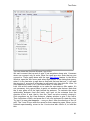
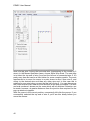
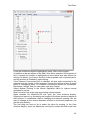
With this feature you can move a wire end (and optionally all connecting
wires) from its current location to the end of any other wire. Select Move Wire
Ends in the Mouse Operation frame at the left of the View Antenna Display. If
you want to move all the wires at a multiple wire junction, Check the Preserve
Connections box; if you want to move only one wire end, leave it unchecked.
Left-click near the wire end you want to move. A large square will appear at
the selected junction, and the closest segment of the wire to be moved will be
highlighted. Only one wire will be highlighted even if Preserve Connections is
checked although all wires connecting to the same junction will move. Press
<Esc> to cancel the operation at any time before movement is finalized.
Right-click at the desired new location to finalize the movement.
Note that the Preserve Connections box is independent of the Preserve
Connections box in the Wires Window. Each affects operations only in its own
window.
Wire Coordinate Shortcuts
EZNEC includes many features to help you modify wires without having to
determine coordinates. For example, you can easily change the length of a
wire or rotate it about one end. Shortcuts can be applied to either individual
wires or, in Group Edit mode, to groups of wires.
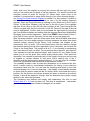
Wire coordinate shortcuts can be applied in two ways, both in the Wires
Window. One is to right-click any coordinate cell in the Wires Window grid.
The other is to enter a special shortcut abbreviation for the desired action into
a coordinate cell. (Shortcut text abbreviations aren't case-sensitive.) Each of
the selections below appears in the popup menu you get if you right-click one
of the coordinate cells. For example, to use the first method to change the
coordinates of wire 4 end 1 so that it connects to wire 3 end 2, you right-click
the X, Y, or Z column in the End 1 group of the Wire 4 row. This opens the
shortcut popup menu. Select Connect End To. In the dialog box, enter 3 in the
Wire to connect to box, and 2 in the End to connect to box, then click Ok or
press <Enter>. To use the second method, enter W3E2 in the X, Y, or Z
column in the End 1 group of the Wire 4 row, then press <Enter> or move the
mouse cursor to another cell.
Unless otherwise noted, the shortcut is applied only to the end of the wire
where the mouse cursor is located when the right mouse button is pressed.
This will be called the "current end". A change will be applied only to the
current wire (that is, the wire number of the row where the mouse cursor is
located when the mouse is right-clicked) unless in Group Edit mode. If in
Group Edit mode, the change will be applied to all selected wires. See Using
The Wires Window for more information about Group Edit.
All shortcuts except Change Coordinate By will or can change all three of the
end coordinates (x, y, and z) regardless of which of the three cells the mouse
cursor is placed on or where the shortcut text abbreviation is entered.
International users please note: Floating point numbers (numbers with a
fractional part) must have the proper decimal separator.
NOTE: Only the Connect End To shortcut is available in the Add Row (the
blank line at the bottom of the grid).
Connect End To
54