1
file:///C|/Documents%20and%20Settings/dquick/My%20Documents/Visual%20Studio%20Projects/FretWorxHelp/EditScaleList.htm
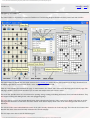
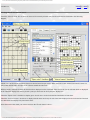
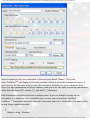
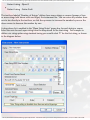
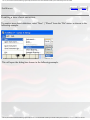
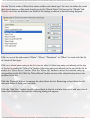
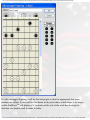
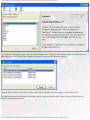
Use the "Set the order of Scale List entries within each scale type" list view to define the order
that scales appear within each scale type in the "Scale Name" list box on the "Scales" tab. This list
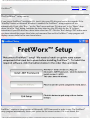
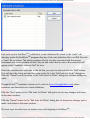
view uses the bottom two thirds of the dialog, as shown in the following diagram.
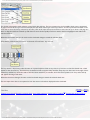
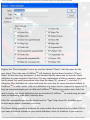
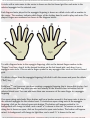
Click on one of the tabs named "Major", "Minor", "Dominant", or "Other" to work with the list
of scales of that type.
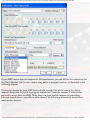
Click on a scale name entry in the list view to select it. Select any entry not already at the top of
the list to enable the "Move Up" button. Select any entry not already at the end of the list to
enable the "Move Down" button. Click the "Move Up" button to move the selected entry up
one position in the list. Click the "Move Down" button to move the selected entry down one
position in the list.
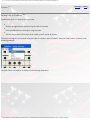
Click the "Remove" button to remove the scale from the list. Removing a scale from the list does
not delete it from your hard disk.
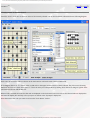
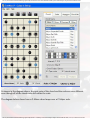
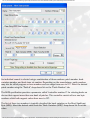
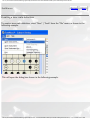
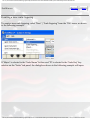
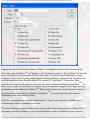
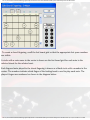
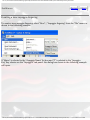
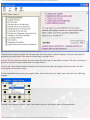
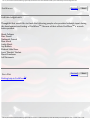
Click the "Add New" button to add a scale back to the list at a later time or to add new scales
from scale definition files and the following dialog will appear.
file:///C|/Documents%20and%20Settings/dquick/My%20Doc...al%20Studio%20Projects/FretWorxHelp/EditScaleList.htm (3 of 5)11/1/2005 4:23:58 PM