1
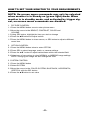
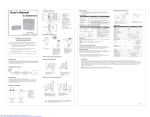
HOW TO SET YOUR MONITOR TO YOUR REQUIREMENTS
NOTE: On-screen menu commands may only be selected
when monitor is in Steady-on (green light) mode. When
monitor is in standby mode, and activated by trigger signal, on-screen menu commands are disabled.
1. PICTURE CONTROL
1.1 Press the MENU button once to enter picture menu
1.2 Move the cursor to the BRIGHT, CONTRAST, COLOR and
VOLUME
1.3 Using SEL button, highlight the item you wish to change
1.4 Press the pq buttons to adjust values
1.5 Press the MENU button to close menus, or SEL button to adjust a different
menu item.
2. OPTION CONTROL
2.1 Press the MENU button twice to enter OPTION
2.2 Press SEL to select language, scale, or camera settings
2.3 Press the pq button to adjust values/items within the selected field
2.4 Select one of two options to view NORMAL or MIRROR image settings
NOTE: changing the image will also change the OSD
3. SYSTEM CONTROL
3.1 Press the MENU button
3.2 Select SYSTEM
3.3 Move the cursor to the COLOR SYSTEM, BLUE BACK, HORIZONTAL,
VERTICAL with the SEL button
3.4 Press the pq button to set value
-8-