1
pyrocore Documentation, Release 0.6.1
(continued from previous page)
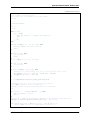
'priority': 2,
'state': 0,
'state_changed': 1283017194,
'state_counter': 4,
'throttle_name': '',
'tied_to_file': '~/rtorrent/watch/lab-rats.torrent',
'total_uploaded': 0,
'views': []}}
chtor
chtor is able to change common attributes of a metafile, or clean any non-standard data from them (namely, rTorrent
session information).
Note that chtor automatically changes only those metafiles whose existing announce URL starts with the scheme
and location of the new URL when using --reannounce. To change all given metafiles unconditionally, use the
--reannounce-all option and be very sure you provide only those files you actually want to be changed.
chtor only rewrites metafiles that were actually changed, and those changes are first written to a temporary file,
which is then renamed.
rtcontrol
Purpose
rtcontrol allows you to select torrents loaded into rTorrent using various filter conditions. You can then either display
the matches found in any rTorrent view for further inspection, list them to the console using flexible output formatting,
or perform some management action like starting and stopping torrents. Using ‘rtxmlrpc’ shows examples for sending
commands that don’t target a specific item.
For example, the command rtcontrol up=+0 up=-10k will list all torrents that are currently uploading any
data, but at a rate of below 10 KiB/s. See the ‘rtcontrol’ Examples for more real-world examples, and the following
section on basics regarding the filter conditions.
Filter Conditions
Filter conditions take the form ‹field›=‹value›, and by default all given conditions must be met (AND). If a
field name is omitted, name is assumed. Multiple values separated by a comma indicate several possible choices (OR).
! in front of a filter value negates it (NOT). Use uppercase OR to combine multiple alternative sets of conditions. And
finally brackets can be used to group conditions and alter the default “AND before OR” behaviour; be sure to separate
both the opening and closing bracket by white space from surrounding text. NOT at the start of a bracket pair inverts
the contained condition.
For string fields, the value is a glob pattern which you are used to from shell filename patterns (*, ?, [a-z], [!
a-z]); glob patterns must match the whole field value, i.e. use *...* for ‘contains’ type searches. To use regex
matches instead of globbing, enclose the pattern in slashes (/regex/). Since regex can express anchoring the match
at the head (^) or tail ($), they’re by default of the ‘contains’ type. All string comparisons are case-ignoring.
If a string field’s filter value starts with {{ or ends with }}, it is evaluated as a template for each item before matching
it with the current field value. See Using Templates as Filter Values for a practical use of that.
For numeric fields, a leading + means greater than, a leading - means less than (just like with the standard find
command).
1.4. User’s Manual
17