1
GREENTEL Bluetooth Serial Adapter
User Manual
For B232 Bluetooth Serial Adapter
-1-
ANNOUNCEMENTS ............................................................................................................................. 3
1. ADAPTER INTRODUCTION ........................................................................................................... 4
1.1 FEATURES:....................................................................................................................................... 4
1.2 TECHNICAL SPECIFICATIONS: .......................................................................................................... 4
1.3 PRODUCT KIT: ................................................................................................................................. 5
2. HARDWARE INTRODUCTION....................................................................................................... 6
2.1 RESET BUTTON................................................................................................................................ 6
2.2 SLIDE SWITCH ................................................................................................................................. 6
2.3 POWER SUPPLY................................................................................................................................ 6
2.4 LED STATUS.................................................................................................................................... 6
2.5 RS232 INTERFACE ........................................................................................................................... 6
2.5.1. PIN-OUT ...................................................................................................................................... 6
2.5.2. SIGNALS ...................................................................................................................................... 7
2.6 FACTORY SETTINGS ......................................................................................................................... 7
3. HOW TO USE .................................................................................................................................... 8
3.1 INSTALLATION PROCEDURE ............................................................................................................. 8
3.2 USAGE ............................................................................................................................................. 8
3.3.1 HYPERTERMINAL SETTINGS ......................................................................................................... 8
3.3.2 CONFIGURATION ........................................................................................................................... 8
3.3 AT COMMAND SET .......................................................................................................................... 8
10. SUPPORT ...................................................................................................................................... 11
-2-
Announcements
Thank you for choosing our product. GREENTEL B232 is a Class1 type of Bluetooth Serial
Adapter that supports 100 meters of wireless transmit distance.
GREENTEL B232 provides transparent RS232 serial cable replacement.
GREENTEL B232 allows any device with a serial port to communicate wirelessly.
Please read this manual carefully before using the product.
Important Safety Information
This product is not intended for use in the following
circumstances
•
•
•
•
•
Area(s) where radio transmission equipment (such as cell phone) are not permitted.
Hospitals, health care facilities and area(s) where cell phones are restricted by law.
Gas stations, fuel storage and places where chemical are stored.
Chemical plants or places with potential explosion hazard.
Any metal surface that may weaken the radio signal level.
Copyright Announcement
Copyright GREENTEL LIMITED 2010.
All rights reserved.
Reproduction, transfer, distribution or storage of part or all of the contents in this document in
any form without the prior written permission of GREENTEL is prohibited.
-3-
Information Edition: GL – A – B232 - 1.1
1. Adapter Introduction
GREENTEL B232 is a Class1 type of Bluetooth Serial Adapter that supports 100 meters of
wireless transmit distance.
GREENTEL B232 provides transparent RS232 serial cable replacement.
GREENTEL B232 allows any device with a serial port to communicate wirelessly.
Applications such as RS232 cable replacement, PLC, PDA, laptops, printers.
1.1 Features:
Bluetooth Specification V2.0+EDR Class1
Provides transparent RS232 serial cable replacement
Main chipset: CSR BC04
LED indicators: Power, Link
Supports Bluetooth Serial Port Profile and Generic Access Profile
Working distance (In an open field): 100 meters
Configurable via Hyper Terminal
Supports AT command
Easy of installation and use
No need external host and software
Supports factory restore button
1.2 Technical Specifications:
Baud Rate: 4.8/9.6/19.2/38.4/57.6/115.2/230.4 Kbps
Coverage: Up to 100 meters (in an open field)
Connection: Point-to-point (pico net)
Signal: TxD, RxD, GND, CTS, and RTS (DSR and DTR optional)
RS-232 Interface: D_SUB 9-pin female
Standard: Bluetooth specification version 2.0+EDR Class 1
Frequency: 2.400 to 2.4835 GHz
Hopping: 1,600/sec, 1MHz channel space
Modulation: GFSK-1 Mbps, DQPSK-2 Mbps, and 8-DPSK-3 Mbps
Tx. Power: Max. 18 dBm (Class 1)
Rx. Sensitivity: -86 dBm typical
Antenna Connector: SMA female
Power Supply: +5 to +6 V DC
Current Consumption: Max. 90 mA
Power Supply connector: Mini USB
Casing Material: ABS + PC
Operation Temperature: -20°C to +75°C
-4-
Dimensions: 35 x 65 x 16 mm
1.3 Product Kit:
Bluetooth Serial Adapter
External Antenna
DB9 Male to Female converter
DC Adaptor with USB cable (B232-A)
CD
-5-
2. Hardware Introduction
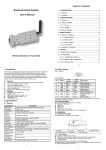
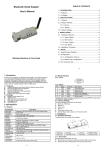
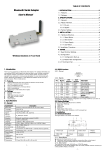
The figure below is an outline of the adaptor.
1
Power LED
2
Link LED
3
Slide switch
5
Mini USB
Connector
6
Reset
button
7
Antenna
connector
4
RS232
connector
2.1 Reset Button
By pressing the Reset button, you can:
Disconnect and reconnect a wireless connection (after a short press).
Restore the factory settings (after over three seconds' press).
2.2 Slide Switch
The slide switch can swap TXD/RXD and CTS/RTS signals.
By switching, you can set the adaptor either as a DTE (towards antenna connector) or a
DCE (towards RS232 connector).
2.3 Power Supply
The adaptor can be powered via:
An AC/DC converter (output power: +5 to +6 V DC/300 mA)
A USB cable
Pin 9 of the D SUB 9-pin connector
2.4 LED Status
The following is LED status information.
Status
Power LED off
Power LED on
Link LED off
Link LED fast (0.1 sec) blinking
Link LED fast (0.3 sec) blinking
Link LED slow (0.9 sec) blinking
Link LED very slow (1.2 sec) blinking
Link LED steadily on
Description
No power supply.
Firmware is running OK.
No pairing established.
Pairing (slave or master mode).
Discoverable and waiting for a
connection (slave mode).
Inquiring (master mode).
Connecting (master mode).
Connection established.
2.5 RS232 Interface
2.5.1. Pin-out
-6-
2.5.2. Signals
DTE
DCE
Description
Direction Direction
1
CD
Input
Output
Not connected
2
TxD
Output
Input
Transmitted data
3
RxD
Input
Output
Received data
4
DSR
Input
Output
Not connected
5
GND
N/A
N/A
Signal ground
6
DTR
Output
Input
Not connected
7
CTS
Input
Output
Clear to send (Remarks)
8
RTS
Output
Input
Request to send (Remarks)
9
Vcc
Input
Input
Power supply
Remarks: The default hardware configuration is for using CTS/RTS. If you want to use
DSR/DTR, please contact us.
Pin
Signal
2.6 Factory Settings
The factory settings of COM port are as follows:
Baud rate: 19200 bps
Data bit: 8
Parity: none
Stop bit: 1
Flow control: H/W or none
Others: Please refer to section 4.3 AT Command Set.
-7-
3. How to Use
3.1 Installation Procedure
Step 1: If provided with an external antenna, assemble it to the adaptor body.
Step 2: Plug the adaptor into the COM port of device.
Step 3: Adjust the slide switch, depending on whether the device is a DTE or DCE.
Step 4: Power the adaptor on.
Step 5: Configure the adaptor if necessary.
3.2 Usage
You can reprogram the default settings on the adaptor using HyperTerminal.
3.3.1 HyperTerminal Settings
Bits per second: 19200 bps (baud rate)
Data bit: 8
Parity: None
Stop bit: 1
Flow control: H/W
3.3.2 Configuration
Configuration Start-up
Step 1: Plug the adaptor into a COM port of PC.
Step 2: Power the adaptor on.
Step 3: Create a HyperTerminal file.
Step 4: On the interface of the new HyperTerminal file, click Properties button.
Step 5: Select the COM port where the adaptor is attached to your PC and set the port
properties as described in section 4.1 HyperTerminal Settings.
Step 6: Input "A" in the file and then press <Enter>.
If no echo, that is, nothing is displayed when you input "A", it indicates that the baud rate is
incorrect. Ensure that the baud rate is 19200 bps.
Step 7: Input "AT", and then press <Enter>. "OK" is displayed.
If necessary, reprogram the configuration of adaptor using AT commands. For related
commands, please refer to section 4.3 AT Command Set.
Master Role Configuration
You can use "ATR0" to change the adaptor to the master role.
When the adaptor is in the master role, you can use "ATO1" to manually set up a
connection and "ATF?" to find the device you want to connect.
3.3 AT Command Set
The following is the AT command set for the local adaptor in the command mode (that is,
the local adaptor is in the disconnection state). All the commands and parameters are case
insensitive.
-8-
Command
A
A
A1-A8
B
B?
C
C0
C1 (Default)
C?
D
D=xxxxxxxxxxxx
D0
D?
E
E0
E1 (default)
E?
F
F?
H
H0
H1 (default)
H?
I
I?
K
K0(default)
K1
K?
L
L0
Description
This command is used to establish a connection.
It is available only when the adaptor is in the master role.
Connect the adaptor to a specified Bluetooth device.
It is available only when "ATD=xxxxxxxxxxxx" is executed.
Connect the adaptor to a Bluetooth device in the neighborhood found
through "ATF?"
This command is used to display the Bluetooth address of the local
adaptor.
Inquire the Bluetooth address of the local adaptor.
This command enable or disable flow control signals (CTS/RTS) of
the UART port. Note, the setting is not affected by ATZ0
Disable flow control.
Enable flow control.
Inquire the current setting
For security purpose, this command is used to specify a unique remote
Bluetooth serial adaptor to be connected.
In the master role, the adaptor pairs and connects with the designated
remote slave address.
If the adaptor is in the slave mode, this command is a filter condition to
accept the inquiry of the master device.
"xxxx-xx-xxxxxx" is a string of 12 hexadecimal digits.
Restore the status in which the adaptor can connect with any remote
address.
Inquiry the designated address that can be paired and connected.
This command is used to specify whether the adaptor echoes
characters received from the UART back to the DTE/DCE.
Command characters received from the UART are not echoed back to
the DTE/DCE.
Command characters received from the UART are echoed back to the
DTE/DCE.
Inquire the current setting.
This command is used to search for any Bluetooth device in the
neighborhood within one minute. If any device is found, its name and
address will be listed. The search ends with a message "Inquiry ends.
xx device(s) found."
This command is available only when the adaptor is in the master role.
Inquire Bluetooth devices in the neighborhood, listing 8 devices the
maximum
This command is used to specify whether the adaptor can be
discovered or connected by remote devices.
The adaptor enters the undiscoverable mode. If a pair has been made,
the original connection can be resumed. But other remote master
device cannot discover this adaptor.
The adaptor enters the discoverable mode.
Inquire the current setting.
This command is used to inquiry the firmware version.
Inquire the version codes.
This command is used to specify one or two stop bits of COM port.
One stop bit.
Two stop bits.
Inquire the current setting.
This command is used to specify the baud rate of COM port.
4800 bps
-9-
L1
L2 (default)
L3
L4
L5
L6
L?
M
M0(default)
M1
M2
M?
N
N=xxxxxx
N?
O
O0 (Default)
O1
O?
P
P=xxxxxxx
P0
P?
Q
Q0 (default)
Q1
Q?
R
R0
R1 (default)
R?
Z
Z0
9600 bps
19200 bps
38400 bps
57600 bps
115200 bps
230.4 Kbps
Inquire the current baud rate.
This command is used to specify parity bit setting of COM port.
None parity bit.
Odd parity.
Even parity
Inquire the current setting.
This command is used to specify a name for the adaptor.
You can specify a friendly name using 0 to 9, A to Z, a to z, space and –,
which are all valid characters. Note that "first space or -, last space or –
isn’t permitted". The default name is “Serial Adaptor”.
"xxxxxx" is a character string with a maximal length of 16.
Inquire the name of the local adaptor.
This command is used to enable/disable auto-connection feature.
It is available only when the adaptor is in the master role.
Automatically connect the adaptor to a device specified by "ATD" or any
available device if "ATD=xxxxxxxxxxxx" is not executed.
Disable auto-connection feature. After it is executed, you need to
execute "ATA" to manually connect a remote device.
Inquire the current setting.
This command is used to specify a PIN. The default PIN is "1234".
Paired adaptors should have a same PIN.
"xxxx" is a 4~8-digit string.
Cancel authentication by PIN.
Inquire the current PIN.
The command is used to decide whether result messages are prompted
when AT commands are executed.
The result messages are: OK/ERROR for command execution, or
CONNECT/DISCONNECT for connection status.
Prompt result messages.
Not prompt result messages.
Inquire the current setting.
This command is used to specify whether the adaptor is in the master or
slave role.
If the device role is changed, the adaptor will reboot and all paired
addresses will be cleared.
Set the adaptor to the master role.
Set the adaptor to the slave role.
Inquire the current role of the adaptor.
This command is used to restore the default settings and originate a
warm start.
Restore the default settings (e.g. 19200 bps).
- 10 -
10. Support
In case you have problems with the installation and use, please address them to the
Technical Assistance Department by e-mail [email protected]
GREENTEL LIMITED
WEB: http://www.greentel-eu.com
EMAIL: [email protected]
Copyright Greentel Limited 2001-2010. All rights reserved.
Subject to alterations without notice.
- 11 -