1
Install ESP
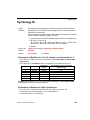
Step 3 — Install ESP
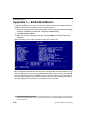
Easy Setup Program (ESP) is Microscan’s proprietary setup and testing application. The
purpose of ESP is to provide a quick and easy way to set up and configure Microscan
products.
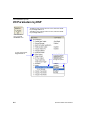
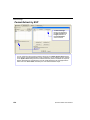
When the Quadrus Verifier is connected to a host computer (Windows Vista, XP, or 2000),
ESP can be used to set up communication with a host, configure various firmware settings,
and control verification processes.
If installing from a Microscan Tools CD:
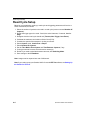
1. Insert the Microscan Tools CD in your computer’s CD drive.
2. Choose ESP Software from the main menu.
3. Select the Current Version of ESP and follow the file download prompts.
If downloading from the web:
1. Go to http://www.microscan.com/downloadcenter
2. Create a new “myMicroscan” member account or, if you are already a member, enter
your user name and password.
3. Click the Download Software link and extract the latest version of ESP to a directory
of your choice. Note where your ESP.exe file is stored on your hard drive.
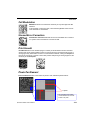
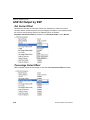
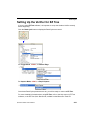
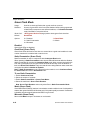
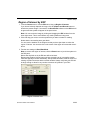
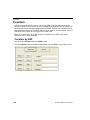
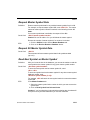
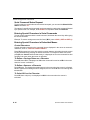
4. At the end of the installation process, the following icon will appear on your desktop:
5. Click the ESP icon to start the program.
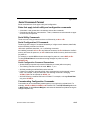
System Requirements for ESP
•
•
•
•
•
1-4
166 MHz Pentium processor (recommended)
Windows Vista, XP, or 2000 operating system
Internet Explorer 5.0 or higher
64 MB minimum RAM
40 MB minimum disk space
Quadrus Verifier User’s Manual