1
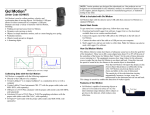
Operating the Sound Level Meter Here are the general operating procedures: 1. Slide the power switch to the appropriate range. 2. Set the time weighting switch to “S.” 3. Set the maximum level hold switch to “RESET.” 4. Set the frequency weighting to “A.” The Sound Level Meter functions as a standalone device, and you can monitor sound levels1 by reading the LCD panel. If you want to collect sound level data, you need to connect the Sound Level Meter to a data-collection interface. Connecting the Sound Level Meter to Vernier Products The Sound Level Meter package includes a removable cable (order code CB-SLM). Connect the mini-plug end of the cable into the bottom of the sensor. Connect the other end to the data-collection interface, e.g., Vernier LabQuest® 2, Go! ®Link, CBL 2™, or EasyLink®. Collecting Data with the Sound Level Meter This sensor can be used with the following interfaces to collect data. Vernier LabQuest 2 or original LabQuest® a standalone device or with a computer Vernier LabQuest® Mini with a computer Vernier LabPro® with a computer or TI graphing calculator Vernier Go! Link Vernier EasyLink Vernier SensorDAQ® CBL 2 TI-Nspire™ Lab Cradle Here is the general procedure to follow when using the Sound Level Meter: 1. Connect the Sound Level Meter to the interface. 2. Start the data-collection software. 3. The software will identify the Sound Level Meter and load a default datacollection setup. You are now ready to collect data. Data-Collection Software This sensor can be used with an interface and the following data-collection software. Logger Pro 3 This computer program is used with LabQuest 2, LabQuest, LabQuest Mini, LabPro, or Go!Link. Logger Lite This computer program is used with LabQuest 2, LabQuest, LabQuest Mini, LabPro, or Go!Link. LabQuest App This program is used when LabQuest 2 or LabQuest is used as a standalone device. EasyData App This calculator application for the TI-83 Plus and TI-84 Plus can be used with CBL 2™, LabPro, and Vernier EasyLink. We recommend version 2.0 or newer, which can be downloaded from the Vernier web site, www.vernier.com/easy/easydata.html, and then transferred to the calculator. See the Vernier web site, www.vernier.com/calc/software/index.html for more information on the App and Program Transfer Guidebook. DataMate program Use DataMate with LabPro or CBL 2™ and TI-73, TI-83, TI-84, TI-86, TI-89, and Voyage 200 calculators. See the LabPro and CBL 2™ Guidebooks for instructions on transferring DataMate to the calculator. DataQuest™ Software for TI-Nspire™ This calculator application for the TI-Nspire can be used with the EasyLink or TI-Nspire Lab Cradle. LabVIEW National Instruments LabVIEW™ software is a graphical programming language sold by National Instruments. It is used with SensorDAQ and can be used with a number of other Vernier interfaces. See www.vernier.com/labview for more information. NOTE: Vernier products are designed for educational use. Our products are not designed nor recommended for any industrial, medical, or commercial process such as life support, patient diagnosis, control of a manufacturing process, or industrial testing of any kind Specifications Sensor: Power: Battery life: Display: Measurement range: Frequency range: Resolution: Accuracy: Output: Stored calibrations slope: intercept: ½" electret (prepolarized) condenser microphone four AAA batteries 50 hours typical 3½" LCD Low: 35 dB to 90 dB High: 75 dB to 130 dB 31.5 Hz to 8000 Hz 0.1 dB 1.5 dB (ref 94 dB @ 1 kHz) DC: 10 mV/dB AC: 1.0 Vrms corresponding to the top of the selected range 100 dB/V 0 dB/V 1 A table of common sources of noise appears in the Additional References section of this manual. 3 4