1
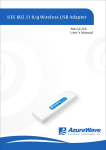
IEEE 802.11n Long-Range USB Adapter
User Manual
Page 1 Table of Content Over view .................................................................................................3 Unpacking information........................................................................3 Introduction to the 802.11n USB Adapter.........................................4 Installation Guide ...............................................................................5 Software Installation............................................................................5 Management Guide ............................................................................9 Making a Basic Network Connection ................................................9 Ad-Hoc Mode ................................................................................9 Infrastructure mode ....................................................................11 Introduction to the Wireless LAN Utility ..........................................13 Starting the Wireless LAN Utility ..............................................13 General ........................................................................................15 Profile ...........................................................................................16 Available Network.......................................................................17 Advanced.....................................................................................18 Status ...........................................................................................19 Statistics ......................................................................................19 Appendix ...............................................................................................20 RT-Set Setup Wizard ........................................................................20 Use this adapter as an AP ...............................................................22 AP mode management guide..........................................................23 General ........................................................................................23 Advanced.....................................................................................24 Statistics ......................................................................................24 ICS (Internet Connection Sharing)...........................................25 Page 2 Overview
Thank you for purchasing this product. Please read this chapter to
better understand your 802.11n Long Range USB Adapter
Unpacking information
Before getting started, please verify that your package includes the following items:
1.
802.11n Long-Range 802.11n USB Adapter
2.
One Utility/ Manual CD
3.
USB Cable
4
Page 3 Introduction to the 802.11n USB Adapter
The IEEE 802.11n USB adapter provides users to launch IEEE 802.11n wireless
network at 150 Mbps in the 2.4GHz frequency, which is also compatible with IEEE
802.11b/g wireless devices at 11/54Mbps. You can configure this adapter with
AP mode to connect/share to other 2.4GHz wireless computers or with
Infrastructure mode to connect to a wireless AP or router for accessing to
Internet. This adapter includes a convenient Utility for scanning available
networks and saving preferred networks that users a r e usually connected
with. Security encryption can also be configured by this utility.
Key Features
z Support driver for Windows 2000, XP,
Vista, and Windows 7.
z
Complies with IEEE 802.11b/g/n
wireless standard
z
Complies with Universal Serial Bus z Supports auto-installation and
Rev. 1.0, 1.1 and 2.0 specifications.
diagnostic utilities.
z
High Speed transfer data rate up
to 150Mbps
z Support wireless data encryption with
64/128-bit WEP, WPA (TKIP with IEEE
802.1x), and AES functions.
Page 4 Installation Guide
Software Installation
Note: The following driver installation guide uses Windows 7 as the presumed
operation system. The procedures and screens in Windows 2000, XP are similar
with Windows 7.
Insert the installation CD that came with this product to your CD-ROM drive.
Please click the “Windows 7/Vista/XP” button from the popup menu for this
product.
Note: If the CD-ROM fails to auto-run, please click on “My Computer”
your
CD-ROM Drive will then double-click the “AutoRun.exe” to start this menu.
Page 5 1.
Please plug in 802.11n USB adapter into USB port before the installation.
2. The welcome window will pop up. Click the “Next” button to proceed.
3. Installation is in progress, please wait.
Page 6 4. Click the “Finish” button to complete driver and utility installation.
Note, please insert this USB wireless adapter to your computer if you’re using
Windows 7, Vista, XP, or Windows 2000. If you are using Windows 98se or ME,
please restart the system first before connect this wireless adapter to your
computer.
5.
New hardware is found after installation is completed in Windows 7
Found New Hardware Wizard in Windows XP, 2000, and Vista.
1. The “Found New Hardware Wizard“ will pop up. (Note: This wizard
won’t pop up in Windows 98 and ME. The system finds the new hardware
and installs the hardware automatically. Please skip the following steps)
2.
Select “No, not this time” and click the “Next” button.
Page 7 3.
Select “Install the software automatically” and then click the “Next”
button.
4.
Please wait while installing the driver.
5.
Click the “Finish” button to complete installation.
Page 8 Management Guide
Please read this chapter to better understand the management interface
of 802.11n Long Range USB Adapter
Making a Basic Network Connection
Before You Start
In the following instructions for making a network connection, we use the utility
we provided to configure your wireless network settings.
Note: For Windows XP users that want to configure your wireless network using this
Utility, please perform the following procedures to disable your native Windows XP
wireless support (Wireless Zero Configuration Service)
1. Double click the
icon on your desktop to start the utility.
2. Make sure that the “Windows Zero Config” checkbox is unchecked.
Ad-Hoc Mode
An Ad-Hoc mode wireless network connects two computers directly without the use
of a router or AP. It is also known as a peer-to-peer network. For example, we
can
install
this
wireless
adapter
to
two
computers
respectively.
The
communication between the two computers is an Ad-Hoc mode network.
Page 9 To use this adapter in Ad-Hoc Mode
1. Double click the
icon on your desktop.
2. Click the “Available Network” button to scan available wireless network
adapters. Double click on the network adapter that you are going to connect to.
3. Click the OK button to confirm that you are connecting to an open wireless
network.
4. Click OK to add this network into the profile list.
Note: This example is an open wireless network. If you are going to connect to
a Wireless adapter with security protection, you will have to configure the
encryption settings in this profile to be corresponding to the other wireless
adapter. Please click on the “Network Authentication” drop list to select an
authentication method, and then select a “Data encryption” type. Fill in each
required blanks and click “OK”.
Page 10 Infrastructure mode
An Infrastructure Mode network contains at least one wireless client and one
wireless AP or router. This client connects to Internet or intranet by communicating
with this wireless AP.
Page 11 To use this adapter in Infrastructure Mode:
1. Double click the
icon on your desktop.
2. Click the “Available Network” button to scan available access points. Double
click on the AP that you are going to connect to.
3. Click the OK button to confirm that you are connecting to an open wireless
network.
4. Click OK to add this network into the profile list.
Page 12 Note:
This example is an open wireless network. If you are going to connect to an AP with
security protection, you will have to configure the encryption settings in this profile
to be corresponding to your AP. Please click on the “Network Authentication”
drop list to select an authentication method, and then select a “Data encryption”
type. Fill in each required blanks and click “OK”.
Introduction to the Wireless LAN Utility
Note: This management instruction uses Windows 7 as the presumed operation
system. Some functions are not supported in Windows 98se or Windows ME.
Starting the Wireless LAN Utility
Double click the
shortcut on your desktop. The Wireless LAN Utility will pop
up. You may click on the tabs above to configure this adapter. The checkboxes
below provide the following functions:
Show Tray Icon
Windows Zero Config
(on Windows XP)
Radio Off
Disable Adapter
Check this checkbox to show the utility icon on your
system tray, which is in the notification area at the
lower-right corner of the windows desktop. You may
also uncheck it to remove the utility icon from system
tray.
Uncheck this checkbox to use native Windows XP
wireless support (Wireless Zero Configuration Service)
instead of using this utility to configure your wireless
network.
Check this checkbox to prevent this adapter form
transmitting or receiving signals. Uncheck it to
communicate.
Check this checkbox to disable this wireless adapter.
Virtual Wifi Disallowed Check this checkbox to disable the Virtual Wifi Adapter
(on Windows 7)
on Windows 7
Page 13 16
Page 14 General
After starting the utility, the general page pops up This General tab and provide
the information of your current wireless network connection. You may click the
Renew button to refresh those listed information.
Status:
Check if the device associated to target network.
Speed:
The current connection speed
Type:
Infrastructure mode or Ad-Hoc mode.
Encryption:
The performing encryption mode for connecting to current
network profile.
SSID:
The SSID (network name) of the connected wireless network.
Signal Strength:
Indicates the signal strength detected by this adapter.
Network Address:
Shows the current IP addresses settings for this adapter.
Page 15 Profile
The Profile tab lists the preferred connections. You can click the buttons on the
right-hand side to configure each connection.
Add
Click this button to add a connection profile for this adapter.
Remove
To remove a connection profile, click this profile on the profile
list and click this button to delete it.
Edit
To modify the configurations for a profile, click this profile on
the profile list and click this button to edit.
Duplicate
To make a copy of a profile, click the profile that you would
like to have copied, and click this button to copy it.
Set Default
To select a profile as your default wireless connection, select
the profile on the list and click the Set Default button. You may
also double click on each profile to select it as your default
wireless connection.
Page 16 Available Network
The available tab lists the reachable wireless network for the adapter.
Refresh
Click this button to rescan available networks around the
adapter.
Add to Profile
To add an available Network to your profile list, select an
available network and click this button to add.
Page 17 Advanced
This Advanced tab provides advanced configurations to this adapter.
Every modification in this tab will be performed after clicking the Apply button.
To restore the default settings of the advanced tab, click the Set defaults button to
perform restoring.
Power Save
None
Min
Max
Disable Power saving function.
Minimum power consumption
Maximum power consumption
Fragment Threshold
The maximum size of a packet that is going to be segmented and transmitted.
Select the size from 256 to 2432(default) bytes.
RTS Threshold
Select the RTS Threshold form 0 to 2432(default)
Wireless Mode
802.11g/b
802.11b
802.11g/n
Channel Plan
ETSI
MKK
FCC
Connect to a 802.11g/b network (2.4GHz/54Mbps)
Connect to a 802.11b network (2.4GHz/11Mbps)
Connect to a 802.11b/g/n network (2.4GHz/150Mbps)
For European counties (CH1 ~ CH13)
For Japan (CH1 ~ CH 14)
(default value) CH1 ~ CH11
Page 18 Status
This tab shows the current connection status of this adapter.
Statistics
See Statistics tab to show the transmission activity record. Clicking the “Reset”
button recounts the values from zero.
Page 19 Appendix
RT-Set Setup Wizard
For Windows users to connect to a wireless network easily, we also provide the
RT-Set setup wizard to help users set their preferred wireless network step by
step. You can configure your wireless network via this RT-Set setup wizard in the
following two modes:
Station mode (infrastructure): Select this mode to connect to the AP (access
point) in your LAN.
AP mode: Select this mode to perform this adapter as an AP (access point).
Connect to a wireless network in infrastructure mode
1.
2.
To connect this adapter to an AP, select the “Station” from the drop down menu to
proceed.
Switch to Station mode is in process.
Page 20 3.
It is now in infrastructure (Station) mode and ready for configuration.
Page 21 Use this adapter as an AP
1.
2.
3.
To use this adapter as an AP (access point), use drop down menu to select the “Access
Point” mode to proceed.
Switch to AP mode is in process.
It is now in AP mode and ready for configuration
Page 22 AP mode management guide
General
After configuring the adapter in AP mode, this “General” page shows up, which shows the
general information of this AP.
SSID:
The SSID (network name) of the wireless network
constructed by this AP.
BSSID:
The MAC address of this AP
Config:
Click this button to change configurations to this AP
Association Table:
Shows the information of the devices that connects to the
AP including their MAC addresses and the time that they
connected with this device.
Page 23 Advanced
Beacon Interval:
Define the interval between beacons from 20~1000
DTIM Period:
Set the DTIM period between 1~255
Preamble Mode:
Click the drop list to select the preamble to be long, short
or auto
Set Defaults:
Click this button to restore the settings above to default
Apply:
Click this button to execute changes.
Statistics
Page 24 The “Statistics” tab shows the transmission activity record. Clicking the “Reset”
button and recounts the values from zero.
ICS (Internet Connection Sharing)
This page allows users to select the adapter to connect to the public network.
Please click on the device that are used for connecting to the public network and
click the “Select” button, and then click the “Apply” button to execute.
Page 25