1
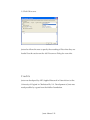
link. Save the installer to your computer and then double-click its icon to
run it. Simply follow the prompts from there and Juxta will be ready for
use.
Getting Started
The Juxta installation includes several sample collations, which can be
accessed from the File menu. Select “File”, then “Open Sample”
(File->Open Sample) and then select a JXT file for the sample you wish
to view.
The four sample collations are:
Damozel—a collation of seven versions of the poem “The Blessed
Damozel” by Dante Gabriel Rossetti. Demonstrates the use of Juxta XML
files to associate images and milestones with text.
Hamlet—a collation of three early texts of William Shakespeare's
Hamlet. Demonstrates using Juxta on large texts with highly variant
spellings.
Renaissance—a collation of two versions of Walter Pater’s Studies in the
History of the Renaissance. Demonstrates the collation of prose texts.
The Orchard Pit—a collation of two versions of Rossetti’s “The Orchard
Pit”, demonstrating another prose text collation.
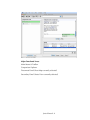
The Display Window, General. Opening a collation displays a list of
witness documents on the left (in the Comparison Explorer panel) and on
the right a transcription of one of the witness texts as the “base text” (at
the beginning, it chooses the first of the listed witnesses). At the top is a
menu with a set of standard editing functions for adding and removing
witnesses, and for several other operations. Below this menu is a toolbar
with a set of icons. Running the mouse over them displays the functions
Juxta Manual: 2