1
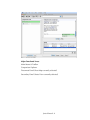
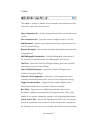
they perform. There is also an input box for entering words to search for
in all the texts in the comparison set. See the section on searching
below.
The upper panel at the right (Document Panel) displays a
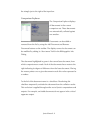
transcription of the base text. If the small (right) function box below the
panel is clicked, the window splits to allow a comparison of texts to be
displayed. The two small boxes above the text display area allow one to
choose the comparison pair. The base text is always the left of the two.
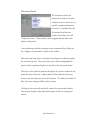
The lock icon between these two boxes (by default, “on”) can be clicked
to unlock so that the comparison text transcription can be independently
scrolled.
The lower right panel is an area for displaying any annotations
that have been made to the texts. Just below this lower right panel are
four buttons that allow the user to control which information is displayed
for the panel. When Juxta starts, “Notes” is displayed, which displays
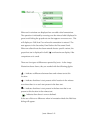
the user's annotations. The two small icons at the lower right allow the
user to unlock the notes from their related transcriptions or to remove the
notes. “Images” sets the panel to display any digital images for the
transcriptions, if they were included in the initial data. Like the notes,
these images can be unlocked from their transcriptions in the panel
above. In addition, the images can be zoomed in and out using the two
small icons which appear at the bottom of the “Images” tab. The
“Moves” button displays all the moves that the user has specified.
Clicking on a move scrolls the documents to display the moved text. The
trash can icon removes the currently selected move. Please see the
section on creating moves, below. The "Search" button displays the
results of the last search operation. Clicking on a search item scrolls the
texts to display the item in context.
Juxta Manual: 3