1
Sales Order Entry User Manual
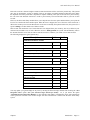
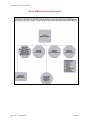
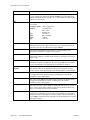
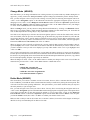
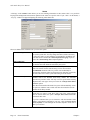
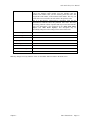
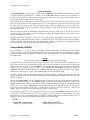
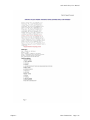
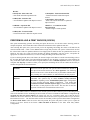
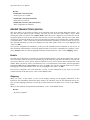
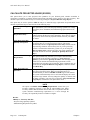
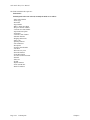
Results:
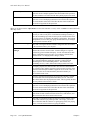
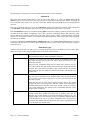
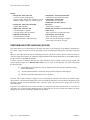
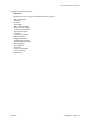
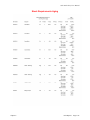
coSO1dy.dbf - Sales Order File
- # of Invoices printed incremented
- Deposit, Freight, Weight, & # of Packages zeroed
- If Order Complete, Type set to “Filled” (type 0)
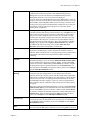
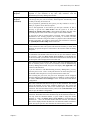
coSO2dy.dbf - Sales Order Detail File
- Quantity Billed updated
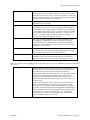
coAR4dy.dbf - Transaction Detail File
- Transaction Detail is added (optional)
coAR5dy.dbf - Salesman File
- Salesman History is updated
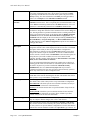
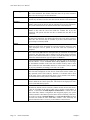
coIM1dy.dbf - Inventory File (if
interactive)
- Sales History is updated
coAR1dy.dbf - Customer File
- Customer History is updated
- Customer Aging Totals are updated
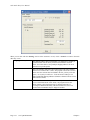
coIM2dy.dbf - Inventory Transaction File
(if interactive)
- Sales Transaction is recorded (optional)
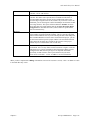
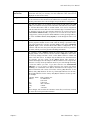
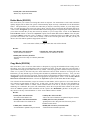
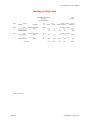
coAR2.dbf - Open Item File
- Open Item Record is added
- Transaction Record is added (optional)
coAR7dy.dbf - Sales Code File
- Sales Code History is updated
- Sales Code Current Amounts are updated
- Cost of Sales Accruals are reversed
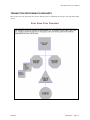
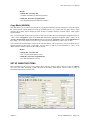
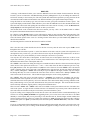
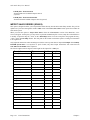
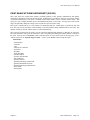
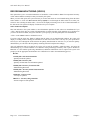
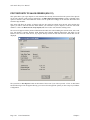
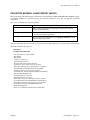
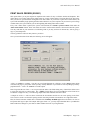
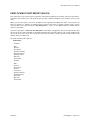
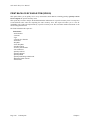
PERFORM ONE-STEP INVOICING (SO0109)
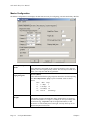
This option allows you to ship and invoice the entire sales order in one simple step. If the Master Configuration is
set to allow a range of orders, the system will prompt you for a beginning and ending sales order range to ship and
bill.
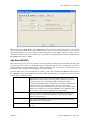
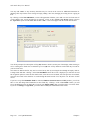
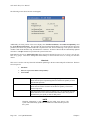
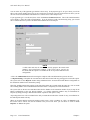
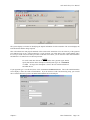
When you select this option, the system will prompt you for the specific sales order to invoice if you have chosen to
only allow single sales orders to be completely shipped and billed. This option should only be used if ALL items on
the sales order are to be billed and shipped.
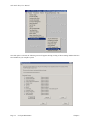
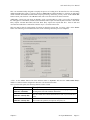
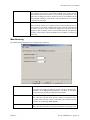
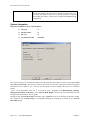
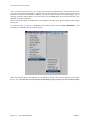
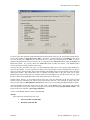
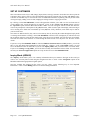
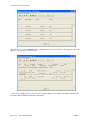
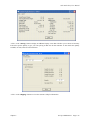
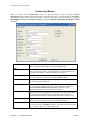
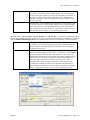
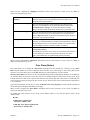
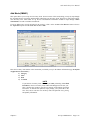
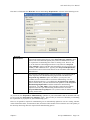
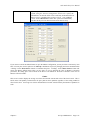
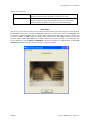
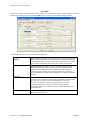
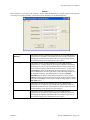
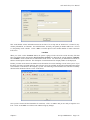
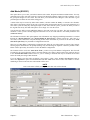
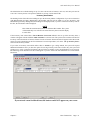
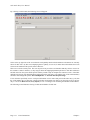
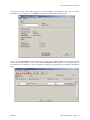
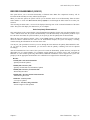
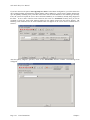
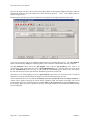
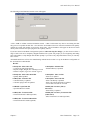
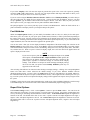
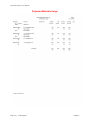
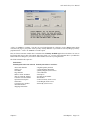
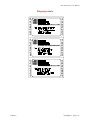
A screen will then be displayed showing sales order information and a summary of the invoicing amount. The
system will then prompt you to “Bill this Sales Order?” If you <click> on the check box, the system will perform
the following steps:
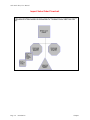
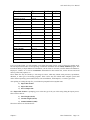
1) All finished goods items that have not been shipped, and are not currently on hand in inventory,
will be manufactured.
2)
All order quantities that have not already been recorded as shipped, will be shipped.
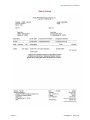
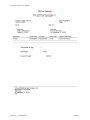
3) The entire order will be billed and an invoice produced.
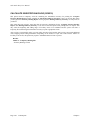
The sales order is then recorded as complete. If you are utilizing the AR Sales Code feature, the General Ledger
entries that are created from this billing will use the Accounts Receivable chart of account number designated on the
AR Sales Code that was selected during the entry of the Sales Order. The system will now prompt you for the next
sales order to bill.
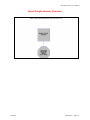
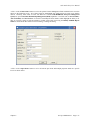
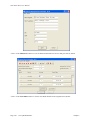
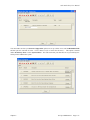
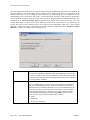
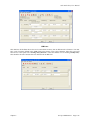
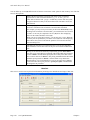
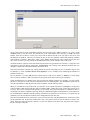
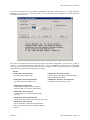
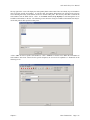
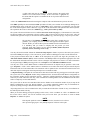
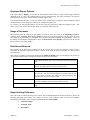
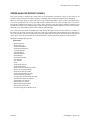
If you have any serialized items on a sales order that were not specifically reserved in advanced (i.e. at the time of
order entry), the system will pause during this process and prompt you to specify which serial numbers are being
shipped for each specific item and their quantities on each order.
Page 3-52
Enter Transactions
Chapter 3