1
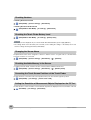
Creating New Scenes
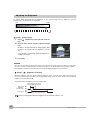
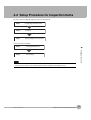
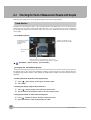
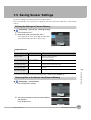
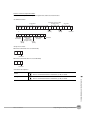
The default scene number is 0. To create another scene, use the following procedure to switch the scene and
then make the settings.
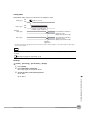
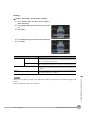
(Setup Mode) − [Select scene]
1
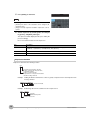
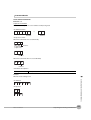
Press the number of the scene to change to and then
press [Select].
2
The scene will change. Make the settings for the
scene.
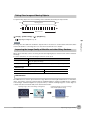
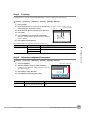
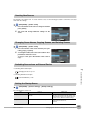
Changing Scene Names, Copying Scenes, and Deleting Scenes
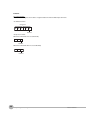
(Setup Mode) − [Select scene]
1
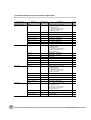
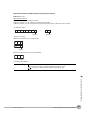
Press the number of the scene and then press [Rename], [Copy], or [Clear].
2
To change the name, enter a new scene name in 15 alphanumeric characters or less.
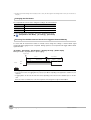
To copy a scene, press the number of the scene to
copy.
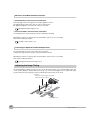
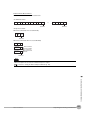
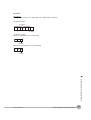
Switching Scenes from an External Device
7
• Controlling with Parallel Inputs
Convenient Functions
Changing the Scene: p. 137
• Controlling with Ethernet Inputs
Command Details: p. 149
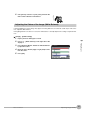
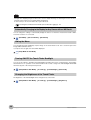
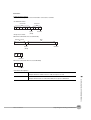
Setting the Startup Scene
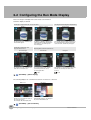
(Setup Mode) − [Sensor settings] − [Startup settings]
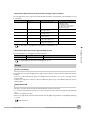
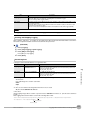
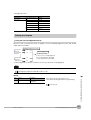
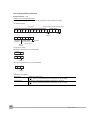
The following items can be set.
Item
Purpose
Setting range
Startup mode
Select whether the startup scene number is set
manually.
ON
OFF (The scene number when the settings were
saved will be the startup scene number. The startup mode is set to OFF in the default settings.)
Startup scene
Set the scene number to use at startup.
Standard models: 0 to 31,
Single-function models: 0 to 8,
Default: 0
FQ User’s Manual
Changing the Scene to Change the Line Process
105